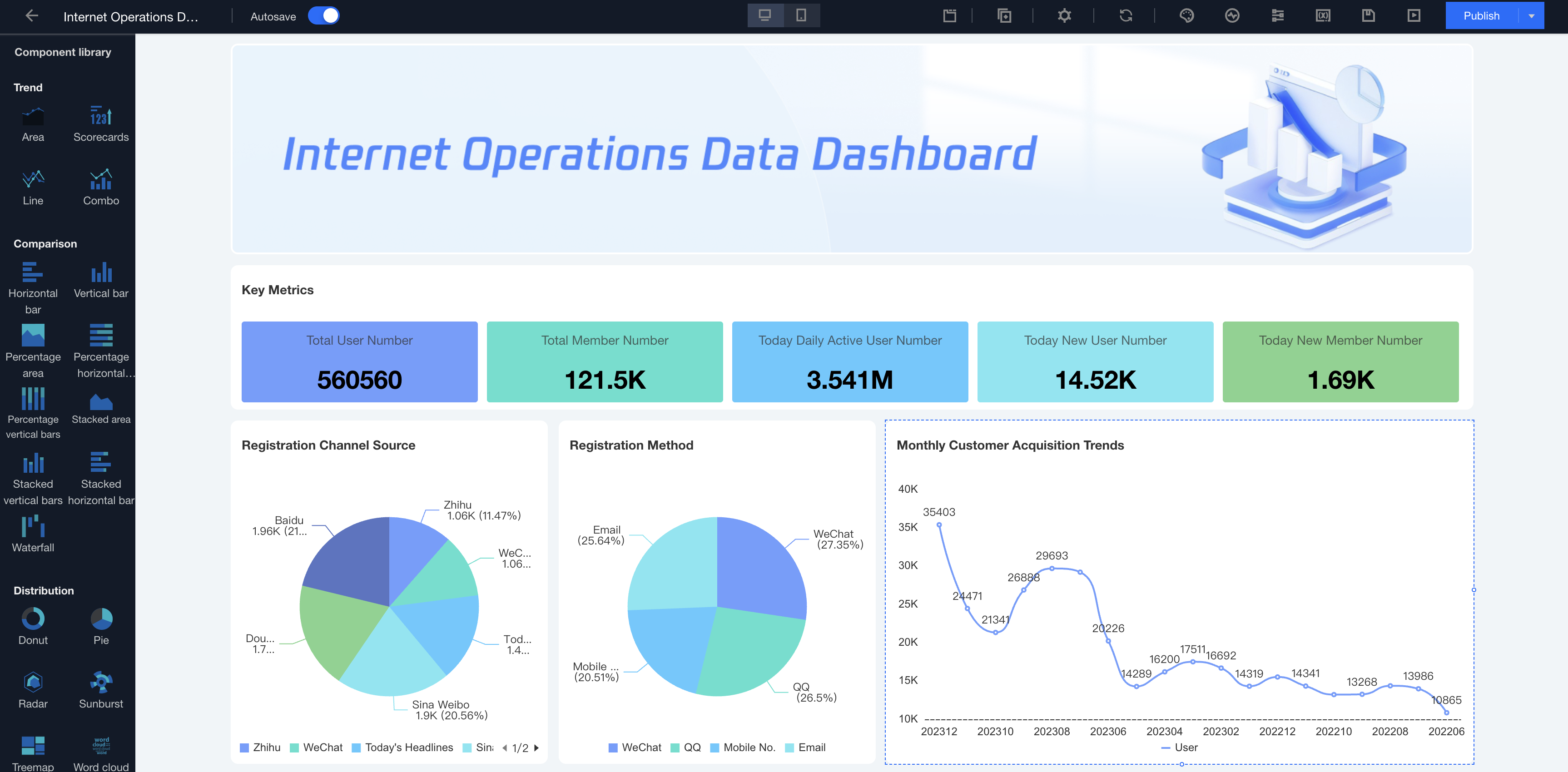
For mobile scenarios, we provide a mobile editor for user-edited mobile interfaces.
Description: The mobile editor feature is currently being improved. Stay tuned for the latest progress in What's New.
Current feature:
Automatically initialize mobile page layout
Adjust mobile layout
Mobile component hidden
Version features limitation notes: This feature is only supported for Basic Version and Professional Edition users.
Mobile Terminal Editing
1. Click Console > Project > Page > Edit to enter the webpage canvas editing.
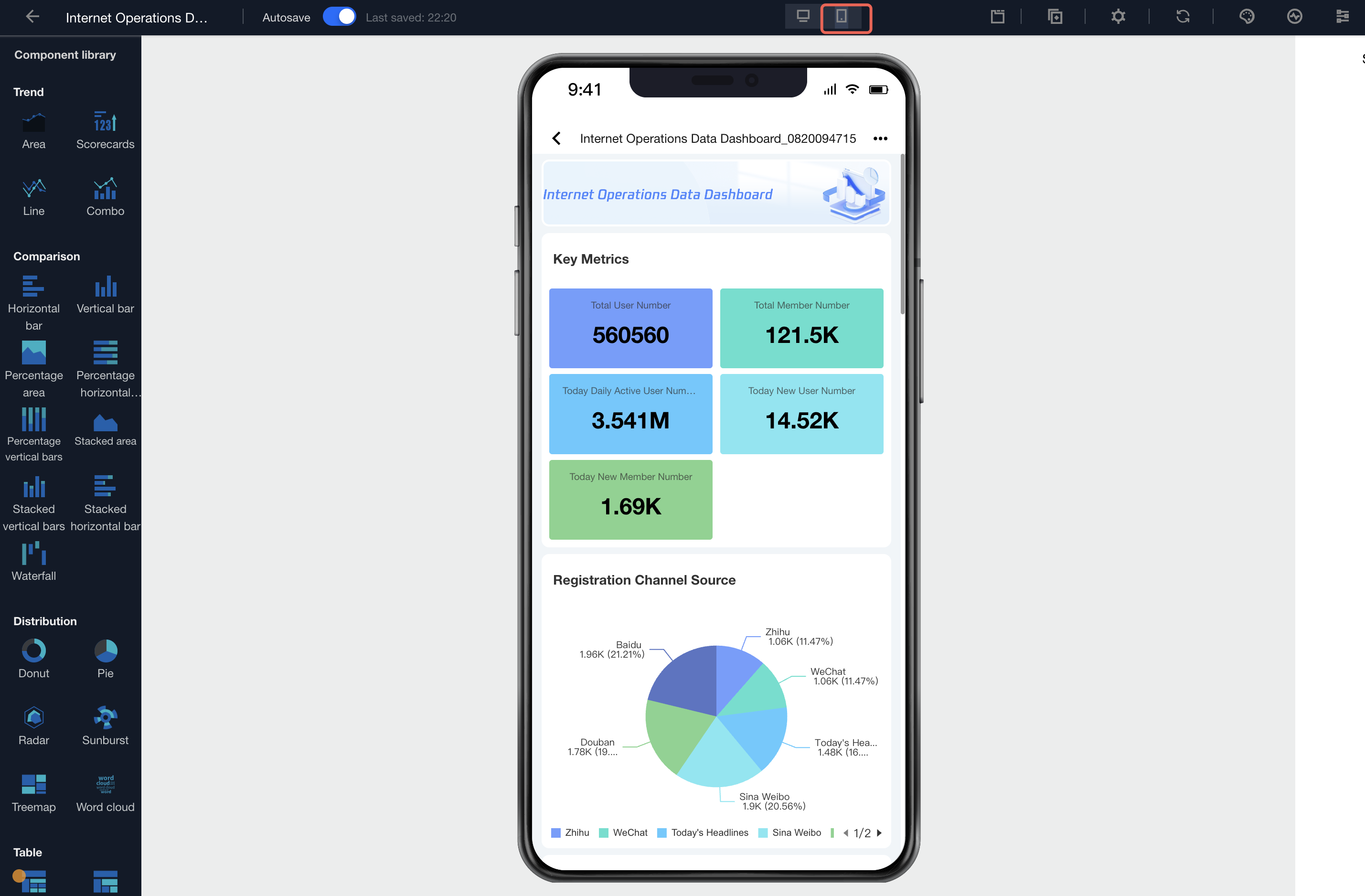
2. Click the "Mobile Terminal" icon to switch to the mobile terminal.
The system will automatically generate a mobile terminal view for the page. This view allows editing component size and position to make the mobile effect more in line with the display scenario (mobile terminal editing dimensions and positional settings will not affect the PC, likewise, PC settings do not affect the mobile terminal):
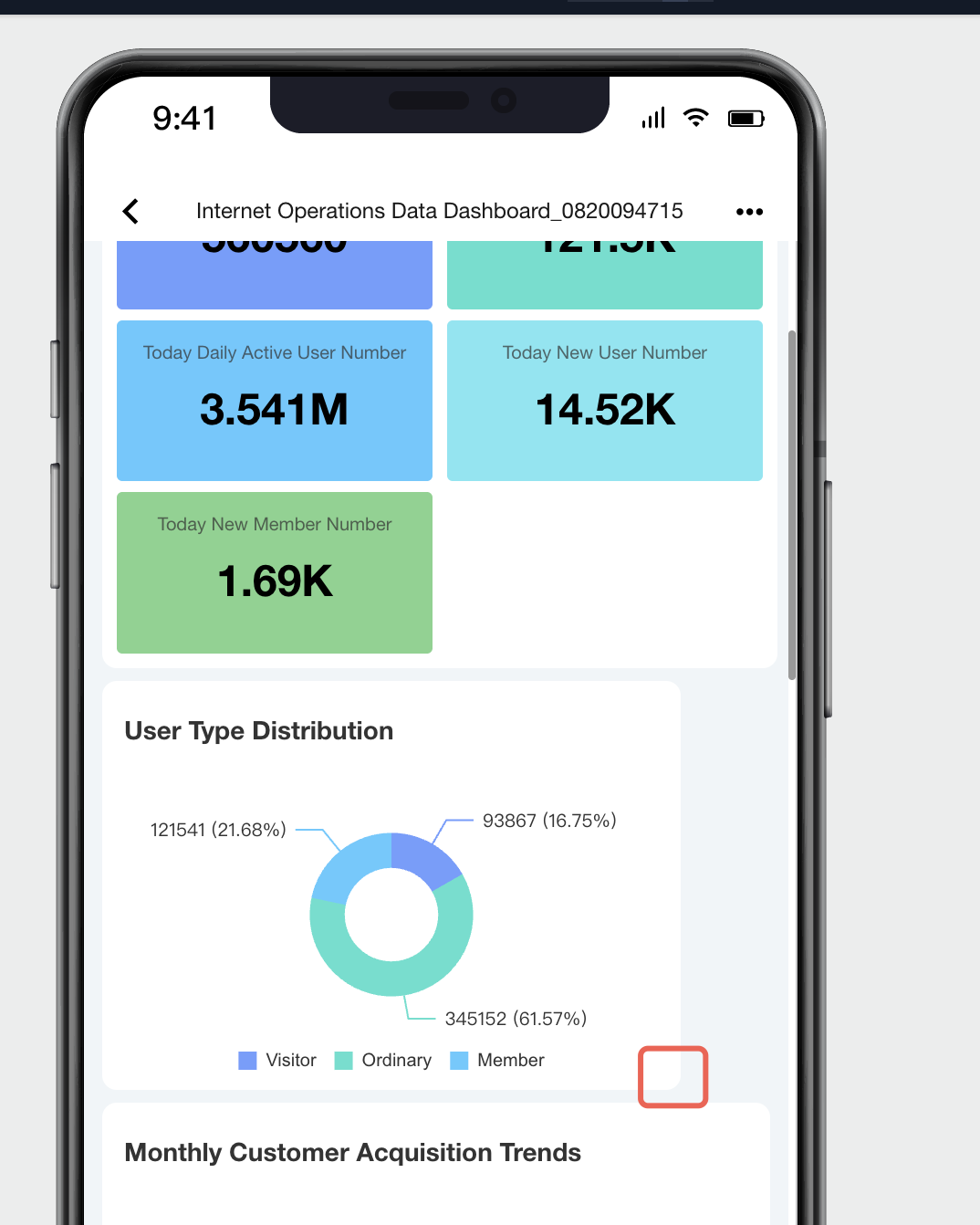
Edit component size by dragging the bottom-right corner to change size.
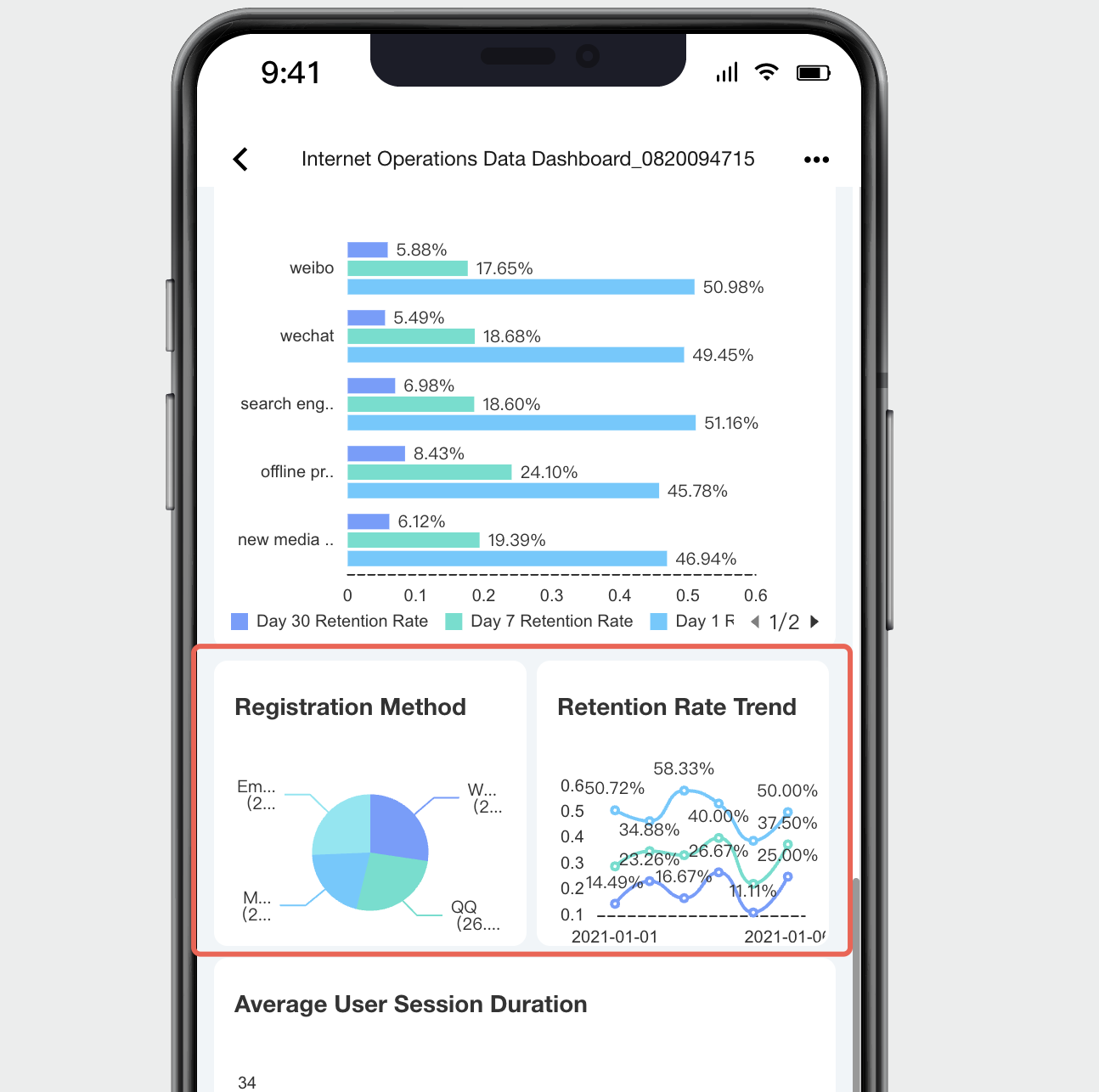
Multiple components can be orchestrated per line:
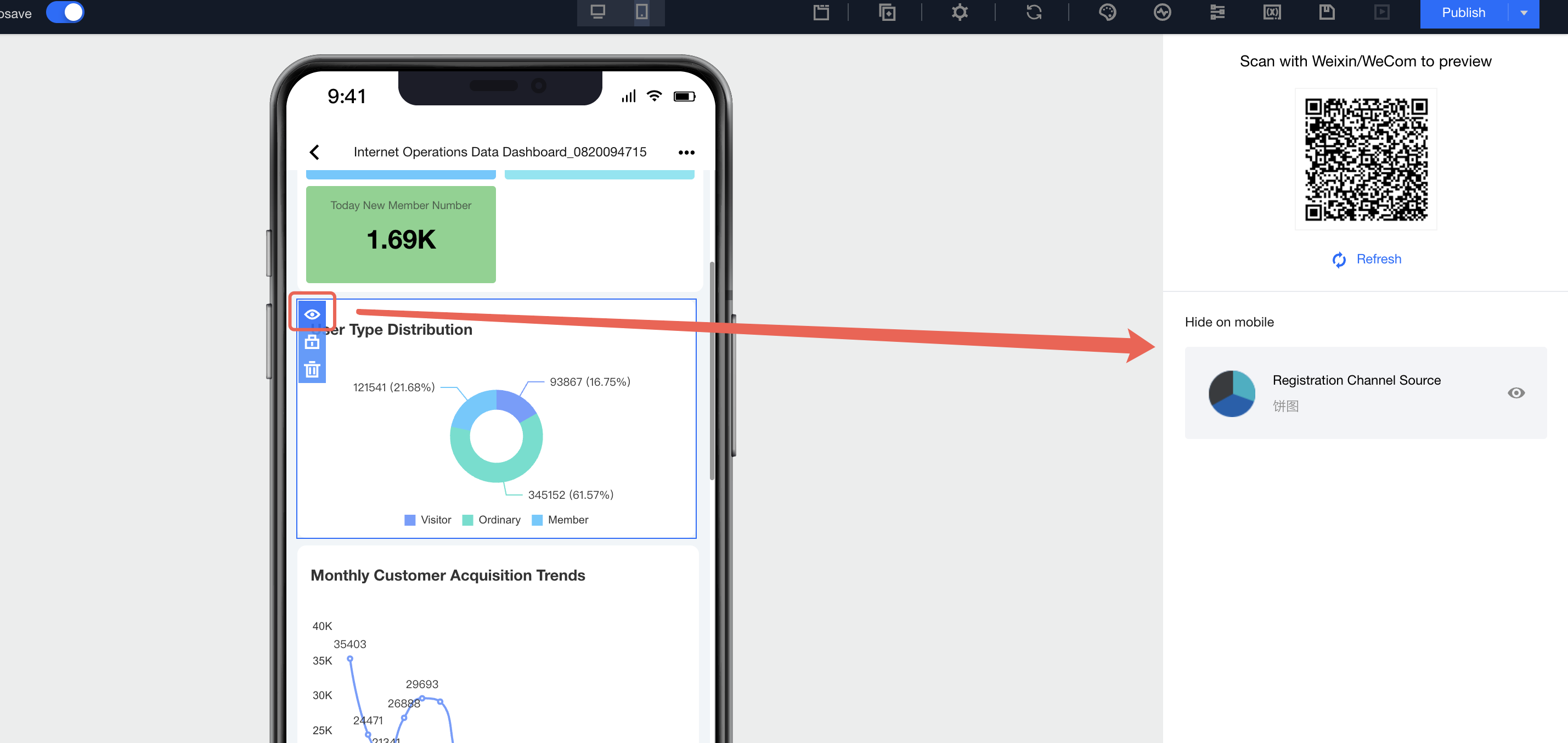
3. Hide partial components on mobile terminal:
Move mouse to the component, click the "eye" icon to hide it (unaffected on PC)
To restore, click the "eye" icon in the "Hide on mobile terminal" panel on the right. The component will be added to the bottom of the current page after restoration.
Some components are not currently supported on mobile terminal, such as tab components, and cannot be restored. Support is being gradually added. Stay tuned for product updates.
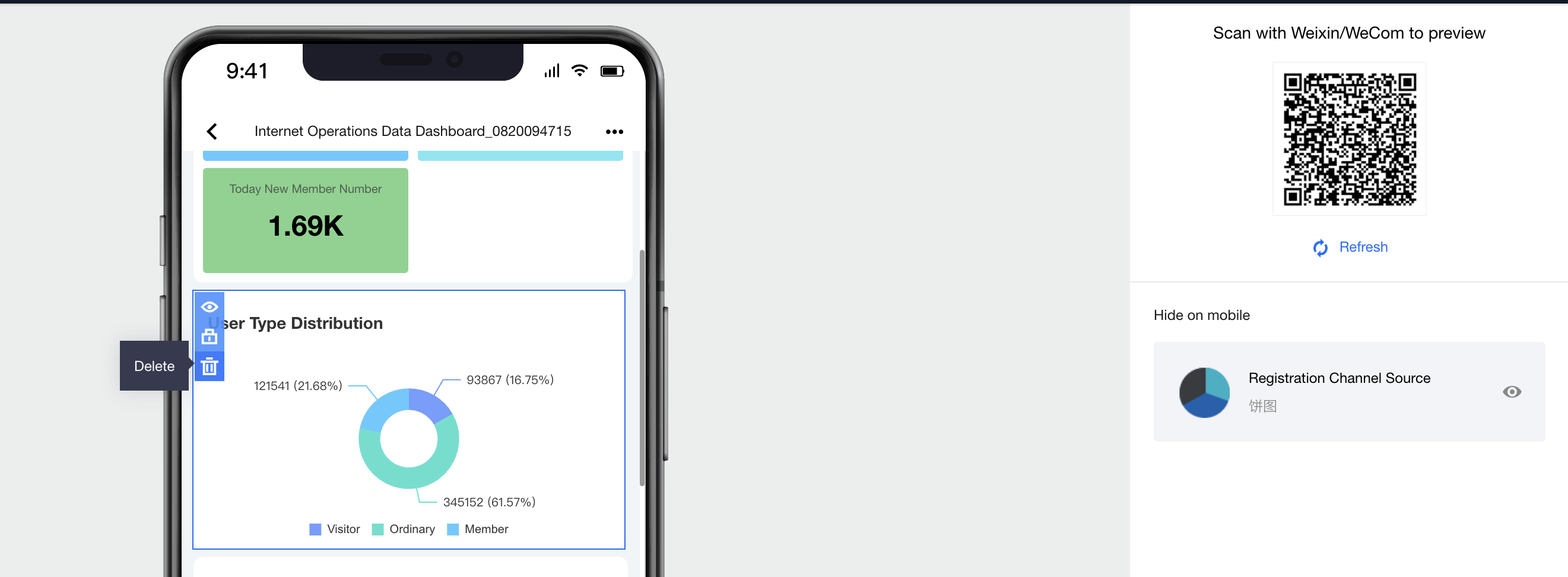
4. Delete component:
You can delete some components. Once deleted, the component will also be removed on the PC terminal.
5. Edit component content: Editing component content is not currently supported on mobile terminal. Switch back to PC terminal to edit.
6. Create new component: Adding components is not currently supported on mobile terminal. Switch back to PC terminal to add.
Mobile Terminal Preview
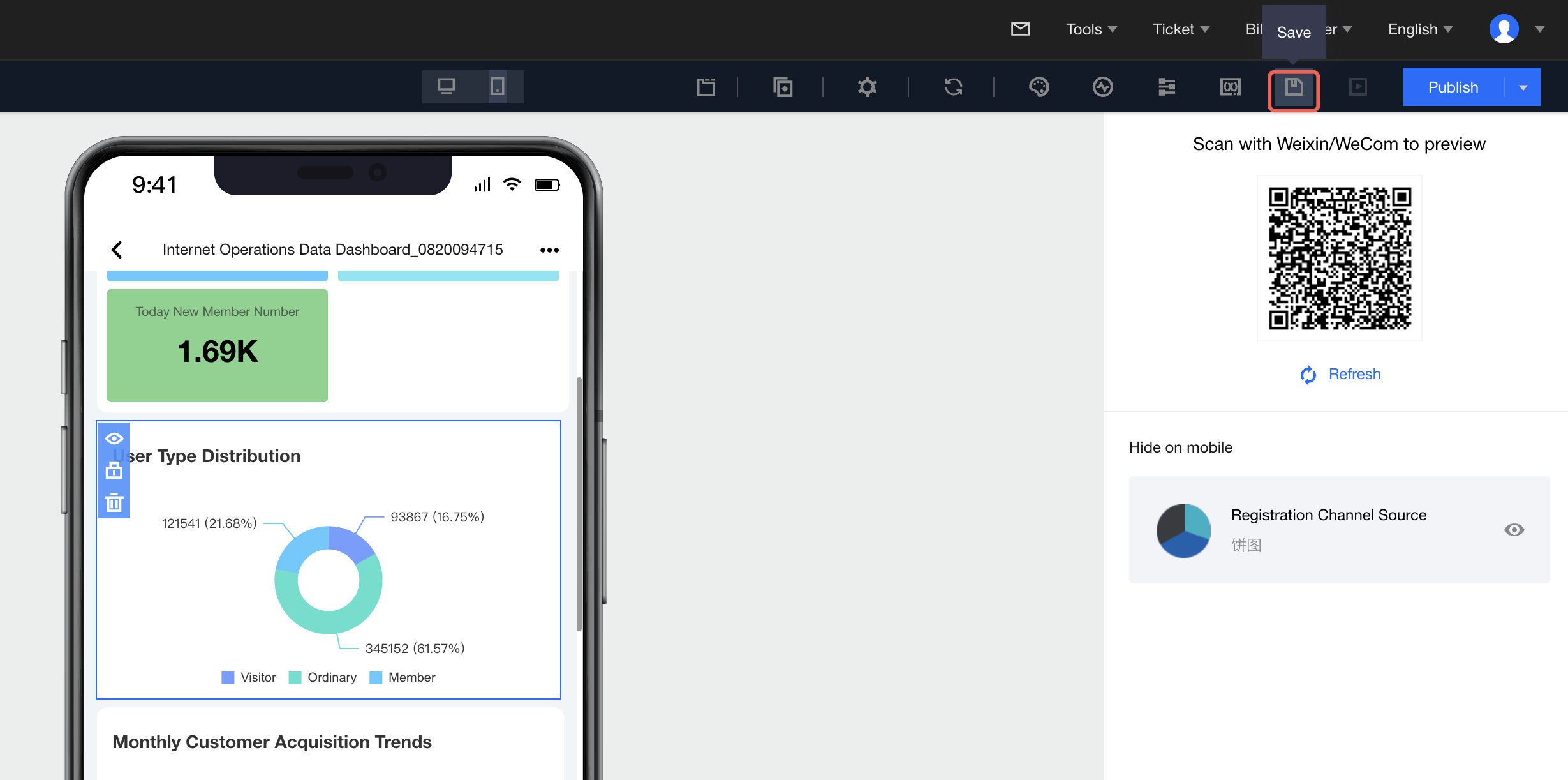
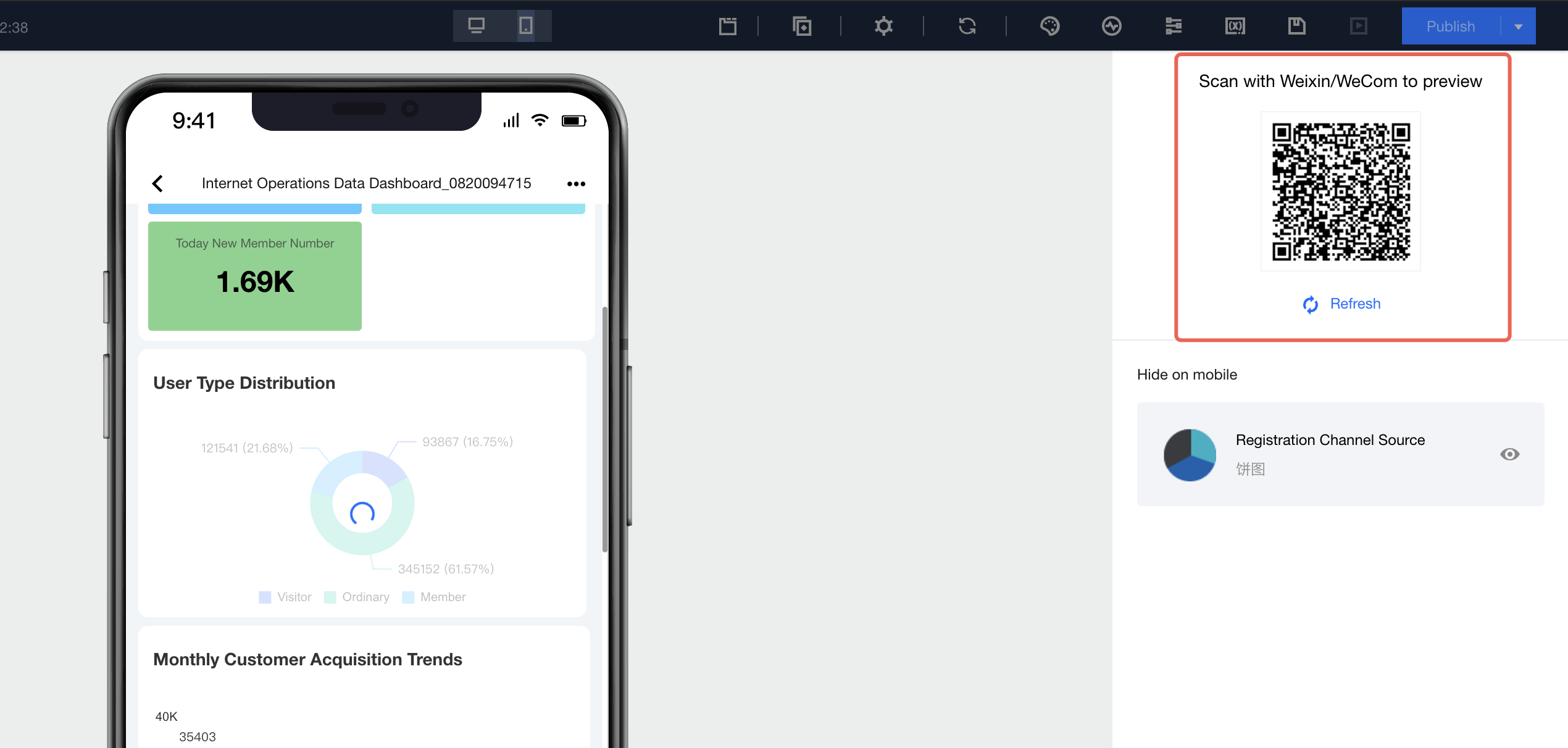
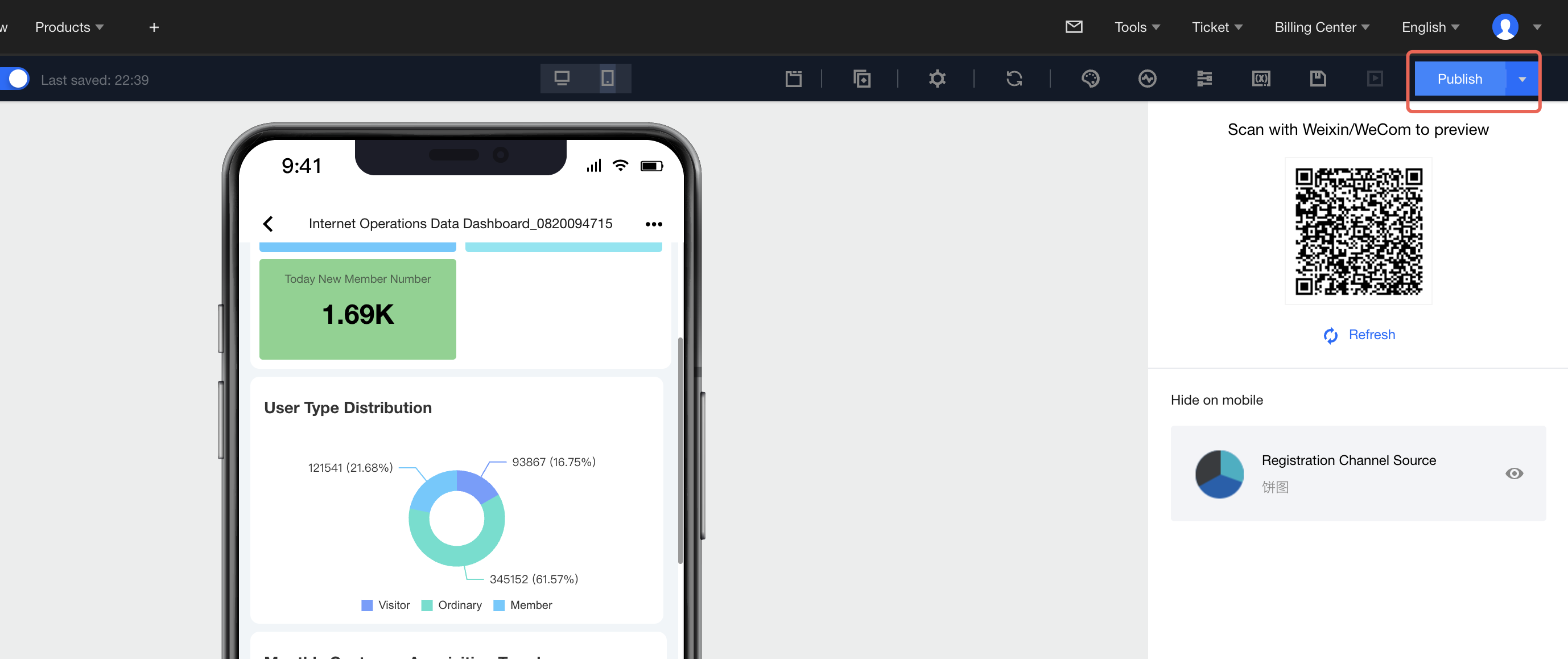
Users can view the preview effect on mobile phones via the preview feature. Detailed operations:
1. Save current page
2. Refresh or scan the QR code directly
Mobile Terminal Release
Users can publish on the mobile terminal, and the release process matches the PC side:
1. Click the Publish button in the upper right corner
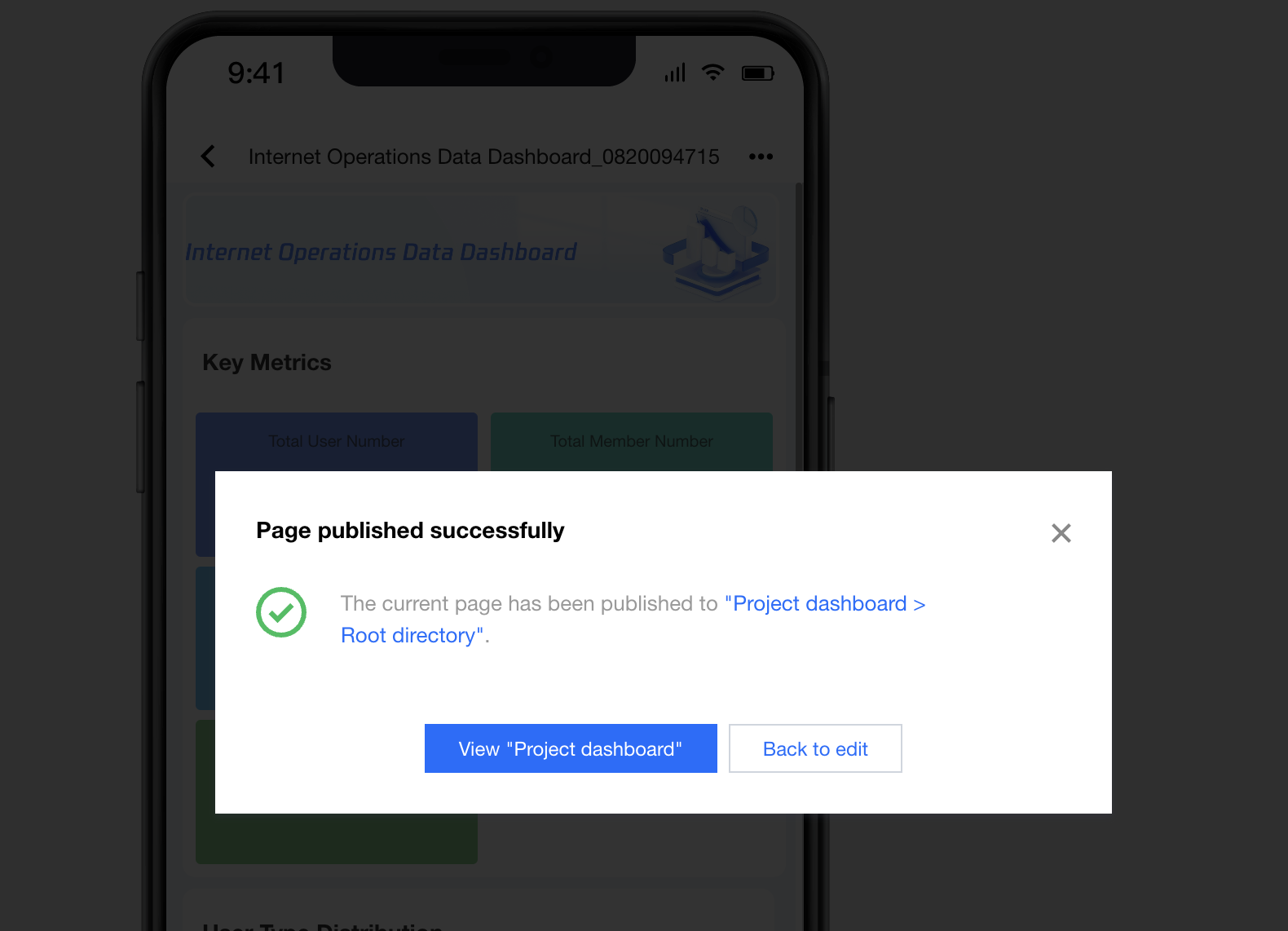
2. After successful release, click View Dashboard to enter the dashboard.
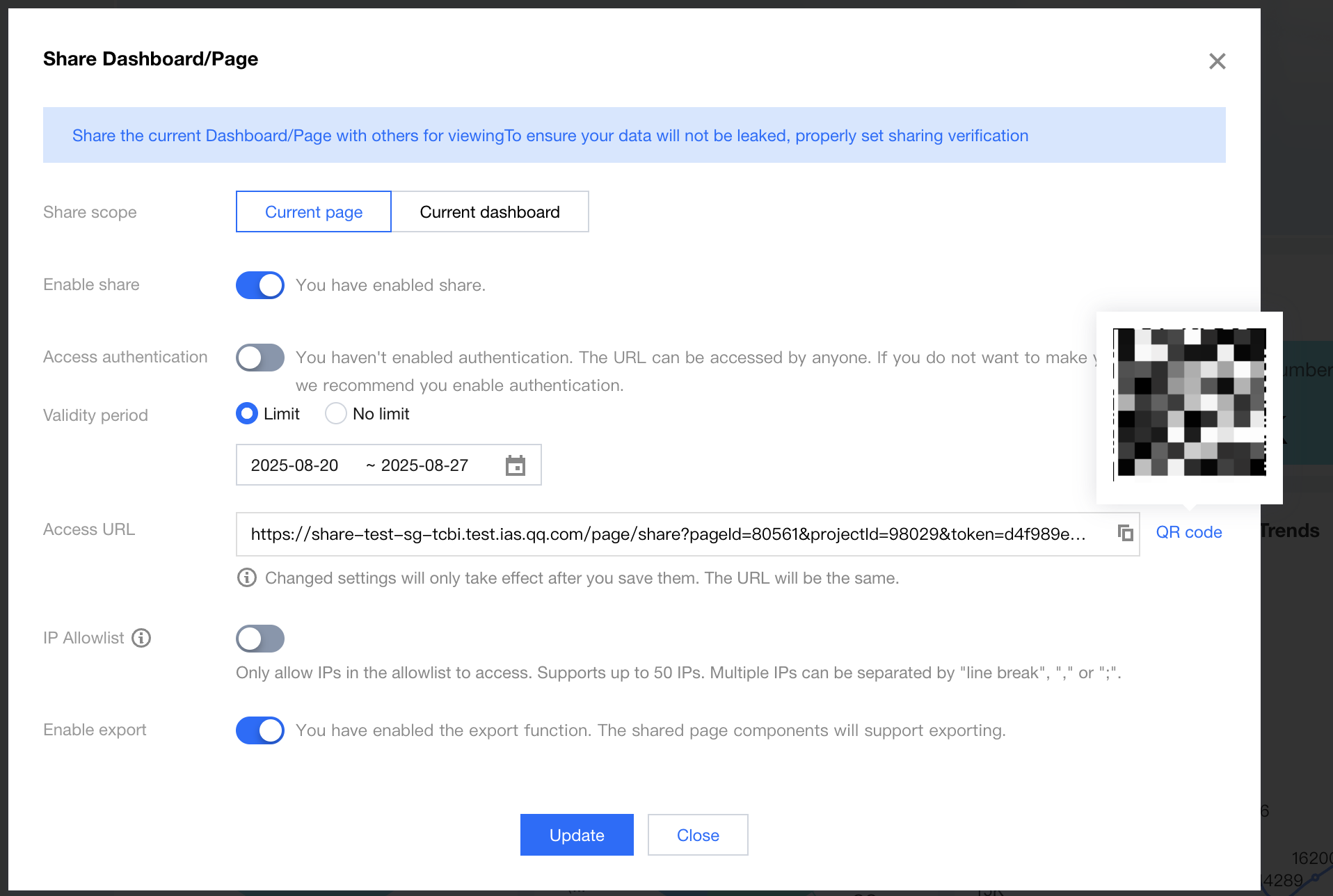
3. After entering the dashboard, click Share, then click QR code on the right of the access link to scan and view the mobile report:
4. Mobile terminal link retrieval:
You can copy the access url and send it directly to others. When users access, it will automatically select to show the mobile terminal or PC based on user devices.
If you want to access the mobile terminal directly, add "m-" before the PC address. For example, if the PC address is "https://share.tcbi.qq.com/page/share?pageId=00000000&projectId=00000000&token=5cd5beb4-3236-4e8b-b665-054dc8130c02&scope=page", the mobile terminal address will be "https://m-share.tcbi.qq.com/page/share?pageId=00000000&projectId=00000000&token=5cd5beb4-3236-4e8b-b665-054dc8130c02&scope=page".
2. Theme feature is not supported. For example, if the chart style is set based on the theme on PC, it may cause error occurrence on mobile terminal. Temporarily set the PC to a black-on-white theme as much as possible. The theme feature will be updated in a recent update.