After the report is created, you can share the report with others for viewing as needed.
Prerequisites:
The shared page has been published.
The user initiating the share needs to have the "Share" permission.
To include page parameters, you need to purchase the Professional Edition.
In this document, you will learn:
How to set up a share page;
How to include page parameters to a shared page.
Page Sharing Settings
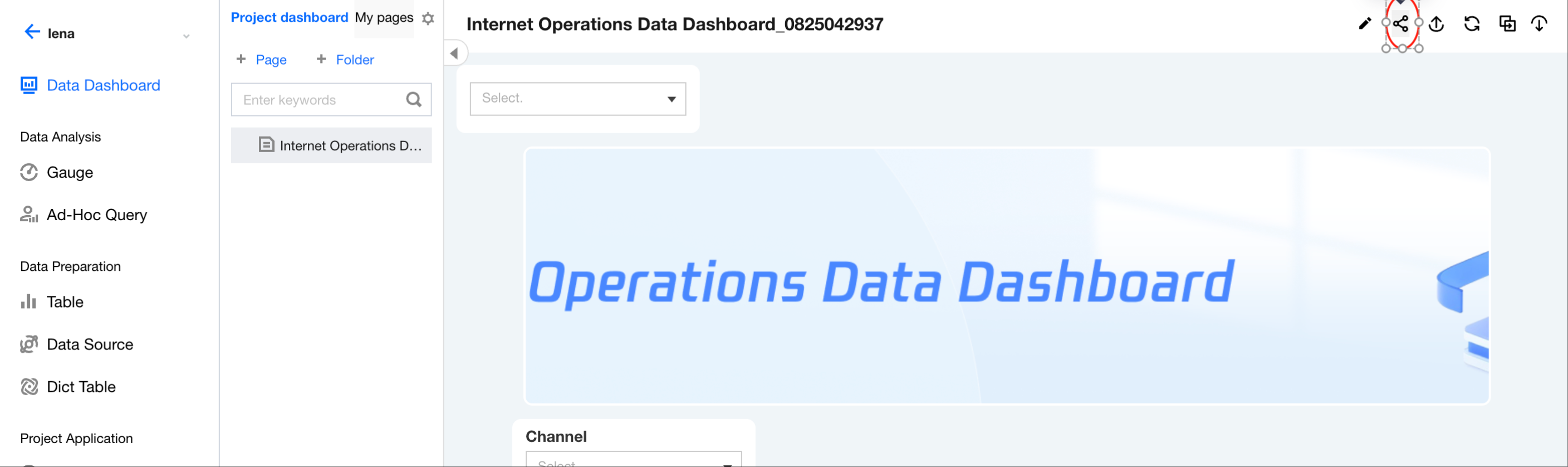
1. Go to the project > Dashboard > click the Share icon.
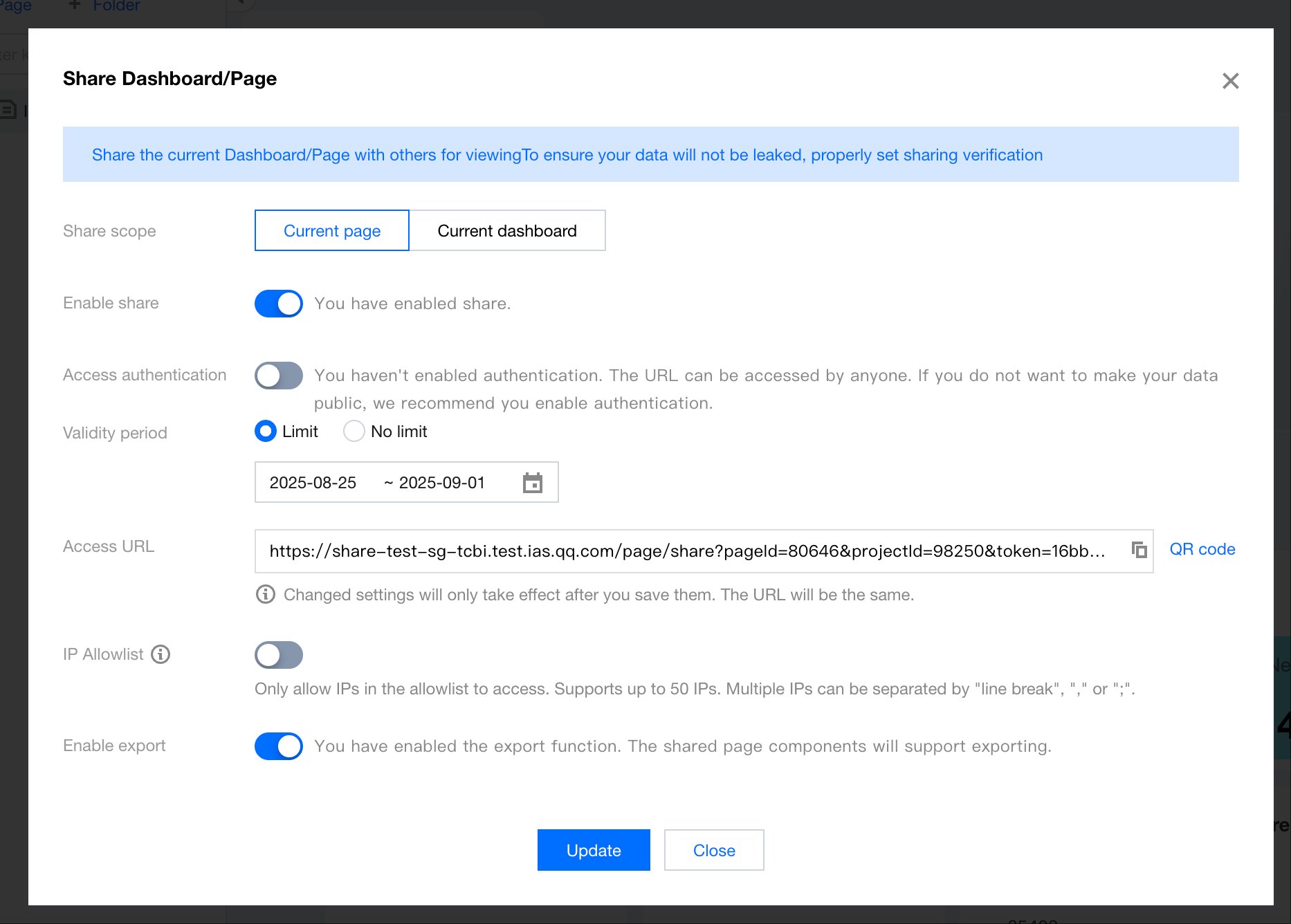
2. In the pop-up layer, you can share the current page.
Enable sharing: The current page will be shared. Otherwise, users will encounter an error when accessing the old link.
Access verification: If verification is disabled, any user with the current access link can view the page (it is recommended to enable verification). Otherwise, users will need a password to access the page.
Validity period: You can set no time limit. Once a time limit is set, users will only be able to access the page within the specified validity period.
Access link: Copy the link and distribute the link to viewers.
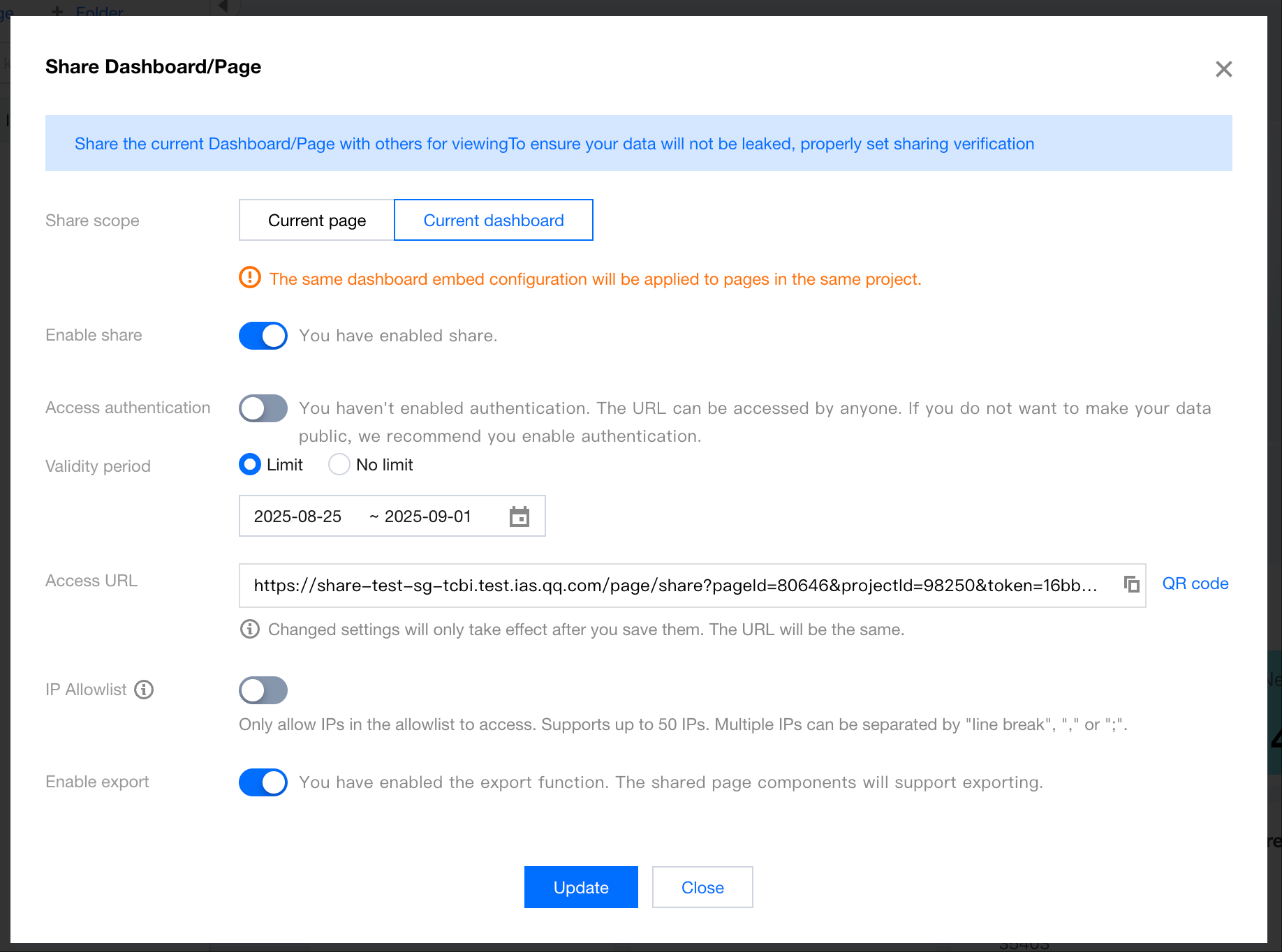
3. At the same time, sharing the entire project's dashboard is supported (requires the project administrator or enterprise administrator roles):
Note
1. The current page sharing requires the initiator to have edit permission for the webpage, otherwise unable to initiate sharing;
2. The project dashboard sharing can only be initiated by project administrators or enterprise administrators.
3. Users access pages through the access link. The system does not validate the viewer identity. For data security consideration, please be cautious when sharing.
4. After sharing is enabled, the link is generated automatically. Any updates to the sharing configurations require clicking 'Update Settings' to take effect.
Sharing Page with Parameters
1. After the sharing settings are configured as above, the shared access link is obtained.
/* In this example, assume the access link obtained is as follows. Remember to modify the values for pageId, projectId, and token. */
Refer to URL Page Parameter Construction to obtain the page parameters required to be included. In this example, we assume the “department” parameter with the value "Quality Group" needs to be included.