tencent cloud

Business Intelligence

Product Introduction
Product Overview
Strengths
Product Features
Use Cases
Purchase Guide
Billing Instructions
Purchase Guide
Upgrade Instructions
Renewal Instructions
Quick Start
Data Access
Creating a VPC Data Source
Creating Cloud Data Sources
Creating Proprietary Data Sources
Data Table Creation and Data Processing
Introduction to Data Analysis Basics
Data Table Creation
Data Processing
Data Analysis
Analysis Settings
Interactive Analysis
Ad-Hoc Analysis
Data Visualization
Public Style Setting Instructions
Filter Components
Chart components
Rich Text Component
Other Components
Mobile Terminal Layout Editor
Theme Settings Introduction
Page Layout Introduction
Dashboard Directory Management
Collaboration and Application
Push Channel Management
Report Push
Sharing
Embedding
Self-Service Data Retrieval
Metric Alarms
Data Security
Parameter Construction
Platform Management
Account and Permission Management
Statistics and Analysis
System Settings
Resource Migration
Practical Tutorial
Collection of Optimization Practices
Performing Trend Analysis
Performing Proportion Analysis
Performing Data Analysis with Excel Files
Creating Tables
API Documentation
History
Introduction
API Category
Making API Requests
Project Management APIs
Role APIs
Database Table APIs
Report Embedding APIs
Page Management APIs
Data Types
Error Codes
FAQs
Relevant Agreements
Service Level Agreement
Privacy Policy
Data Privacy And Security Agreement
Contact Us

Upgrade Instructions

PDF
Focus Mode
Font Size
Last updated: 2025-09-19 14:51:17
Tencent Cloud Business Intelligence (BI) allows users to upgrade their package edition to their business needs.

Scenarios

If the purchased package does not meet your business needs, you can upgrade it through the console. If the current edition is Basic Edition, you can upgrade it to Basic Edition with more users or Professional Edition.

Operating procedure

1. Log in to the BI Console, then click Upgrade in the version information.
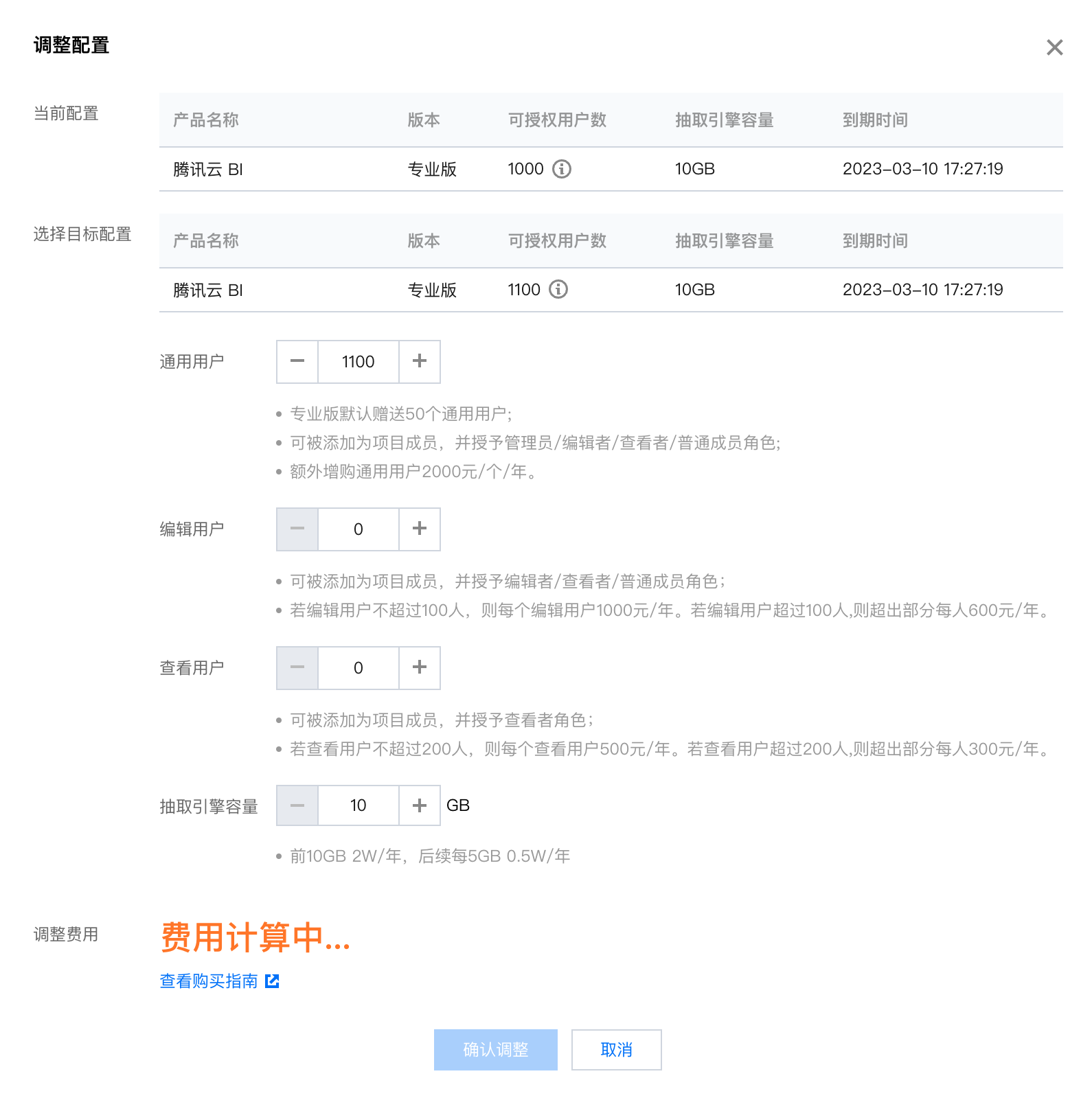
2. Your current package will be displayed, including the edition and number of authorized users. Select the target configuration and the number of packages. For example: the original package is Professional Edition with 1000 users, and now it is upgraded to Professional Edition with 1100 users.


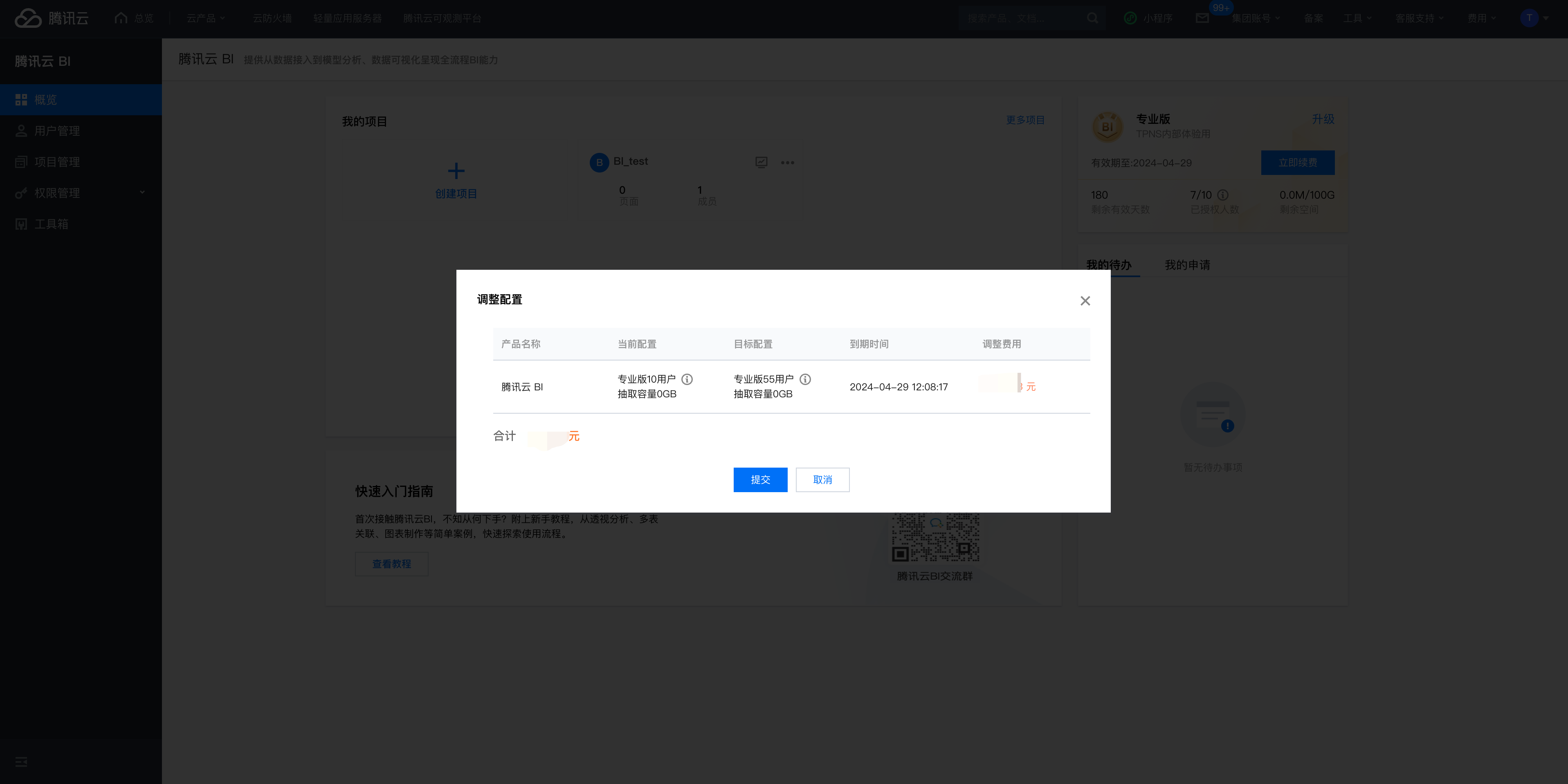
3. Click Confirm Configuration, then the core upgrade information will be displayed again for your confirmation, including the current configuration, target configuration, expiration time, and adjust costs. Upon confirmation, click Submit to go to the order confirmation page.


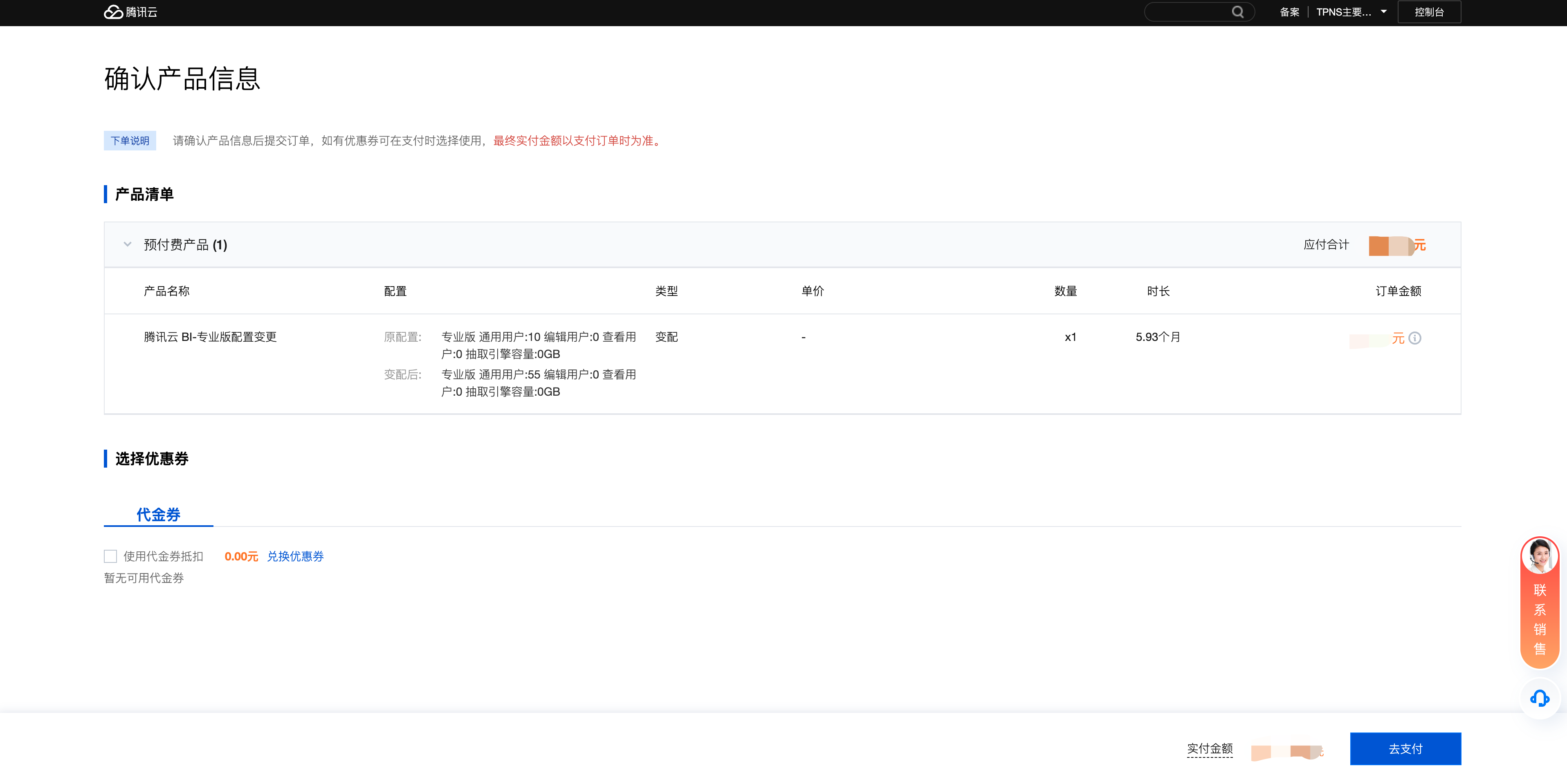
4. On the order confirmation page, you can further confirm your upgrade content and costs, and choose whether to use the promo voucher in your account. After confirming that the information is correct, click Submit Order to make a payment.


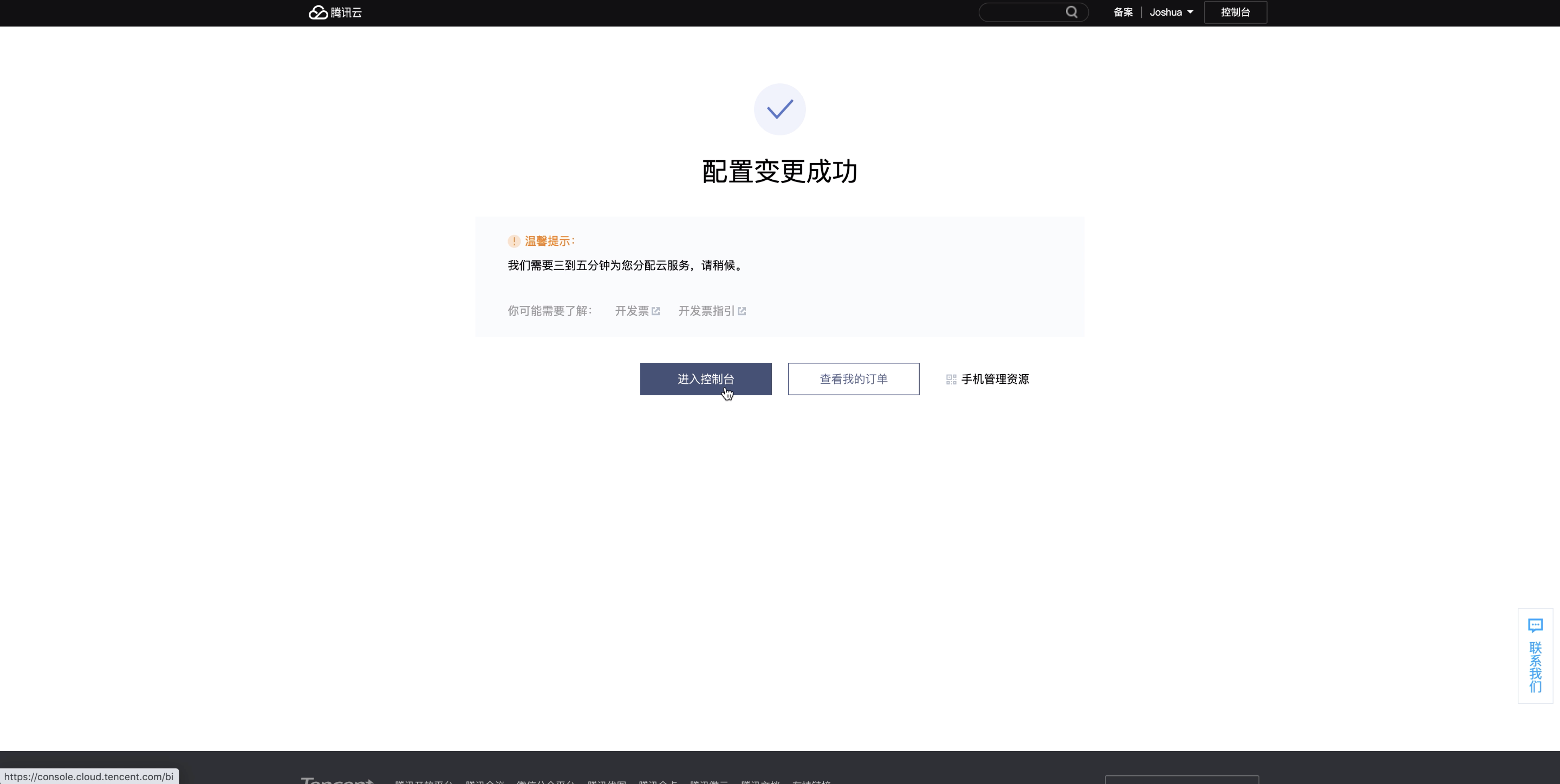
5. After successful payment, you will go to the configuration update success page. The upgrade process is now complete. Click Enter Console to navigate in the BI console and use the upgraded package.


Description of the adjust costs

The formula to calculate the adjust cost is as follows: [Unit price of new configuration × Remaining duration × Discount - Unit price of previous configuration × Remaining duration × Discount]. Both the unit price and the remaining duration are measured in months.


Help and Support

Was this page helpful?

Help us improve! Rate your documentation experience in 5 mins.

Feedback