tencent cloud

Business Intelligence

Product Introduction
Product Overview
Strengths
Product Features
Use Cases
Purchase Guide
Billing Instructions
Purchase Guide
Upgrade Instructions
Renewal Instructions
Quick Start
Data Access
Creating a VPC Data Source
Creating Cloud Data Sources
Creating Proprietary Data Sources
Data Table Creation and Data Processing
Introduction to Data Analysis Basics
Data Table Creation
Data Processing
Data Analysis
Analysis Settings
Interactive Analysis
Ad-Hoc Analysis
Data Visualization
Public Style Setting Instructions
Filter Components
Chart components
Rich Text Component
Other Components
Mobile Terminal Layout Editor
Theme Settings Introduction
Page Layout Introduction
Dashboard Directory Management
Collaboration and Application
Push Channel Management
Report Push
Sharing
Embedding
Self-Service Data Retrieval
Metric Alarms
Data Security
Parameter Construction
Platform Management
Account and Permission Management
Statistics and Analysis
System Settings
Resource Migration
Practical Tutorial
Collection of Optimization Practices
Performing Trend Analysis
Performing Proportion Analysis
Performing Data Analysis with Excel Files
Creating Tables
API Documentation
History
Introduction
API Category
Making API Requests
Project Management APIs
Role APIs
Database Table APIs
Report Embedding APIs
Page Management APIs
Data Types
Error Codes
FAQs
Relevant Agreements
Service Level Agreement
Privacy Policy
Data Privacy And Security Agreement
Contact Us

Rich Text Component

PDF
Focus Mode
Font Size
Last updated: 2025-09-19 15:24:42
The rich text component includes the image component and text component, mainly used to supplement the data report page with images and text.

Image Component

The image component is mainly used to add images to the report page for combined display, commonly used for supplementary explanations or adding logos to enhance the overall aesthetics of the page.

Basic Settings:


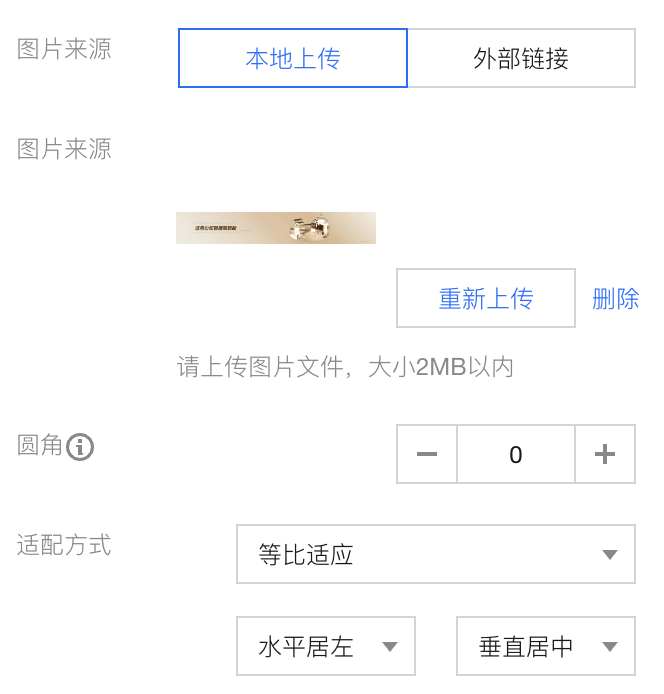
Image source: local upload/external link
Rounded corners: Set the corner radius range for images
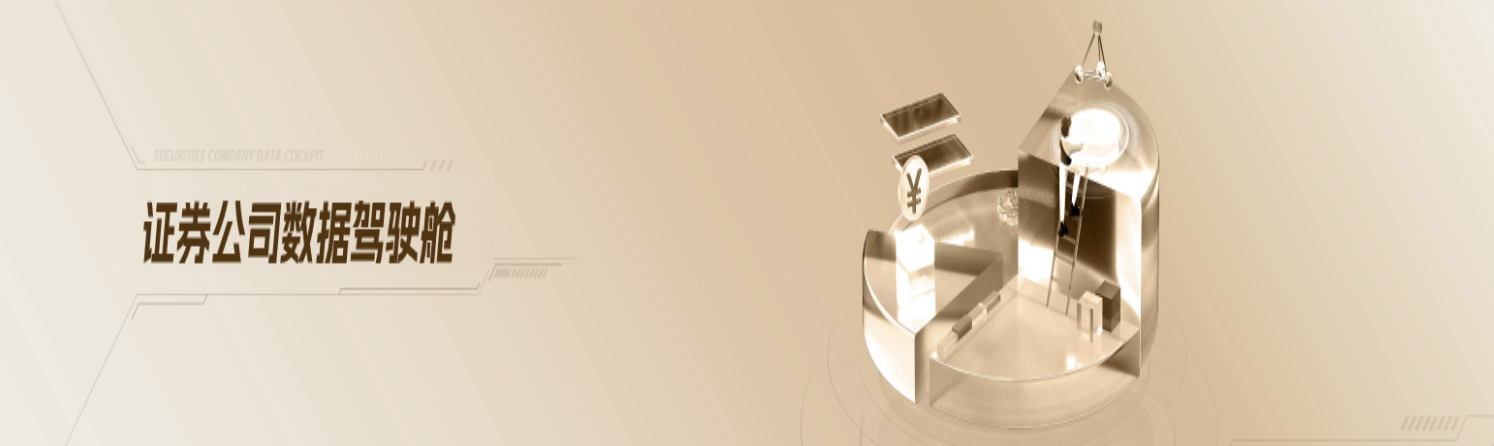
Adaptation method: Keep size/Stretch to fill/Adapt to fill/Proportional adaptation. Variations in each method are shown in the table below.
Adaptation Method
Adaptation Description
Effect display
Maintain size
Maintain the original size of the image, do not crop if it exceeds the department, and do not stretch if insufficient.


Stretch fill
Stretch the image size to the component size. In this mode, the image may be distorted.


Fit fill
Maintain the image ratio, scale the image using the shortest side, and crop the excess.


Proportional adaptation
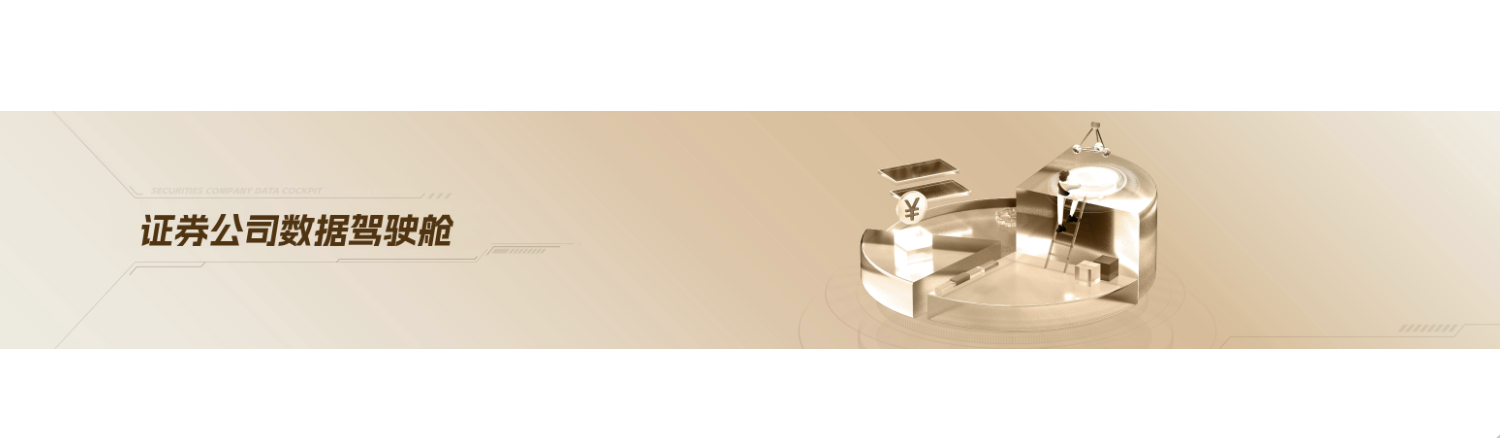
Maintain the image ratio, scale the image using the longest side, and leave the insufficient part blank.


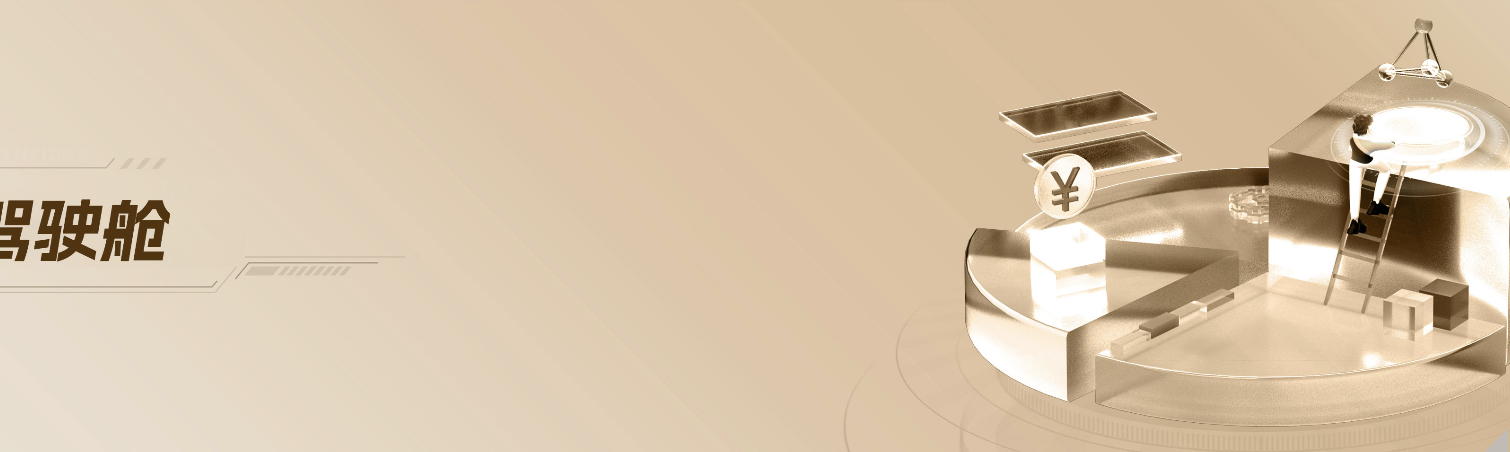
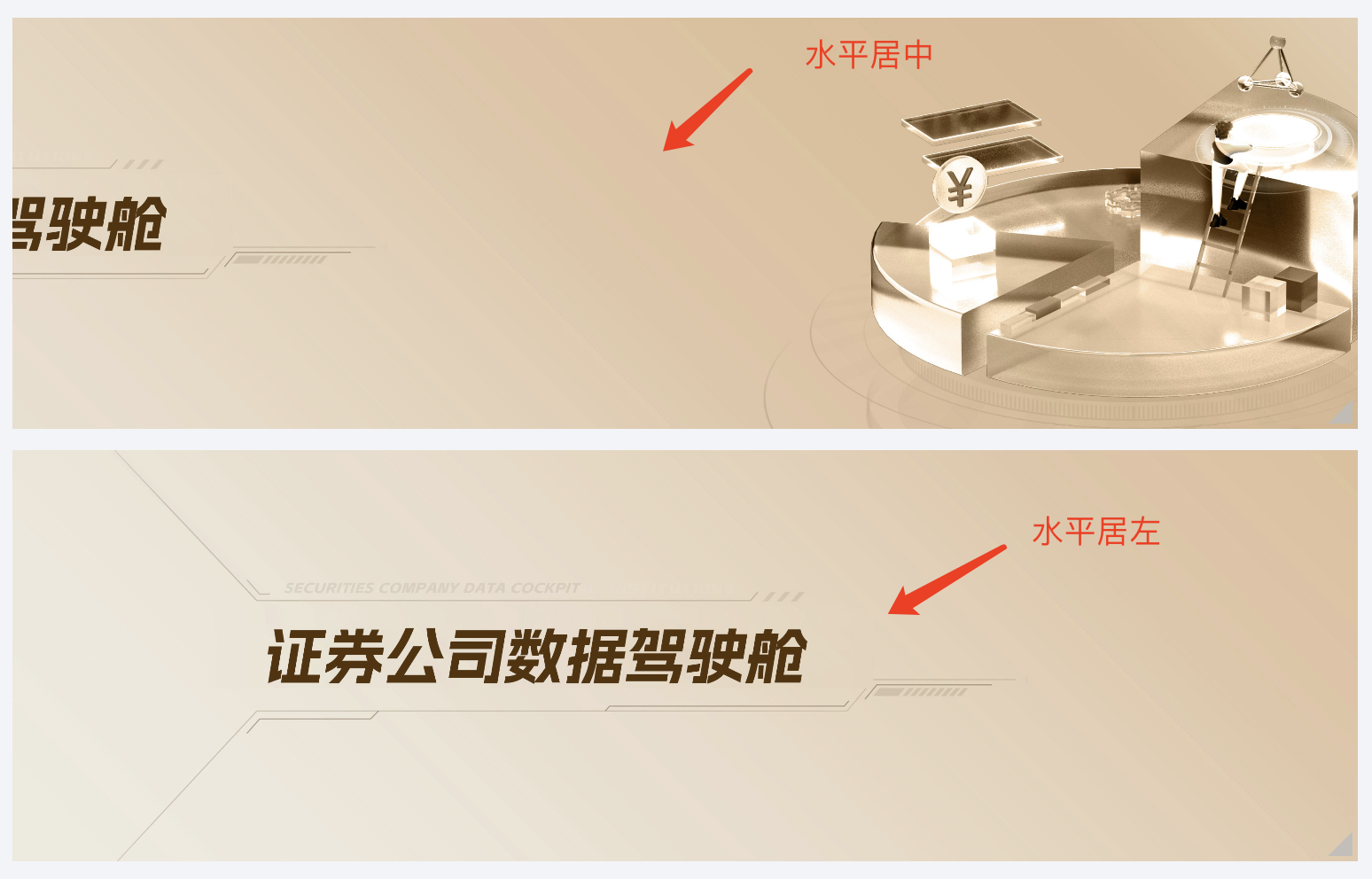
Adapt position: Horizontal and vertical positions allow image alignment in different directions. The figure below compares horizontally centered and left-aligned effects using the "Adapt to fill" method.


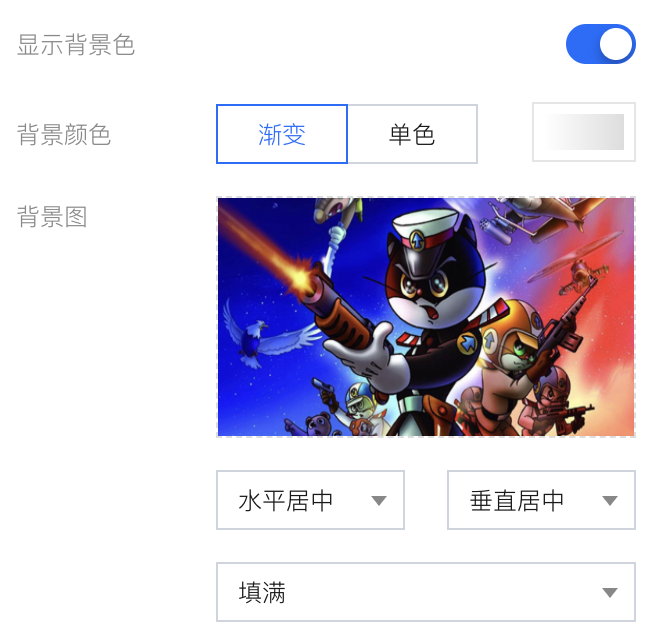
Background: Supports background color and image settings


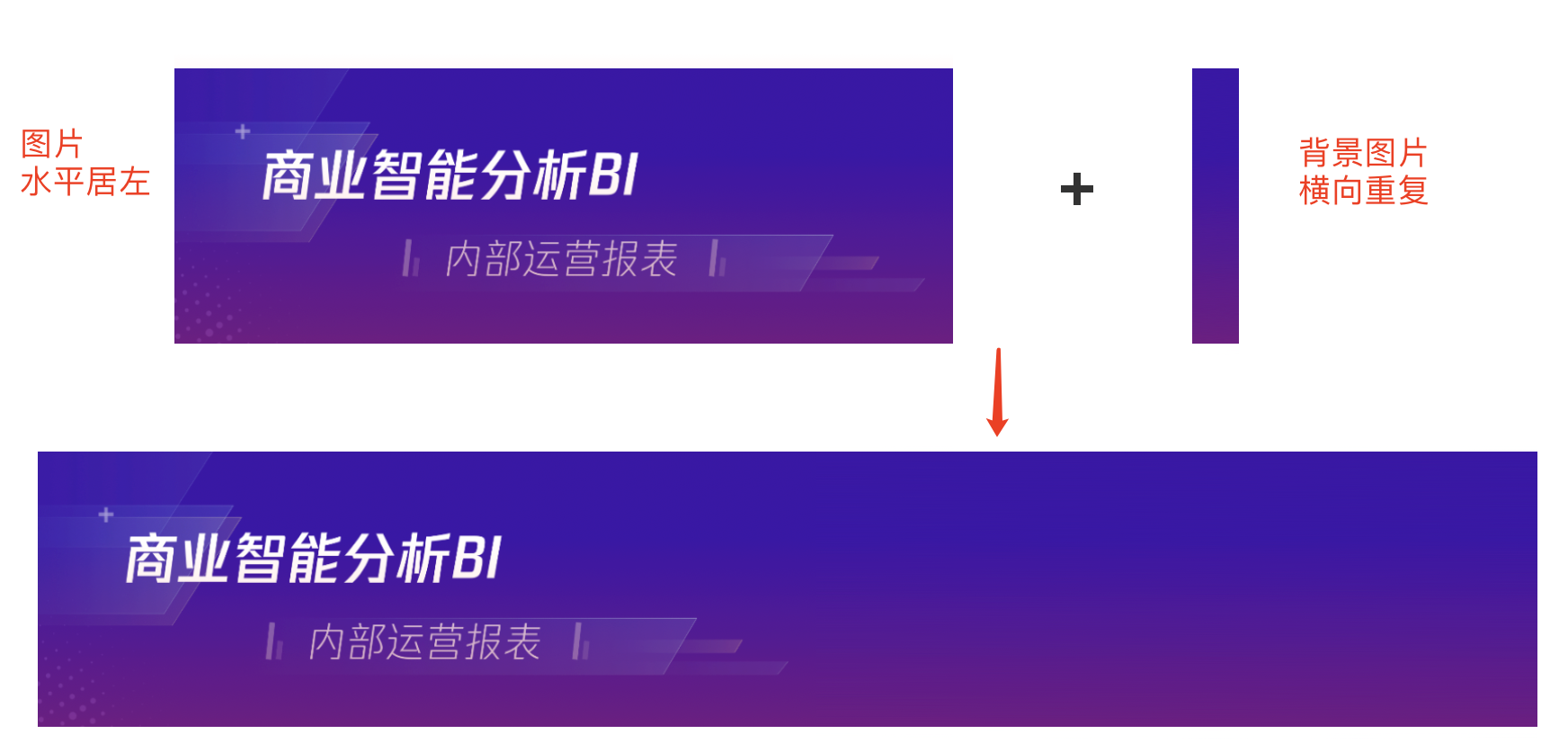
The background is mainly used for image adaptation and stitching. It can implement client size adaptation display through images and background images.


Text Component

The text component is mainly used to add text content to the report page for combined display, commonly used for page supplementary explanation.
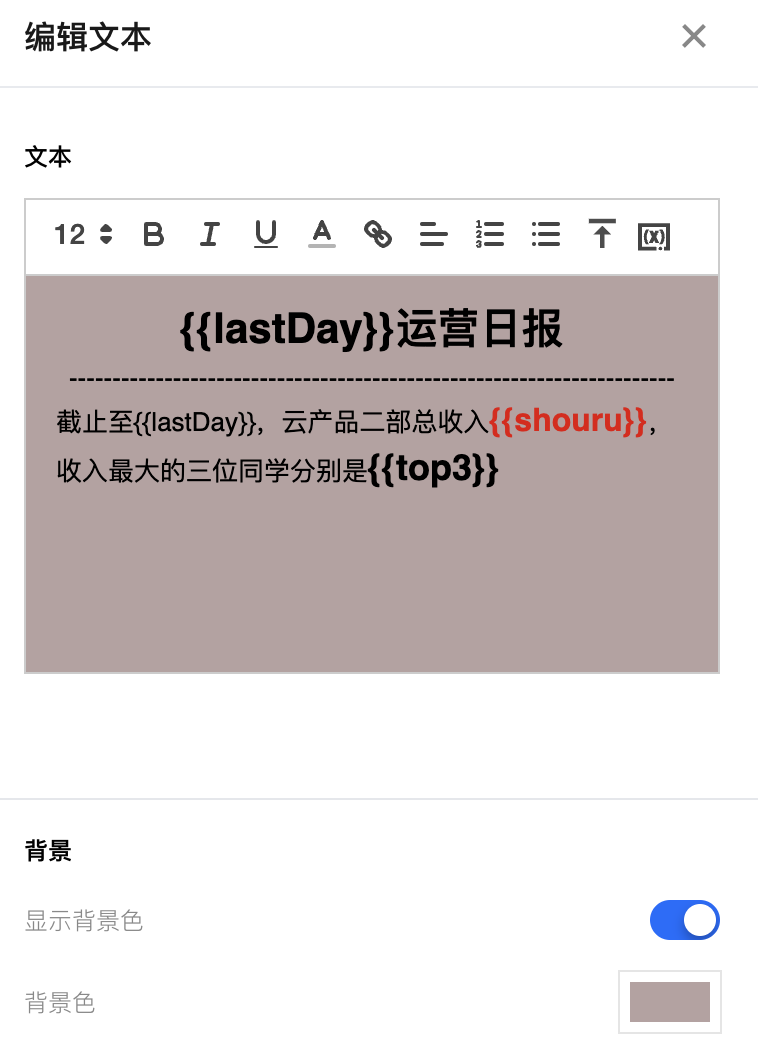
Text edit box
Background


The image below shows an example of the text component display effect. Among them, the actual value of the variable will be reflected when displayed.


Help and Support

Was this page helpful?

Help us improve! Rate your documentation experience in 5 mins.

Feedback