The dashboard is the entry point for viewing scenarios after page publishing, divided into "project dashboard" and "my dashboard". The "project dashboard" is the official dashboard for project members to view together (only admins and authorized personnel can publish here). The "my dashboard" is a self-created or team-shared page by the current user (the current user can maintain the directory).
Usage scenario: Perform hierarchical management on published pages, making it easy for members to view reports.
Edition support: All editions.
Introduce the following operations in the dashboard directory:
Create dashboard directory
Release page to directory
Move dashboard directory
Search dashboard page
Delete dashboard directory
Maintenance notes for dashboard directory
Note:
Note: Before creating a dashboard directory, please confirm the role or permission of the current account.
1. Project dashboard: Only enterprise admins, project administrators, and authorized accounts (has not yet been released, subsequent iterative support) can maintain it.
2. My dashboard: Maintainable if created by the current account, shared webpages are not maintainable.
Create Dashboard Directory
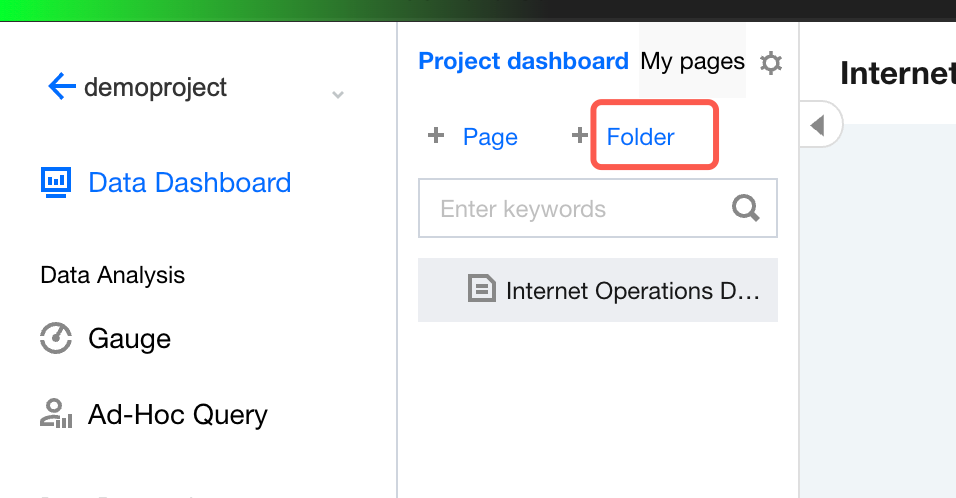
1. Enter console > project > dashboard, click +folder.
"+page" will no longer support creation in dashboard. Page creation will be moved to the "page" tab for maintenance.
Project dashboard is editable only by admins and authorized personnel.
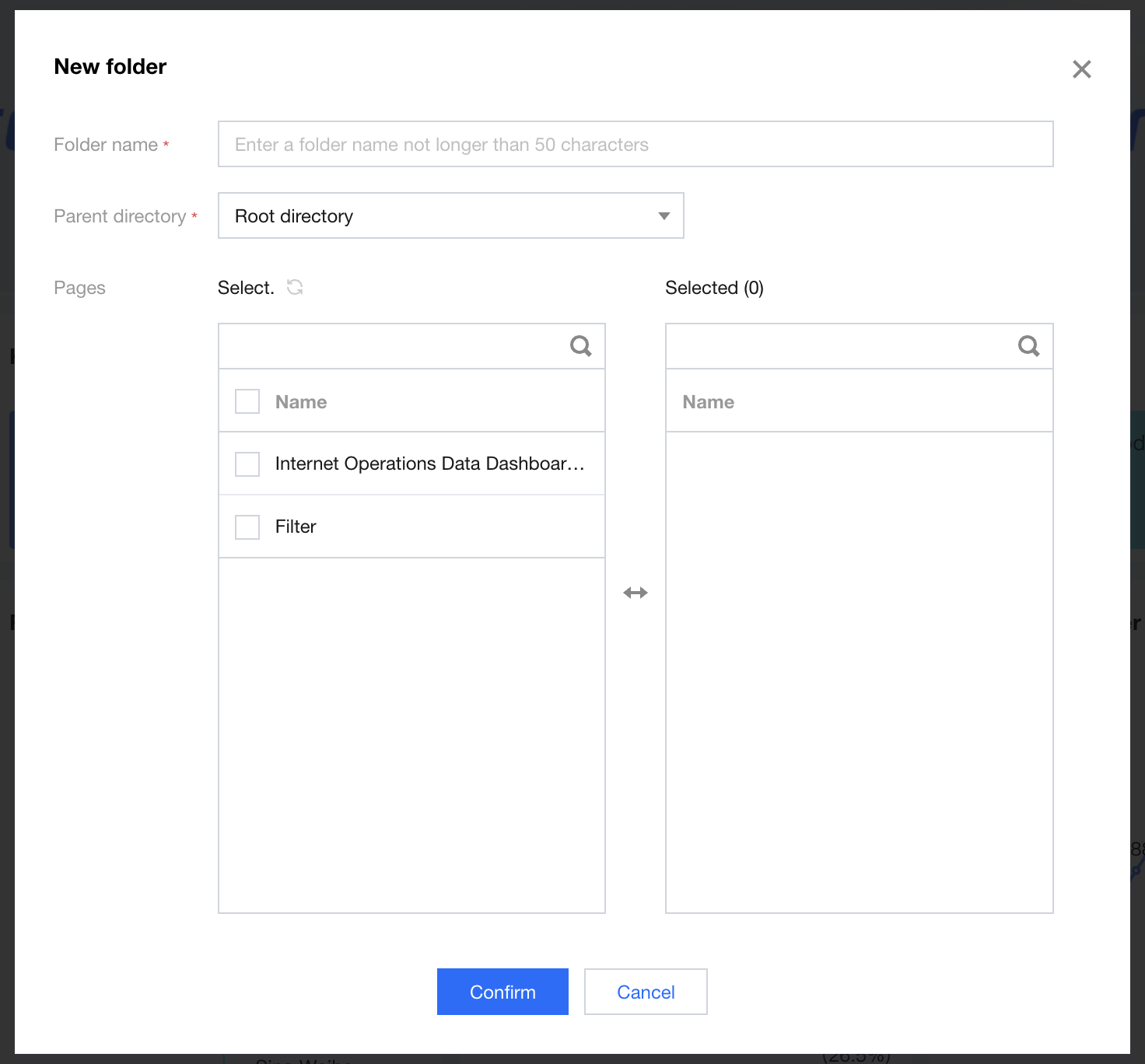
2. In the pop-up window, complete the following settings sequentially:
2.1 Folder name: This name will be displayed in the directory. You can organize folders by report topic (such as financial analysis, channel analysis, human resources analysis) or by organization (such as finance department, operations department).
2.2 Parent directory: indicates which directory the folder is placed under. The highest level is the root directory, supporting up to layer-3 folder nesting (including the root directory), for example, root directory > Directory A > Directory B.
2.3 Pages: optional. You can add or remove released pages from the folder. The same page can be selected in different directories. For example, you can add "financial analysis" to the "finance department" folder, and also add the "financial analysis" page to the "business operations and management" folder.
2.4 Page names cannot be maintained in the dashboard. If adjustments are needed, enter the editing page to modify the page name.
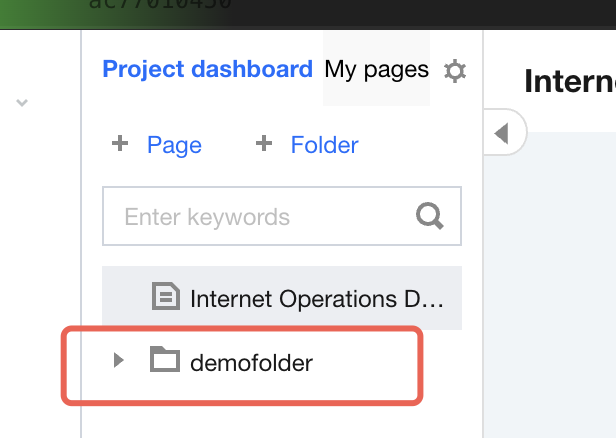
3. Submit creation. If creation succeeded, you can see the new directory folder in the corresponding dashboard, as shown in the figure below:
Release Page to Dashboard Directory
Users can publish the page directly to the dashboard when editing it.
1. Enter project > page > select page edit.
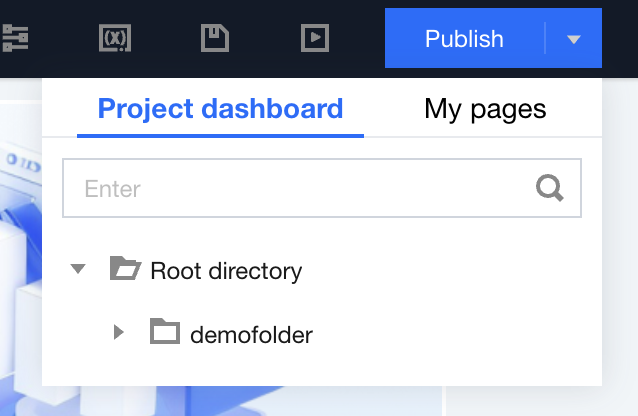
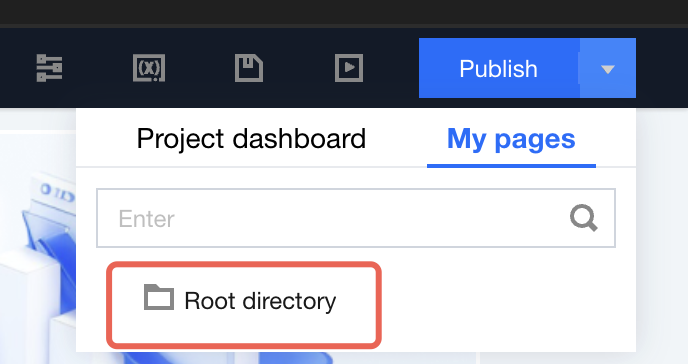
2. Find the Release button in the top-right corner. If no directory is selected, it will be published to My > root directory by default.
3. If the current user has the admin role or is granted permission to publish to the project dashboard, they can choose directories under "Project dashboard".
4. Once published, you can directly view the dashboard. Once published, ALL directories referring to this page will be updated synchronously. For example, if page A is referenced in both "Project dashboard" and "My", the update and publish of page A will synchronously update this page in "Project dashboard" and "My".
Move Dashboard Directory
Users can move and edit directories of webpages and folders so that it is more in line with the report review scenario.
1. Move to folder:
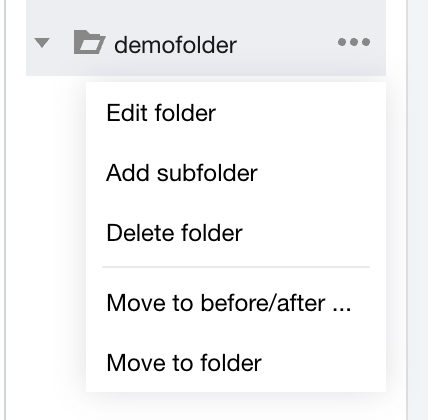
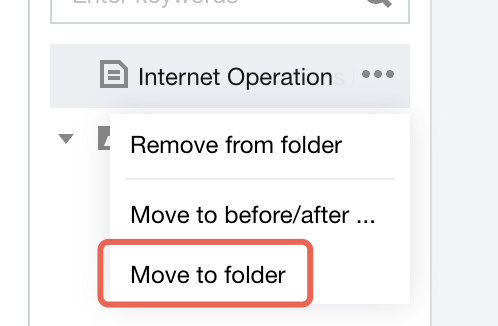
Move mouse to the directory, click the "..." icon on the right of the folder or page, a pull-down menu appears, select Move to folder
.
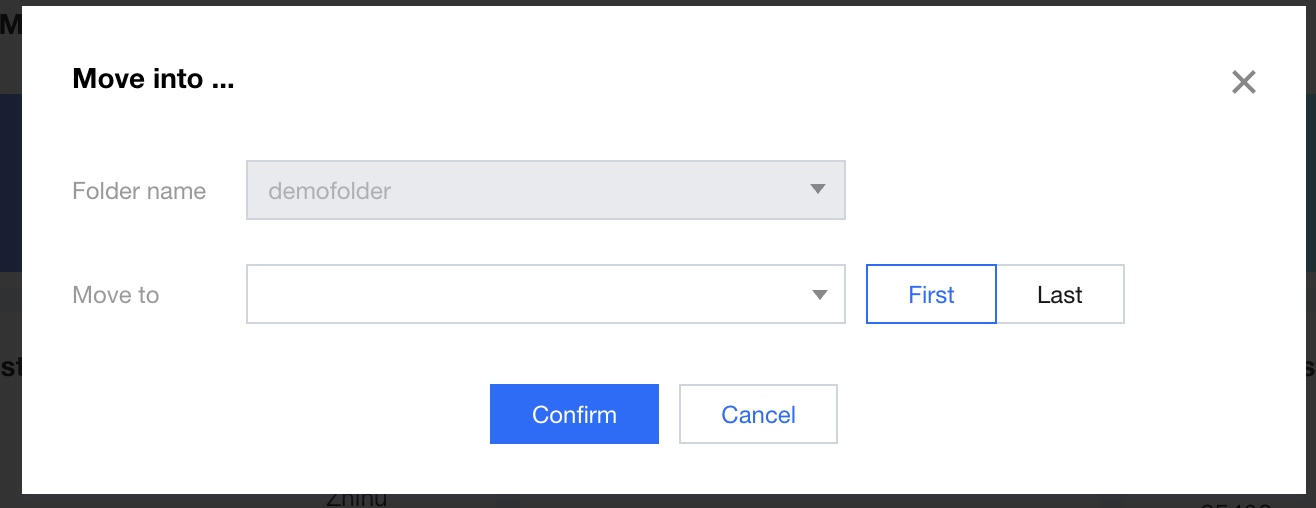
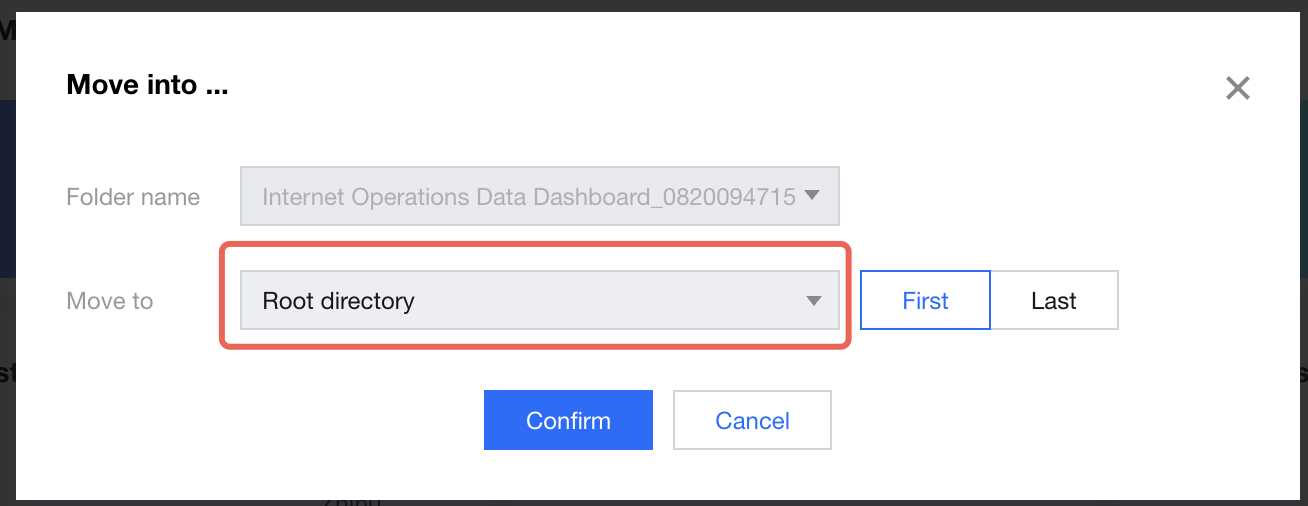
Select the directory to move to, select the position in the folder. If selected "frontmost", move to the first position in the file; conversely, if selected "last", move to the last position in the folder.
Once moved successfully, the directory will no longer display in the original position, only in the target location.
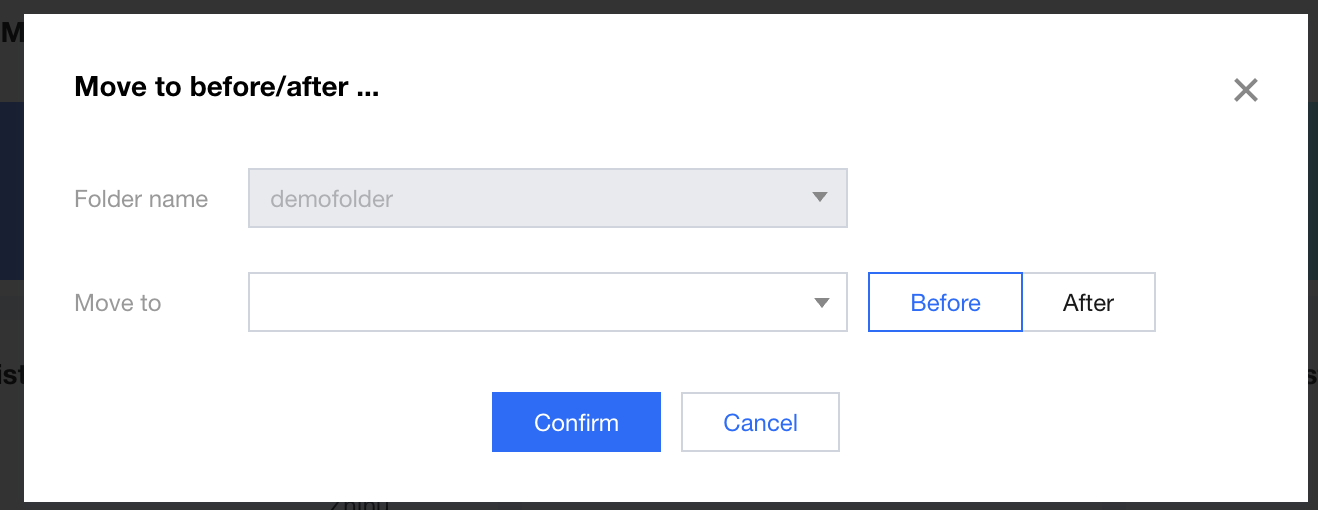
2. Move to leading and trailing directory
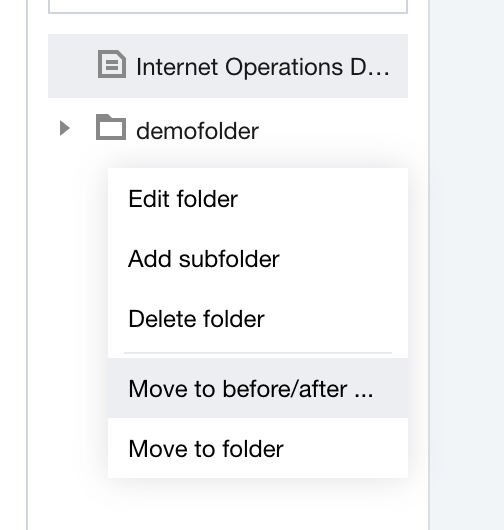
Move mouse to the directory, click the "..." icon on the right of the folder or page, a pull-down menu appears, select Move to front/back.
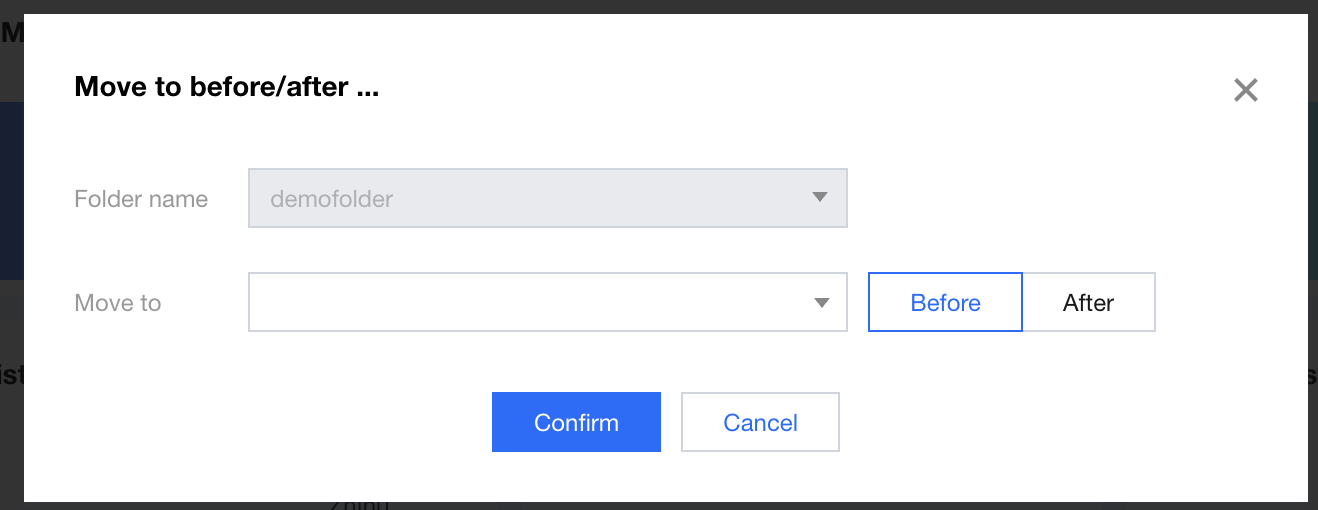
Select the directory to move to, and select the position in the folder. If selected "previous", move to the front of the page or folder; conversely, if selected "following", move to the back of the page or folder.
Search Dashboard Page
When there are many dashboard pages with deep hierarchies, you can search for the webpage through the search method (temporary not support folder retrieval).
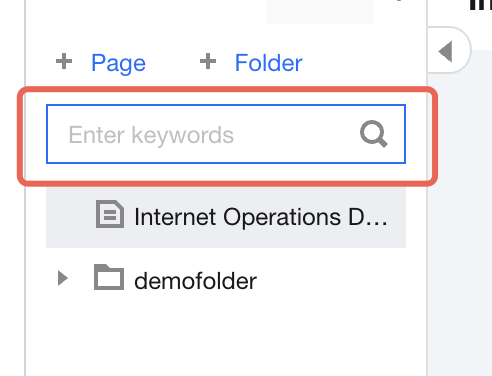
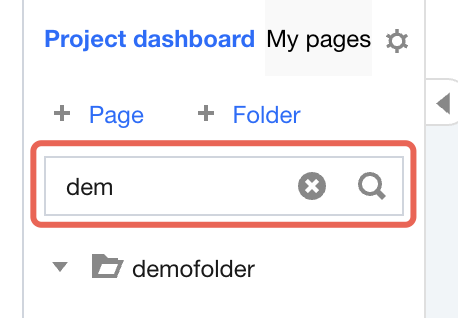
1. Enter Project > Dashboard > Search
2. Enter keywords and click the magnifier button to show pages that meet keyword retrieval. Click "X" to return to the complete directory interface.
Delete Dashboard Directory
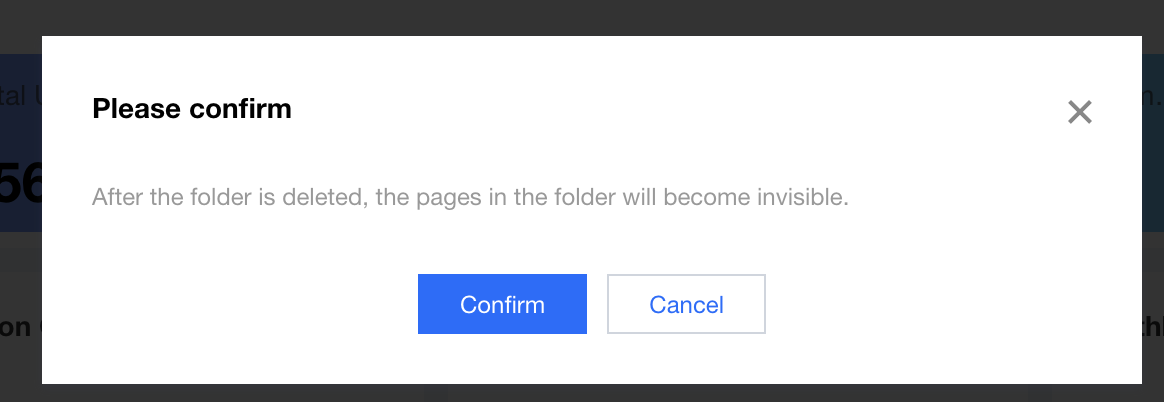
If you do not expect the page to appear in the dashboard directory, you can delete the catalog. Deleting the catalog does not mean deleting the webpage. The page can still be edited in "Project > Webpage" management, only the directory node is deleted.
Enter Project > Dashboard, move mouse to the directory node, and select "Delete folder" or "Remove from folder" in the "..." on the right.
In the pop-up confirmation window, select Confirm.
Upon successful deletion, the directory node is not in the list.
Maintenance Notes for Dashboard Directory
1. The project dashboard must be operated by admins or authorized personnel; unauthorized personnel can only maintain "My" dashboard.
2. If you perform the "take offline" operation on the webpage, the page will not be removed from the directory. When accessing, a notification will show the page has been deleted or is offline. If you encounter this prompt, contact relevant personnel to republish the page.
3. The dashboard root directory needs to be selected during publishing or moved under the root directory in an existing directory. Specific operations are as follows:
Publish to the root directory from the editing page. Select root directory.
Move to the root directory from other places, select Move to folder.