tencent cloud

Business Intelligence

Product Introduction
Product Overview
Strengths
Product Features
Use Cases
Purchase Guide
Billing Instructions
Purchase Guide
Upgrade Instructions
Renewal Instructions
Quick Start
Data Access
Creating a VPC Data Source
Creating Cloud Data Sources
Creating Proprietary Data Sources
Data Table Creation and Data Processing
Introduction to Data Analysis Basics
Data Table Creation
Data Processing
Data Analysis
Analysis Settings
Interactive Analysis
Ad-Hoc Analysis
Data Visualization
Public Style Setting Instructions
Filter Components
Chart components
Rich Text Component
Other Components
Mobile Terminal Layout Editor
Theme Settings Introduction
Page Layout Introduction
Dashboard Directory Management
Collaboration and Application
Push Channel Management
Report Push
Sharing
Embedding
Self-Service Data Retrieval
Metric Alarms
Data Security
Parameter Construction
Platform Management
Account and Permission Management
Statistics and Analysis
System Settings
Resource Migration
Practical Tutorial
Collection of Optimization Practices
Performing Trend Analysis
Performing Proportion Analysis
Performing Data Analysis with Excel Files
Creating Tables
API Documentation
History
Introduction
API Category
Making API Requests
Project Management APIs
Role APIs
Database Table APIs
Report Embedding APIs
Page Management APIs
Data Types
Error Codes
FAQs
Relevant Agreements
Service Level Agreement
Privacy Policy
Data Privacy And Security Agreement
Contact Us

Filter Overview

PDF
Focus Mode
Font Size
Last updated: 2025-09-19 15:24:39
In a report, users can filter data based on their actual needs to obtain the analysis result of target data. The Filter Component supports various data field types, enabling flexible filtering capability.

Supported Field Types in Filters

Text characters: support text filtering, search
Numerical type: support numerical range filtering, conditional data retrieval
Time type: support custom time range and "recent" filter criteria

Prerequisites for Filtering

The page includes at least one chart for associating filter conditions
Field type must match the filter conditions, otherwise unable to output result
The condition setting of the associated chart itself must be larger than the filter criteria value, otherwise unable to output result (filter refers to result filtering within the chart data range)
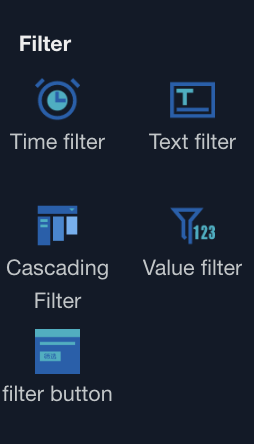

Filter Component Operation Steps

1. Drag the required filter component into the canvas
2. Based on different types of components, set basic configuration and associated charts, filters, styles. For details, see component settings.
3. Preview or after release, select criteria from the dashboard, and the filtered results will update automatically when the component loses focus.

Help and Support

Was this page helpful?

Help us improve! Rate your documentation experience in 5 mins.

Feedback