tencent cloud

Media Processing Service

Release Notes and Announcements
Release Notes
Announcements
Product Introduction
Overview
Features
Strengths
Use Cases
Purchase Guide
Billing Overview
Purchase Instructions
Top Up and Purchase
Overdue Payments
Refund
Getting Started
Console Guide
Overview
Creating Tasks
Tasks
Orchestrations
Templates
Resource Packs
Video Evaluation
AIGC Content Generation
Terminal SDK
Subtitle Editing Tool
Usage Statistics
Cloud Access Management Sample
Integration Tutorials
Audio/Video Transcoding Integration
Audio/Video Enhancement Integration
Audio Separation Integration
Integration of Digital and Visible Watermarks
Media AI Integration Tutorial
Media Quality Inspection Integration
Terminal SDK integration
MPS Live Stream Recording integration
DRM integration
Other tutorials
Application Scenario and Practical Tutorial
Image Quality Improvement Scenario
Audio/Video Cost Optimization Scenario
Short Drama Translation Scenario
AI-Generated Content Scenario
Online Education Scenarios
API Documentation
History
Introduction
API Category
Making API Requests
Processing Task Initiation APIs
Task Management APIs
Transcoding and Enhancement Template APIs
Watermark Template APIs
Screenshot Template APIs
Media AI Template APIs
Media AI—Hotword Lexicon APIs
Media AI—Sample Management APIs
Media Quality Inspection Template APIs
Live Streaming Recording Template APIs
Orchestration Management APIs
Data Statistics APIs
StreamLink—Security Group Management APIs
Other APIs
Image Processing Template APIs
AI Generation APIs
Other APIs
Data Types
Error Codes
Other Documents
WebSocket Protocol for Recognition
FAQs
Basics
Account Authorization
Task Configuration
Task Initiation
Task Result Viewing
Related Agreement
Service Level Agreement
Privacy Policy
Data Processing And Security Agreement
Contact Us
Glossary

Account Authorization

PDF
Focus Mode
Font Size
Last updated: 2025-11-26 16:55:17
If your account permissions are insufficient, you may not be able to use MPS normally, which is more likely to occur when sub-accounts are used. This document describes common scenarios of insufficient permissions and corresponding solutions.

Scenario 1 (Required): MPS Service Not Enabled for an Account

If the MPS service is not enabled for your account, you cannot use MPS normally. In this case, you need to enable the MPS service first before using the MPS console or calling APIs. This operation is required.

Solution

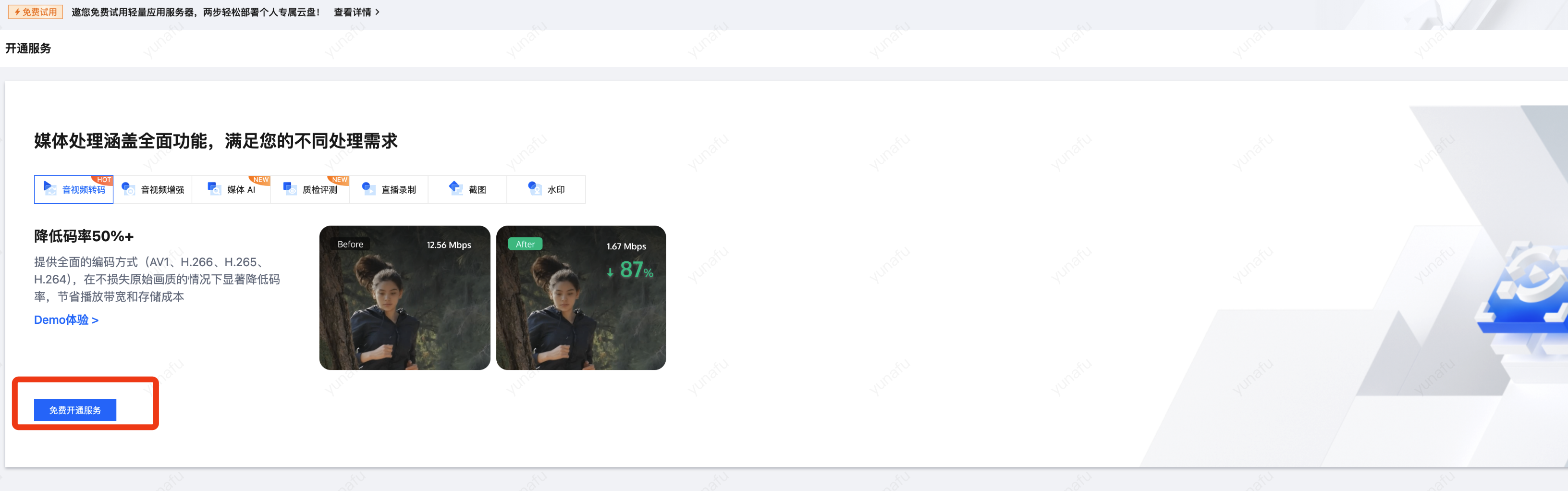
Contact the owner of the root account, log in to the root account, go to the MPS console, and click Activate For Free.
If a sub-account has full read/write permissions for MPS (see Scenario 2 to associate the QcloudMPSFullAccess preset policy), you can directly enable MPS under the sub-account.


Scenario 2 (Required): No MPS Operation Permissions for a Sub-account

If the root account does not grant read/write operation permissions for MPS to your sub-account, the sub-account cannot use MPS normally.
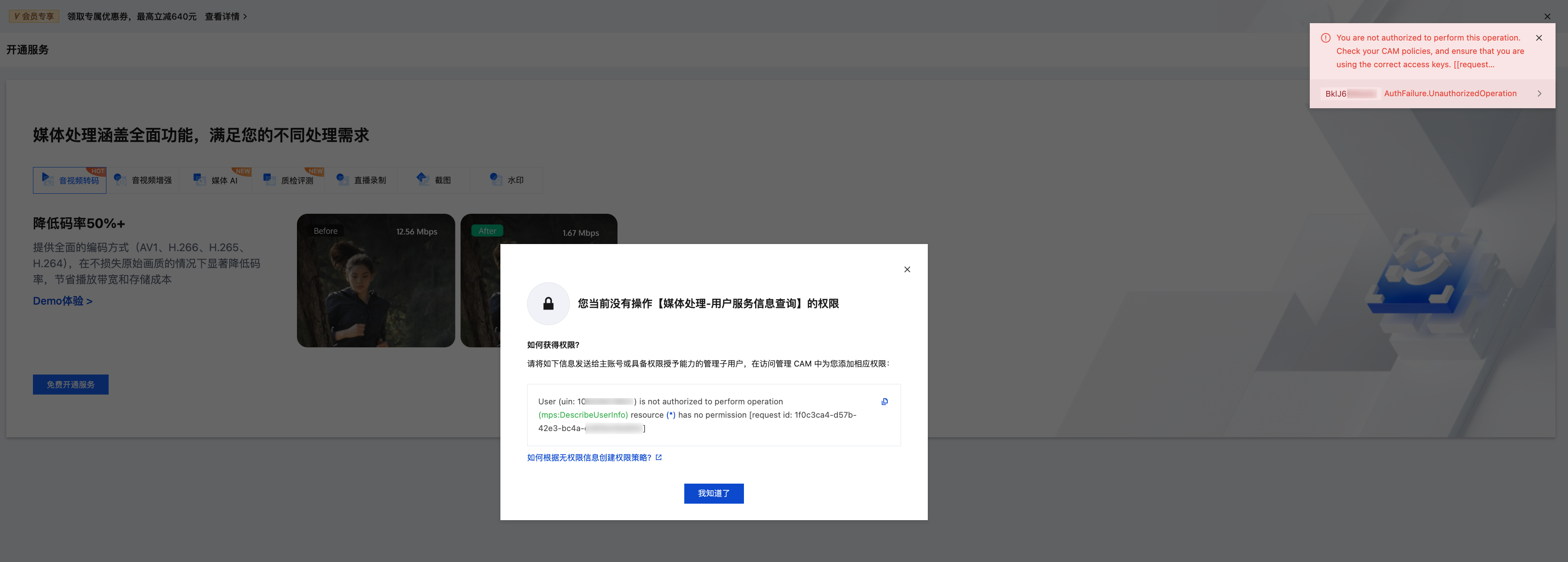
At this time, the error below will be reported when you use the sub-account to access the MPS console:
The message in the pop-up window indicates that the sub-account does not have permission for the "DescribeUserInfo" API of MPS.

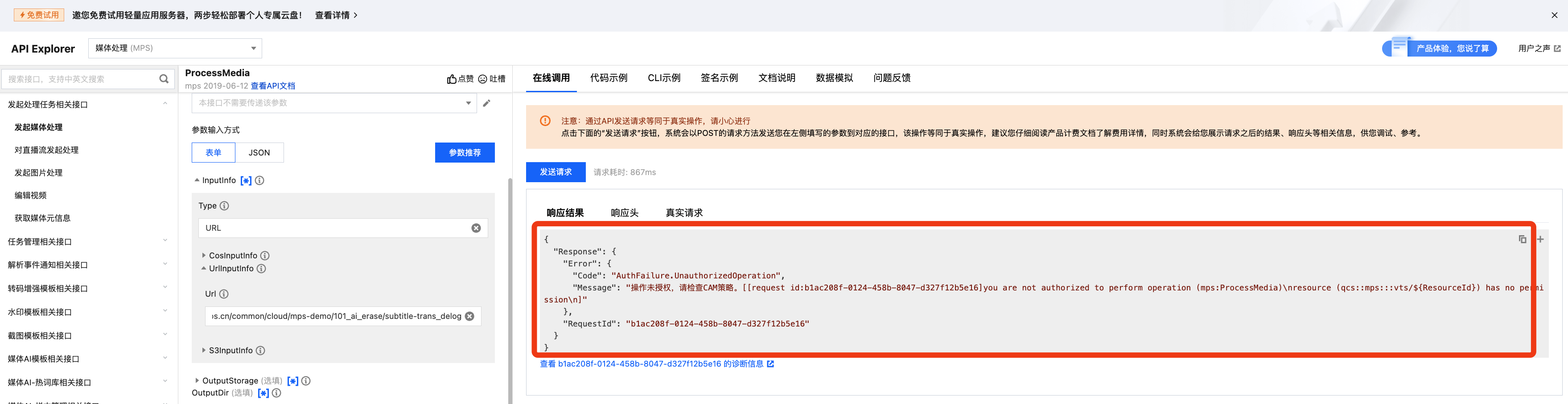
The error below will be reported if you use the sub-account to call the APIs of MPS:
The error message indicates that the sub-account has no operation permissions.

To solve this issue, you can follow any of the solutions below to grant MPS operation permissions to your sub-account. This operation is required.

Solution

Solution 1: Associate the Sub-account with the QcloudMPSFullAccess Preset Policy (Recommended)

1. Contact the root account owner and log in to the root account.
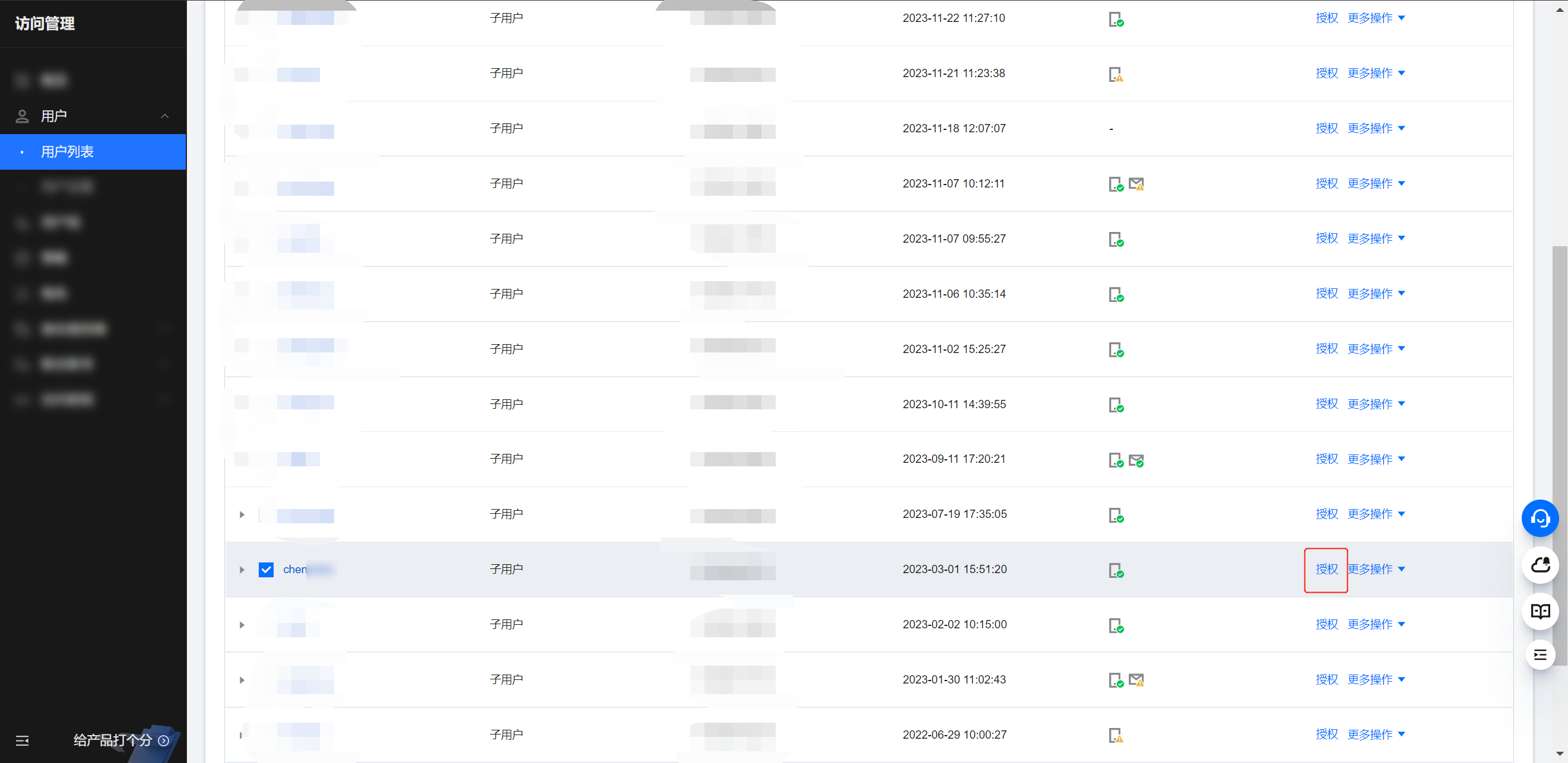
2. Go to Cloud Access Management under the root account, find the sub-account that needs to use MPS in the User List, and click Authorize.

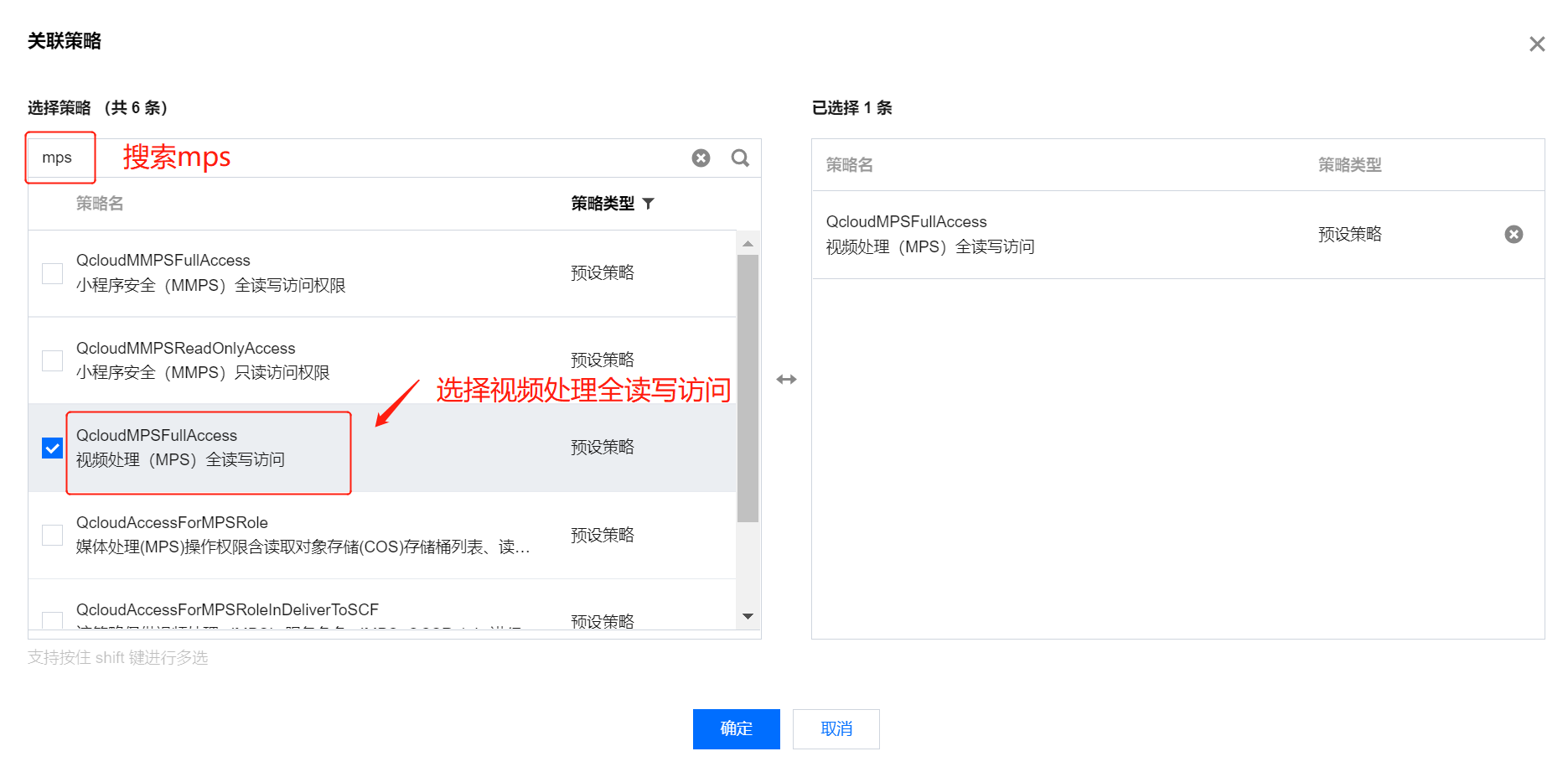
3. Search for "QcloudMPSFullAccess" and grant the permission of the QcloudMPSFullAccess preset policy to the sub-account.


Solution 2: Associate the Sub-account with a Custom Policy

Note:
Currently, only QcloudMPSFullAccess is the preset policy of MPS. This full read/write policy allows sub-accounts to access all APIs of MPS. If the root account hopes to limit the API access permissions of sub-accounts for security purposes, it can associate a custom policy with sub-accounts.
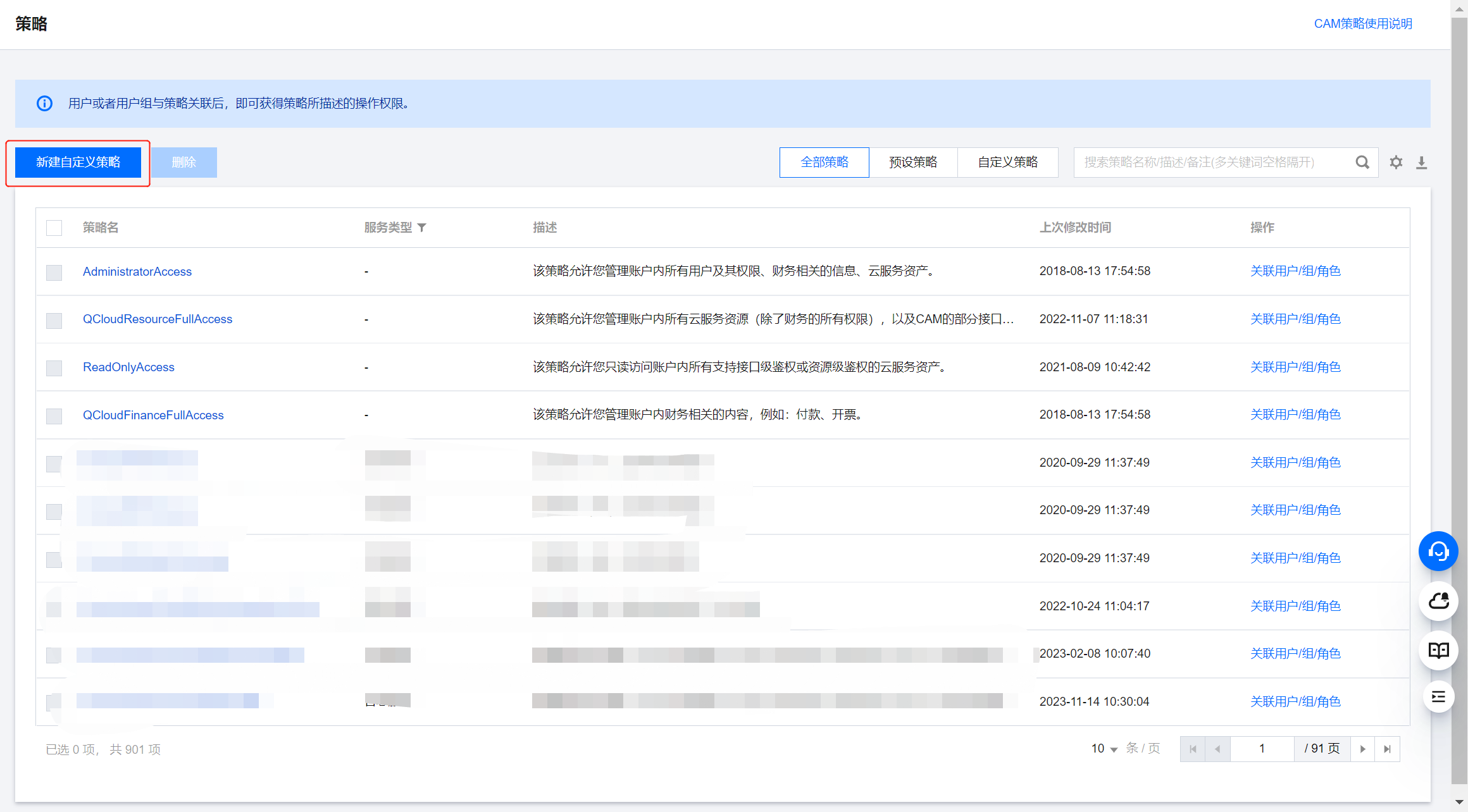
1. Go to Cloud Access Management under the root account and click Create Custom Policy on the Policies page.

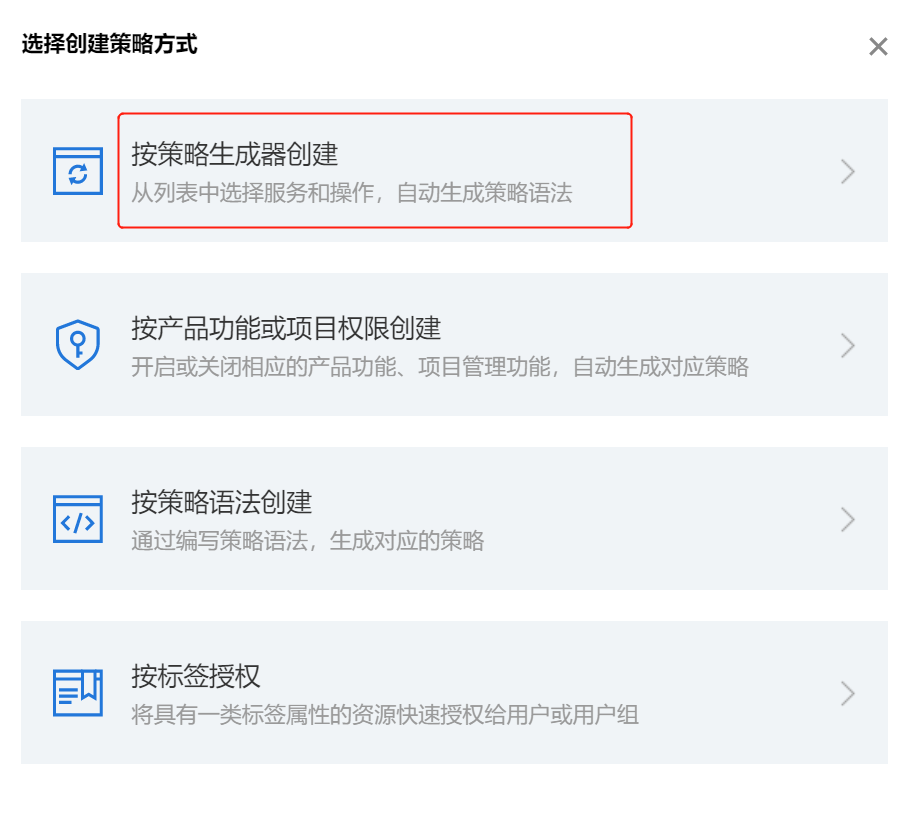
2. Select Create by policy builder.

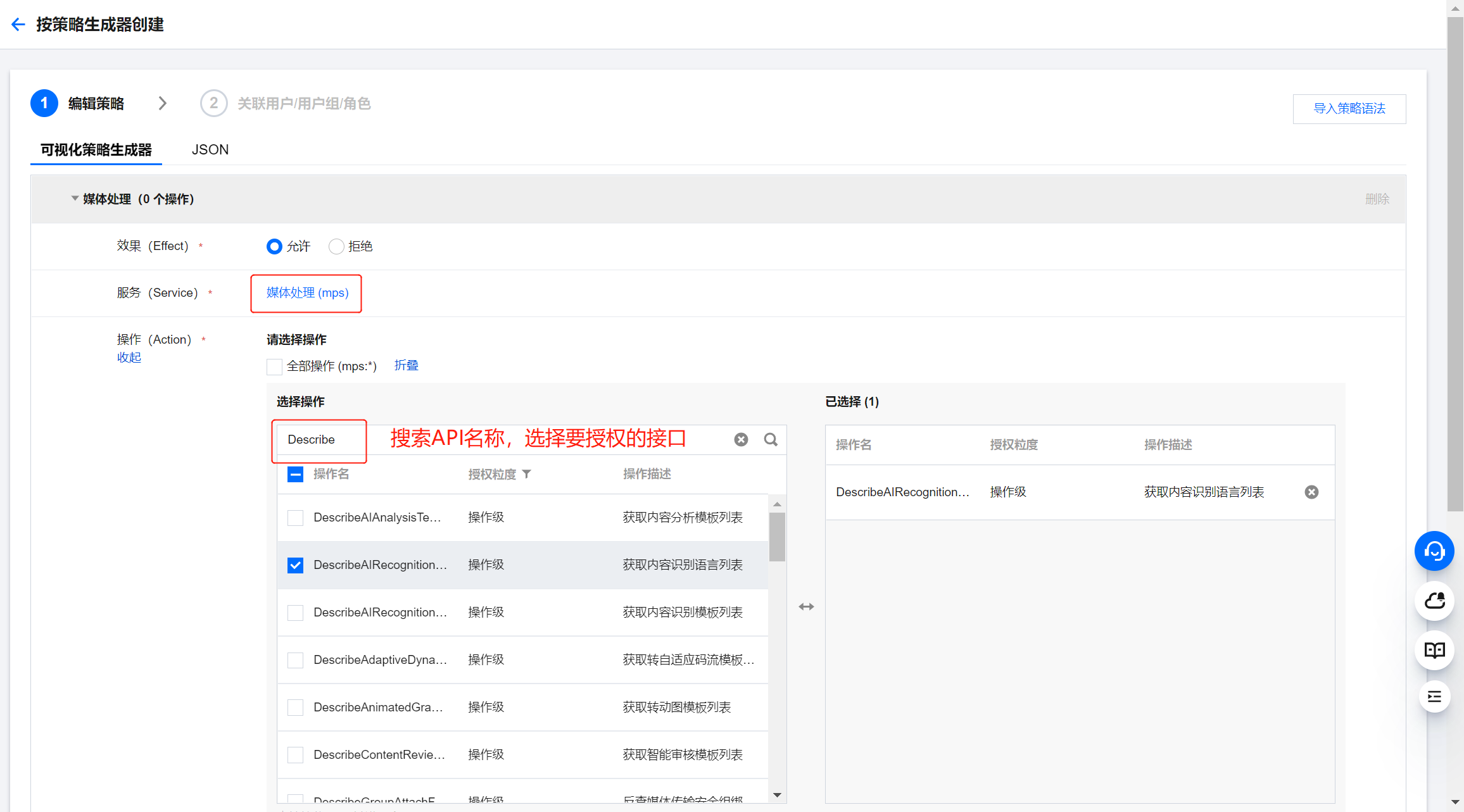
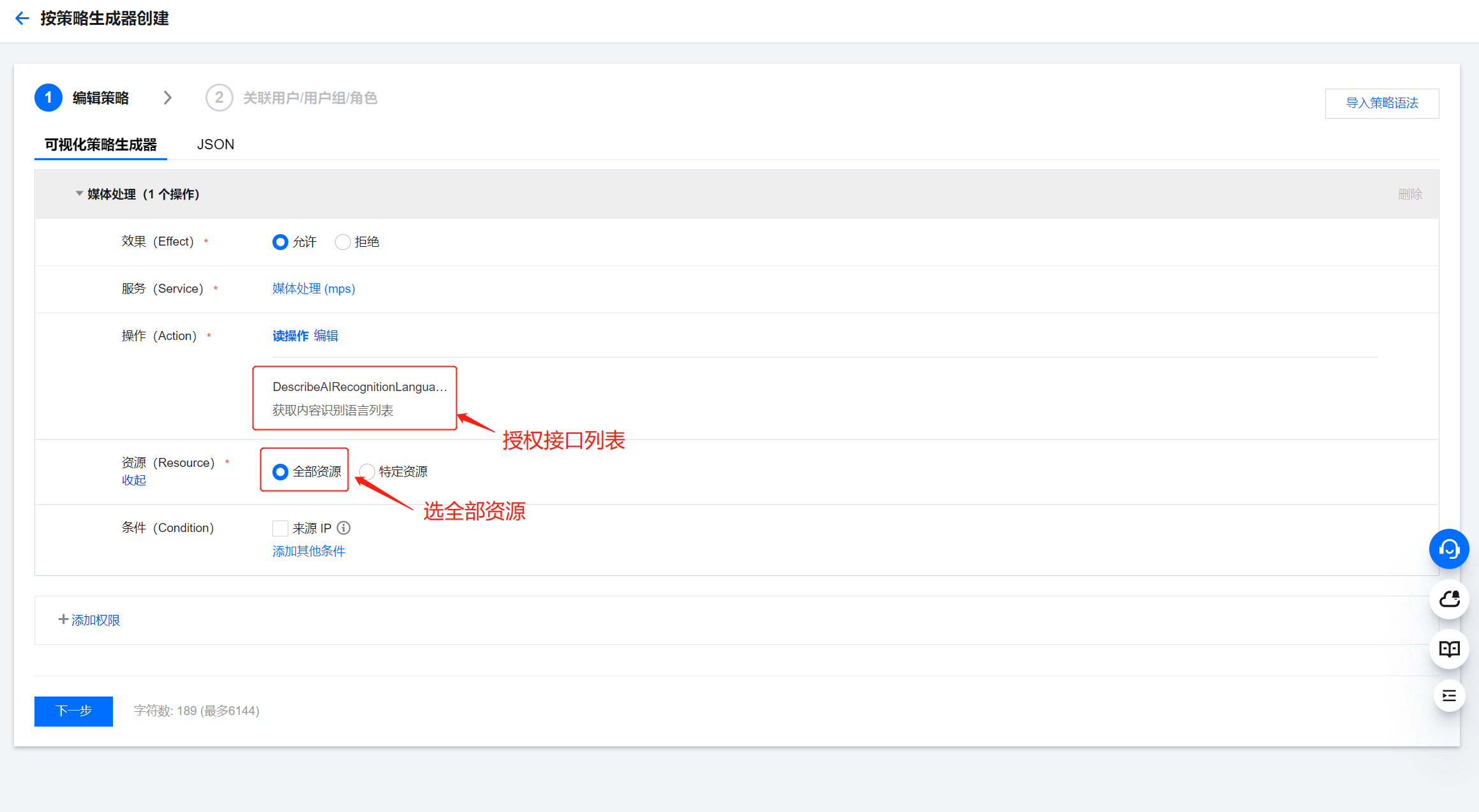
3. Under 'Service', select the Media Processing Service (mps). Then, under 'Action', select the MPS APIs permitted for sub-accounts. Multiple APIs can be selected at a time.
Note:
The RequestFromSdk API should be selected if you are using the SDK.

4. Under 'Resource', Select All resources and click Next.

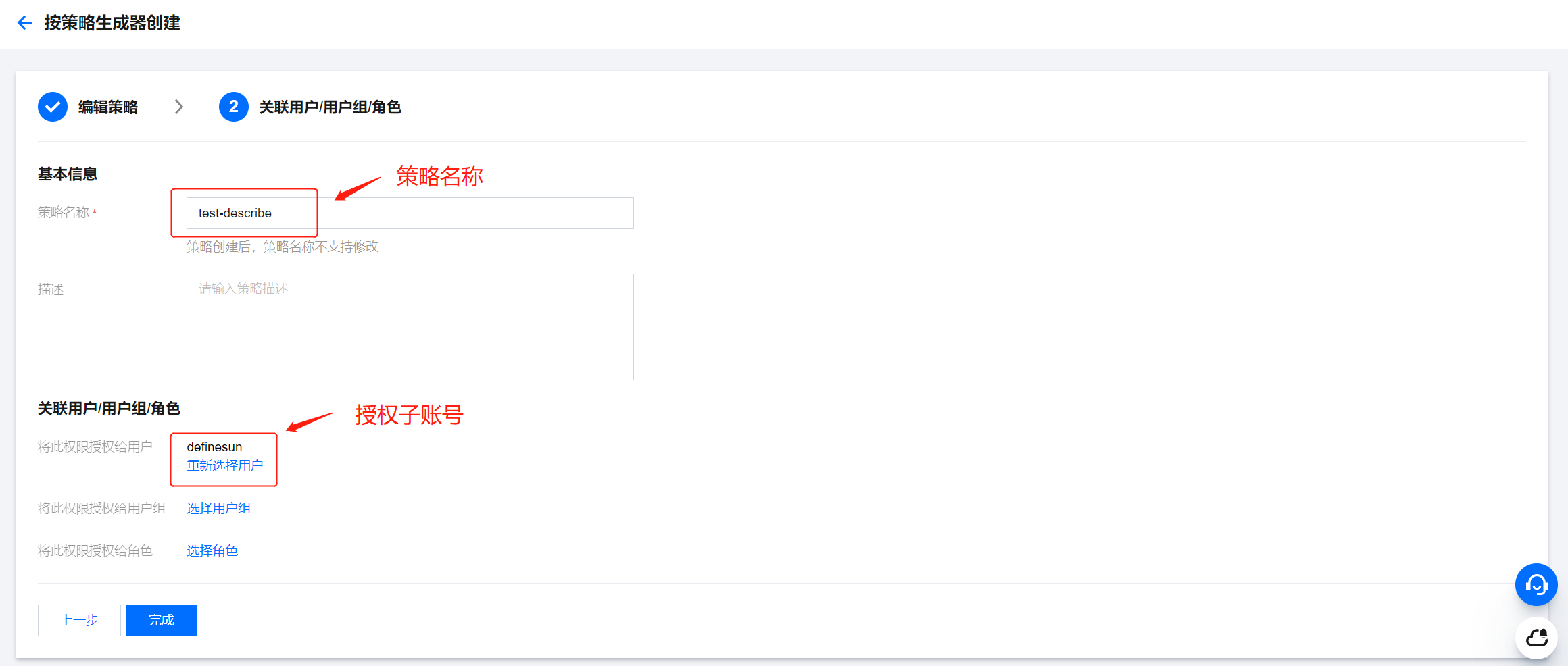
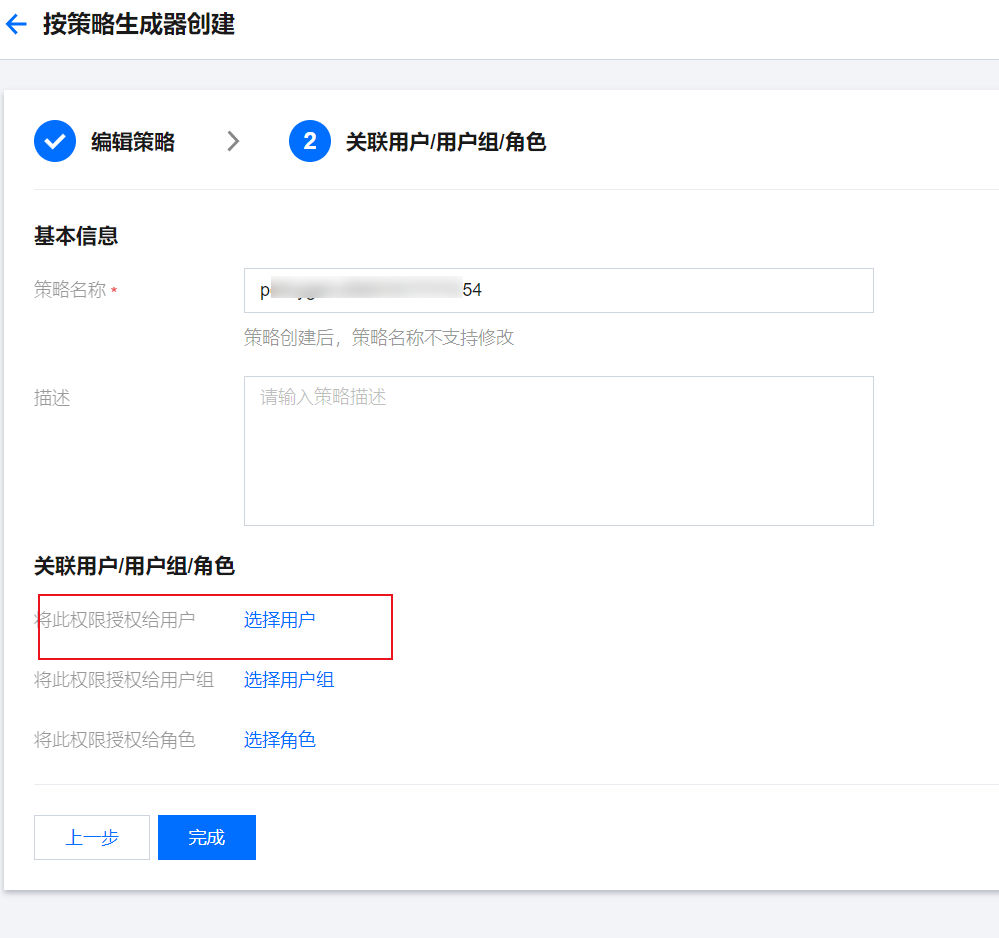
5. Enter a policy name, associate the policy with your sub-account in the "Grant this permission to users" field, and click Done.

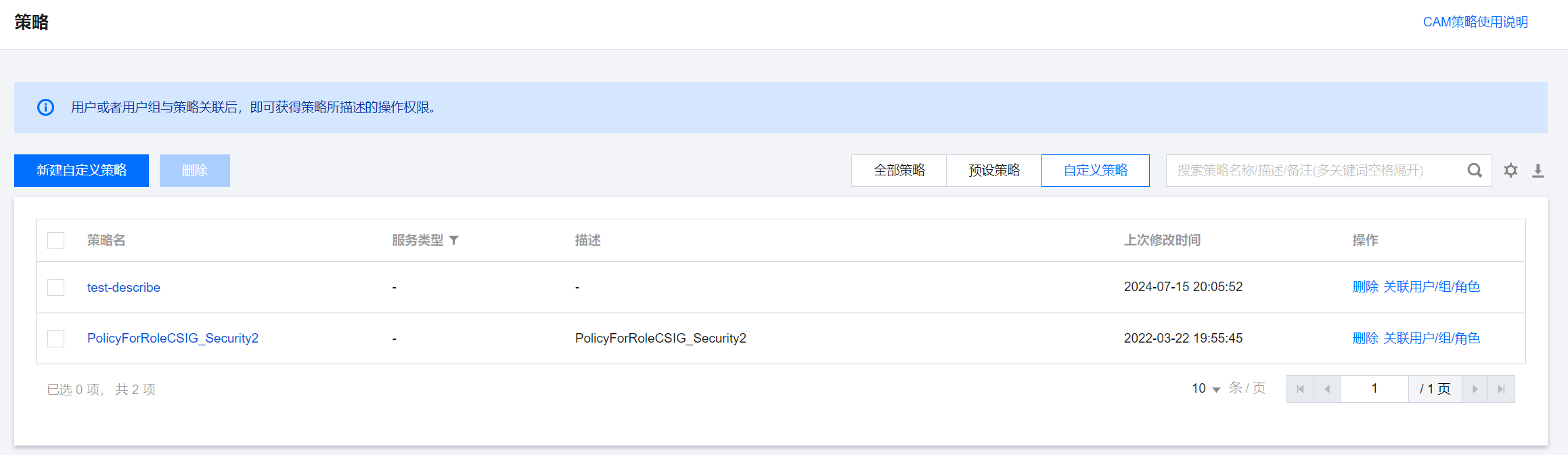
6. Return to the Policies page. You can view all custom policies on this page and click a policy name to modify the corresponding policy later.


Scenario 3 (Optional): MPS Not Authorized to Perform Necessary Read/Write Operations on Files in Your Buckets

Currently, Media Processing Service supports four types of input file sources: Tencent Cloud Object Storage (COS), Tencent Cloud VOD Pro, AWS S3, and downloadable URLs.
To utilize COS as the file source, COS authorization must be completed beforehand. Create the MPS_QcsRole service role to grant Media Processing Service read and write permissions, including downloading, transcoding, and uploading files from your COS bucket.
To utilize VOD Pro as the file source, VOD authorization must be completed beforehand. Create the MPS_QCSLinkedRoleInVOD service role to grant Media Processing Service read and write permissions, including downloading, transcoding, and uploading files from your VOD Pro bucket.
If you intend to use AWS S3 or a URL as the file source, COS authorization can be skipped.
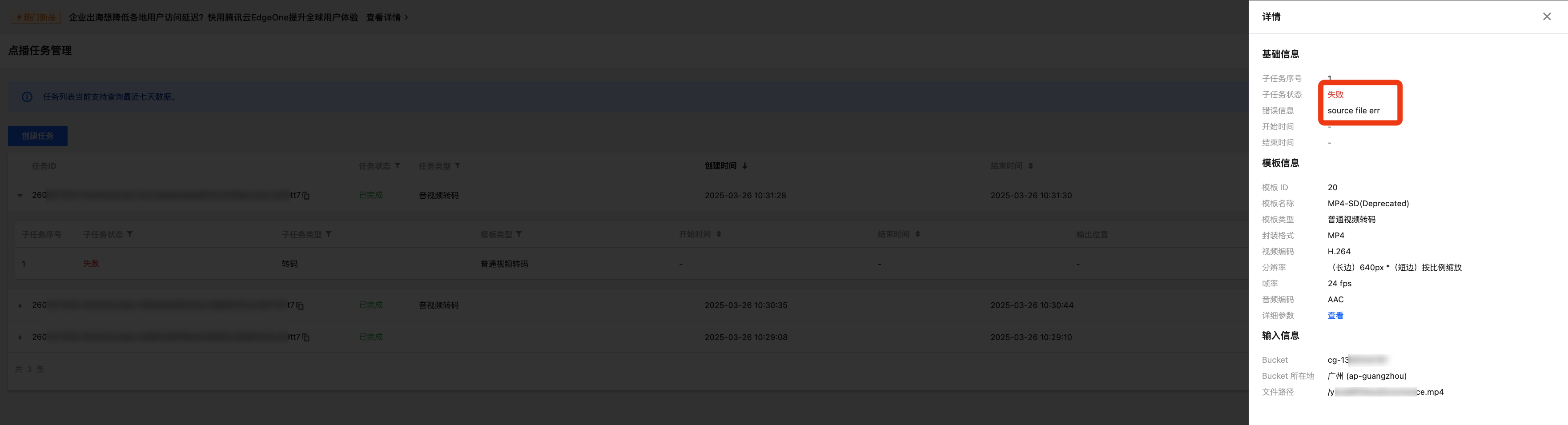
If you initiate a processing task via the MPS API without completing the required authorization for COS or VOD Pro buckets, the task will fail. An example is illustrated below:
First, call the ProcessMedia API to process files in a COS bucket:

Then, use the 'TaskId' to check the task status, where you will encounter an error:


Solution

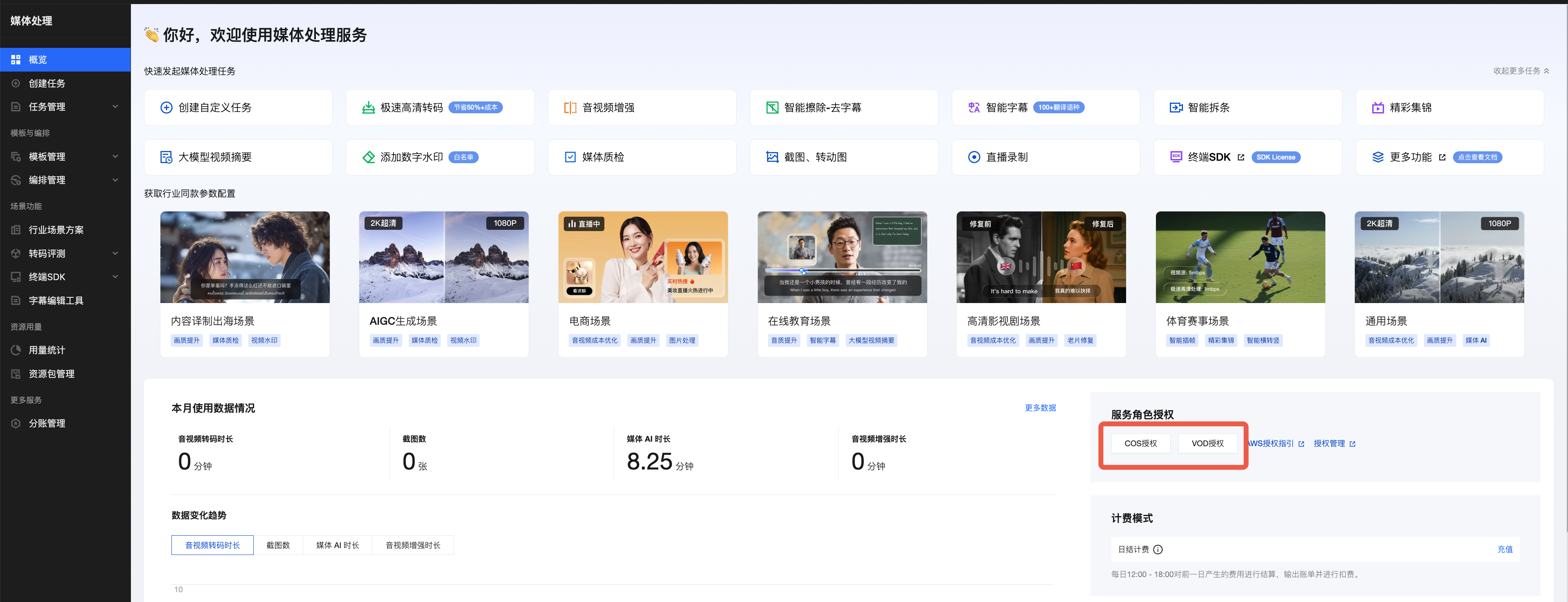
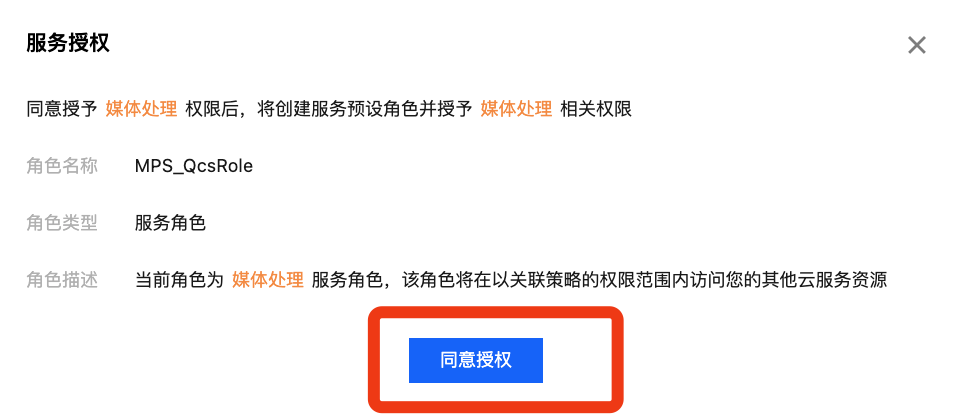
To utilize COS, log in to the root account, enter the overview page of the MPS console, click COS Authorization, and click Authorize in the pop-up window. After authorization is completed, the MPS_QcsRole service role will be automatically created in Cloud Access Management > Role.
Similarly, if you wish to utilize VOD Pro, simply click VOD Authorization to create the `MPS_QCSLinkedRoleInVOD` service role.
Note:
This authorization operation does not require enabling COS or VOD and will not incur COS or VOD fees. It just allows MPS to obtain the necessary API read/write permissions for COS or VOD buckets.


Scenario 4 (Optional): No cam:GetRole Permission for a Sub-account

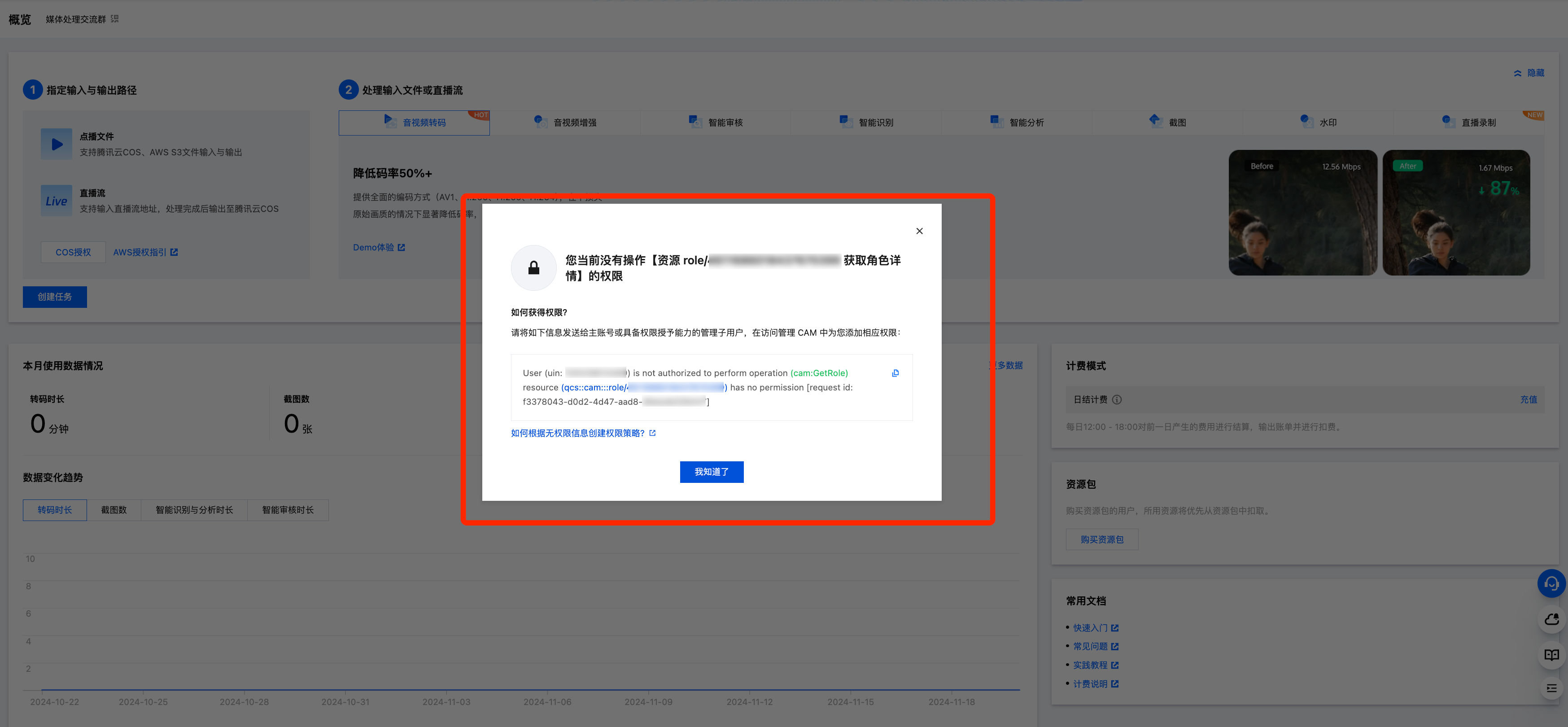
After permission authorization in the above three scenarios is completed, the error message below may pop up when you use a sub-account to log in to the MPS console:
The message in the pop-up window indicates that the sub-account has no cam:GetRole permission.

This is because the MPS console frontend will call the GetRole API of Tencent Cloud Access Management (CAM) to query whether the user has the MPS_QcsRole service role. The frontend assesses whether an authorization prompt is given according to the query result. If the sub-account has no cam:GetRole permission, the MPS console frontend cannot call the GetRole API to query the role. As a result, a window indicating such an error pops up.
Note:
GetRole involves a frontend operation of the MPS console. The sub-account cannot use the MPS console normally if it has no cam:GetRole permission. APIs can still be called. The console helps you complete MPS operations and view task results. Therefore, it is recommended that you follow the solution below to grant the cam:GetRole permission to the sub-account.

Solution

1. Contact the root account owner and log in to the root account.
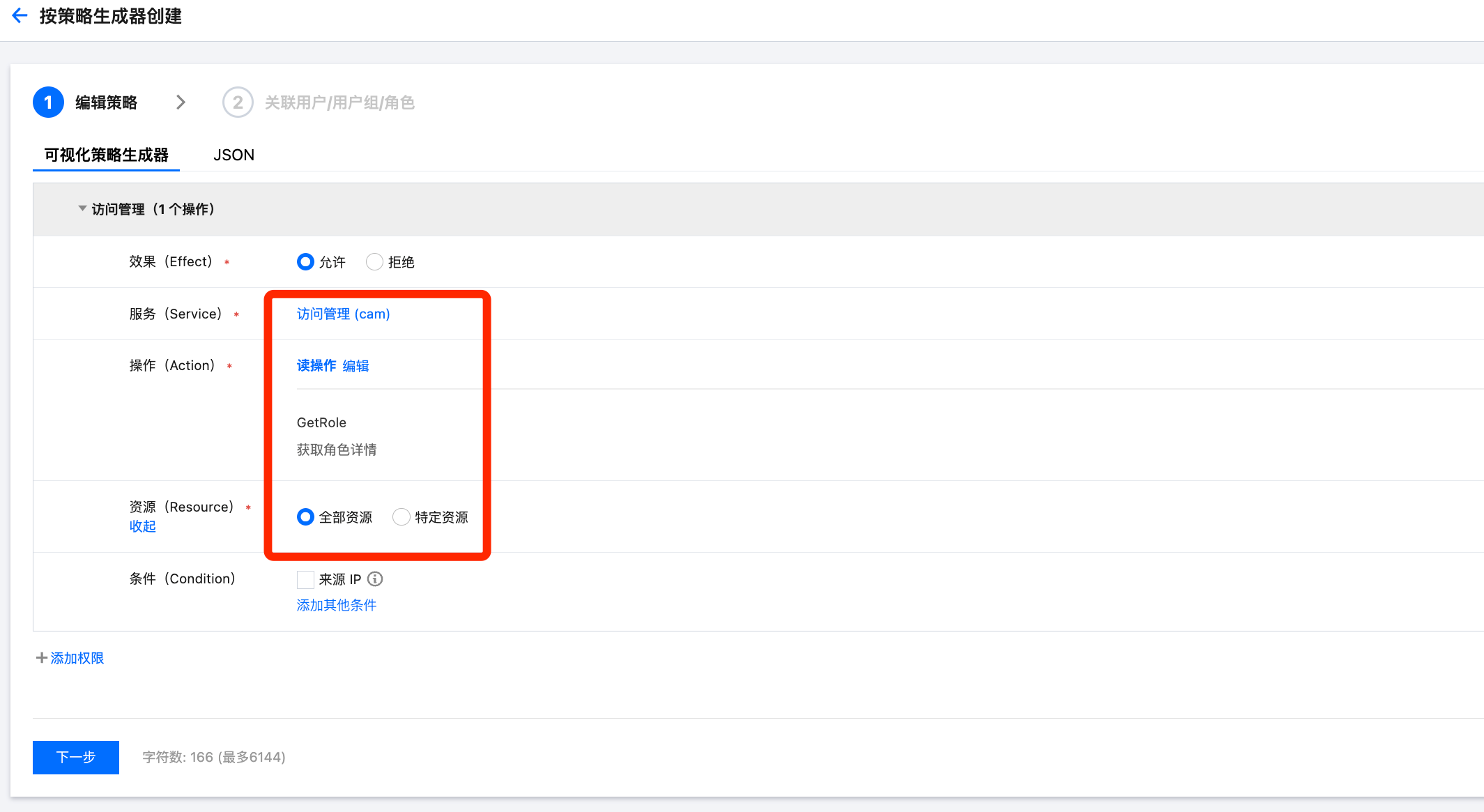
2. Go to Cloud Access Management > Policy under the root account, click Create Custom Policy, and select Create by policy generator to create a custom policy.
Select Cloud Access Management (CAM) for Service, GetRole as the read operation, and All resources, as shown in the red box below. Then, click Next.

3. Enter a policy name, grant this permission to the sub-account that needs to use MPS, and click Complete.


Help and Support

Was this page helpful?

Help us improve! Rate your documentation experience in 5 mins.

Feedback