tencent cloud

Media Processing Service

Release Notes and Announcements
Release Notes
Announcements
Product Introduction
Overview
Features
Strengths
Use Cases
Purchase Guide
Billing Overview
Purchase Instructions
Top Up and Purchase
Overdue Payments
Refund
Getting Started
Console Guide
Overview
Creating Tasks
Tasks
Orchestrations
Templates
Resource Packs
Video Evaluation
AIGC Content Generation
Terminal SDK
Subtitle Editing Tool
Usage Statistics
Cloud Access Management Sample
Integration Tutorials
Audio/Video Transcoding Integration
Audio/Video Enhancement Integration
Audio Separation Integration
Integration of Digital and Visible Watermarks
Media AI Integration Tutorial
Media Quality Inspection Integration
Terminal SDK integration
MPS Live Stream Recording integration
DRM integration
Other tutorials
Application Scenario and Practical Tutorial
Image Quality Improvement Scenario
Audio/Video Cost Optimization Scenario
Short Drama Translation Scenario
AI-Generated Content Scenario
Online Education Scenarios
API Documentation
History
Introduction
API Category
Making API Requests
Processing Task Initiation APIs
Task Management APIs
Transcoding and Enhancement Template APIs
Watermark Template APIs
Screenshot Template APIs
Media AI Template APIs
Media AI—Hotword Lexicon APIs
Media AI—Sample Management APIs
Media Quality Inspection Template APIs
Live Streaming Recording Template APIs
Orchestration Management APIs
Data Statistics APIs
StreamLink—Security Group Management APIs
Other APIs
Image Processing Template APIs
AI Generation APIs
Other APIs
Data Types
Error Codes
Other Documents
WebSocket Protocol for Recognition
FAQs
Basics
Account Authorization
Task Configuration
Task Initiation
Task Result Viewing
Related Agreement
Service Level Agreement
Privacy Policy
Data Processing And Security Agreement
Contact Us
Glossary

MPS Live Stream Recording integration

PDF
Focus Mode
Font Size
Last updated: 2023-10-09 12:45:56
With Media Processing Service (MPS), you can record live streaming content by URL.

Directions

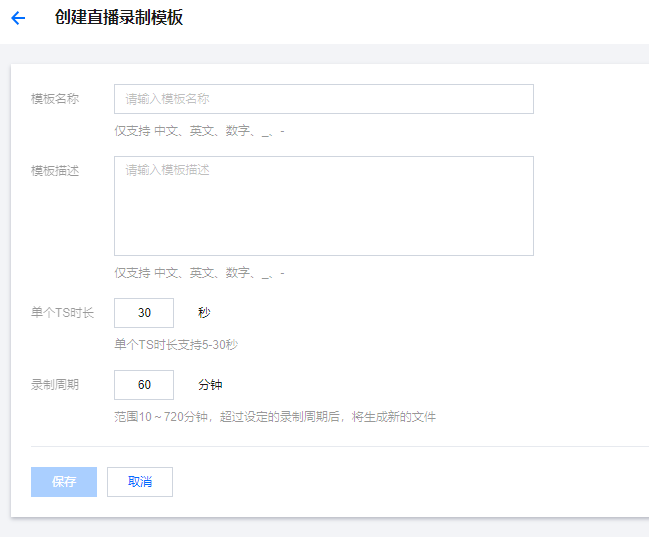
1. On the Live Recording Templates page, create a new live recording template. The console provides a default recording template.

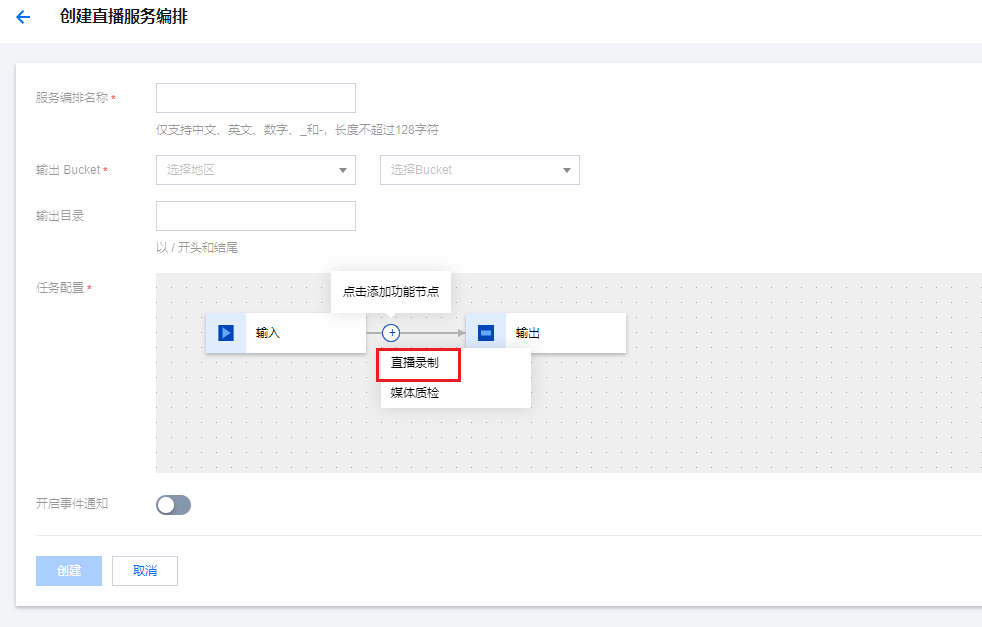
2. On the Live Schemes page, create a new scheme. On this page, you need to select a COS bucket and specify a directory for the output. In actions diagram below, click and add a "Live Recording" step.

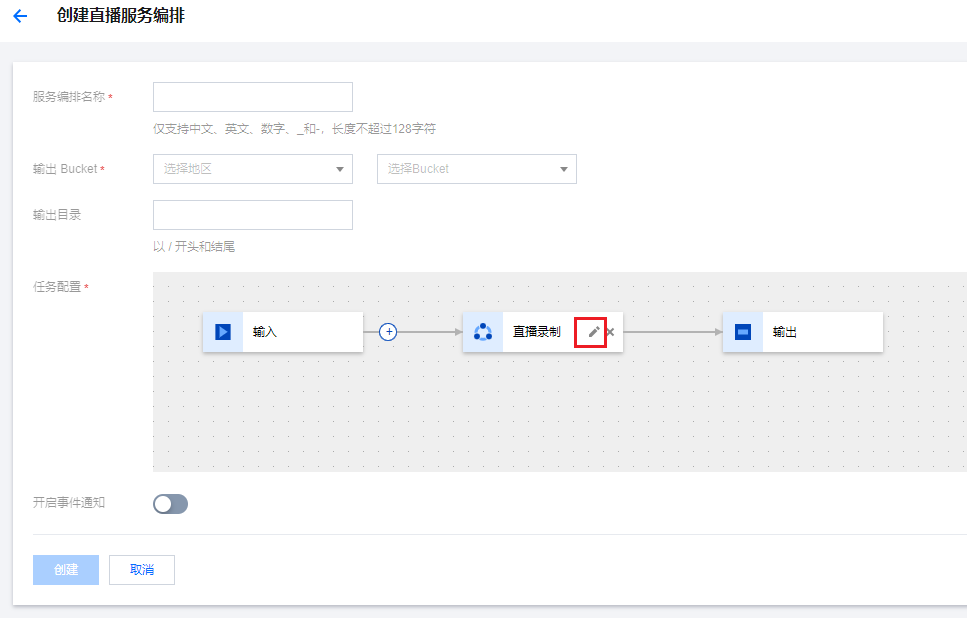
3. Click the edit button on the right side of the Live Recording step to perform detailed configuration.

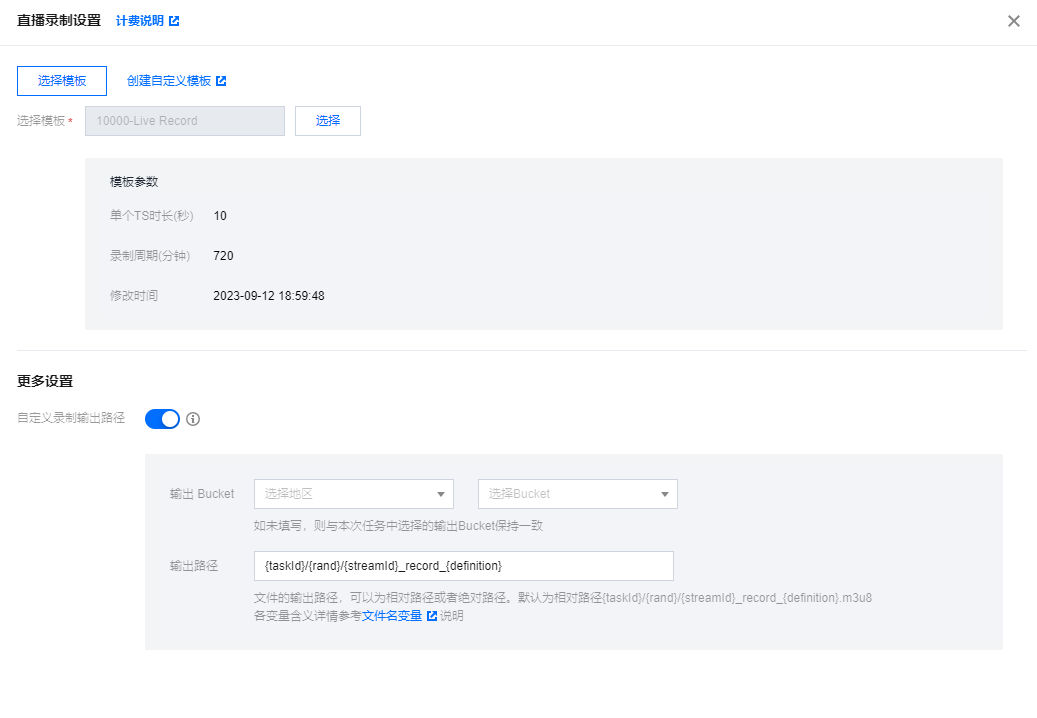
4. In the detailed configuration:
(1) Select the recording template;
(2) Select the output bucket;
(3) Edit the output path. The path of the output file, which can be relative or absolute. 


Note:
Please note that removing the random field {rand} from the path may cause a file to be overwritten by a different file with identical field values.
5. After completing the above information, click "Create" to establish a live scheme.
6. Go to Live tasks management page and create a new task. Enter the live streaming address that needs to be recorded and select the scheme. Click "Create Task".
Note:
Please make sure that the live streaming address is filled correctly. If the live streaming fails to be pulled, it will be retried 3 times. If the live streaming still cannot be obtained, the recording task will fail.


Help and Support

Was this page helpful?

Help us improve! Rate your documentation experience in 5 mins.

Feedback