Media Quality Inspection Integration
Unduh
Mode fokus
Ukuran font
Feature Introduction
Media quality inspection supports detecting format issues, video image content issues, and audio issues in live and offline videos, and provides a no-reference overall video score.
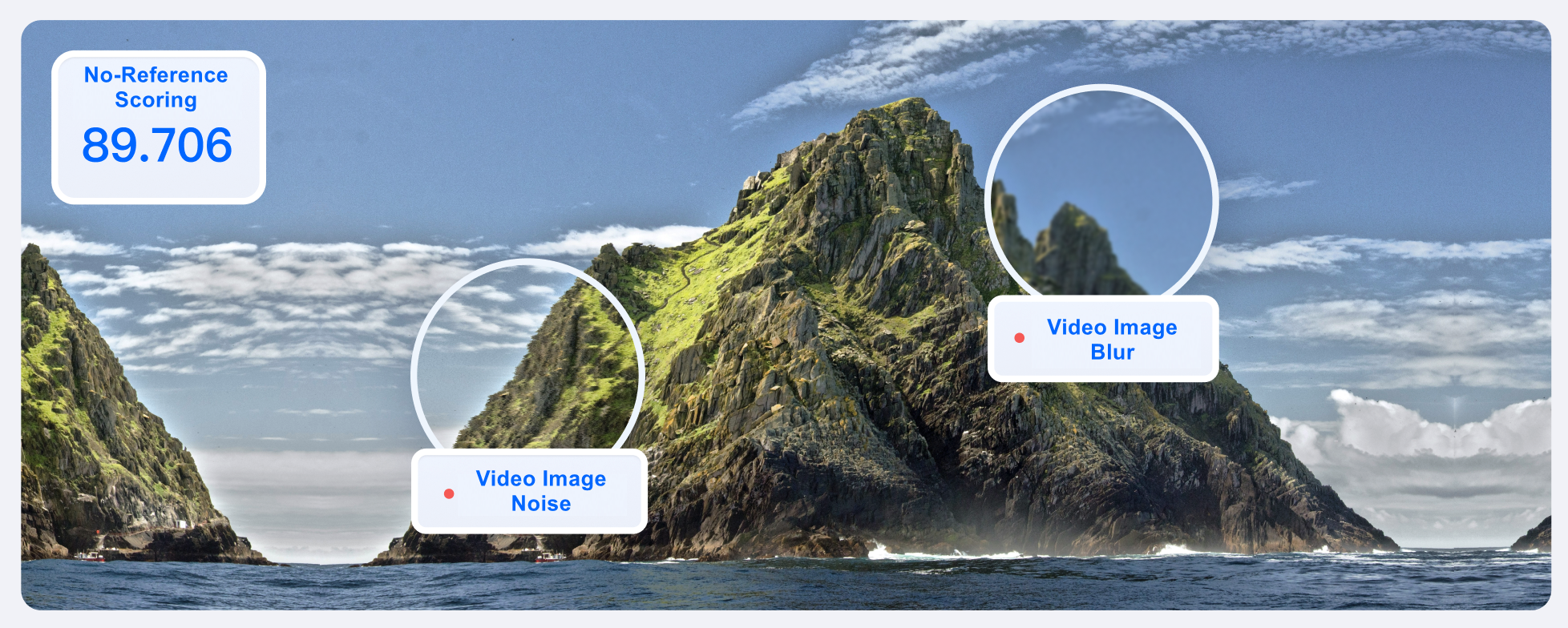
Inspection Category | Detection Type | Check Item Description |
Format Quality Check | Inspect the format of offline videos. Inspect the format of live streams. | Detect DTS and PTS issues, resolution changes, sampling rate changes, dropped frames, duplicate frames, and other format problems. |
No-Reference Scoring | Video & audio no-reference scoring (MOS) | Score video & audio quality on a 100-point scale based on multi-dimensional detection criteria. |
Quality Review | Video image quality | Supports detection of video image quality. Specific detection items are as follows: JitterResults: video image jitter. BlurResults: video image blur. AbnormalLightingResults: low light and overexposure. CrashScreenResults: screen corruption. BlackWhiteEdgeResults: time periods of video image black borders, white borders, black screens, white screens, and solid-color screens. NoiseResults: video image noise. MosaicResults: video image mosaic. QRCodeResults: video image QR code. |
| Audio quality | Supports detection of video audio quality. Specific detection items are as follows: VoiceResults: audio abnormalities, including mute, bass, and pop noise. |
Scenario 1: Processing Offline Files
Method 1: Initiating a Task in the Console
Step 1: Creating an Offline Service Orchestration
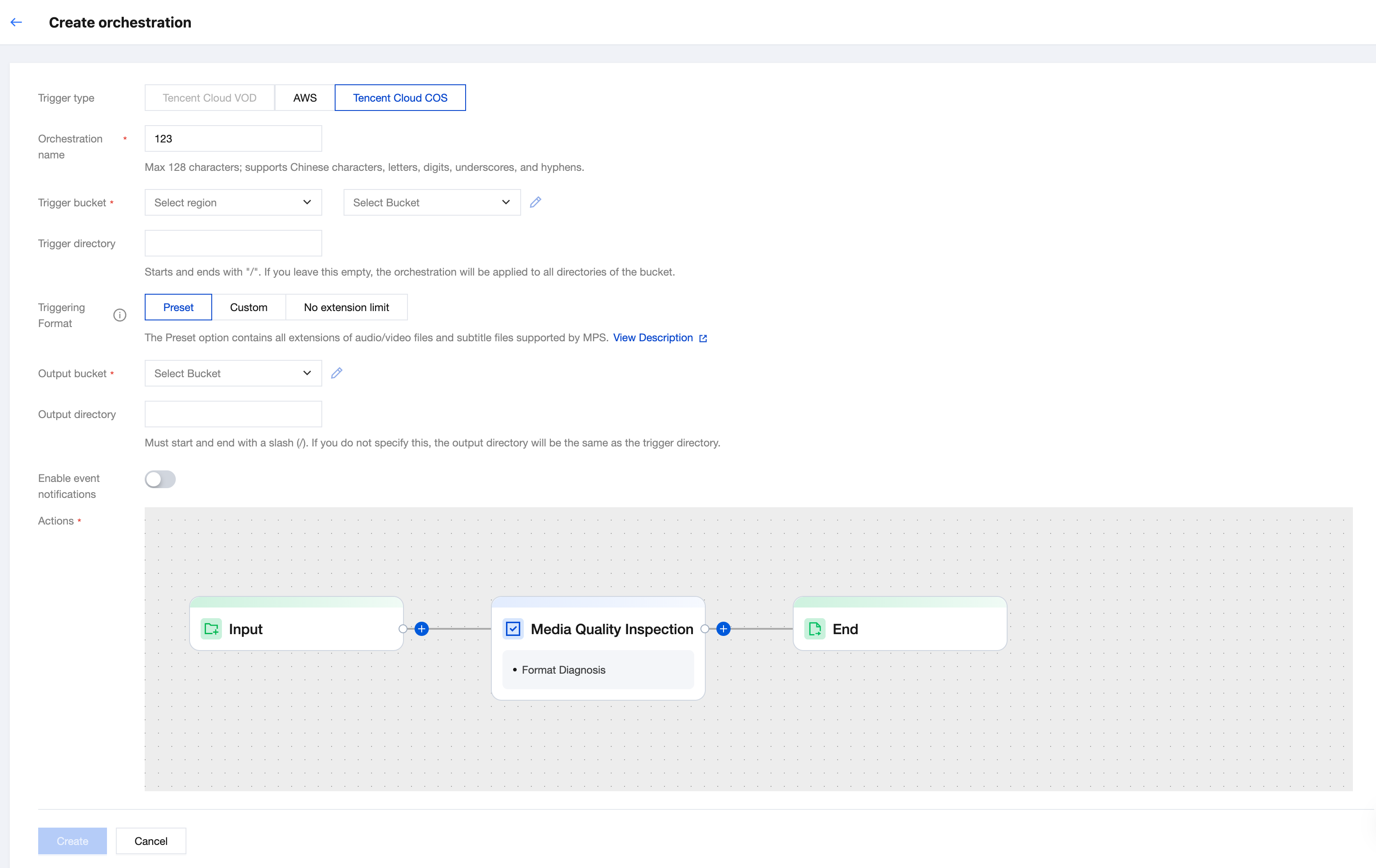
1. Log in to the MPS console, click Create VOD Orchestration, and add a Media Quality Inspection node in the Actions field.
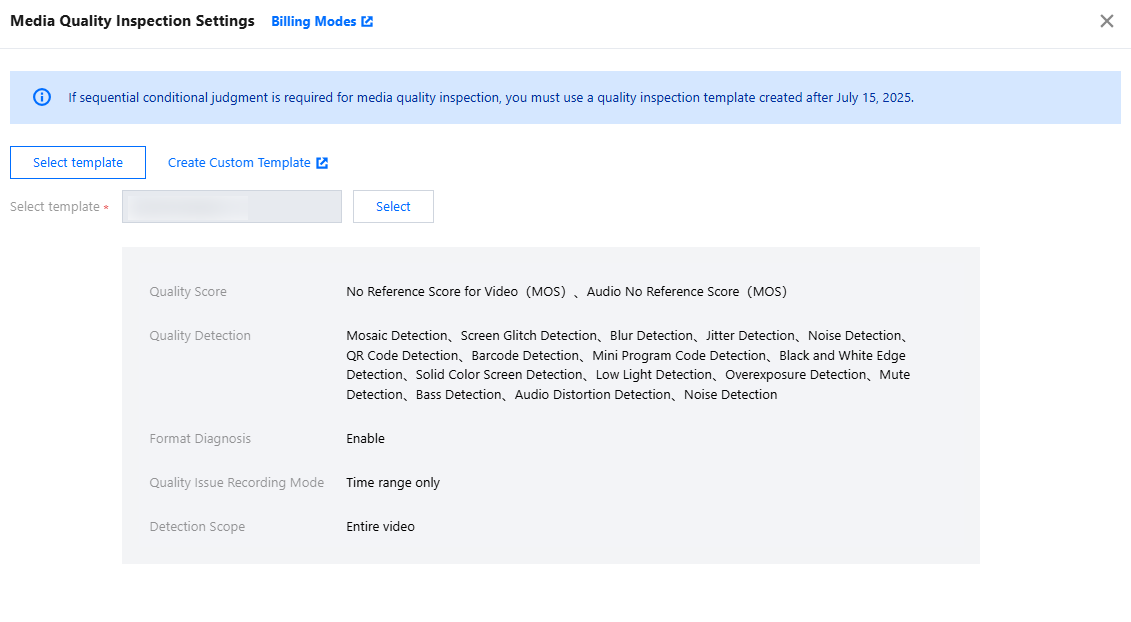
2. After the node is added, a new page pops up. Select a predefined system template or create a custom template based on the actual business scenario on this page. Then, save the settings.
3. Click Create at the bottom of the page after node configuration is completed to complete orchestration creation.
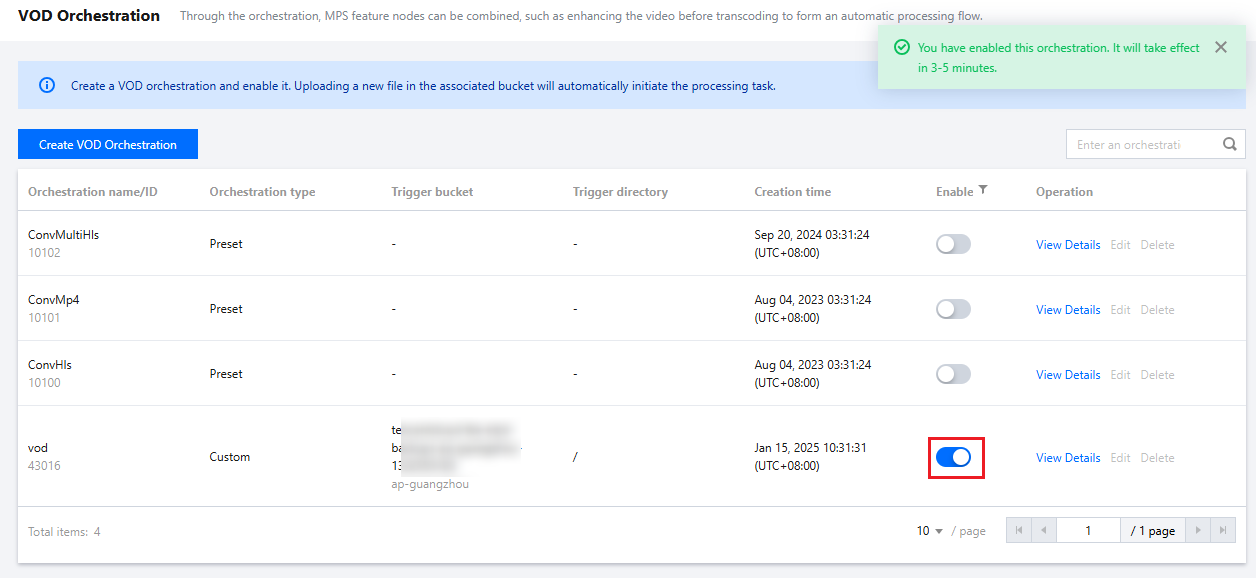
4. After the orchestration is created, return to the offline orchestration list page. Locate the newly created orchestration on the list page and click Enable. The orchestration takes effect approximately 3 - 5 minutes after the button is enabled.
Step 2: Initiating a Quality Inspection Task
After the orchestration takes effect, upload the offline files that require inspection to the triggering directory specified in the orchestration configuration. The uploaded files are then inspected according to the configurations of the nodes and templates in the orchestration.
Step 3: Managing Quality Inspection Tasks
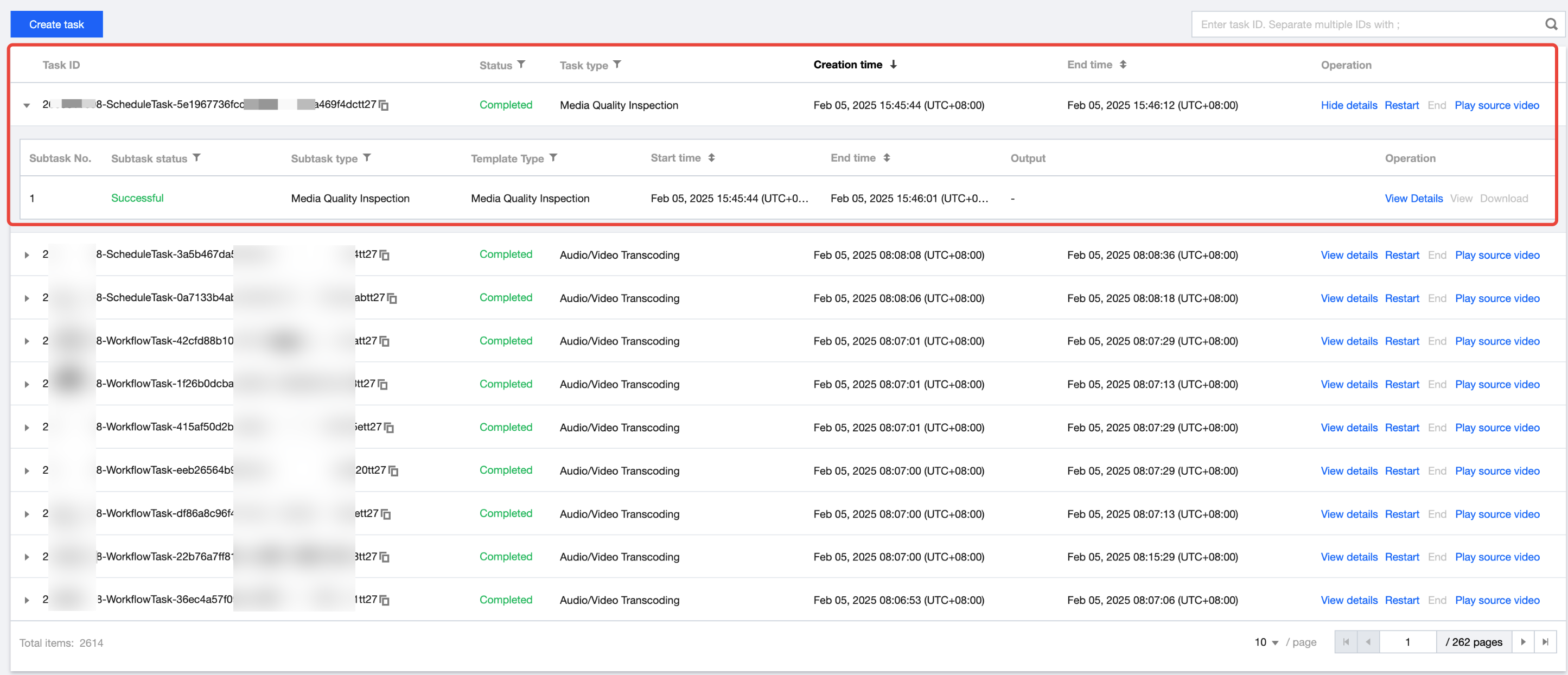
Method 2: Calling the API for Processing
Step 1: Initiating a Quality Inspection Task
To initiate a processing task for video URLs or media files in COS, see ProcessMedia in API Documentation.
Request example:
POST / HTTP/1.1Host: mps.tencentcloudapi.comContent-Type: application/jsonX-TC-Action: ProcessMedia
{"InputInfo": {"Type": "COS","CosInputInfo": {"Bucket": "test-<appid>","Region": "ap-shanghai","Object": "/video/test.mp4"}},"AiQualityControlTask": {"Definition": 10}}
Example description:
1. Type can be set to COS or URL. Fill in the source file path based on the Type value.
2. Definition indicates the ID of the template configured in the task. Templates are created by calling CreateQualityControlTemplate.
Response example:
}"Response": {"TaskId": "26000002-ScheduleTask-8c0bb3a13e10462fc405262c623aeff4tt7"}}
Example description: TaskId indicates the unique ID of the task, which is used to query and manage tasks.
Step 2: Querying the Task Details
You can query the execution status and detailed result of a task by task ID. For more information, see DescribeTaskDetail in API Documentation.
Request example:
POST / HTTP/1.1Host: mps.tencentcloudapi.comContent-Type: application/jsonX-TC-Action: DescribeTaskDetail
{"TaskId": "26000002-ScheduleTask-8c0bb3a13e10462fc405262c623aeff4tt7"}
Response example:
}"Response": {"WorkflowTask": {"Output": {"QualityControlResultSet": [{"Type": "BackWhiteEdge","QualityControlItems": [{"Confidence": 100,"StartTimeOffset": 12,"EndTimeOffset": 12}]}],"ContainerDiagnoseResultSet": [{"Category": "StreamAbnormalCharacteristics","DateTimeSet": [],"SeverityLevel": "Warning","TimestampSet": [11.006],"Type": "AudioDuplicatedFrame"}],"QualityEvaluationScore": 68}}}}
Viewing Quality Inspection Results
After initiating a quality inspection task, you can view the quality inspection result report on the VOD Task Management page.

Quality Inspection Results Report
The Quality Inspection Results Report shows inspection outcomes, offering video information and previews. Enabled inspection items allow users to check quality issue frequency and overall video rating.
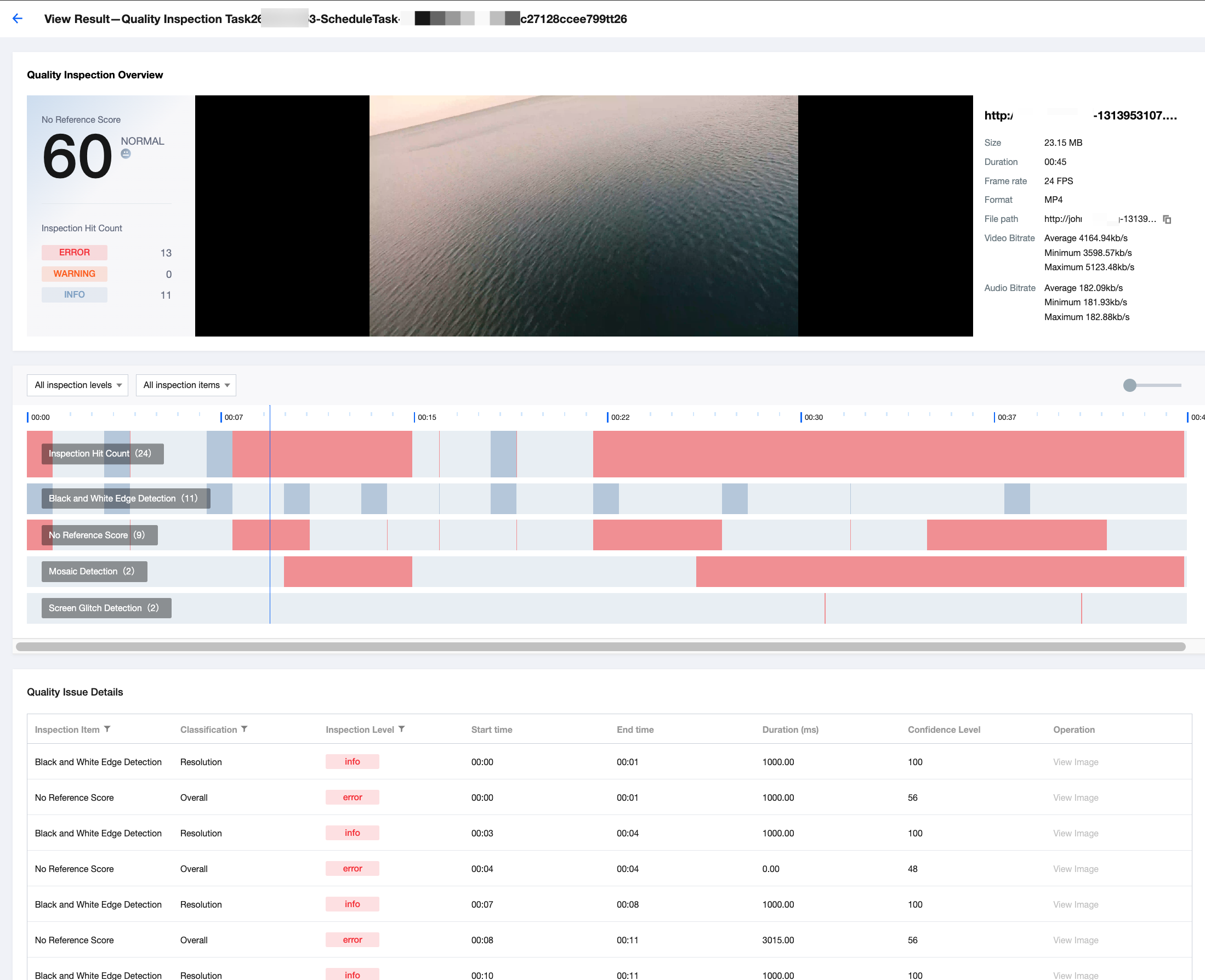
If any issues are detected during video quality inspection, the specific time segments where problems occur will be displayed. You can click on the timeline with your mouse to jump directly to the corresponding video segment and review the specific issue.
On the quality inspection issue list page, you can view the precise reporting time for each quality inspection problem, enabling you to further pinpoint and analyze the issues.
Scenario 2: Processing Live Streams
Method 1: Initiating a Task in the Console
Step 1: Creating Live Stream Orchestration
1. Log in to the MPS console, click Create Live Orchestration, and add the Media Quality Inspection node in the Actions field.
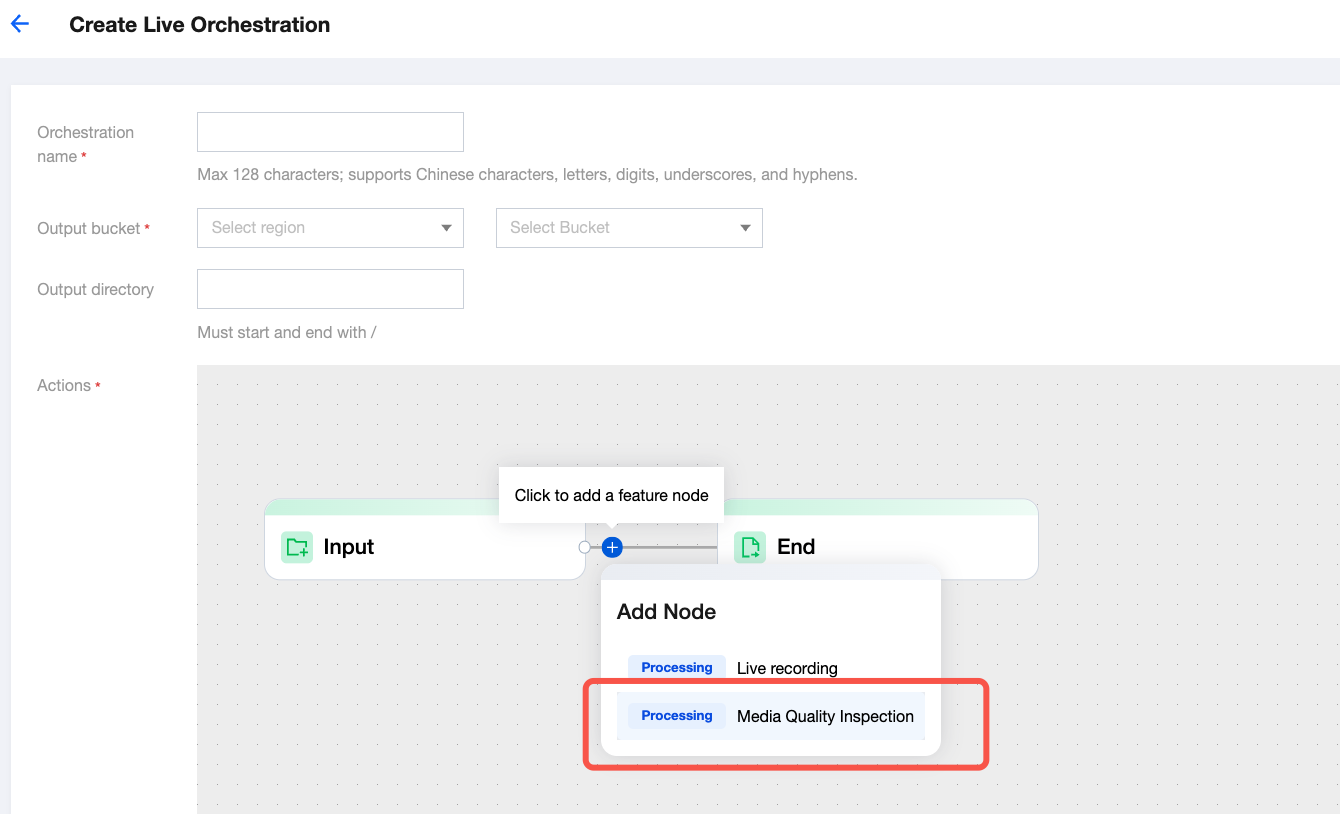
2. After the node is added, a new page pops up. Select a predefined system template or create a custom template based on the actual business scenario on this page. Then, save the settings.
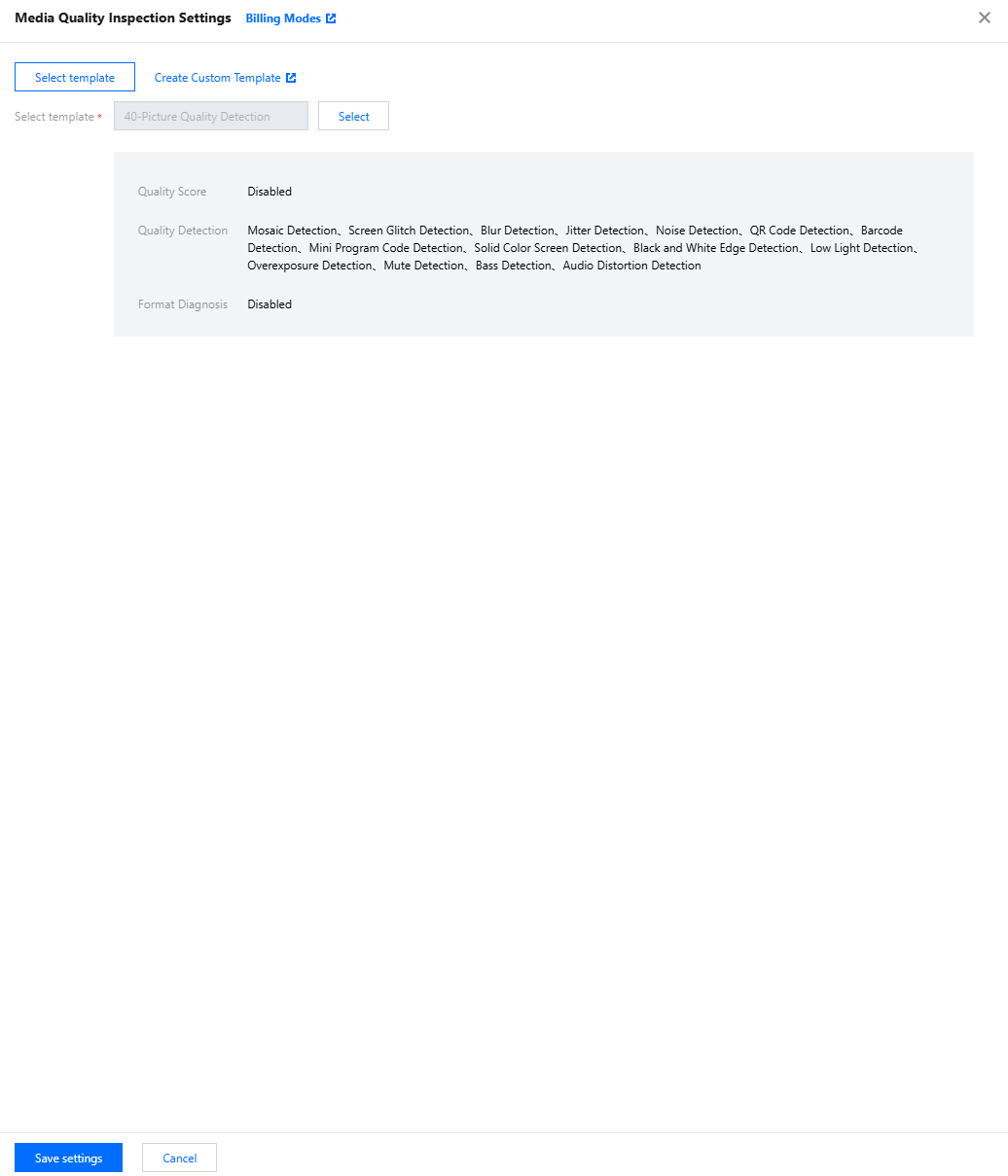
3. Click Create at the bottom of the page after node configuration is completed to complete orchestration creation.
4. Return to the live stream orchestration list after the orchestration is created, and find the newly created orchestration in the list.
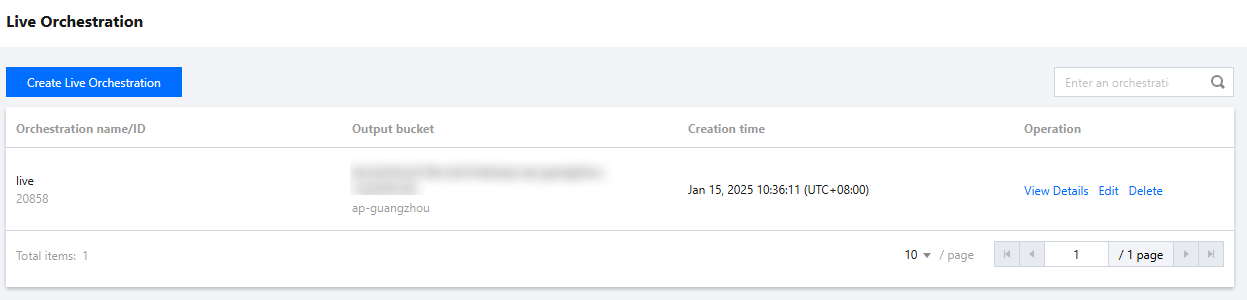
Step 2: Creating a Live Stream Quality Inspection Task
Go to the Live Processing Tasks page, click Create task, enter the live stream address to be processed on the task creation page, select the live stream orchestration created in the previous step, complete other information as needed, and click Create to complete the creation.
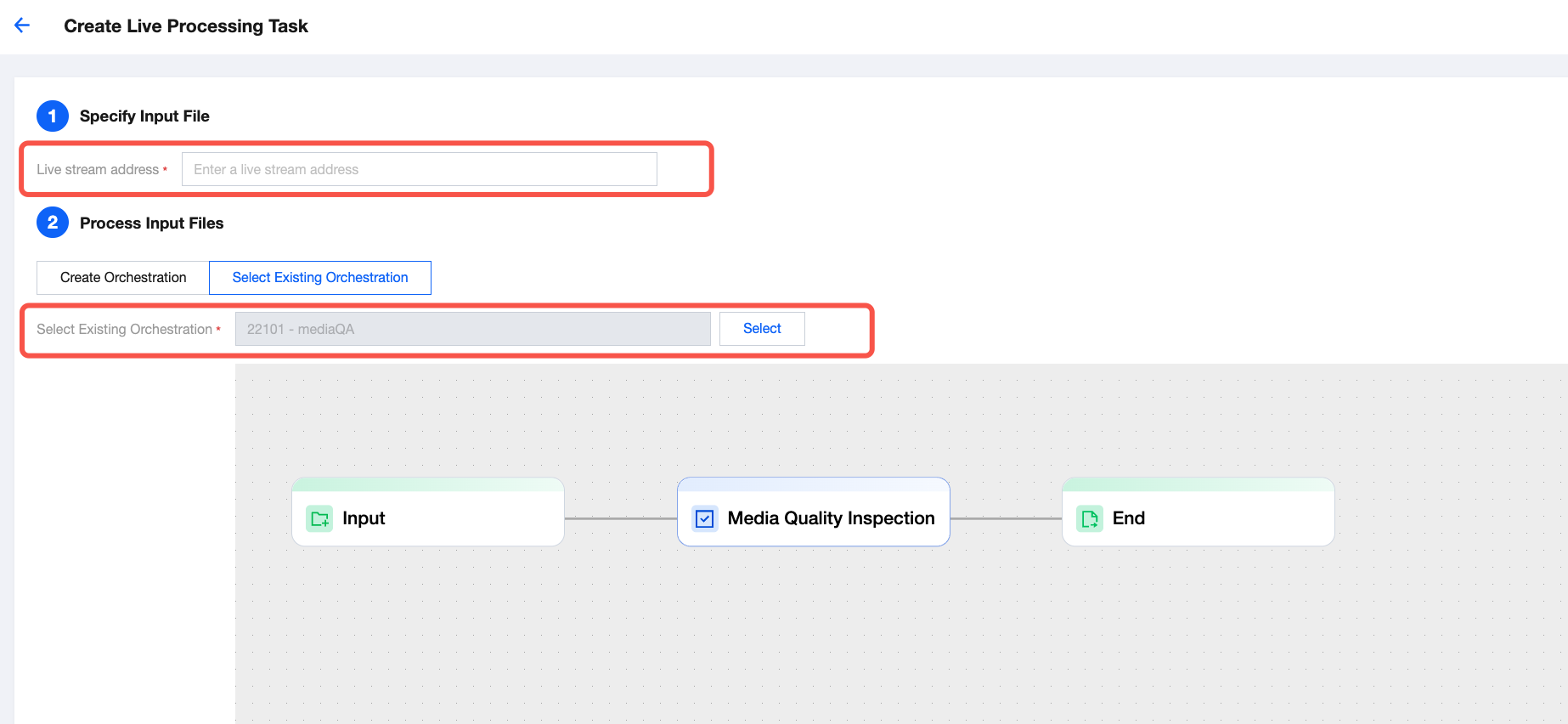
Step 3: Managing Live Stream Quality Inspection Tasks
Method 2: Calling the API for Processing
Step 1: Initiating a Live Stream Quality Inspection Task
Request example:
POST / HTTP/1.1Host: mps.tencentcloudapi.comContent-Type: application/jsonX-TC-Action: ProcessLiveStream
{"Url": "rtmp://tlivecloud.com/live/test","TaskNotifyConfig": {"NotifyType": "URL","NotifyUrl": "http://tlivecloud.com/callback"},"AiQualityControlTask": {"Definition": 10}}
Example description:
1. Url indicates the live stream address.
2. TaskNotifyConfig indicates the callback service address. When an issue is detected in the video stream, the issue information will be sent to this address in real time.
Response example:
}"Response": {"TaskId": "24000002-live-procedure-813dc41e6fdc22dcf24aa6e9c61cp92"}}
Example description: TaskId indicates the unique ID of the task, which is used to query and manage tasks.
Step 2: Parsing Live Stream Notifications and Performing Callback for Issues
After a message is received, the content of an MPS live stream processing event notification is parsed from the msgBody field in the message. For details, see ParseLiveStreamProcessNotification.
If TaskNotifyConfig is set when a live stream quality inspection task is initiated, the information on detected live stream issues detected will be sent to the configured address in real time.
Callback request example:
POST / HTTP/1.1Content-Type: application/json
{"NotificationType": "AiQualityControlResult","TaskId": "24000002-procedure-live-813dc41e6fdc22dcf24aa6e9c61cp92","AiQualityControlResultInfo": {"QualityControlResultSet": [{"Type": "BackWhiteEdge","QualityControlItems": [{"Confidence": 100,"StartTimeOffset": 12,"EndTimeOffset": 12}]}],"DiagnoseResultSet": [{"Category": "StreamStatusException","Type": "StreamOpenFailed","Timestamp": 0,"Description": "Open url failed.","DateTime": "2023-11-06T06:37:28Z","SeverityLevel": "Fatal"}]}}
Example description: QualityControlResultSet indicates the information on issues detected through content quality inspections. DiagnoseResultSet indicates the information on issues detected through format diagnosis.
Bantuan dan Dukungan
Apakah halaman ini membantu?
Anda juga dapat Menghubungi Penjualan atau Mengirimkan Tiket untuk meminta bantuan.
masukan