tencent cloud

Media Processing Service

Release Notes and Announcements
Release Notes
Announcements
Product Introduction
Overview
Features
Strengths
Use Cases
Purchase Guide
Billing Overview
Purchase Instructions
Top Up and Purchase
Overdue Payments
Refund
Getting Started
Console Guide
Overview
Creating Tasks
Tasks
Orchestrations
Templates
Resource Packs
Video Evaluation
AIGC Content Generation
Terminal SDK
Subtitle Editing Tool
Usage Statistics
Cloud Access Management Sample
Integration Tutorials
Audio/Video Transcoding Integration
Audio/Video Enhancement Integration
Audio Separation Integration
Integration of Digital and Visible Watermarks
Media AI Integration Tutorial
Media Quality Inspection Integration
Terminal SDK integration
MPS Live Stream Recording integration
DRM integration
Other tutorials
Application Scenario and Practical Tutorial
Image Quality Improvement Scenario
Audio/Video Cost Optimization Scenario
Short Drama Translation Scenario
AI-Generated Content Scenario
Online Education Scenarios
API Documentation
History
Introduction
API Category
Making API Requests
Processing Task Initiation APIs
Task Management APIs
Transcoding and Enhancement Template APIs
Watermark Template APIs
Screenshot Template APIs
Media AI Template APIs
Media AI—Hotword Lexicon APIs
Media AI—Sample Management APIs
Media Quality Inspection Template APIs
Live Streaming Recording Template APIs
Orchestration Management APIs
Data Statistics APIs
StreamLink—Security Group Management APIs
Other APIs
Image Processing Template APIs
AI Generation APIs
Other APIs
Data Types
Error Codes
Other Documents
WebSocket Protocol for Recognition
FAQs
Basics
Account Authorization
Task Configuration
Task Initiation
Task Result Viewing
Related Agreement
Service Level Agreement
Privacy Policy
Data Processing And Security Agreement
Contact Us
Glossary

Subtitle Editing Tool

PDF
Focus Mode
Font Size
Last updated: 2025-07-29 11:28:43

Applicable Scenario

This tool can be used to calibrate subtitle files. It supports uploading subtitle files, editing the text content, and adjusting the timeline. You can also add videos for preview to ensure subtitle synchronization with the image.
You can use Subtitle Editing Tool for free.


Operation Instructions

1. Adding Subtitle and Video Files

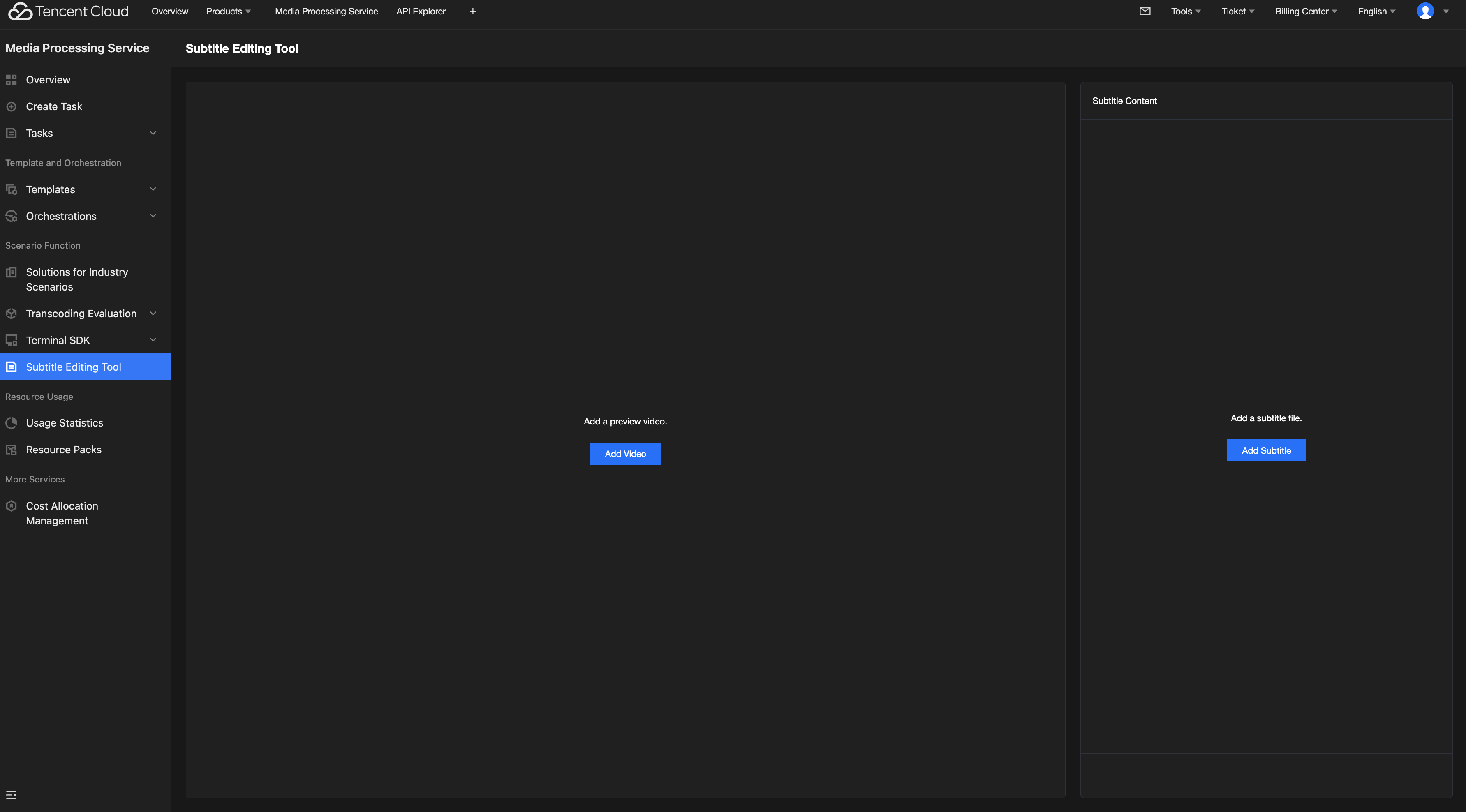
Add a local subtitle file or a subtitle file in Tencent Cloud Object Storage (COS) for subsequent editing. WebVTT and SRT formats are supported.
Add a local video file or a video file in COS for preview. MP4, MOV, AVI, M4V, and MPG formats are supported.
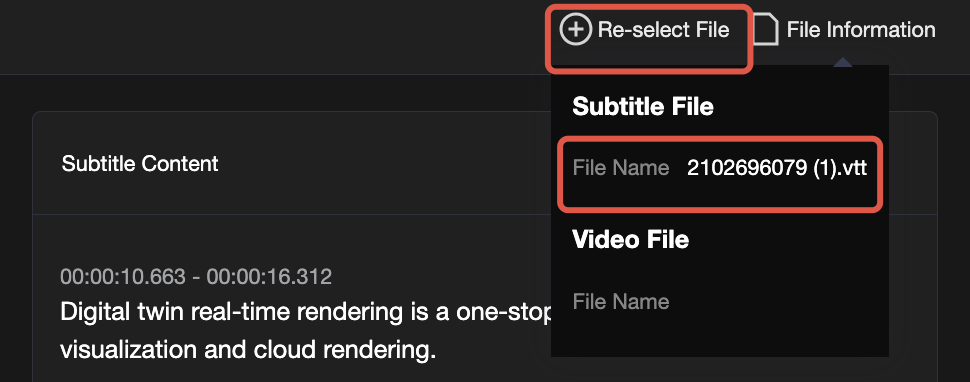
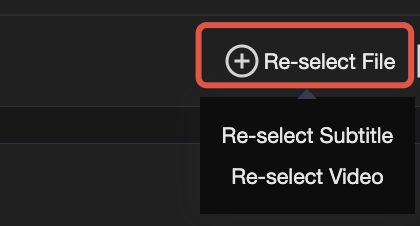
Click File Information in the upper right corner to view the paths of the added files. For local files, only the file name is displayed. You can click Re-select File in the upper right corner to select and add other subtitle/video files.


2. Editing and Saving Subtitles

(1) Editing Subtitles

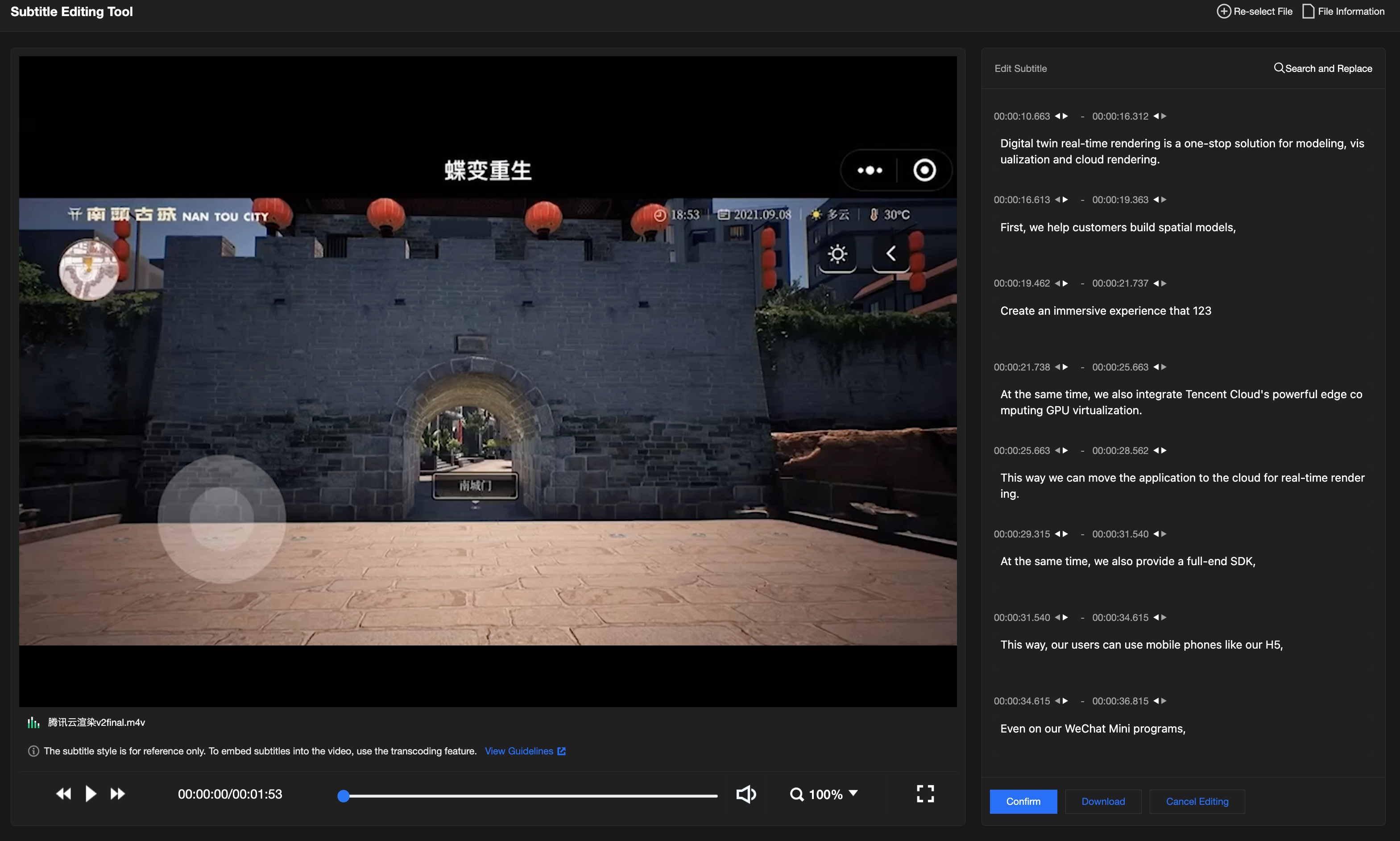
Click Edit to enter editing mode after a subtitle file is added. You can edit the timeline and subtitle content of the subtitle file.

Adjusting the timeline
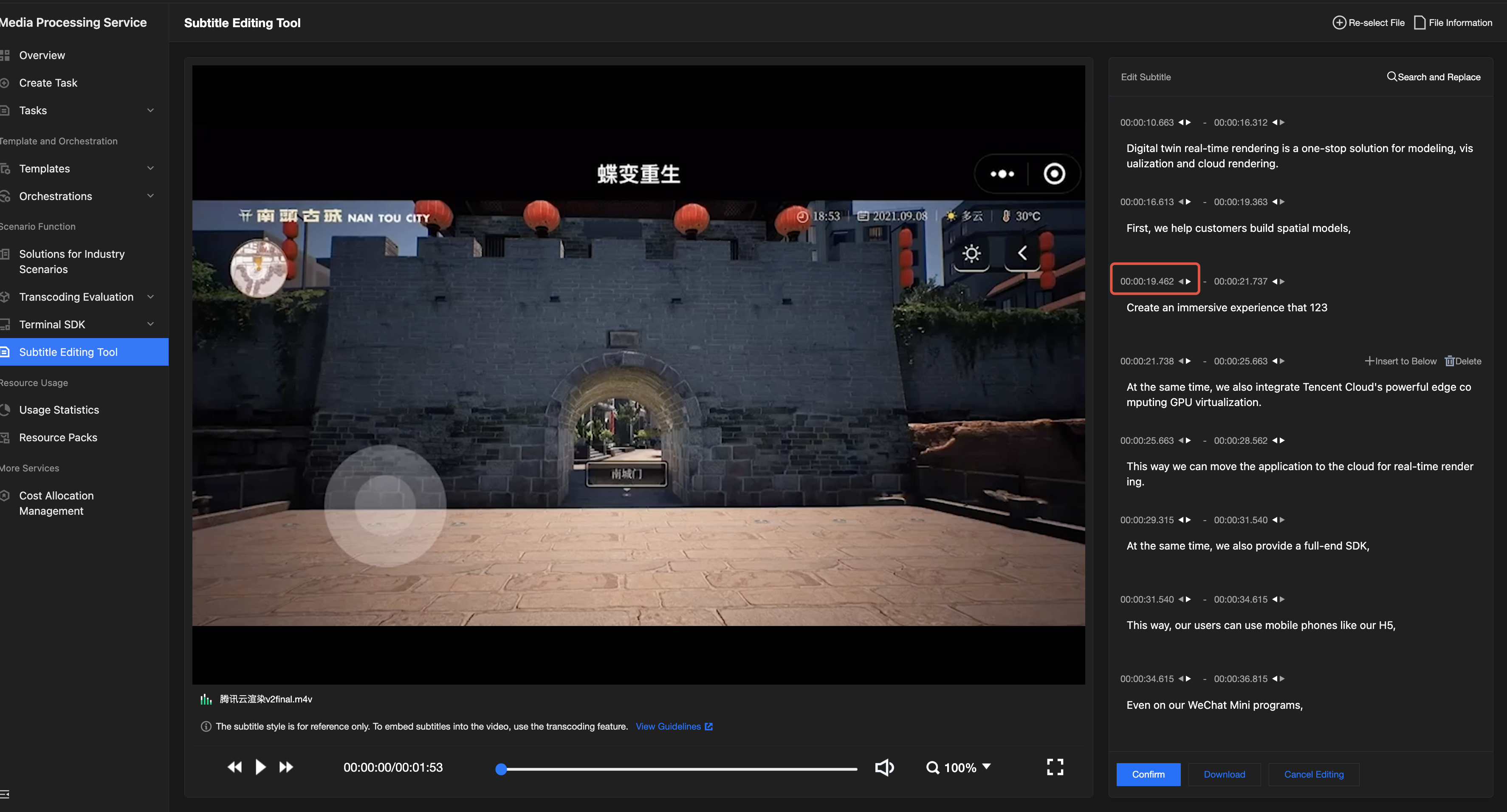
Select a subtitle line you want to adjust. Then, click the adjustment button or manually enter exact time points to adjust the start time and end time of this subtitle line. This ensures precise alignment between subtitles and the video content.

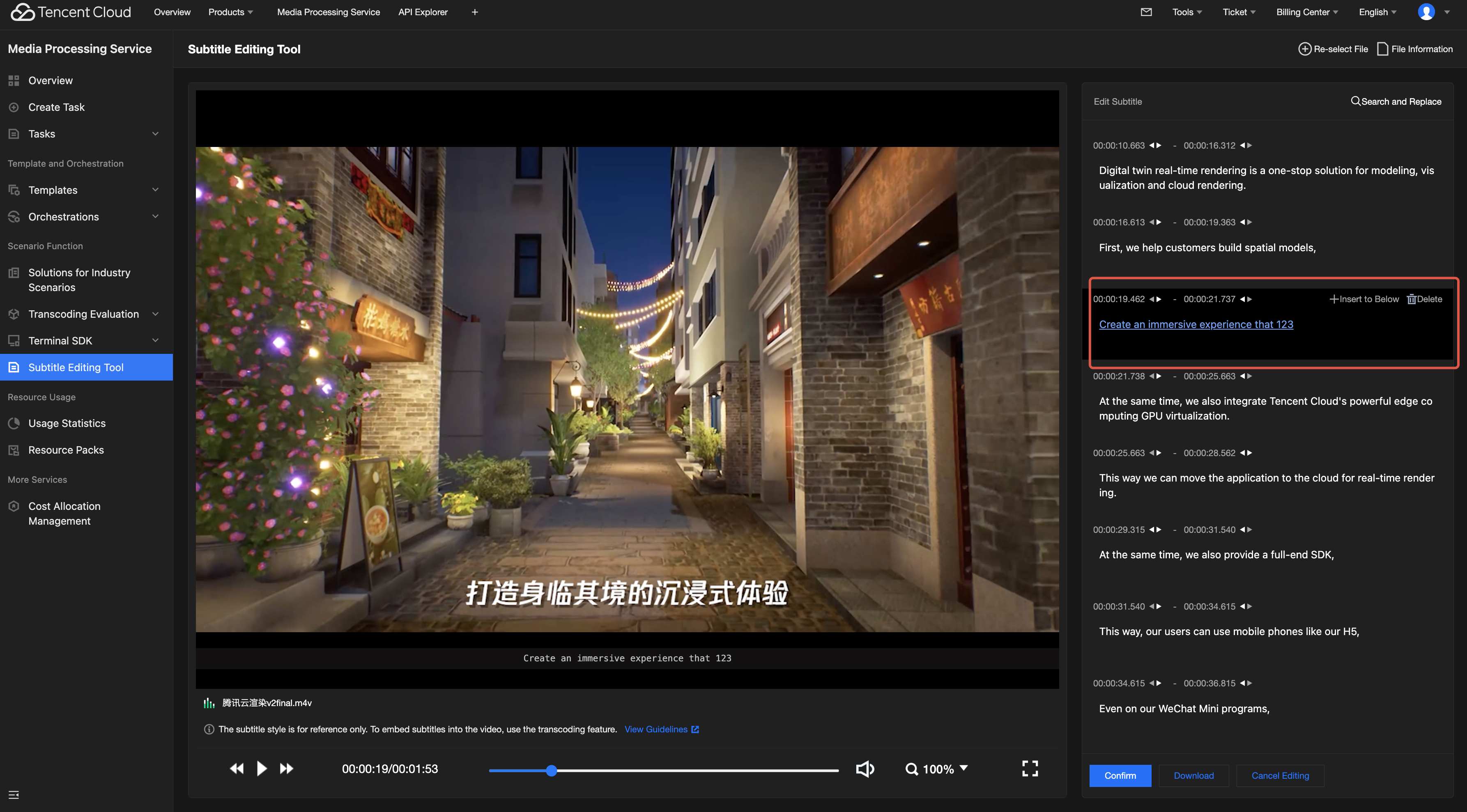
Modifying the subtitle content
Select a subtitle line you want to adjust and manually edit the subtitle content. You can press Enter to add a blank subtitle line for the current time point.

Adding/Deleting subtitle lines
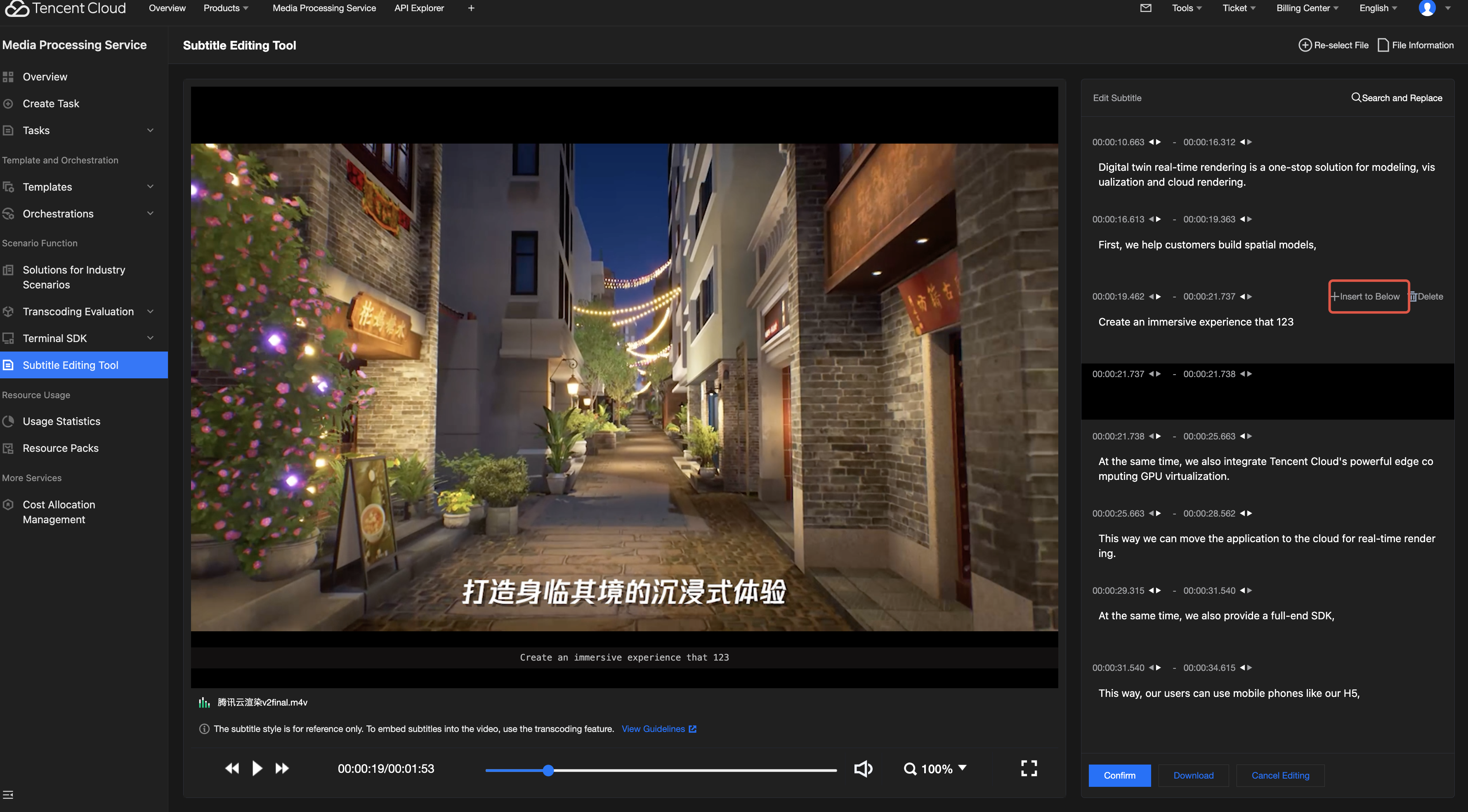
Hover over a subtitle line to invoke the Insert to Below and Delete buttons. Click them to add a subtitle line or delete the selected subtitle line.

Search and replacement
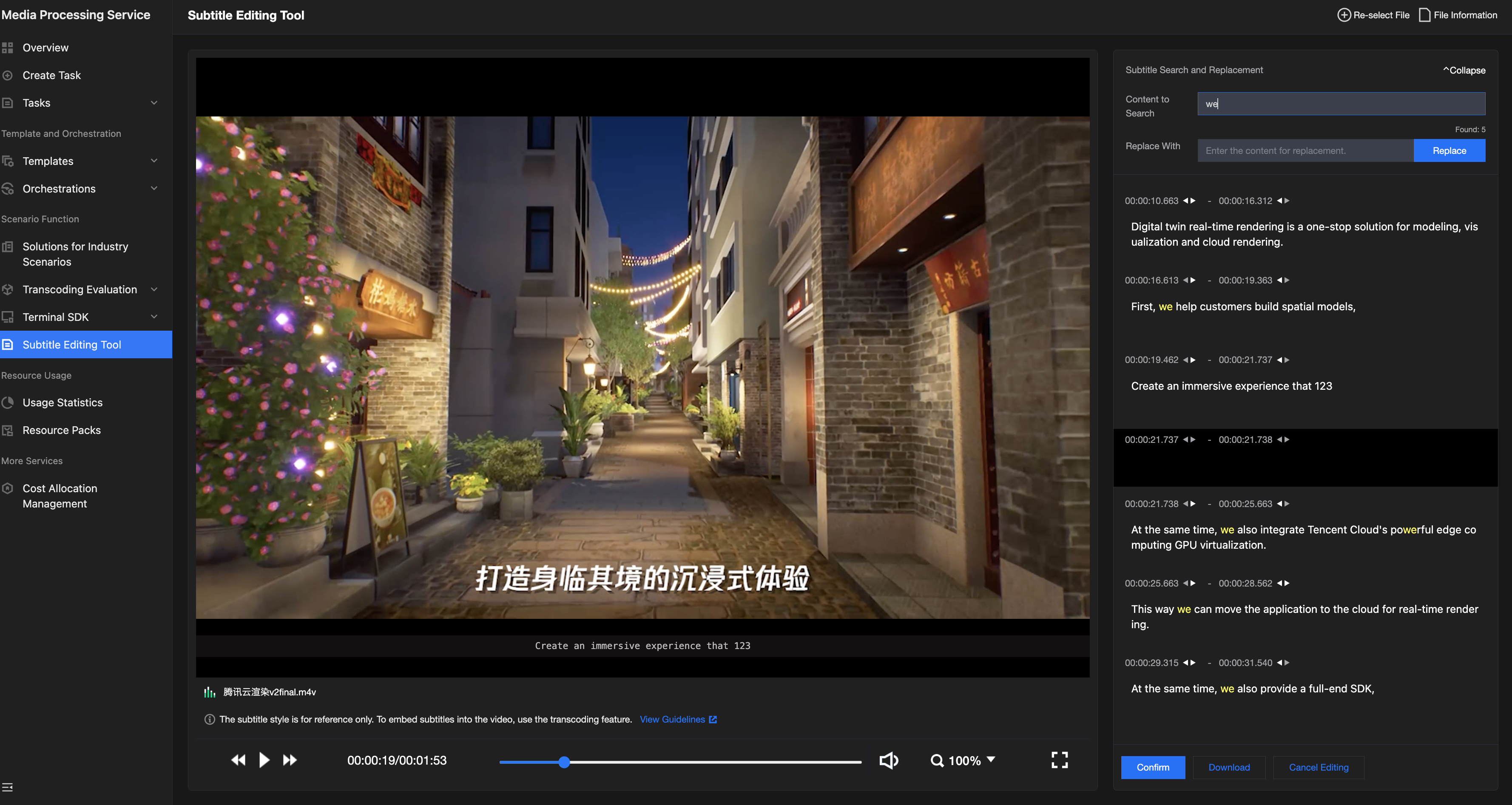
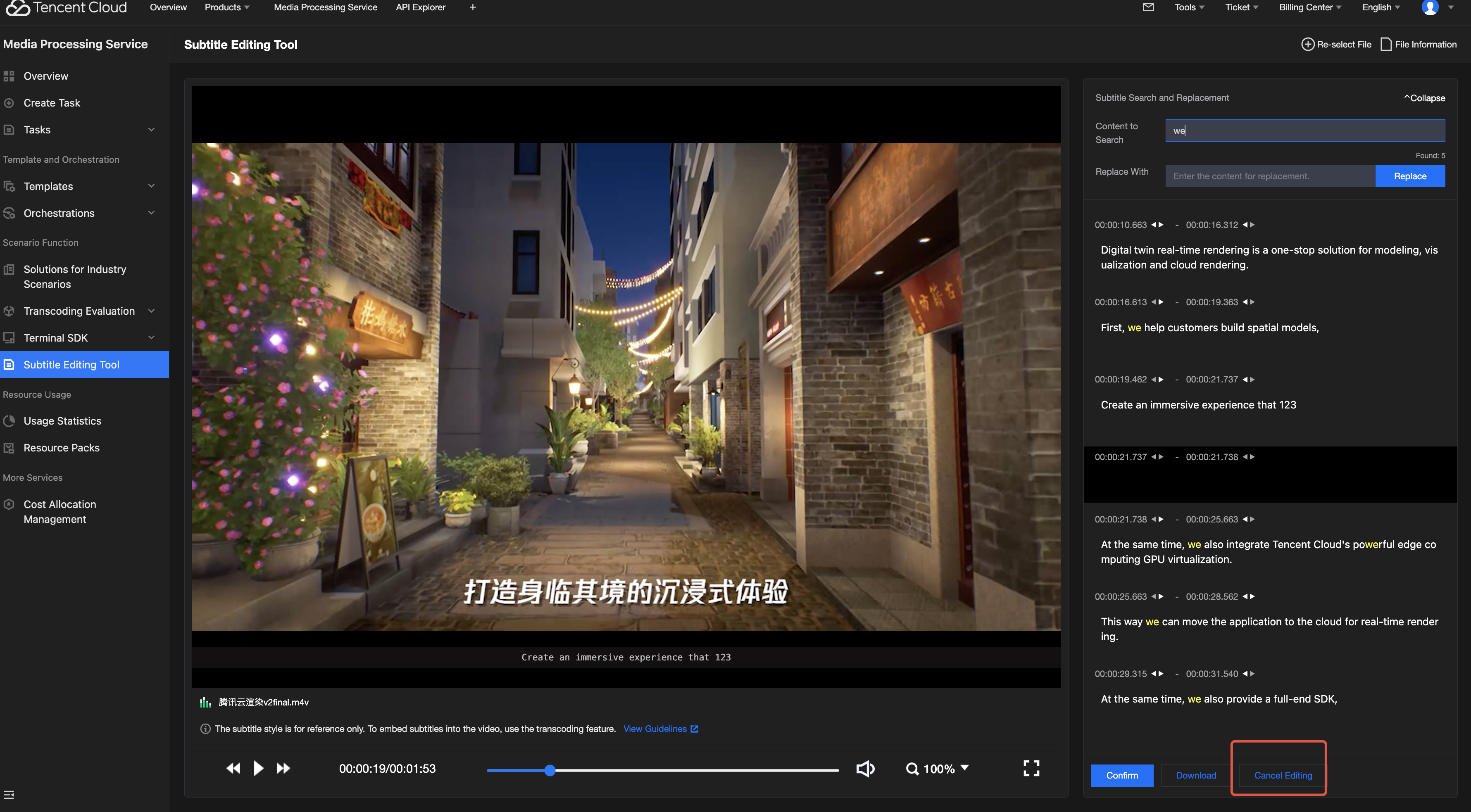
Click Find and Replace in the upper right corner and enter the content for search. The system will display the number of matching entries (X entries) and automatically highlight all results. Enter the content for replacement and click Replace to complete the replacement in one click.

Canceling editing
Click Cancel Editing to discard all current modifications. The subtitles will be restored to their original status before editing.


(2) Saving After Editing

For a local subtitle file:
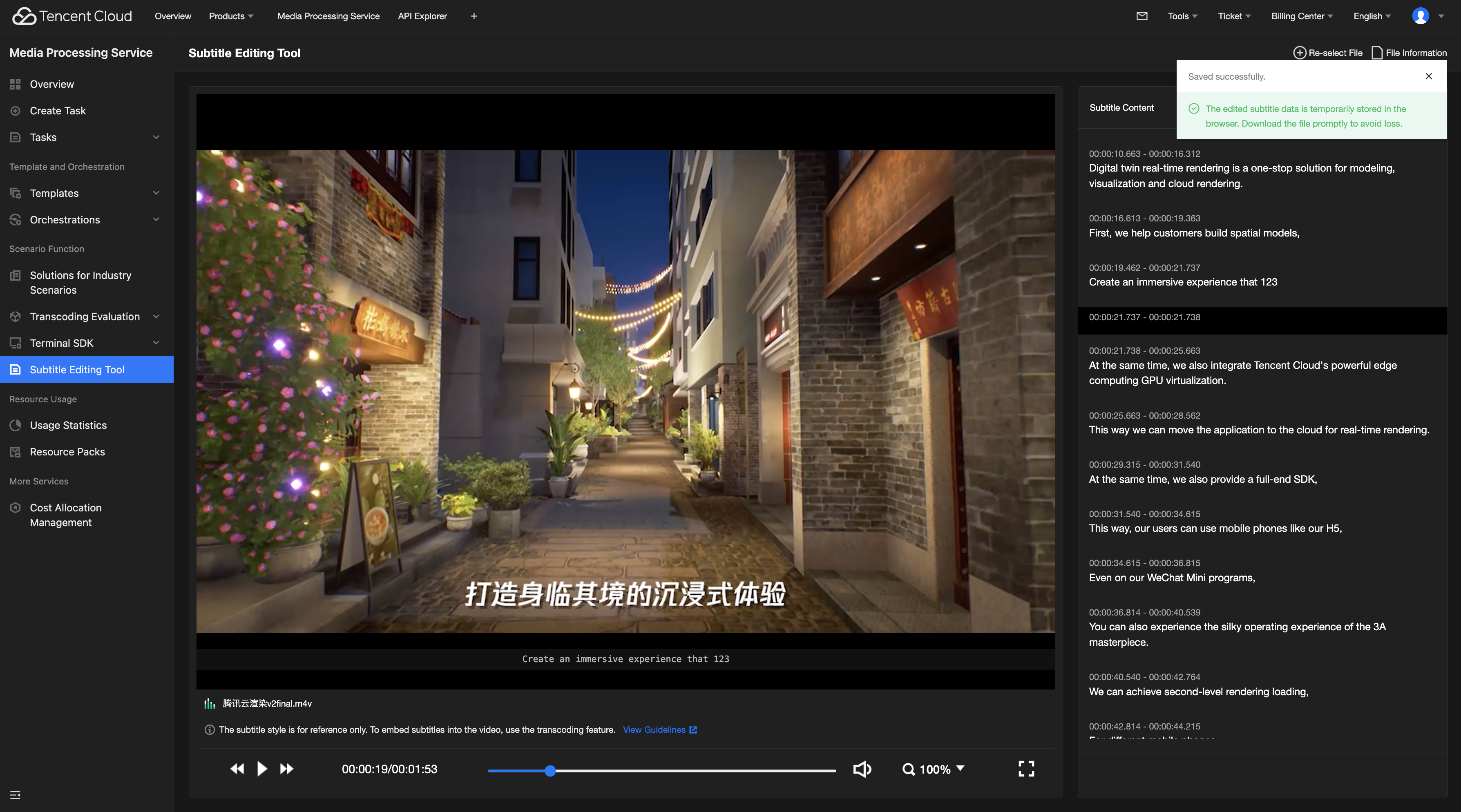
Click Confirm after editing to save changes. You can enter the editing mode again for modification or directly click Download to save the edited subtitle file to a local path.
Note:
The edited subtitle data will be temporarily stored in the browser after being saved successfully. The temporarily stored data will be lost when you leave the page (close or refresh it). Do not leave the page. It is recommended that you click Download to promptly save the file to a local path.

For a subtitle file in COS:
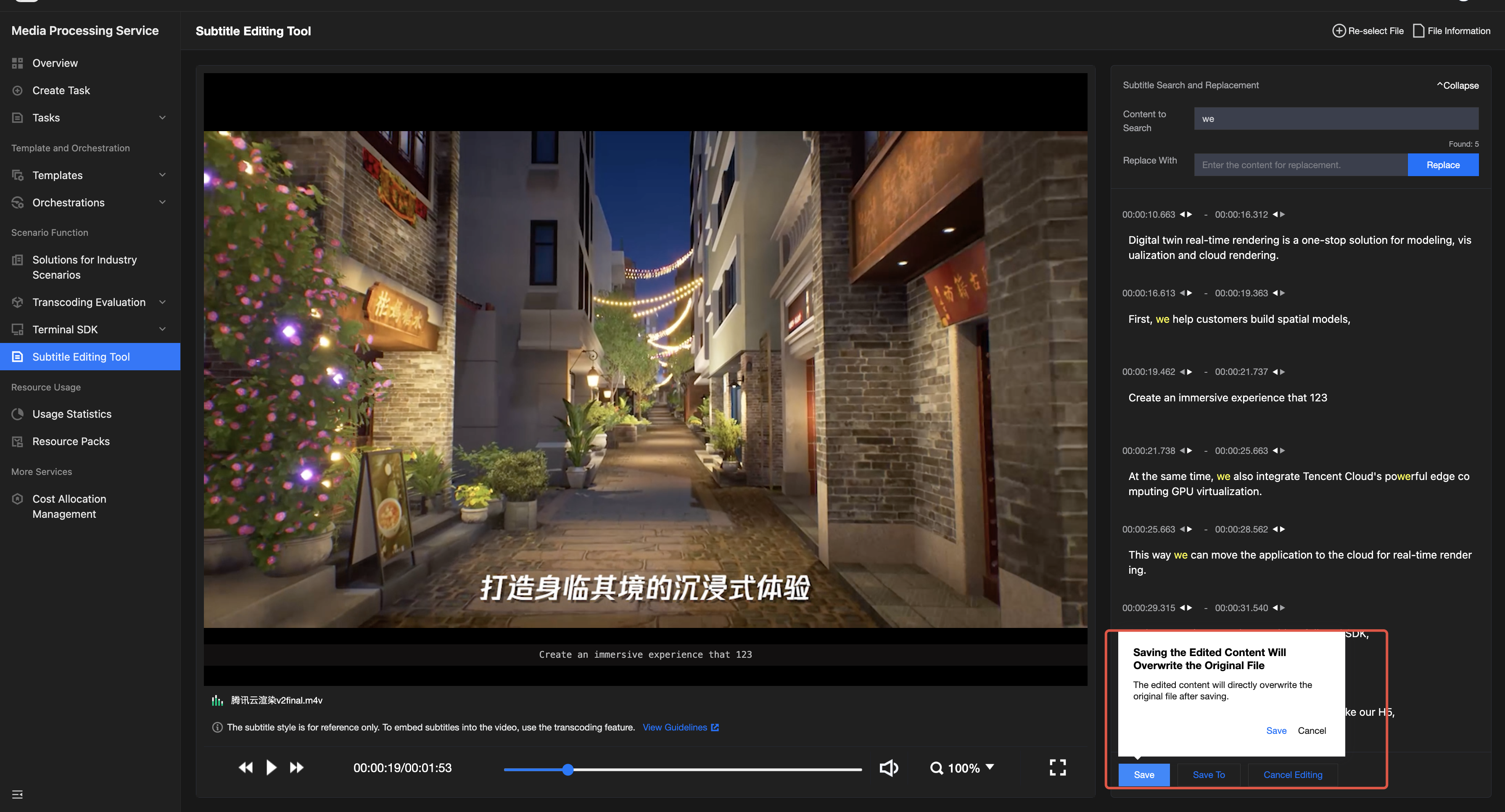
Click Save to directly overwrite the original subtitle file in COS.

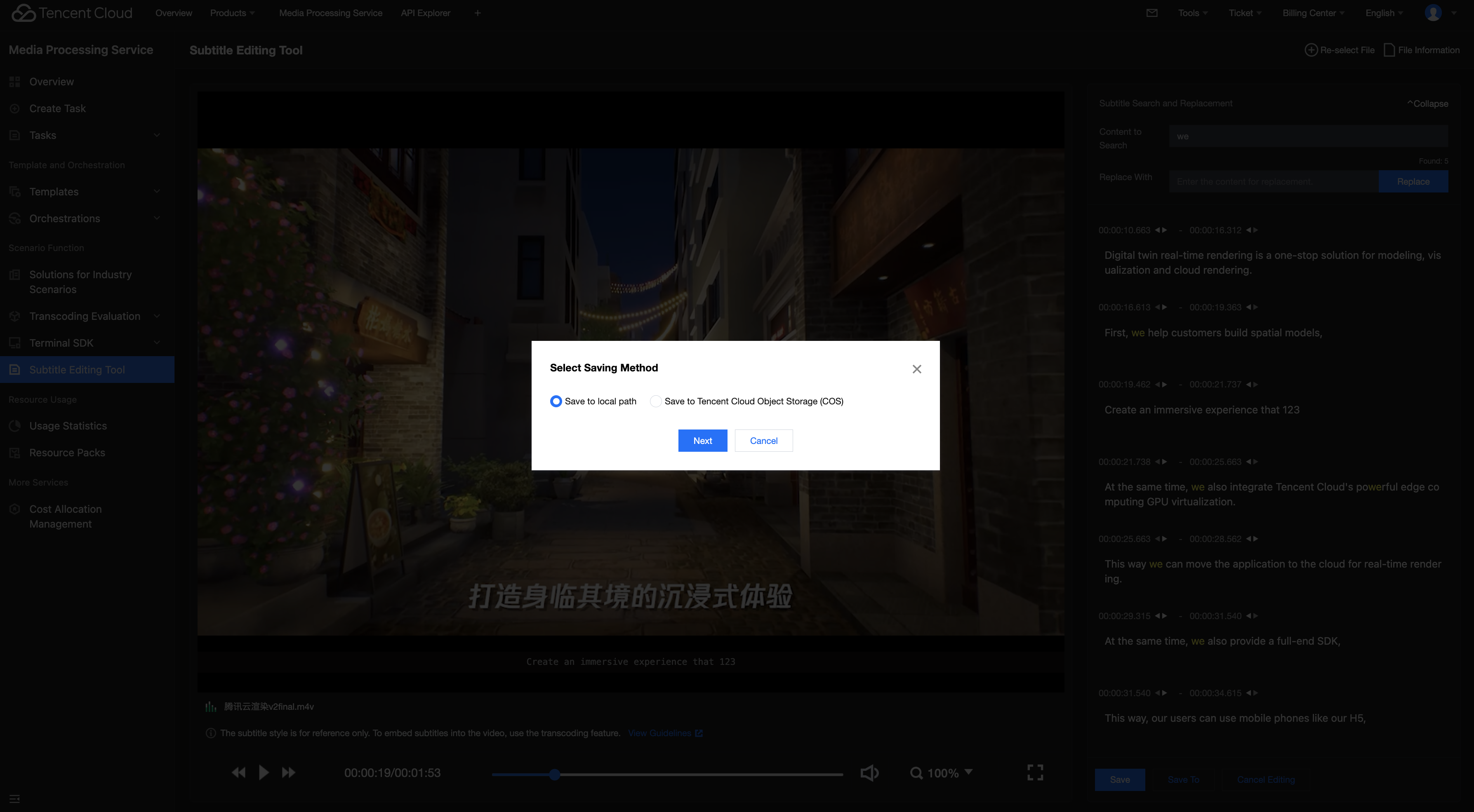
Click Save As. You can choose to save the edited subtitle file to a local path or store it as a new file in COS (without overwriting the original file).


Help and Support

Was this page helpful?

Help us improve! Rate your documentation experience in 5 mins.

Feedback