tencent cloud

Data Lake Compute

Release Notes
Product Introduction
Overview
Strengths
Use Cases
Purchase Guide
Billing Overview
Refund
Payment Overdue
Configuration Adjustment Fees
Getting Started
Complete Process for New User Activation
DLC Data Import Guide
Quick Start with Data Analytics in Data Lake Compute
Quick Start with Permission Management in Data Lake Compute
Quick Start with Partition Table
Enabling Data Optimization
Cross-Source Analysis of EMR Hive Data
Standard Engine Configuration Guide
Configuring Data Access Policy
Operation Guide
Console Operation Introduction
Development Guide
Runtime Environment
SparkJar Job Development Guide
PySpark Job Development Guide
Query Performance Optimization Guide
UDF Function Development Guide
System Restraints
Client Access
JDBC Access
TDLC Command Line Interface Tool Access
Third-party Software Linkage
Python Access
Practical Tutorial
Accessing DLC Data with Power BI
Table Creation Practice
Using Apache Airflow to Schedule DLC Engine to Submit Tasks
Direct Query of DLC Internal Storage with StarRocks
Spark cost optimization practice
DATA + AI
Using DLC to Analyze CLS Logs
Using Role SSO to Access DLC
Resource-Level Authentication Guide
Implementing Tencent Cloud TCHouse-D Read and Write Operations in DLC
DLC Native Table
SQL Statement
SuperSQL Statement
Overview of Standard Spark Statement
Overview of Standard Presto Statement
Reserved Words
API Documentation
History
Introduction
API Category
Making API Requests
Data Table APIs
Task APIs
Metadata APIs
Service Configuration APIs
Permission Management APIs
Database APIs
Data Source Connection APIs
Data Optimization APIs
Data Engine APIs
Resource Group for the Standard Engine APIs
Data Types
Error Codes
General Reference
Error Codes
Quotas and limits
Operation Guide on Connecting Third-Party Software to DLC
FAQs
FAQs on Permissions
FAQs on Engines
FAQs on Features
FAQs on Spark Jobs
DLC Policy
Privacy Policy
Data Privacy And Security Agreement
Service Level Agreement
Contact Us

Using Role SSO to Access DLC

PDF
Focus Mode
Font Size
Last updated: 2025-10-27 17:28:19
Data Lake Compute (DLC) supports role SSO for access. This document uses Okta as an example to introduce how to access DLC via role SSO and complete relevant permission configurations.

Overview

1. When an enterprise requires cross-team collaboration to analyze mass data (for example, financial risk control and retail sales forecasting), traditional account management models face two major challenges:
Low efficiency: Data analysts need to repeatedly log in to multiple systems, such as DLC and BI, which requires time-consuming password memory and switchover.
Loss of control over permissions: The manual allocation of database or table permissions is prone to errors, and the untimely reclamation of resigned employee permissions may cause data leakage.
2. Okta App: An enterprise-level identity verification and access management platform that addresses these challenges with a role single sign-on (SSO) solution. The platform seamlessly integrates with existing enterprise account systems, enabling employees to access DLC via SSO, while automatically mapping data permission through preset fine-grained roles.

Creating a Role SSO

Entering the Okta App

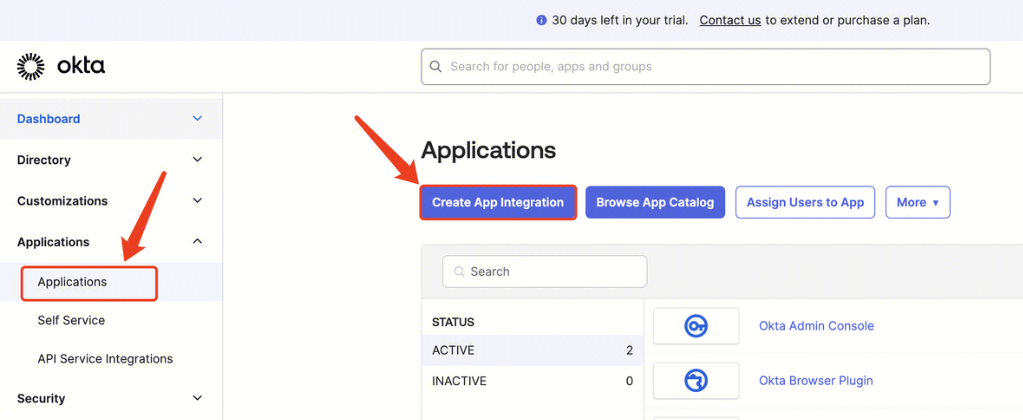
Go to the Okta website, log in as an administrator, select Applications, click Create App Integration, select SAML 2.0, click Next, and enter Create SAML Integration.

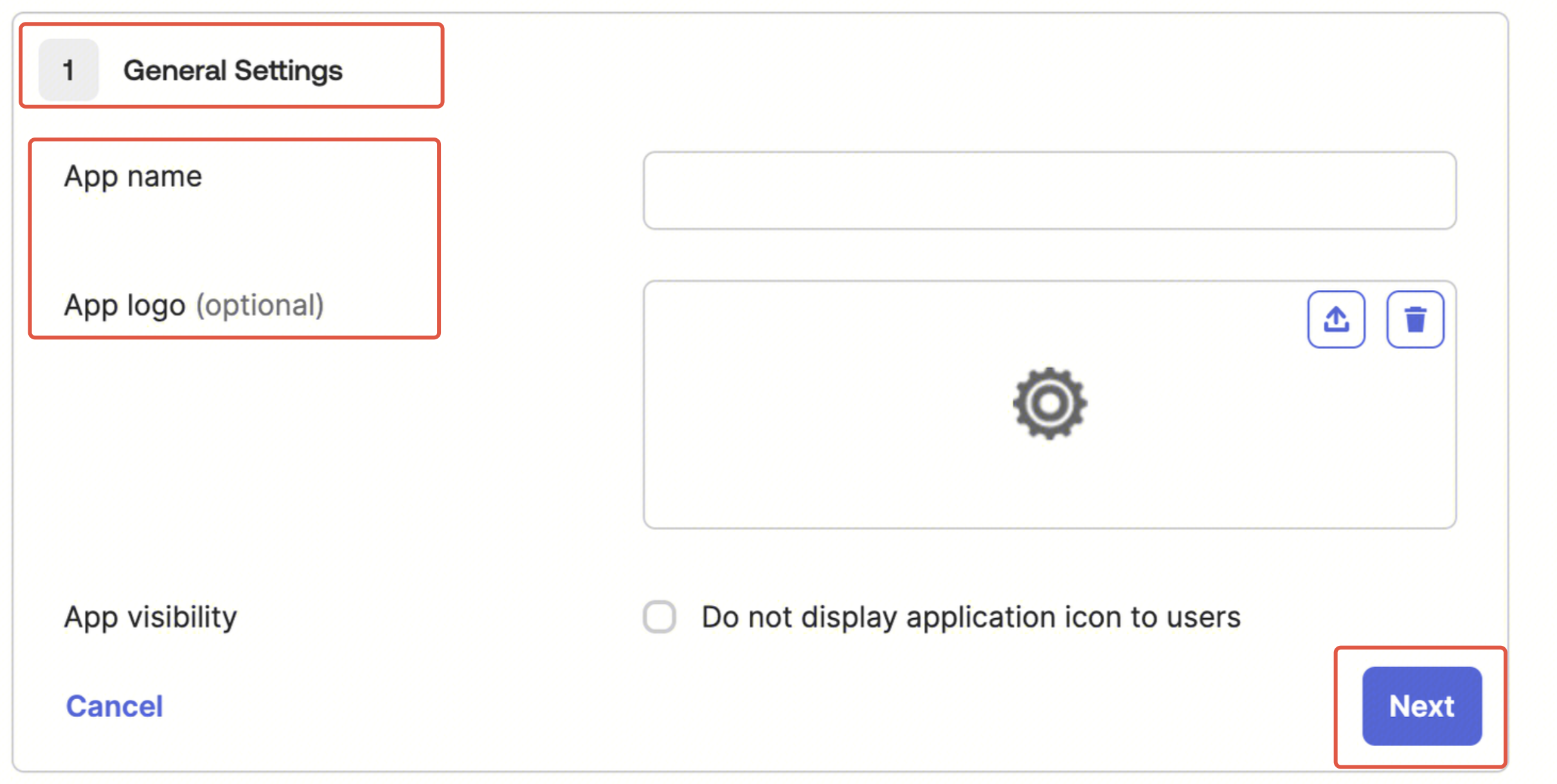
1. General Settings: Fill in the app name, upload the app logo, and click Next.

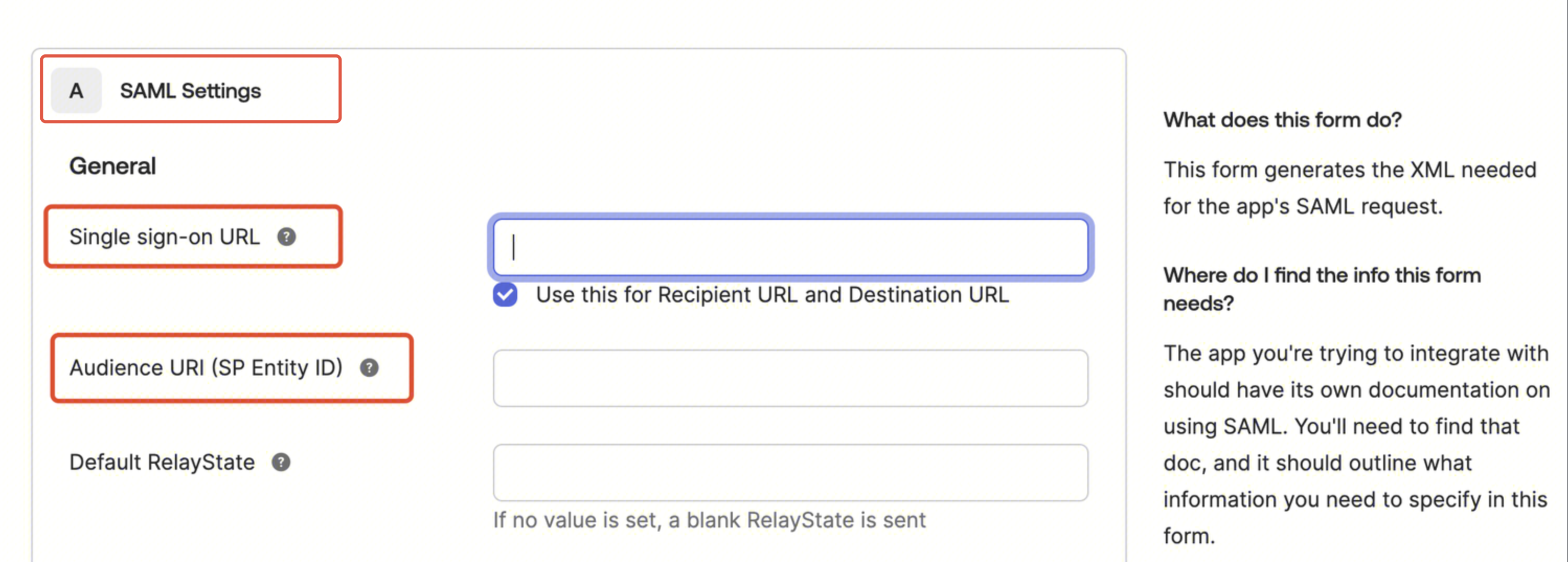
2. Configure SAML:
Fill in the single sign-on URL: https://cloud.tencent.com/login/saml
Fill in the audience URL (SP Entity ID): cloud.tencent.com

Fill in the Attribute Statements with the following content, then click Next after completing.
Name
Value
https://cloud.tencent.com/SAML/Attributes/Role
qcs::cam::uin/{AccountID}:roleName/{RoleName},qcs::cam::uin/{AccountID}:saml-provider/{ProviderName}
https://cloud.tencent.com/SAML/Attributes/RoleSessionName
okta
Note:
Replace {AccountID} with your Tencent Cloud account ID. Choose Tencent Cloud Account Center > Account Information to check.
Replace {ProviderName} with the SAML identity provider name you created in Tencent Cloud. Here it can be freely named. Ensure it matches the identity provider name in Creating an Identity Provider.
Replace {RoleName} with the name of the role you created for the identity provider in Tencent Cloud. Here it can be freely named. Ensure it matches the role name in Creating a Role.

Creating a Metadata Document

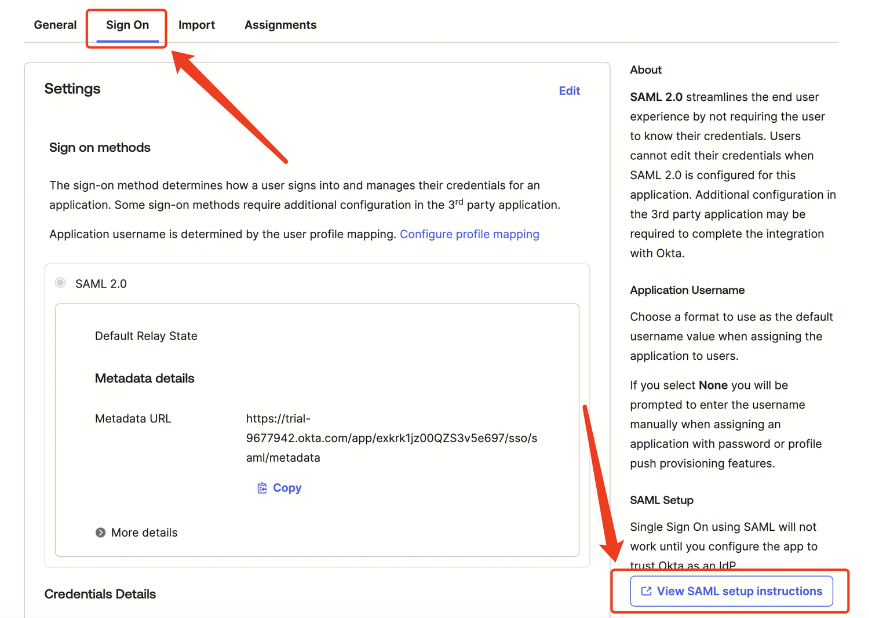
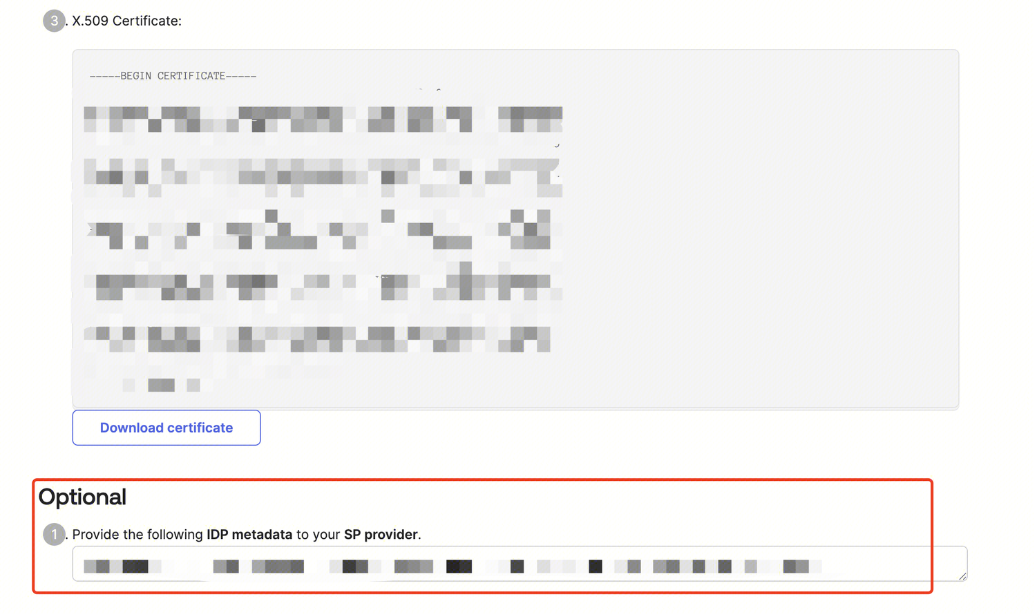
1. Enter the previously created Okta app, select Sign On, and click View SAML setup instructions.

2. Select all content in the dialog box, locally create an XML file, and copy the selected content to this file. This file is the metadata document.


Creating an Identity Provider

Note:
The identity provider name here should match the {ProviderName} in Entering the Okta App.
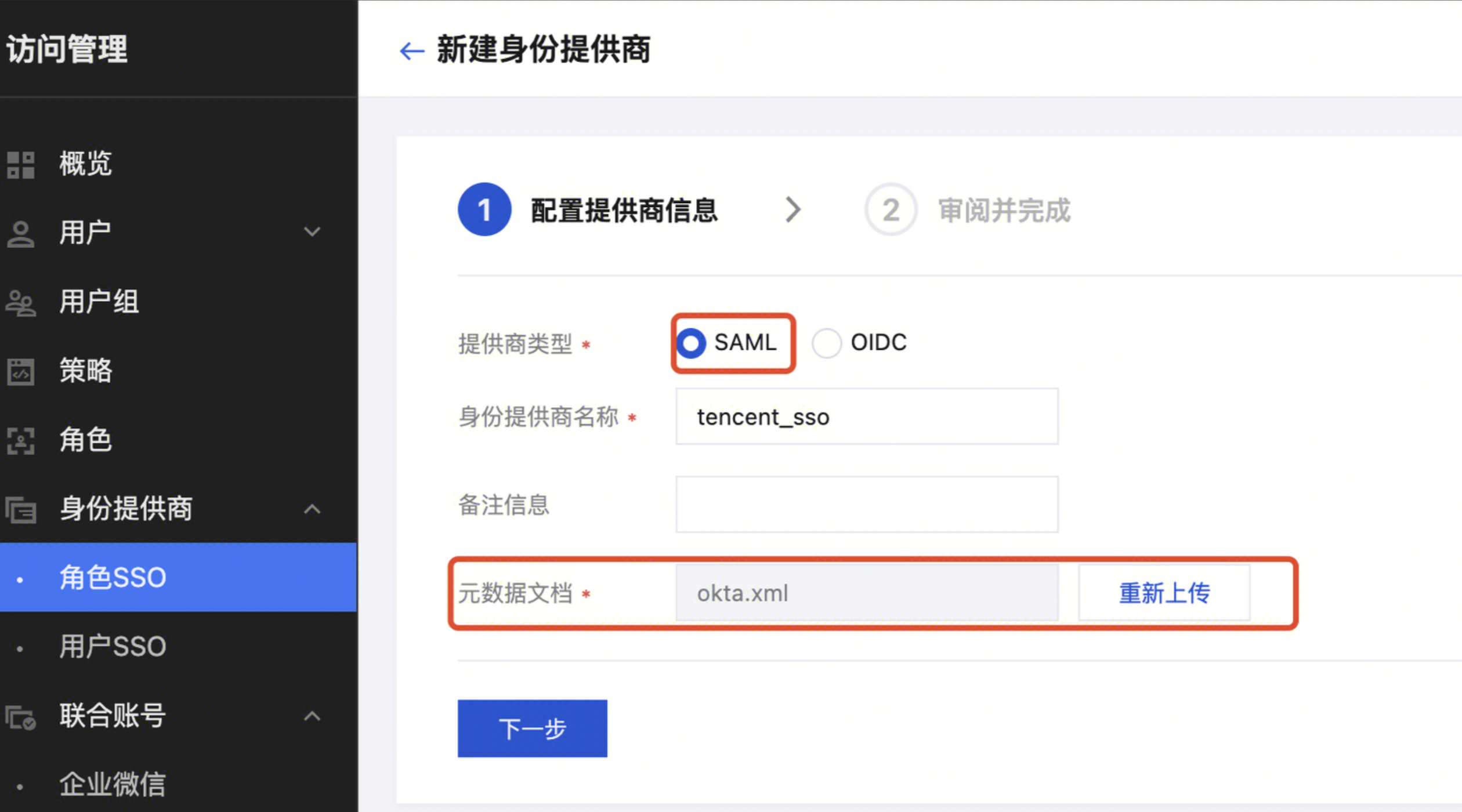
1. Enter the CAM console, choose Identity Provider > Role SSO from the left sidebar, and click Create Provider.
2. Select SAML as the provider type, input the provider name, and upload the generated metadata document from Creating a Metadata Document. Click Next, and then click Finish after confirming the information.


Creating a Role

Note:
The role name here should match the {RoleName} in Entering the Okta App.
1. Enter the Account Information > CAM page, select Role in the left sidebar, click Create Role, and select Identity Provider.
2. On the Inputting the Role Carrier Information page, select SAML as the identity provider type, select the identity provider (Okta), and then click Next.
3. On the Configuring a Role Policy page, select the permission to configure for the role account, and then click Next.
4. On the Configuring a Role Tag page, input the role name and click Finish.

Logging in to Tencent Cloud Using a Role Account

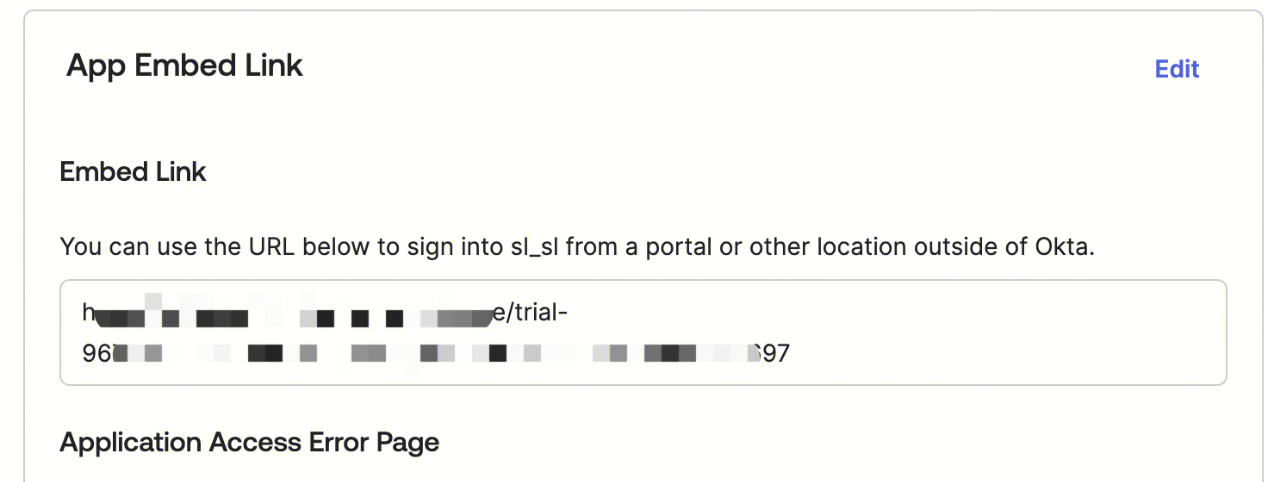
Go back to the Okta console, enter the Okta app interface created in step one, go to General, and use the Embed Link to enable role SSO login to the Tencent Cloud console.


Configuring DLC Permissions

Note:
All permissions of DLC used by a Tencent Cloud account are divided into two parts: DLC API access permissions and DLC data access permissions.

Configuring the DLC API Access Permission

Note:
• Access to the DLC APIs is managed through CAM. Only accounts with CAM product permissions can adjust permissions in CAM.
• In the scenario where role SSO login is used, the permission for accessing DLC APIs needs to be granted to the role created in Creating a Role through CAM. If the permission has already been granted in Creating a Role, this step can be skipped.
1. Enter the Account Information > CAM page, select Roles in the left sidebar, and click the role name to adjust permissions in the role list.
2. Click the Associate Policy button on the permissions page. It is recommended to associate the QcloudDLCFullAccess policy. After associating this policy, a role user will have the permission to all DLC APIs. Click OK to complete the CAM permission configurations.

Configuring the DLC Data Access Permission

Note:
DLC data permissions are managed internally by DLC, and only DLC administrators can adjust and configure the permissions.
In the scenario where role SSO login is used for DLC, DLC supports binding permissions to the role ID created in Creating a Role. If you have this requirement, contact us in the Submit a Ticket page.
1. Obtain the account ID for role SSO.
Method 1: Use role SSO login to the DLC console, click the individual account in the top-right corner of the console, and obtain the role ID.
Method 2: Use the root account or an account with the CAM permission to enter the DLC console > CAM page. Click Roles in the left sidebar. Then click the target role in the role list to enter the role information details page and view and obtain the target role ID.
2. Log in to the DLC console using an administrator account. Click User and Permissions Management in the left sidebar, and then click Add User.
3. Enter the Adding Authorized Users page, select Manually Create a User. Fill in the obtained role ID as the user ID, enter the username, select user type and specify whether to bind to the working group, and then click Submit.
4. On the User and Permissions Management page, view newly created users. Click Edit under the right operation column of the target user. On the Edit User Information page, configure the user's data catalog, database table, and row-level permissions.

Help and Support

Was this page helpful?

Help us improve! Rate your documentation experience in 5 mins.

Feedback