Cross-Source Analysis of EMR Hive Data
Download
Focus Mode
Font Size
Data Lake Compute allows you to configure an EMR Hive data source for multi-source federated data analysis.
Note:
This feature is currently not supported for the standard Presto engine. Please use a SuperSQL engine or the Standard Spark engine for analysis.
The SuperSQL engine and Presto engine have been deprecated and is only available for existing users.
Preparations
Get the EMR Hive address.
Use an account with the permission to create data catalogs. For more information on permissions, see Permission Overview.
Creating an EMR Hive data source
1. Log in to the Data Lake Compute console and select the service region.
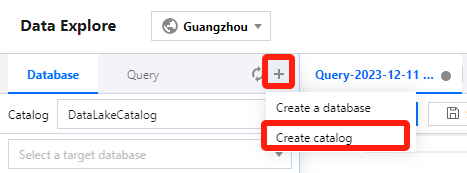
2. Select Data Explore on the left sidebar, click + in the Database & table column, and select Create data catalog.
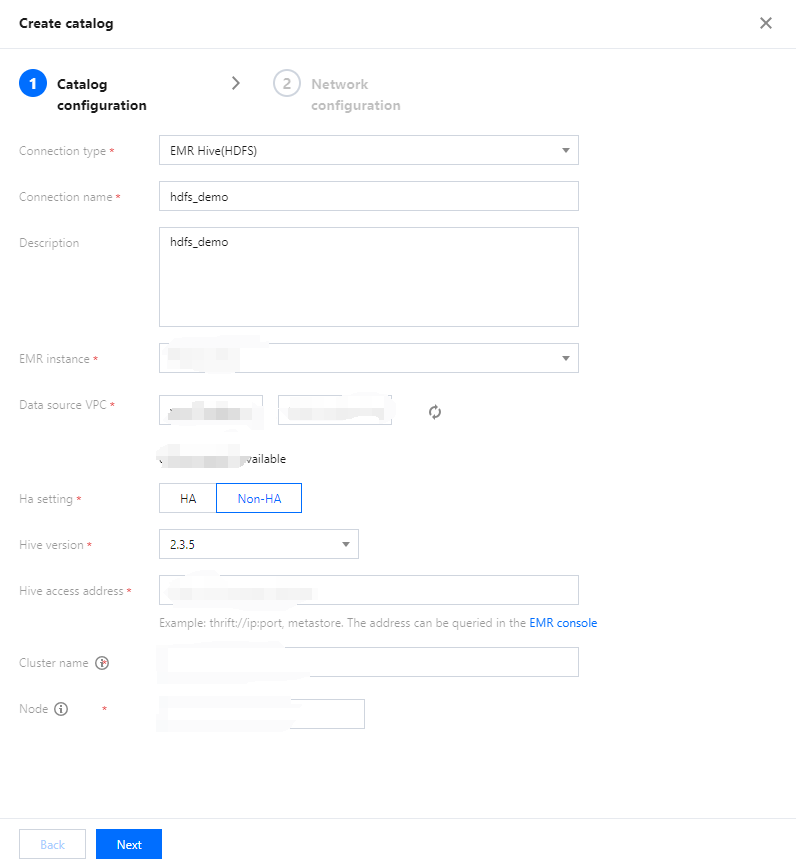
3. Go to Data Catalog Configuration, select EMR Hive (HDFS) for Connection type and select the target EMR instance. The VPC information, Hive access address, Cluster name, and Node will be populated by default after the instance is selected. Hive versions supported by EMR Hive are 2.3.5, 2.3.7, 3.1.1, and 3.1.2.
Note:
Relevant permissions are required for you to select the EMR Hive instance.
4. Click Next to proceed to the network configuration. Only the selected data engines can read data under this data catalog. Both SparkSQL and Presto private engines are supported. If there is no engine, create one on the Data engine page. For more information on the purchase process, see Purchasing Private Data Engine.
Note:
The IP range of the selected data engine cannot be the same as that of the EMR instance; otherwise, a network conflict will occur, and you cannot query or analyze data.
5. Click Confirm.
Querying the EMR Hive data
After the data catalog is created, you can switch to it from the Data catalog menu on the Data Explore page.
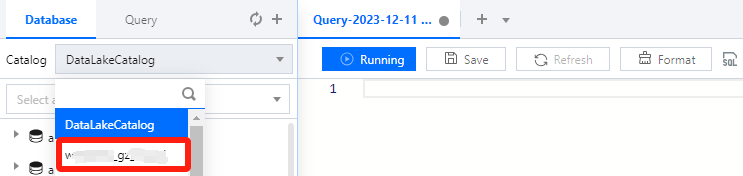
Select the data engine bound when the data catalog is created and click Run to get the query result.
Note:
To change the bound engine, you can switch directly from the bound data engine section.
Help and Support
Was this page helpful?
You can also Contact sales or Submit a Ticket for help.
Help us improve! Rate your documentation experience in 5 mins.
Feedback