tencent cloud

Data Lake Compute

Release Notes
Product Introduction
Overview
Strengths
Use Cases
Purchase Guide
Billing Overview
Refund
Payment Overdue
Configuration Adjustment Fees
Getting Started
Complete Process for New User Activation
DLC Data Import Guide
Quick Start with Data Analytics in Data Lake Compute
Quick Start with Permission Management in Data Lake Compute
Quick Start with Partition Table
Enabling Data Optimization
Cross-Source Analysis of EMR Hive Data
Standard Engine Configuration Guide
Configuring Data Access Policy
Operation Guide
Console Operation Introduction
Development Guide
Runtime Environment
SparkJar Job Development Guide
PySpark Job Development Guide
Query Performance Optimization Guide
UDF Function Development Guide
System Restraints
Client Access
JDBC Access
TDLC Command Line Interface Tool Access
Third-party Software Linkage
Python Access
Practical Tutorial
Accessing DLC Data with Power BI
Table Creation Practice
Using Apache Airflow to Schedule DLC Engine to Submit Tasks
Direct Query of DLC Internal Storage with StarRocks
Spark cost optimization practice
DATA + AI
Using DLC to Analyze CLS Logs
Using Role SSO to Access DLC
Resource-Level Authentication Guide
Implementing Tencent Cloud TCHouse-D Read and Write Operations in DLC
DLC Native Table
SQL Statement
SuperSQL Statement
Overview of Standard Spark Statement
Overview of Standard Presto Statement
Reserved Words
API Documentation
History
Introduction
API Category
Making API Requests
Data Table APIs
Task APIs
Metadata APIs
Service Configuration APIs
Permission Management APIs
Database APIs
Data Source Connection APIs
Data Optimization APIs
Data Engine APIs
Resource Group for the Standard Engine APIs
Data Types
Error Codes
General Reference
Error Codes
Quotas and limits
Operation Guide on Connecting Third-Party Software to DLC
FAQs
FAQs on Permissions
FAQs on Engines
FAQs on Features
FAQs on Spark Jobs
DLC Policy
Privacy Policy
Data Privacy And Security Agreement
Service Level Agreement
Contact Us

Using DLC to Analyze CLS Logs

PDF
Focus Mode
Font Size
Last updated: 2026-01-16 14:36:23

Overview

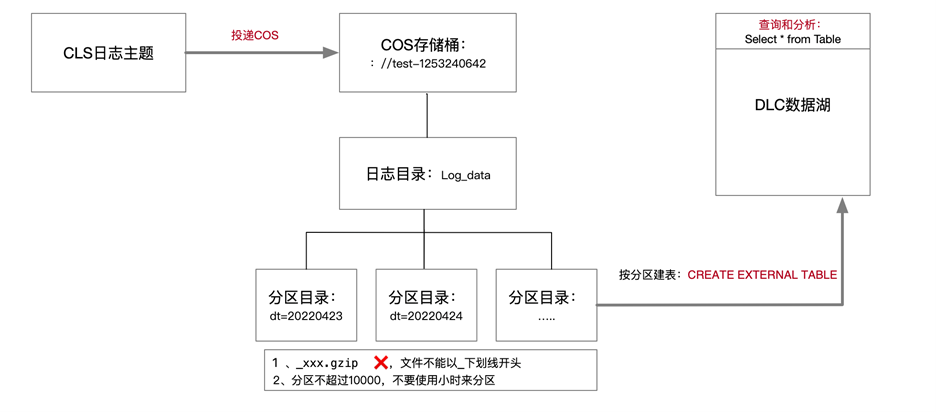
When you need to deliver logs from cloud log service CLS to Hive for OLAP computation, you can refer to this document for practice. You can use the data analysis and computing services provided by Tencent Cloud data lake calculation DLC (Data Lake Compute, DLC) to complete offline computation and analysis of logs. The diagram is as follows:


Directions

Deliver CLS Logs to COS

Creating a Delivery Task

1. Log in to the CLS console, and select Delivery Task > Ship to COS in the left sidebar.
2. On the "Ship to COS" page, click Add Delivery Configuration. In the pop-up "Ship to COS" window, configure and create a delivery task.
3. The following configuration items need to be paid attention to:
Configuration Item
Notes
COS storage bucket
Log files will be delivered to this directory in the COS storage bucket. In a data warehouse model, it generally corresponds to the address of Table Location.
COS path
Specify according to the Hive partitioned table format. For example, daily partitioning can be set as /dt=%Y%m%d/test, where dt= represents the partition field, %Y%m%d represents the year, month, and day, and test represents the log file prefix.
File naming
Delivery time naming
Shipping Interval
Can be selected within the range of 5 to 15 minutes. Recommend choosing 15 minutes, 250MB. This way, the number of files will be less and query performance will be better.
Shipping Format
JSON format.
Click next, enter advanced configuration, select JSON and the fields you need to process.

View the Delivery Task Result

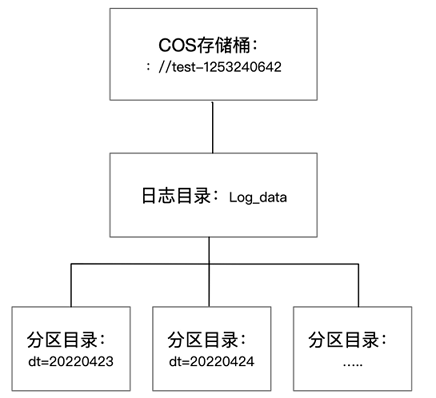
Typically, 15 minutes after starting the delivery task, you can view log data in the COS (Object Storage) console. The directory structure is similar to the figure below, with partition catalogs containing specific log files.


The log data in the COS console is shown in the figure below:


Analyze DLC

Creating an External Table in DLC and Mapping It to COS Log Directory

After log data is delivered to object storage, you can create an external table via the DLC console → data exploration feature. For the table creation statement, see the following SQL example. Special attention must be paid to ensuring that the partition field and Location field are consistent with the directory structure.
The DLC Create External Table Wizard provides advanced options to help you infer the table structure of data files and automatically generate SQL quickly. Since it is sampled inference, you need to further judge whether the table fields are reasonable based on the SQL. For example, in the following case, the TIMESTAMP field is inferred as int, but bigint might be more appropriate.
CREATE EXTERNAL TABLE IF NOT EXISTS DataLakeCatalog.test.log_data (
__FILENAME__ string,
__SOURCE__ string,
__TIMESTAMP__ bigint,
appId string,
caller string,
consumeTime string,
data string,
datacontenttype string,
deliveryStatus string,
errorResponse string,
eventRuleId string,
eventbusId string,
eventbusType string,
id string,
logTime string,
region string,
requestId string,
retryNum string,
source string,
sourceType string,
specversion string,
status string,
subject string,
tags string,
targetId string,
targetSource string,
time string,
type string,
uin string
) PARTITIONED BY (dt string) ROW FORMAT SERDE 'org.apache.hive.hcatalog.data.JsonSerDe' STORED AS TEXTFILE LOCATION 'cosn://coreywei-1253240642/log_data/'
If it is partition delivery, Location must point to the cosn://coreywei-1253240642/log_data/ directory, rather than the cosn://coreywei-1253240642/log_data/20220423/ directory.
Use the inference feature. You need to point the directory to the subdirectory where the data file is located, i.e., the cosn://coreywei-1253240642/log_data/20220423/ directory. After inference is completed, modify the Location in SQL back to the cosn://coreywei-1253240642/log_data/ directory.
Appropriate partitioning enhances performance, but it is advisable to keep the total number of partitions no more than 10,000.

Adding Partition

Partition tables can only be accessed through select statements after partition data is added. You can add partitions in the following two ways:
Historical Partitions Add
Incremental Partitions Add
This solution can perform a one-time load of all partition data, runs relatively slowly, and is suitable for scenarios requiring initial loading of multiple partitions.
msck repair table DataLakeCatalog.test.log_data;
After loading historical partitions, incremental partitions will be added periodically. For example, if a new partition is added daily, incremental addition can be performed through this solution.
alter table DataLakeCatalog.test.log_data add partition(dt='20220424')

Analyzing Data

After adding partitions, you can perform data development or analysis through DLC.
select dt,count(1) from DataLakeCatalog.test.log_data group by dt;
Results are shown in the following figure:


Help and Support

Was this page helpful?

Help us improve! Rate your documentation experience in 5 mins.

Feedback