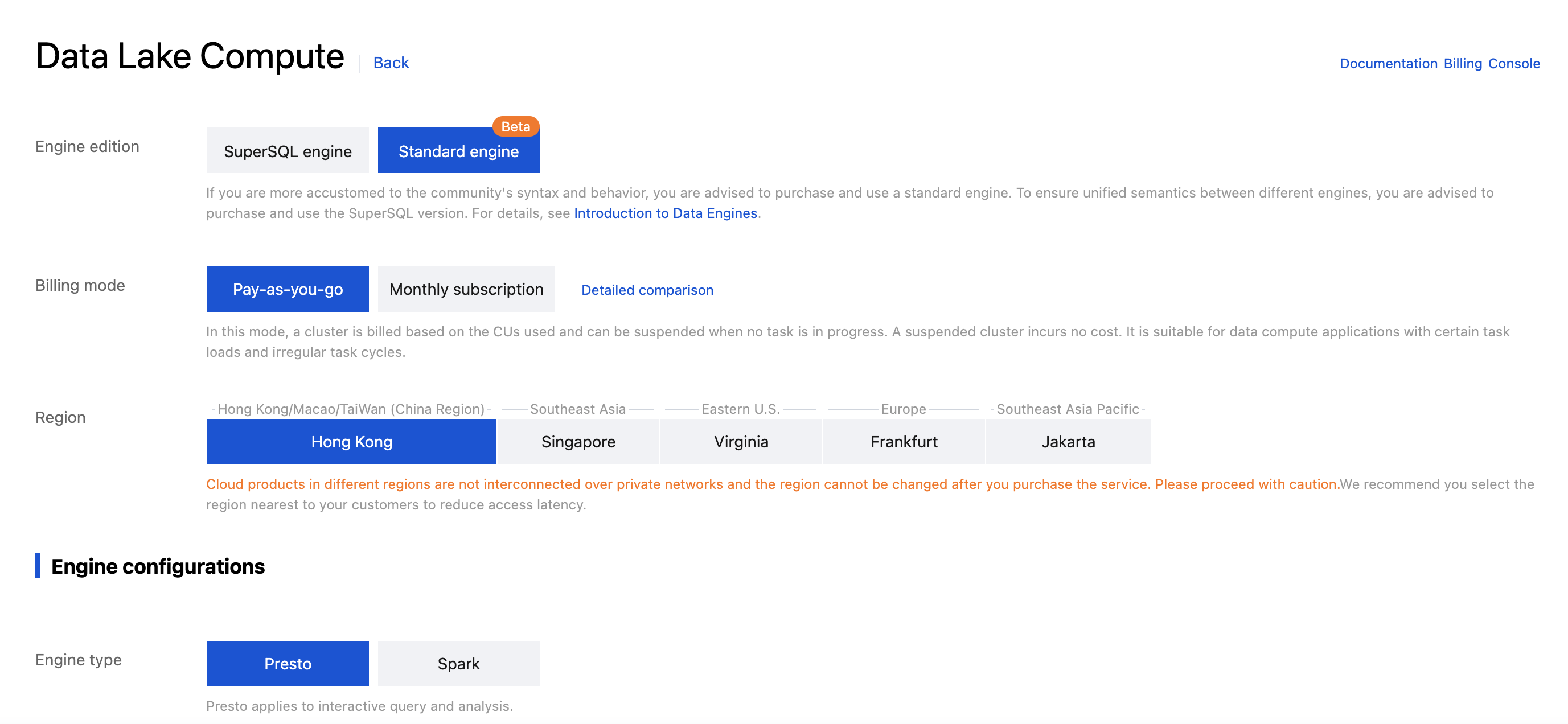
DLC offers two types of engines: the Standard Engine and the SuperSQL Engine. For a detailed comparison, see the table below or see the Data Engine Introduction. You can select the appropriate engine based on your specific business needs. If you choose the Standard Engine, you can follow the instructions in this document for configuration and usage.
Engine Types
Available Types
Main Features
Usage Requirements
Purchase Recommendations
Standard Engine
Spark
Presto
Integrated Spark: The Standard Spark Engine supports native syntax from the Spark/Presto community, making it easy to learn and migrate.
Flexible usage: Supports both Hive JDBC and Presto JDBC.
Integrated Spark: The Standard Spark Engine can execute SQL and Spark batch tasks.
1. Requires the use of Spark/Presto native syntax.
2. Prefer to purchase a Spark engine for batch jobs and offline SQL tasks.
3. Prefer to use Hive JDBC and Presto JDBC.
SuperSQL Engine
SparkSQL\\nSpark Jobs\\nPresto
Unified syntax: A single syntax is applicable to both Spark and Presto engines.
Supports federated queries.
Requires learning the SuperSQL unified syntax.\\nFor SQL/batch tasks, it is recommended to purchase the corresponding engine type.
1. Prefer to use Spark + Presto unified syntax.
2. Federated queries are required.
Note:
1. Before purchasing, you should ensure that your account has been granted financial permissions in CAM.
2. Resources cannot be used across regions, so confirm that the current region is correct before purchasing.
3. The SuperSQL engine and Presto engine have been deprecated and is only available for existing users.
Standard Engine Configuration Guide
After completing the purchase and configuration of the Standard Engine, you can use it within DLC's Data Exploration. Additionally, for the Spark Standard Engine, if you have multi-tenant or task isolation requirements, you can also configure Resource Group for resource allocation and isolation. The detailed guide is as follows:
Step 1: Purchasing the Engine
Note:
1. Engines cannot be used across regions.
2. Engine specification recommendation: Since a 16 CU cluster is relatively small, it is recommended only for testing scenarios. For real production environments, it is recommended to choose a cluster with a specification of 64 CUs or more.
3. Engine network configuration: Custom network configurations can be set during the initial purchase. If you need to make changes later, please Submit Ticket to apply for modifications.
1. Log in to the DLC console and select the Region for the service.
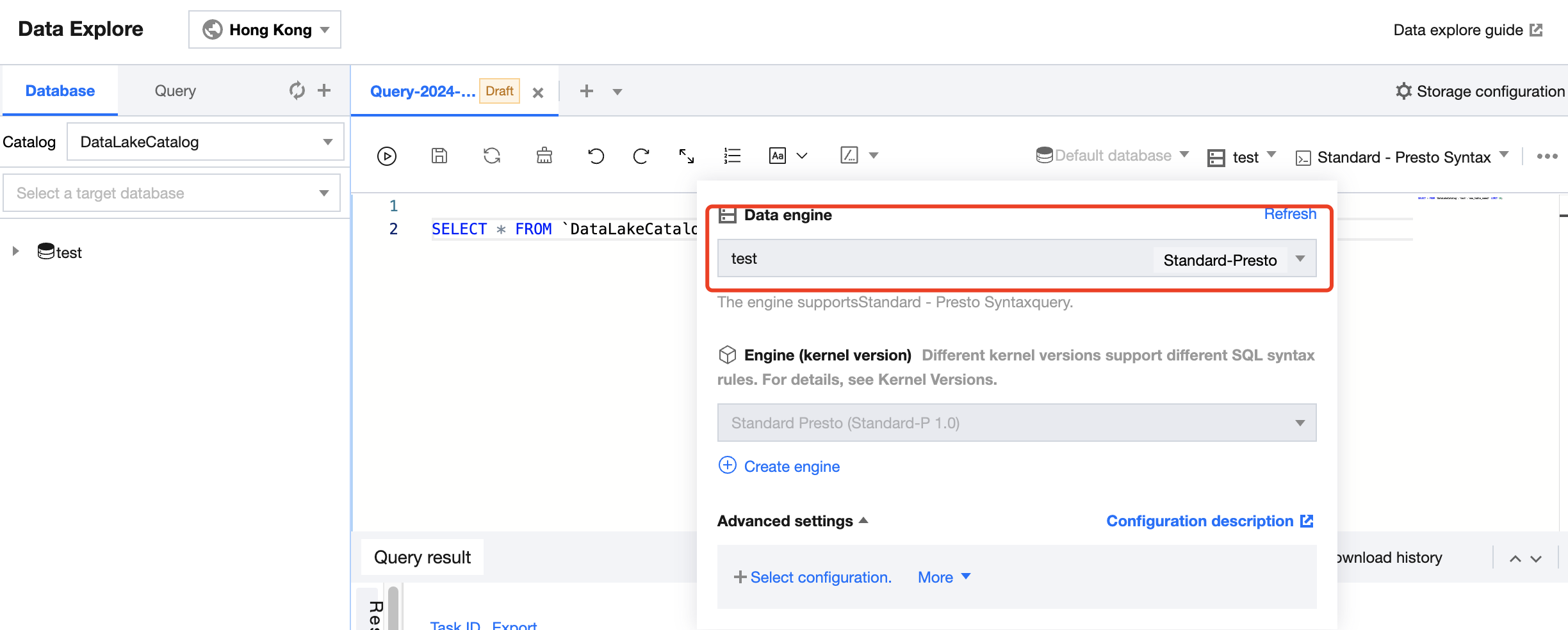
Depending on the type of Standard Engine, you may need to switch to the corresponding syntax for queries.
If you select the Standard Spark Engine in Data Exploration, you can allocate task resources by using the DLC default resource group, a created resource group, or a one-time resource group (custom configuration).
Retrieving Full Results
Currently, the standard engine supports returning 200, 500, or 1,000 query results in the workbench. To obtain the full results, you can use the following methods.
Engine
Retrieval Method
Standard Spark Engine
1. Users can configure the engine to automatically save query results to a COS path or view them in DLC's managed storage.
2. Results can be downloaded locally for review.
Standard Presto Engine
Retrieve full results via JDBC.
Step 3: Configuring Resource Groups (Optional)
Resource groups provide a secondary queue division of computing resources within the Spark Standard Engine. For a detailed introduction, see Resource Group Introduction. The computing units (CUs) of the DLC Spark Standard Engine can be allocated across multiple resource groups as needed. You can set the minimum and maximum CU limits for each resource group, along with start/stop policies, concurrency levels, and dynamic/static parameters, ensuring resource isolation and efficient workload management in complex scenarios such as multi-tenancy and multi-tasking.
When you purchase a Standard Spark Engine, DLC provides a default resource group and also allows you to create multiple custom resource groups based on your specific business needs for flexible usage.
Note:
An engine can have a one-to-many relationship with resource groups. For example, Engine A can have several resource groups.
Managing and Configuring Resource Groups
1. Enter Standard Engine from the left sidebar. According to the name/ID of the purchased engine, click Spec configuration under More in the corresponding Operation column.
2. Enter the Resource Management Group interface. In the upper-left corner, click Create Resource Group to configure a custom resource group. Alternatively, you can view and use the DLC default-configured resource group (no configuration required).
Appendix
Recommendations for Selecting Gateway Specifications
The gateway is provided by default with a specification of 2 CUs (free of charge). If you need to upgrade the specifications, you can click Gateway >Spec configuration to adjust and purchase. For operation steps, refer to Gateway Introduction.