tencent cloud

Cloud Workload Protection Platform

Release Notes and Announcements
Release Notes
Announcements
Getting Started
Product Introduction
Overview
Advantages
Basic Concepts
Scenarios
Associated Products
Features in Different Editions
Purchase Guide
Purchase Security Protection Licenses
Purchasing Log Analysis Service
Quick Start
Operation Guide
Security Dashboard
Asset Overview
Server List
Asset Fingerprint
Vulnerability Management
Baseline Management
Malicious File Scan
Unusual Login
Password Cracking
Malicious Requests
High-risk Commands
Local Privilege Escalation
Reverse Shell
Java Webshell
Critical File Monitor
Network Attack
A Ransomware Defense
Log Analysis
License Management
Alarm Setting
Cloud Access Management
Hybrid Cloud Installation Guide
FAQs for Beginners
Cloud Workload Protection Description
Feature Description
Agent Process Description
A Security Baseline Detection List
Parsing of JSON Format Alarm Data
Log Field Data Parsing
Agent Installation Guide
Security Score Overview
Practical Tutorial
Auto Fix of Vulnerabilities
Malicious File Processing
Troubleshooting
Intrusions on Linux
Intrusions on Windows
Offline Agent on Linux
Offline Agent on Windows
An Abnormal Log-in Notification
API Documentation
History
Introduction
API Category
Asset Management APIs
Virus Scanning APIs
Abnormal Log-in APIs
Password Cracking APIs
Malicious Request APIs
High-Risk Command APIs
Local Privilege Escalation APIs
Reverse Shell APIs
Vulnerability Management APIs
New Baseline Management APIs
Baseline Management APIs
Advanced Defense APIs
Security Operation APIs
Expert Service APIs
Other APIs
Overview Statistics APIs
Settings Center APIs
Making API Requests
Intrusion Detection APIs
Data Types
Error Codes
FAQs
Agreements
Terms of Service
Service Level Agreement
Data Processing And Security Agreement
Contact Us
Glossary

Auto Fix of Vulnerabilities

PDF
Focus Mode
Font Size
Last updated: 2026-01-22 14:20:11
This topic describes the best practices for automatically fixing vulnerabilities.
Note:
Auto-fixing of vulnerabilities may involve executing commands on your servers, which may affect running applications or core system components, and restarting applications or operating systems, which may affect your business continuity. For servers that are used for your core business, we recommend that you take the impact into full consideration when planning which vulnerabilities to fix and in what order to do so.

Limitations

Servers that support fixing:
Tencent Cloud servers and non-Tencent Cloud servers (with the CWPP client online and bound to a CWPP Ultimate Edition license)
The automatic snapshot creation feature is only supported for Tencent Cloud CVM and Lighthouse servers. Other types of servers do not currently support automatic snapshot creation. For these servers, you can create a backup manually and then select "Directly fix without creating snapshots" during the process to perform vulnerability fixing.

Vulnerabilities that support fixing:
Linux software vulnerabilities (partial)
Web-CMS vulnerabilities (partial)

Operation Guide

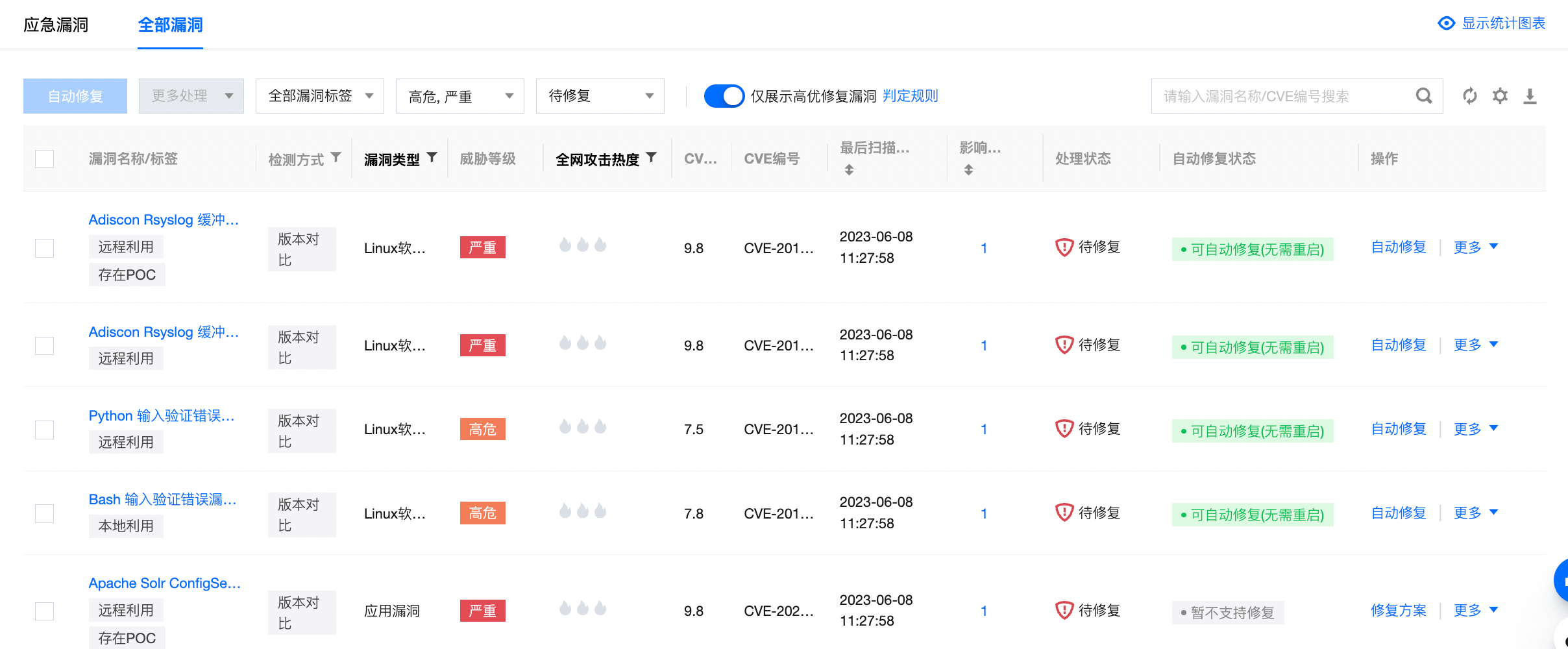
1. Log in to the CWPP Console and click Vulnerability Management in the left navigation pane. Then the list of detected vulnerabilities is shown at the bottom.
2. The vulnerabilities in the Vulnerability List are categorized as Urgent Vulnerabilities, Critical Vulnerabilities, and All Vulnerabilities, which are discovered vulnerabilities that are not obviously different from each other in terms of functionality. The steps for fixing vulnerabilities automatically are described below using All Vulnerabilities as an example.
Note:
Priorities: Urgent vulnerabilities > Critical vulnerabilities > All vulnerabilities.
For vulnerabilities that can be automatically fixed, Auto Fix is shown in the operation column; for vulnerabilities that cannot be automatically fixed, Fix Scheme is shown in the column.


Step 1: View vulnerability details

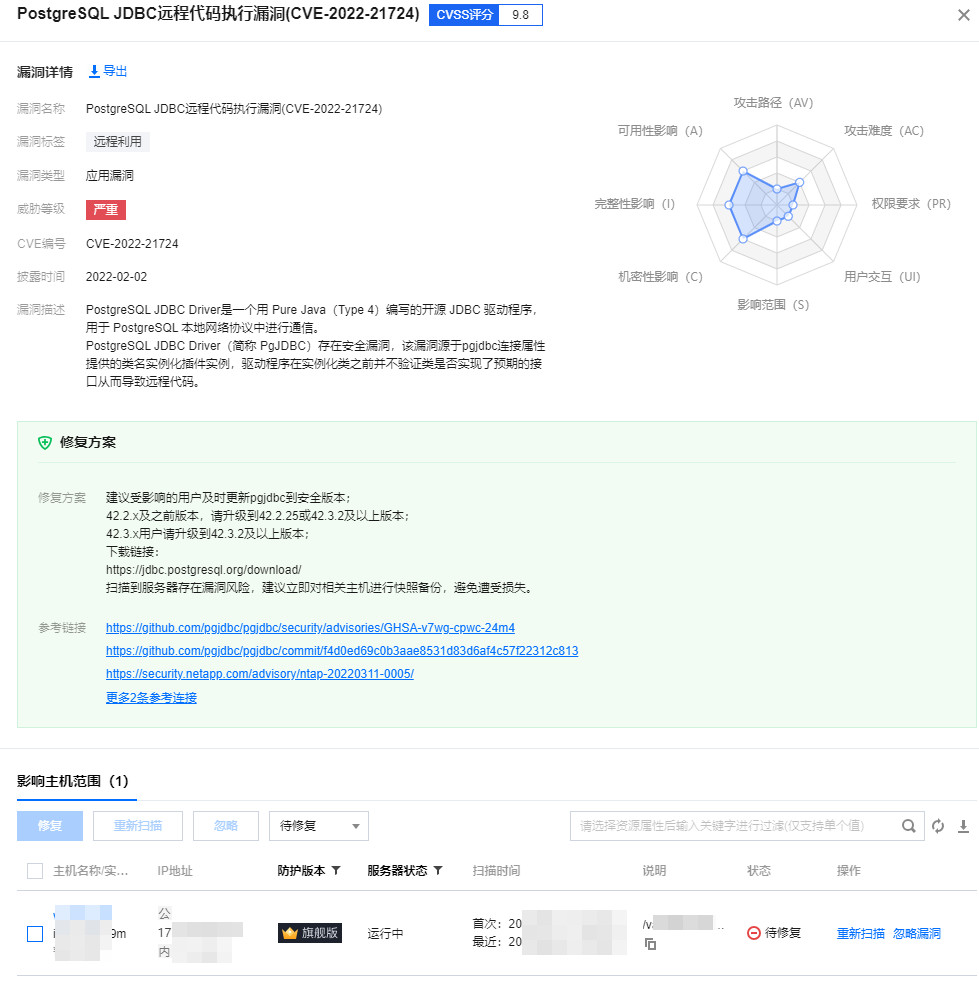
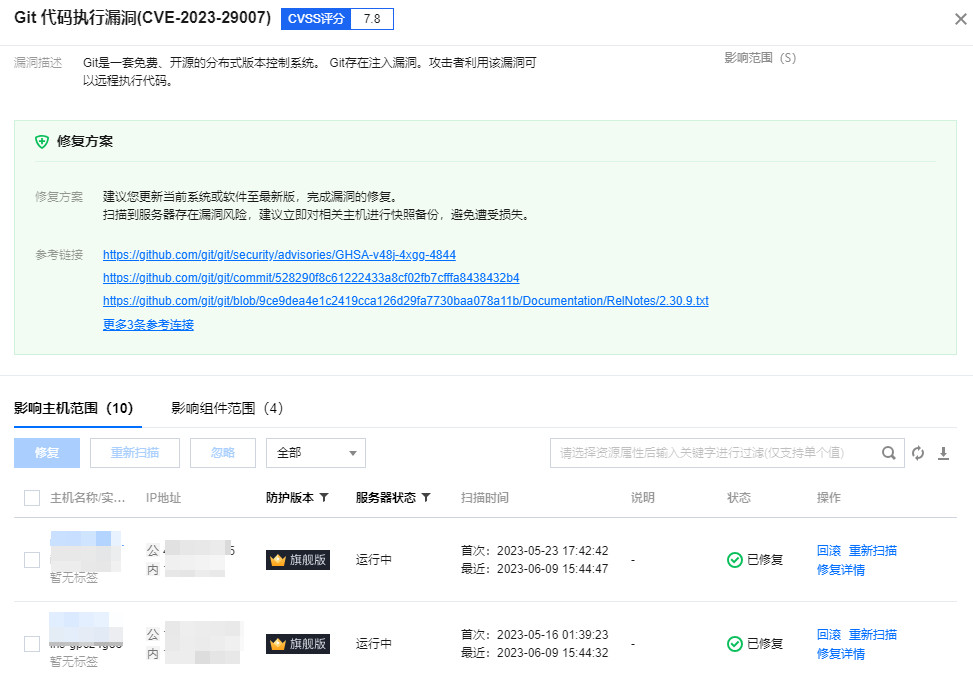
Click Auto Fixi to open the vulnerability details pop-up window.


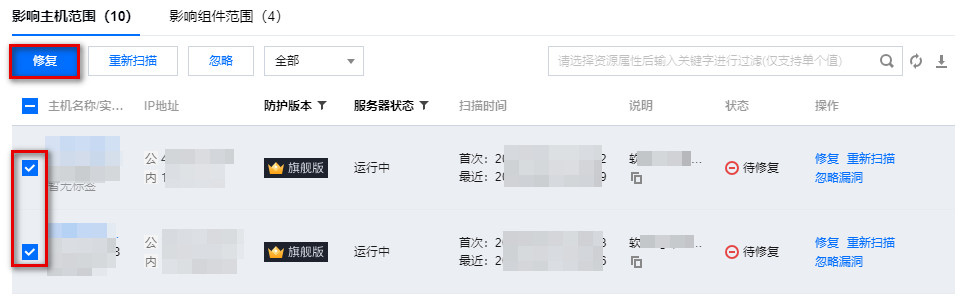
Step 2: Select the servers for which you want to fix vulnerabilities automatically.

Select the target servers in the affected server list, and click Fix to open the confirmation pop-up window.


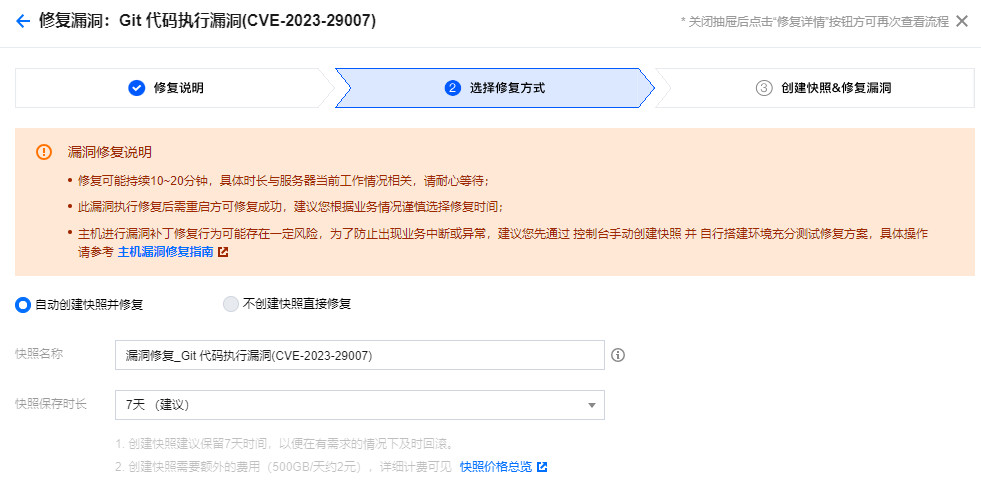
Step 3: Choose whether to create snapshots

Click Confirm to open the fix method configuration pop-up window, and select the fix method: Fix and Automatically Create Snapshots, or Fix Without Creating Snapshots


Fix and Automatically Create Snapshots: You can set the snapshot name and snapshot storage duration (3 days, 7 days, or 15 days). It is recommended to set the duration to 7 days so that the snapshots can be rolled back in time if necessary.
Fix Without Creating Snapshots: If snapshots have been created for all the servers selected for fixing vulnerabilities on the current day, this item becomes optional.

Step 4: Fix vulnerabilities

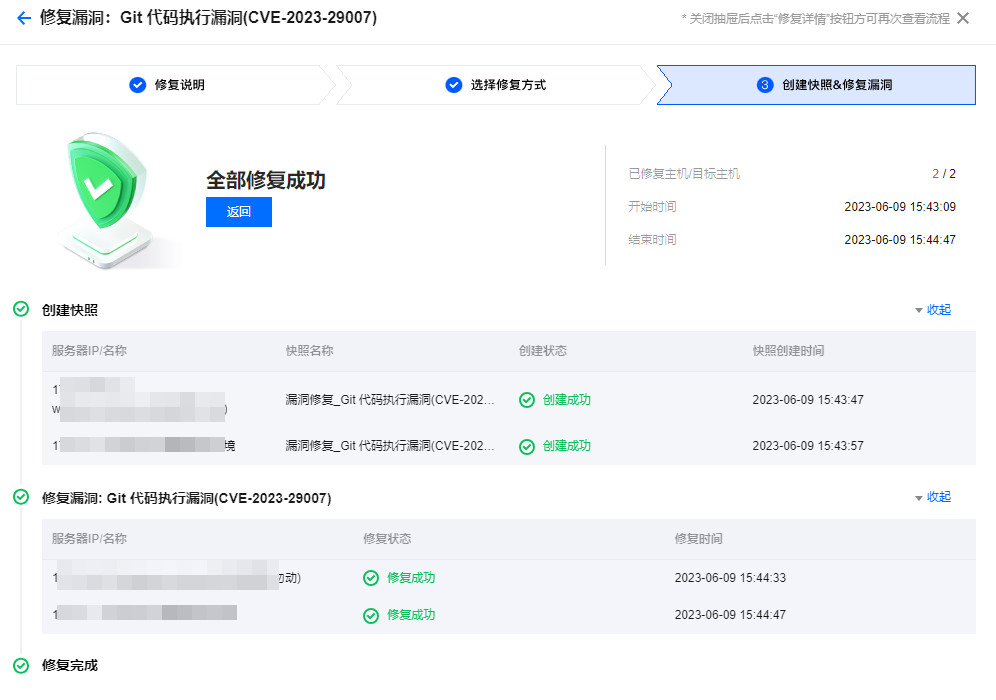
Click Confirm to start fixing the vulnerabilities. You can keep track of the process.


Step 5: Check the server status changes

Return to Vulnerability Details to check the server status changes. If vulnerability fixing fails, the status is "Fixing Failed"; if vulnerability fixing is successful, the status changes to "Fixed".


After the vulnerabilities are fixed, if your business is greatly affected, click Rollback to go to CVMs > Snapshot List, and then select the snapshots created before the fixing to roll back them. After the rollback is successful, restart the servers to scan the vulnerabilities again.
After the vulnerabilities are fixed, perform a Rescan to verify whether the vulnerabilities have been fixed.
You can also click "Fix Details" to view the details of fixing.

Help and Support

Was this page helpful?

Help us improve! Rate your documentation experience in 5 mins.

Feedback