tencent cloud

Cloud Workload Protection Platform

Release Notes and Announcements
Release Notes
Announcements
Getting Started
Product Introduction
Overview
Advantages
Basic Concepts
Scenarios
Associated Products
Features in Different Editions
Purchase Guide
Purchase Security Protection Licenses
Purchasing Log Analysis Service
Quick Start
Operation Guide
Security Dashboard
Asset Overview
Server List
Asset Fingerprint
Vulnerability Management
Baseline Management
Malicious File Scan
Unusual Login
Password Cracking
Malicious Requests
High-risk Commands
Local Privilege Escalation
Reverse Shell
Java Webshell
Critical File Monitor
Network Attack
A Ransomware Defense
Log Analysis
License Management
Alarm Setting
Cloud Access Management
Hybrid Cloud Installation Guide
FAQs for Beginners
Cloud Workload Protection Description
Feature Description
Agent Process Description
A Security Baseline Detection List
Parsing of JSON Format Alarm Data
Log Field Data Parsing
Agent Installation Guide
Security Score Overview
Practical Tutorial
Auto Fix of Vulnerabilities
Malicious File Processing
Troubleshooting
Intrusions on Linux
Intrusions on Windows
Offline Agent on Linux
Offline Agent on Windows
An Abnormal Log-in Notification
API Documentation
History
Introduction
API Category
Asset Management APIs
Virus Scanning APIs
Abnormal Log-in APIs
Password Cracking APIs
Malicious Request APIs
High-Risk Command APIs
Local Privilege Escalation APIs
Reverse Shell APIs
Vulnerability Management APIs
New Baseline Management APIs
Baseline Management APIs
Advanced Defense APIs
Security Operation APIs
Expert Service APIs
Other APIs
Overview Statistics APIs
Settings Center APIs
Making API Requests
Intrusion Detection APIs
Data Types
Error Codes
FAQs
Agreements
Terms of Service
Service Level Agreement
Data Processing And Security Agreement
Contact Us
Glossary

Security Dashboard

PDF
Focus Mode
Font Size
Last updated: 2024-08-13 16:29:49
This document describes how to use Security Dashboard.

Overview

As the homepage of Cloud Workload Protection Platform (CWPP), Security Dashboard displays security score, pending risks, security protection status, risk trend, and new security events; pushes security notices to keep you updated with the latest threat intelligence of CWPP; provides documentation and suggestions to help you defend against intrusion and attacks and ensure your server security.

Operation Guide

1. Log in to the CWPP console.
2. Click Security Dashboard on the left sidebar. The fields and operations related to the feature are described as follows.

Security Status

1. The Security Status section presents the security score and risk information, and provides quick access to risk handling pages.

Security score: The score is calculated based on the number of security events and their threat level. For more information about the scoring rules, see Security Score Overview.
Risk information: It contains three categories of information: detected intrusions, vulnerability risks, and baseline risks, and shows the number of pending risks and the number of affected servers.
Intrusion Detection: Malicious File Scan, Unusual Login, Password Cracking, Malicious Requests, Reverse Shell, Local Privilege Escalation, and High-Risk Commands.
Vulnerability Risks: Linux software vulnerabilities, Windows system vulnerabilities, Web-CMS vulnerabilities, and application vulnerabilities in Vulnerability Management.
Baseline Risks: Only risks in Baseline Management.
Cyber Risks: Statistics on the number of pending attack risks and the number of affected hosts.
2. Click Resolve Now to open the pop-up of the risk processing details, where you can view detailed information on intrusion detection, vulnerabilities, baseline risks, and cyber risks. Click the corresponding Risk Card to navigate to the corresponding risk processing interface.
Level
Health Check Score
Font Color
Status Description
Good
90 - 100
Green
The asset security status is good. Continue to maintain and conduct regular inspections.
Medium
60 - 89
Orange
There are many security risks in the assets. It is recommended to process security events promptly.
Bad
20 - 59
Red
There are critical security risks in the assets. Process security events as soon as possible.
Note:
The lowest score for the CWPP status health check is 20.
Penalty items are calculated according to the classification of security events. Severity level classification of security events and rules of penalty:
Level
Security Events (calculated by the number of events)
Penalty Per Event
Maximum Total Penalty
Critical
Trojan files, brute-force attacks, and malicious requests
-40
-50
High
Severe vulnerabilities, high-risk vulnerabilities, critical baselines, high-risk baselines, abnormal log-in (high-risk), local privilege escalation, and reverse shell
-10
-20
Medium
Medium-risk vulnerabilities, and medium-risk baselines
-3
-10
Low
Low-risk vulnerabilities, and low-risk baselines
-2
-5
Other
Basic edition protection, or CWPP agent not installed
-1
-5

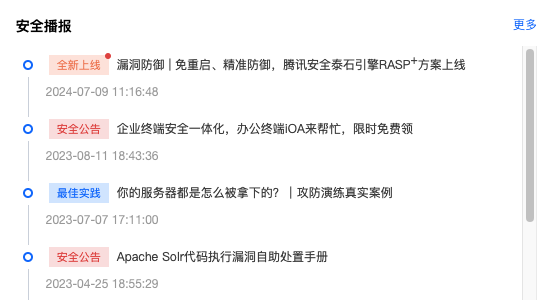
Security Intelligence

The Security intelligence section shows the feature updates, news about honors and awards, urgent notifications, and version release information.

Click the intelligence title to check details. Click More to view all the security intelligence.

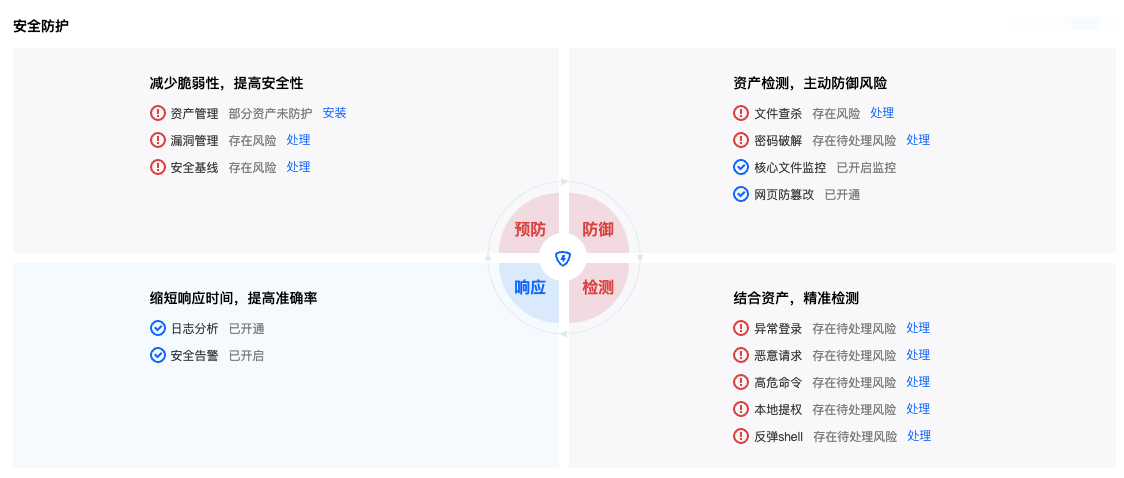
Security Protection

The Security Protection section displays the complete anti-intrusion solution (prevention-defense-detection-response) of CWPP, and the security protection items required for each process.

If all the protection items are enabled, you can get a clear picture of the security of your servers and get quick access to the risk handling pages.

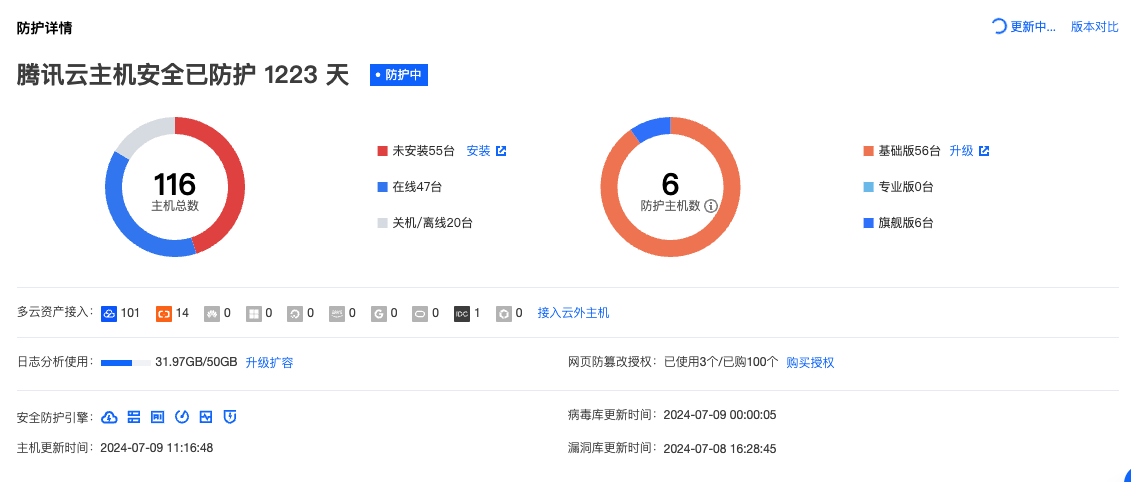
Protection Details

The Protection Details section shows the usage data of various CWPP services.

Days of Protection: The total time the CWPP Agent has been installed on the server.
Total servers: The total number of Tencent Cloud servers (CVMs, Lighthouse servers, CPM 1.0, ECMs) and non-Tencent Cloud servers.
Protected servers: The total number of the servers protected by CWPP Pro/Ultimate.
Engines: If you have purchased the CWPP Pro/Ultimate licenses, six protection engines are automatically activated: Cloud Security Engine, BinaryAI Engine, TAV Engine, Unusual Behavior Engine, Threat Intelligence Engine, and Anti-Attack Engine.
Virus database update time: The virus library is automatically updated at 0:00 every day.
Server update time: Click Update now in the upper right corner to manually update the server list.
Vulnerability Library Update Time: From time to time.

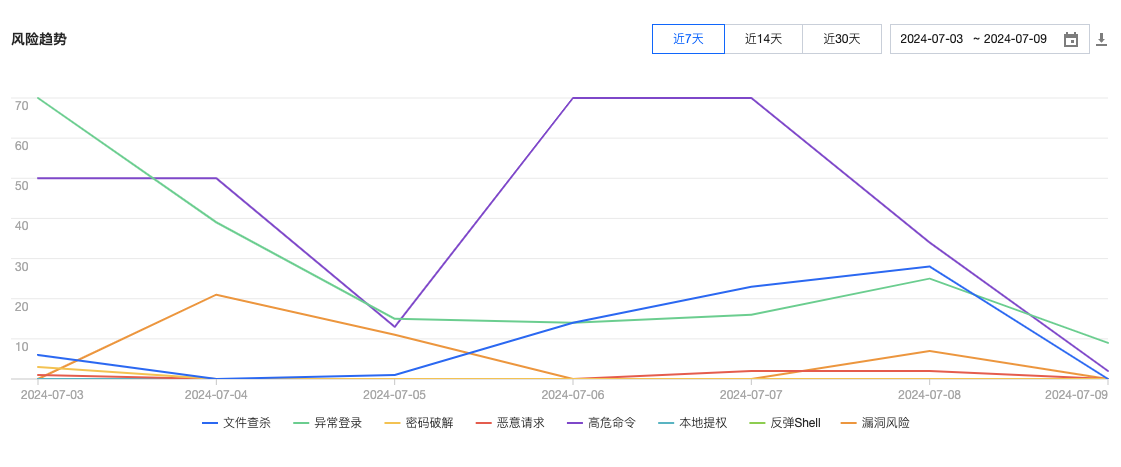
Risk Trend

On the Risk Trend section, the statistics of various risks are displayed in a line graph, which visually presents the risk trend of servers.

You can view the risk statistics for the last 7 days, the last 14 days, the last 30 days, or a custom date range. Click Download to export the risk statistics for the selected date range.
Note:
The number of risks is the number of new pending events on the current day and is updated every hour.

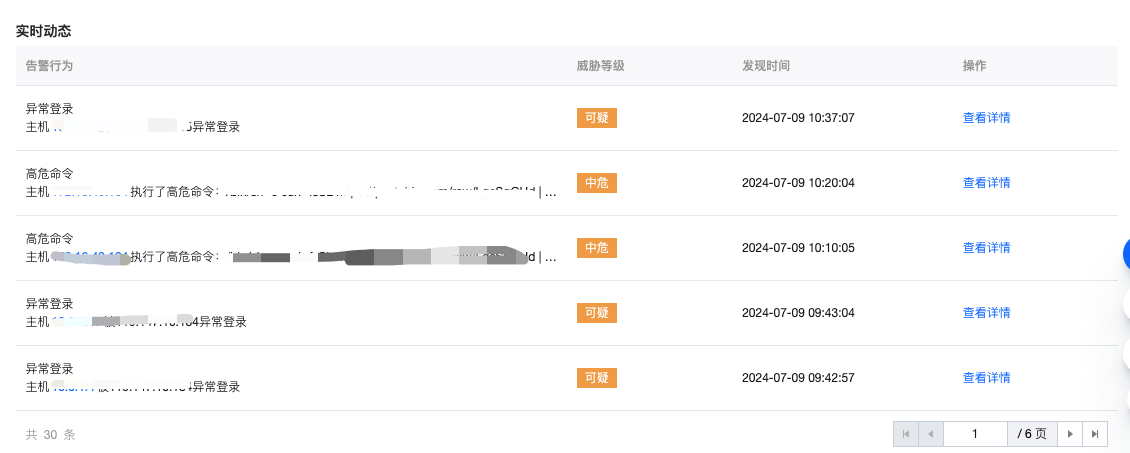
Real-time monitoring

The Real-time monitoring section displays the newly discovered security events in real time.

Click Server IP or View Details to go to the risk item on the server details page.


Help and Support

Was this page helpful?

Help us improve! Rate your documentation experience in 5 mins.

Feedback