tencent cloud

Cloud Workload Protection Platform

Release Notes and Announcements
Release Notes
Announcements
Getting Started
Product Introduction
Overview
Advantages
Basic Concepts
Scenarios
Associated Products
Features in Different Editions
Purchase Guide
Purchase Security Protection Licenses
Purchasing Log Analysis Service
Quick Start
Operation Guide
Security Dashboard
Asset Overview
Server List
Asset Fingerprint
Vulnerability Management
Baseline Management
Malicious File Scan
Unusual Login
Password Cracking
Malicious Requests
High-risk Commands
Local Privilege Escalation
Reverse Shell
Java Webshell
Critical File Monitor
Network Attack
A Ransomware Defense
Log Analysis
License Management
Alarm Setting
Cloud Access Management
Hybrid Cloud Installation Guide
FAQs for Beginners
Cloud Workload Protection Description
Feature Description
Agent Process Description
A Security Baseline Detection List
Parsing of JSON Format Alarm Data
Log Field Data Parsing
Agent Installation Guide
Security Score Overview
Practical Tutorial
Auto Fix of Vulnerabilities
Malicious File Processing
Troubleshooting
Intrusions on Linux
Intrusions on Windows
Offline Agent on Linux
Offline Agent on Windows
An Abnormal Log-in Notification
API Documentation
History
Introduction
API Category
Asset Management APIs
Virus Scanning APIs
Abnormal Log-in APIs
Password Cracking APIs
Malicious Request APIs
High-Risk Command APIs
Local Privilege Escalation APIs
Reverse Shell APIs
Vulnerability Management APIs
New Baseline Management APIs
Baseline Management APIs
Advanced Defense APIs
Security Operation APIs
Expert Service APIs
Other APIs
Overview Statistics APIs
Settings Center APIs
Making API Requests
Intrusion Detection APIs
Data Types
Error Codes
FAQs
Agreements
Terms of Service
Service Level Agreement
Data Processing And Security Agreement
Contact Us
Glossary

A Ransomware Defense

PDF
Focus Mode
Font Size
Last updated: 2025-10-29 14:53:00
Ransomware is a type of malware that encrypts users' important files and demands a ransom for decryption. Ransomware defense, through the use of bait files and regular backup functionalities, can effectively monitor intrusion attacks from ransomware, safeguarding users' critical data from extortion. In the event of a ransomware attack, it also enables timely recovery from backups.

Restrictions Description

This feature is only supported on the Ultimate Edition of Tencent CVM (For Linux, only operating systems with a kernel version of 3.10 or later are supported).
Each host can only be bound to one ransomware defense policy.

Billing Description

CWPP defense version: Before using the ransomware defense feature, bind the Pro or the Ultimate Edition to the host for authorization. You can purchase and bind these authorizations on the CWPP Purchase Page.
Snapshot: Backups will be executed in the form of Tencent Cloud Snapshot. Billing is conducted on a post-paid basis, with charges settled hourly. For details, see the Price Overview.

Defense Principle

1. Monitoring bait files: Bait files are deployed in specific directories, and there is a scheduled check for alterations and encryption to the file names, hash values, and other information. If any anomalies are found, users are alerted in real-time.
2. Monitoring non-bait files: Through file detection and process detection, the system identifies any actions such as modification, deletion, or encryption of files. If any abnormalities are found, users are alerted in real-time.
3. Regular snapshot backup: A one-click snapshot feature is provided, allowing users to configure scheduled snapshots. This ensures a fallback option for data recovery in the situation where data gets encrypted by ransomware.

Directions

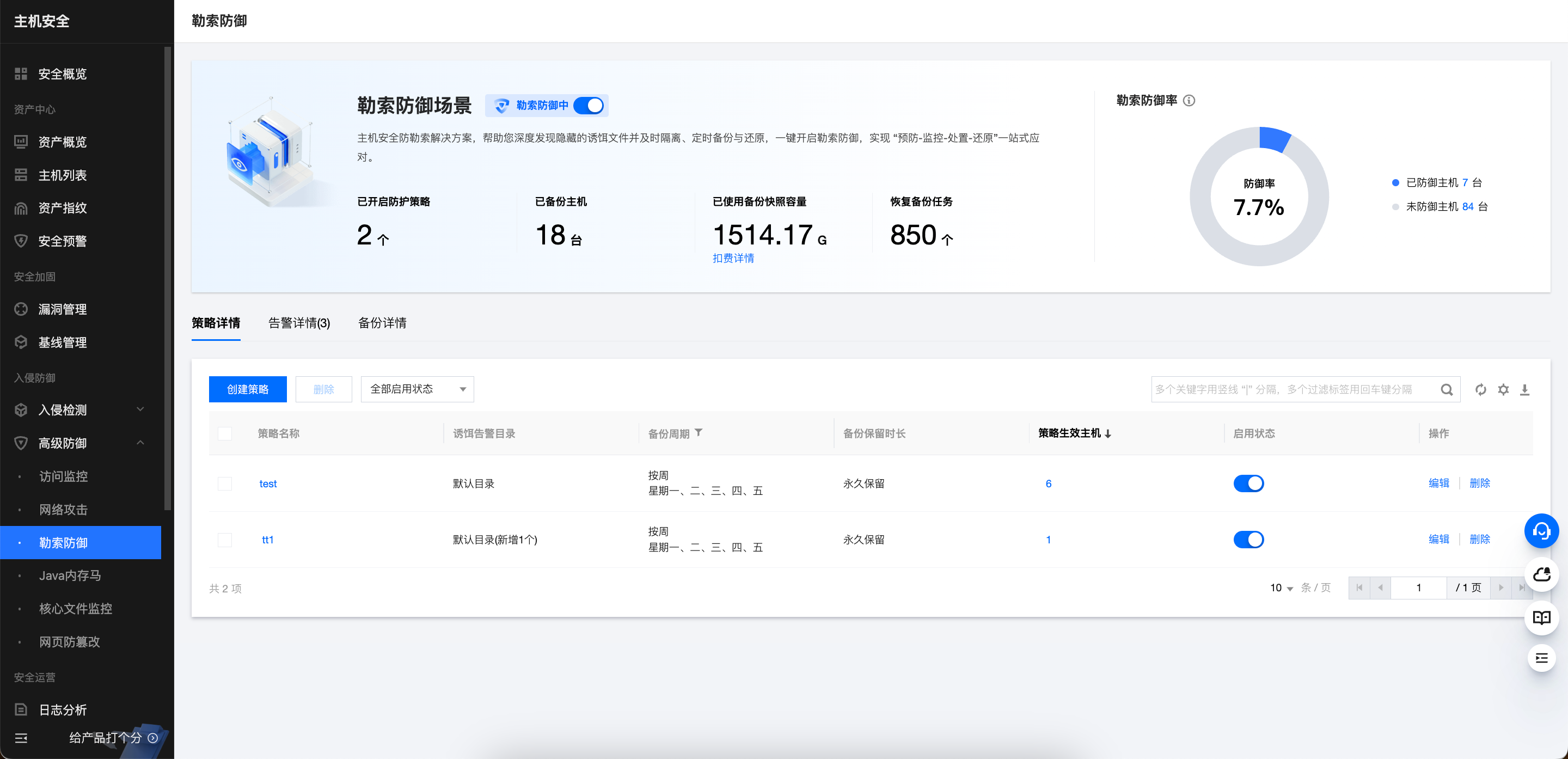
1. 1. Log in to CWPP Console, select Advanced Defense > Ransomware Defense in the left sidebar.

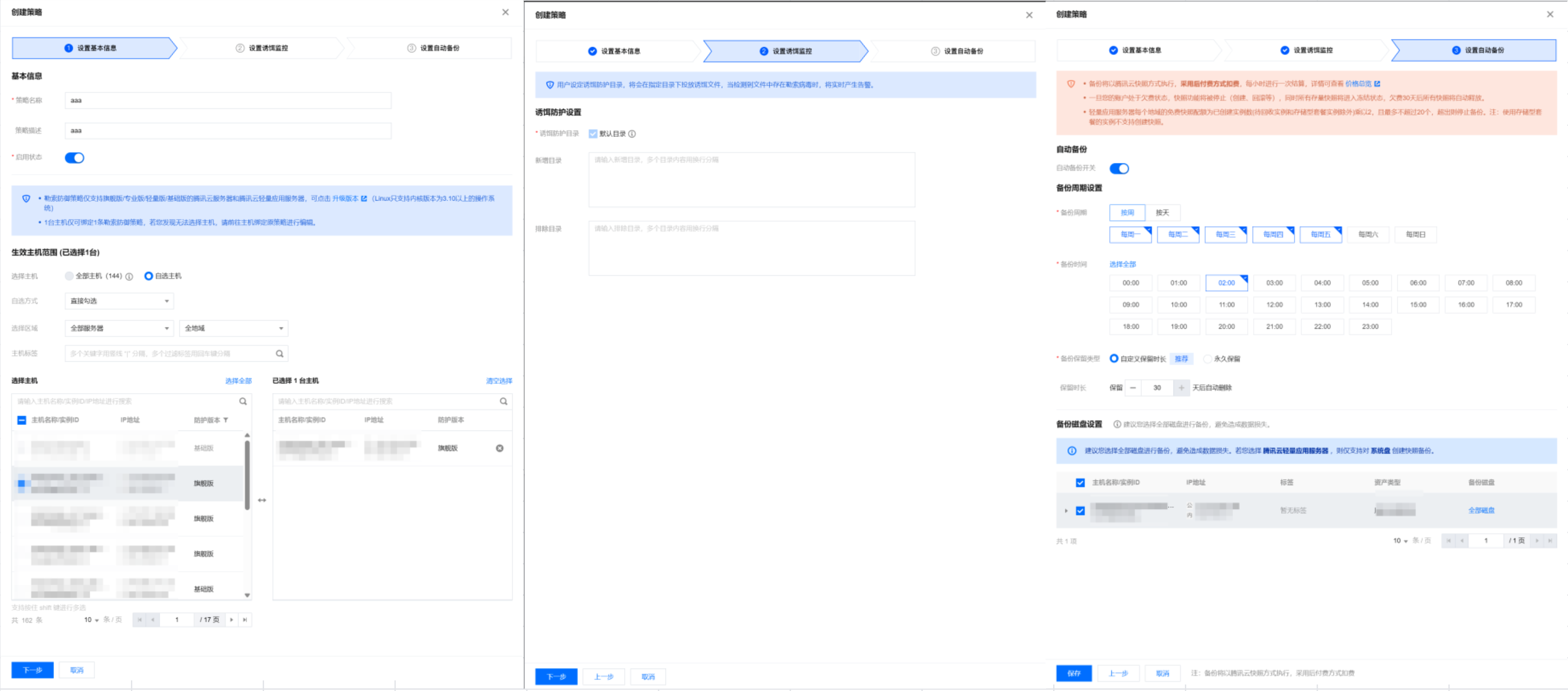
2. In Ransomware Defense > Policy Details, click Create Policy, and follow the three steps below to create a defense policy.

Note:
Default directory for bait files:
Windows operating system: C:\\ProgramData.
Linux operating system: YunJing.
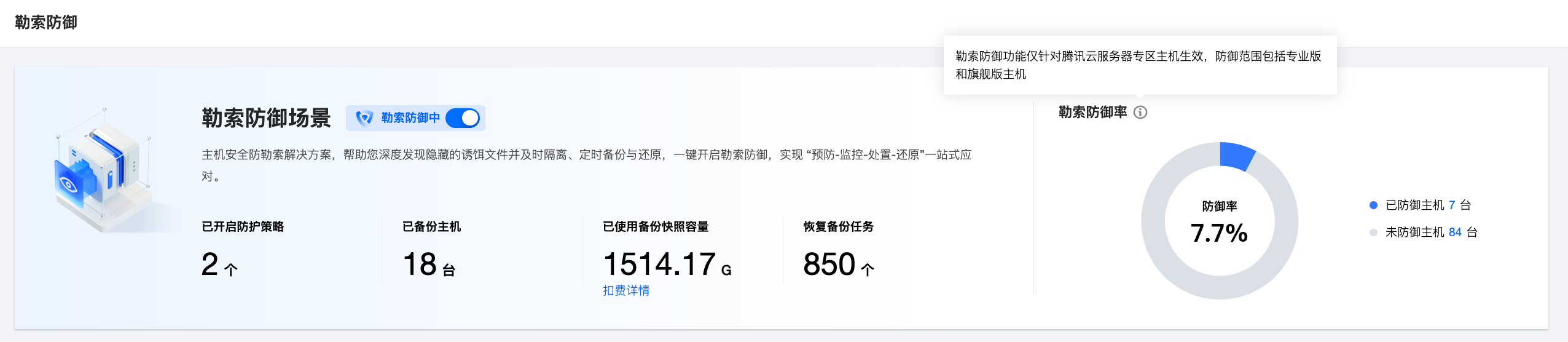
3. 3. After creating a policy, you can view statistics on the current policy, alarms and defense rates. There is also a feature to disable all ransomware defense policies with a single click.

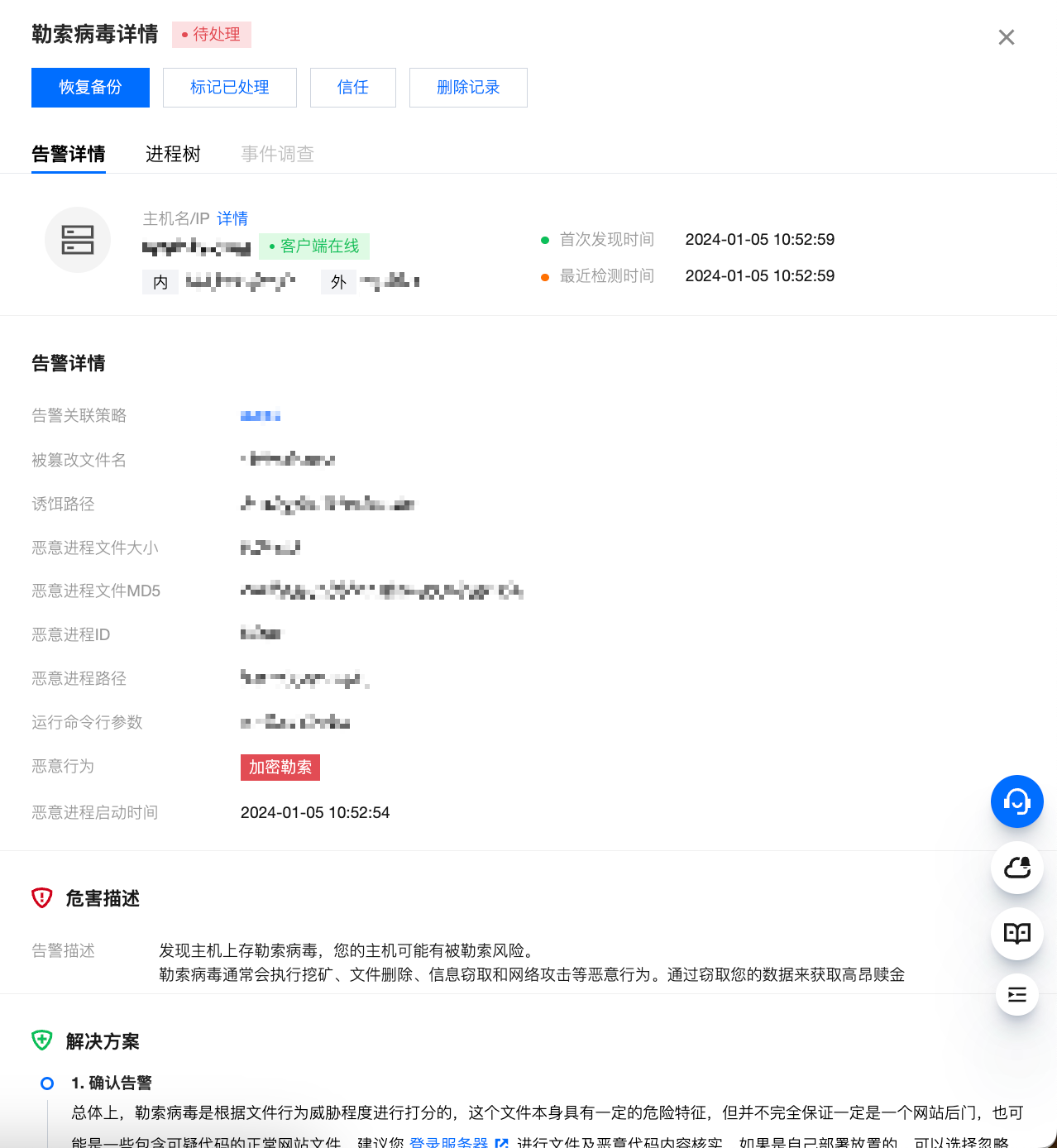
Viewing details: Clicking on Details allows you to view alarm details, hazard description, suggested solutions, and process tree information.

Handling: In the alarm details, by clicking on Process, you can perform the following operations on the host.
Restoring backups: If the host has been attacked by a ransomware, you can click this option to select a snapshot from the backup list for restoration.
Marking as handled: It is recommended that you follow the "Remediation Suggestions" provided in the alarm details to address the issue. Once you have resolved the alarm, you can mark it as handled.
Trust: After the trust operation is performed, only the file (MD5) or process on the current host will be allowlisted. Simultaneously, all corresponding alarms will be treated as trusted. There will be no further alarms in the future, please proceed with caution.Simultaneously trust alerts for the same file (MD5) or process in bulk, effective for all ransomware defense hosts.
Deleting records: After being deleted, the alarm record will never appear in the console display again. Once deleted, the record cannot be recovered, please proceed with caution.
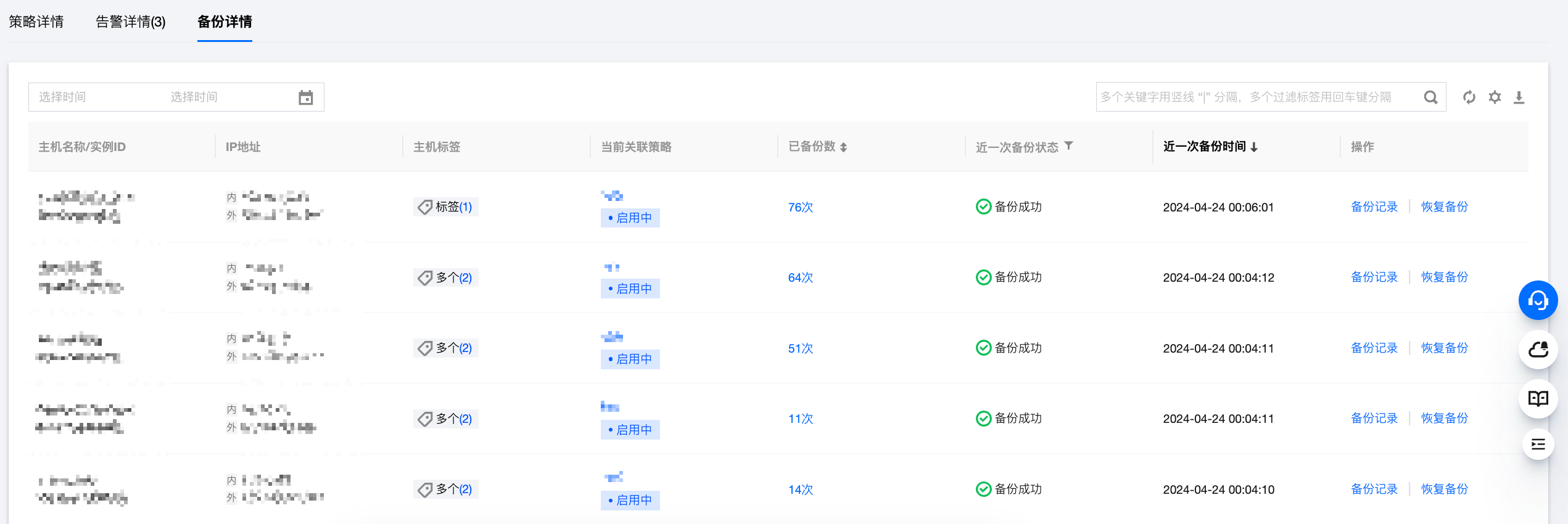
4. 5. In the Backup Details, you can view the backup status for each host, including the associated policies, the number of backups made, the status of the most recent backup, and the time it occurred. You can also view detailed records of the backups and choose one of the snapshots to restore the backup.


Help and Support

Was this page helpful?

Help us improve! Rate your documentation experience in 5 mins.

Feedback