Network Attack
Download
Focus Mode
Font Size
Network attacks are based on technical support from Tencent Cloud's security offensive and defensive Team, providing the automatic monitoring of malicious traffic for you. It combines malicious behaviors generated during the intrusion process. It performs real-time automatic correlation analysis of attacks and alarms, outputs attack traffic data, and notifies attack events. This document will introduce how to view and process network attack alarms.
Limits
Detection targets: Only Pro edition/Ultimate edition Linux hosts are supported.
Detection range: Only detects some of the hotspot vulnerability attack behaviors that involve EXPs with proven successful attack instances in the cloud.
Vulnerability defense: Only supported for Ultimate edition Linux hosts.
Defense Status Description
Supports vulnerability defense (disabled): CWPP supports defending against this vulnerability, but this host has disabled the defense for it.
Supports vulnerability defense (enabled): CWPP supports defending against this vulnerability, and this host has enabled the defense for it.
Vulnerability defense not supported: CWPP does not support defending against this vulnerability.
Note:
Possible reasons for vulnerability defense disabled: Defense switch is not turned on, the host is not an Ultimate edition, or it is not within the defense host range.
An attack event indicates that hackers are using attack methods that exploit this vulnerability, but it does not mean that the current machine has this vulnerability.
Alarm Statistics
1. Log in to the CWPP console. In the left sidebar, choose Cyber Defense > Network Attack.
2. On the network attack page, you can view the status of vulnerability defense, pending alarm data statistics, and the top 5 situations.

Field description:
Vulnerability Defense Status: Indicates the status of the vulnerability defense switch.
Pending Network Alarms: The current number of pending alarms.
Attacked Assets: The number of attacked assets involved in the current pending alarms.
Attacked Port: The number of attacked ports involved in the current pending alarms.
Attack Source IP: The number of attack source IPs in the current pending alarms.
Viewing Alarms
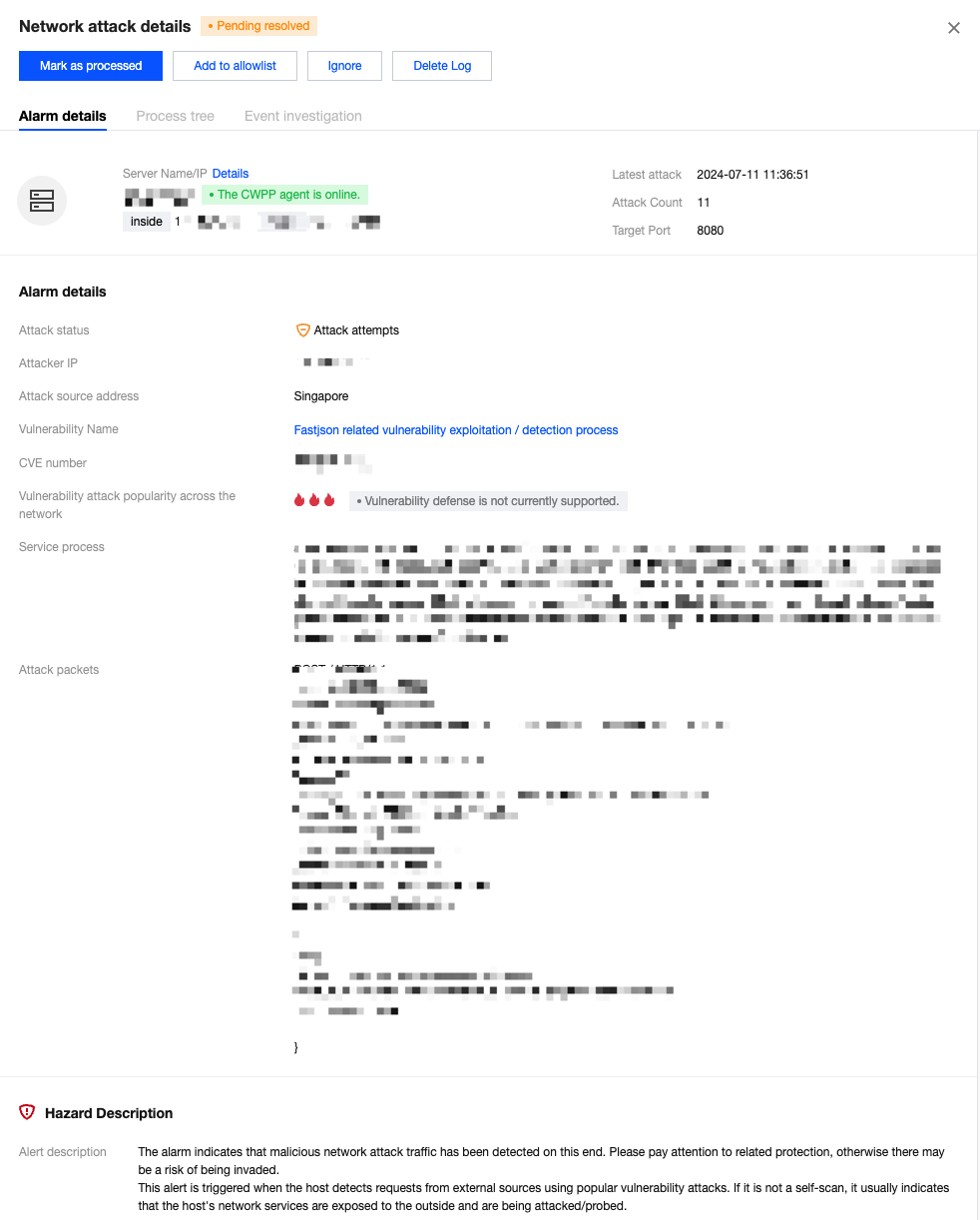
On the network attack page, you can view network attack details, including server name/instance ID, IP address, and template port.

Field description:
Server Name/Instance ID: The name and instance ID of the attacked host.
IP Address: Refers to the public/private IP of the attacked host.
Target Port: The attacked port.
Attack Source IP/Address: Refers to the attacker's source IP and location.
Vulnerability Name: Refers to the attacker's use of an attack method for a specific vulnerability and the current enabled/disabled status of vulnerability defense.
Attack Status: Refers to the outcome of the attacker's attack. Either an attempted attack (attacked but not successfully compromised) or a successful attack (confirmed compromise).
Latest Attack: The time when the attack was last detected.
Attack Count: The total number of times the same attack has been detected.
Processing Status: Pending, processed, allowlisted, and ignored.
Details: Supports viewing alarm details, hazard description, and solutions.
Processing Alarms
1. On the network attack page, choose the required alarm and click Process in the action bar.
Note:
Select one or more alarms and click Marked as Processed, Ignore, or Delete Log in the top left corner for batch operations.

2. Supports marking pending alarms as Processed, enabling vulnerability defenses, adding to the allowlist, ignoring, and deleting logs.
Marked as processed: Manually process the alarm and mark it as Processed after completion.
Enable vulnerability defense: After the operation is complete, the processing status will be automatically changed to Processed. Supports checking to mark all pending alarms related to the host covered by this vulnerability defense as Processed.
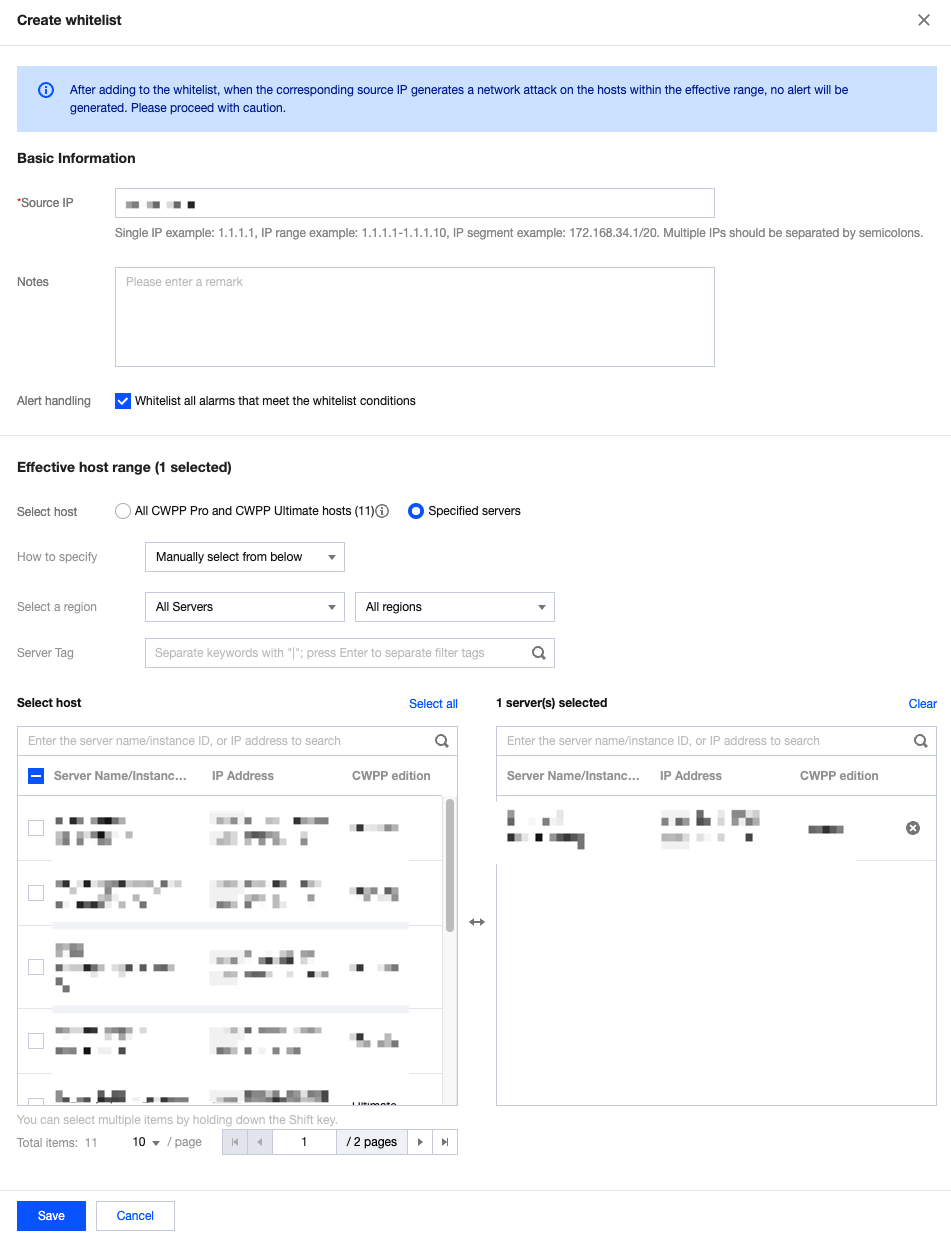
Add to allowlist: The attack source IP can be allowlistd and the effective host range can be edited. After operation is complete, the processing status will be automatically changed to Allowlisted. Supports batch allowlisting historical alarms.
Ignore: After you select this option, the processing status changes from Pending to Ignored. Subsequent identical attacks will still trigger alarms.
Delete log: Delete the current alarm record, and it cannot be recovered.
Help and Support
Was this page helpful?
You can also Contact sales or Submit a Ticket for help.
Help us improve! Rate your documentation experience in 5 mins.
Feedback