Obtaining a FairPlay Certificate
Download
Focus Mode
Font Size
To encrypt your content with FairPlay, you need to obtain an FPS deployment package from Apple and upload the following files to SDMC server.
FPS certificate file
(.der or .cer)Private key file
(.pem)Private key password file
(.txt)Application secret key (ASK) (
.txt)Directions
Step 1. Create an Apple developer account and request an FPS package
1. Create an Apple developer account.
2. At the bottom of the FairPlay Streaming page, click Request FPS Deployment Package, and log in with your Apple developer account.
3. Fill out the form and submit it. After your request is approved, Apple will send you a package containing the FPS certificate generation guide.
Note:
When asked if you have implemented and tested Key Security Module (KSM), you can paste the answer below:
I am using a 3rd party DRM company and the company has already built and tested KSM
Step 2. Create a private key and a certificate signing request (CSR)
Create a private key file (
privatekey.pem) and a CSR file (certreq.csr) as instructed in the FPS certificate generation guide. The following describes the OpenSSL method in the guide.Note:
Make sure OpenSSL is installed on the computer or server environment where this process is performed.
1. Create a private key file (
privatekey.pem):1.1 Run the command below to create a private key file:
openssl genrsa -aes256 -out privatekey.pem 1024
1.2 Set a password (not longer than 32 characters) for the private key. Note it for later use.
2. Create a CSR file:
2.1 Run the command below (you can modify
-subj):openssl req -new -sha1 -key privatekey.pem -out certreq.csr -subj "/CN=SubjectName/OU=OrganizationalUnit/O=Organization/C=US"
2.2 Enter the private key password configured in the previous step.
Step 3. Generate the FPS certificate
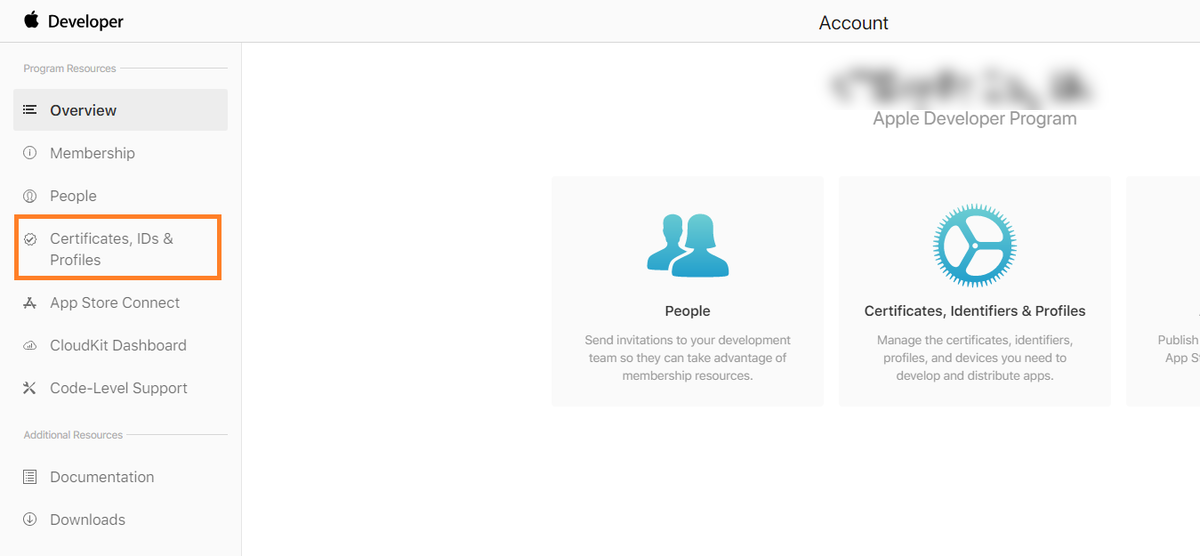
1. Log in to Apple Developer and click Certificates, IDs & Profiles.
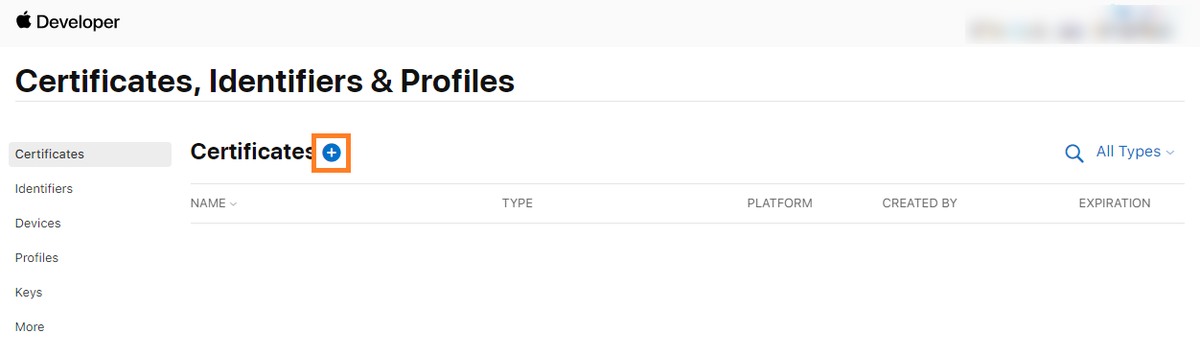
2. Click + to enter the Create a New Certificate page.
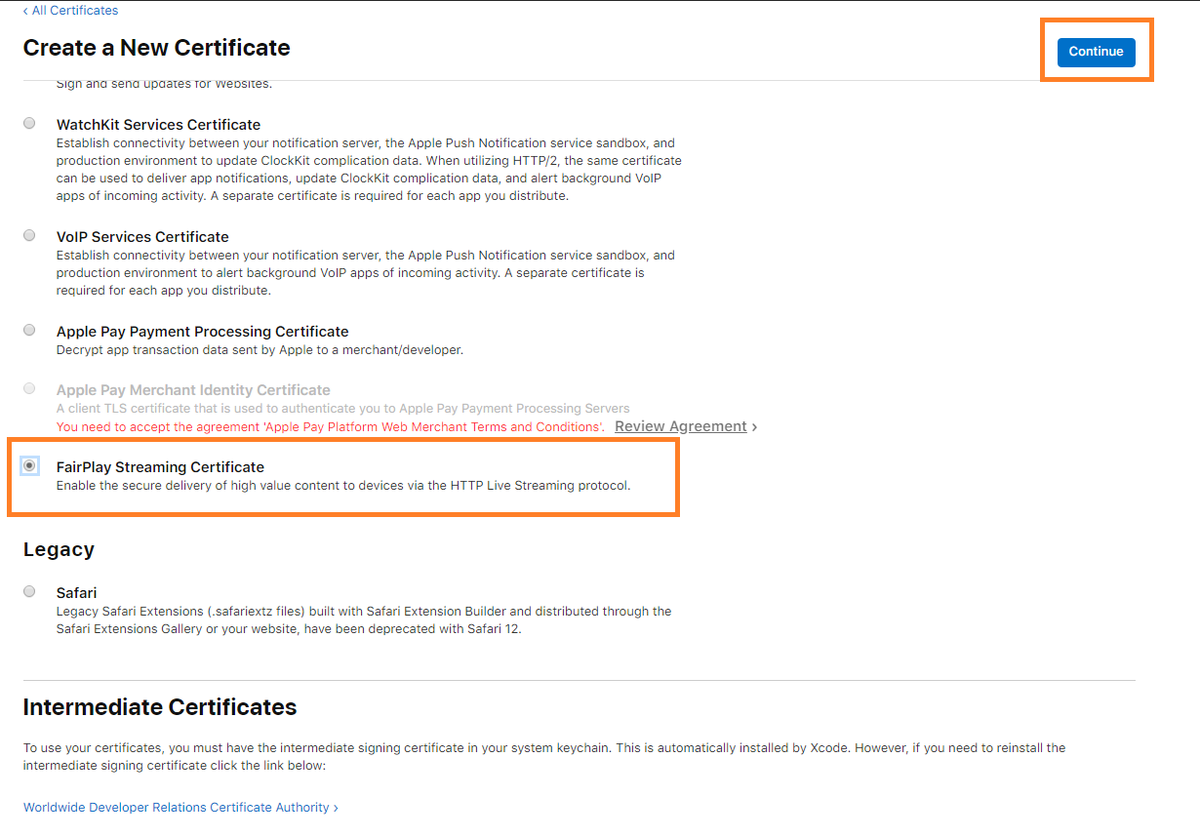
3. Select FairPlay Streaming Certificate and click Continue.
4. Click Choose File, select the
certreq.csr file created, and click Continue.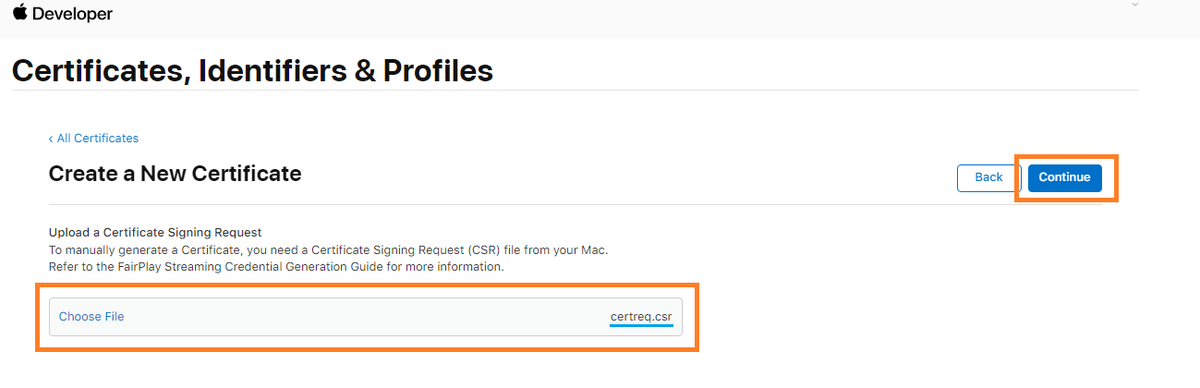
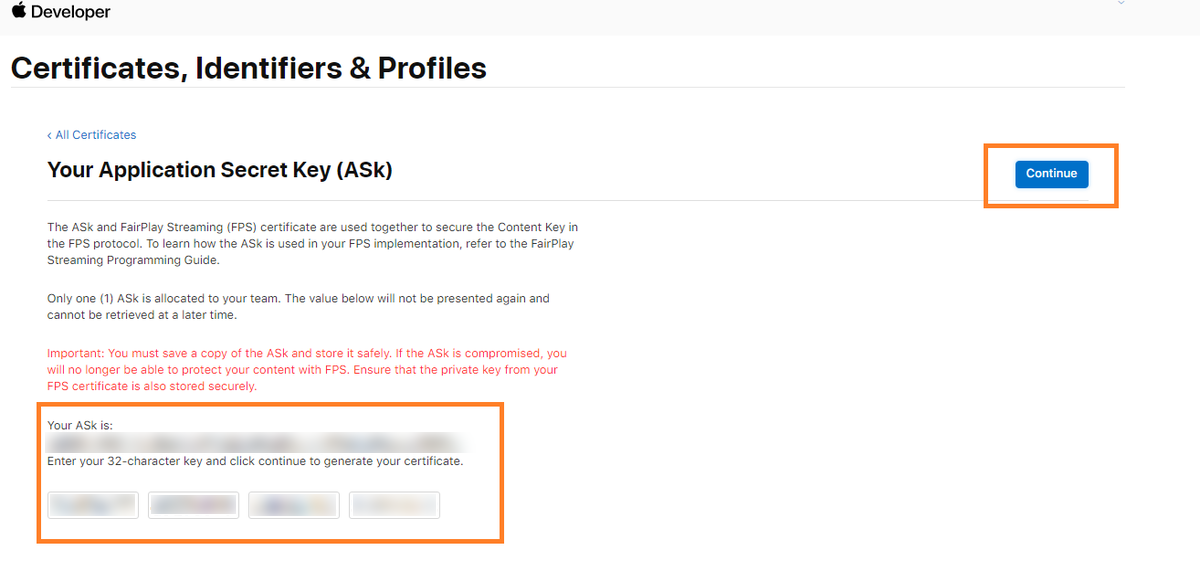
5. Copy and save the ASK, paste it in the input field below, and click Continue.
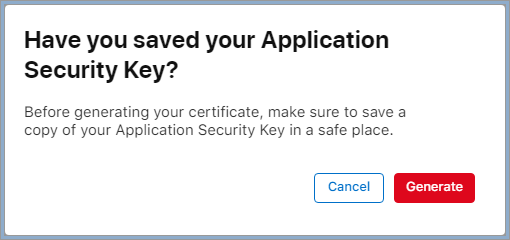
6. A window will pop up to confirm that you have saved the ASK. Click Generate.
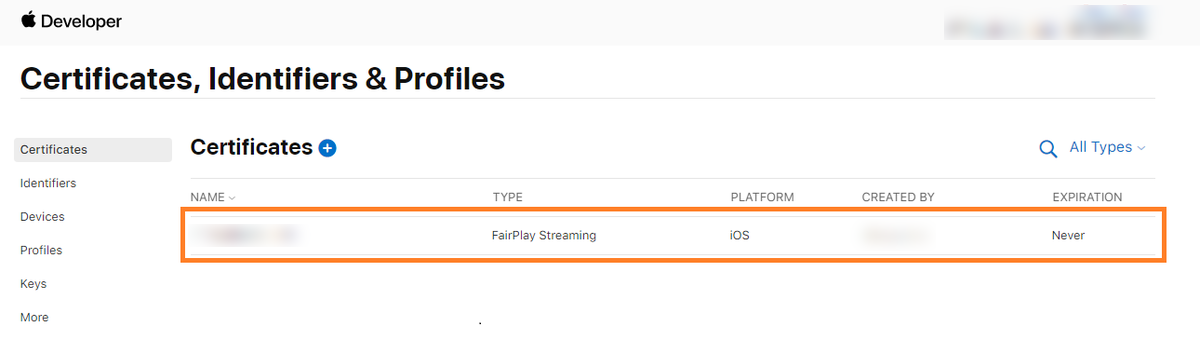
7. After the above steps are completed, the FPS certificate generated will appear in the certificate list.
8. Click Download to download the FPS certificate (
fairplay.cer).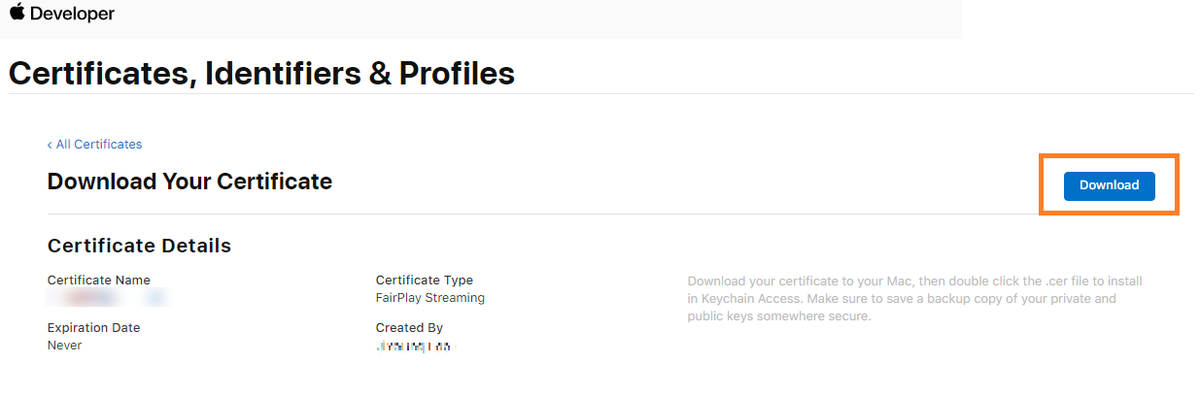
Step 4. Upload the certificate to SDMC platform
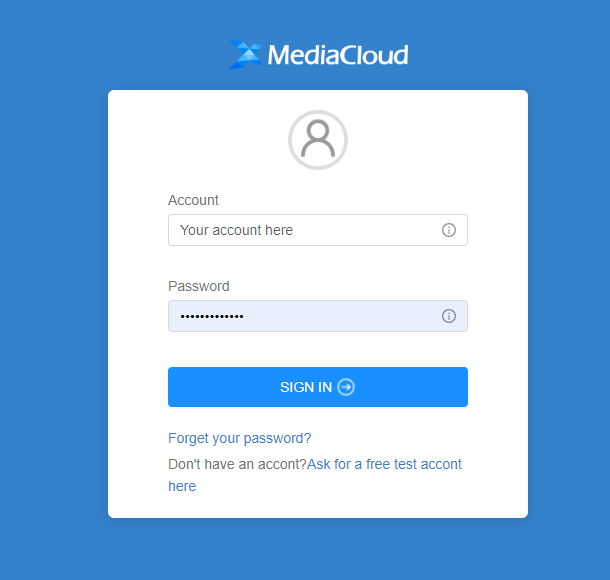
1. Log in to SDMC DRM console and find DRM settings in the menu.
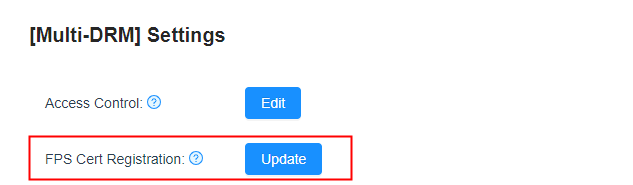
2. On the DRM settings page, find FPS Cert Registration, and click Update.
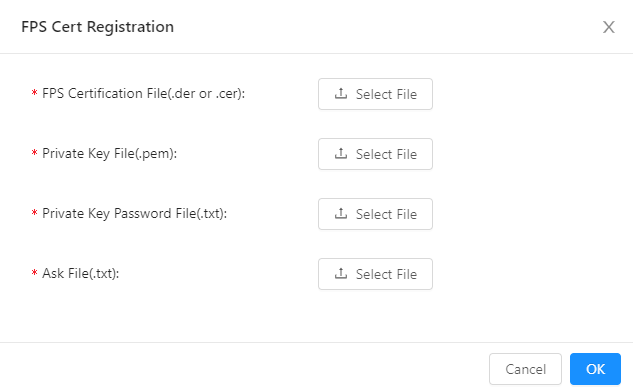
3. Upload the FPS certificate, private key file, private key password file, and ASK file, and click OK.
Note:
Help and Support
Was this page helpful?
You can also Contact sales or Submit a Ticket for help.
Help us improve! Rate your documentation experience in 5 mins.
Feedback