tencent cloud

Cloud Streaming Services

Release Notes and Announcements
Announcements
User Guide
Product Introduction
Overview
CSS Products
Concepts
Features
Use Cases
Strengths
Use Limits
Purchase Guide
Billing Overview
Basic Service Fee
Value-Added Service Fee
Prepaid plan
Purchase Process
Changing Billing Modes
Refund Policy
Viewing Bills
Renewal
Processing for Overdue Payments
Billing FAQs
Live Video Broadcasting (LVB)
Overview
Use Cases
Getting Started
SDK Integration
Live Event Broadcasting (LEB)
Overview
LEB Versus LVB
Use Cases
Getting Started
SDK Integration
Live Video Caster
Overview
Application Scenarios
Feature Area Introduction
Managing Live Video Caster
General Cloud Director
Configuring Program Lists and Automated Broadcasting
Console Guide
Console Overview
Overview
Domain Management
Stream Management
Package Management
AI Features
Feature Configuration
Relay
Billing Usage Statistics
Monitoring
Toolkit
OOTB live
CAM-Based Access Control
Feature Guide
Push and Playback
Features
Practices in Typical Scenarios
Cloud Native Recording
Live Streaming Security
Global CSS Service
Callback Notifications
User Guides for Common Third-Party Tools
SDK Guide
0. SDK Integration Guide
1. Stream Push
2. Playback
3. Advanced Features
API Documentation
History
Introduction
API Category
Making API Requests
Live Pad APIs
Live Stream Mix APIs
Time Shifting APIs
Monitoring Data Query APIs
Billing Data Query APIs
Live Transcoding APIs
Delayed Playback Management APIs
Domain Name Management APIs
Watermark Management APIs
Certificate Management APIs
Stream Pulling APIs
Recording Management APIs
Live Callback APIs
Screencapturing and Porn Detection APIs
Authentication Management APIs
Live Stream Management APIs
Data Types
Error Codes
Ops Guide
Video Stuttering
Troubleshooting Push Failure
Troubleshooting Playback Failure
CLS Assists in Live Stream Troubleshooting
Troubleshooting High Latency
Troubleshooting Poor Quality of Pulled Video
Authorizing CSS to Store Screenshots in a COS Bucket
Troubleshooting
Live Stream Mixing Error `InvalidParameter.OtherError`
About Pushing
Generating Push URLs
PC Push
Playing Method
Web Player
Live Streaming Quiz
FAQs
Service Region
Live Streaming Basics
Push and Playback
CSS Billing
Global CSS Service
Live Recording
On-Cloud Stream Mix
Domain Configuration
Related to Live Video Caster
Compatibility with Apple ATS
Difference Between Stream Interruption and Stream Suspension
SLA
CSS Service Level Agreement
CSS Policy
Privacy Policy
Data Processing And Security Agreement
Glossary

Getting Started

PDF
Focus Mode
Font Size
Last updated: 2025-09-12 16:15:57
This document shows you how to get started with LEB. Before using LEB, please read Pricing Overview to learn about its billable items and prices.

Prerequisites

2. Go to the CSS console, agree to Tencent Cloud Service Agreement, and click Apply for Activation to activate CSS.
Note:
After activating CSS, you will get 20 GB of playback traffic for the Chinese mainland for free.
The steps to configure domain names for LEB are the same as those for LVB. If you are already using LVB, you can skip to Step 4. Get a playback URL.

Operation Steps

Step 1. Add domain names

To use CSS, you should have at least one push domain name and one playback domain name. You cannot use one domain name for both push and playback. You can add your own domain names.
1. Register your domain name. ICP filing is required if you want to use the domain in the Chinese mainland.
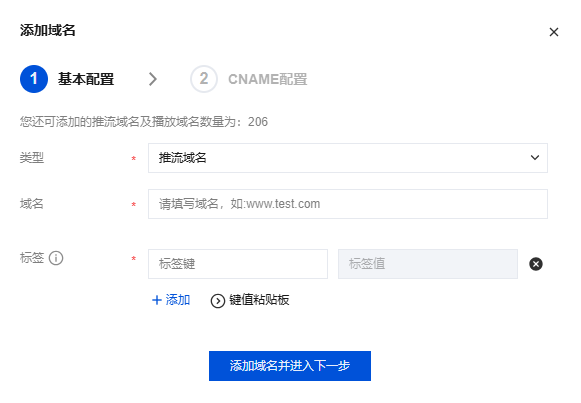
2. Log in to the CSS Console, navigate to Domain Management, Click Add Domain.


3. Enter the custom domain addition page, fill in the domain name that has been completed for filing, and select Type.
4. Tags are used to categorize and manage resources from different dimensions. If the existing tags do not meet your requirements, you can also go to the Tag Console to manage tags uniformly.
5. Click Add domain.

Note:
CSS provides a test domain name xxxx.livepush.myqcloud.com. You can use it to test push, but we do not recommend using it for business purposes.
After the domain name is added successfully, you can view its information in the domain name list in Domain Management. For information on how to manage your domains, see Domain Management.
For more information on domain names for live streaming, see Live Streaming Basics.
6. Once your domain name is added, the system will assign it a canonical name (suffixed with.txlivecdn.com or .tlivepush.com), which cannot be accessed before you complete CNAME configuration at your DNS service provider. The following example shows you how to add a CNAME record if you use Tencent Cloud’s DNS service:
6.1 Log in to the DNS console.
6.2 Find your domain name and click Resolve.
6.3 On the domain name resolution page, click Add Record.
6.4 Enter your domain name prefix for Host Record, select CNAME for Record Type, and enter the canonical name for Record Value.
6.5 Click Save.
Note:
It takes a while for CNAME configuration to take effect. You can use CSS only after it does.
After the CNAME configuration takes effect, you will see the

icon before the CNAME address in Domain Management.
If your CNAME configuration fails to take effect, please contact your DNS provider.
For how to add CNAME records with other DNS providers, see Configuring CNAME for Domain Name.

Step 2. Get a push URL

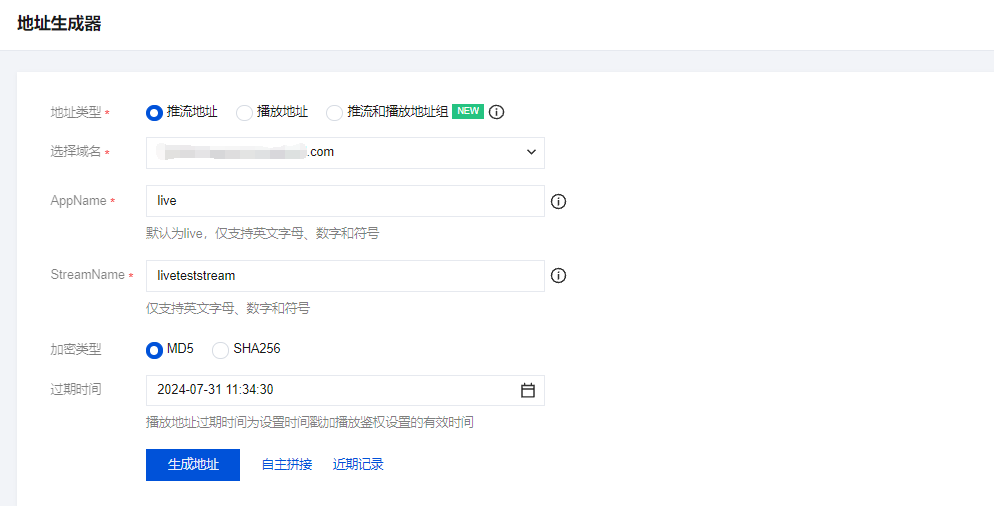
1. Go to CSS Toolkit > Address Generator.
2. Complete the following settings:
2.1 Select the address type as Push Address.
2.2 Select a push domain name you added in Domain Management.
2.3 Enter an AppName. It is live by default.
2.4 Enter a custom StreamName, such as liveteststream.
2.5 You need to choose an encryption type based on your security requirements and performance considerations. The encryption type can be either MD5 or SHA256, with MD5 being the default option.
2.6 Select a URL expiration time, such as 2024-07-31 12:08:42.
3. Click Generate Address to generate a push address.


Note:
The default value of AppName is live. txSecret is the signature for playback, and txTime is the URL expiration time.
Here is another way to generate a push URL: In Domain Management, find the domain name you want to use for push and click Manage. Under Push Configuration, select an expiration time for the URL, enter a custom StreamName, and click Generate Push Address.
Before generating a push URL, you can create templates and bind them to your push domain. For the prices of CSS value-added services, see Pricing Overview.

Step 3. Start pushing

To start pushing, provide the push URL generated to the software you use for push.
For PC live streaming, it is recommended to use OBS WebRTC live streaming.
For push on web, we recommend you use Web Push: Click Generate. In the pop-up window, select a push domain name, enter a custom StreamName, select a URL expiration time, and click Confirm. Turn the camera on, and click Start Push.
For push from mobile devices, download the TCToolkit app, open it, go to the live push page, and enter the push URL manually or scan the QR code generated in the previous step to auto-fill the URL. Tap Start Push.
Note:
You can integrate the MLVB SDK into your app to implement the push feature.
The LEB solution for web does not support decoding or playing B-frames. For details, see B-Frames.

Step 4. Get the playback URL

1. After push succeeds, select Stream Management on the left sidebar. Under the Live Streams tab, you can view the status of the push URL. You can also click Preview to play the stream.
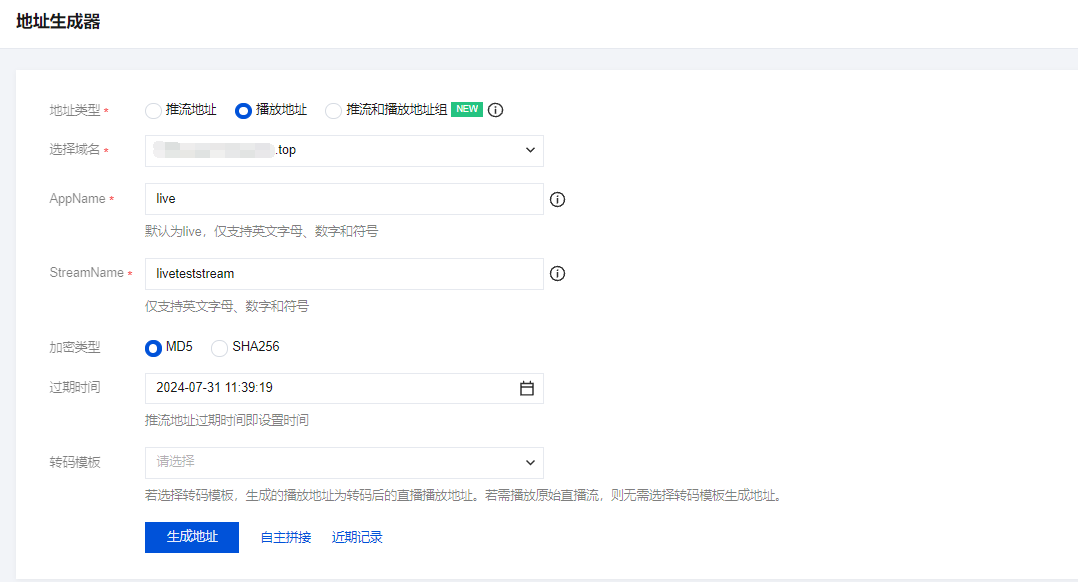
2. Go to CSS Toolkit > Address Generator and complete the following settings:
2.1 Select the address type: Playback Address.
2.2 Select the address type as Playback Address and choose the playback domain name that you have added to Domain Management.
2.3 Enter an AppName. It is live by default.
2.4 Enter an AppName. It is live by default.Enter the same StreamName as the push address. The playback address StreamName must be consistent with the push address StreamName to play the corresponding stream.
2.5 You need to choose an encryption type based on your security requirements and performance considerations. The encryption type can be either MD5 or SHA256, with MD5 being the default option.
2.6 Select a URL expiration time, such as 2024-07-31 12:08:42.
2.7 Select a transcoding template if you want to transcode the stream and get a playback URL of the transcoded stream. This step is not necessary if you play the original stream.
2.8 Click Generate Address to generate an LEB playback URL whose format is webrtc://domain/path/stream_id.


3. You can use the following methods to test playback in different scenarios:
Playback on web: We recommend you use the TCPlayer demo to test playback.
Note:
The demo supports changing video quality during playback. You can create a transcoding template to output HD and SD videos in Feature Configuration > Live Transcoding, enter in the demo a WebRTC URL containing the transcoding template, and play it. If you don't need to test this feature, enter the original WebRTC URL.
For more information on live transcoding and its billing, see Live Transcoding.
Playback on mobile devices: We recommend you use the TCToolkit app to test playback on mobile devices. Open the app, select Live broadcast > LEB Player, enter the playback URL manually or scan the QR code generated in the previous step to auto-fill the URL, and then tap Start Playback.
Note:
If you want to play the stream in your app, you can integrate the MLVB SDK. If you have any questions, see FAQs.

Step 5.Generate Push and Playback Address Group

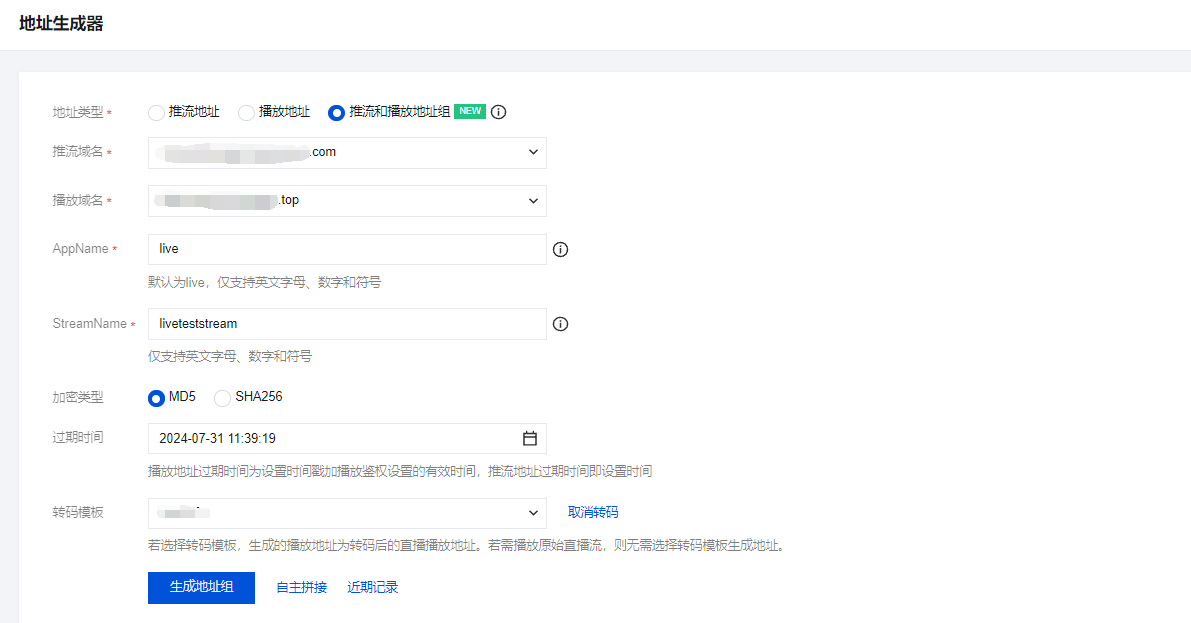
1. Go to CSS Toolkit > Address Generator.
2. Select the address type as Push and playback URLs.
3. Select the Push Domain Name and Playback Domain Name that you have added to Domain Management.
4. Enter an AppName. It is live by default.
5. Enter a StreamName, such as liveteststream.
6. You need to choose an encryption type based on your security requirements and performance considerations. The encryption type can be either MD5 or SHA256, with MD5 being the default option.
7. Select the URL expiration time, such as 2024-07-31 12:08:42.
8. Select an existing transcoding template (optional).
9. Click Generate Address.


Step 6. Use LEB

Our LEB solution for mobile devices supports B-frame decoding and playback of AAC files. It has been integrated into the MLVB SDK, please refer toLEB.
Web solution: Integrated into the TCPlayer player. For integration, please refer to Web Integration.

FAQs

Generating playback URLs

The format of LEB URLs is the same as that of LVB URLs except that the former start with webrtc while the latter start with rtmp.
LEB playback URL format: webrtc://domain/path/stream_id or webrtc://domain/path/stream_id?txSecret=xxx&txTime=xxx (hotlink protection enabled). For how to generate a playback URL, see Get the playback URL.
Note:
You can use URLs of transcoded streams to play at different resolutions and bitrates. For how to generate a playback URL for a transcoded stream, see Live Remuxing and Transcoding.

B-frames

Fast Live Web solution does not support B-frame decoding and playback. Therefore, if the original stream contains B-frames, the backend will automatically transcode the stream to remove B-frames. However, this process introduces additional transcoding latency and incurs transcoding costs.
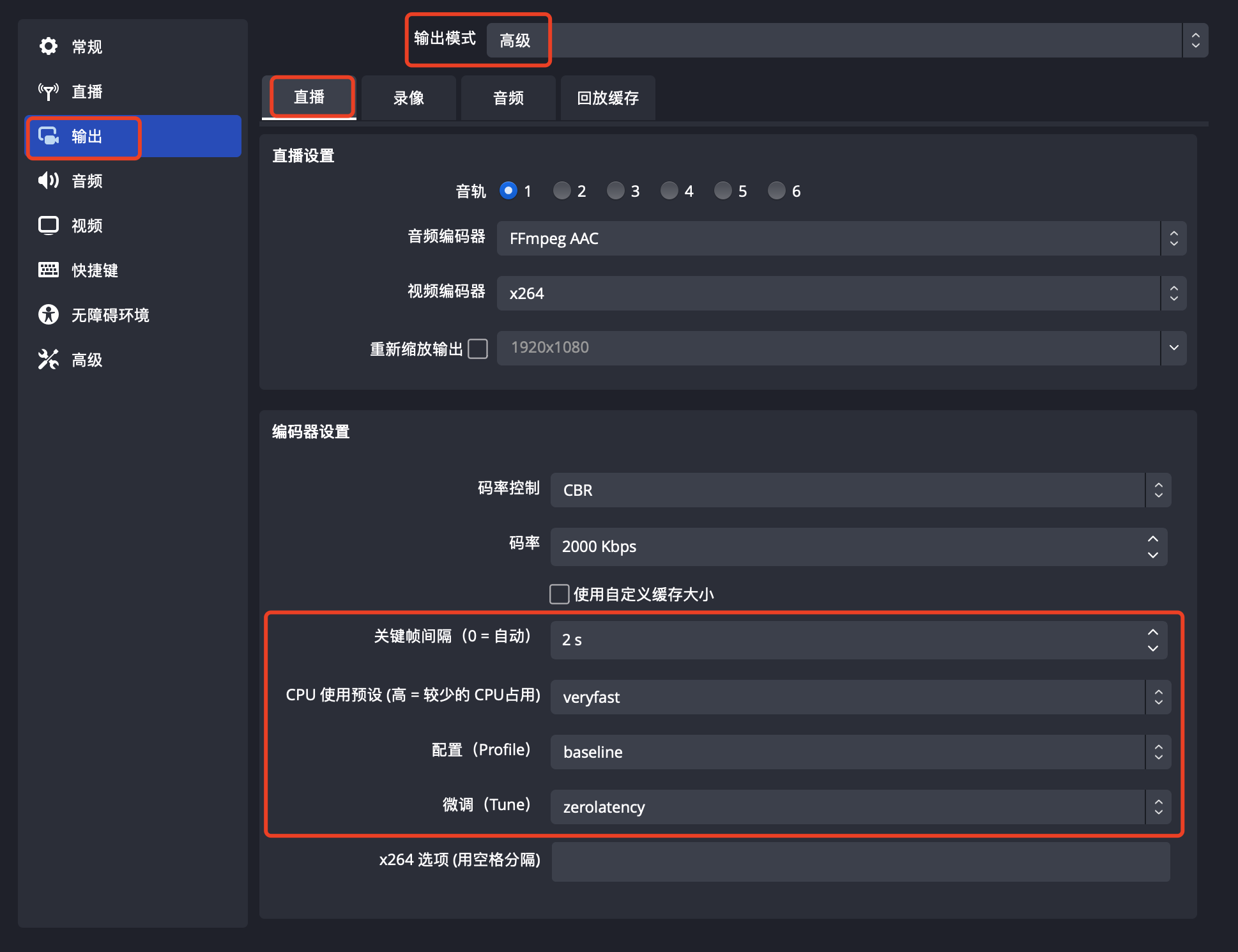
It is recommended to avoid pushing streams containing B-frames. Users can remove B-frames by adjusting the video encoding parameters of the streaming software (such as OBS). If using OBS for live streaming, you can disable B-frames through the settings.
A large Keyframe Interval (GOP) may affect the Fast Live experience, and it is recommended to set the interval to 2 seconds.
As shown below:


Audio transcoding

Playback using browsers only supports the standard WebRTC protocol and does not support AAC. If a stream pushed contains audio in AAC format, the system will transcode the audio into Opus format, which will incur audio transcoding fees.

Explanation Regarding Live Streaming Black Screen Issues

Live Event Broadcasting (LEB) requires HTTPS certificate binding to prevent playback failures or blank screens that may occur when devices fall back to HLS playback due to incompatibility with LEB, where the absence of an HTTPS certificate would otherwise cause such issues.

Help and Support

Was this page helpful?

Help us improve! Rate your documentation experience in 5 mins.

Feedback