tencent cloud

Low-code Interactive Classroom

Release Notes and Announcements
Announcement on the Renaming of Low-Code Interactive Classroom Product
Announcement on the Upgrade of Low-Code Interactive Classroom
Product Introduction
Overview
Use Cases
Features
Strengths
Purchase Guide
Billing Overview
Monthly Packages
Billing Examples
Purchase Instructions
Payment Overdue
Refunds
Demo Download and Experience
Client Integration Guide
Web and H5
Android
iOS
Windows and macOS
Console Guide
Overview
Usage
Applications
Quick Run-through
API Documentation
History
Introduction
API Category
Making API Requests
User Login APIs
Room Management APIs
Group Management APIs
Application Configuration APIs
Recording Management APIs
Courseware Management APIs
User Management APIs
Developer APIs
Data Types
Error Codes
Interface Customization
Getting Started
Event Listening
Service Callbacks
Advanced Features
Custom Business Domain
Mobile Screen Sharing
Mobile Preloading
Practical Tutorial
Integration with Scheduling System
Integration with Account System
Integration with Recording and Playback
Integration with Courseware Module
LCIC Policy
Privacy Policy
Data Processing And Security Agreement
FAQs
Billing
Recording
Console and API authorization issues
Interactive Whiteboard Lag
Screen Sharing
Dealing with Firewall Restrictions
Web
Electron
Device Performance Requirements
Service Agreement
Service Level Agreement

Getting Started

PDF
Focus Mode
Font Size
Last updated: 2024-06-28 09:56:02
Note:
Before reading this section, ensure that you have completed the integration guide for Web and H5.

What Can Be Achieved Through Self Definition?

The user interfaces for iOS/Android/Electron classrooms are all implemented based on web pages. Therefore, Self Definition allows you to modify the interfaces on all ends and supplement the business logic according to your needs, as in the following scenarios:
1. Replacing Key Concepts Copy.
2. Blocking Irrelevant Business Features.
3. Modifying Interface Styles.
4. Adding Business Components.

Preparing the Development Environment

This article assumes that you have the following skills:
1. Setting up a Local Static Server.
2. Understanding the development and operation principles of js/css on the browser side.
See Web and H5 Integration Guide, assuming that your local server is running on port 8080, and you have created files test.js, test.css in the root directory.

Preparing the Test Classroom

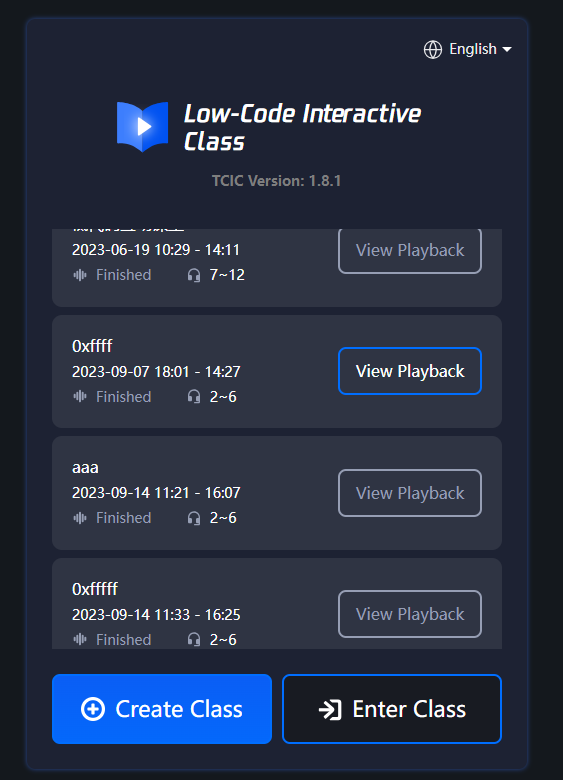
1. Click on the Login page of the classroom demonstration, select Create Class, and then click Enter Class. You will be redirected to the course page.

2. Upon entering the course page, you will see the following image. Copy the URL of the course page.

3. Append the JS/CSS string to the URL, with the appended string as follows.
debugjs=http://localhost:8080/test.js&debugcss=http://localhost:8080/test.css
4. Paste the modified URL back into the browser, open the browser's console, and check the network requests. If localhost appears.

Help and Support

Was this page helpful?

Help us improve! Rate your documentation experience in 5 mins.

Feedback