The cost bill reflects your monthly spending amount and resource details on Tencent Cloud, serving as the reconciliation document between Tencent Cloud and users.
Billing Types
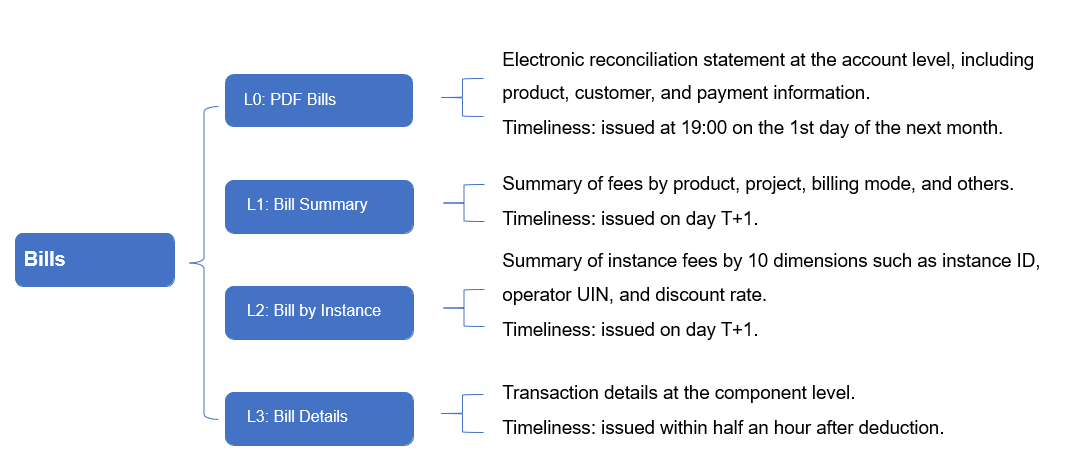
You can log in to the Billing Center console, and choose Bills > Bill Details in the left sidebar to go to the bill details page. Cost bills are divided into the following four levels:
Billing Time
Monthly bill: The complete bill for the previous month's invoiced items is generated on the 1st of each month. For the specific invoicing time, refer to the notes on the Billing Center > View bills page. The bill amount before invoicing is completed is not final and is for reference only.
Billing Cycle
The billing statistics period for international site accounts is standardized to the billing cycle.
Bill Overview
Note:
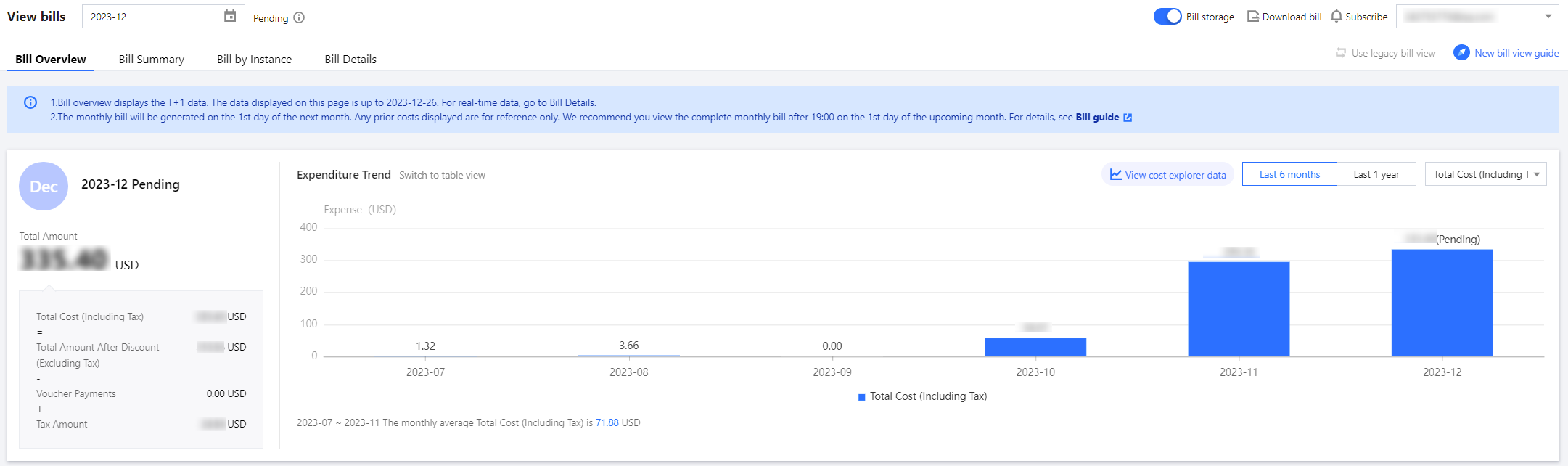
The data of Bill Overview is issued on T+1 and does not represent real-time data. For real-time data, please go to the Bill Details page.
Through the Bill Overview, you can quickly grasp the composition of your bill's total cost, including cash payment, post-discount total price (excluding tax), voucher payment, and tax amount. The monthly bill cost trend chart visually displays the change trend of long-term costs, while the multi-dimensional bill further details the specific composition of costs across different dimensions.
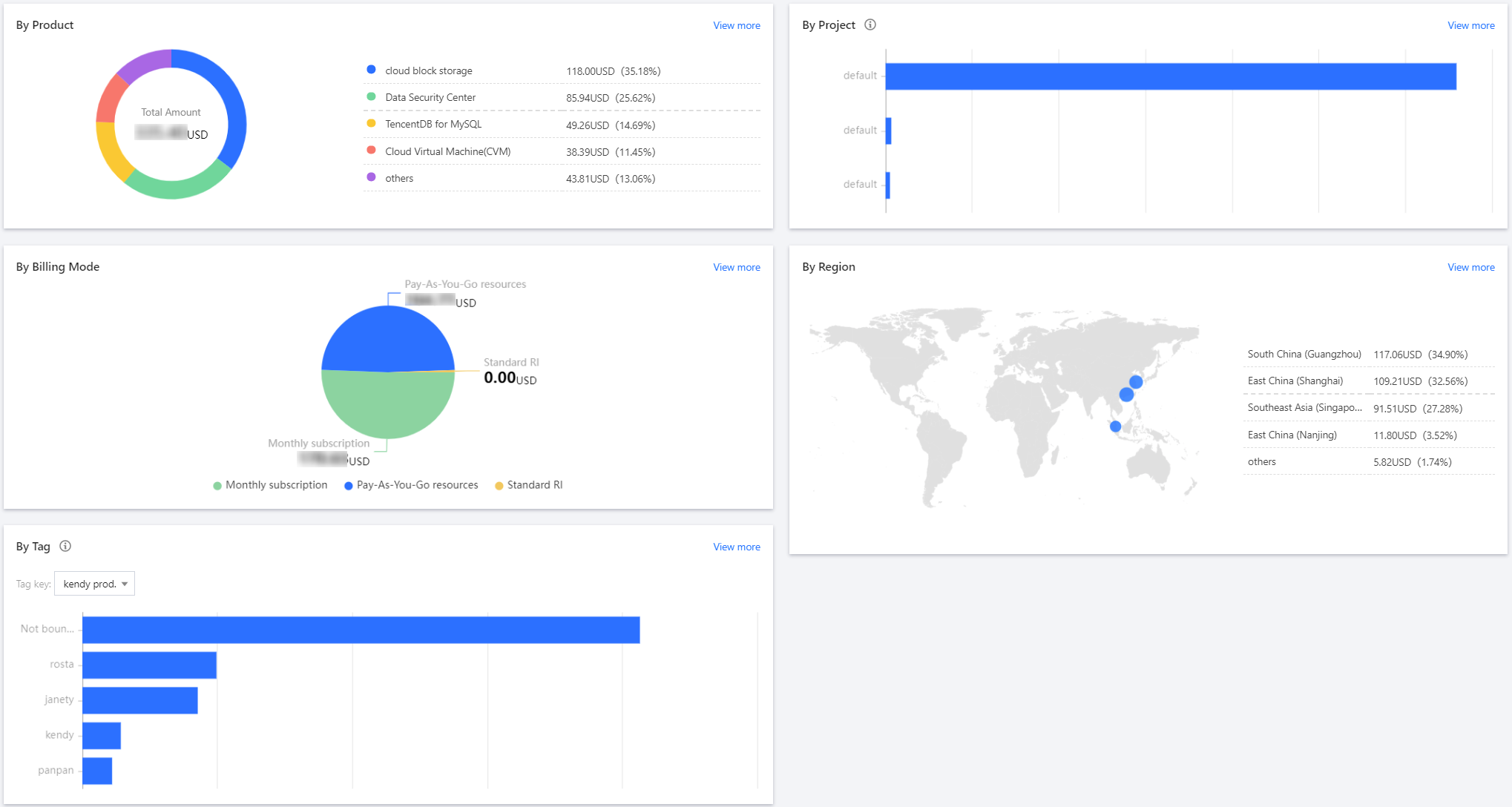
The multi-dimensional bill summary view displays aggregated costs across multiple dimensions, including Product, Project, Billing Mode, Region, and Tag. The visualization chart intuitively presents the composition of the Top total costs under each dimension, helping you quickly identify where the costs are primarily distributed.
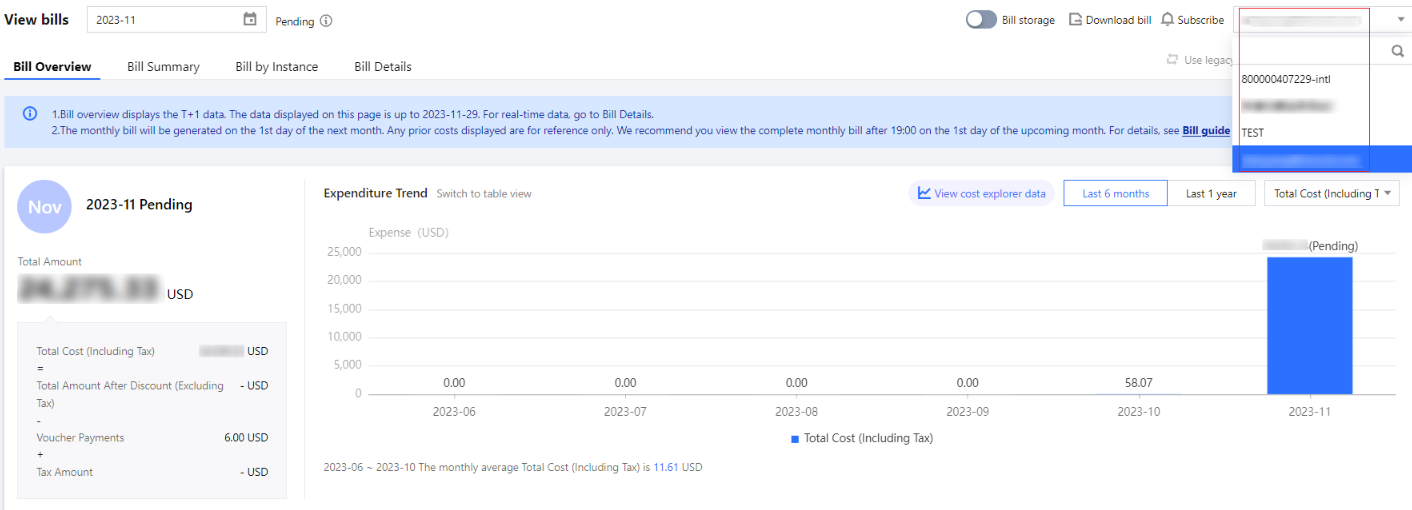
Viewing member account bills with a group account: After logging in to the group administrator account, you can select and switch to a group member account as needed in the upper-right corner of the Bill Overview page to view the self-pay bill costs of the member account.
Note:
The member account bill displayed on the Billing Center page is the self-pay cost.
To query member accounts bills paid by the group administrator, go to the Tencent Cloud Organization > Financial Management > Bill Details page.
Multi-dimensional Summary Bill
Note:
The data of Bill Summary is issued on T+1, and does not represent real-time data. For real-time data, please refer to the Bill Details page.
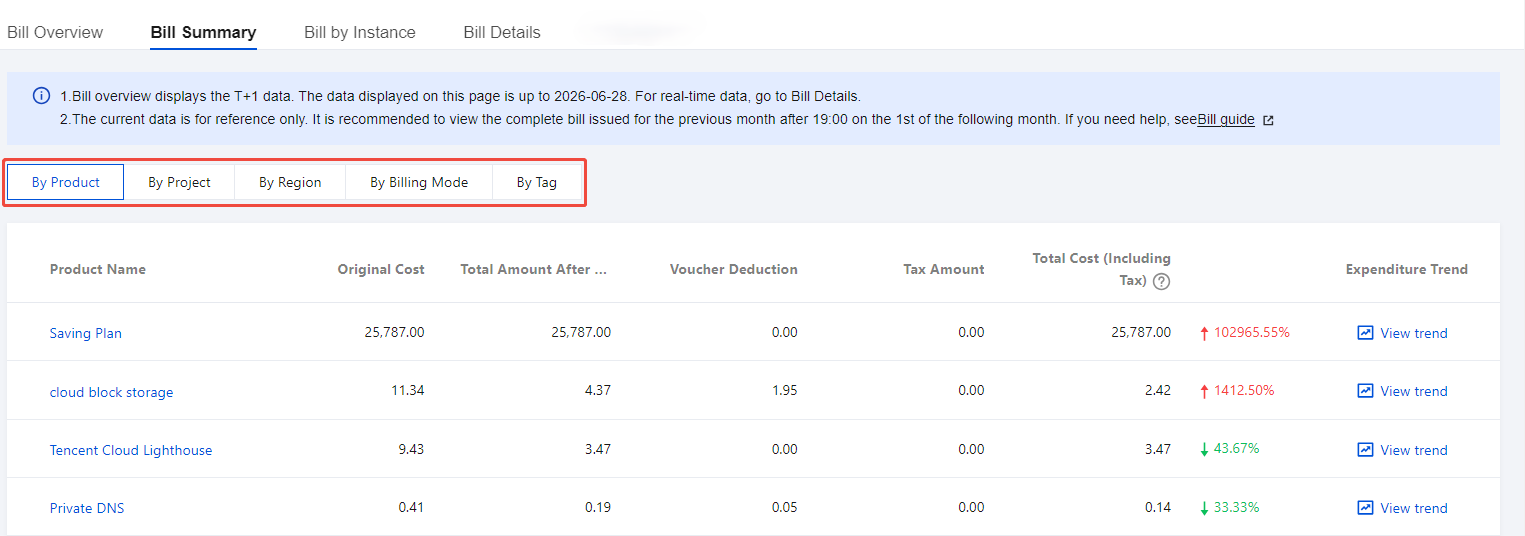
Compared to the multi-dimensional summary view on the bill overview page, the multi-dimensional summary further breaks down the cost composition. It supports aggregating the total cost by dimensions such as product name, project, region, billing mode, and Tag, and details the distribution of the total cost across cash payment, commission payment, free credit payment, and voucher payment. Additionally, it supports viewing the month-over-month change rate of the total cost and provides a cost trend chart for the past six months.
By Product Name: Costs are aggregated by product name. For example: CVM.
By Project: Costs are aggregated based on the project names you set. You need to go to the Project Management page to create project groups and then assign resources to the corresponding project groups on the homepages of various cloud resource consoles.
By Region: Costs are aggregated by region. For example: South China (Guangzhou).
By Billing Mode: Includes two modes: yearly/monthly subscription and pay-as-you-go.
By Tag: Costs are aggregated based on the Tag names you set. You need to complete the following operations first:
Go to the Tag List page to create a Tag, and then assign the corresponding Tag value to resources on the homepages of various cloud resource consoles.
Go to the Cost Allocation Tags page and set the Tag key you want to apply to the bill as a cost allocation tag. For more information about Tag features, see Cost Allocation Tags.
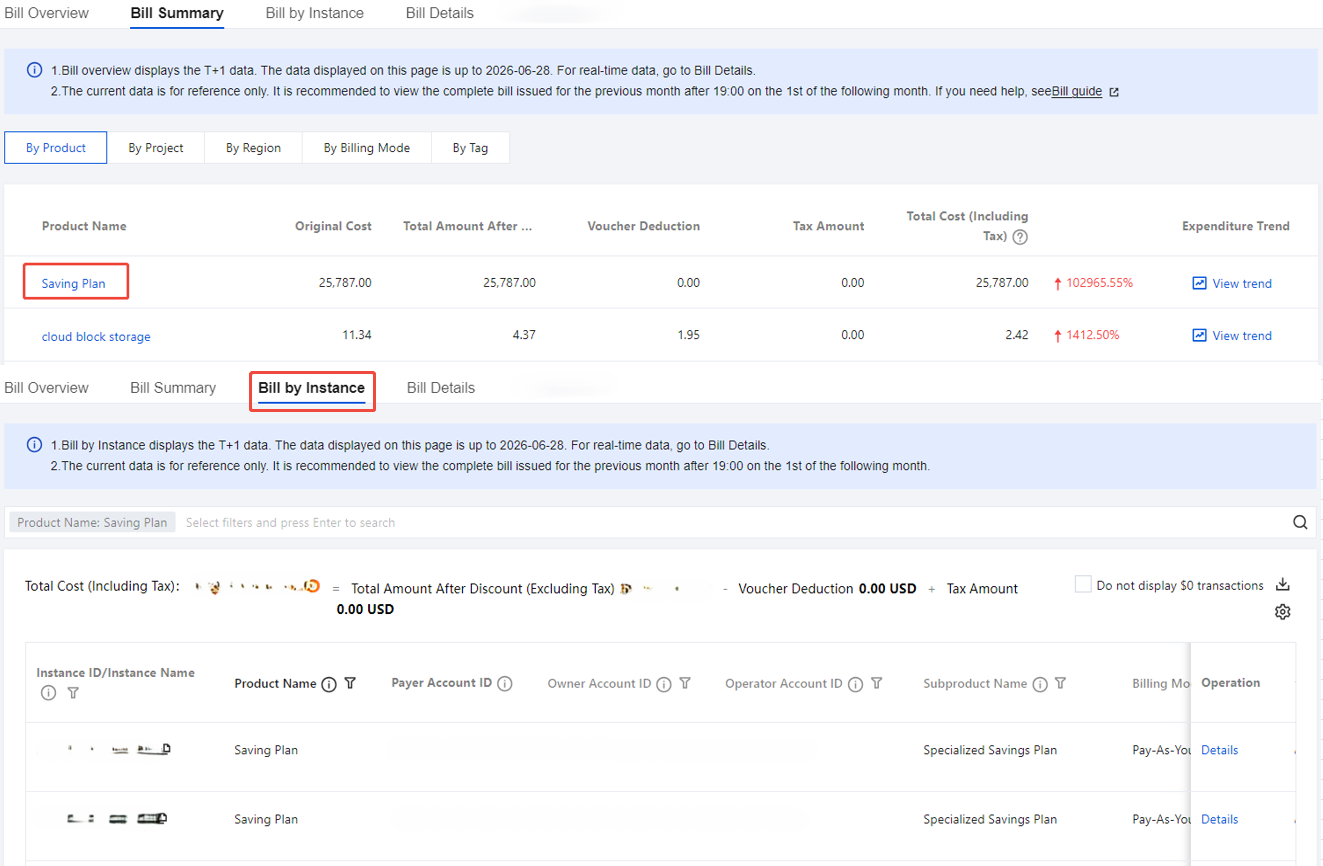
On the Multi-dimensional Summary Bill page, select a filter such as By Product Name, Project, Region, Billing Mode, or Tag, and then click the corresponding product name to jump to the Resource Bill page. This allows you to quickly view and analyze the resource details and cost information for a single product.
Resource Bill
Note:
The data of Bill by Instance is issued on a T+1 basis and does not represent real-time data. For real-time data, please refer to the Bill Details page.
Sorting rules for query results on the Resource Bill page: Results are sorted in descending order of the total price after discount. If the total prices after discount are the same, they are sorted in descending order of resource ID.
The resource bill is the amount aggregated by resource ID, providing you with richer billing data to help you understand your cloud costs in more detail.
Bill Search:
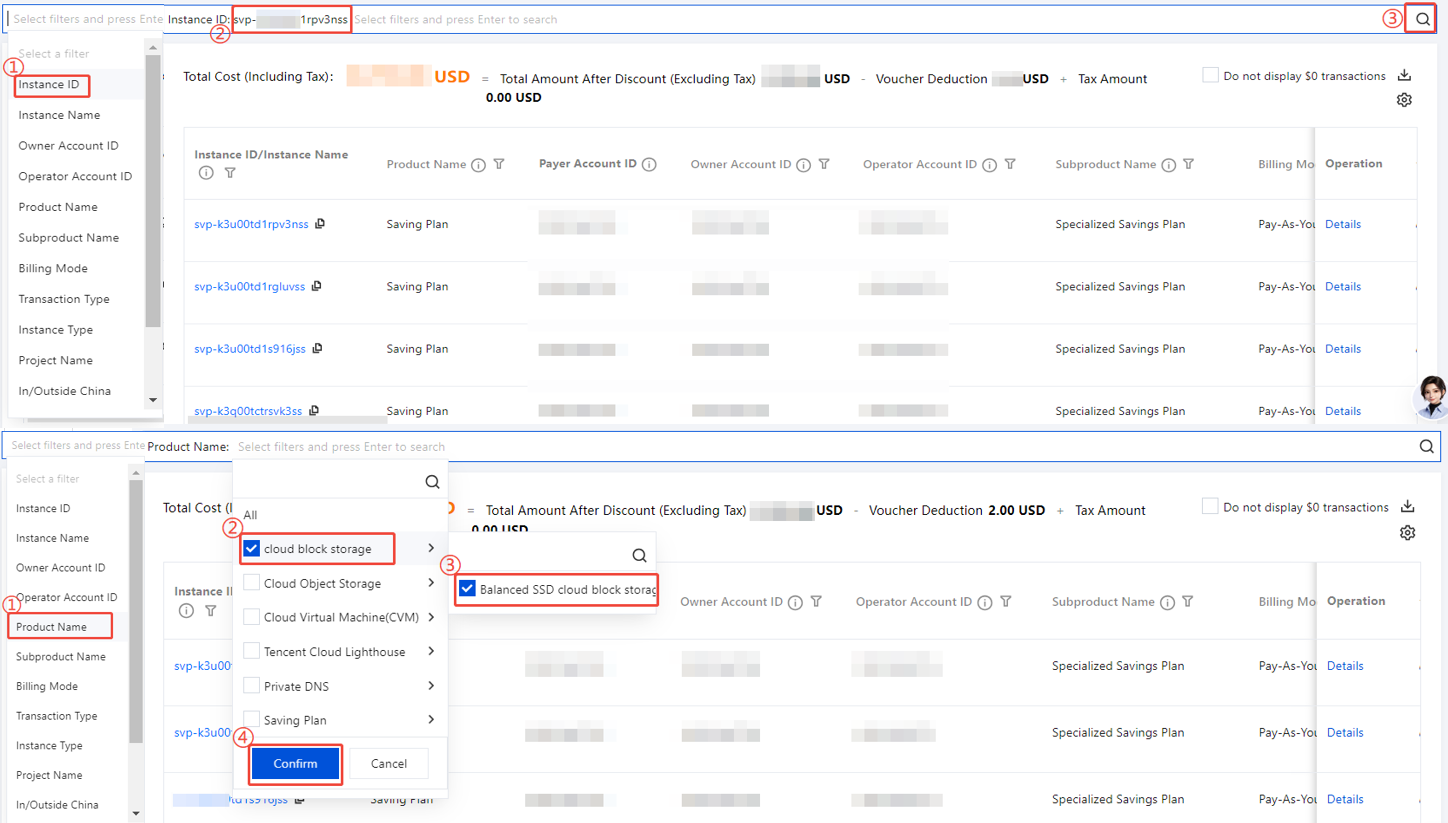
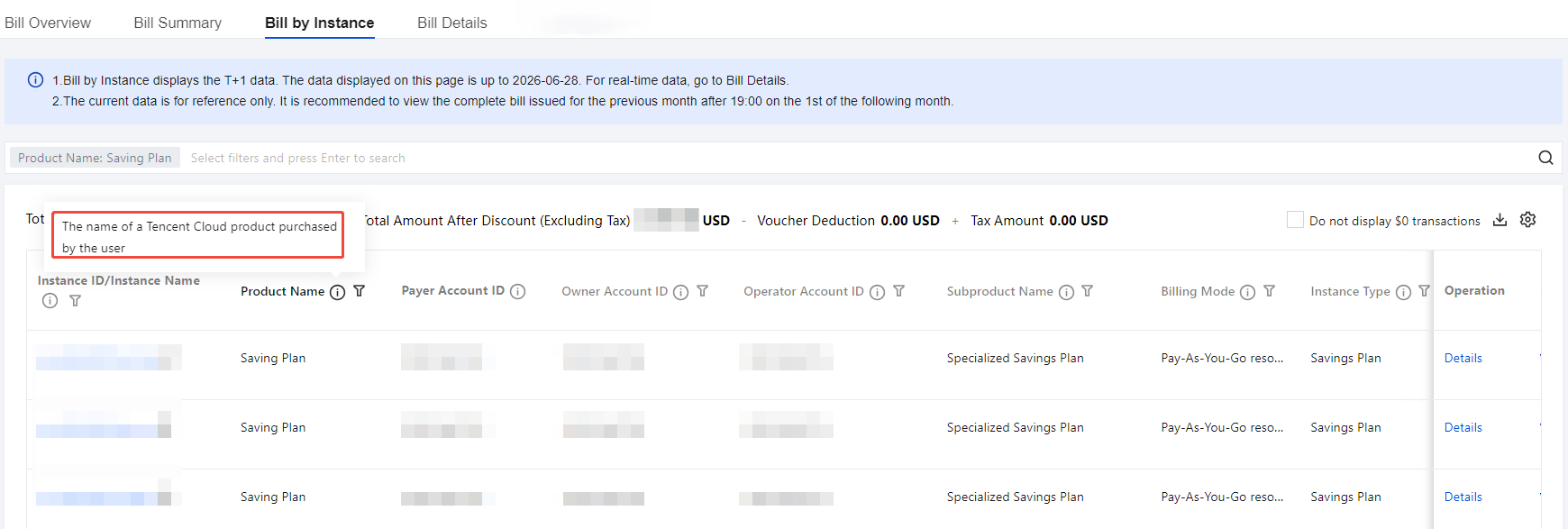
The top search box supports filtering by manual input or by selecting filter conditions. It also supports multi-select and cascading filters. Based on the selected conditions, the data scope is precisely defined.
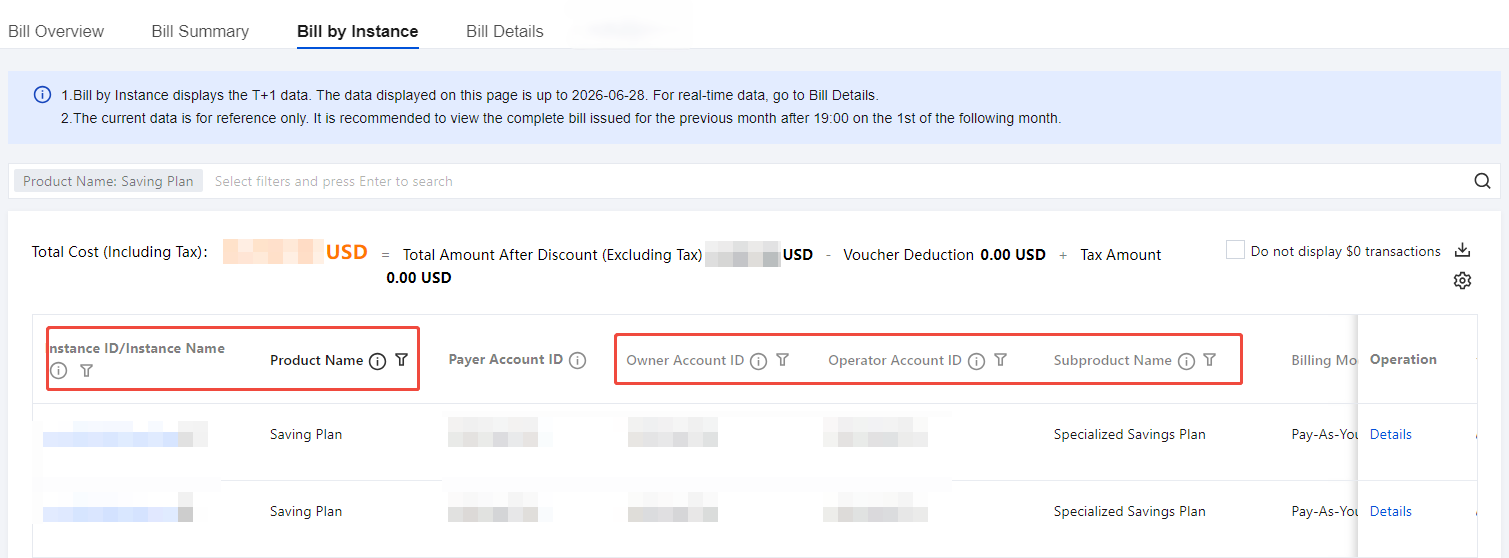
Fields in the table header can be filtered, supporting single or multiple selection for more convenient operation.
Custom Fields:
Field information is categorized into five major types: Settlement Information, Product Information, Order Information, Billing Information, and Deduction Information.
Click the Settings button in the upper-right corner to customize list fields as needed for personalized viewing.
Field Descriptions: Field descriptions have been added to the headers of the Resource Bill and Bill Details to help you quickly understand the meaning of each field. For more field descriptions, see Bill Field Description.
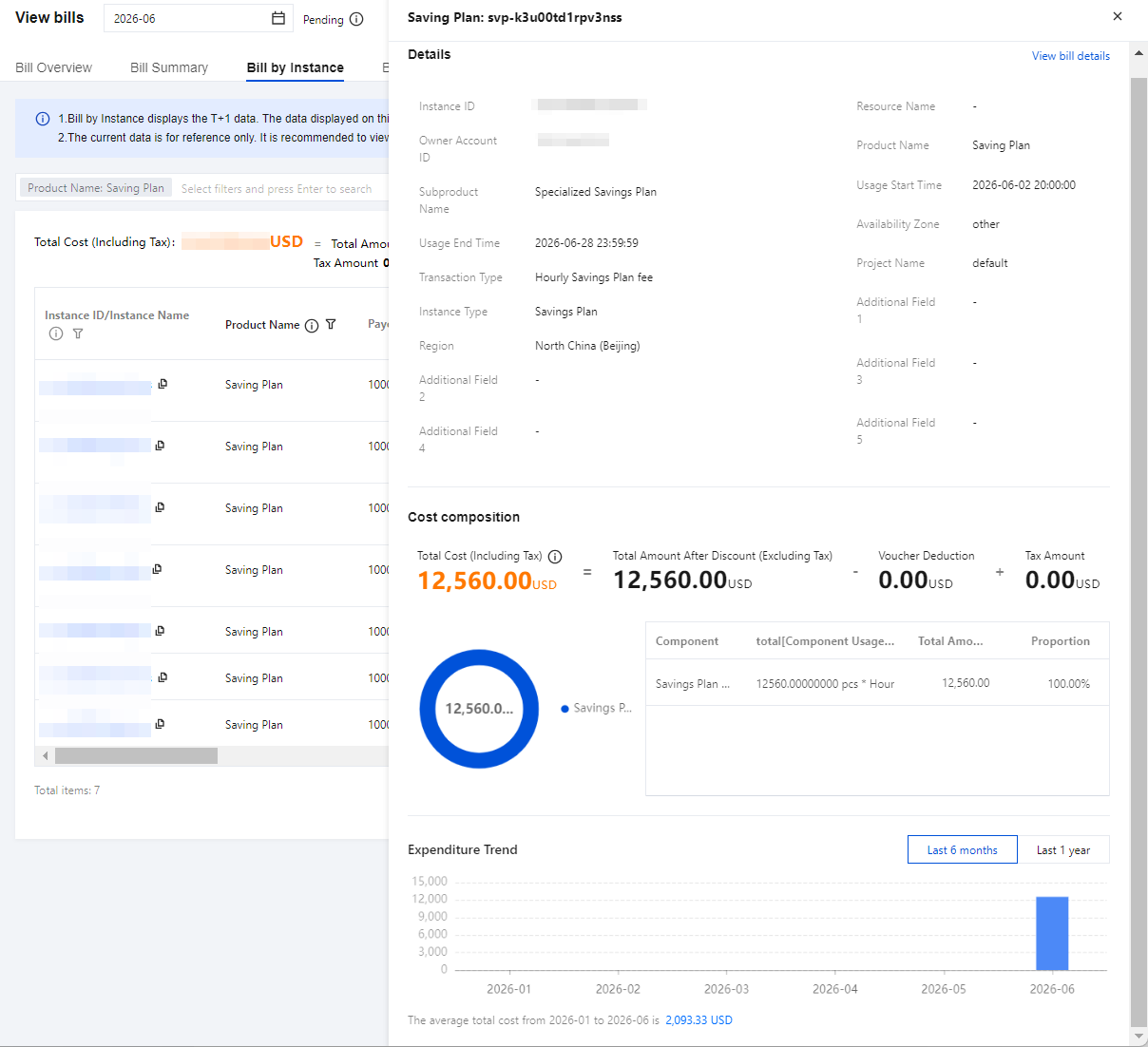
Details: By clicking on the details in the operation column of each resource, you can view the details, cost structure, and expenditure trend over the last 6 months or last year.
Bill Details
Note:
The Bill Details data is real-time data, with a delay of approximately 20 minutes compared to the deduction time.
Sorting rules for query results on the Bill Details page: Results are sorted in descending order of deduction time.
The Bill Details represents the most granular level of deductions, with each deduction constituting a single record.
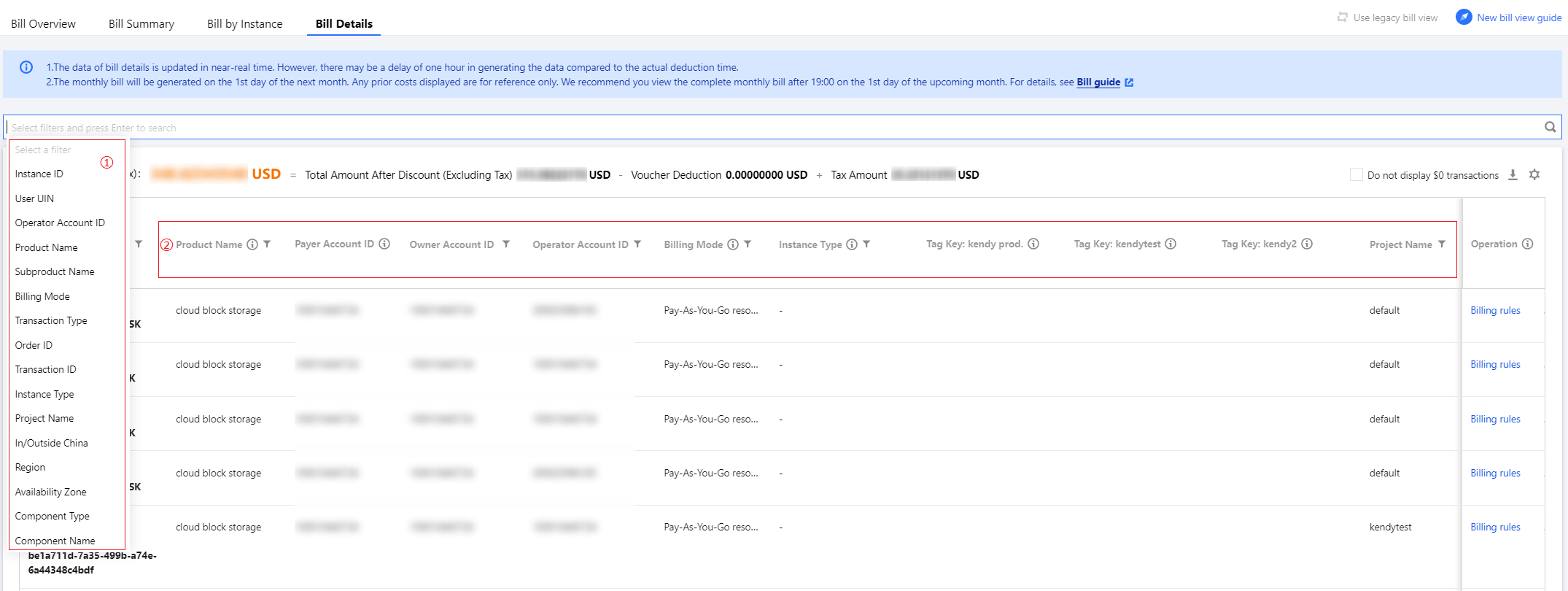
Bill Search: It supports two filtering modes: using the top filter box and header filtering. It also supports multi-select and cascading filters, precisely defining the data scope based on the selected items for more convenient operation.
Custom Fields: Click Settings in the upper-right corner to customize list fields as needed, meeting personalized viewing requirements.
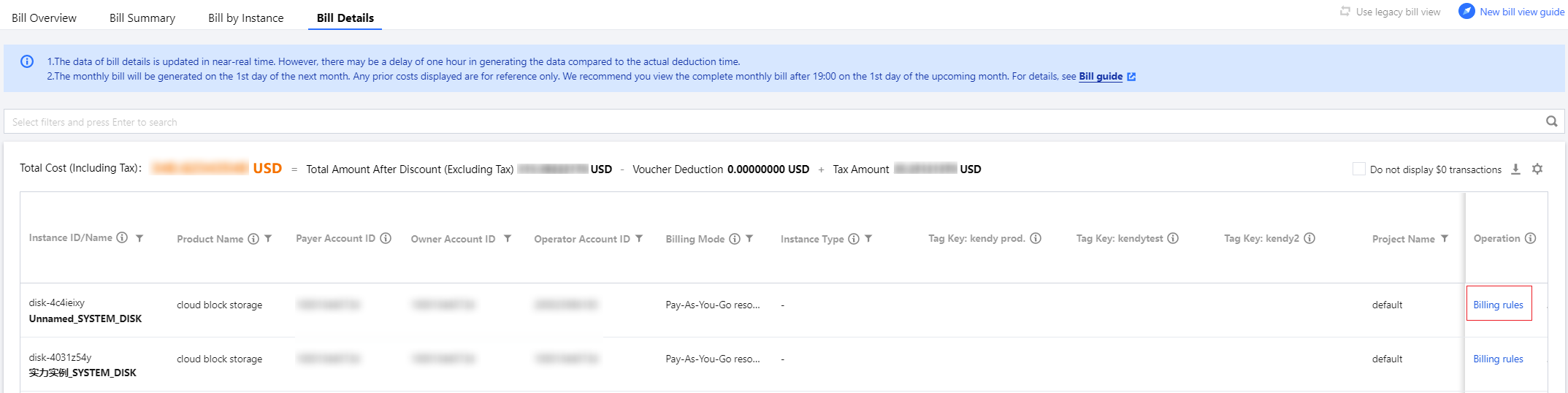
Billing Rules: By clicking on the Billing rules in the operation column of each deduction record, you will be redirected to the product pricing page, enabling a swift comprehension of the product's billing rules.