Budget Management helps Tencent Cloud customers set, track, and analyze budgets based on their internal management requirements. At the same time, Tencent Cloud introduced AI-powered Budget Management, which uses AI technology to assist users in budget creation based on cost data, lowering the usage threshold and enhancing budget function efficiency. For users with created budgets, AI analyzes historical consumption behavior, budget execution, and alarm records to automatically generate optimization suggestions for budget configuration. This enables intelligent decision-making and efficient resource allocation in budget management, helping enterprises reduce costs and increase efficiency.
2. In the left sidebar, choose Cost Management > Budgets to go to the Budgets page.
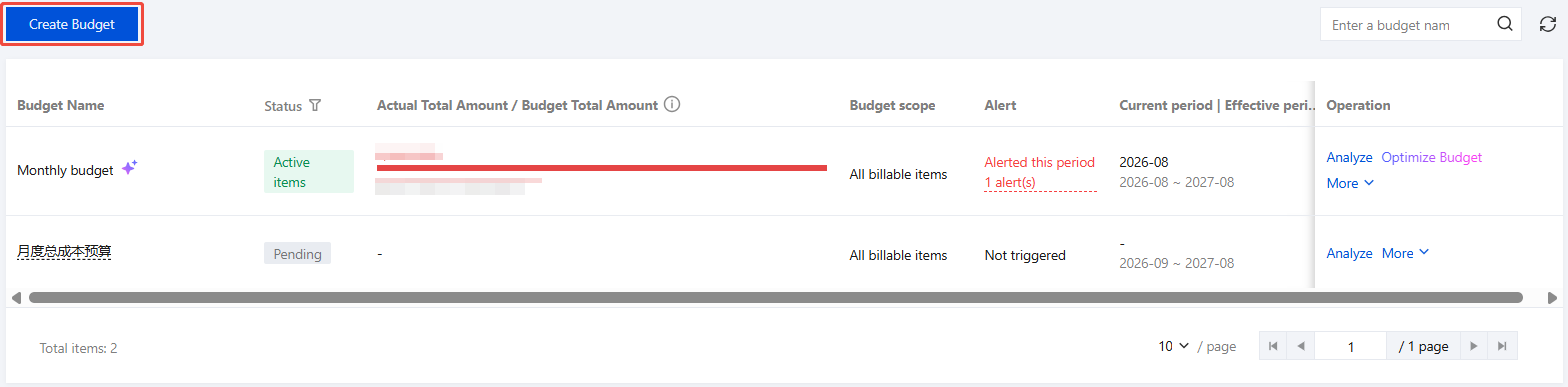
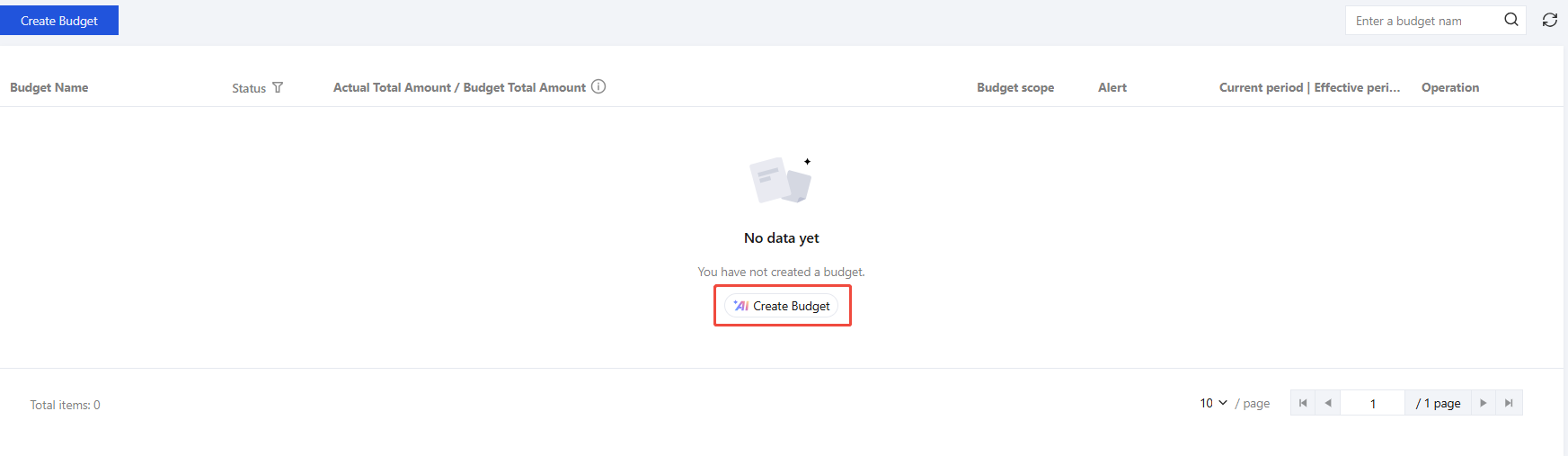
3. Click Create Budget to create a budget.
4. On the Create Budget page, you can select Custom Budget as needed, or use Zero-Spend Budget or Monthly Cost Budget directly.
Custom Budget
Zero Expenditure Budget
Monthly Cost Budget
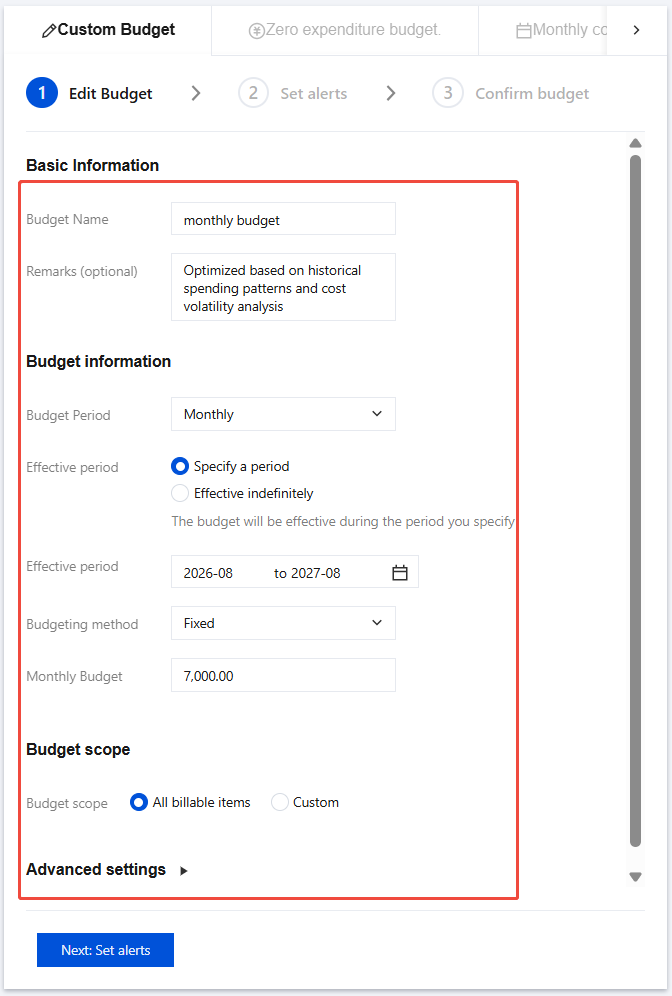
4.1 In the Edit budget window, configure the following:
Basic Information: Specify a budget name that is easy to identify. The name will be displayed in the budget list.
Budget information:
Budget period: You can set the budget period to daily, monthly, quarterly, or yearly.
Effective period: A budget can be effective for a specified period or effective indefinitely. If the budget is effective indefinitely, it will continue being effective with no end time defined.
Note:
If your budget is effective indefinitely, there is no limit to the number of budget period cycles. This type of budget only supports fixed budgeting.
For a planned budget, you can enter specific budget amounts for up to 12 budget periods. Any additional budget periods will have the same amount as the 12th period.
Effective period: Specify the period of time during which the budget will be effective. If you selected Effective indefinitely, no end time will be defined.
Budgeting method: Select Fixed or Planned.
For a fixed budget, enter a fixed amount that is applied to every budget period.
For a planned budget, enter a specific amount for each period.
Daily/monthly/quarterly/annual Budget amount: Enter the amount of cost you plan to incur during each budget period.
Budget scope:
We recommend selecting All billable items (selected by default).
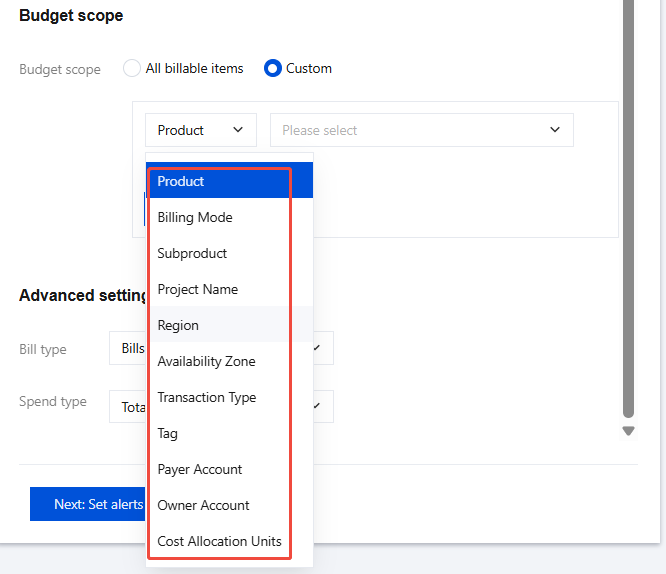
You can customize the budget scope by selecting one or multiple of the following dimensions: Product, Billing Mode, Subproduct, Project, Region, AZ, Transaction Type (Consumption Type), Tag, Payer Account, User Account, and Cost Allocation Unit.
Note:
Under each dimension, you can select multiple criteria based on your past consumption records.
For the cost allocation unit dimension, daily budgets are not supported. You can only select monthly, quarterly, or yearly budget periods.
Tencent Cloud Organization account can assign budget management permissions to member accounts in "Member Financial Authorization". For details, see Adding Organization Member. After assigning permissions, Tencent Cloud Organization account can configure budgets for member accounts, and the configured budgets are displayed under TCO account.
Advanced settings: In Advanced Settings, You can select cost attributes to further refine your budget.
Bill type
Bills: Set a budget based on the cash basis. By default, Tencent Cloud uses the bills type and configures the budget based on the total amount (discount price).
Consumption Bill: Set a budget based on accrual basis accounting. The consumption bill type is generally used in scenarios where customers want to manage amortized costs. If you need to use the consumption bill caliber, you need to activate first Consumption Bill.
Spend type: Support total amount (discount price), original price (excluding discount impact), cash payment, voucher payment, free credit payment, and commission payment.
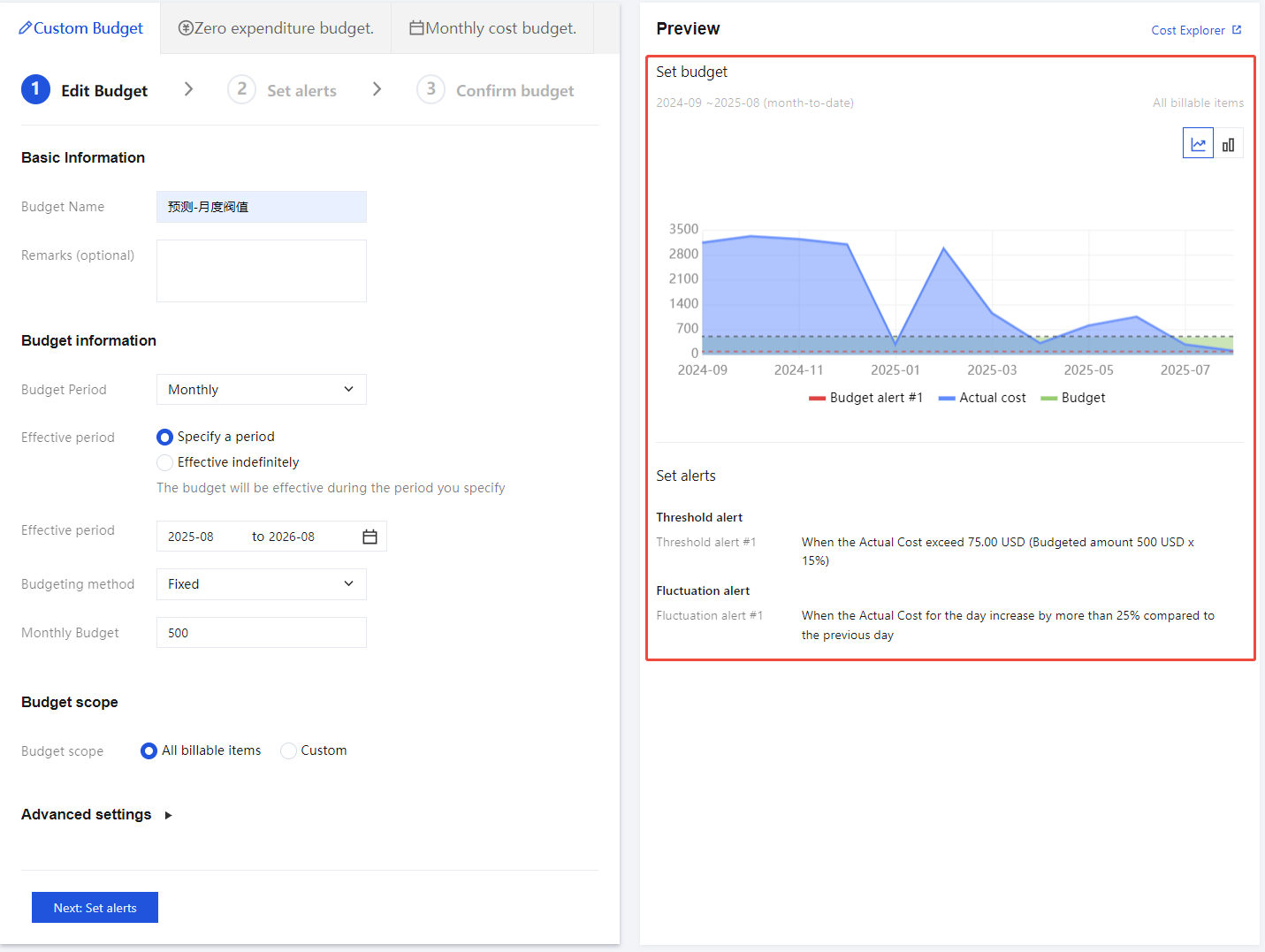
Chart area: The chart area displayed on the right shows your cost history to help you configure your budget more accurately.
Auxiliary chart and cost analysis feature are connected, automatically adjusting the cost range based on your configuration parameters and showing the corresponding cost. You can also click Cost Analysis to navigate to the cost analysis webpage for more detailed historical analysis.
Your configured budget amount and the specified alarm threshold for next steps will also be reflected in it.
4.2 After filling in all the information, click Next: Set alerts to configure alerts.
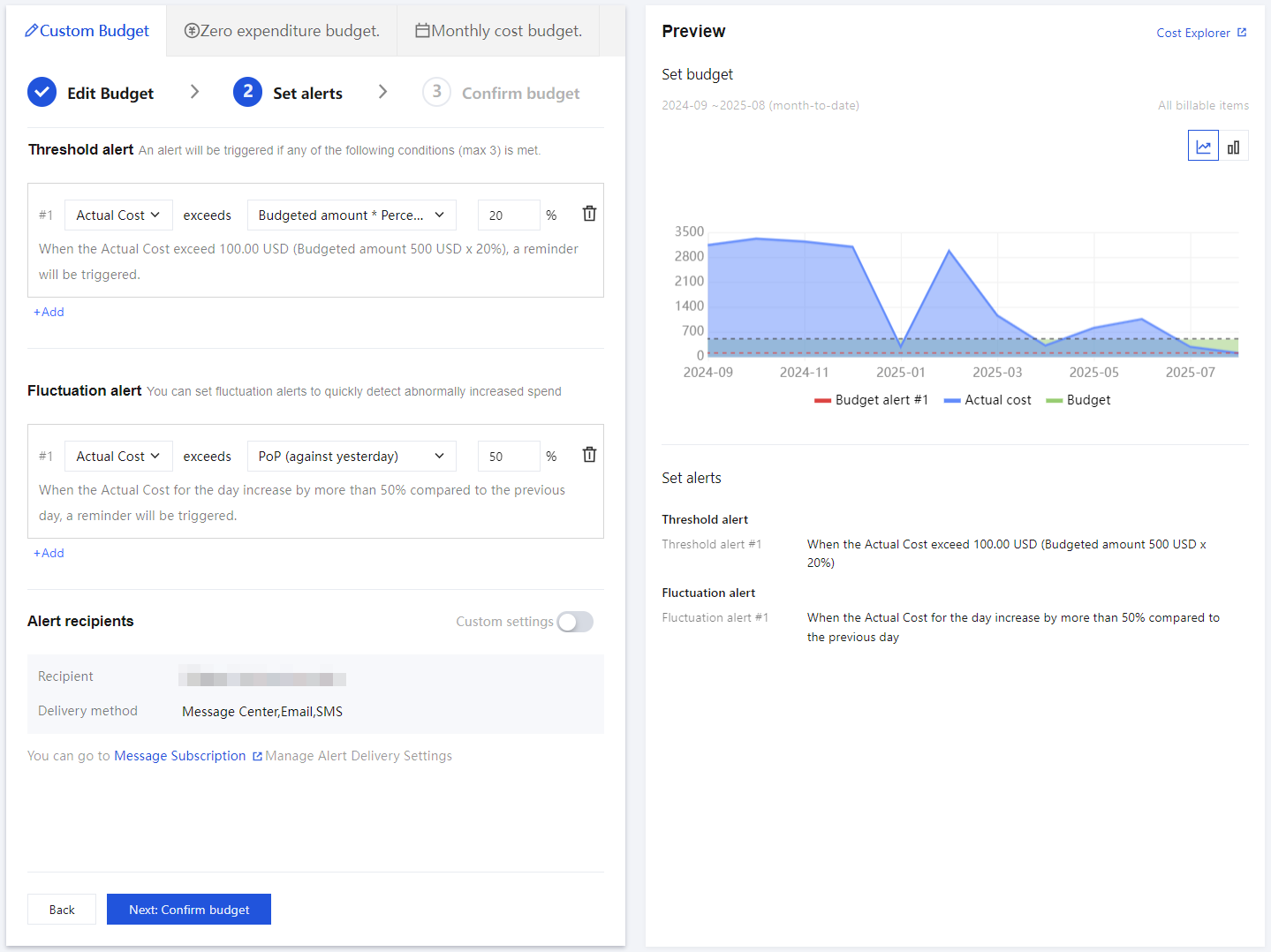
Threshold alert:
Actual Cost: The alert is triggered based on the actual cost amount.
Against fixed value: The alert is triggered when a certain fixed amount is reached.
Budget amount * percentage: The alert is triggered when the amount reaches or exceeds the threshold calculated as budget amount * percentage.
Fluctuation alert: Fluctuation alerts are triggered when your daily or monthly costs increase by an abnormal amount, which is calculated based on the fluctuation type you select. You can set up to 3 fluctuation alerts.
Daily budgets support the following periodic fluctuation checks: day-over-day (compared with the previous day), week-over-week (compared with the same day of the previous week), month-over-month (compared with the same day of the previous month), and fixed value (compared with a fixed value).
Monthly budgets and budgets for longer periods support the following periodic fluctuation checks: day-over-day (compared with the previous day), week-over-week (compared with the same day of the previous week), month-over-month (compared with the same day of the previous month), daily fixed value (compared with a fixed value), month-over-month (compared with the previous month), and monthly fixed value (compared with a fixed value).
The following shows how each fluctuation type is calculated:
Fluctuation Type
Calculation
Remarks
PoP (against yesterday)
(Today’s amount – Yesterday’s amount) ÷ Number of previous periods × 100%
To avoid significant impact on pay-as-you-go monthly settlement fee analysis on the 1st, day-on-day and day-over-previous day comparisons do not overwrite monthly settlement fees.
Day-on-day comparison (weekly dimension)
(Today's amount - Last week's amount) / Last week's amount * 100%
To avoid significant impact on pay-as-you-go monthly settlement fee analysis on the 1st, day-on-day and day-over-previous day comparisons do not overwrite monthly settlement fees.
Day-on-day comparison (monthly dimension)
(Today’s amount – Amount on same day last month) ÷ Number of days last month × 100%
If the amount from the same day last month cannot be obtained (for example, if today is May 31 and there is no data from April 31) the system will calculate fluctuation based on the amount from the closest available day (April 30).
For each budget, you can set up to three alert thresholds and up to three fluctuation alerts
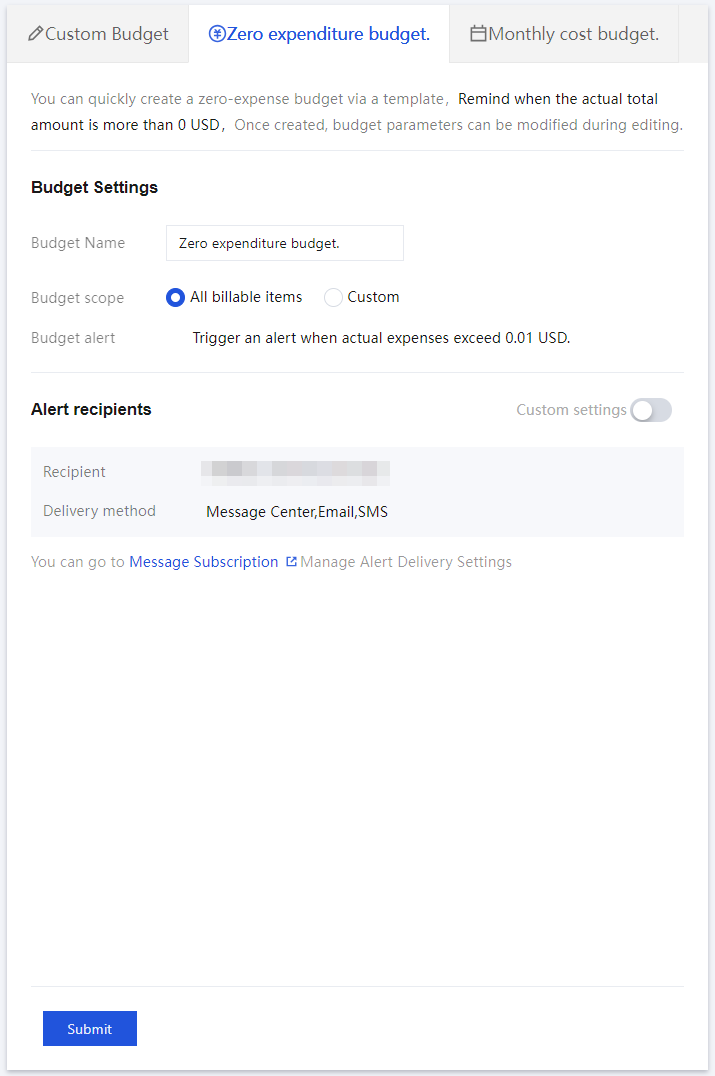
Zero expenditure budget is a preset budget template to facilitate quick selection for scene creation. This budget template can be directly submitted for saving.
Budget Name: Defaults to Zero expenditure budget. If a budget with the same name already exists, you need to rename it.
Budget scope: Default All billable items, supporting custom fee range.
Alarm logic: Threshold alert; send an alarm notification when the absolute actual expenditure is greater than or equal to 0.01.
Budget cycle: Monthly.
Duration: Effective from the time of creation.
Budgeting method: Fixed budget.
Monthly budget amount: 0.01.
Bill type: Bills.
Fee Type: Total Cost.
Alarm Notification: The default value for alarm notification recipients is all, and custom editing is supported.
Note:
When re-editing a zero-expenditure budget, enter the editing page for custom budgets.
The zero-expenditure budget progress bar is displayed only when the budget amount is greater than 1 USD; otherwise, "-" is shown.
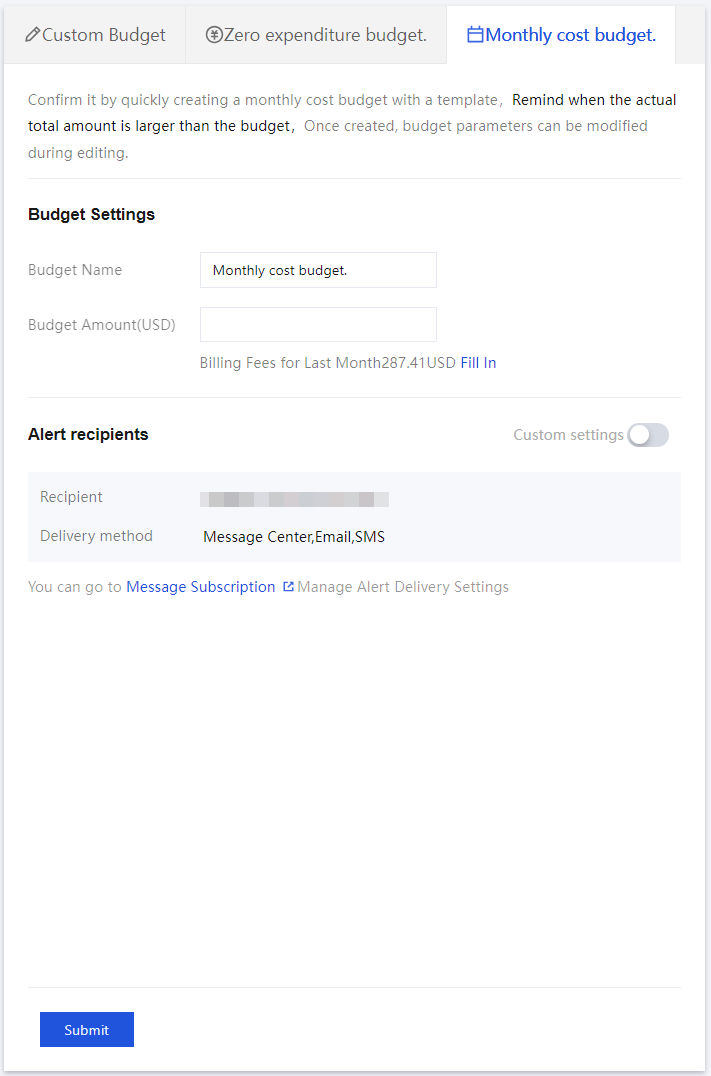
Monthly Cost Budget is also a preset budget template. After you fill in the budget amount, you can directly submit it for saving. If a budget with the same name already exists, you need to modify the name.
Budget Name: Defaults to Monthly cost budget. It can be saved directly. If a budget with the same name already exists, you need to modify the name.
Budget amount (USD): Default total cost. The page displays the previous month's bill amount below. Both manual input and one-click fill are supported.
Alarm Logic(Threshold Budget - Percentage):
When the actual expenditure reaches 80% of the budget amount, send an alarm notification.
When the actual expenditure reaches 100% of the budget amount, send an alarm notification.
Budget cycle: Monthly.
Duration: Effective from the time of creation.
Budgeting method: Fixed budget.
Monthly budget amount: Needs to be manually input as needed.
Cost range: All scopes.
Bill Type: Bills.
Fee Type: Total Cost.
Alarm Notification: The default value for budget alarm notification recipients is all, and custom editing is supported.
Note:
Monthly Cost Budget When re-editing, enter the editing page for custom budgets.
Budget amount (USD):If the previous month's fee is less than or equal to 0, or cannot be queried, the previous month's bill amount and one-click fill will not be displayed.
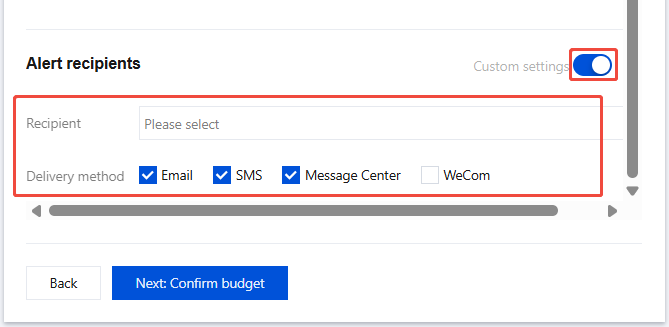
Alert recipients:
You can go to Message Subscription, choose Billing Messages > Budget Management Notifications > Modify Recipients, and click Add Recipient/Modify Recipient Contact to set the notification method and recipients. For more detailed steps, see Message Subscription.
Support customizing Recipient and Delivery method.
Recipient: By default, all recipients of message subscription > budget management notification are selected. You can also customize the message recipient as needed.
If you edit a threshold amount after an alert has been triggered, the alert will be resent the next time the system checks the threshold status.
If multiple alerts are triggered simultaneously, the alerts will be combined into a single alert notification.
The same reminder will be triggered only once within the same reset cycle (budget reminder refers to the selected budget period, fluctuation alert refers to the selected fluctuation type).
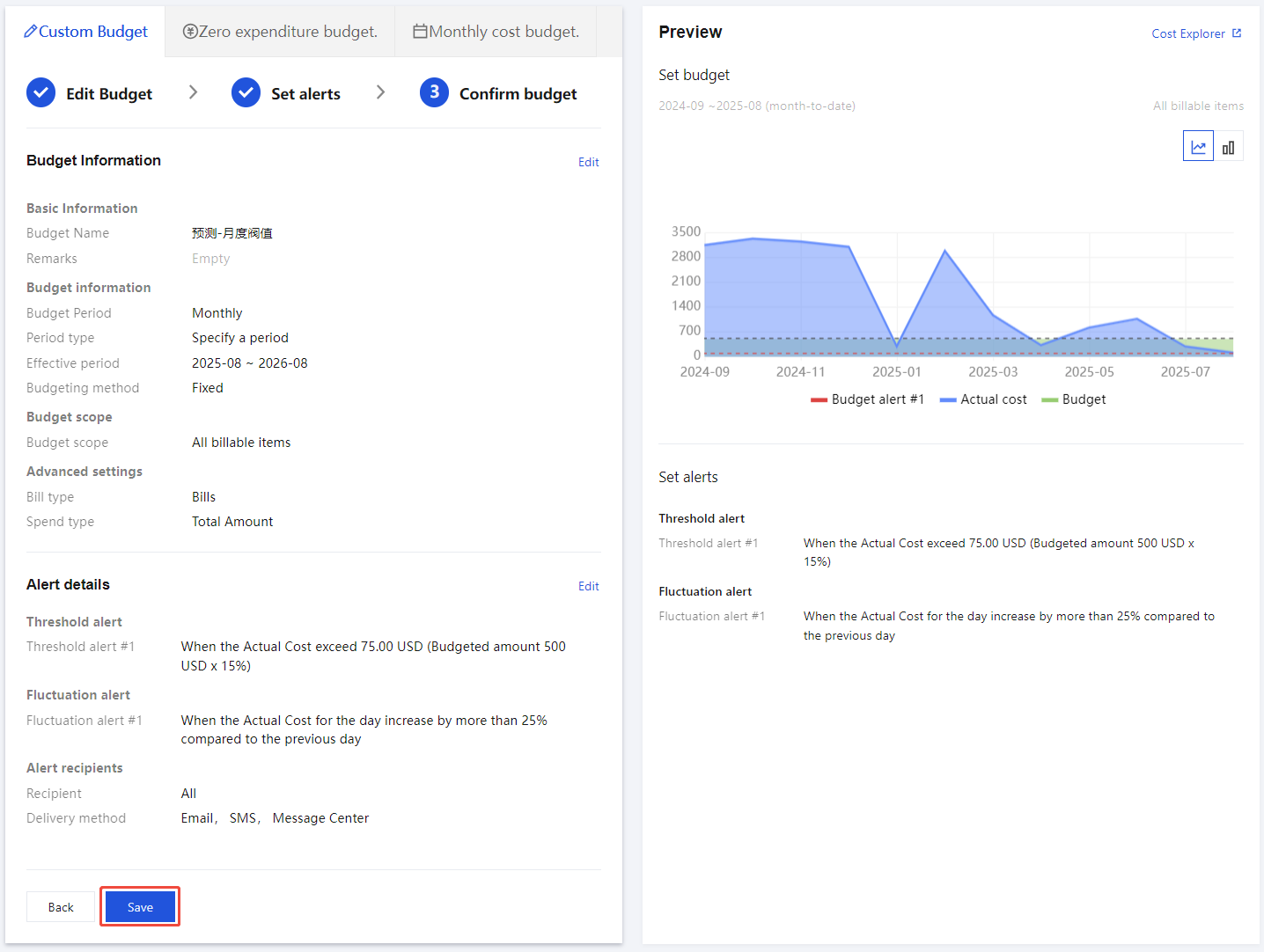
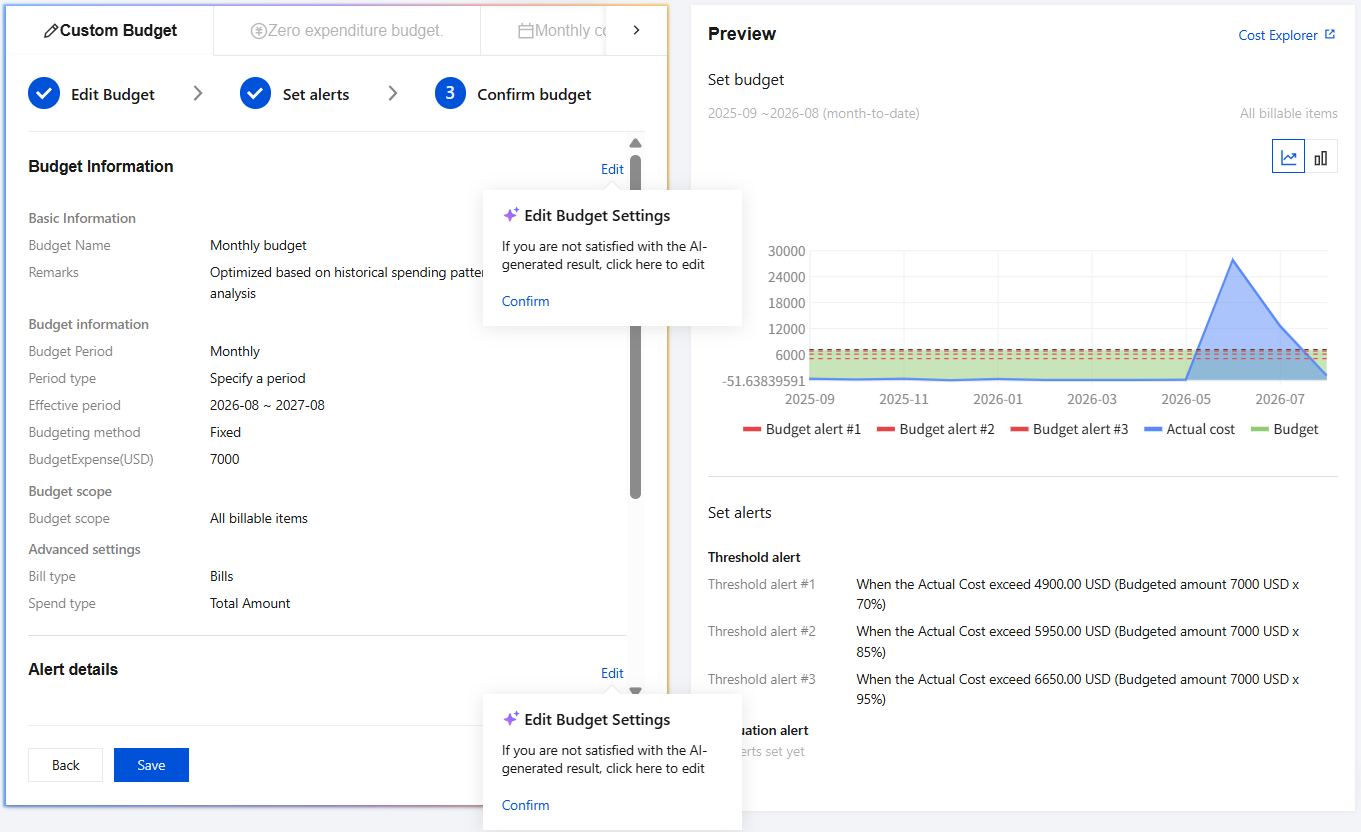
4.3 Click Next: Confirm Budget. This page displays the configured attributes such as budget information and alert information. After confirming that the settings are correct, click Save.
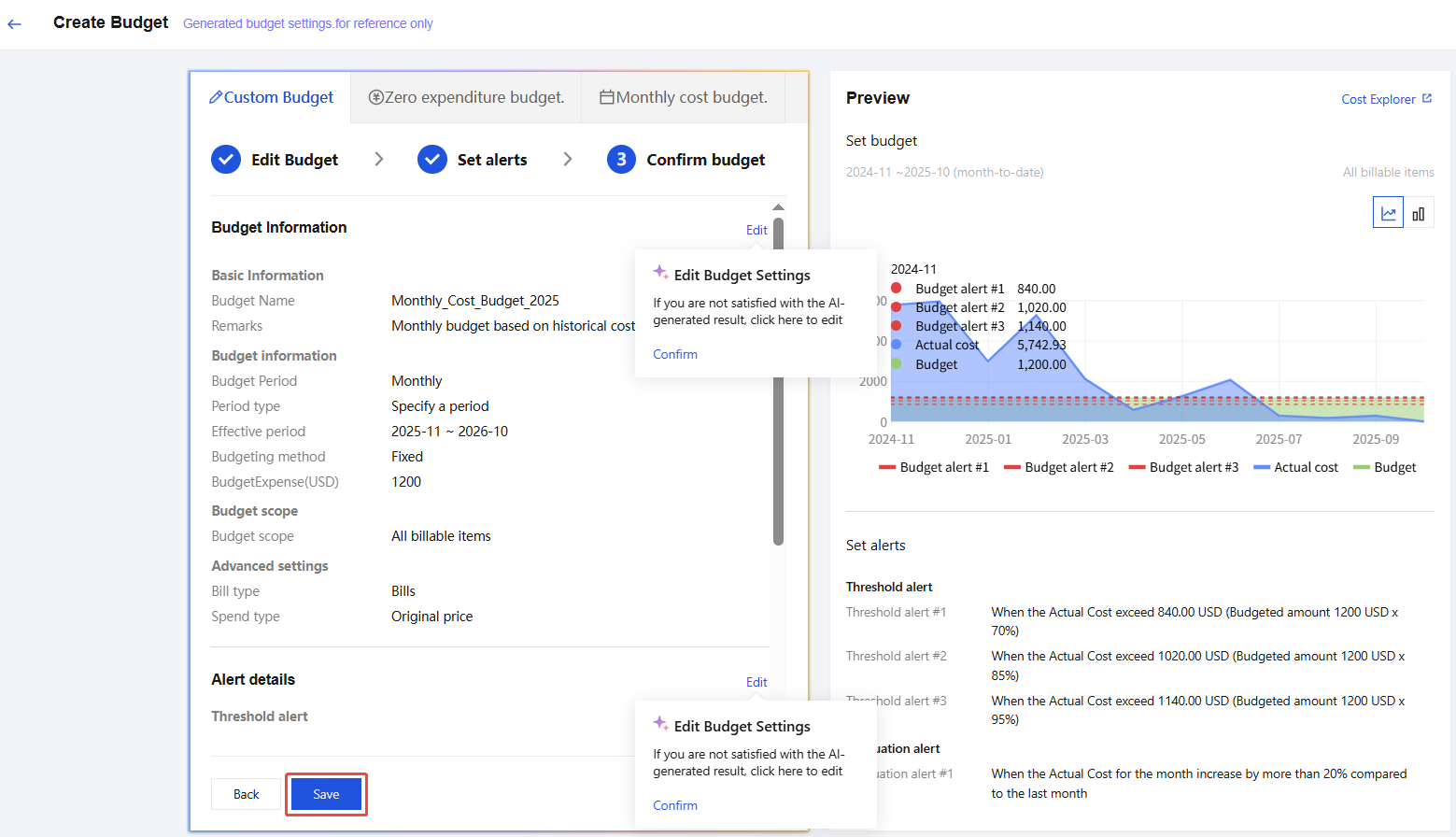
AI One-Click Generation Feature
Note:
The AI one-click generation feature is applicable to users who have not yet created budget management.
2. In the left sidebar, select Cost Management > Budget Management to enter the Budget Management page.
3. Click AI Create Budget .
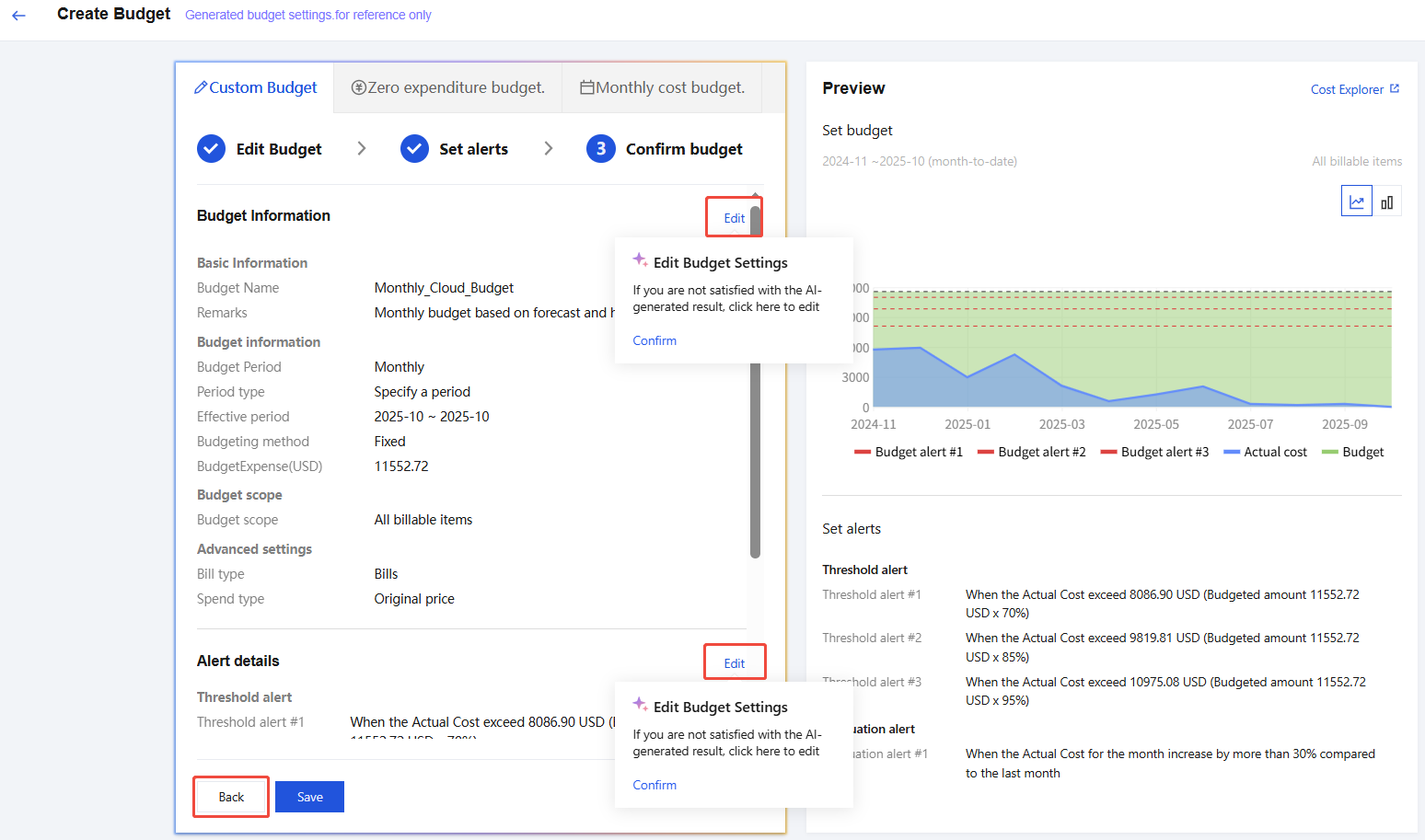
4. On the AI Create Budget page, you can choose the following steps:
Save: Use the budget settings recommended by AI and complete the creation with one-click save.
Custom adjustment: Click the edit button next to budget information or Alert details to modify related content as needed. You can also click Back to return to the previous interface, reset, and save the budget.
Visual Analysis Panel
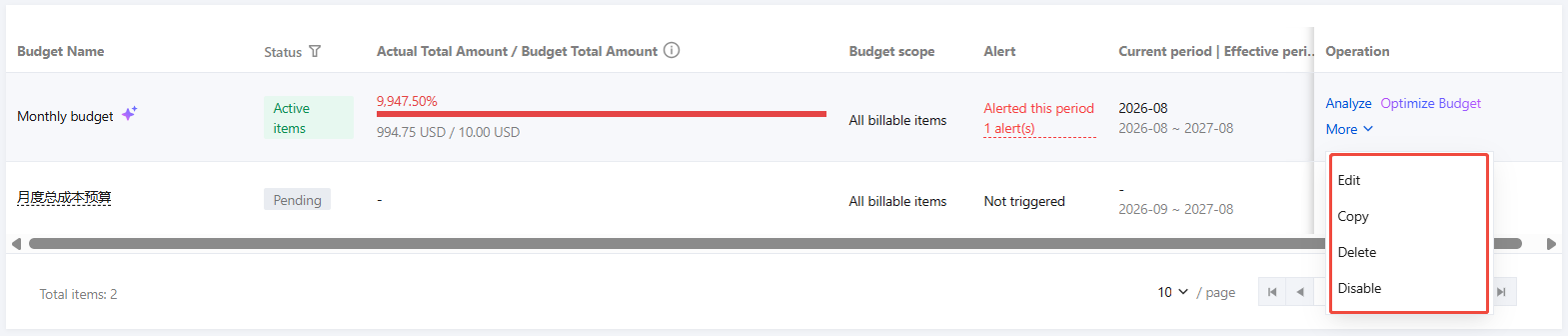
1. On the Budget Management page, click Expand next to More to edit, copy, delete, or disable the budget.
2. You can click Analyze in the budget list as needed.
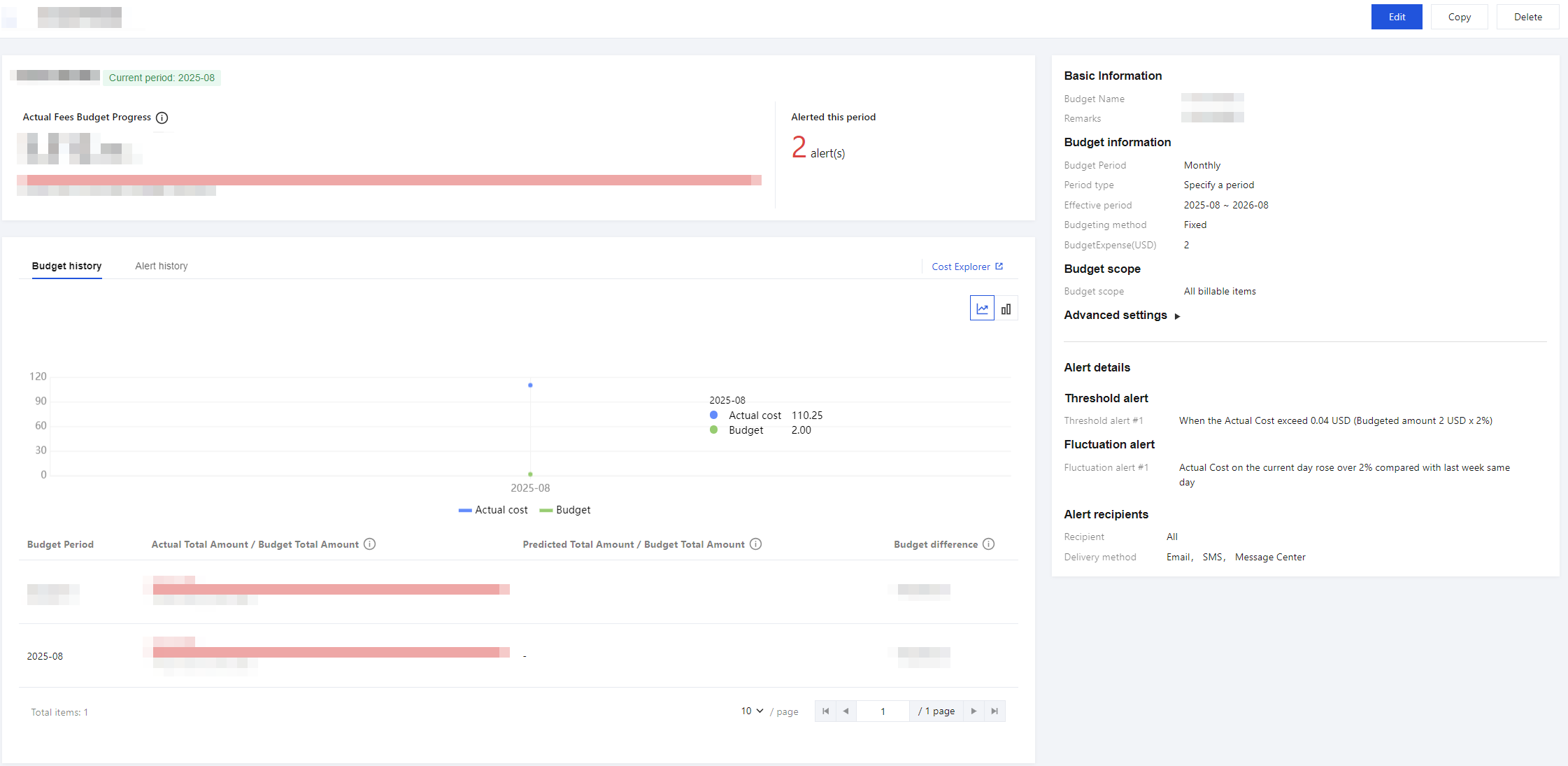
3. On the opened page, check the budget progress and configuration. You can also Edit, Copy, or Delete the budget.
Budget for the current period: You can view information about the current period’s budget, including the amount of budget already spent, the budget amount compared to your actual costs, and the number of alerts triggered.
Budget history: In the Budget History panel, you can view the historical execution status of the budget from the date of creation. The budget history chart connects with cost analysis, showing actual cost and budget plan in each cycle via visual charts, and supports redirection to cost analysis for further analysis.
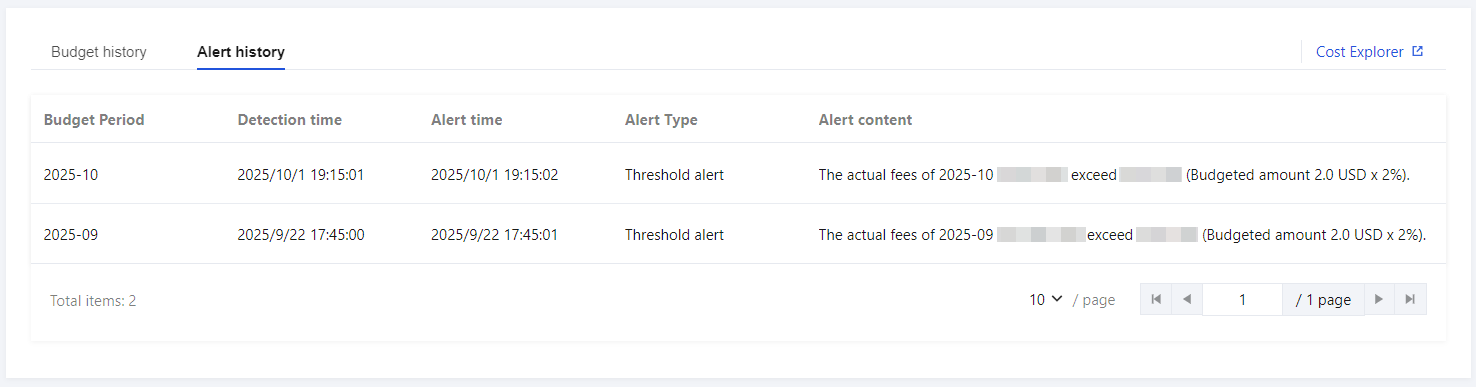
Alert history: On the alert record panel, you can view all triggered warnings in history, including Budget Period, Detection time, Alert time, Alert Type, and Alert content.
Budget information: In the right panel, you can view ALL relevant properties configured for this budget.
AI One-Click Optimization Introduction
Note:
This feature applies to the user who has created budget management.
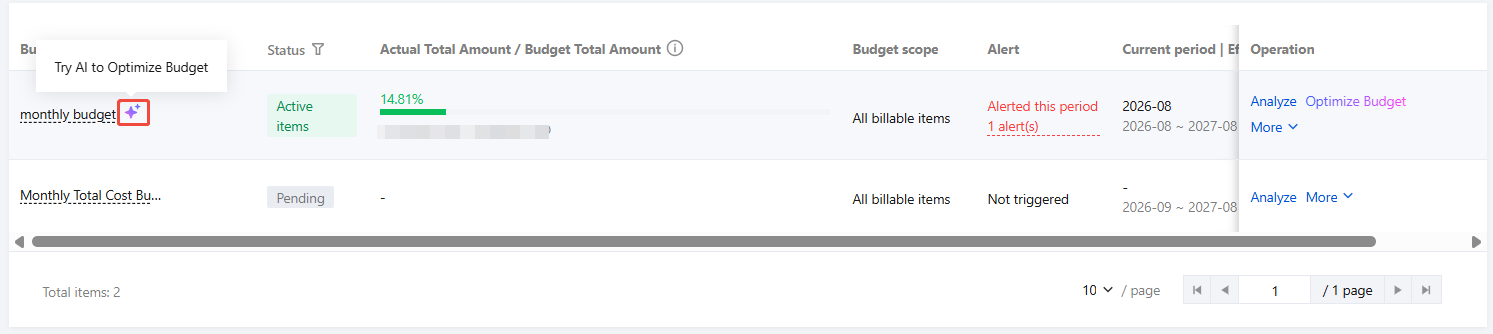
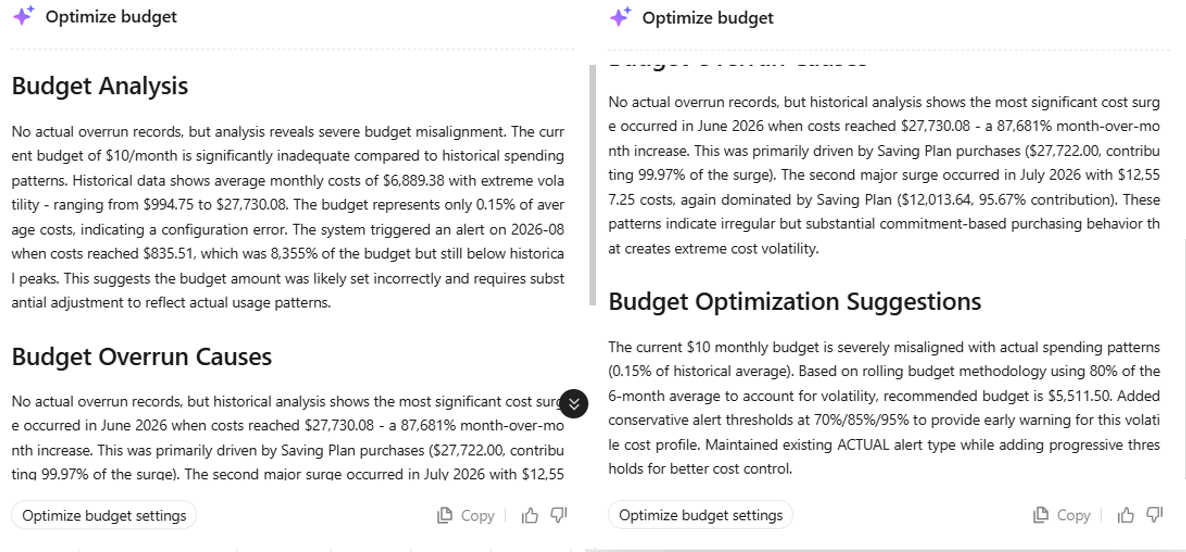
1. On the budget management list page, hover over the star icon to the right of the budget name and Try AI to optimize Budget will appear. Click this icon, and the system will automatically analyze the current budget settings and provide the following analysis and suggestions.
Budget Analysis: including overspending frequency, overspending mode, and control validity assessment.
Budget Overrun Causes: show overspending currency, main influencing factors, and root cause.
Budget optimization suggestions: Based on historical data, AI analyzes shortcomings in current budget amount, alarm threshold, and budgeting method, etc., and provides specific adjustment suggestions.
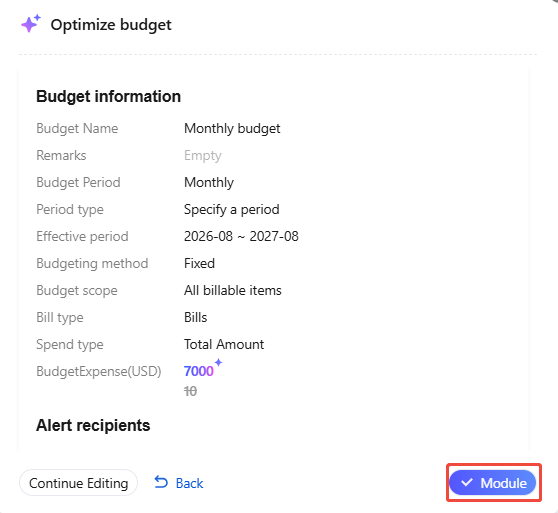
2. Click Optimize Budget Settings, and AI will automatically optimize the budget configuration for you.
After selecting Module: directly save the AI-optimized budget configuration.
Continue editing: Enter the budget editing page, adjust Budget information or Alert details as needed, and manually save.
Select Back to return to the Optimize budget page.