Billing Export Center
Download
Mode fokus
Ukuran font
Feature Introduction
The Bill Export Center feature was launched in January 2022, supporting the download of bill data from Bill 3.0 (July 2021) onward. It has the following characteristics:
Support users to download bill packages, L0 PDF bills, L1 summary bills, L2 resource bills, and L3 detailed bills.
Support downloading multi-month data.
Support downloading data that includes member accounts of the group.
Support monthly aggregate for detailed bills (Monthly aggregate can combine hourly settlement and daily billed product bill details into one entry, reducing the number of bill details).
Operation Steps
Note:
The bill package includes all bill data at four levels: L0-PDF bills, L1-multi-dimensional summary bills, L2-resource bills, and L3-detailed bills.
Support downloading bill packages for multiple months at once, with each month in a separate compressed package.
1. Log in to the Billing Center.
2. In the left navigation bar, click Bills > Bill Export Center to enter the bill download center webpage.
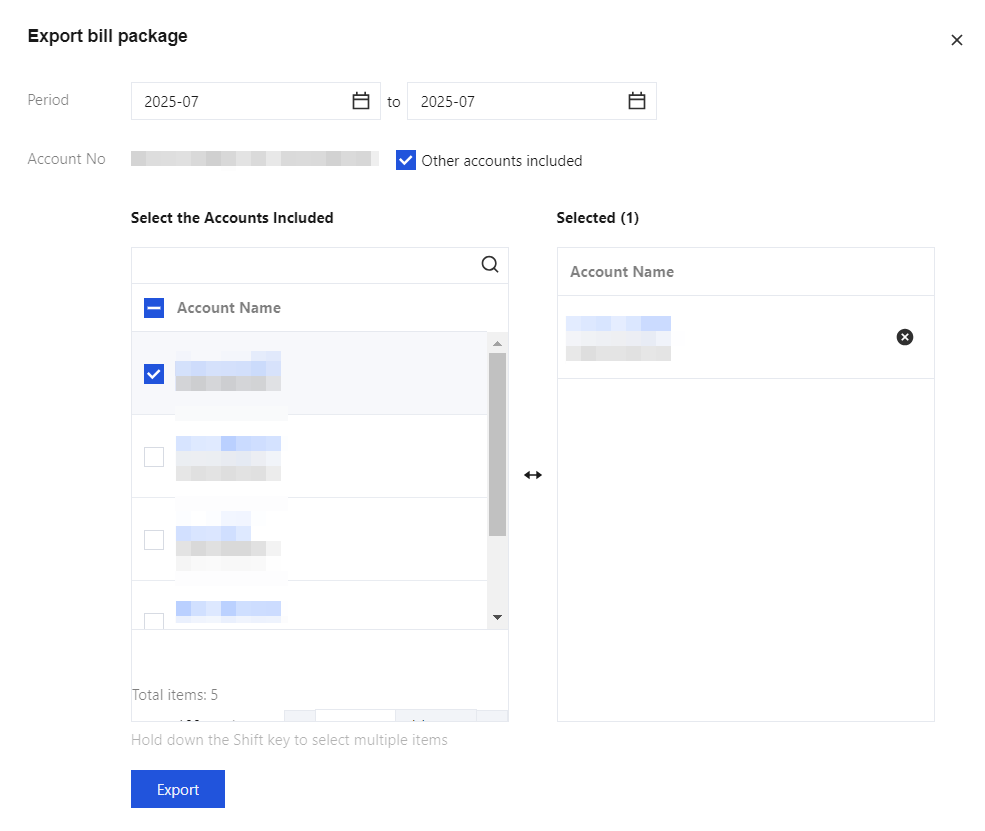
3. Click Export bill package.
Download the bill package of the current account: In the pop-up window, select Period and click Export.
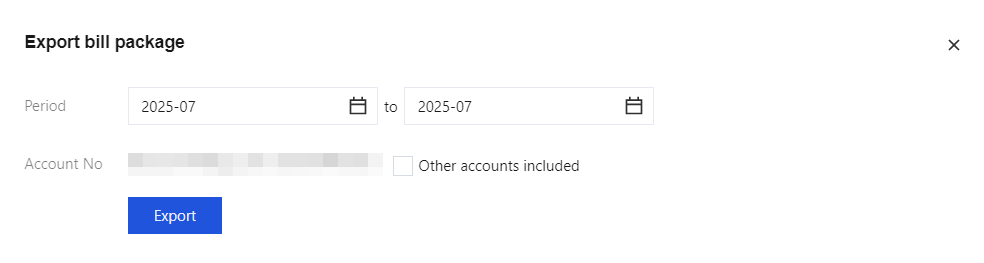
Download the bill package containing group member accounts:
3.1 In the pop-up window, select Period and check Other accounts included.
3.2 Select the group member accounts to include and click Export.
Note:
L0-PDF bill is an electronic bill in PDF format, convenient for users' financial requisition or archiving.
Support downloading PDF bills for multiple months at once. Different months are not merged. Account support for merging or not merging.
1. Log in to the Billing Center.
2. In the left sidebar, click Bills > Bill Export Center to enter the bill export center webpage.
3. Select the L0: PDF Bills tab to download the L0-PDF bill.
Download the L0-PDF bill of the current account: Select Period and click Export.
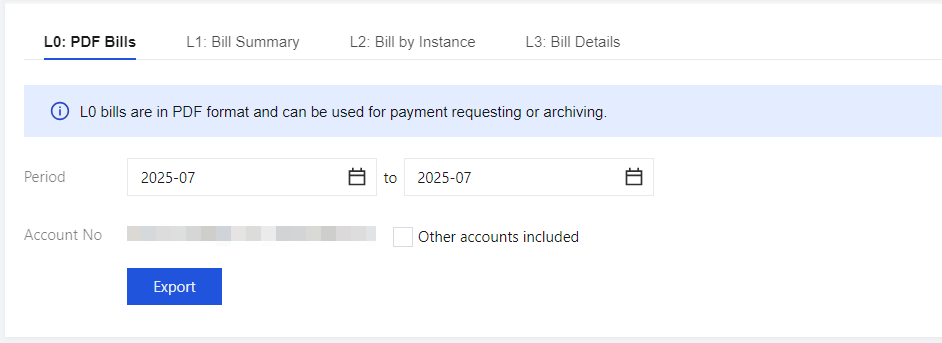
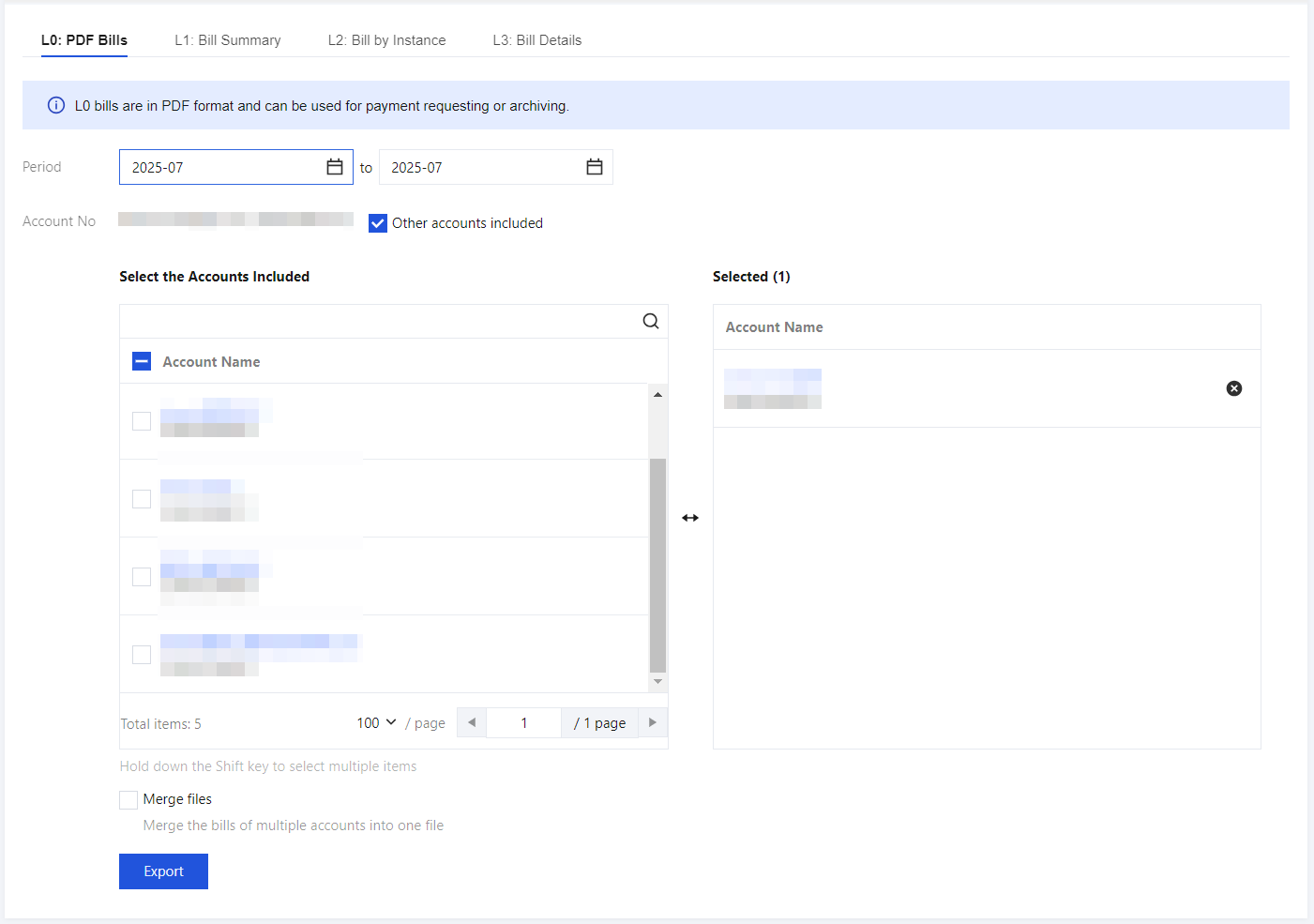
Download L0-PDF bills containing group member accounts:
3.1 Select Period and check Other accounts included.
3.2 Select the group member accounts to include and click Export.
Note:
When exporting, if Merge files is checked, bills of all accounts in the same month will be merged into one file.
Note:
L1-Multi-dimensional summary billing provides bill data from perspectives such as by product, summary by project, summary by region, and tag summarization, helping you view bills by category.
Support downloading summary bills for multiple months at once. Different months are merged into one file. Account support for merging or not merging.
1. Log in to the Billing Center.
2. In the left sidebar, click Bills > Bill Export Center to enter the bill export center webpage.
3. Select the L1:Bill Summary tab to download the L1 Summary Bill.
Download the L1 Summary Bill of the current account: Select Period and click Export.
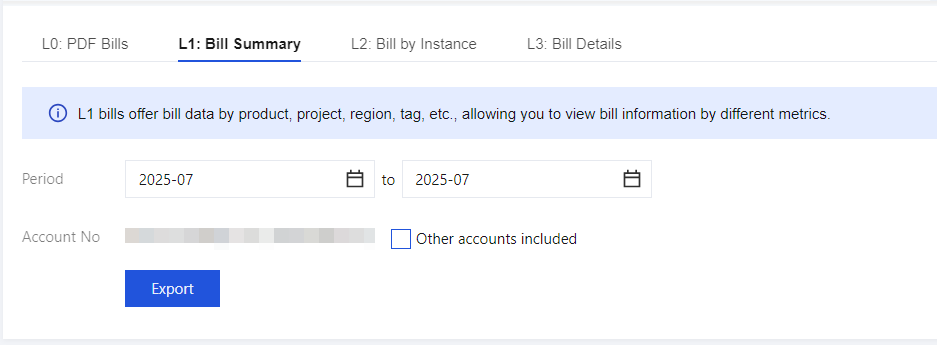
Download the L1 Summary Bill containing group member accounts:
3.1 Select Period and check Other accounts included.
3.2 Select the group member accounts to include and click Export.
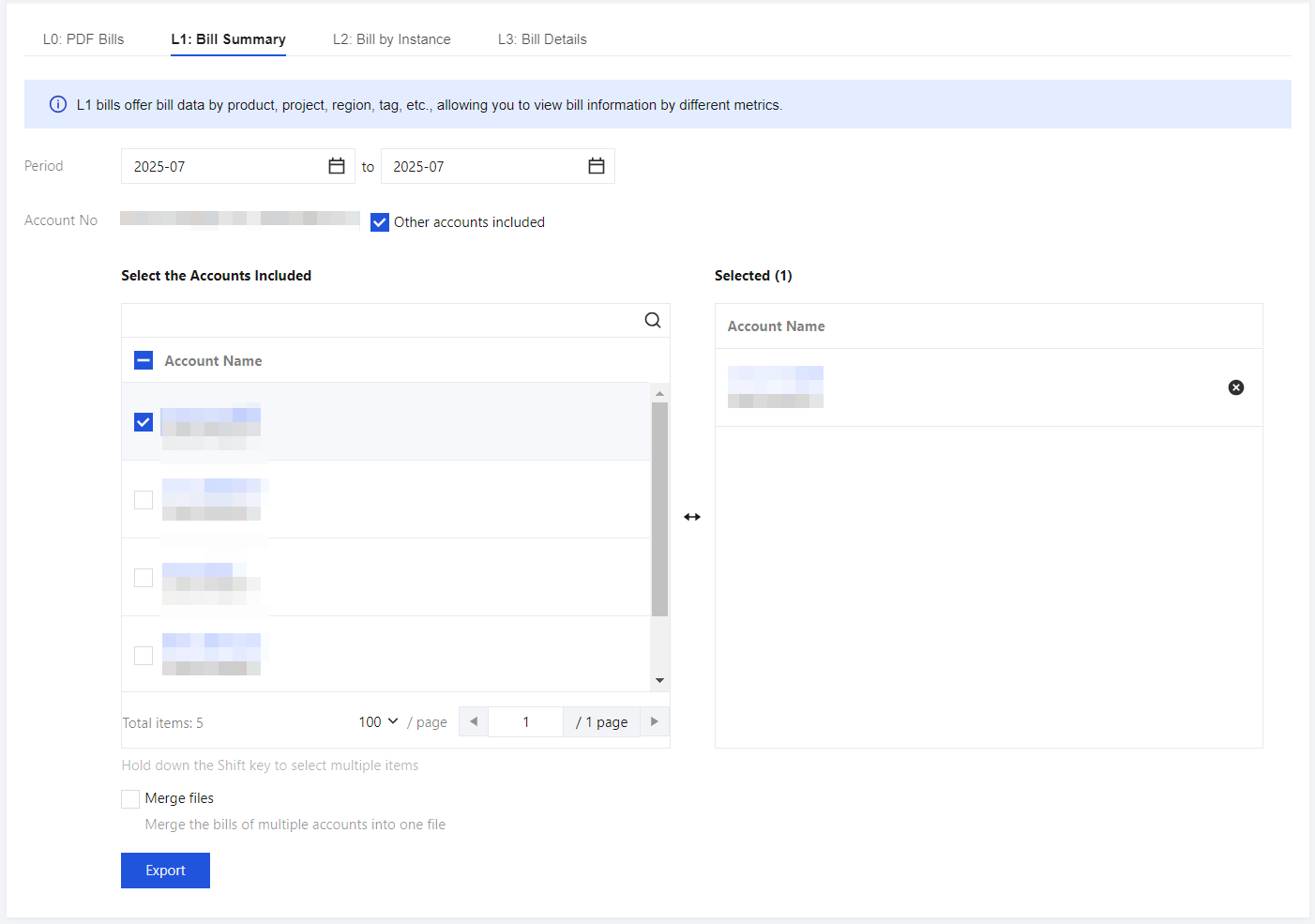
Note:
When exporting, if Merge files is checked, bills of multiple accounts will be merged into one file.
Note:
L2-Resource billing provides dimensional bill data for resources (instance).
Support downloading resource bills for multiple months at once. Different months are merged into one file. Account support for merging or not merging.
1. Log in to the Billing Center.
2. In the left sidebar, click Bills > Bill Export Center to enter the bill export center webpage.
3. Select the L2: Bill by Instance tab to download the L2-Resource bill.
Download the L2 Bill by Instance of the current account: Select Period and click Export
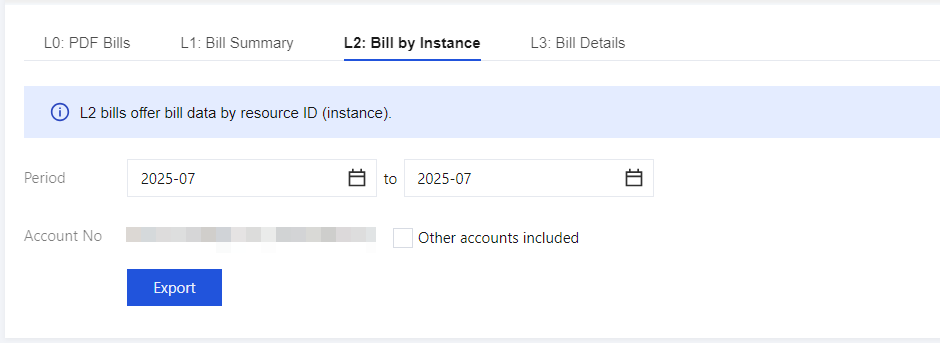
Download the L2 Bill by Instance containing group member accounts:
3.1 Select Period and check Other accounts included.
3.2 Select the group member accounts to include and click Export.
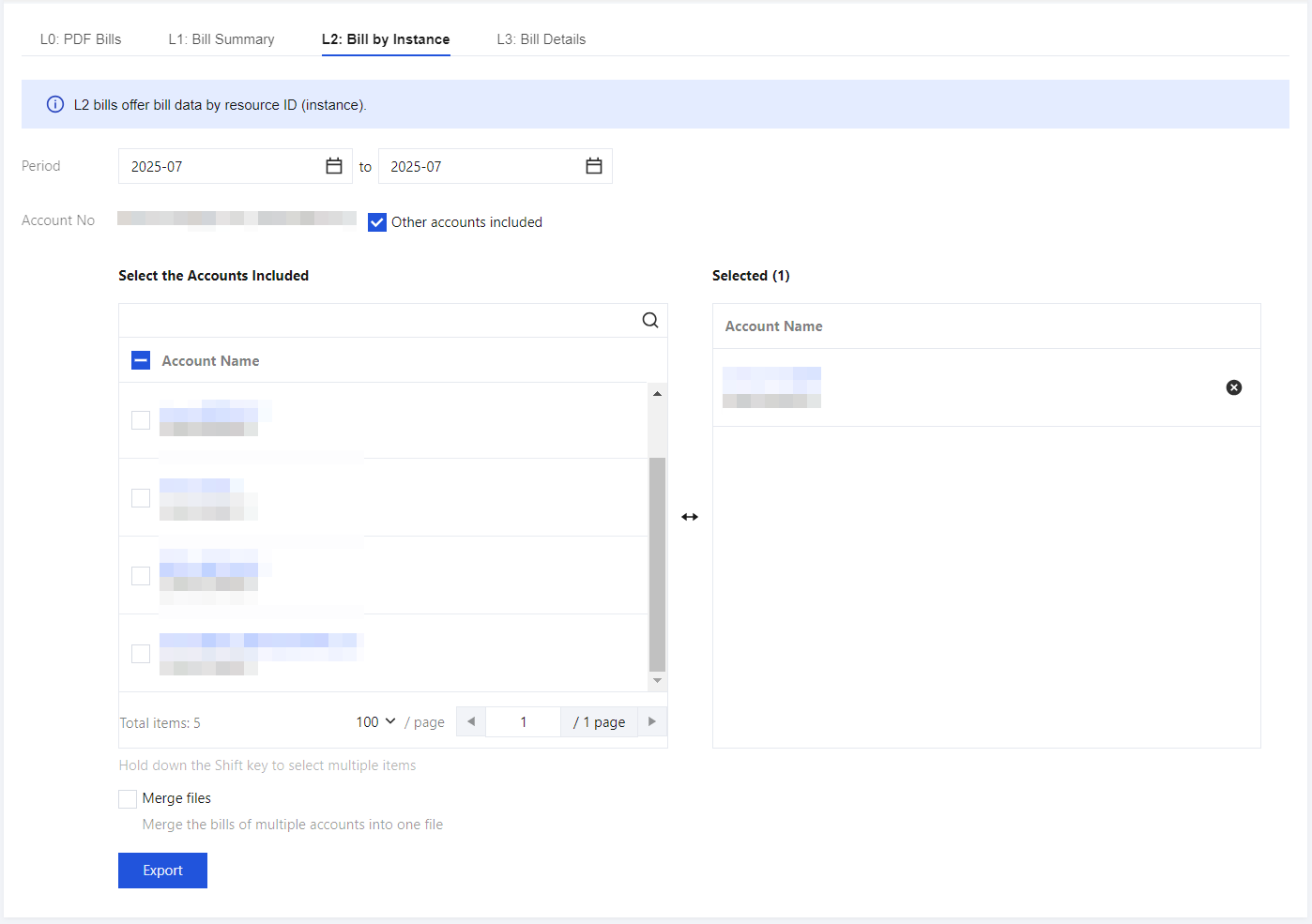
Note:
When exporting, if Merge files is checked, bills of multiple accounts will be merged into one file.
Note:
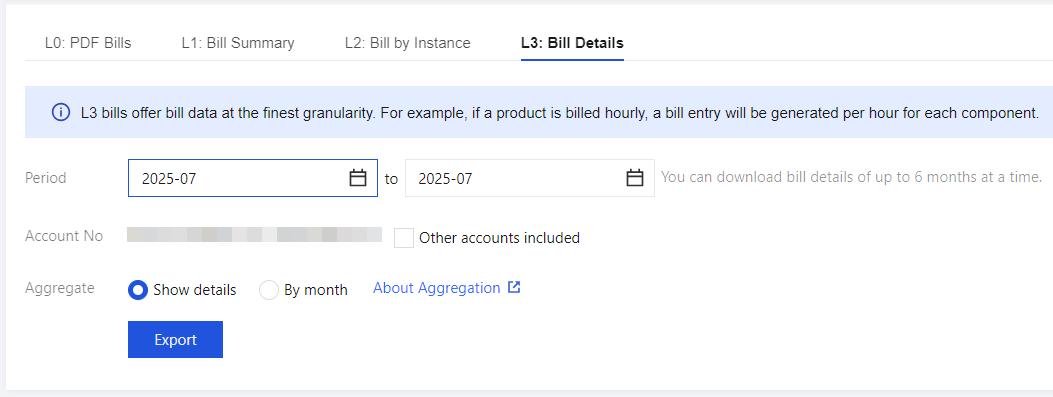
L3-Detailed bill provides bill data at the component level.
Support downloading detailed bills for multiple months at once. Support merging bill details aggregated by month into one file.
1. Log in to the Billing Center.
2. In the left sidebar, click Bills > Bill Export Center to enter the bill export center webpage.
3. Select the L3: Bill Details tab to download the L3-Detailed Bill.
Download the L3: Bill Details of the current account: Select Period, choose the Aggregate type (such as by month), and click Export.
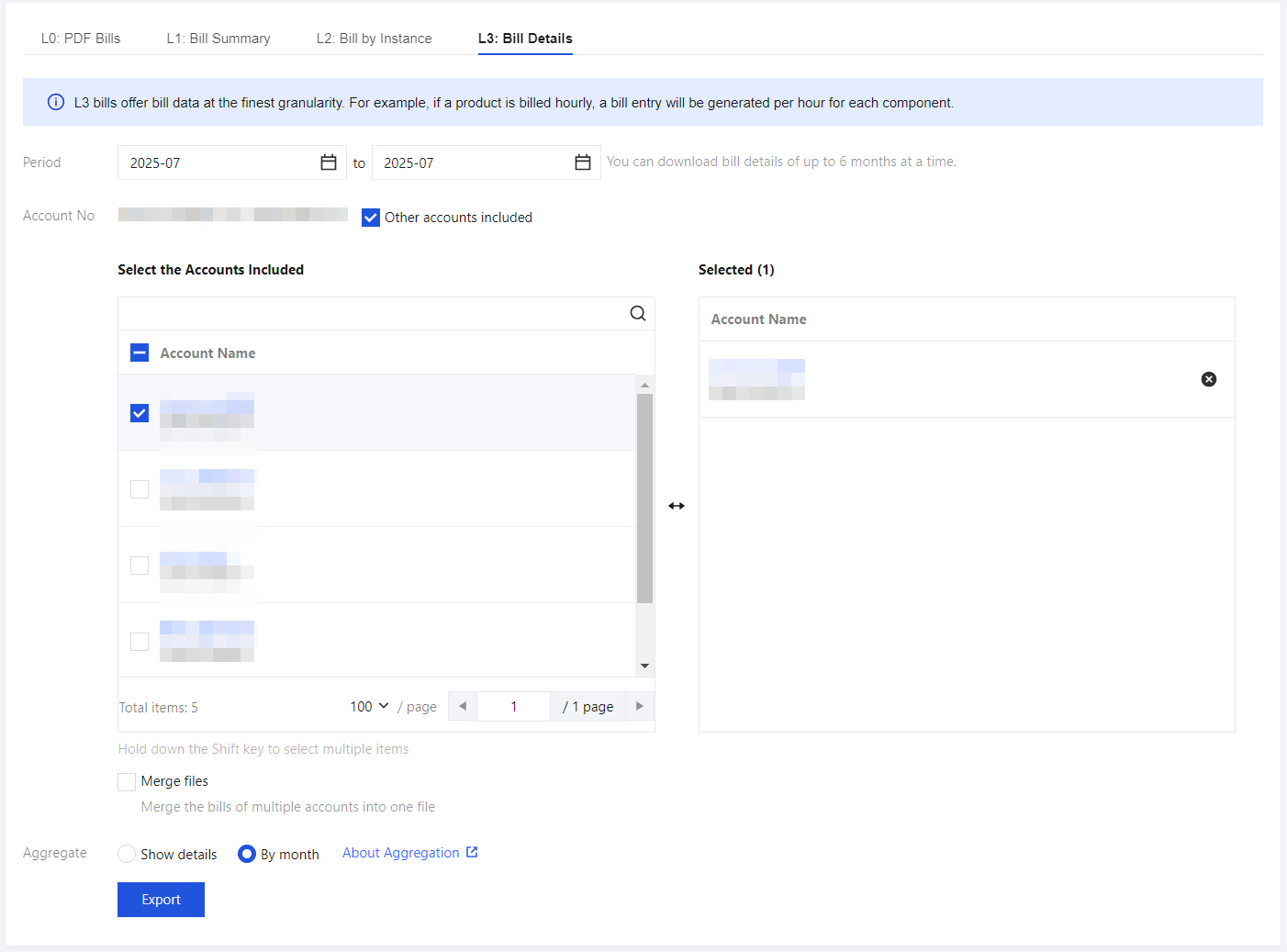
Download the L3 Bill Details containing group member accounts:
3.1 Select Period and check Other accounts included.
3.2 Select the group member accounts to include, choose the Aggregate type (such as by month), and click Export.
Note:
When exporting, if By month is selected for detail aggregation and Merge files is checked, bills of multiple accounts will be merged into one file.
References
Detailed Bill Aggregate by Month Logic Description
Cumulative Amount Products
Some cloud product components (such as those with names containing "bandwidth") have fixed durations and are usage-sensitive. When the bill details are aggregated by month, the cumulative usage and amount of bill details with the same resource ID are combined into one entry. The specific logic is as follows:
Aggregation is performed only when the transaction type is " "Hourly settlement, Daily settlement, Spot , Hourly RI fee, Hourly Savings Plan fee, Adjustment - deduction, or Adjustment - compensation".
Components with cumulative amount range: component names containing "traffic", "bandwidth", "storage", or "count".
Note:
Some components are adjusted to cumulative duration based on actual conditions.
Aggregate by the following dimensionalities:
Billing month, billing mode, transaction type, product, subproduct, component type, component name, resource ID, region, discount rate, component list price, component price unit, usage duration, tax rate, price attribute, remarks attribute.
Calculation logic for each field after aggregating:
"Component usage", "Original price", "Discounted total price (before tax)", "Voucher expenditure", "Pre-tax actual amount", "Tax deduction", "Cash payment (tax included)", add up the bill detail amounts before aggregation.
"Usage start time": the earliest time of all detailed data that make up this item of aggregate data.
"Usage end time": the latest time of all detailed data that make up this item of aggregate data.
"Order ID", "Transaction ID", and "Deduction time" are displayed as "-".
Other fields: remain consistent.
Cumulative Duration Products
Some cloud products (such as CVM) have fixed usage and are duration-sensitive. When the bill details are aggregated by month, the cumulative duration and amount of bill details with the same resource ID are combined into one entry. The specific logic is as follows:
Aggregation is performed only when the transaction type is "Hourly settlement, Daily settlement, Spot , Hourly RI fee, Hourly Savings Plan fee, Adjustment - deduction, or Adjustment - compensation".
Components of cumulative duration range: components not in the range of cumulative amount are considered as cumulative duration.
Aggregate by the following dimensionalities:
Billing month, billing mode, transaction type, product, subproduct, component type, component name, resource ID, region, discount rate, component list price, component price unit, component usage, price attribute, remarks attribute.
Calculation logic for each field after aggregating:
"Usage duration" and "Component usage": are summed up using the corresponding field values from the bill details before aggregation.
"Original price", "Discounted total price (before tax)", "Voucher expenditure", "Pre-tax actual amount", "Tax deduction", and "Cash payment (tax included)" are summed up using the bill detail amounts before aggregation.
"Usage start time": the earliest time of all detailed data that make up this item of aggregate data.
"Usage end time": the latest time of all detailed data that make up this item of aggregate data.
"Order ID", "Transaction ID", and "Deduction time" are displayed as "-".
Other fields: remain consistent.
Non-Aggregated Data
If the transaction type is not Hourly settlement, Daily settlement, Spot , Hourly RI fee, Hourly Savings Plan fee, Adjustment - deduction, or Adjustment - compensation, aggregation is not performed, and all fields remain consistent with the L3-detailed bill.
Adding a Member Account
See the Add Organization Member feature in TCO. The system selects the View Bill permission by default. When downloading bills, you can then select that member account.
Bantuan dan Dukungan
Apakah halaman ini membantu?
Anda juga dapat Menghubungi Penjualan atau Mengirimkan Tiket untuk meminta bantuan.
masukan