tencent cloud

Event Bridge

Release Notes and Announcements
Release Notes
[July 19, 2024] Solution to CLS Billing Issues for EB Topics
User Tutorial
Product Introduction
Overview
Basic Concepts
Strengths
Use Cases
Limits
Purchase Guide
Billing Overview
Product Pricing
Overdue Payments and Service Suspension
Getting Started
Activating EventBridge
Quickly Delivering Custom Events
Quickly Configuring Cloud Monitor Event Alarm Push
Event Source
Overview
Tencent Cloud Service Event Source
Event Structure
Connector
Event
Event Structure
Custom Event
Tencent Cloud Service Event
Event Bus
Overview
Creating Event Bus
Managing Event Bus
Linkage Tracing
Event Rule
Overview
Event Pattern
Creating Event Rule
Managing Event Rule
Configuring Data Conversion
Event Target
SCF Target
CLS Log Target
Message Push Target
CKafka Target
Practical Tutorial
Migrating Event Alarm
Real-Time Oceanus Alarm Message Push
Automatic Backup and Restart of Exceptional CVM Instance
Planning a EventBridge-based Midplatform for a Retail Business
API Documentation
History
Introduction
API Category
Making API Requests
Delivery Target APIs
Event Bus APIs
Event Rule APIs
Event Connector APIs
Data Transformer APIs
Event Storage APIs
Data Types
Error Codes
FAQs
Concept
Alarm
Billing
Contact Us
EB Policy
Privacy Policy
Data Processing And Security Agreement

Creating Event Bus

PDF
Focus Mode
Font Size
Last updated: 2024-07-23 15:08:07
Event bus is one of the most basic resource units in EventBridge. You can configure an event bus to receive events from an event source. This document describes how to create an event bus.

Directions

1. Log in to the EventBridge console and select Event Bus on the left sidebar.
2. At the top of the Event Bus list page, select the region where you want to create an event bus.
3. Click Create Event Bus and enter the relevant information as prompted.
Note:
For more information about event buses, see here.
Only custom event buses can be created.
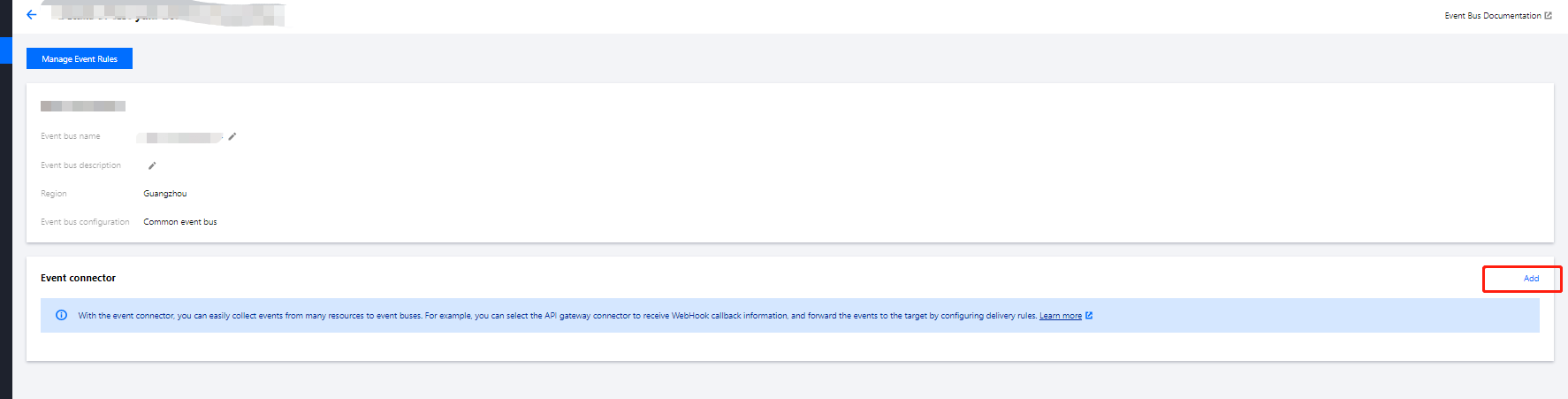
4. Click the created event bus, and you can configure an event connector as shown below:


5. In the Create Event Bus Connector pop-up window, you can select different event sources in Connector Type.
Note:
For more information on how to configure a connector, see here.
6. After completing the connector configuration, click Submit.
Note:
If you want to cancel creation, click Cancel.


Help and Support

Was this page helpful?

Help us improve! Rate your documentation experience in 5 mins.

Feedback