Managing Event Rule
Unduh
Mode fokus
Ukuran font
This document describes how to view, edit, and delete an event rule.
Preparation
Directions
Viewing event rule
You can view the details of an event bus as follows:
1. Log in to the EventBridge console and select Event Rule on the left sidebar.
2. In the drop-down lists at the top of the page, select a region and event bus.
3. In the event rule list, click the target event rule.
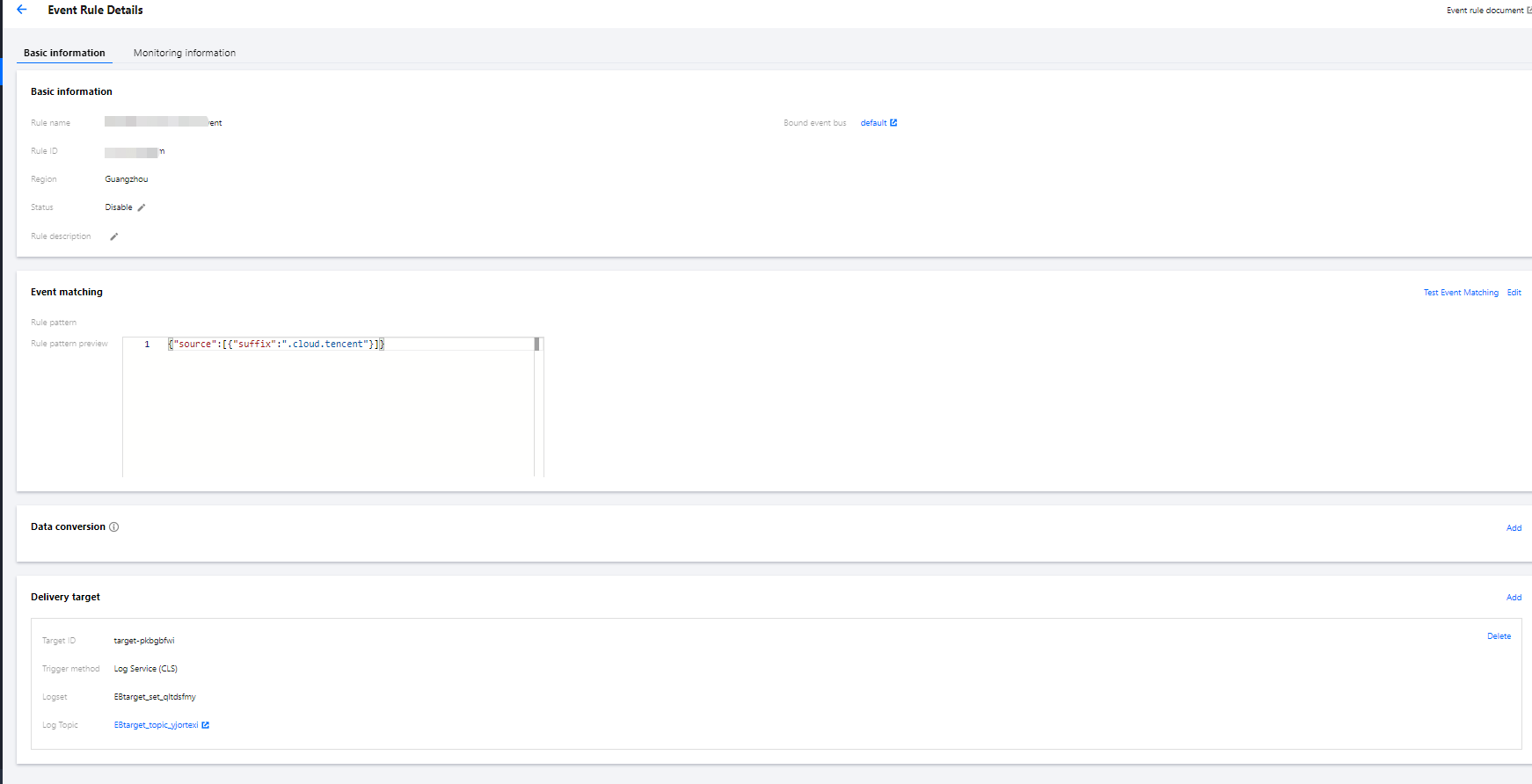
4. The event rule page displays the event rule information such as basic information, event match information, and event target as shown below:
Editing event rule
1. Log in to the EventBridge console and select Event Rule on the left sidebar.
2. In the drop-down lists at the top of the page, select a region and event bus.
3. In the event rule list, click the target event rule.
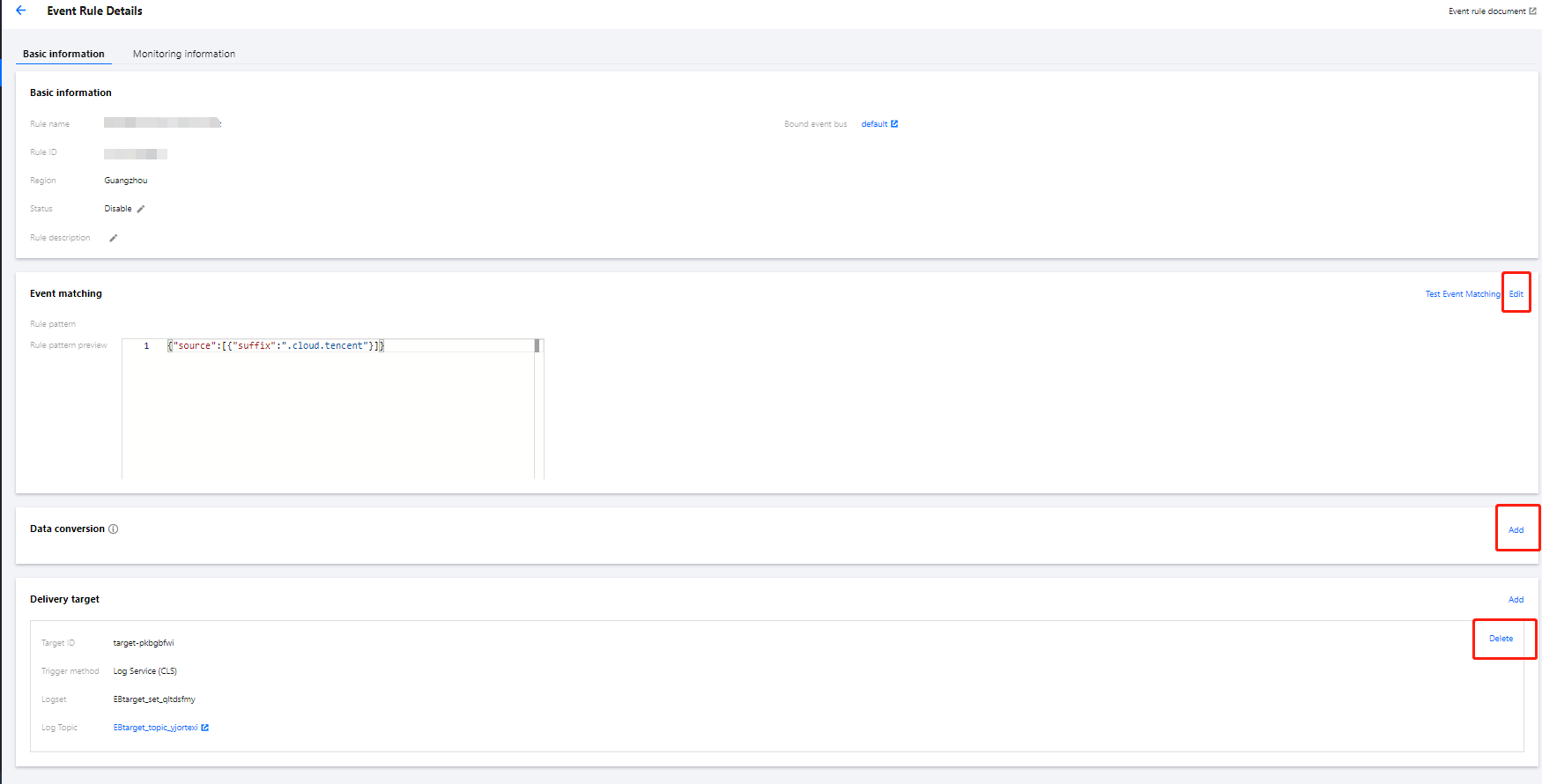
4. On the event rule page, you can edit basic event information and event match information and delete/add event targets as shown below:
Deleting event rule
Note:
Before deleting an event rule, make sure that all event targets under the rule have been deleted.
1. Log in to the EventBridge console and select Event Rule on the left sidebar.
2. In the drop-down lists at the top of the page, select a region and event bus.
3. In the event rule list, find the target event rule and click Delete in the Operation column on the right as shown below:

4. In the pop-up window, click OK.
Bantuan dan Dukungan
Apakah halaman ini membantu?
Anda juga dapat Menghubungi Penjualan atau Mengirimkan Tiket untuk meminta bantuan.
masukan