tencent cloud

StreamLive

Introduction
Purchase Guide
Billing Overview
Overdue Payments and Service Suspension
Console Guide
Input Management
Channel Management
Asset Management
Plan Management
Feature Guide
Implementing Live Streaming
Stream Real-Time Monitoring
Digital Rights Management (DRM)
Forensic Watermark
Input Failover
Input Switch
Stream Pushing Callback Notification
Playlist
Scheduled Recording
Highlights
Time shifting
Delayed Playback
Adaptive Bitrate Streaming
Caption
Relay
Frame Capture
SCTE-35
PDT (HLS)
Archiving (Recording)
Dolby Audio
Output To YouTube
Ad Insertion
StreamLive Tag
API Documentation
History
Introduction
API Category
Making API Requests
Input Management APIs
Input Security Group Management APIs
Channel Management APIs
Plan APIs
Watermark Management APIs
Statistics APIs
Data Types
Error Codes
StreamLive Policy
Data Processing and Security Agreement
Privacy Policy
Related Agreement
Service Level Agreement

Input Switch

PDF
Focus Mode
Font Size
Last updated: 2024-07-22 11:52:36
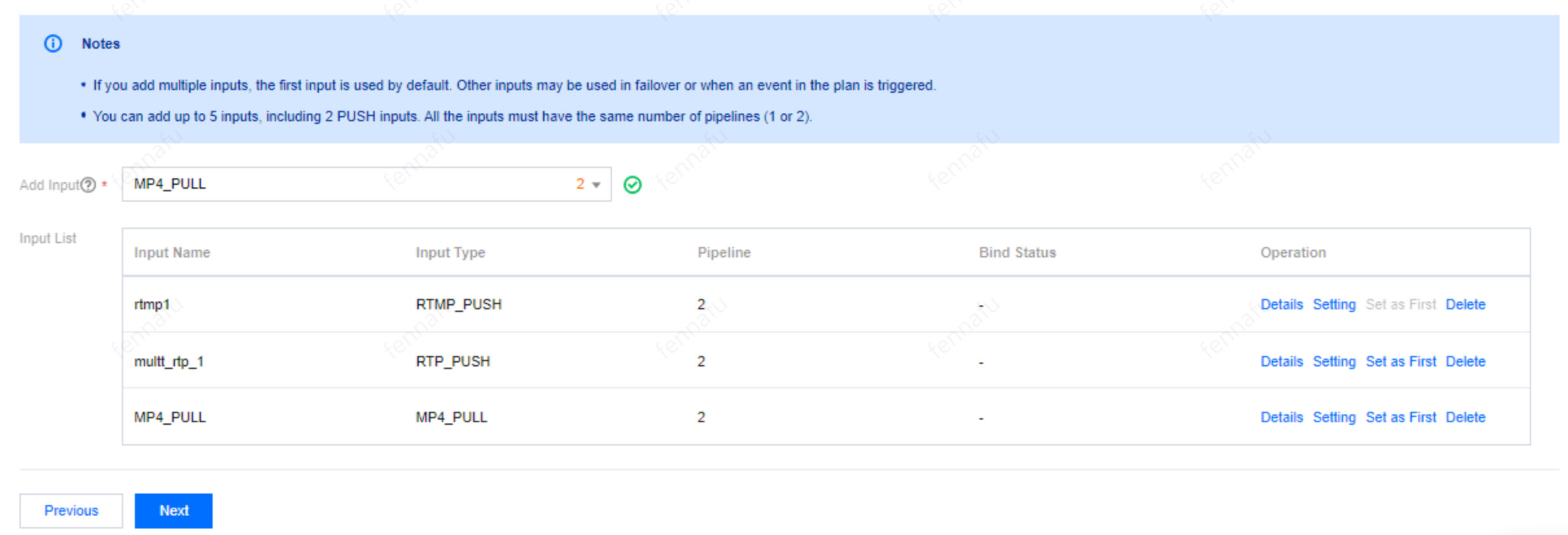
Input switch allows you to use multiple inputs to enrich live streaming experiences. You can add two PUSH inputs and multiple inputs of other types to a channel. To configure input switch, follow the steps below:
1. On the Input Setting page, add the inputs you want to use.


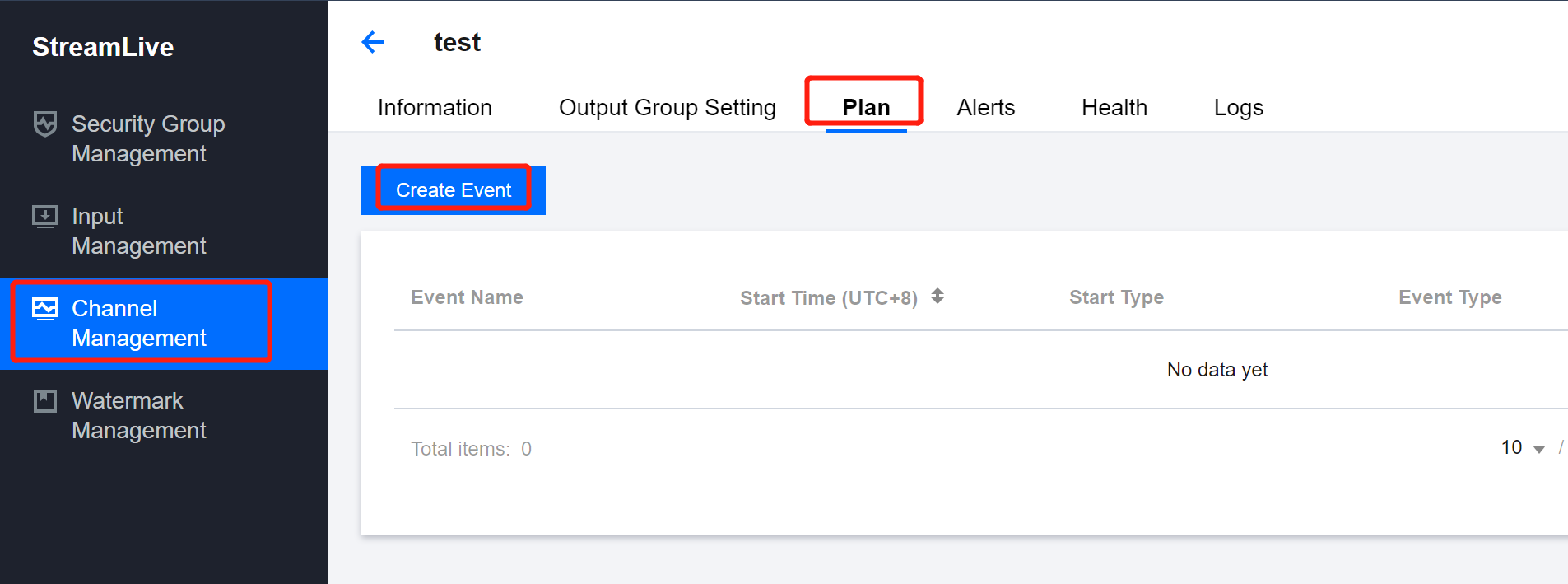
2. After creating or editing your channel, find the channel on the Channel Management page, and click its name to enter the details page. Select the Plan tab and click Create Event.


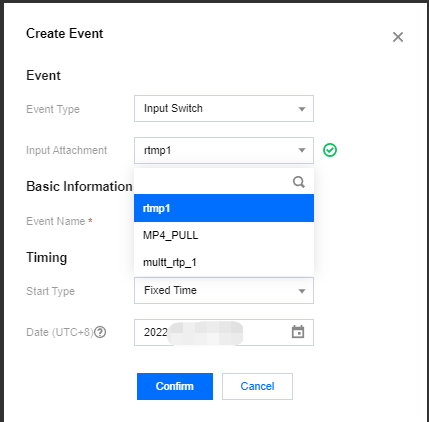
Select from the drop-down list of Input Attachment an input you just added to the channel, and specify the Start Type. For details, see Plan Management.
Help and Support

Was this page helpful?

Help us improve! Rate your documentation experience in 5 mins.

Feedback