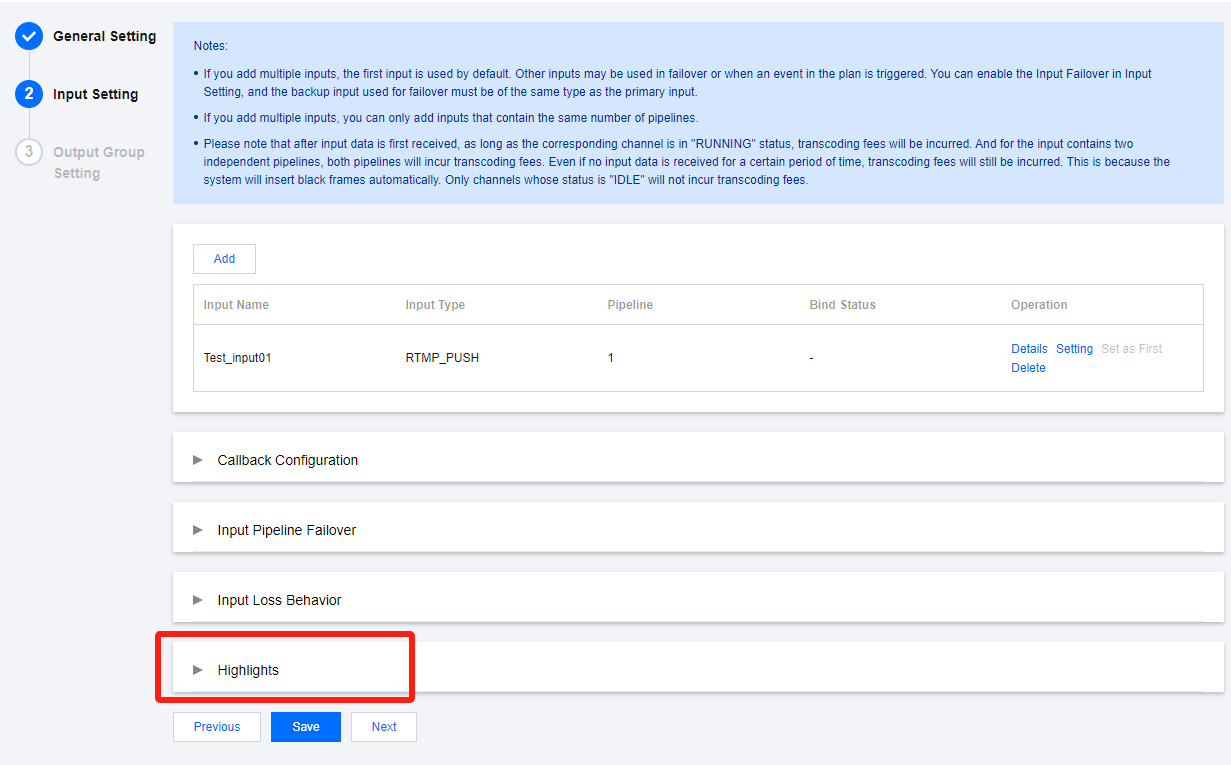
For football and basketball event live streams, the StreamLive Highlights feature can identify exciting moments in the game and record and save the highlight clips.
Points of Attention
Highlights feature is provided by Media Processing Service (MPS), which means once users enable the Highlights feature in StreamLive channel, the StreamLive backend service will automatically call the MPS backend service. For this reason, you need to follow system guides to activate and authorize MPS; authorization refers to granting MPS the access to StreamLive data. Only after authorization can MPS read live stream data from StreamLive and perform the intelligent analysis for Highlights.
Once MPS obtains live stream data from StreamLive and generates highlights files, the files need to be saved to Tencent Cloud Object Storage (COS). Thus, you need to follow system guides to authorize MPS, granting it access to Tencent Cloud COS. Only after authorization can MPS read COS storage paths and perform write operations on the COS bucket.
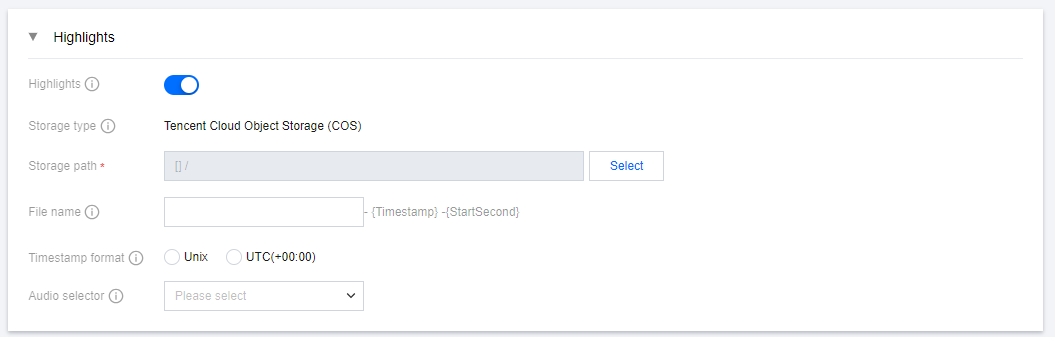
2. Enable the feature and configure the parameters.
Configuration Item
Description
Highlights Feature
Only after enabling the feature can you configure the relevant parameters.
When enabling the switch, the system will verify whether you have granted Media Processing Service (MPS) the permission to read StreamLive data. This is necessary, because only with authorization can MPS read the live streaming data from StreamLive and analyze the exciting moments.
If you have already authorized, you can directly turn on the switch.
If you have not authorized yet, please follow the system guidance to complete the authorization first before turning on the switch.
Storage type
For the generated highlight clips, storage is required. Currently, only Tencent Cloud Object Storage (COS) is supported.
Storage path
When selecting the storage path, the system will verify whether you have authorized MPS the read and write permissions on Tencent Cloud COS. Only after authorization can MPS read the storage path information and store files in COS.
If you have already authorized, you can directly click Select to choose the storage path.
If you have not yet authorized, click Select then, and follow the system guidance to complete authorization first, then choose the storage path.
File name
The file name consists of three parts: user-defined name, file generation timestamp, start second.
User-defined name: Optional. Allows 1-32 characters consisting of numbers, letters, underscores, or hyphens. If you do not enter a name, the system will default to using the inputID.
File generation timestamp: The timestamp can be selected in either Unix or UTC(+00:00) format.
Start second: The start time of the highlight is expressed in seconds, relative to the source stream's starting point.
Timestamp format
Supports both Unix and UTC (+0:00) formats.
Audio selector
If the source stream contains multiple audio tracks, you can set the Audio Selector. And then you can select the configured audio selectors as the audio for the highlight file.
3. After completing the configuration, save it with the other channel information.
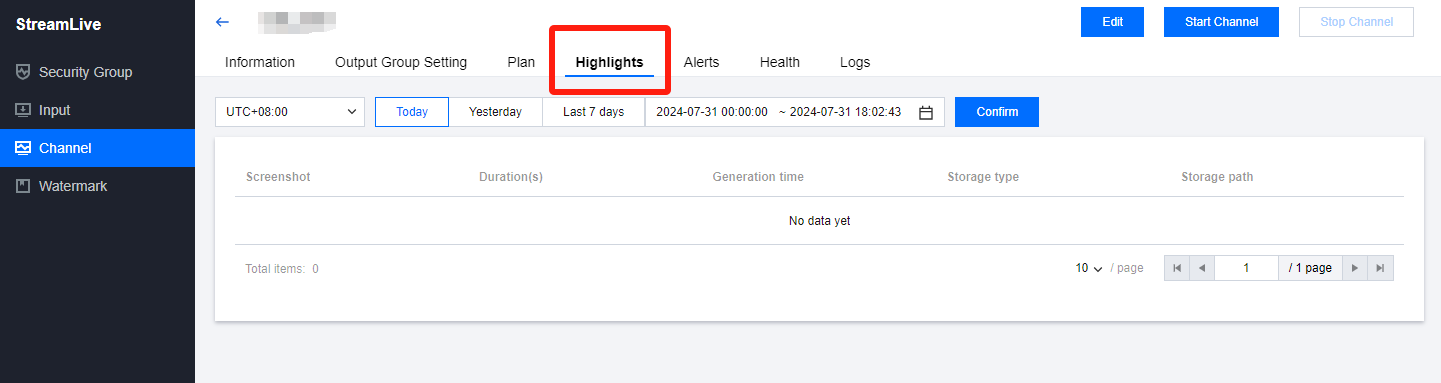
4. After starting the channel, you can view the generated files on the Highlights tab of the channel details page.
List Information
Description
Screenshot
A screenshot of the highlight segment for reference.
Duration(s)
Duration of the highlight file.
Generation time
Generation time of the highlight file.
Storage type
Currently, only Tencent Cloud Object Storage (COS) is supported.