Using CFS Turbo on TKE Serverless Cluster
다운로드
포커스 모드
폰트 크기
Overview
You can mount a Cloud File Storage (CFS) Turbo storage for TKE Serverless Cluster. The add-on is used to mount the Tencent Cloud CFS Turbo file system to a workload based on a private protocol. Currently, only static configuration is supported. For more information about CFS storage classes, see Storage Classes and Performance.
Prerequisites
A TKE Serverless Cluster of v1.14 or later has been created.
Directions
Creating a file system
Note:
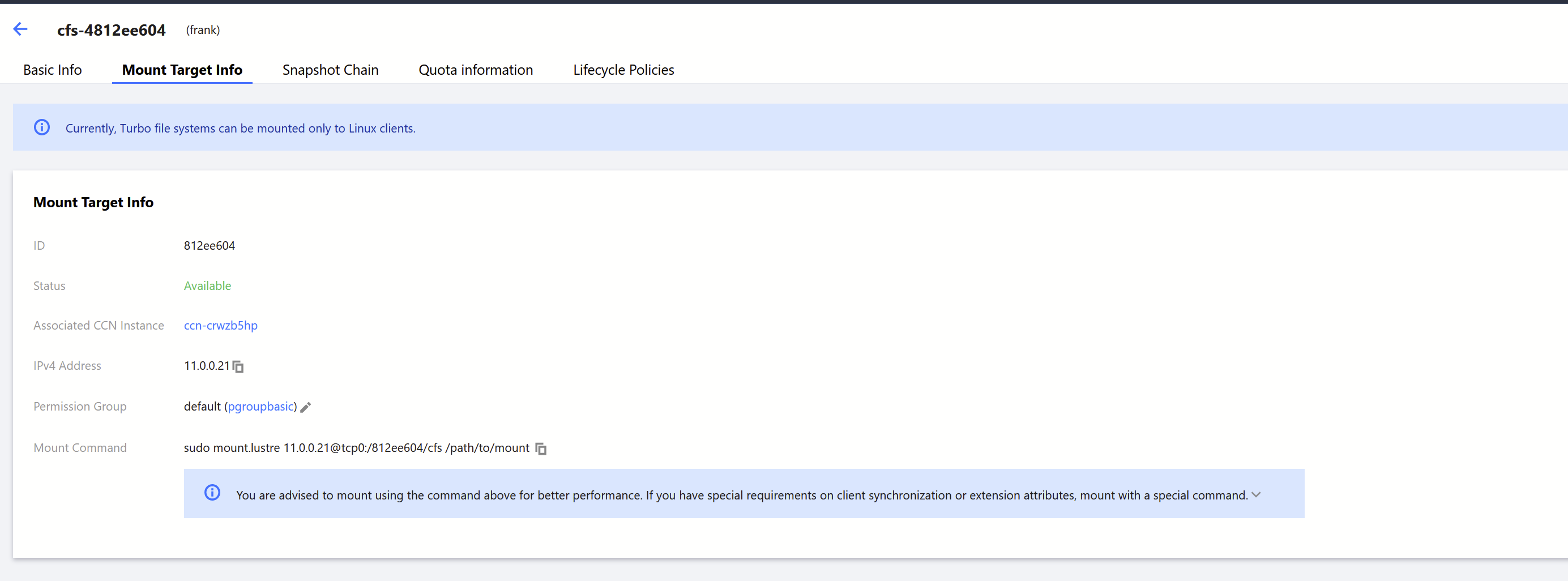
After the file system is created, you need to associate the cluster network (vpc-xx) with the CCN instance of the file system. You can check the associated instance in the file system mount target information.
Deploying a Node Plugin
Step 1. Create a csidriver.yaml file
Here is an example of a csidriver.yaml file:
apiVersion: storage.k8s.io/v1beta1kind: CSIDrivermetadata:name: com.tencent.cloud.csi.cfsturbospec:attachRequired: falsepodInfoOnMount: false
Step 2. Create a CSI driver
Run the following command to create a CSI driver:
kubectl apply -f csidriver.yaml
Creating a CFS Turbo volume
Step 1. Create a CFS Turbo type PV based on the following template
apiVersion: v1kind: PersistentVolumemetadata:name: pv-cfsturbospec:accessModes:- ReadWriteManycapacity:storage: 10Gicsi:driver: com.tencent.cloud.csi.cfsturbovolumeHandle: pv-cfsturbovolumeAttributes:host: 10.0.0.1# Set host to the actual mount target IPfsid: d3816815# Set fsid to the actual FSIDpath: /# CFS Turbo subdirectorystorageClassName: ""
Parameters:
metadata.name: The name of the created PV.
spec.csi.volumeHandle: It must be consistent with the PV name.
spec.csi.volumeAttributes.host: The IP address of the file system. You can check it in the file system mount target information.
spec.csi.volumeAttributes.fsid: The FSID of the file system (not the file system ID). You can check it in the file system mount target information. It is the string after "tcp0:/" and before "/cfs" in the mount command.
spec.csi.volumeAttributes.path: File system subdirectory, which defaults to "/" if not specified. (To improve mounting performance, the plugin backend actually locates the "/cfs" directory for "/"). If you want to mount a subdirectory, ensure that the subdirectory exists in the file system "/cfs". After a subdirectory is mounted, the workload will not be able to access its upper-level directories. For example, if you want to set "path: /test", ensure that "/cfs/test" exists in the file system.
Step 2. Create a PVC based on the following template to bind the PV
apiVersion: v1kind: PersistentVolumeClaimmetadata:name: pvc-cfsturbospec:storageClassName: ""volumeName: pv-cfsturboaccessModes:- ReadWriteManyresources:requests:storage: 10Gi
Parameters:
metadata.name: The name of the created PVC.
spec.volumeName: It must be consistent with the name of the PV created in Step 1.
Using a CFS Turbo volume
Create a Pod and mount the PVC based on the following template.
apiVersion: v1kind: Podmetadata:name: nginxspec:containers:- image: ccr.ccs.tencentyun.com/qcloud/nginx:1.9imagePullPolicy: Alwaysname: nginxports:- containerPort: 80protocol: TCPvolumeMounts:- mountPath: /var/wwwname: datavolumes:- name: datapersistentVolumeClaim:claimName: pvc-cfsturbo
피드백