Task Management
Download
포커스 모드
폰트 크기
Scenarios
Tencent Cloud Distributed Cache processes instance-level operations (such as instance creation, configuration changes, data clearance, backup and restoration, and so on) as asynchronous tasks. You can use the console's task list feature to view the execution progress and results of these tasks, facilitating timely monitoring of the instance's Ops status.
Feature Overview
The task list feature provides users with comprehensive visual management capabilities for instance Ops tasks.
View task list: In the console, view the task execution records of all instances in the current region, with support for viewing task data for the last 30 days.
Multi-dimensional filtering: Supports filtering tasks by time range, task type, instance ID, operator, operation result, and other dimensions.
View task details: Click on task details to view the task prompt information, configuration comparison before and after the task, subtask execution status, and more.
Implementation Guide
Tencent Cloud Distributed Cache adopts an asynchronous task mechanism to handle instance-level Ops operations. When a user initiates an operation request via the console or API, the system creates a corresponding asynchronous task, which is uniformly managed and executed by the background scheduling engine.
Asynchronous task mechanism: After user-initiated operation requests are validated, the system generates tasks and adds them to the task queue. The task scheduling engine executes tasks sequentially based on priority and dependencies, preventing conflicts caused by multiple operations acting on the same instance simultaneously.
Task state transition: Each task undergoes a state transition from "initialized" → "in progress" → "completed/failed". The system updates the task status in real time, and users can track the execution progress of each stage in the task list.
Subtask Splitting: Complex operations (such as instance creation) are split into multiple subtasks (such as initialization tasks, network configuration, and so on). Each subtask is executed independently and reports its status, ensuring that each step is traceable.
Prerequisites
A Tencent Cloud account has been registered with identity verification completed.
You have activated the TencentDB for Redis service.
You have created an instance of TencentDB for Redis.
Viewing a Task List
Note:
The task list only retains task records for the last 30 days, and task data over 30 days old will no longer be displayed.
Do not initiate other modification operations on the same instance while a task is in progress to prevent operational conflicts.
If a task remains in the "executing" state for an extended period without completion, it is recommended to contact online customer service or submit a ticket for troubleshooting.
When a task execution fails, the specific failure cause and subtask status can be viewed in the task details to facilitate locating an issue.
1. Log in to the Distributed Cache console.
2. In the left sidebar, click Task Management.
3. On the right-hand side of the Task Management page, select a region from the drop-down list at the top.
4. Above the task list, select the time range for the query, or use the search box to locate the target task via Instance ID.

In the task list, filter tasks. The supported filter criteria are as follows:
Filter Criteria | Note |
Time Range | You can select today, yesterday, the last 7 days, the last 30 days, or a custom time range. |
Task type | Supported filtering by task type, such as Create an instance or modify configurations. For specific supported types, see Task Type. |
Instance ID | Enter the Instance ID to search for tasks of a specific instance. Enter the Instance ID in the search box for a precise search. |
Operator | Filter tasks initiated by the specified operator. |
Operation Result | Filter by task execution result, such as In Progress, Completed, Failed, and so on. |
The field descriptions of the task list are as shown in the table below.
Field | Note |
Start Time | Time of task execution. |
End time | Completion time. If the task is in progress, this field is not displayed. |
Task type | Operation type of tasks, such as *instance creation*, *configuration changes*, and so on |
Instance ID | Instance ID associated with the task. |
Operator | User account that initiates the operation. |
Operation Result | Task status, including Running, Completed, Failed, and so on. For tasks in progress, the current subtask progress is displayed (such as "Running-Initializing tasks"). |
Operation | Click View Task Details to view the subtask execution process. For specific information, see View Task Details. |
Viewing Task Details
In the task list, click Operation in the View Task Details column to further view the task's basic information, configuration details, and the detailed execution progress of each subtask.
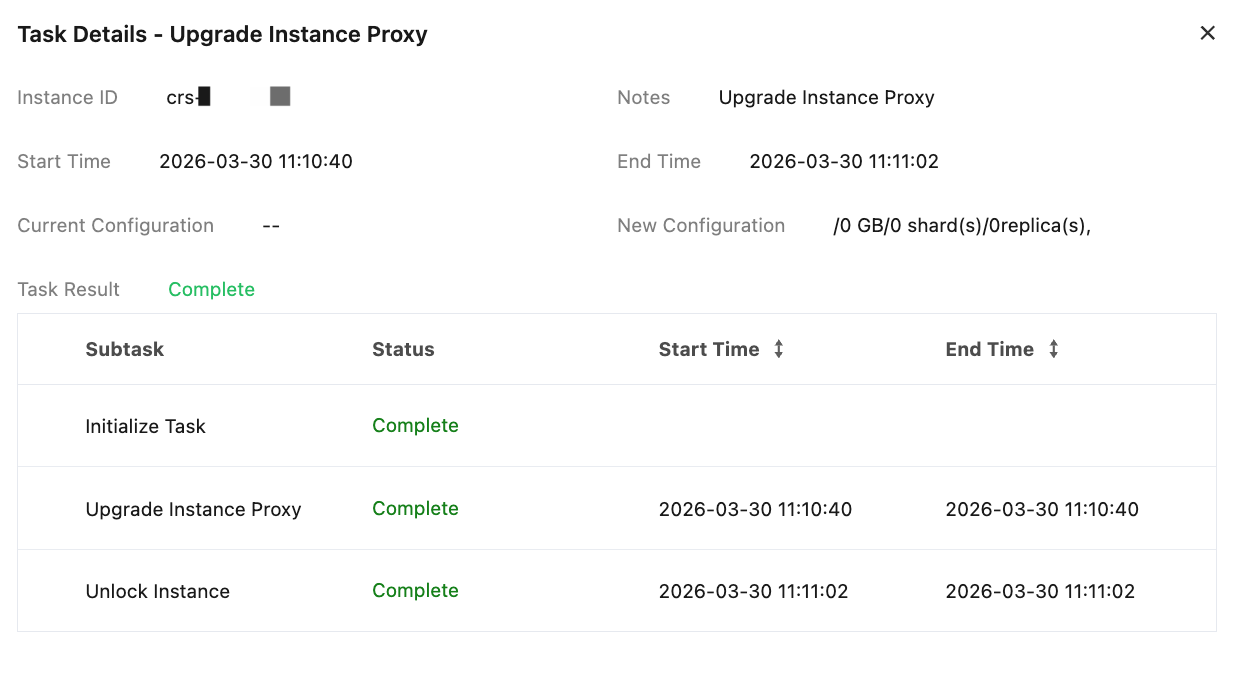
Field | Note |
Instance ID | Instance ID associated with the current task. |
Prompt Message | Operation type, such as "instance creation". |
Start Time | Time of task execution. |
End time | Completion time. If the task is in progress, this field is not displayed. |
Pre-task configuration | Configuration information of the instance before task execution. For instance creation tasks, "--" is displayed. |
Post-task configuration | Target configuration information of the instance after task execution. For example: "/0GB/0 shard/0 replica" indicates the storage and shard configuration target of the instance. Note: Compare the pre-task configuration with the post-task configuration (such as architecture type, memory size, shard replica quantity, and Redis version, and so on) to confirm whether any changes have occurred. |
Task Result | Current task execution status, such as In Progress, Completed, Failed. |
The task details display all subtasks included in the current task and their execution status.
Field | Note |
Subtask | Subtask name, such as Initialization Task, Network Configuration, and so on |
Status | The current status of the subtask, including Completed (green), In Progress, Pending, Failed (red). |
Start Time | Execution Start Time of Subtask. |
End time | Execution Completion Time of Subtask. |
Related APIs
Through the following APIs, you can programmatically query and manage tasks.
API | Feature Description |
Query the task list information of the specified instance, including task data for the last 30 days. | |
Query the execution results and detailed information of the specified task. |
Task type
Feature Categories | task type | Note |
Instance lifecycle management | Create instances | Creating a new cache database instance, including selecting specifications, region, network, and other configurations. |
| Disable the instance | Disable a running instance, and the instance will stop providing services. |
| Clearing an Instance | Clear all data in the instance. This operation is irreversible. Please proceed with caution. |
| Instance enablement | Re-enable the disabled instance and restore service availability. |
| Delete the instance | Permanently deleting the instance and its associated resources is an irreversible operation. |
Spec and Capacity Modification. | Instance scaling | Adjust the memory capacity of the instance or the number of shards to meet business load requirements. |
| Scaling | Perform capacity expansion or scale-down operations on the instance to adjust its resource specifications. |
| node addition (removal). | Increasing or decreasing the number of nodes in an instance is suitable for horizontal scaling in a cluster architecture. |
| instance bandwidth modification | Adjust the network bandwidth cap of the instance to meet the requirements for different traffic scenarios. |
| Bandwidth and connections adjustment | Adjust the bandwidth and maximum connection quota of the instance to accommodate high-concurrency business scenarios. |
architecture and version upgrade. | Architecture upgrade | Upgrade the instance from standard architecture to cluster architecture to enhance performance and scalability. |
| Architecture downgrade | Adjust the instance from cluster architecture to standard architecture to accommodate business scale reduction scenarios. |
| Version upgrade | Upgrade the Redis engine version of the instance (such as from 4.0 to 5.0) to obtain new features and performance improvements. |
| Instance minor version upgrade | Upgrade the minor version of the instance (Patch version) to obtain problem fixes and stability improvements. |
| Instance proxy upgrade | Upgrade the Proxy component version of the instance to obtain better routing performance and new feature support. |
Backup and recovery | RDB import | Import data into an instance via RDB files, supporting data migration and recovery scenarios. |
| Backup Export | Export the backup files of the instance to a specified storage location to facilitate offline storage or cross-instance restoration. |
| Recover a backup | Use existing backup files to restore instance data for data restoration or rollback operations. |
| Instance rollback | Restore instance data to a specified historical point in time, supporting precise point-in-time recovery. |
| Backup Instance | Manually trigger a full backup of the instance to generate a data snapshot at the current point in time. |
| Clone Backup | Create a copy based on an existing backup for testing and validation or cross-instance data replication. |
| Deleting Backup Points | Delete historical backup files that are no longer needed to free up storage space. |
| Backup Mode Change | Adjust the backup policy of the instance (such as backup frequency, retention period, and so on) to meet different data protection requirements. |
Data migration | Migration Parameter Validation | Before data migration is executed, the system automatically checks the configuration compatibility between the source instance and the target instance. |
| Migrate data in progress | Data migration between instances is in progress, with data being synchronized from the source instance to the target instance. |
| Migration task rollback | When an exception occurs during the migration process, the system will roll back to the pre-migration state to ensure data security. |
Network and CAM | Change VIP address | Modify the virtual IP (VIP) address of the instance for network adjustments or address migration. |
| Switch VIP | Switching between different VIP addresses, commonly used for primary-secondary switch or migration transition. |
| Network change | Migrate the instance from the current Virtual Private Cloud (VPC) to another VPC to adjust network affiliation. |
| Enable the public network | Enable the public network access address for the instance to allow connections from the public network (note that security protection is required). |
| Disable the public network | Disable public network access for the instance, allowing access only via the private network. |
| Update the public network | Update the public network access configuration of the instance. |
Security and Account Management | Reset Password | Reset the instance access password. |
| Instance account modification | Add, delete, or modify sub-accounts of the instance to manage access permissions for different users. |
Read/Write Separation and Replica Management | read/write separation ratio | Adjust the traffic distribution ratio for read/write separation to optimize the load distribution of read requests between the master node and replica nodes. |
| Read-Only Modification | Modifying the read-only policy configuration for the instance. |
| Enabling Replica Read-Only Mode | Enable read-only access capability for replica nodes, allowing read requests to be offloaded to replica nodes to reduce the load on the master node. |
| Disable read-only replica | Disable read-only access for replica nodes. All read/write requests will be handled exclusively by the master node. |
Parameters and Configuration | Modifying Parameters | Modify the runtime parameters of the instance (such as maxmemory-policy, timeout, and so on) to optimize instance performance. |
| Module Modification | Modifying the extension modules (Module) loaded on the instance to enable or disable specific extension features. |
High Availability and Disaster Recovery | Upgrade the instance to support multiple AZs | Upgrade single-AZ instances to multi-AZ deployment to enhance disaster recovery capabilities. |
| Simulating Failures | Simulating node failure scenarios to validate the instance's auto-failover capability and high availability mechanism. |
| Manually promote to primary | Manually promote the specified replica node to master node for planned maintenance or failure handling. |
| Migrate nodes | Migrate the instance's data nodes to other host machines for underlying resource scheduling or failure avoidance. |
| Switch nodes | Switching the primary/secondary node role of an instance is commonly used for planned Ops operations. |
| Migrate Proxy nodes | Migrate the instance's Proxy nodes to other host machines to optimize network paths or perform resource scheduling. |
| Modification of AZ | Change the AZ where the instance is deployed for cross-AZ scheduling or disaster recovery deployment adjustments. |
Global replication | Add a replication group | Create a new global replication group to enable cross-region data synchronization and nearby access. |
| Reconnect replication group | Reestablish the disconnected connection in the replication group to restore cross-region data synchronization. |
| Remove from replication group | Remove the instance from the global replication group, which will no longer participate in cross-region data synchronization. |
| Switching a replication group instance to the primary instance | Switch the specified instance to the primary instance within the replication group and adjust the cross-region write access point. |
| Replication group role switch | Switch the roles of instances within the replication group (for example, swapping primary and read-only instances) for cross-region disaster recovery failover. |
FAQs
Q1: Cannot locate the task record for a specific operation in your task list?
The task list only retains task data for the last 30 days. If a task is over 30 days old, its record will no longer be displayed. We recommend that you use the DescribeTaskList API to query task data over a longer period.
Q2: How to handle task execution failures?
Please click View Task Details in the task list to view the task details and subtask status, and confirm the specific point of failure. Then, take corresponding actions based on the failure reason:
Insufficient resources: Please confirm whether resources in the target region and AZ are sufficient. If necessary, change the AZ or adjust the configuration and try again.
Parameter Error: Please check whether the operation parameters are correct, make corrections, and retry the operation.
Internal Error: Please contact online customer service or submit a ticket to obtain support.
Q3: Can I cancel a task during its execution?
Once a task starts execution, it usually cannot be canceled midway. It is recommended to carefully confirm the operation parameters and target configuration before the operation is initiated.
References
피드백