Billing Allocation
ダウンロード
フォーカスモード
フォントサイズ
This document describes the billing dimensions and methods for viewing bills in TokenHub, and how to use the cost allocation bill to view resource consumption by API Key and Tag dimensions.
TokenHub Billing Dimensions
Billing Source
The TokenHub bill is generated solely from the actual consumption of paid resources. Currently, the resource types that incur charges include:
Online inference service: costs incurred from real-time model invocations via APIs such as OpenAI Chat Completions / Responses / Anthropic.
Batch inference service: costs incurred from asynchronously processing large volumes of requests via batch inference tasks. As both services are billed based on usage after purchase, the standard billing dimension is the resource dimension. Therefore, bills are issued separately for the two resource types: "online inference service" and "batch inference service".
Viewing the Default Bill
Because the final bill amount is affected by multiple factors such as vouchers, discounts, and plan deductions, the TokenHub console only displays Token usage data and does not show cost amounts. To view the actual cost bill, go to the Tencent Cloud Billing Center:
1. Log in to the Tencent Cloud Billing Center.
2. In the left navigation pane, choose Bills > Bill Details > Resource Bills.
3. Filter by Product Name for
TokenHub to view the cost details billed by resource dimension (online inference service, batch inference service).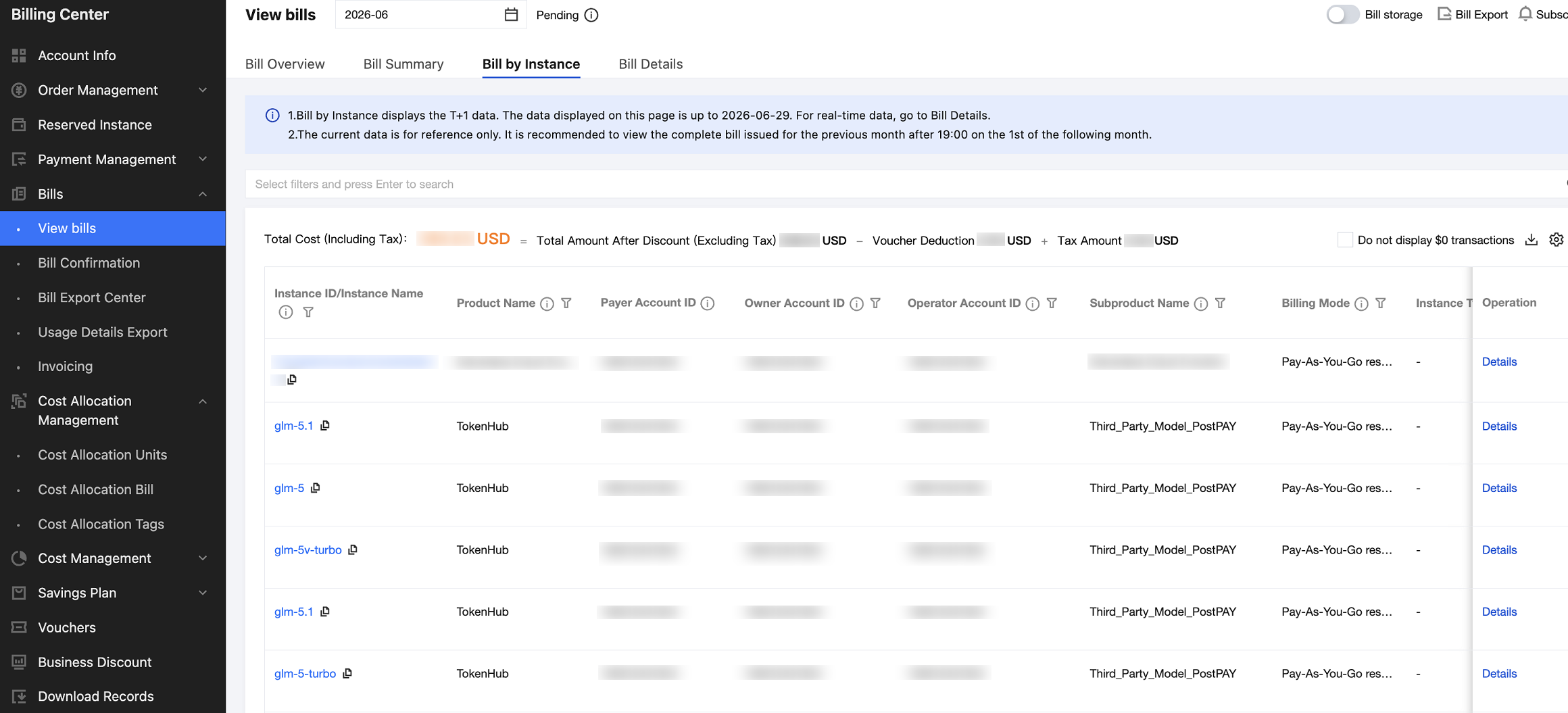
Note:
The console only displays Token usage statistics. For cost-related information such as discounts, voucher deductions, and the final payable amount, refer to the bill in the Billing Center.
Viewing the Cost Allocation Bill by API Key
Note:
API Key-based cost allocation applies only to postpaid resources. For prepaid resources (such as Token Plans, TPM Guarantee Packages, and so on), payment is completed in a lump sum at the time of purchase, and cost allocation by API Key is not available.
Scenarios
TokenHub now supports cost allocation by API Key dimension, which is suitable for the following scenarios:
When multiple API Keys are distributed to different modules or environments (such as production and testing) under the same application, their usage needs to be tracked separately.
When distributing independent API Keys to customers or external partners, you must meter and reconcile costs per Key.
Viewing the Cost Allocation Bill
1. Log in to the Tencent Cloud Billing Center.
2. In the left navigation pane, choose Cost Allocation Management > Cost Allocation Bill.
3. In the filter area, switch the Statistics Dimension to Resource.
4. Filter by Product Name for
TokenHub.5. In the result list, the content displayed in the Resource ID column is the API Key ID (keyID, the full string), which corresponds to the Token consumption and cost for each individual Key.
6. The statistics period can be switched between Daily and Monthly, facilitating reconciliation and daily monitoring.
Use Limits
Note:
The billing cycle is T+1: The cost allocation data for a given day can only be viewed after it is billed on the following day. Avoid performing real-time reconciliation on the same day.
Existing data is not viewable: The cost allocation feature was launched on May 16, 2026. Historical usage data prior to this date cannot be viewed in the cost allocation bill. If you need historical data, use the Usage Statistics module in the TokenHub console.
Viewing the Cost Allocation Bill by Tag
Scenarios
In addition to cost allocation by API Key, TokenHub also supports cost allocation by Tag dimension for online inference services and batch inference tasks, which is suitable for the following scenarios:
Aggregate and allocate costs based on custom dimensions such as business line / project / department. For example, if a single account handles multiple business lines simultaneously, you need to calculate costs by business line.
If multiple online inference services or batch inference tasks (such as those for different models or environments) are created under the same business line, you need to aggregate them into a group for consolidated statistics.
If you are already using the Tencent Cloud cost allocation tag system, you can incorporate TokenHub costs into a unified cost allocation analysis view.
Steps
1. Setting Tags for Resources on TokenHub
Both online inference services and batch inference tasks in TokenHub support Tag configuration. You can configure Tags at the following three entry points (multiple Tags can be set for a single resource):
Set during creation
Go to the Online Inference or Batch Inference page. Click Create to enter the creation form, and then select an existing Tag key-value pair in the "Tag" configuration item. If you have not created a Tag before or need to add a new one, go to Tag Management to create it, and then return to make the selection.
Set on the list page
Go to the resource list page. In the operation column, click Edit Tag (for online inference services, you can also select multiple items for batch editing). In the pop-up dialog box, add / modify / delete Tag key-value pairs, and then click OK to save.
Set on the details page
Go to the resource details page. In the "Basic Information" section, you can view the current Tag list. Click the Edit icon on the right side of the Tag list to modify it.
Note:
The creation and key-value pair management of Tags are centrally handled in the Tencent Cloud Tag Management service. The TokenHub console is only responsible for binding existing Tags.
A single Tag can be bound to multiple cloud resources simultaneously, and a single cloud resource can also be bound to multiple Tags.
2. Setting Cost Allocation Tags and Viewing the Bill in the Billing Center
Resources with Tags are not displayed in bills by Tag dimension by default. To enable this, you must explicitly mark the target Tag key as a cost allocation tag in the Billing Center.
For the setup and viewing procedures, see the Tencent Cloud official documentation:
Billing Center - Cost Allocation Tags: This section describes how to set an existing Tag key as a cost allocation tag, as well as the effective time, retrospective rules, and usage limits.
Billing Center - Bill Viewing (Multi-Dimension Summary Bill): This section describes how to view costs by Tag dimension in the multi-dimension summary bill and navigate to the resource bill to view details.
References
フィードバック