Claude Code
Download
フォーカスモード
フォントサイズ
Claude Code is an AI coding assistant that supports integration with the Anthropic API, helping developers quickly write, debug, and manage code.
Token Plan models support Anthropic API-compatible APIs and can be invoked via Claude Code.
Prerequisites
Before starting the configuration, make sure you have completed the following preparatory work:
Install Claude Code
Note:
Run the following command to install Claude Code. For more operations, refer to Claude Code Installation Guide.
npm install -g @anthropic-ai/claude-code
After installation is complete, run the following command to check the installation result. If the version number is displayed, the installation is successful.
claude --version
Configure Token Plan
To integrate Token Plan in Claude Code, you need to configure the following information:
ANTHROPIC_BASE_URL: set to
https://tokenhub-intl.tencentcloudmaas.com/plan/anthropic.ANTHROPIC_AUTH_TOKEN: set to the dedicated API Key for Token Plan.
ANTHROPIC_MODEL: set to the models supported by Token Plan.
Configuration steps are as follows:
1. Edit or add the settings.json file. The configuration information that needs to be modified or added is as follows:
$your_api_key: replace it with your own API Key.
$model_id: update it to the model information you need to use, for example, glm-5.2. For model information, refer to Available models.
Note:
Note that configuration file paths vary across different systems as follows:
macOS / Linux:
~/.claude/settings.json.Windows:
C:\\Users\\<username>\\.claude\\settings.json.{"env": {"ANTHROPIC_AUTH_TOKEN": "$your_api_key","ANTHROPIC_BASE_URL": "https://tokenhub-intl.tencentcloudmaas.com/plan/anthropic","ANTHROPIC_MODEL": "$model_id"}}
2. Edit or add the .claude.json file, and modify or add the hasCompletedOnboarding field value to true.
Note:
Note that configuration file paths vary across different systems as follows:
macOS / Linux:
~/.claude.jsonWindows:
C:\\Users\\<username>\\.claude.json{"hasCompletedOnboarding": true}
3. After saving the configuration file, execute subsequent commands in a new terminal window.
Use Claude Code in the command line
1. After navigating to the project directory via the command line, execute the
claude command to start Claude Code and begin using it.cd my-projectclaude
Select
Yes, I trust this folder to trust the current directory.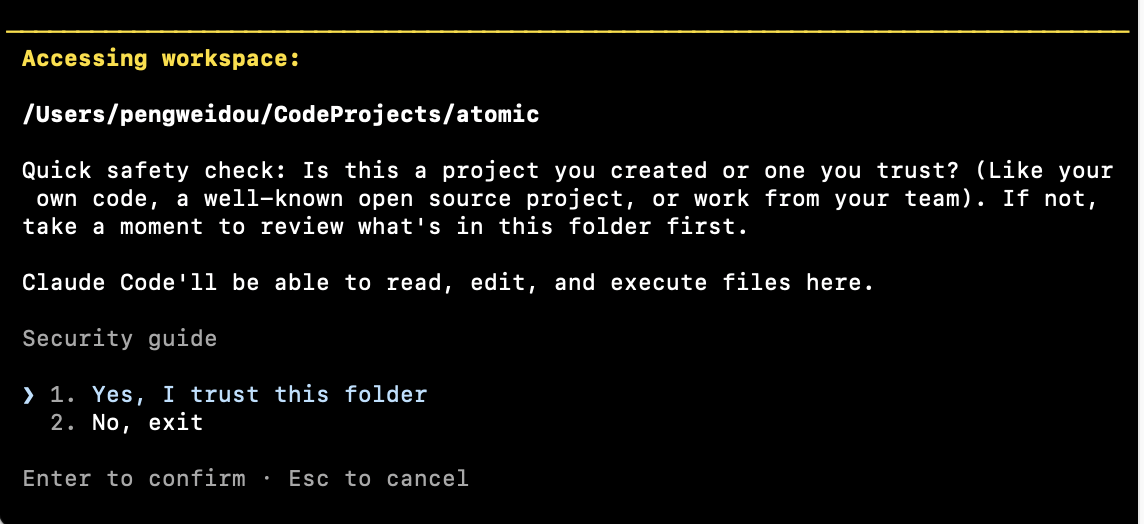
2. Verify model status: Enter
/status to confirm the model status.3. Converse in Claude Code.
Use Claude Code in the IDE
Note:
The Claude Code IDE plugin depends on the Claude Code CLI tool. The installation and configuration of Claude Code must be completed first.
1. Search for Claude Code in the Extensions Marketplace to install it.
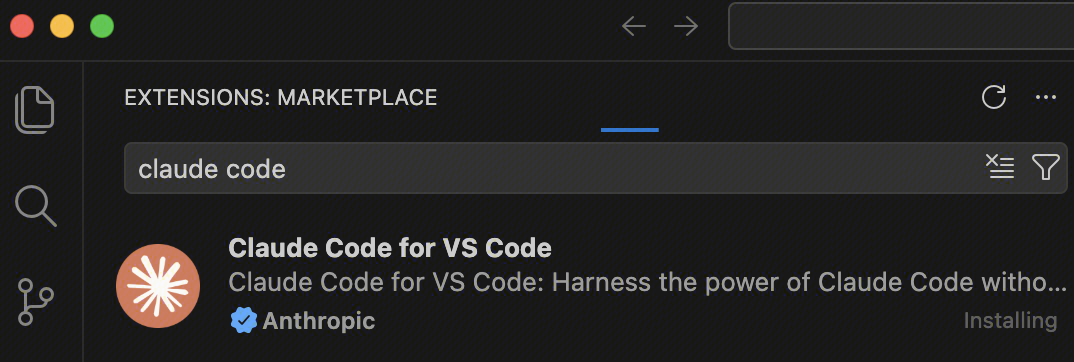
2. After successful installation, click the Claude Code icon in the upper-right corner of VS Code to go to the Claude Code page.
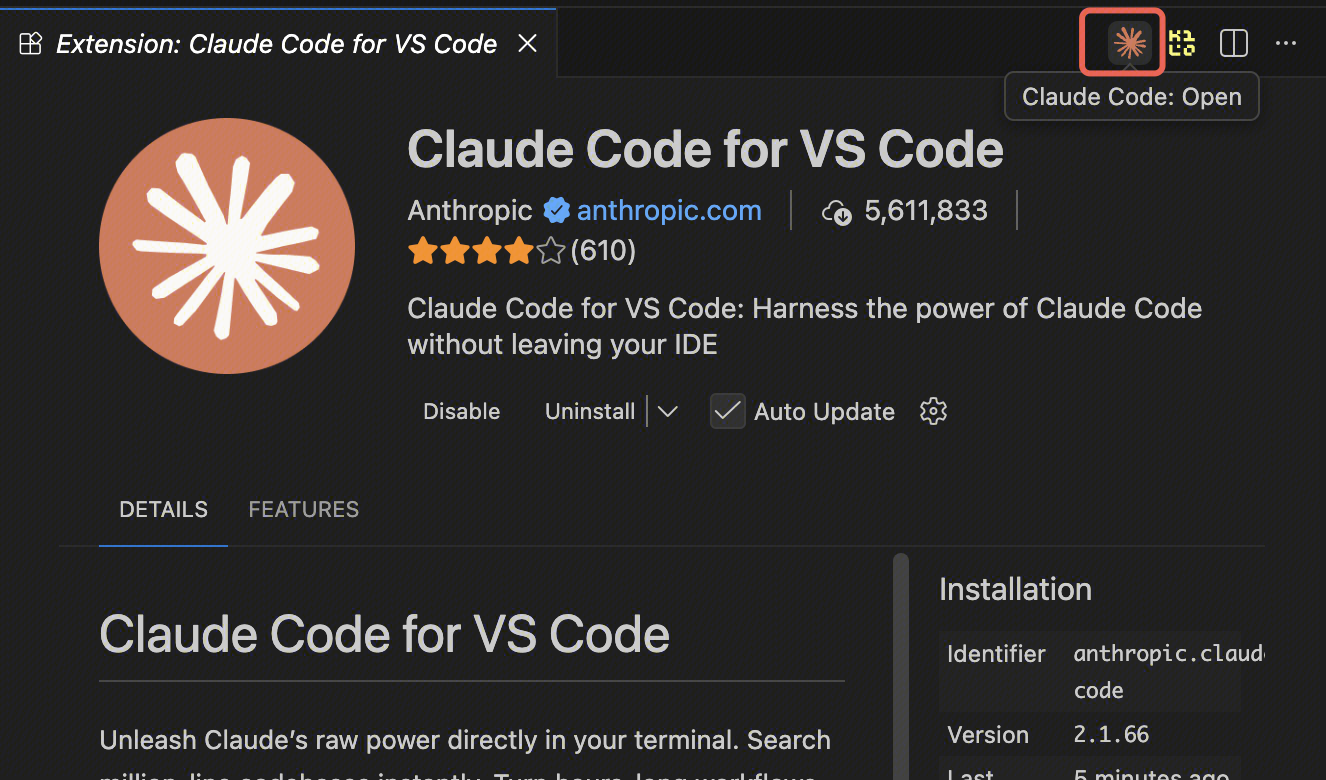
3. To switch models: In the dialog box, enter
/, select General config to go to the settings page, choose a supported model from Selected Model, and then start a conversation in a new window.1. Search for Claude Code in the Extensions Marketplace and install it.
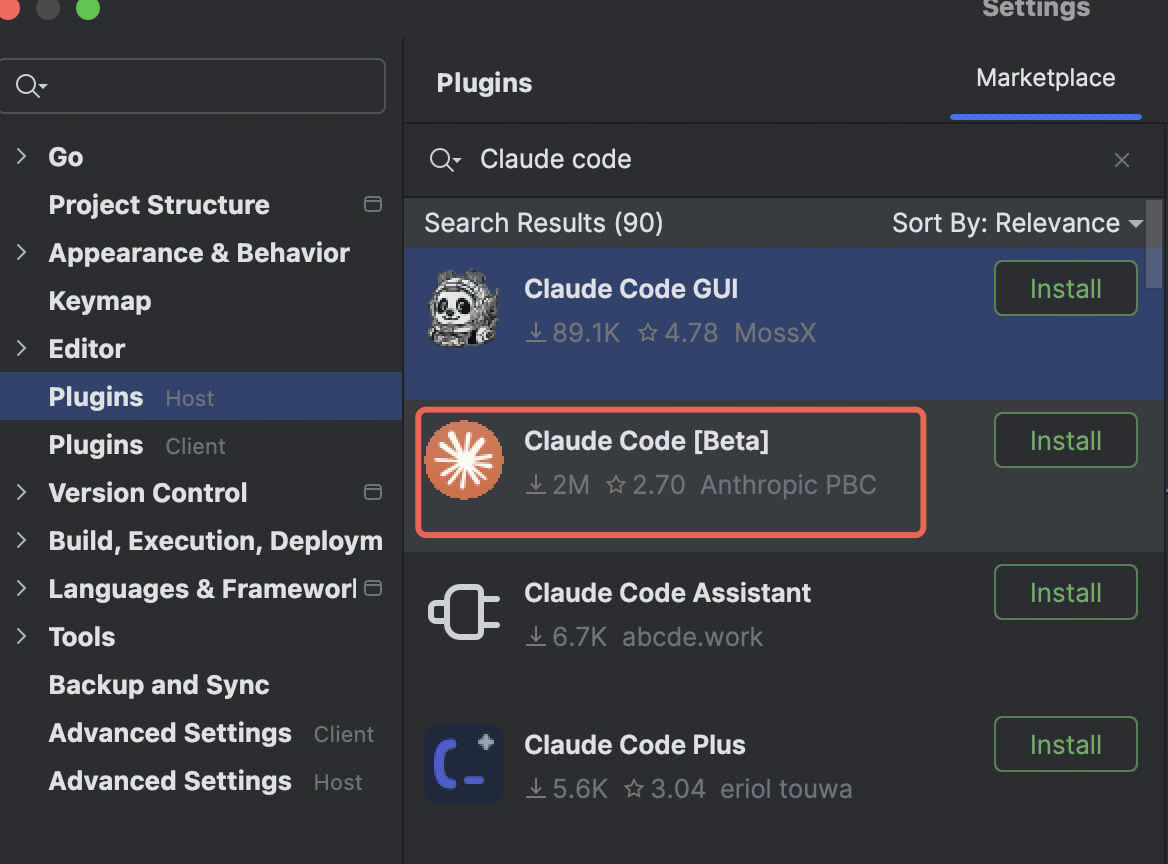
2. After installation, restart the IDE and click the icon in the upper-right corner to use it. You can switch models using the
/model <model-name> command.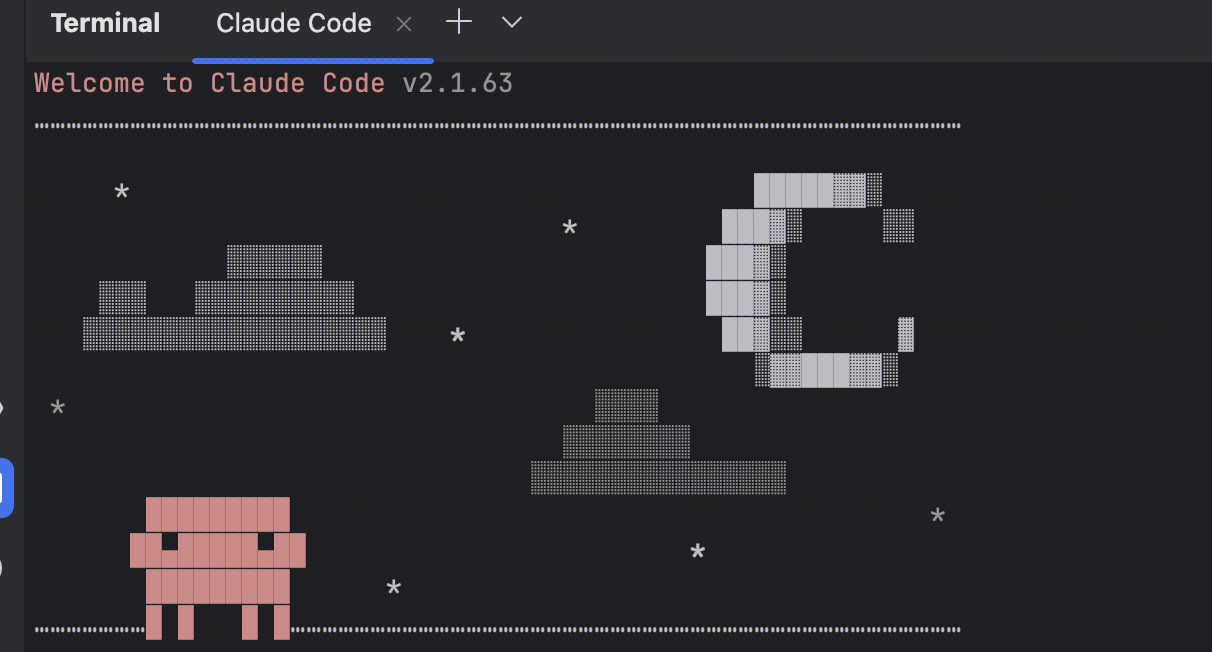
More Information
フィードバック