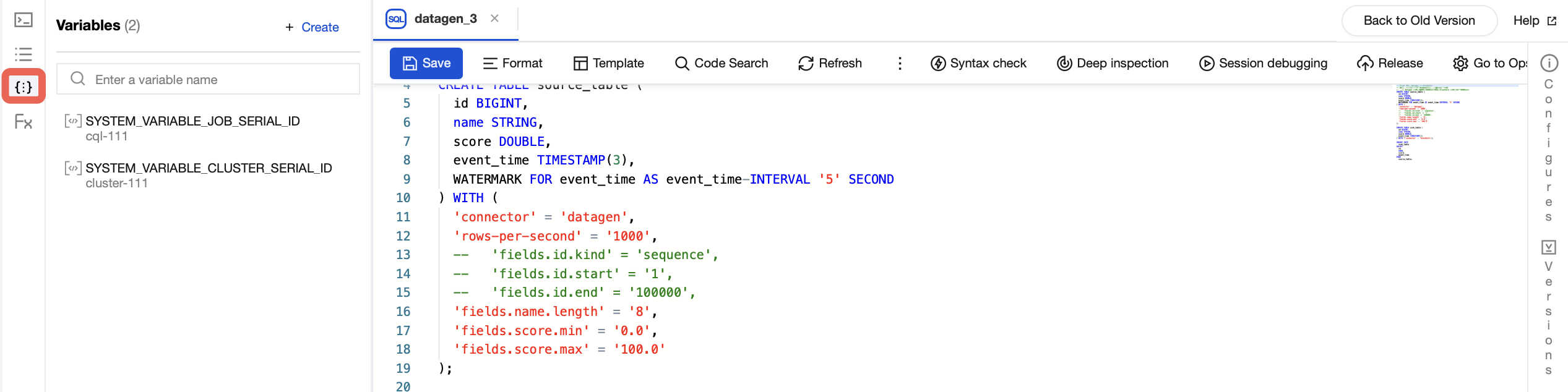
Users can use variables in the table management section of an SQL job. Both temporary tables and metadata tables in an SQL job can have their use of variables replaced through table variable substitution.
Table Variable Syntax:
${variable_name}
${variable_name:default_value}
${variable_name}:default_value
Note:
The underscore _ is used as the separator for variable names. It is recommended to use the syntax ${variable_name}.
Creating a Variable
Log in to the SCS console and go to the target workspace. In Job Management, create an SQL job. You can refer to Create SQL Job. Then, switch to Development and Debugging. On the left Variable Management page, you can manage variables. Variable values can be set in two ways: manually entering a custom value, or referencing a custom credential.
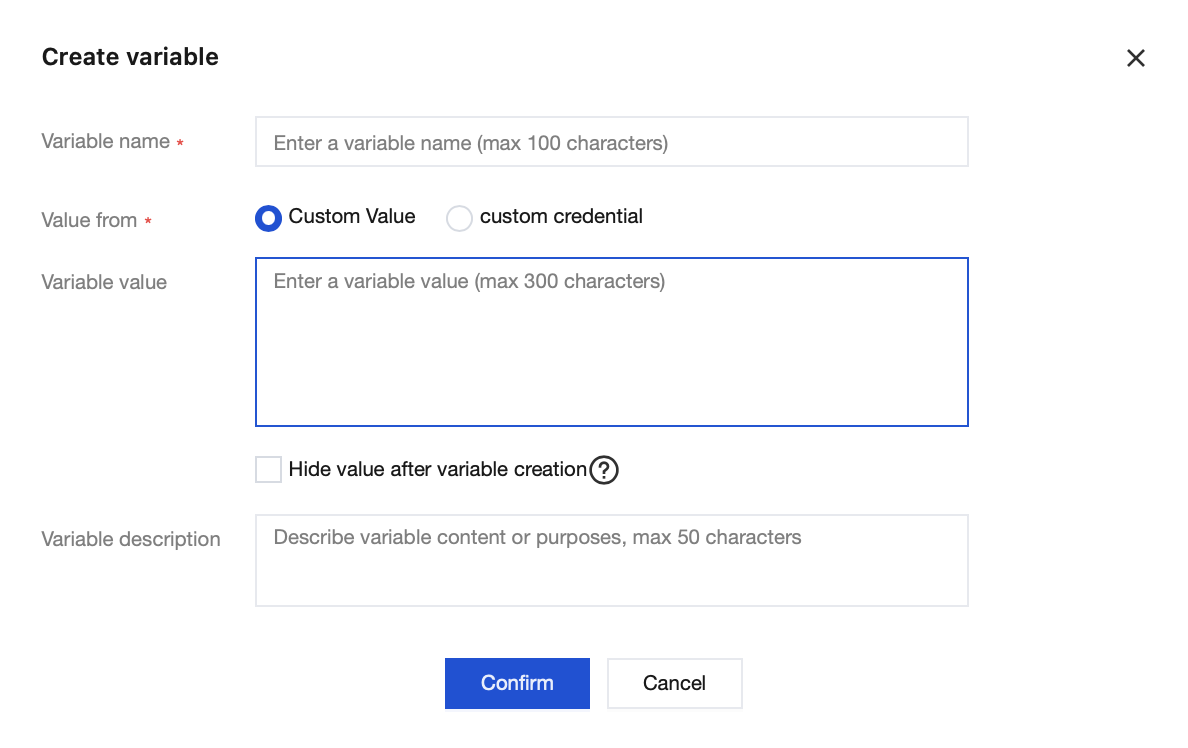
Custom Values
On the Variable Management feature page, select New in the upper-right corner. In the pop-up window, enter the variable information, and then click OK.
Custom Credentials
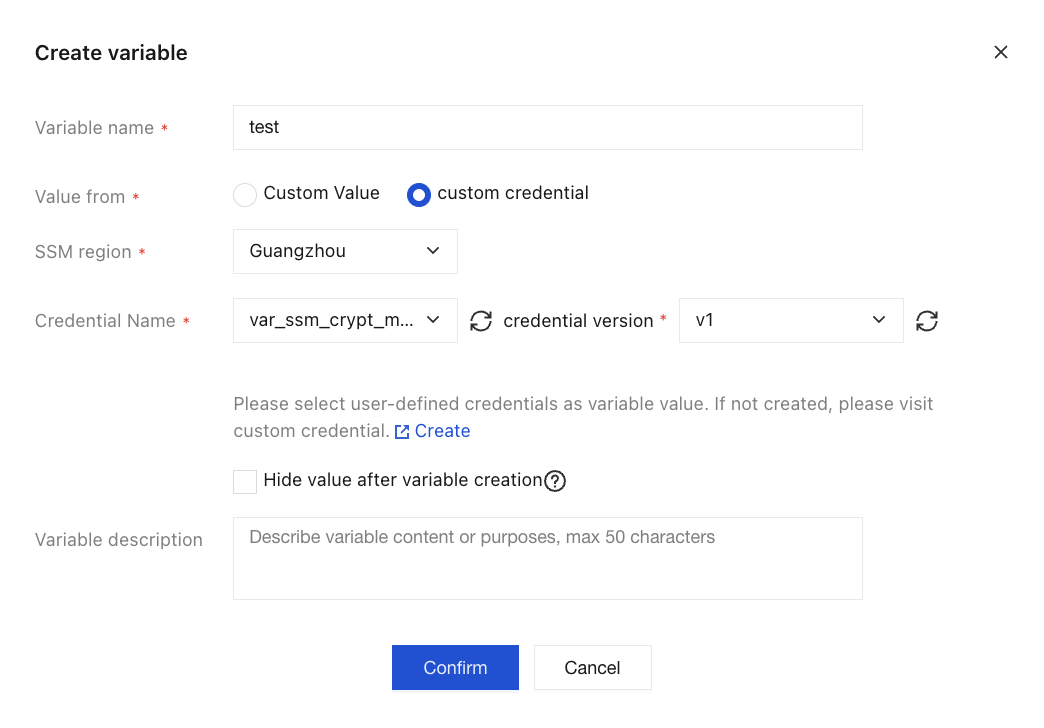
When a job requires sensitive information such as database account passwords, you can use the Custom Credential feature to prevent it from appearing in plaintext in code or variable definitions. The specific procedure is as follows: first, create a custom credential. Then, when creating a variable, select an existing custom credential to associate with it. During job development, you can directly reference this variable. This effectively prevents the problem of sensitive information being exposed in plaintext.
The SSM is an independent product service. Using custom credentials incurs corresponding fees. For details, see the Billing Overview of SSM.
SSM region: It is set to the user's current region by default. If the target credential is not in the current region, you can reselect its region.
Credential Name: The name of a credential that has been defined in the SSM.
Credential Version: Credentials support multi-version management. Select the corresponding version based on your actual requirements.
Note:
Do not delete a custom credential arbitrarily once it is referenced by a job. Deleting a credential that is still in use will cause the associated jobs to fail. If you need to delete a credential, first confirm that it is not referenced by any job.
Referencing Global Variables in Data Tables
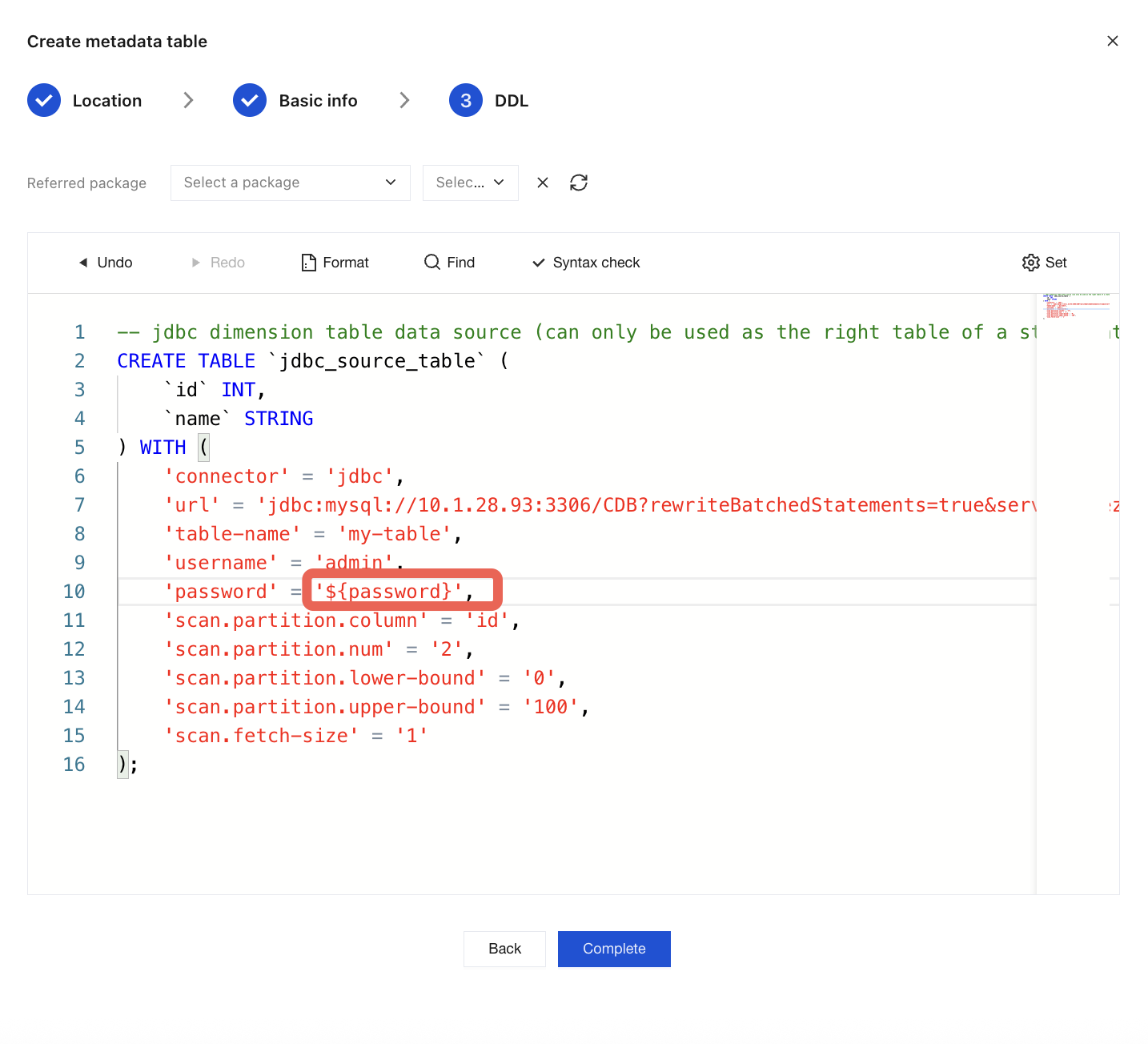
On the Table Reference feature page, choose New > Data Table in the upper-right corner. In the pop-up window, select a Catalog and a Database, and then click Next. You will go to the page for selecting a method to create a metadata table. You can use a template, a custom method, or a cloud resource. If you select Custom or Cloud Resource, you need to enter the corresponding connection information. In the WITH parameters, set the table variables and click Finish. For the table variable naming rules, refer to Table Management.
Referencing Multiple Global Variables
Note:
To reference multiple variables, you can use the ${variable_name} or ${variable_name:default_value} style for concatenation.
Referencing Global Variables in SQL Jobs
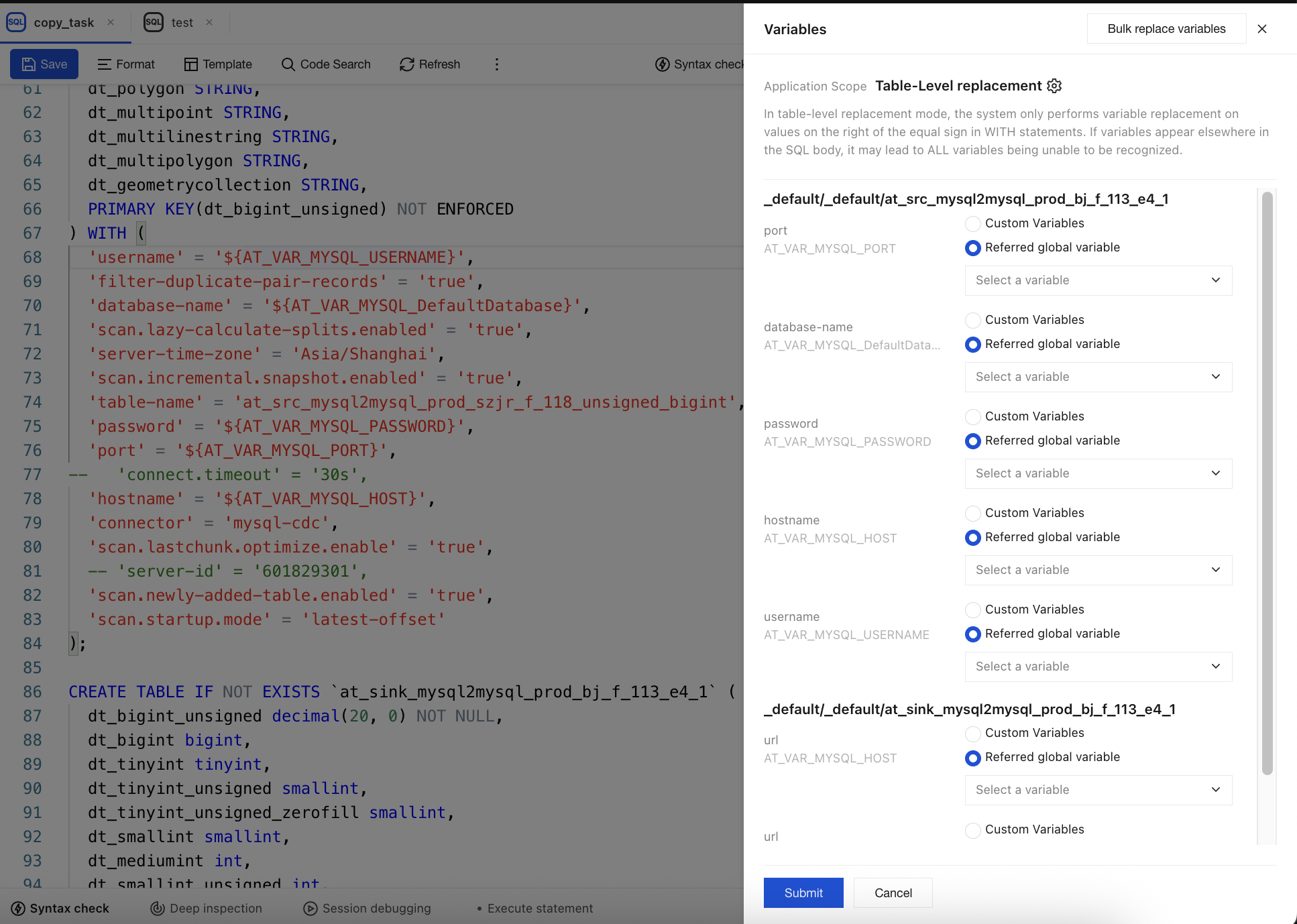
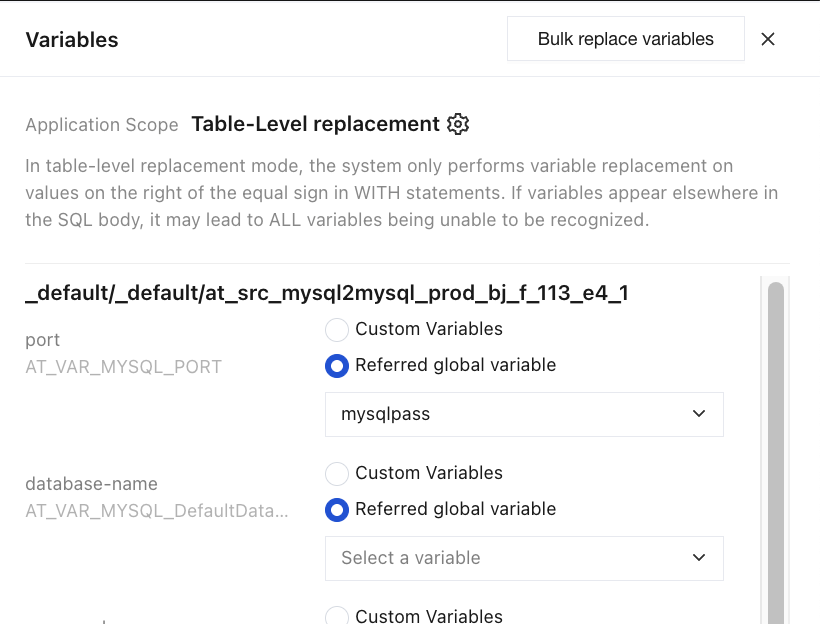
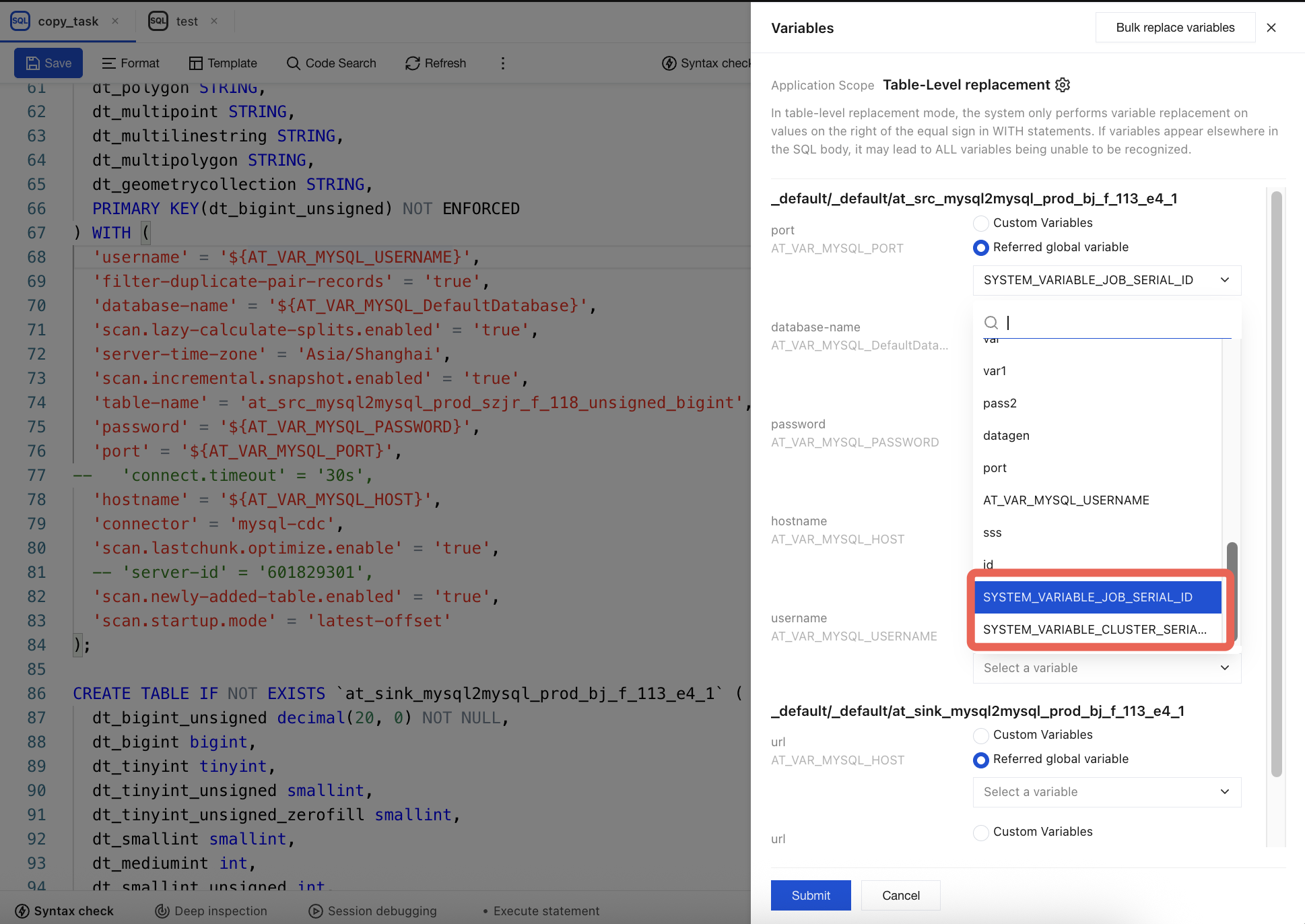
In an SQL job, you can directly reference global variables. Click Table Variable Replacement, and the Operations menu appears on the right. Click Reference Global Variables, and finally click Submit.
System Variables
Replace the following variables with the actual job_id and cluster_id.
${SYSTEM_VARIABLE_JOB_SERIAL_ID}:xx
${SYSTEM_VARIABLE_CLUSTER_SERIAL_ID}:xx
Global SQL Variables
Note:
This feature is currently available on an allowlist basis. To use it, contact us to enable it.
Global SQL variables differ from table variables. Table variables apply only to the WITH parameters of a data table, whereas global SQL variables can be used anywhere in the SQL editor, including field names, table names, and parameter values in DDL and DML statements.
Variable Syntax
Consistent with table variables:
${variable_name}
${variable_name:default_value}
Note:
The underscore _ is used as the separator for variable names. It is recommended to use the syntax ${variable_name}.
Referencing in SQL
In the SQL editor, directly reference variables using the ${variable_name} syntax. The variables are replaced with actual values when the job is saved/published.
SET pipeline.operator-chaining = ${chaining_enabled};
CREATETABLE source (
id INT,
name STRING
)WITH(
'connector'='datagen',
'rows-per-second'='${rows_per_second}'
);
INSERTINTO sink SELECT*FROM source;
Dynamic Expression Variables
Global SQL variables support dynamic expressions. Variable values are dynamically calculated when the job is saved/published.
-- Use a date tool to obtain the current date.
CREATETABLE sink (
id INT,
dt STRING
)WITH(
'connector'='filesystem',
'path'='/data/${dateUtil.today()}'
);
-- Use a UUID tool to generate a unique identifier.