Cloud Recording
Download
Focus Mode
Font Size
This article introduces how to quickly use TUIRoomKit's cloud recording feature to help developers achieve diversified needs such as archiving and reviewing important content in video conferencing, online education, live interactive, and other scenarios. We provide two solutions for you to choose from: Automatic Recording and RESTful API-Based Recording.
Scheme 1. Automatic Recording (Recommended)
We recommend using the automatic recording solution, which does not require the business side to start and stop the recording. The Tencent Cloud Real-Time Audio and Video backend manages the recording tasks, and it automatically records when there is audio and video stream uploading during the call. The access process is fast and simple. You can complete it in the following steps:
1. Find the application of the target
SDKAppId in Application Management in the TRTC console and enter the Advanced Feature page.2. In the Advanced Function configuration page, you can see the option for On-cloud recording configuration. Click on Global Auto-Recording to enter the configuration popup window.
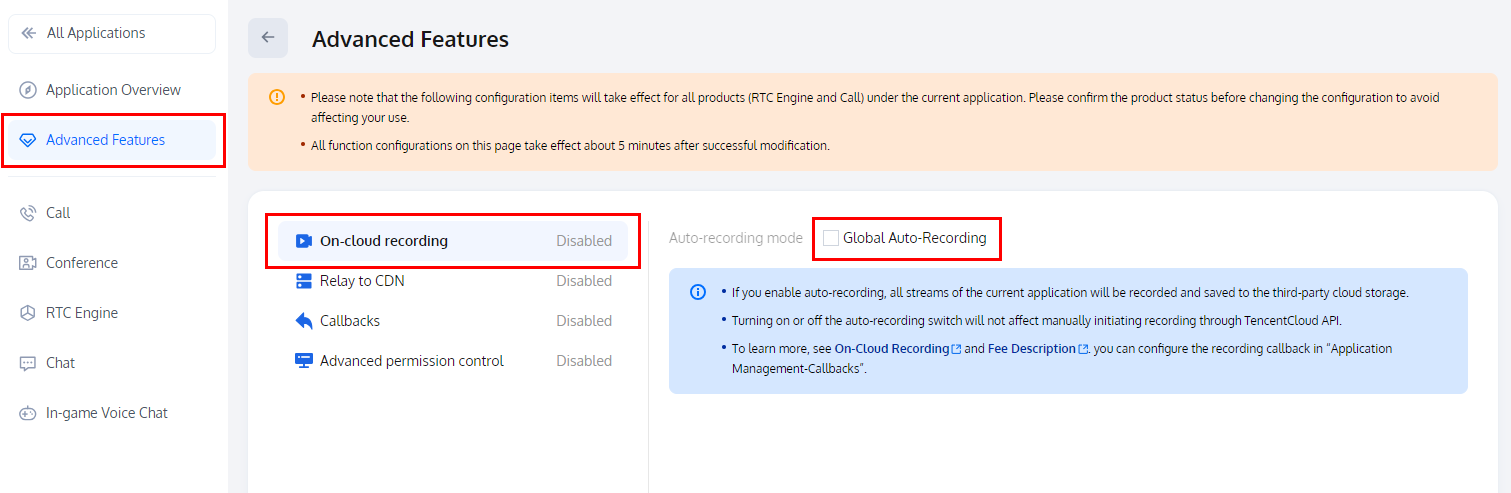
3. In the configuration popup window,you can customize the recording template as needed. 。
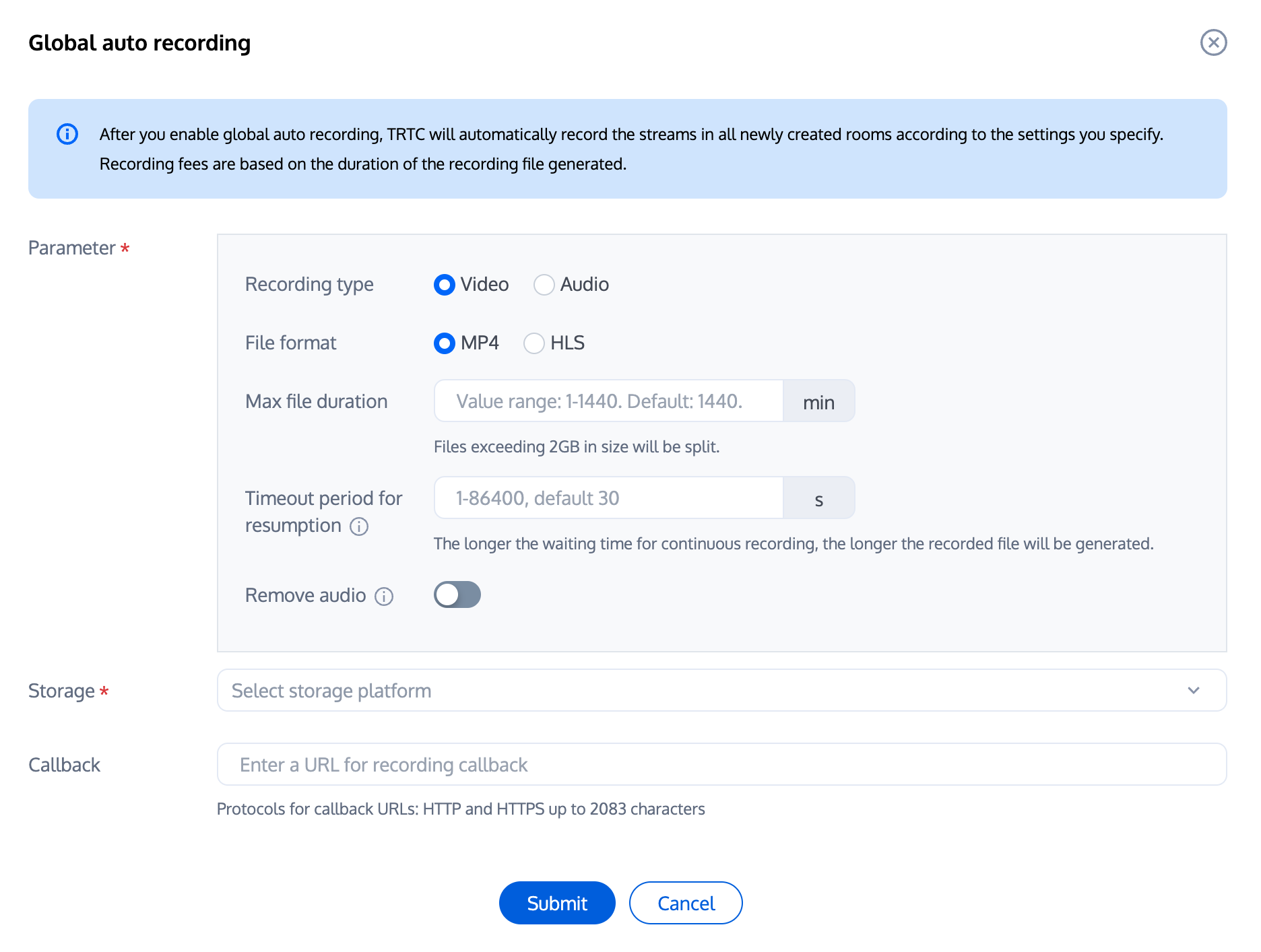
Note:
Global automatic recording only supports single-stream recording (i.e., each host records a single file). Once enabled, it only applies to newly created rooms and does not take effect for rooms created before the automatic recording feature is enabled. If you need to record the screen after mixing multiple streams, please use the RESTful API-Based recording.
Global automatic recording supports recording up to 25 hosts in a room. If there are more than 25 hosts, they will be sorted by the time they enter the room, and the first 25 hosts will be recorded (if you need to record more than 25 hosts in a single stream, please refer to the RESTful API-Based recording).
After enabling the global automatic recording feature, the automatic start recording task will be triggered after the conference starts and there is audio and video uploading. After the conference ends, the recording will automatically stop. If you leave the room abnormally due to network or other situations, our recording backend will automatically stop the recording task according to the MaxIdleTime value you set (idle waiting time, default 5s) to avoid causing additional billing losses.
Scheme 2. RESTful API-Based Recording
If the automatic recording scheme doesn't meet your needs, you can also use the more flexible RESTful API-based recording scheme. In this scheme, you can record and subscribe to a specified anchor in the room, customize the layout of mixed streams, and update the layout and subscription during recording. However, using its features requires using it together with the business backend service and performing complex integration operations:
1. Find the application of the target
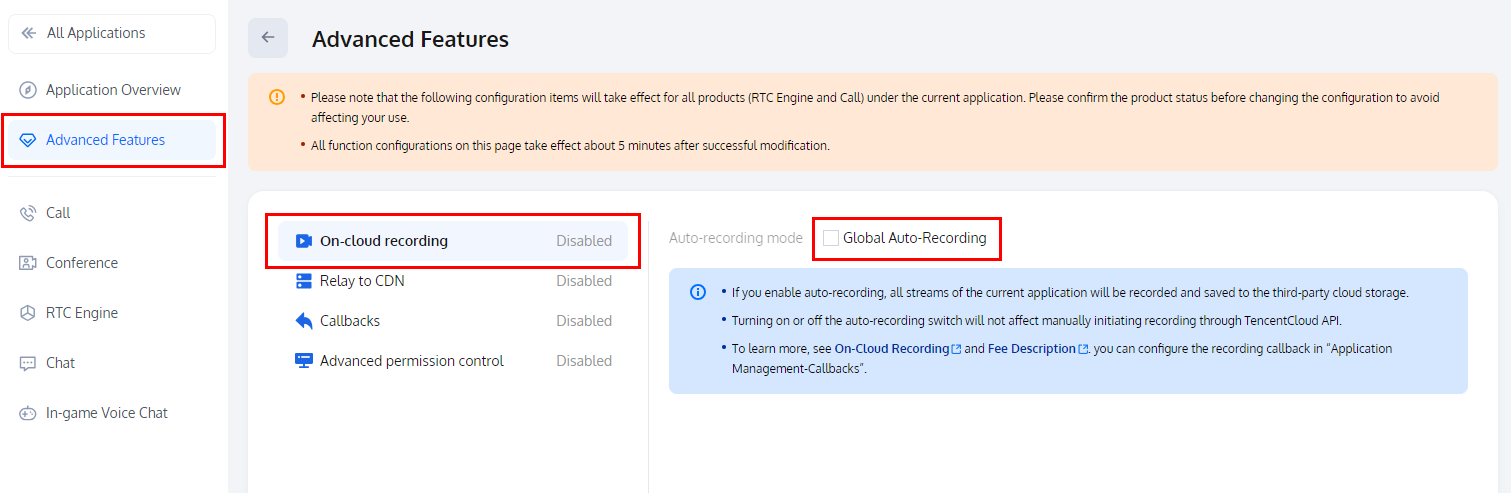
SDKAppId in Application Management in the TRTC console and enter the Advanced Feature page.2. On the Advanced Features configuration page, you can see the options for cloud recording configuration. Enable the cloud recording feature. Here, it is recommended to turn off Global Automatic Recording, which defaults to Manual Custom Recording, that is, RESTful API-based recording mode.
3. Afterward, you can call the REST API (CreateCloudRecording) to start the cloud recording. Here, it is recommended that you can listen to the notification events of TUIRoomObserver and start recording when the meeting starts.
Note:
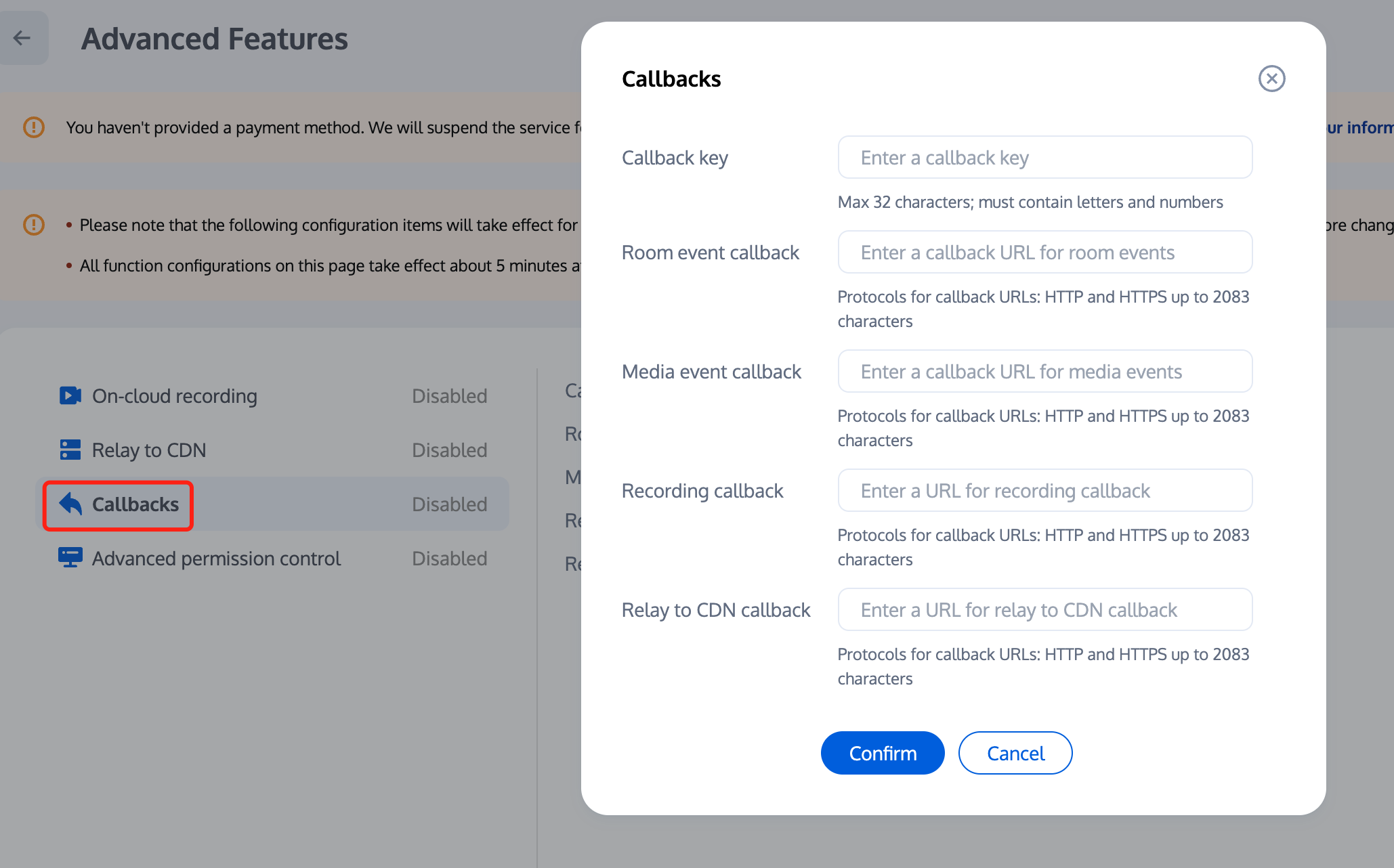
Under manual recording, you can go to the console to configure the callback address to receive recording callback events, please see Recording Callback Description.
FAQs
Can the two recording solutions be used simultaneously?
The Automatic Recording Solution and REST API Recording Solution do not conflict and can be used simultaneously. However, two recording files and fees will be generated.
How do I view recorded files?
Log in to the VOD console, select Video/Audio Management on the left sidebar, click Search by prefix above the list, select Search by prefix, and enter the keyword in the search box. The recording filenames are in the following formats:
The filename format of an MP4 single-stream recording file:
<SdkAppId>_<RoomId>_UserId_s_<UserId>_UserId_e_<MediaId>_<Index>.mp4The filename format of an MP4 mixed-stream recording file:
<SdkAppId>_<RoomId>_<Index>.mp4Help and Support
Was this page helpful?
You can also Contact sales or Submit a Ticket for help.
Help us improve! Rate your documentation experience in 5 mins.
Feedback