TUIRoom(Web)の統合
Download
フォーカスモード
フォントサイズ
コンポーネントの説明
TUIRoomは、UIを含むオープンソースのオーディオビデオコンポーネントであり、TUIRoomの統合により、業務にオーディオビデオルーム、画面共有、チャットなどの機能を速やかに立ち上げることができます。Web側のTUIRoomの基本機能は下図のとおりです。
説明:
TUIKitシリーズコンポーネントはTencent CloudのTRTCとIMという2つの基本的なPaaSサービスを同時に使用し、TRTCをアクティブにした後、IMサービスを同期的にアクティブにすることができます。IMサービスの課金ルールの詳細については、Instant Messagingの料金説明をご参照ください。TRTCをアクティブにすると、デフォルトでは、100DAUまでサポートするIM SDK体験版もアクティブになりますs。
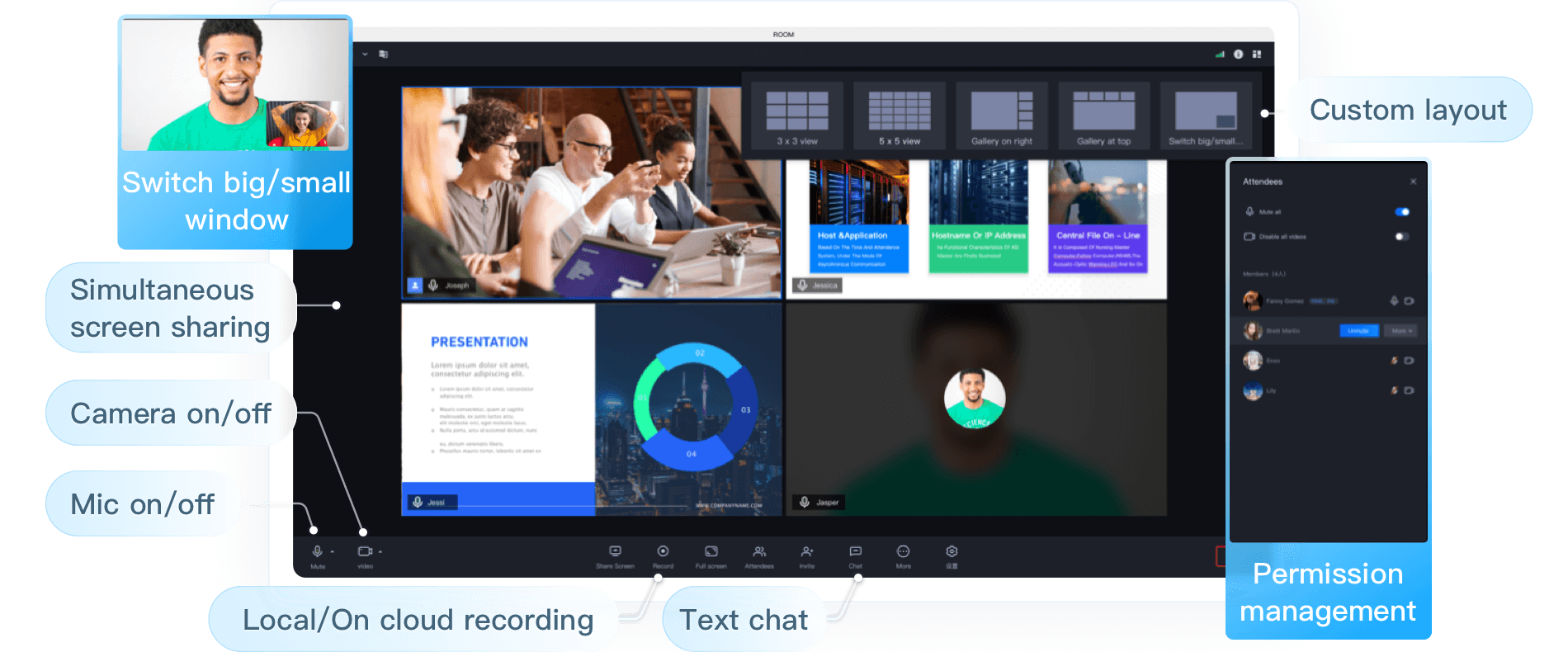
TUIRoomオンラインリンクをクリックすると、TUIRoomのその他の機能を体験できます。
GithubをクリックしてTUIRoomコードをダウンロードし、TUIRoom Webデモプロジェクトのクイックスタートドキュメントを参照してTUIRoom Webデモプロジェクトをクイックスタートできます。
Web側のTUIRoomコンポーネントを既存のビジネスに統合する場合は、このドキュメントをご参照ください。
コンポーネントの統合
TUIRoomコンポーネントは、Vue3+TS+Pinia+Element Plus+SCSSを使用して開発されており、インポート先のプロジェクトにはVue3+TSテクノロジースタックが必要です。
ステップ1:Tencent Cloud TRTCとInstant Messagingサービスを有効化します
TUIRoomは、Tencent Cloud TRTCとInstant Messagingサービスをベースに開発されたものです。
ステップ1. TRTCアプリケーションを作成します
Tencent Cloudアカウントがない場合は、Tencent Cloudアカウントの登録を行ってください。
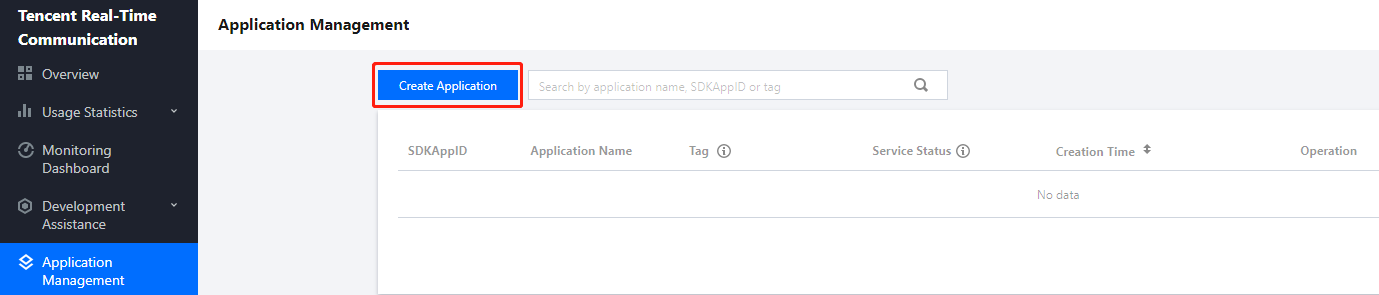
TRTCコンソール で、アプリケーション管理>アプリケーションの作成 をクリックし、新たなアプリケーションを作成します。
2.TRTCキー情報およびキー情報の取得
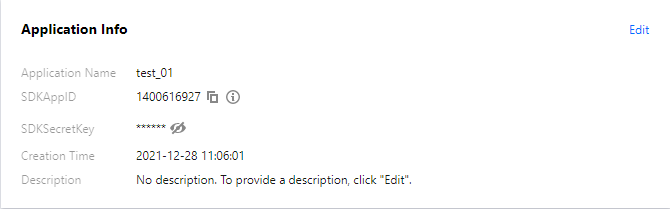
3.アプリケーション管理>アプリケーション情報でSDKAppID情報を取得します。SDKAppIDは、TRTCのアプリケーションIDであり、サービス分離のために使用され、すなわち、異なるSDKAppIDによる通話が相互に通じません。
4.アプリケーション管理>クイックマスターでアプリケーションのsecretKey情報を取得します。SecretKeyはTRTCのアプリケーションキーであり、SDKAppIDとペアで使用してください。TRTCサービスを正当に使用するための認証用チケットUserSigをチェックアウトします。
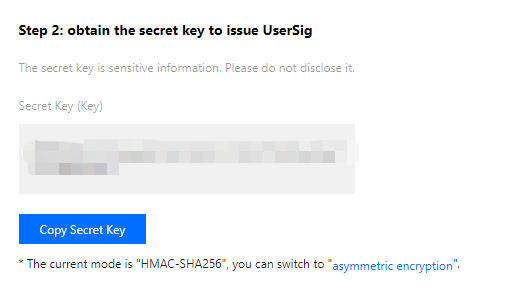
5.UserSigの発行
UserSigとは、悪意ある攻撃者によるクラウドサービスの使用権の盗用を防ぐために、Tencent Cloudによって設計されたセキュリティ保護された署名です。TUIRoomを初期化するには、UserSigパラメータを提供してください。
デバッグスタート段階でuserSigを発行する方法については、デバッグスタート段階でのUserSigの計算方法をご参照ください。
本番環境でuserSigを発行する方法については、本番環境でのUserSigの計算方法をご参照ください。
ステップ2:TUIRoomコンポーネントのダウンロードとコピー
1. Githubをクリックして、TUIRoomウェアハウスコードをクローンまたはダウンロードします。
2. ビジネスサイドで既存のVue3 + TSプロジェクトを開き、ViteとWebpackのパッケージ方式をサポートします。Vue3 + TSのプロジェクトがない場合、以下のいずれかの方法を選択して、テンプレートプロジェクトを生成することができます。
npm create vite@latest TUIRoom-demo -- --template vue
ご注意:
テンプレートプロジェクトスクリプトの生成を実行する場合、ステップ1で直接リターンし、ステップ2でVueを選択し、ステップ3でvue-tsを選択します。
Vue3 + Vite + TSテンプレートプロジェクトの生成に成功したら、以下のスクリプトを実行します。
cd TUIRoom-demonpm installnpm run dev
// vue-cliをインストールします。Vue CLI 4.xはNode.jsのv10以上のバージョンが必要なのでご注意くださいnpm install -g @vue/cli::: Vue3 + Webpack + TSテンプレートプロジェクトの作成vue create TUIRoom-demo
ご注意:
テンプレートプロジェクトスクリプトの生成を実行する場合、テンプレートの生成方式としてManually select featuresを選択し、残りの設定オプションは画像を参照します。
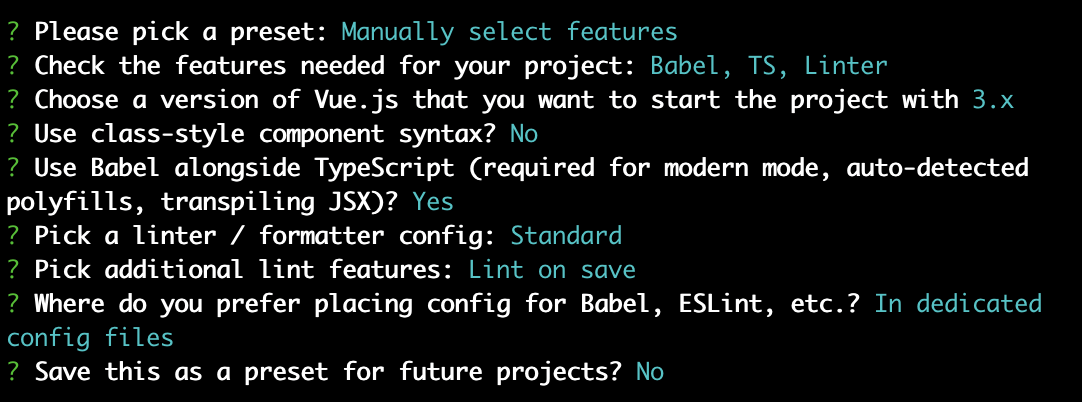
Vue3 + Webpack + TSテンプレートプロジェクトの生成に成功したら、以下のスクリプトを実行します。
cd TUIRoom-demonpm run serve
3.
TUIRoom/Web/src/TUIRoomフォルダを既存のプロジェクトsrc/ディレクトリにコピーします。ステップ3:TUIRoomコンポーネントのインポート
1. ページでTUIRoomコンポーネントを参照します。例:TUIRoomコンポーネントを
App.vueコンポーネントにインポートします。TUIRoomコンポーネントは、ユーザーをキャスターロールと一般メンバーロールに分けます。コンポーネントは外部にinit、createRoom、enterRoomの各メソッドを提供します。
キャスターと一般メンバーはinitメソッドを使用してTUIRoomコンポーネントの適用とユーザーデータを初期化できます。キャスターはcreateRoomメソッドを使用してルームを作成して参加します。一般メンバーはenterRoomメソッドを使用してキャスターが作成したルームに参加できます。
<template><room ref="TUIRoomRef"></room></template><script setup lang="ts">import { ref, onMounted } from 'vue';// TUIRoomコンポーネントをインポートします。インポートパスが正しいことを確認してくださいimport Room from './TUIRoom/index.vue';// TUIRoomコンポーネントのメソッドを呼び出すために、TUIRoomコンポーネント要素を取得しますconst TUIRoomRef = ref();onMounted(async () => {// TUIRoomコンポーネントの初期化// キャスターはルームを作成する前にTUIRoomコンポーネントを初期化してください// 一般メンバーは、ルームに参加する前にTUIRoomコンポーネントを初期化してくださいawait TUIRoomRef.value.init({// sdkAppIdを取得するにはステップ1をご参照くださいsdkAppId: 0,// ビジネスにおけるユーザーの一意の識別IDuserId: '',// ローカル開発デバッグは、userSigをhttps://console.tencentcloud.com/trtc/usersigtoolページにすばやく生成します。userSigとuserIdは1対1で対応していることに注意してくださいuserSig: '',// ユーザーがビジネスで使用するニックネームuserName: '',// ユーザーがビジネスで使用するアバターへのリンクuserAvatar: '',// 画面共有のためにユーザーが使用する一意のID。shareUserId=`share_${userId}`が必要です。画面共有機能が要求されない場合は渡す必要がありませんshareUserId: '',// このドキュメントのステップ1>3を参照し、sdkAppIdとshareUserIdを使用してshareUserSigを発行してくださいshareUserSig: '',})// デフォルトではルームの作成が実行され、実際のインポートはオンデマンドでhandleCreateRoomメソッドが実行されますawait handleCreateRoom();})// キャスターがルームを作成します。このメソッドはルームが作成されたときにのみ呼び出されますasync function handleCreateRoom() {// roomIdはユーザーが参加するルーム番号です。roomIdタイプはnumber型が必要です// roomModeは、'FreeSpeech'(自由発言モード)と'ApplySpeech'(举手発言モード)の2モードを含み、デフォルトは'FreeSpeech'です。現在、自由発言モードだけをサポートします// roomParamは、ユーザがルームに参加したときのデフォルトの動作を指定します(デフォルトでマイクをオンにするかどうか、デフォルトでカメラをオンにするかどうか、デフォルトのメディアデバイスID)const roomId = 123456;const roomMode = 'FreeSpeech';const roomParam = {isOpenCamera: true,isOpenMicrophone: true,}await TUIRoomRef.value.createRoom(roomId, roomMode, roomParam);}// 一般メンバーがルームに参加します。このメソッドは作成されたルームに一般メンバーが参加するときに呼び出されますasync function handleEnterRoom() {// roomIdはユーザーが参加するルーム番号です。roomIdタイプはnumber型が必要です// roomParamは、ユーザがルームに参加したときのデフォルトの動作を指定します(デフォルトでマイクをオンにするかどうか、デフォルトでカメラをオンにするかどうか、デフォルトのメディアデバイスID)const roomId = 123456;const roomParam = {isOpenCamera: true,isOpenMicrophone: true,}await TUIRoomRef.value.enterRoom(roomId, roomParam);}</script><style>html, body {width: 100%;height: 100%;margin: 0;}#app {width: 100%;height: 100%;}</style>
ご注意:
ページで上記のコードをコピーした後、TUIRoomインターフェースのパラメータを実際のデータに変更する必要があります。
ステップ4:開発環境の設定
TUIRoomコンポーネントがインポートされたら、プロジェクトが正常に機能するように、次の設定を行ってください
1. 依存関係のインストール
開発環境の依存関係をインストールします。
npm install sass typescript unplugin-auto-import unplugin-vue-components -S -D
本番環境の依存関係をインストールします。
npm install element-plus events mitt pinia rtc-beauty-plugin tim-js-sdk trtc-js-sdk tsignaling -S
2. Piniaの登録
TUIRoomはPiniaを使用してルームのデータ管理を行います。Piniaをプロジェクトエントリファイルに登録してください。プロジェクトエントリファイルは
src/main.tsファイルです。// src/main.tsファイルimport { createPinia } from 'pinia';const app = createApp(App);// pinia登録app.use(createPinia());app.mount('#app');
3. element-plusをオンデマンドでインポートするための設定
TUIRoomはelement-plus UIコンポーネントを使用します。すべてのelement-plusコンポーネントがインポートされないようにするには、
vite.config.tsでelement-plusコンポーネントをオンデマンドでロードするように設定してください。ご注意:
以下の設定項目は増分設定です。すでに存在するVite設定項目を削除しないでください。
// vite.config.tsimport AutoImport from 'unplugin-auto-import/vite';import Components from 'unplugin-vue-components/vite';import { ElementPlusResolver } from 'unplugin-vue-components/resolvers';export default defineConfig({// ...plugins: [AutoImport({resolvers: [ElementPlusResolver()],}),Components({resolvers: [ElementPlusResolver({importStyle: 'sass',})],}),],css: {preprocessorOptions: {scss: {// ...additionalData: `@use "./src/TUIRoom/assets/style/element.scss" as *;`,},},},});
また、UI付きのelement-plus コンポーネントがスタイルを正しく表示するためには、エントリファイル
src/main.tsにelement-plusコンポーネントスタイルをロードしてください。// src/main.tsimport 'element-plus/theme-chalk/el-message.css';import 'element-plus/theme-chalk/el-message-box.css';
1. 依存関係のインストール
開発環境の依存関係をインストールします。
npm install sass sass-loader typescript unplugin-auto-import unplugin-vue-components unplugin-element-plus @types/events -S -D
本番環境の依存関係をインストールします。
npm install element-plus events mitt pinia rtc-beauty-plugin tim-js-sdk trtc-js-sdk tsignaling -S
2. Piniaの登録
TUIRoomはPiniaを使用してルームのデータ管理を行います。Piniaをプロジェクトエントリファイルに登録してください。プロジェクトエントリファイルは
src/main.tsファイルです。// src/main.tsファイルimport { createPinia } from 'pinia';const app = createApp(App);// pinia登録app.use(createPinia());app.mount('#app');
3. element-plusをオンデマンドでインポートするための設定
TUIRoomはelement-plus UIコンポーネントを使用します。すべてのelement-plusコンポーネントをインポートしてしまわないように、
vue.config.jsで、element-plusコンポーネントを必要に応じてロードするように設定しておく必要があります。ご注意:
以下の設定項目は増分設定です。すでに存在するvue.config.js設定項目を削除しないでください。
// vue.config.jsconst { defineConfig } = require('@vue/cli-service')const AutoImport = require('unplugin-auto-import/webpack')const Components = require('unplugin-vue-components/webpack')const { ElementPlusResolver } = require('unplugin-vue-components/resolvers')const ElementPlus = require('unplugin-element-plus/webpack')module.exports = defineConfig({transpileDependencies: true,css: {loaderOptions: {scss: {additionalData: '@use "./src/TUIRoom/assets/style/element.scss" as *;'}}},configureWebpack: {plugins: [AutoImport({resolvers: [ElementPlusResolver({ importStyle: 'sass' })]}),Components({resolvers: [ElementPlusResolver({ importStyle: 'sass' })]}),// 必要に応じてインポート時のテーマカラーをカスタマイズElementPlus({useSource: true})]}})
また、UI付きのelement-plus コンポーネントがスタイルを正しく表示するためには、エントリファイル
src/main.tsにelement-plusコンポーネントスタイルをロードしてください。// src/main.tsimport 'element-plus/theme-chalk/el-message.css';import 'element-plus/theme-chalk/el-message-box.css';
4. ts宣言ファイルの設定
src/shims-vue.d.tsファイルに以下の設定を追加します。declare module 'tsignaling/tsignaling-js' {import TSignaling from 'tsignaling/tsignaling-js';export default TSignaling;}declare module 'tim-js-sdk' {import TIM from 'tim-js-sdk';export default TIM;}declare const Aegis: any;
ステップ5:開発環境の実行
コンソールで開発環境実行スクリプトを実行し、ブラウザを使用してTUIRoomを含むページを開くと、ページ内でTUIRoomコンポーネントを使用できます。
ステップ2のスクリプトを使用してVue + Vite + TSプロジェクトを生成する場合は、次の事項を行う必要があります。
1. 開発環境コマンドを実行します。
npm run dev
2. ブラウザでページ
http://localhost:3000/を開きます。ご注意:
TUIRoomはオンデマンドでelement-plusコンポーネントをインポートするため、開発環境のルーティングページが最初にロードされたときの反応が遅くなり、element-plusがオンデマンドでロードされるのを待つと正常に機能するようになります。element-plusのオンデマンドロードは、パッケージング後のページロードには影響しません。
3. TUIRoomコンポーネント機能を体験します。
ステップ2のスクリプトを使用してVue + Webpack + TSプロジェクトを生成する場合は、次の事項を行う必要があります。
1. 開発環境コマンドを実行します。
npm run serve
2. ブラウザで
http://localhost:8080/のページを開きますご注意:
実行中、src/TUIRoomディレクトリでeslintエラーが発生した場合、.eslintignoreファイルに/src/TUIRoomのパスを追加すると、eslintチェックをブロックできます。
3. TUIRoomコンポーネント機能を体験します。
ステップ6:本番環境のデプロイ
1. distファイルのパッケージ
npm run build
説明:
実際のパッケージコマンドについてはpackage.jsonファイルをご確認ください。
2. distファイルのサーバーへのデプロイ
ご注意:
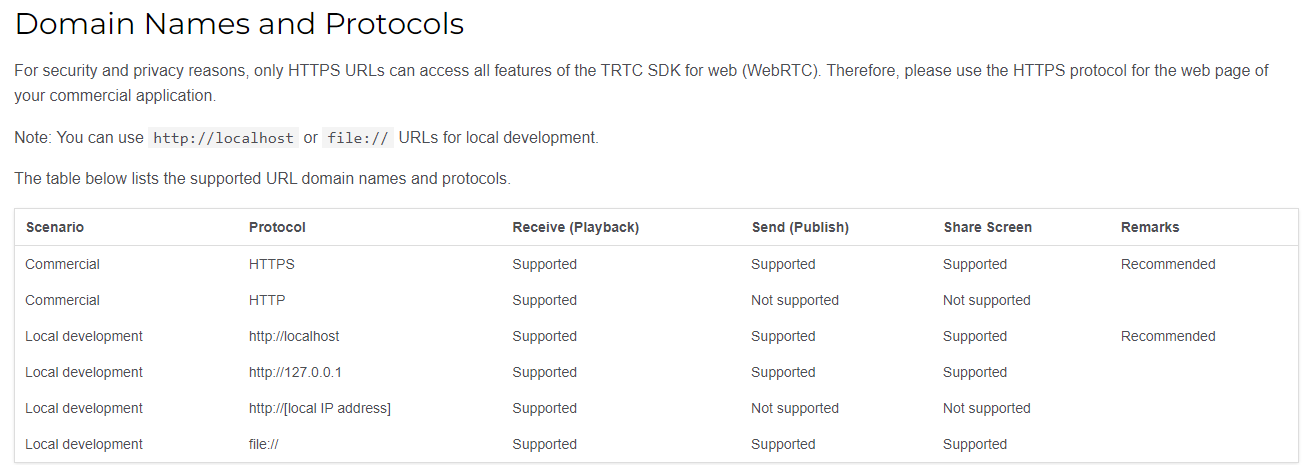
本番環境ではHTTPSドメイン名を使用する必要があります。
付録:TUIRoom API
TUIRoomインターフェース
init
TUIRoomデータを初期化します。TUIRoomを使用するすべてのユーザーはinitメソッドを呼び出してください。
TUIRoomRef.value.init(roomData);
パラメータは下表に示すとおりです。
パラメータ | タイプ | 意味 |
roomData | object | |
roomData.sdkAppId | number | お客様のSDKAppId |
roomData.userId | string | ユーザーの唯一ID |
roomData.userSig | string | ユーザーのUserSig |
roomData.userName | string | ユーザーのニックネーム |
roomData.userAvatar | string | ユーザーのプロフィール写真 |
roomData.shareUserId | string | 非必須。ユーザーが画面共有を行うUserIdです。shareUserId= share_${userId}が要求され、画面共有機能がない場合は渡されません |
roomData.shareUserSig | string | 非必須。ユーザーが画面共有を行うUserSig |
createRoom
キャスターがルームを作成します。
TUIRoomRef.value.createRoom(roomId, roomMode, roomParam);
パラメータは下表に示すとおりです。
パラメータ | タイプ | 意味 |
roomId | number | ルームID |
roomMode | string | ルームモードです。'FreeSpeech'(自由発言モード)と'ApplySpeech'(举手発言モード)を含み、デフォルトは'FreeSpeech'です。現在、自由発言モードだけをサポートします |
roomParam | Object | 非必須 |
roomParam.isOpenCamera | string | 非必須。入室はカメラをオンにするかどうか。デフォルトはオフです |
roomParam.isOpenMicrophone | string | 非必須。入室はマイクをオンにするかどうか。デフォルトはオフです |
roomParam.defaultCameraId | string | 非必須。デフォルトはカメラ装置のID |
roomParam.defaultMicrophoneId | string | 非必須。デフォルトはマイク装置のID |
roomParam.defaultSpeakerId | String | 非必須。デフォルトはスピーカー装置のID |
enterRoom
一般メンバーがルームに参加します。
TUIRoomRef.value.enterRoom(roomId, roomParam);
パラメータは下表に示すとおりです。
パラメータ | タイプ | 意味 |
roomId | number | ルームID |
roomParam | Object | 非必須 |
roomParam.isOpenCamera | string | 非必須。入室はカメラをオンにするかどうか。デフォルトはオフです |
roomParam.isOpenMicrophone | string | 非必須。入室はマイクをオンにするかどうか。デフォルトはオフです |
roomParam.defaultCameraId | string | 非必須。デフォルトはカメラ装置のID |
roomParam.defaultMicrophoneId | string | 非必須。デフォルトはマイク装置のID |
roomParam.defaultSpeakerId | String | 非必須。デフォルトはスピーカー装置のID |
TUIRoomイベント
onRoomCreate
ルーム作成のコールバック。
<template><room ref="TUIRoomRef" @on-room-create="handleRoomCreate"></room></template><script setup lang="ts">// TUIRoomコンポーネントをインポートします。インポートパスが正しいことを確認してくださいimport Room from './TUIRoom/index.vue';function handleRoomCreate(info) {if (info.code === 0) {console.log('ルーム作成成功')}}</script>
onRoomEnter
入室コールバック。
<template><room ref="TUIRoomRef" @on-room-enter="handleRoomEnter"></room></template><script setup lang="ts">// TUIRoomコンポーネントをインポートします。インポートパスが正しいことを確認してくださいimport Room from './TUIRoom/index.vue';function handleRoomEnter(info) {if (info.code === 0) {console.log('入室成功')}}</script>
onRoomDestory
キャスターがルームを廃棄する通知。
<template><room ref="TUIRoomRef" @on-room-destory="handleRoomDestory"></room></template><script setup lang="ts">// TUIRoomコンポーネントをインポートします。インポートパスが正しいことを確認してくださいimport Room from './TUIRoom/index.vue';function handleRoomDestory(info) {if (info.code === 0) {console.log('キャスターが廃棄することに成功しました')}}</script>
onRoomExit
一般メンバーが退室する通知。
<template><room ref="TUIRoomRef" @on-room-exit="handleRoomExit"></room></template><script setup lang="ts">// TUIRoomコンポーネントをインポートします。インポートパスが正しいことを確認してくださいimport Room from './TUIRoom/index.vue';function handleRoomExit(info) {if (info.code === 0) {console.log('一般メンバーが退室することに成功しました')}}</script>
onKickOff
一般メンバーがキャスターにルームからキックアウトされたときの通知です。
<template><room ref="TUIRoomRef" @on-kick-off="handleKickOff"></room></template><script setup lang="ts">// TUIRoomコンポーネントをインポートします。インポートパスが正しいことを確認してくださいimport Room from './TUIRoom/index.vue';function handleKickOff(info) {if (info.code === 0) {console.log('一般メンバーがキャスターにルームからキックアウト')}}</script>
フィードバック