Cloud Log Service (CLS) now supports active subscription to cloud product metrics from Tencent Cloud Observability Platform (TCOP) (formerly Cloud Monitoring). This document describes how to integrate cloud product metrics into CLS by subscribing to cloud product metrics.
Prerequisites
The relevant permissions for cloud product metric subscription have been configured. For details, see Access Policy Templates.
A logset and metric topic have been created. For detailed instructions, see Logset and Metric Topic.
2. In the left sidebar, click Metric Topic, select the metric topic to which you want to ship the logs, and click the metric topic name to go to the topic details page. If you have not yet created a metric topic, click Create Metric Topic to create one. For details, see Metric Topic.
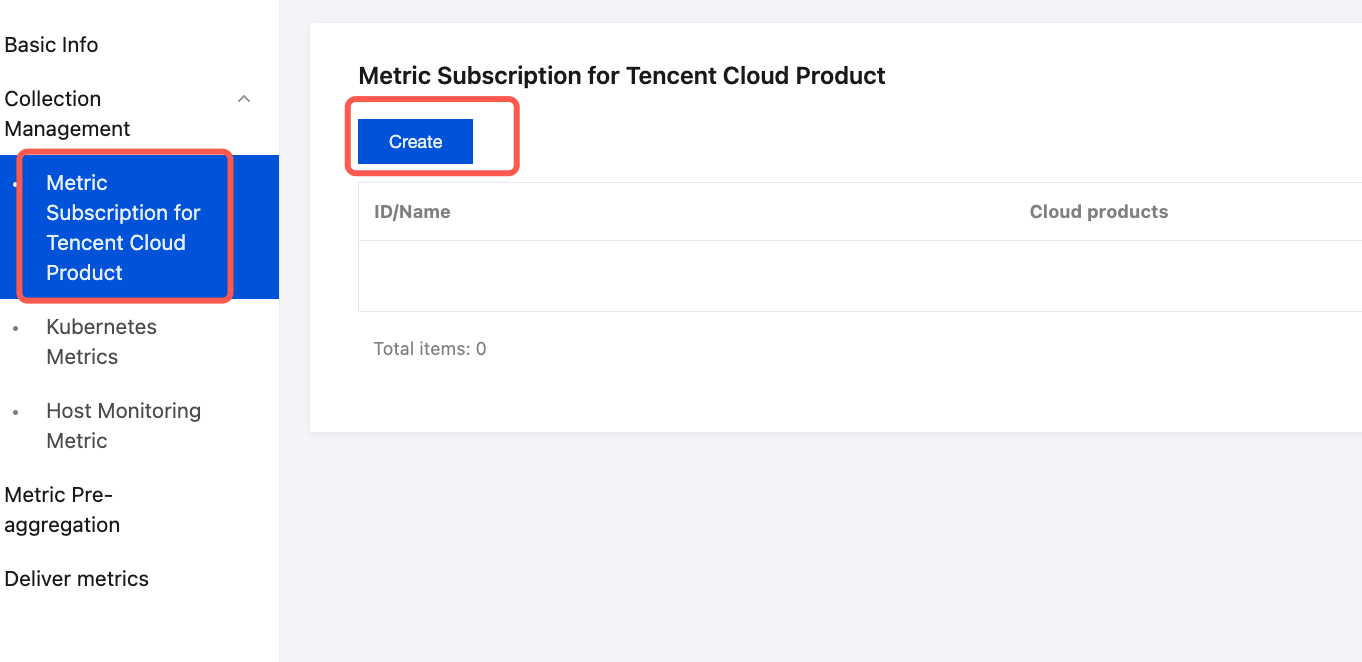
3. On the metric topic details page, choose Collection Management > Metric Subscription for Tencent Cloud Product in the left sidebar, and then click Create on the right on the cloud product metric subscription rule management page to enter the configuration process.
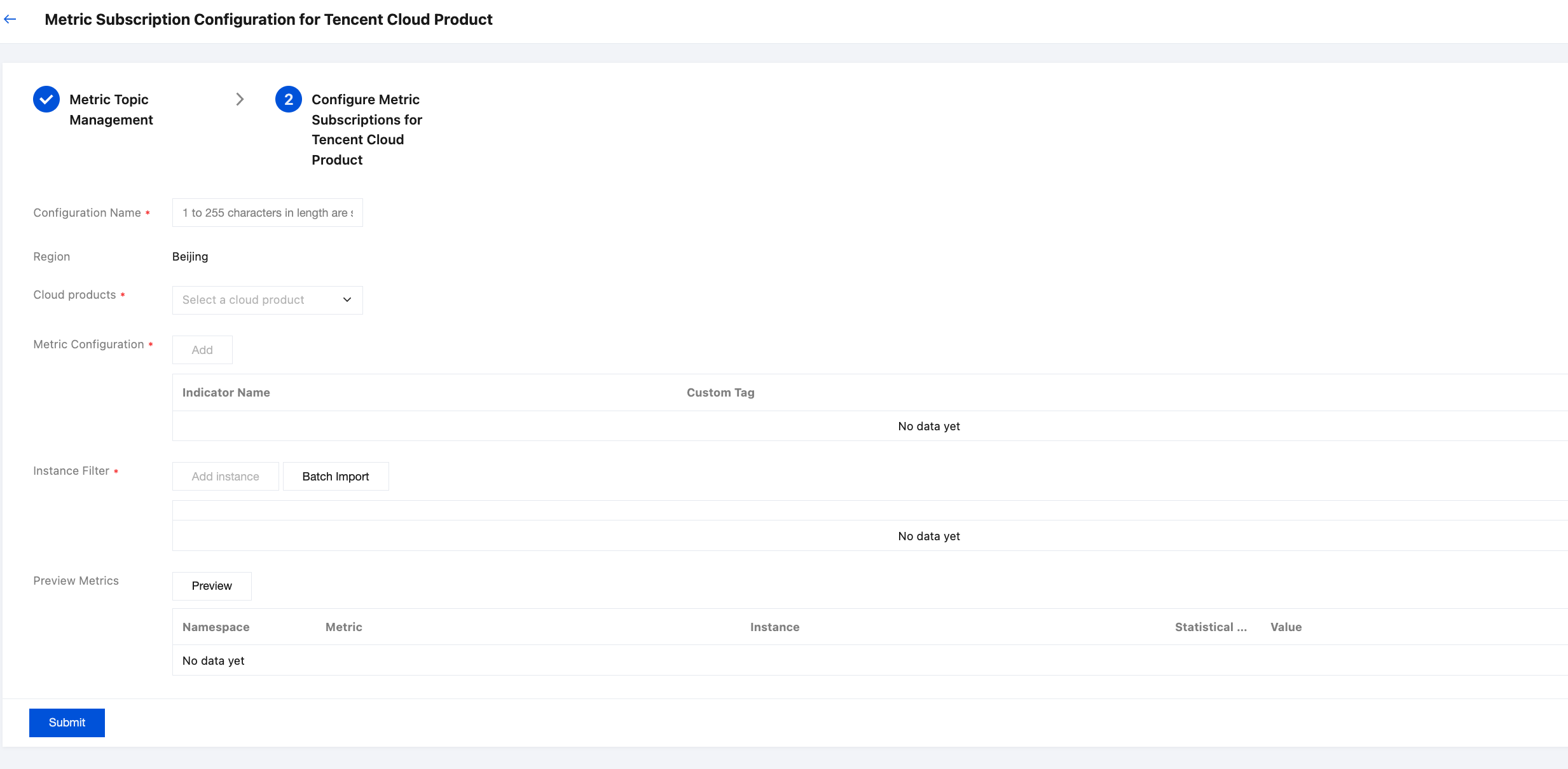
1. In the procedure of configuring the cloud product metric subscription, use the following configurations:
Configuration Name: Specify the name of the current subscription configuration.
Cloud products: Select the namespace corresponding to the target cloud product that needs to be collected. To query the namespace corresponding to the cloud product you need to collect, see Tencent Cloud Service Metrics.
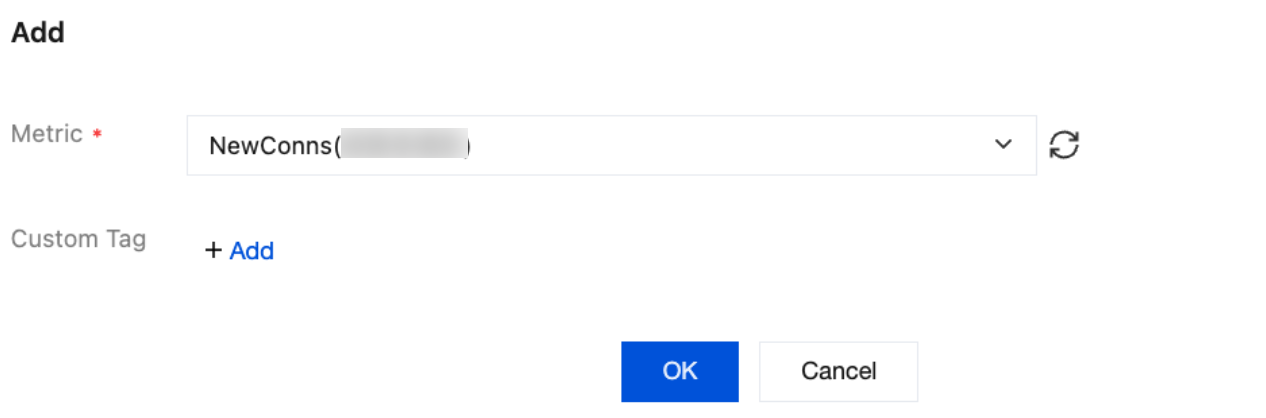
Metric Configuration: Click Add and configure the following parameters in the pop-up window:
Metrics: Select the metrics to be subscribed to.
Custom Tags: You can choose to add custom tags to subscribed metrics. Multiple tags are supported.
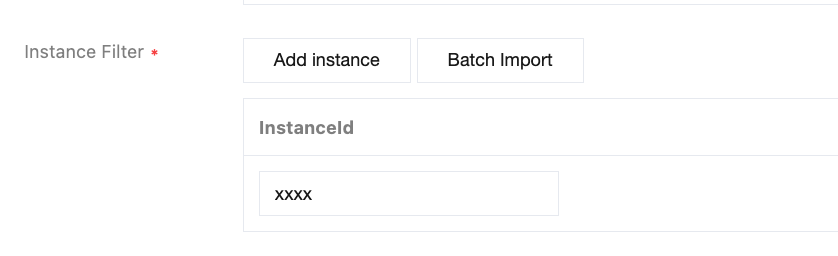
Instance Filter: Filter target instance objects by manual addition or batch import.
Manual addition: You can click Add Instance and fill in the dimension information of the target instance.
Note:
Each instance object is a collection in the format of key-value pairs. Different types of instances may require different dimension combinations. For example, each CVM instance needs to be uniquely specified by InstanceID, while COS requires appid and bucket to uniquely specify a bucket. For more details, see Tencent Cloud Service Metrics.
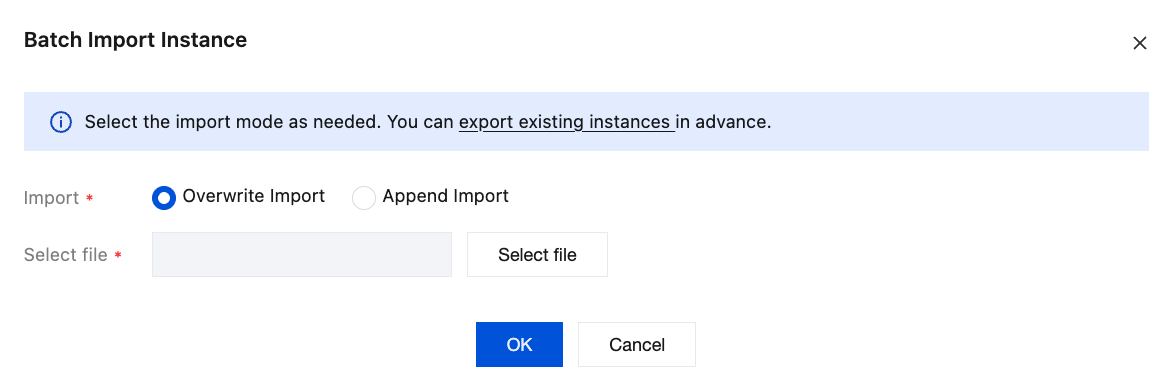
Batch Import: You can click Batch Import and import the instance dimension combination CSV file in the pop-up window.
Overwrite Import: The imported instance dimension combination will overwrite the currently configured instance dimension combination.
Append Import: The imported instance dimension combination will be appended to the currently configured instance dimension combination.
Note:
If you are unsure about the CSV format, you can click export existing instances after completing the configuration details in step 1 to view the file format requirements for the CSV.
2. Preview metrics: You can click Preview to preview the current configuration, as shown in the figure below:
3. Save: After previewing and confirming the metrics, you can click Submit to save the metric subscription configuration.
Step 3: Searching and Analyzing Metrics
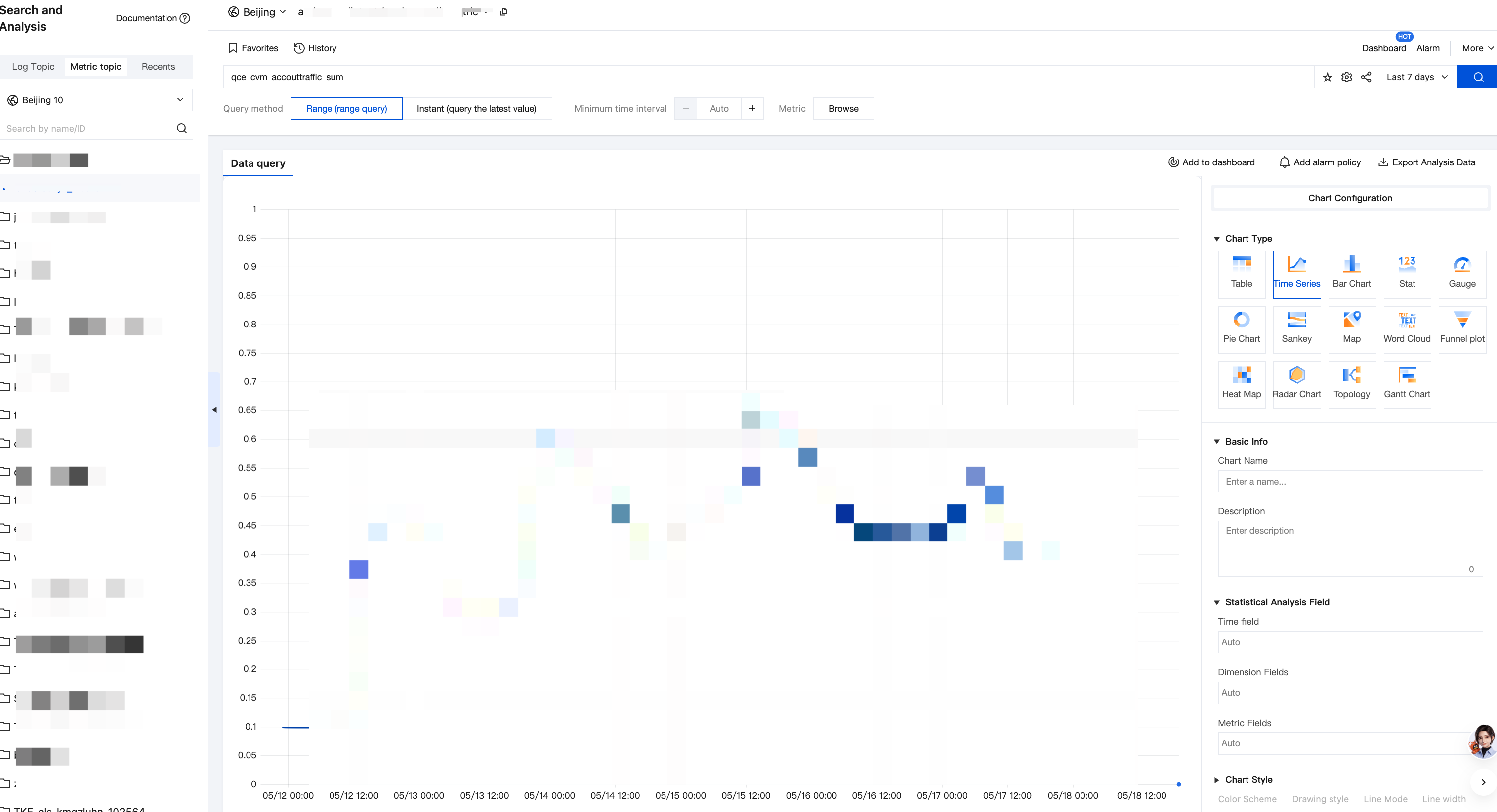
At this point, you have completed the configuration of the cloud product metric subscription. Next, you can go to the search page, select the target metric topic on the left side of the console, and proceed to search and query metrics. For metric search syntax rules, see Syntax and Rules.
Other Operations
Managing Subscription Tasks
After completing the cloud product metric subscription configuration, you can view and manage all created cloud product metric subscription tasks in Metric Subscription for Tencent Cloud Product on the topic details page.