Guide to Solidifying Live Highlights Editing to VOD
Download
Focus Mode
Font Size
Last updated: 2026-06-12 10:01:59
AI-Translated
Note:
After using live highlights editing, you can follow the guide below to solidify live edited clips to VOD.
Overview
Through VOD, you can save the edited video as an independent video (with an independent FileId). Its lifecycle is not affected by the original live recorded video (even if the original recorded video is deleted, the edited result will not be affected). You can also perform secondary processing such as transcoding, distribution, playback, and online editing. The advantage of solidifying the edited video is that its lifecycle is independent of the original recorded video, allowing for independent management and long-term preservation.
Console Operation Steps
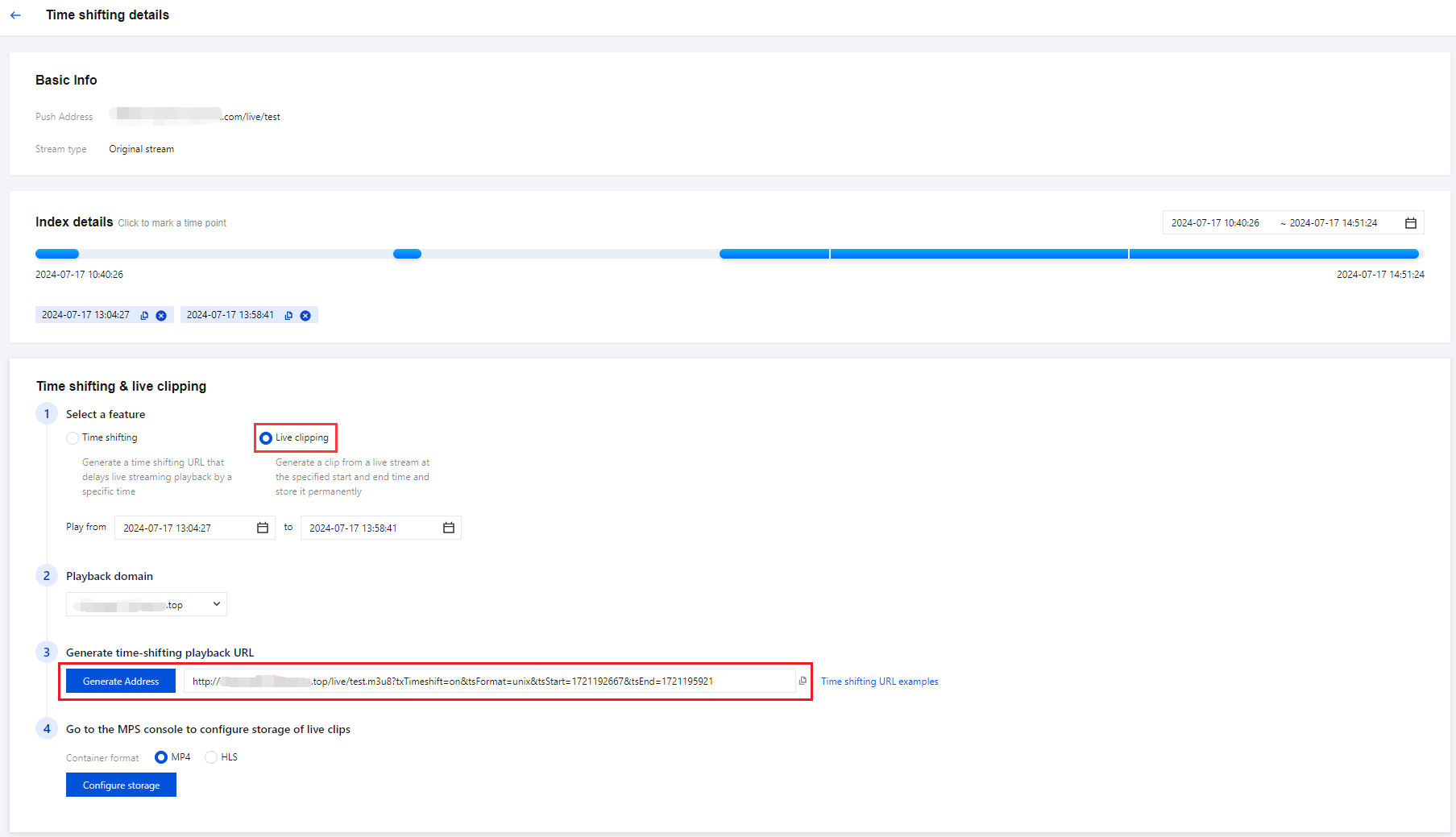
1. Log in to the CSS console to obtain the URL generated in live highlights editing. For details, see Live Highlights Editing.
2. Log in to the VOD console, select Video/Audio Management > Audio/Video Management, and you will enter the "Uploaded" page by default.
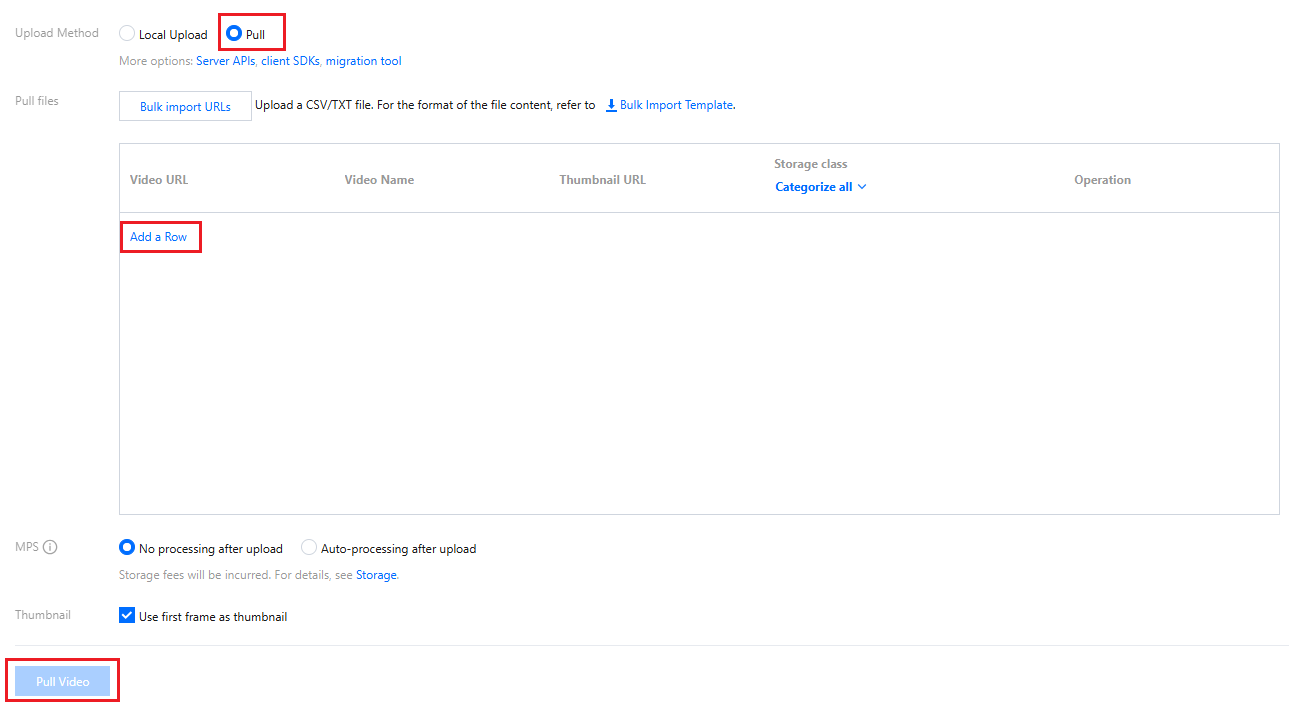
3. Click Uploaded to enter the "Upload Audio/Video Files" page.
4. Select the upload method as Pull, click Add a Row in the upload box, and enter the URL generated in live highlights editing.
Note:
Uploading audio and video files may take a few minutes. You can check the video upload progress in Audio/Video Management > Uploading. Once the video is successfully uploaded, you can view and manage all your videos in Audio/Video Management > Upload.
5. (Optional) If you want to process the solidified live highlights video file, such as transcoding, you can go to Audio/Video Management > Upload, select Auto-processing after upload, set the task flow, and then click Pull Video; or return to the Audio/Video Management page to initiate tasks such as transcoding for the file.
API Operation Steps
VOD supports solidification through the upload API by pulling the URL generated in live highlights editing. Use the URL generated in live highlights editing as the input parameterMediaUrl. For detailed steps, please see PullUpload.