Initializing the mini program SDK requires obtaining from the mini program console the superapp's the "Encryption key" or configuration file.If you have not yet created a superapp in the console, follow the steps below to create one.
1.1 Log in to the mini program console and go to the superapp management page
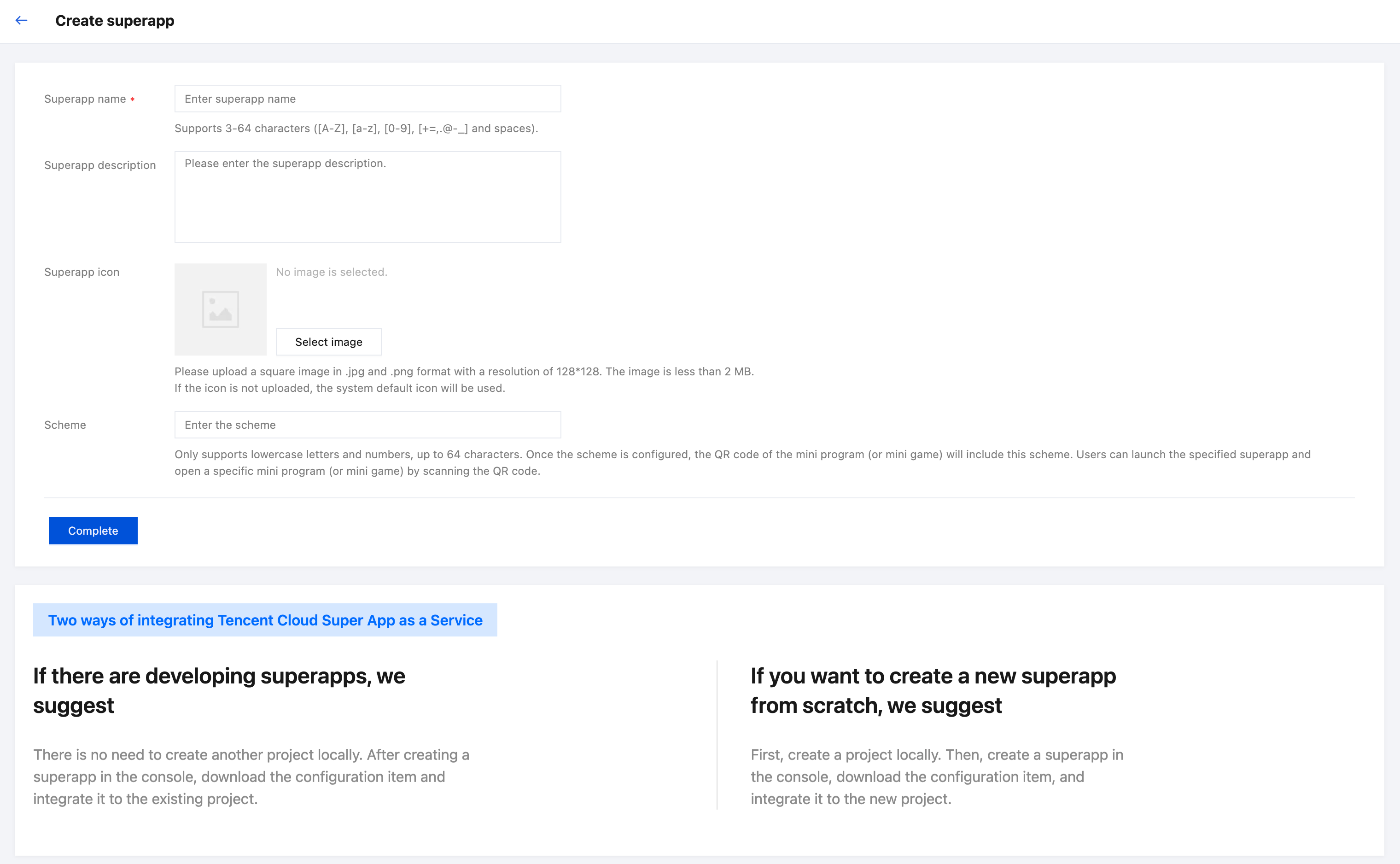
1.2 Create a superapp
1.3. Fill in the superapp information
Required information:
Superapp name: Supports 3-64 characters including a-z, A-Z, 0-9, spaces and some special symbols ("+", "=", ",", ".", "@", "-", "_").
Optional information:
Superapp description: Brief introduction of the superapp, primarily for internal reference.
Superapp icon: Supports uploading square images in .jpg or .png format, with a resolution of 128 × 128 and a file size under 2 MB. If the icon is not uploaded, the system default icon will be used.
Scheme: Only supports lowercase letters and numbers, up to 64 characters. Once the scheme is configured, the QR code of the mini program (or mini game) will include this scheme. Using the phone system’s built-in scanning function, users can directly launch superapp and open the mini program (or mini game).
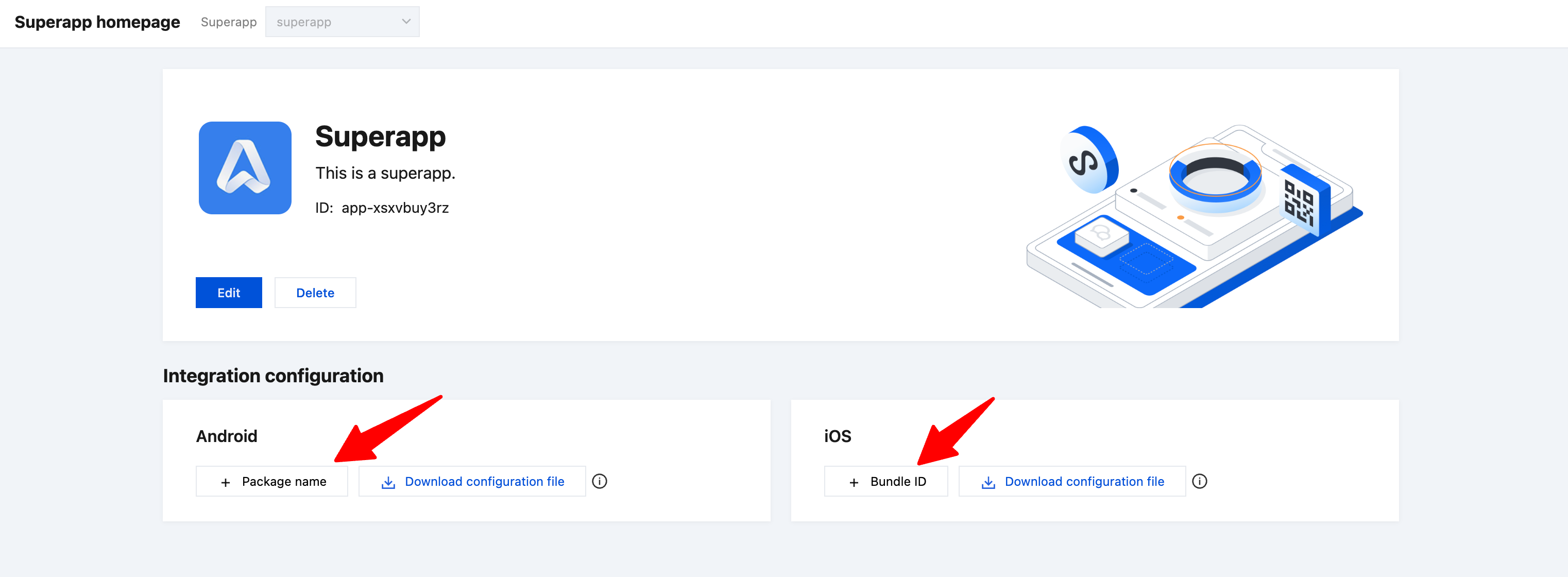
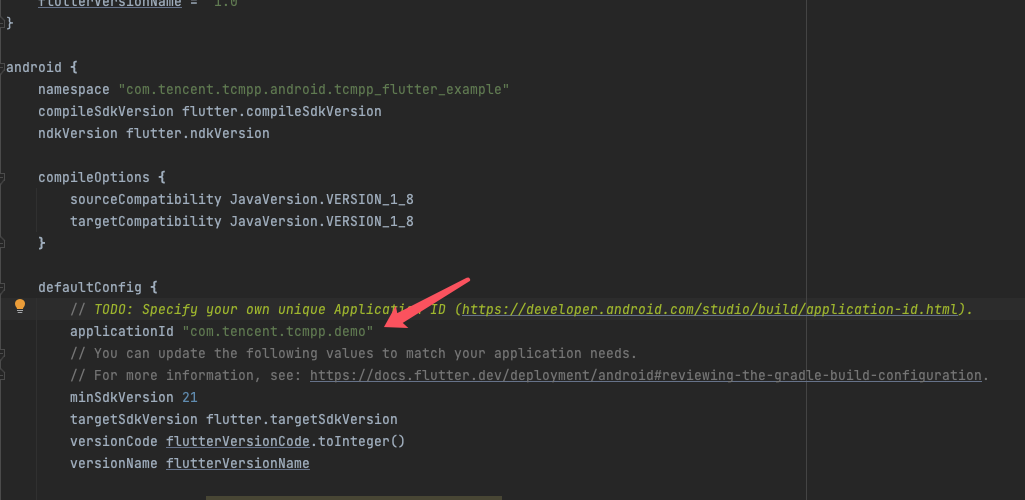
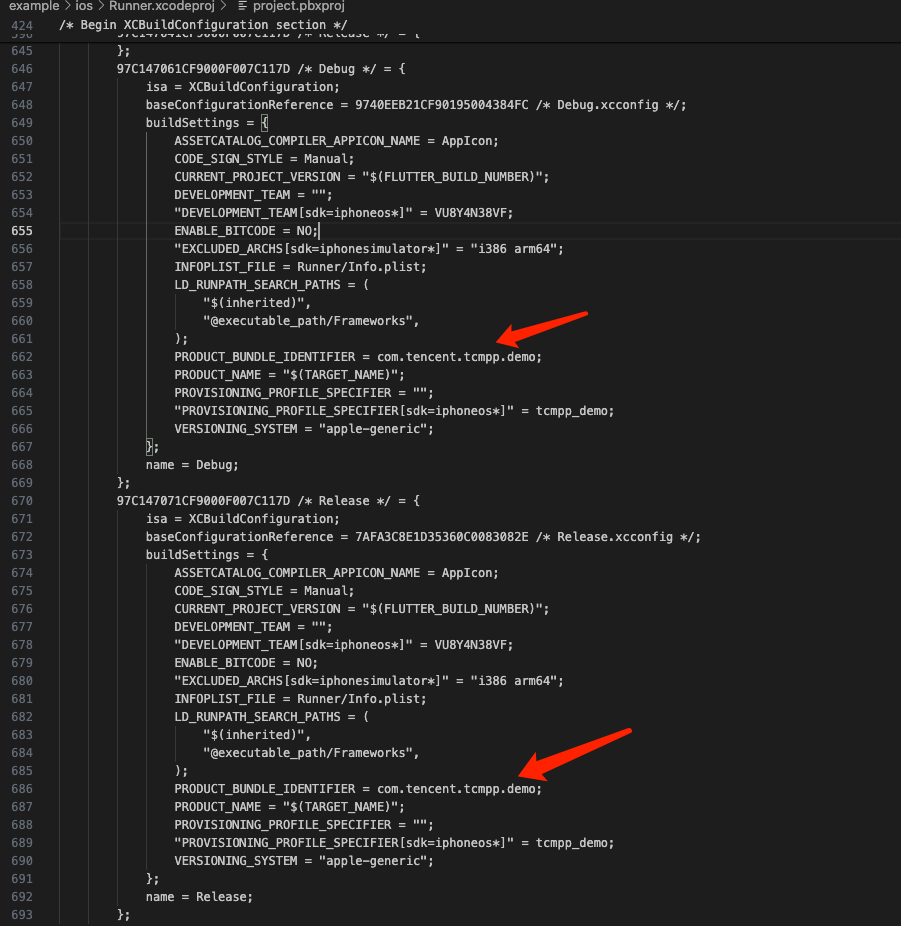
1.4 Enter the superapp package name
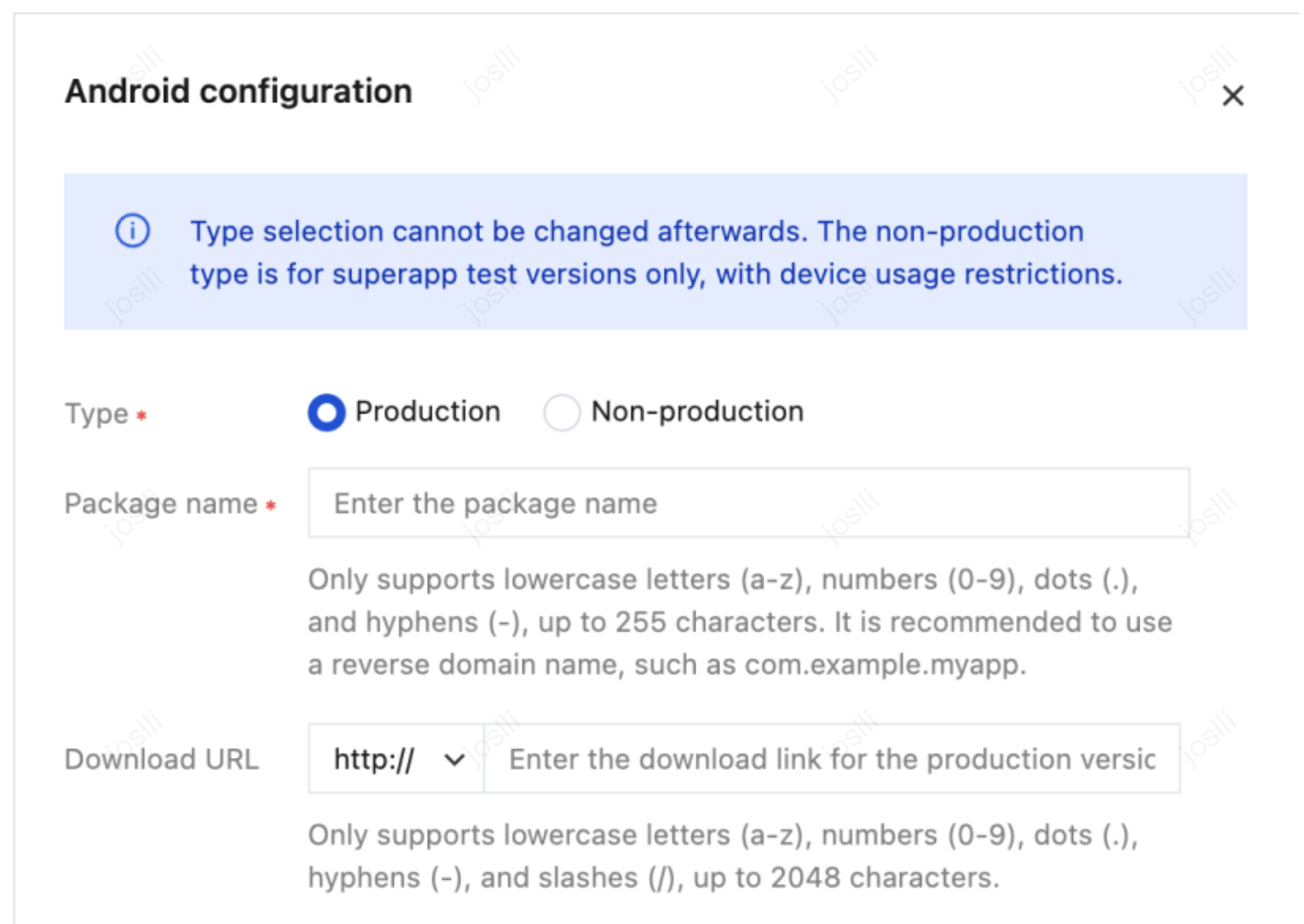
The following fields need to be filled in when adding the package name/bundle ID:
Type: Once selected, the type cannot be changed. Package names for non-production types are only used for superapp test versions and have a monthly device usage limit (up to 500 devices).
Package name/bundle ID: Only supports lowercase letters (a-z), numbers (0-9), dots (.), and hyphens (-), up to 255 characters. It is recommended to use reverse domain name notation, such as com.example.myapp.
Download URL: Only supports uppercase letters (A-Z), lowercase letters (a-z), numbers (0-9), dots (.), hyphens (-), and slashes (/), up to 2,048 characters.
2. Obtain superapp configuration and complete initialization
2.1 Configuration methods
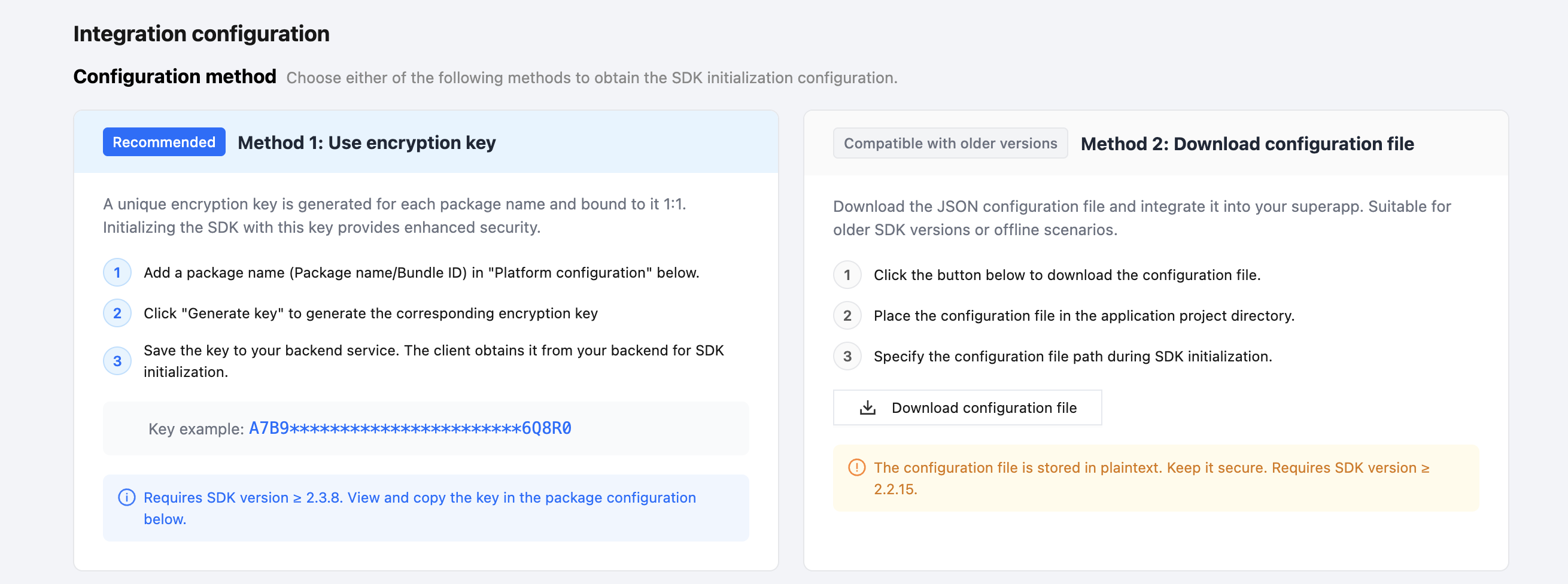
After adding the "Package name/Bundle ID", the superapp needs to obtain the SDK initialization configuration from the console. Two methods are currently provided.You can choose either one.You can check the "Configuration method" section for descriptions:
Configuration method
Scenario
Security
SDK version requirement
Binding relationship
Method 1: Use encryption key
New SDK versions. Recommended for production environments.
High (Key distribution is controlled by the backend)
≥ 2.3.8
Bound 1:1 with the Package name/Bundle ID. The key is bound 1:1 with the package name.
Method 2: Download configuration file
Old SDK versions or offline scenarios.
The config file is stored in plaintext and requires self-protection.
≥ 2.2.15
Bound to the superapp
Note:
Choose only one method to initialize the SDK.Do not use both simultaneously.
We recommend Method 1: Use encryption key.It offers higher security and is bound 1:1 with the package name, facilitating permission control and auditing.
If your SDK version is earlier than 2.3.8, use Method 2: Download configuration file.
2.2 Method 1: Use encryption key
2.2.1 Generate an encryption key
1. Configure the production and non-production Package name/Bundle ID for the superapp as described above.A unique encryption key can be generated for each Package name/Bundle ID. The SDK uses this key for initialization. The key is bound 1:1 with the package name.Compared to plaintext config files, it offers higher security and is recommended for production environments.
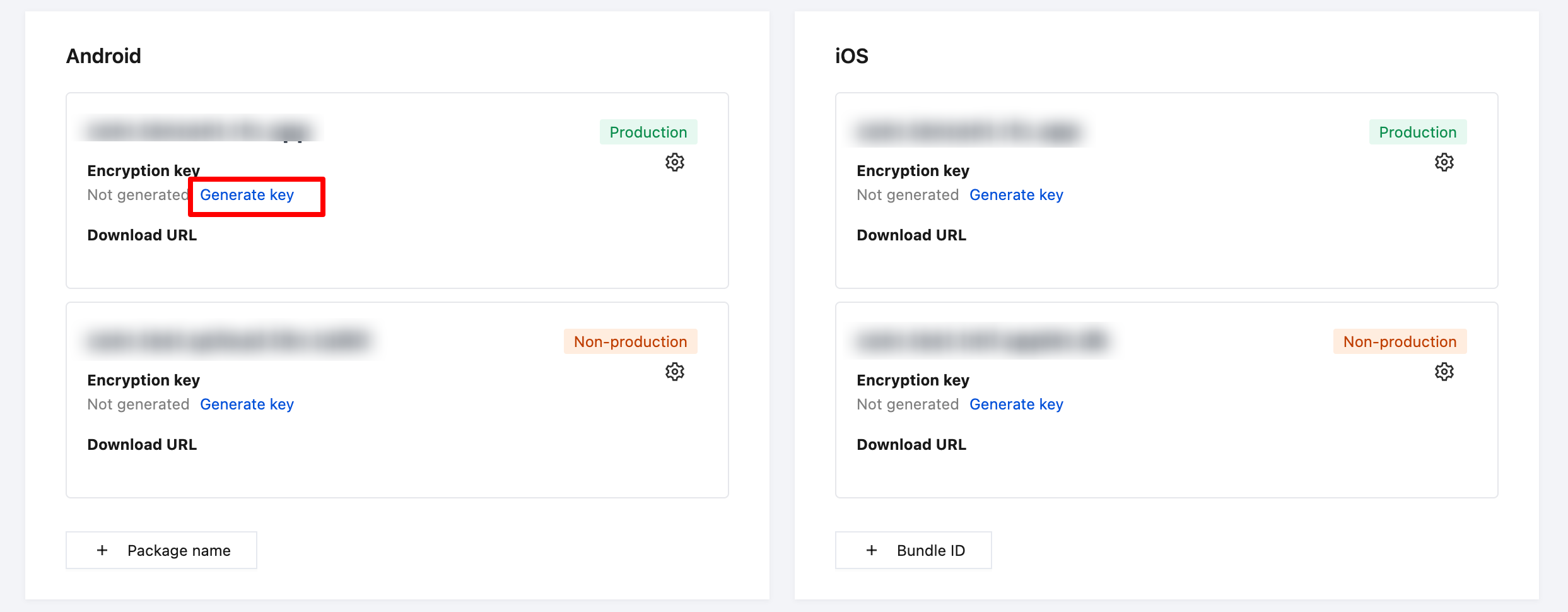
2. In the row of the corresponding package name, locate the "Encryption key" field:
If the status is "Not generated", click "Generate key".The system generates a unique key for the package name. Upon success, a masked string (e.g., A7B9***********************6Q8R0 is displayed, and a success message appears.
Each Package name/Bundle ID corresponds to only one encryption key. Clicking the button repeatedly will not generate new keys.
2.2.2 View and copy the key
1. After the key is generated, the "Encryption key" field displays a masked string and a "Get key".
2. Click "Get key". A dialog box appears, displaying the complete key details.
3. Click "Copy" A success message appears.
4. Save the copied key to your backend service, which will distribute it to the client. The client uses this key during SDK initialization to complete the integration.
Note:
The encryption key is bound 1:1 with the Package name/Bundle ID. Different package names correspond to different keys and cannot be used interchangeably. The key is bound 1:1 with the package name.Different package names correspond to different keys and cannot be used interchangeably.
This method requires SDK version ≥ 2.3.8.For earlier versions, use Method 2: Download configuration file.
Do not hardcode the key in the client code or public repositories.We recommend keeping it in your backend and distributing it to the client on demand at runtime.
Only the superapp administrators/senior superapp developers have the permission to generate keys. Superapp developers can view and copy existing keys. Other roles have read-only access to check if a key has been generated.
If you suspect a key leak, contact the superapp administrator (e.g., to regenerate the key or change the package name) and update the key stored in your backend accordingly.
2.2.3 Use the encryption key to configure the initialization proxy
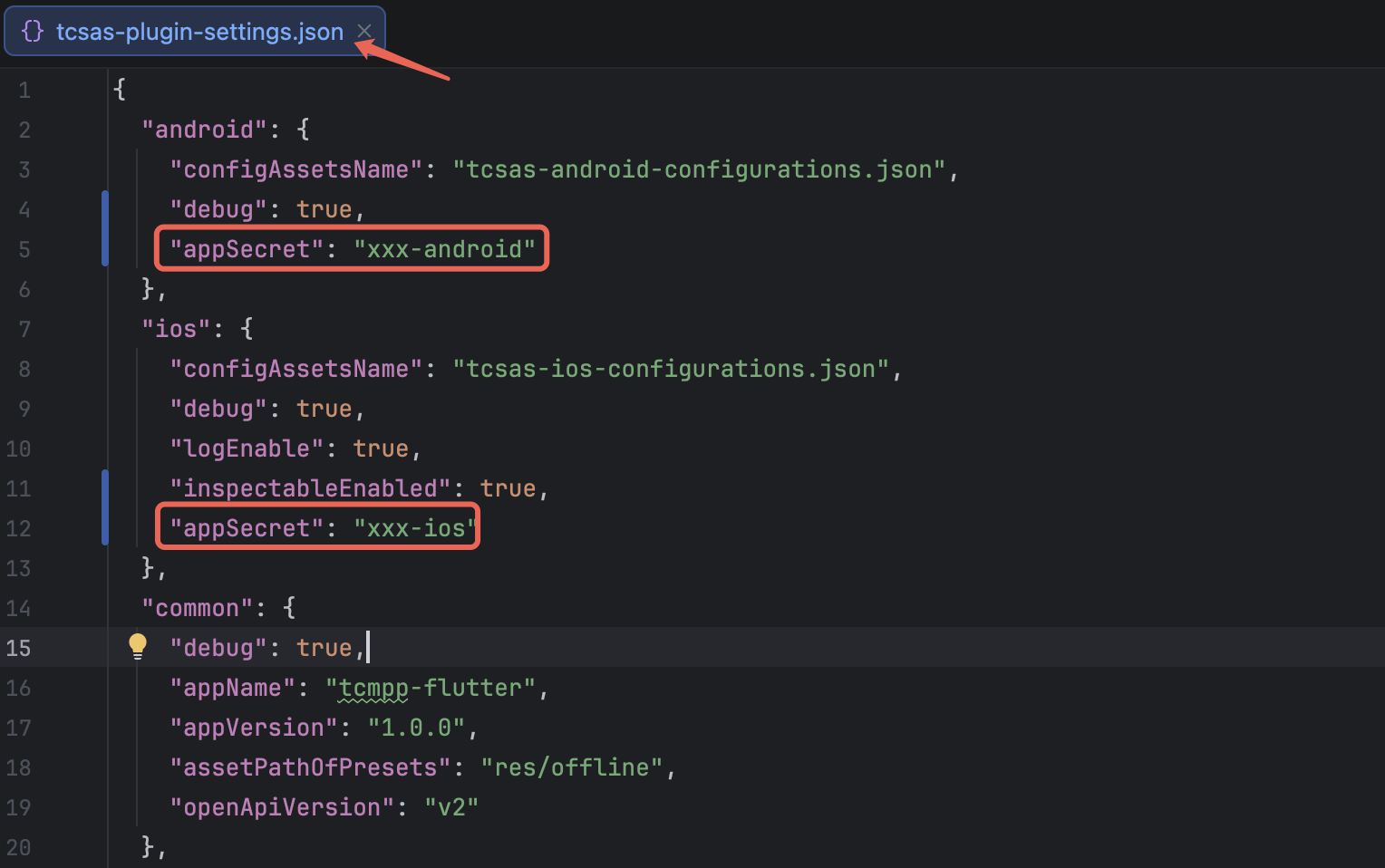
Create a tcsas-plugin-settings.json config file and add the appSecret key in the android and iOS information respectively to set the corresponding key content.
2.3 Method 2: Use a config file
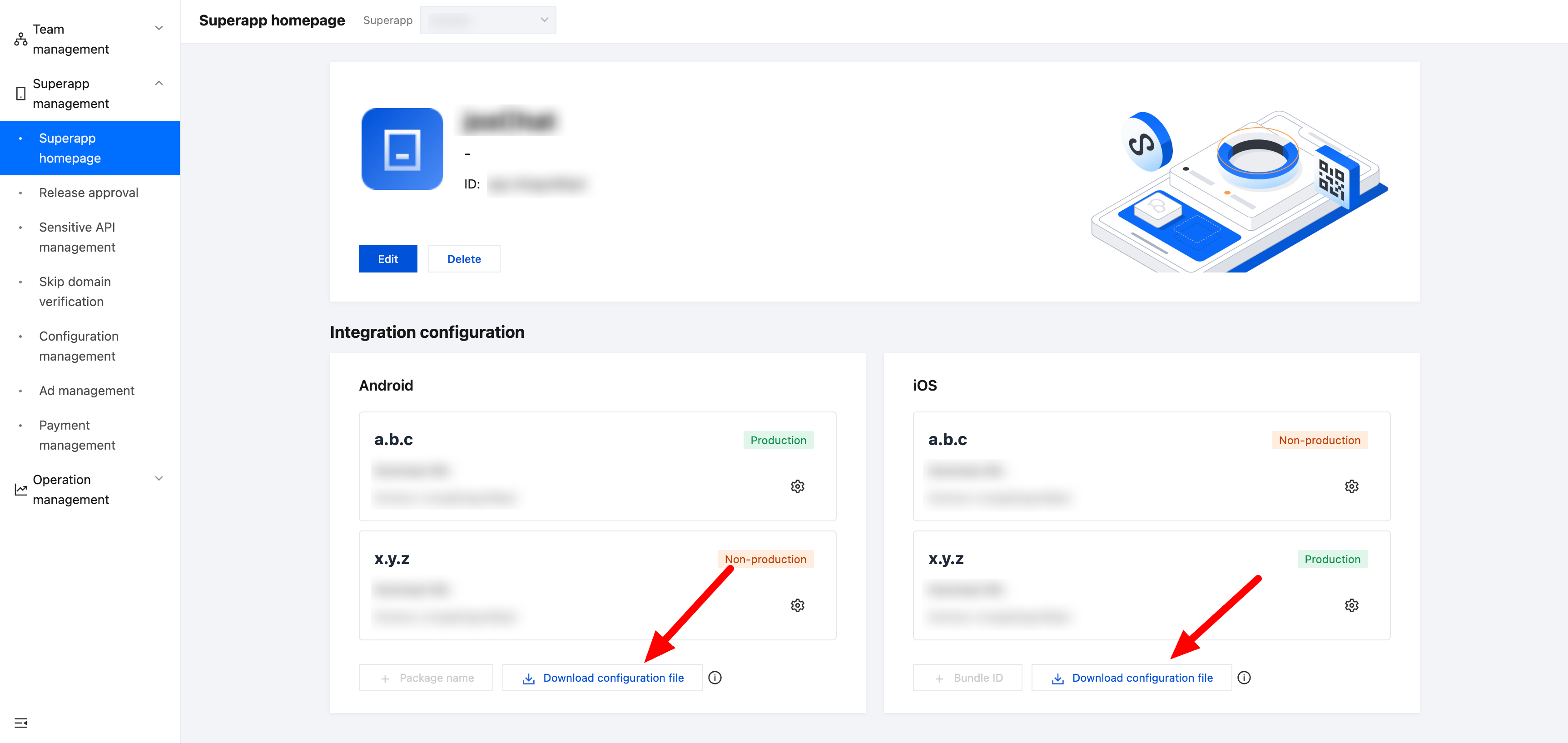
2.3.1 Download configuration file
Note:
The default name of the downloaded configuration file is tcsas-android-configurations.json.
2.3.2 Add the configuration file
1. Place the configuration file in the Flutter project.
2. Add a file named "tcsas-plugin-settings.json" in the root directory of the project.
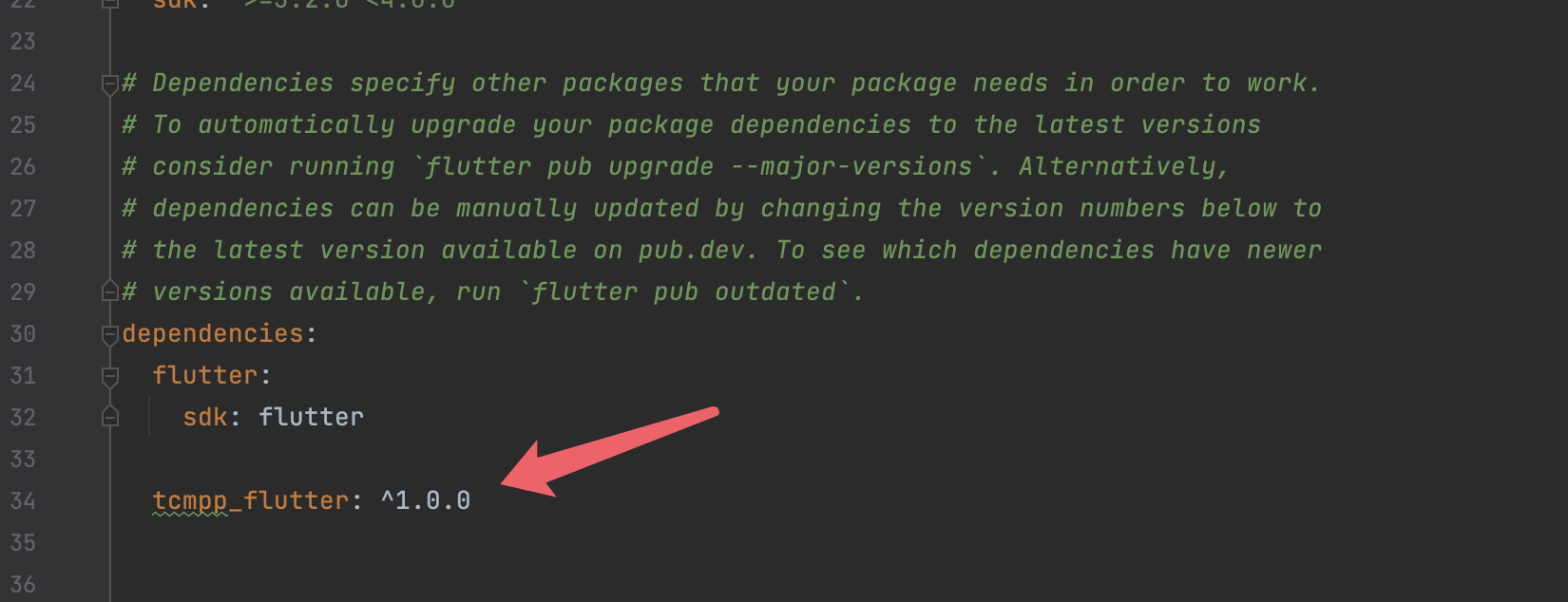
3. Edit the pubspec.yaml file to include the above files as a Flutter resource.
After the tcsas-plugin-settings.json file, you can configure the SDK settings as needed.
Android:
Field
Type
Description
configAssetsName
string
Android config file path.
debug
Boolean
Enables SDK debugging and logging.
iOS:
Field
Type
Description
configAssetsName
string
iOS config file path.
debug
Boolean
Enables SDK debugging.
logEnable
Boolean
Enables SDK logging.
inspectableEnabled
Boolean
Enables inspectable feature for iOS 16.4 and later, allowing mini program debugging via Safari.
Common:
Field
Type
Description
appName
string
Superapp name, mainly for copyright notices in the mini programs.
appVersion
string
Superapp version, mainly for copyright notices in the mini programs.
assetPathOfPresets
string
Directory for preloaded offline mini programs, requires a relative path under Flutter assets.
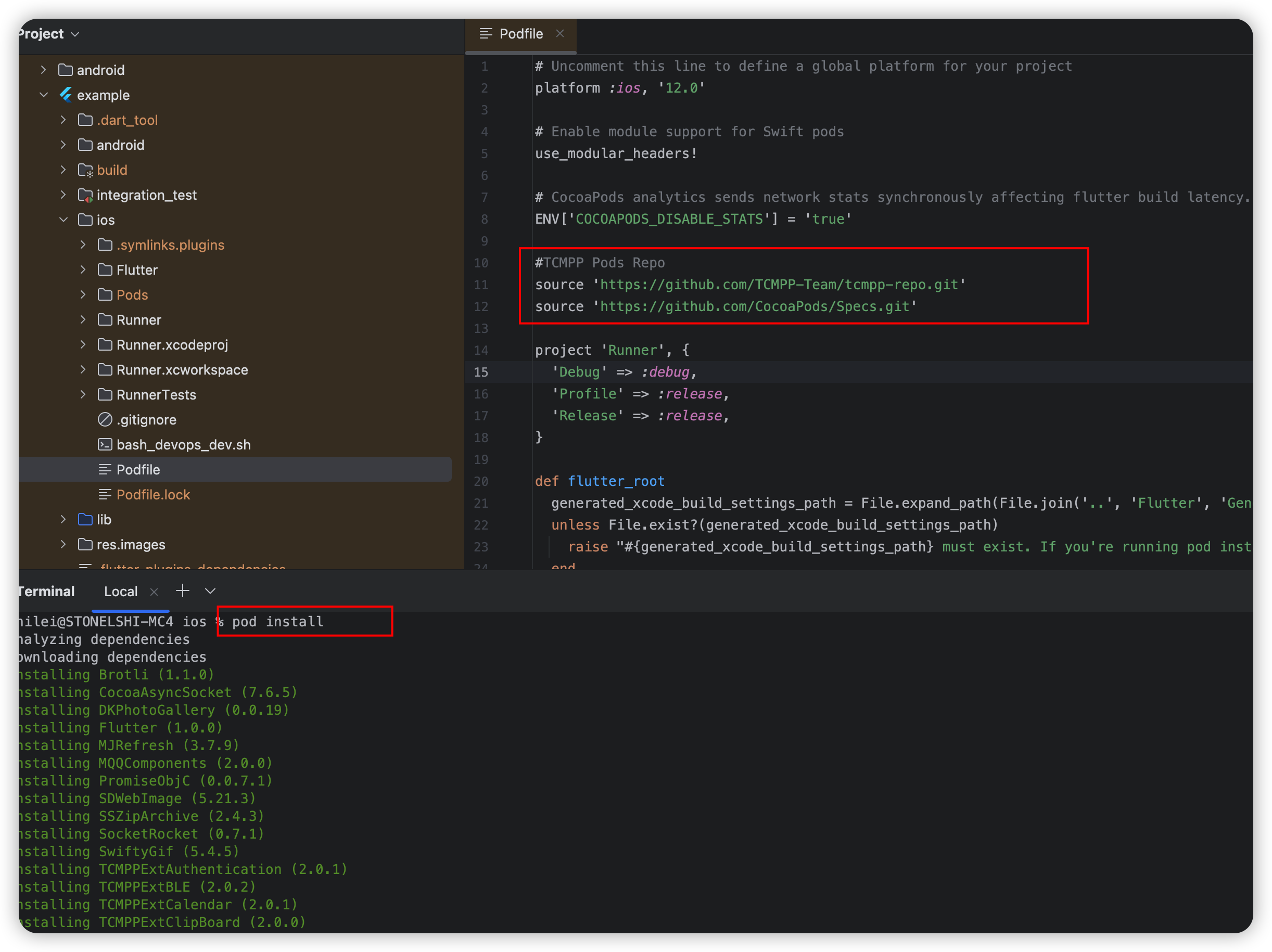
Change directory to the ios and execute pod install.
pod install
Open a mini program
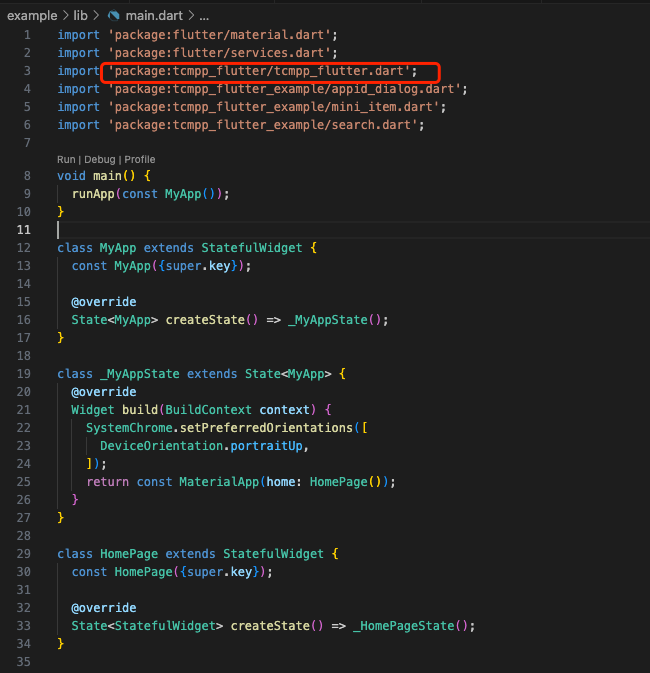
Import 'package:tcmpp_flutter/tcmpp_flutter.dart' using API.
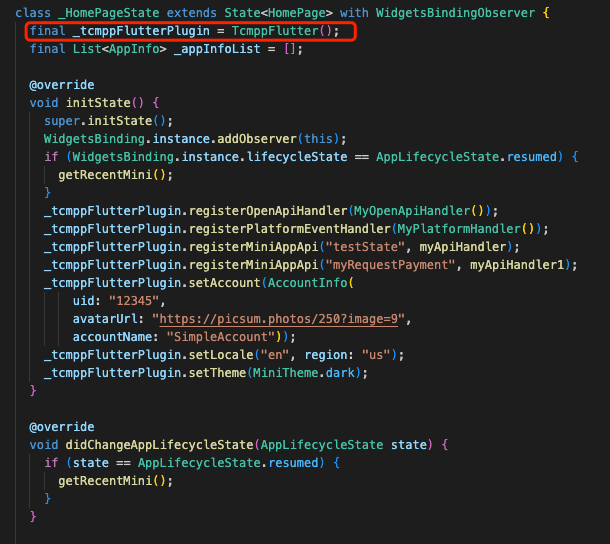
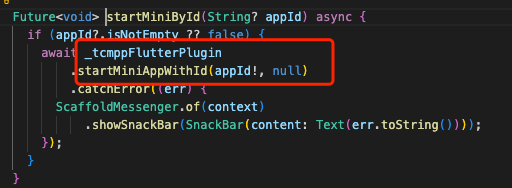
Create a TcmppFlutter object and use it to call the API to open a mini program:
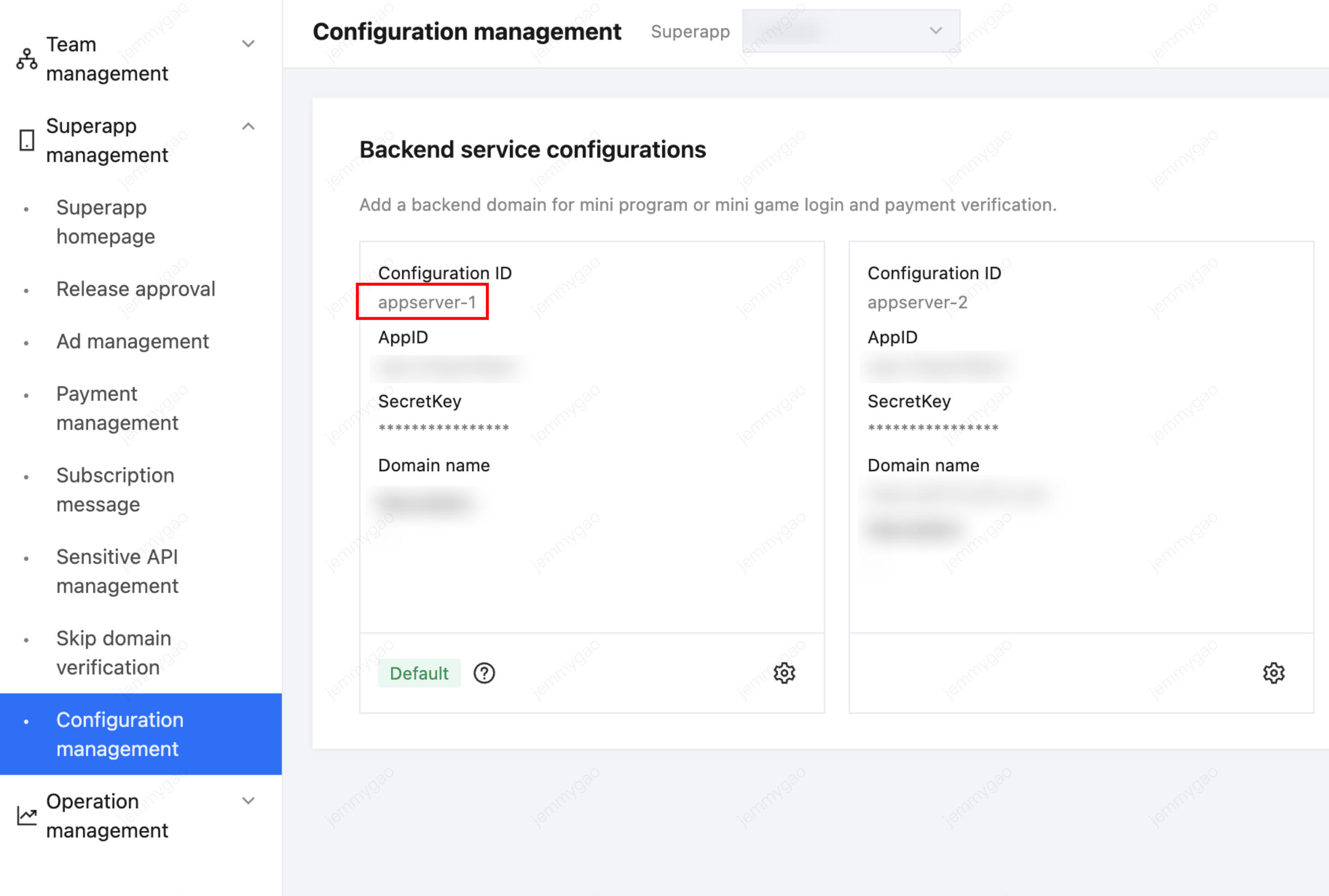
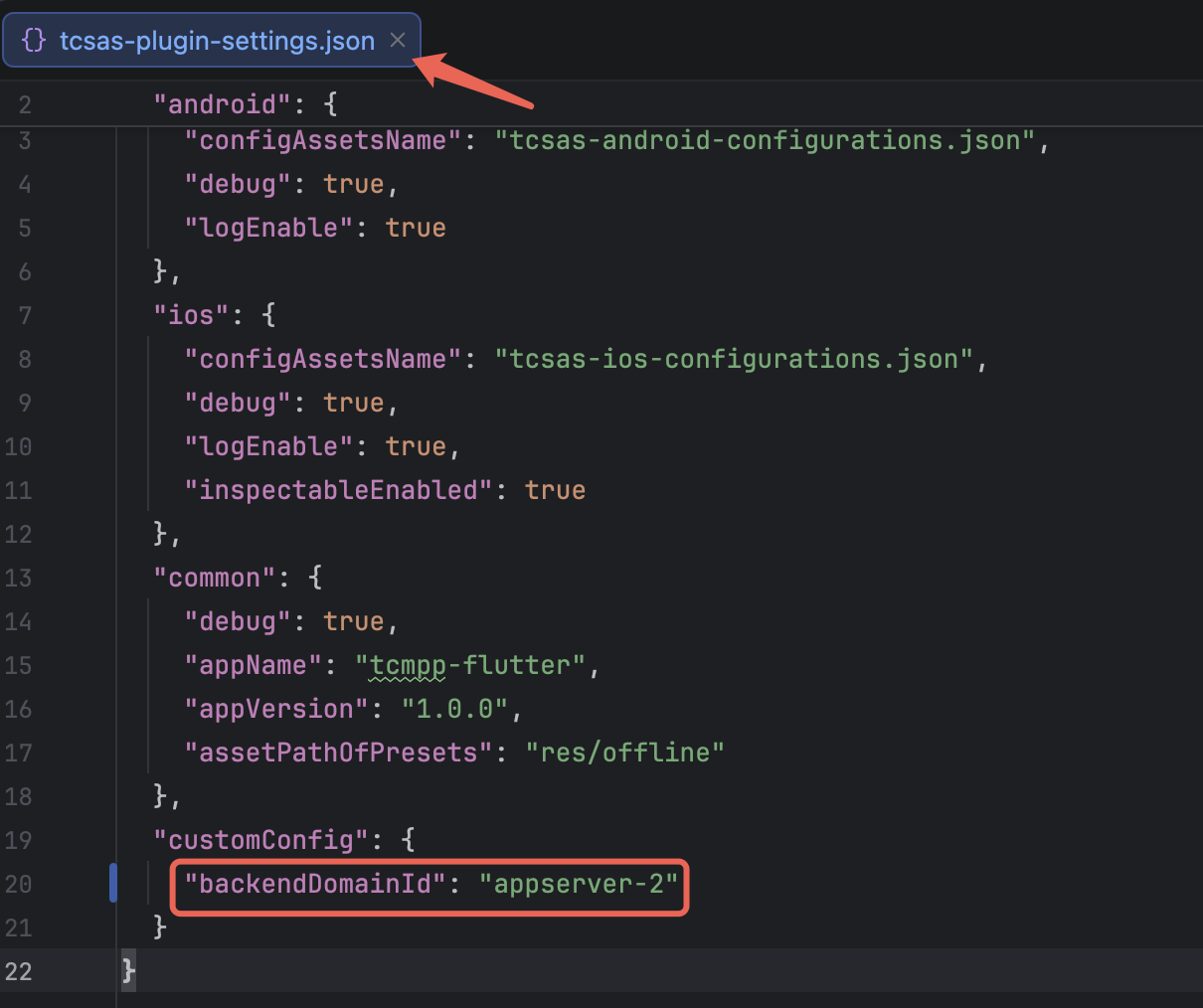
Superapp backend service domain ID
When multiple sets of backend service domains are configured for the superapp, you can specify which set of domains to use through the following configuration.