Administrative accounts or members of group accounts can share resources with other member accounts within the same group account.
Creating a Shared Unit
Operation Steps
1. Log in to the TCO console and select Resource Sharing > Shared by Me on the left navigation bar.
2. Select the Shared Unit tab, select the region of the approval flow template to be shared at the top of the page, and click Create Shared Unit.
3. Configuring Basic Information: including the shared unit name, region, and description.
4. Selecting Shared Resource: after selecting the resource type, check the resources to be shared from the Shared Resource List.
Note:
Currently, up to 10 resources can be shared.
The list displays the information of the resources in the region selected by the current account.
5. Selecting Sharing Account:
Note:
Up to 10 shared accounts can be added at a time.
Up to 20 shared accounts can be added for one shared unit.
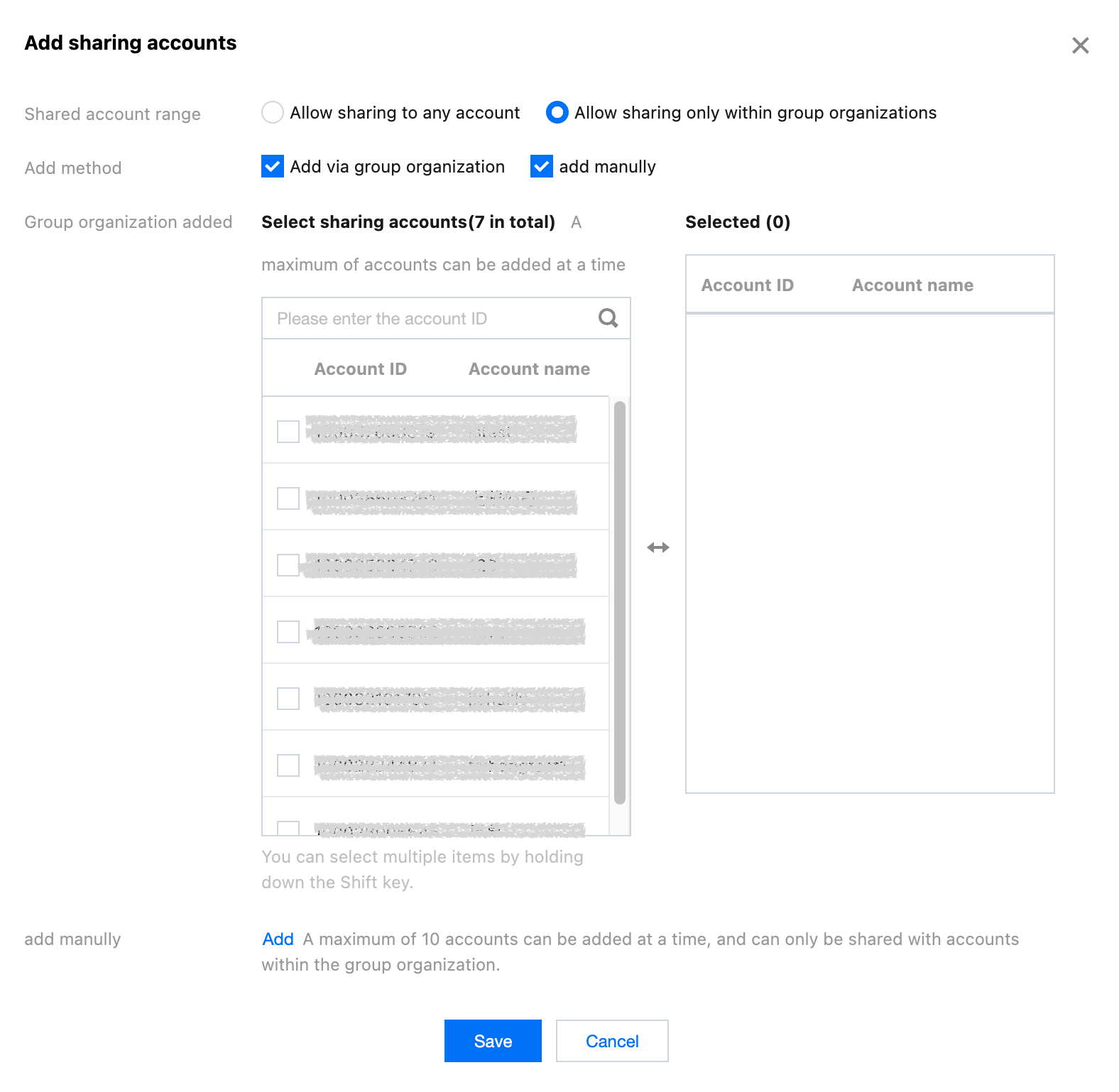
5.1 Click Add Sharing accounts.
5.2 In the pop-up Add Sharing accounts window, click the Add button. Choose Allow sharing only within group organizations for the shared account range. Choose the method of addition as needed: Add via group organization or add manually. Select or manually enter the cloud platform account ID to be shared in the list, then click Save.
Note:
Add via group organization is supported for administrative accounts and delegated administrators. Add manually is only supported for other member accounts.
6. Click Creation Completed to complete the creation of the shared unit.