Shipping Log with Tracking Set
다운로드
포커스 모드
폰트 크기
Overview
This document describes how to create a tracking set and ship logs in the CloudAudit console.
Directions
1. Log in to the CloudAudit console and select Tracking Set on the left sidebar.
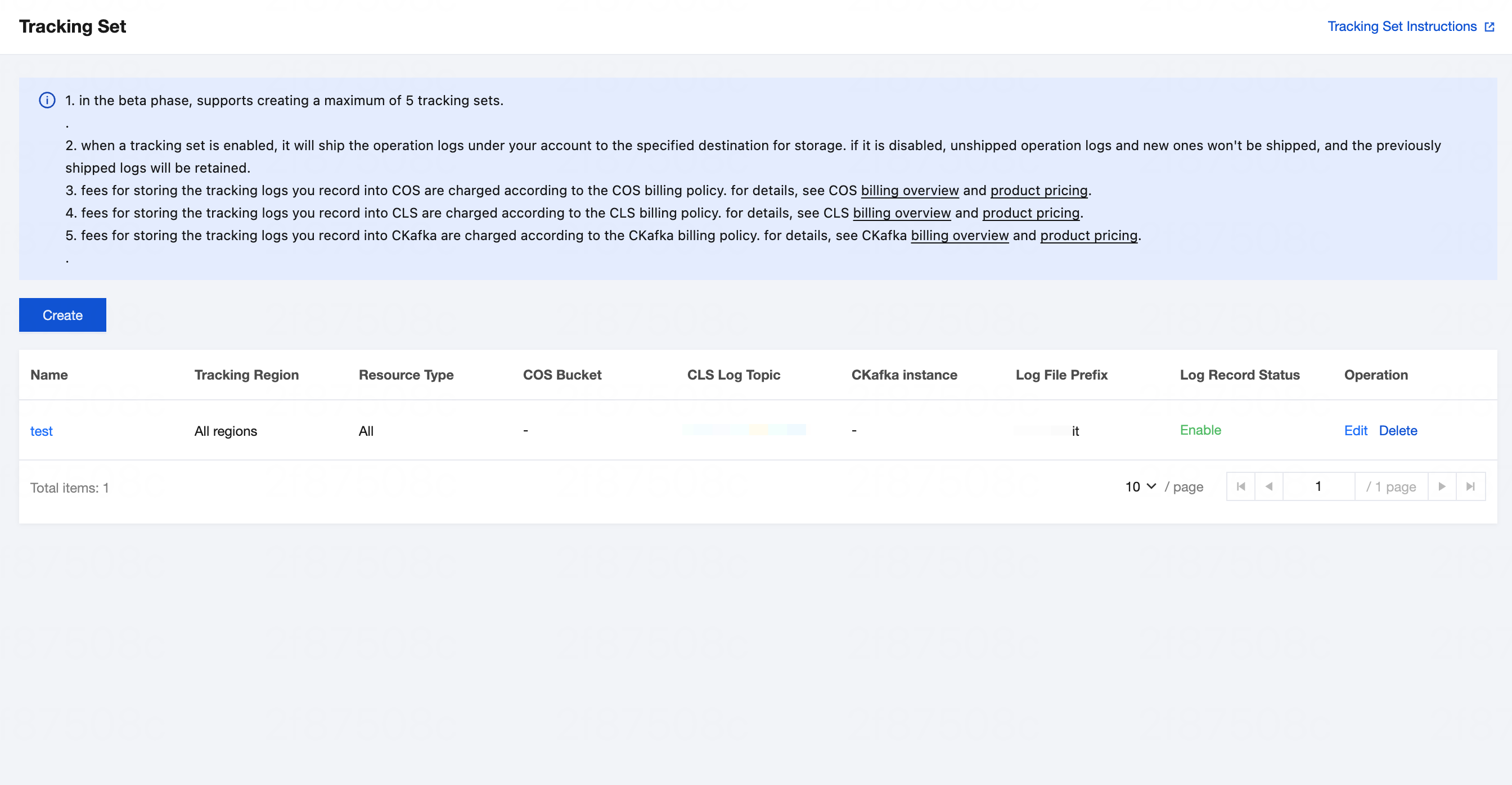
2. On the Tracking Set page, click Create, as shown in the following figure:
3. On the Create Tracking Set page, fill in the following information as needed, as shown in the following figure:
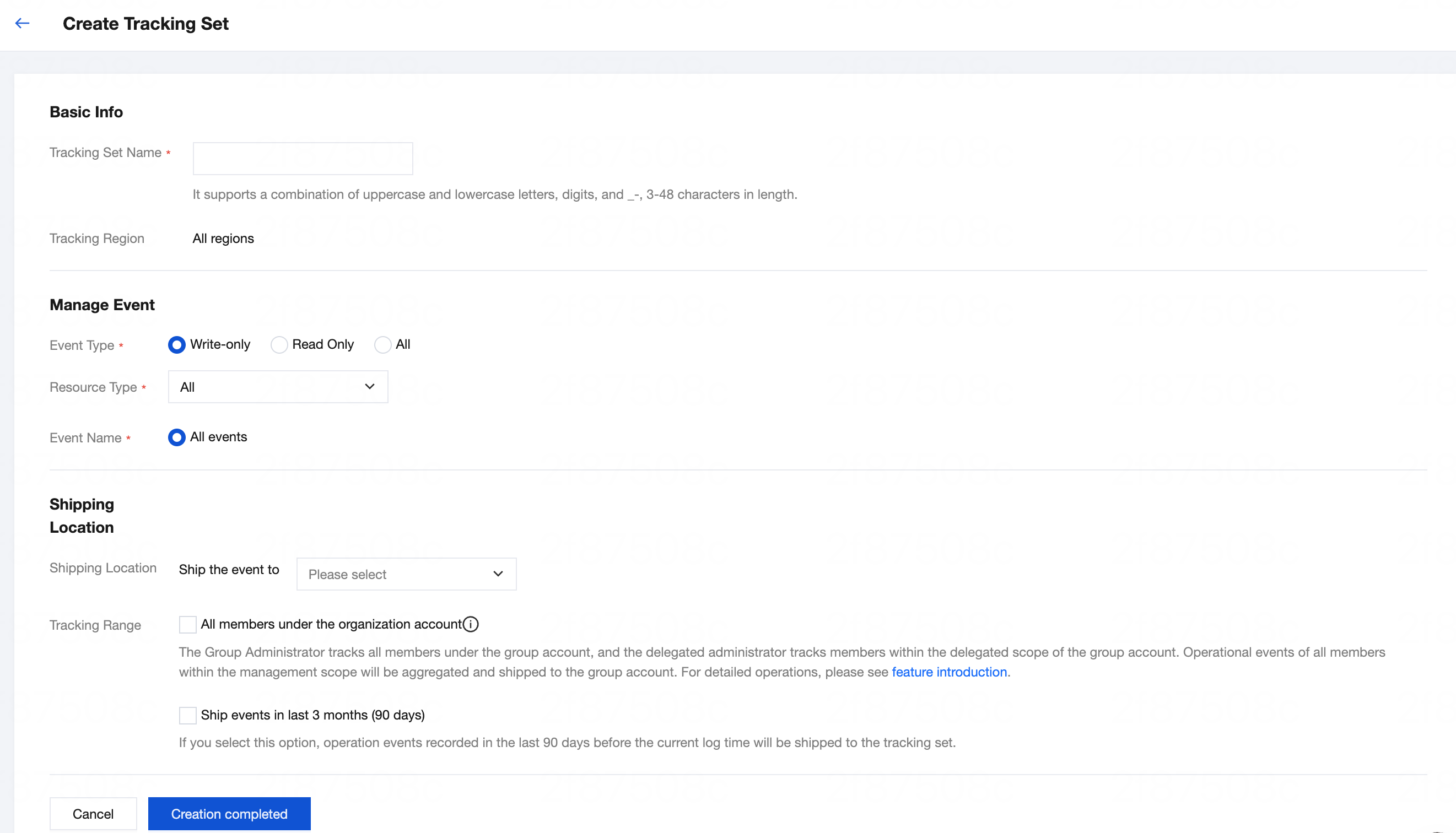
3.1 Basic Information: Enter a custom tracking set name.
3.2 Management Events: You can filter events by combining criteria such as "Management Event Type", "Resource Type", and "Event Name". When "All Resource Types" is selected, "All Events" is selected by default for the event name. When a specific resource type is selected, you can choose "Partial Events" for the event name.
3.3 Shipping Location:
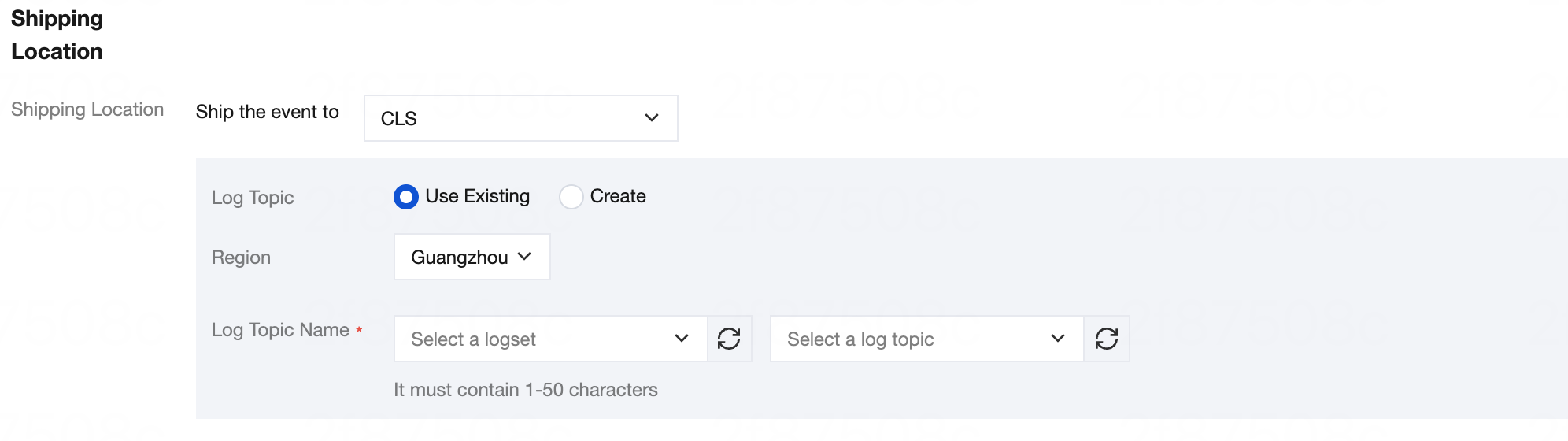
CLS: You can use an existing log topic or create a new one for shipping. Select the region, logset, and log topic for CLS. For more information, see CLS.
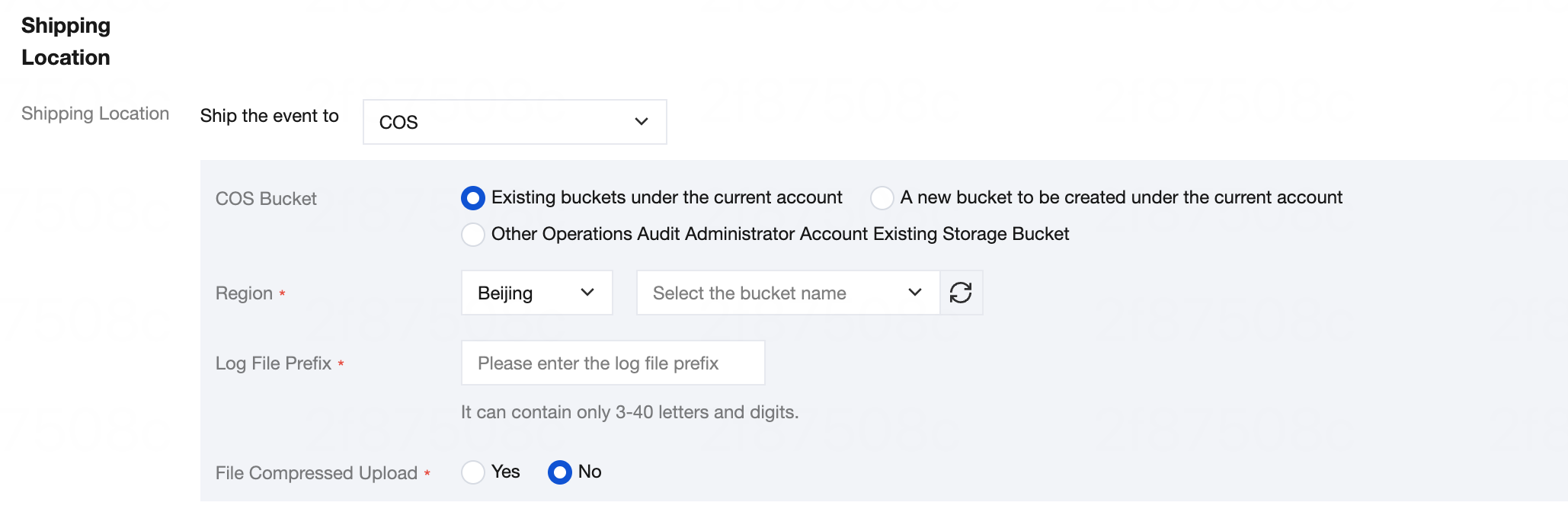
Bucket COS: You can select an existing bucket under your current account or an existing bucket under another CloudAudit admin account. You can also create a new bucket under your current account for shipping. Select the region and bucket name, and enter a log file prefix. By default, file compression upload is set to "No". If you change it to "Yes", tracking set logs will be shipped to the bucket with a .gz file suffix. For more information, see Bucket Overview.
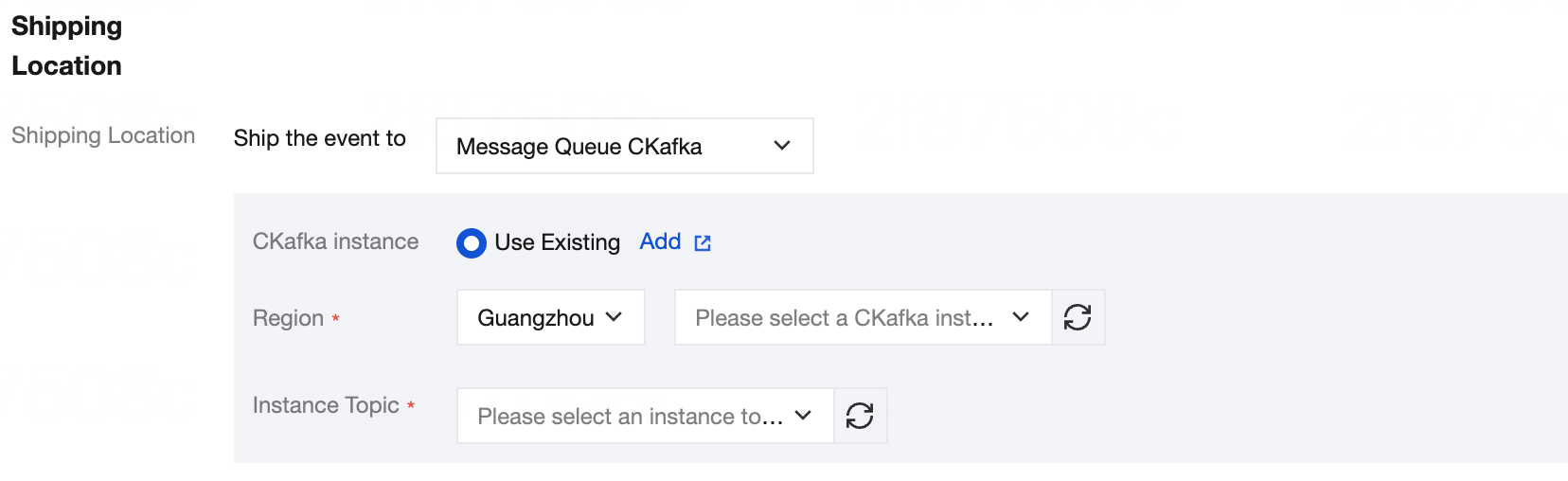
Message Queue CKafka: You can use an existing CKafka instance or create a new one for shipping. Select the region, CKafka instance, and instance Topic. For more information, see Message Queue CKafka.
3.4 Tracking Shipping Scope:
All members under the group account: When a group administrator tracks all members under the group account, or a delegated administrator tracks members within the delegated scope of the group account, the operation events of all members within the management scope are aggregated and shipped to that group account.
Backfill Events from the Past Three Months (90 Days): When this option is selected, all events across all resource types from the past three months are shipped to this tracking set.
4. Click Finish Creating to create the tracking set.
Note:
Shipping Timeliness: The first log shipment begins approximately 10 minutes later. When incremental logs are available, logs are shipped every 5-10 minutes.
피드백