TRAE
Unduh
Mode fokus
Ukuran font
TRAE IDE is a development tool deeply integrated with AI capabilities, providing a complete development experience that spans from code writing and project comprehension to debugging, execution, and change management. This document describes how to configure and use the Tencent Cloud Large Language Model Token Plan in TRAE.
Prerequisites
Before starting the configuration, make sure you have completed the following preparatory work:
Steps
Step 1: Go to the Settings Center to Add a Model
1. After selecting the personal user entry point and logging in, click the settings icon in the upper-right corner of the page to go to the Settings Center.
2. In the left sidebar, select Model to go to the Model Management page.
3. Click + Add Model to open the Add Model window.
4. In the Add Model window, select Custom Config.
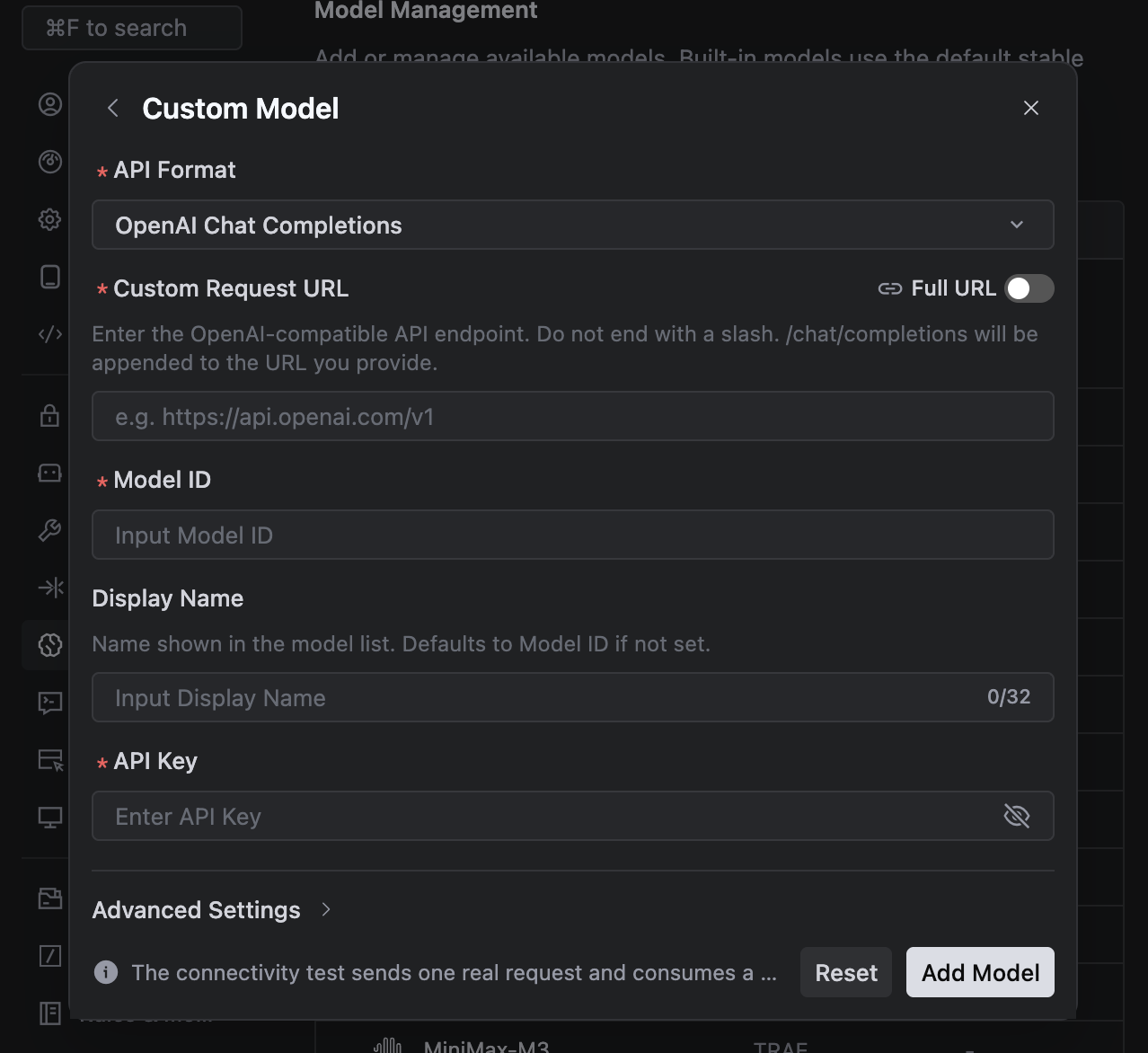
Step 2: Configuring the Model in the Custom Configuration Section
Configure the following content and click Add Model.
1. API Format: Select the OpenAI Chat Completions format.
2. Custom Request URL:
https://tokenhub-intl.tencentcloudmaas.com/plan/v3.3. Model ID: Enter the Model ID supported by Token Plan.
4. API Key: Obtain the API Key from your package and enter it.
Step 3: Using TRAE
1. In the lower-right corner of the AI chat input box, click the current model name. If it shows Auto, click to disable it.
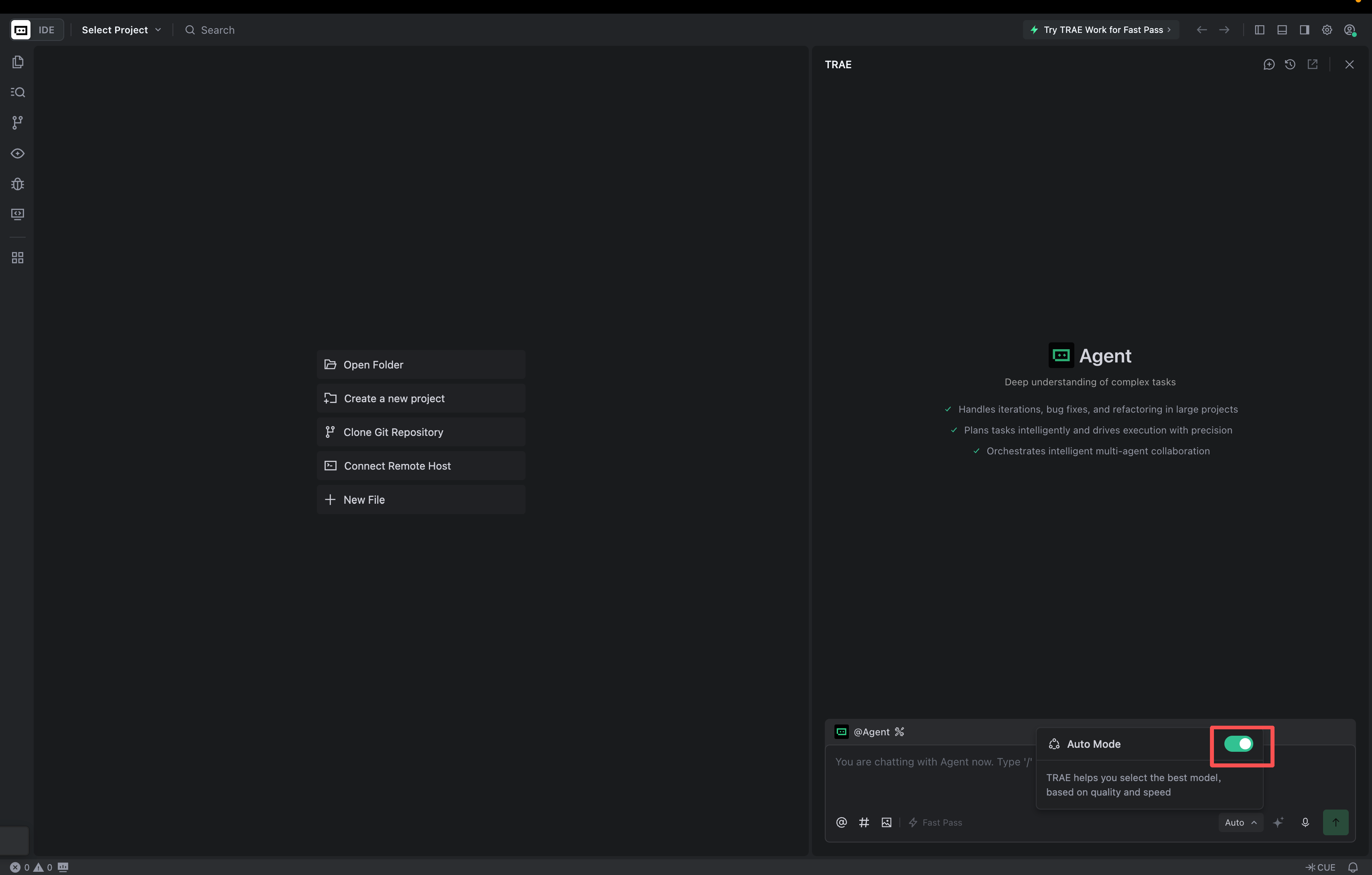
2. In the model list, locate the custom model and select the pre-configured model to perform development tasks.
Bantuan dan Dukungan
Apakah halaman ini membantu?
Anda juga dapat Menghubungi Penjualan atau Mengirimkan Tiket untuk meminta bantuan.
masukan