Manually Archiving Cold Data
Download
Mode fokus
Ukuran font
Scenarios
After data archiving is enabled, hot/cold data tiering is controlled using standard SQL syntax. You can precisely designate entire tables or specified partitions as hot or cold storage based on your business needs, and view task progress and the distribution of hot and cold data usage after the data is moved to cold storage.
This document describes common SQL operations for manually archiving cold data. For the feature architecture and principles, see Cold Data Archiving.
Prerequisites
Before manually archiving cold data, confirm that the data archiving feature has been enabled for the target instance. For how to enable it, see Enabling Cold Data Archiving.
Specifying Hot and Cold Attributes When Creating a Table
Specifying Table-Level Hot and Cold Attributes When Creating a Table
When creating a table, specify the storage tier for the entire table using the table option
STORAGE_TIER.-- Create the entire table as a cold table.CREATE TABLE archive_log (id BIGINT PRIMARY KEY,log_time DATETIME,payload TEXT) STORAGE_TIER = OBJECT_STORAGE;-- Explicitly declare the use of local storage (equivalent to not specifying it).CREATE TABLE hot_order (id BIGINT PRIMARY KEY,amount DECIMAL(10,2)) STORAGE_TIER = LOCAL_STORAGE;
The valid values for
STORAGE_TIER are as follows:Value | Description |
AUTO | Selected by the system according to the default policy, and currently equivalent to LOCAL_STORAGE. |
LOCAL_STORAGE | Data is stored in the hot data storage layer (DataDB) using local storage. |
OBJECT_STORAGE | Data is stored in the cold data storage layer (CacheDB + DurableDB) using COS. |
Specifying Hot and Cold Attributes for a Partition When Creating a Table
For tables partitioned by time or business keys, you can independently specify the storage tier for individual partitions, achieving a "hot for recent partitions, cold for historical partitions" strategy.
CREATE TABLE order_history (id BIGINT,order_date DATE,amount DECIMAL(10,2),PRIMARY KEY (id, order_date))PARTITION BY RANGE COLUMNS (order_date) (PARTITION p_2023 VALUES LESS THAN ('2024-01-01') STORAGE_TIER = OBJECT_STORAGE,PARTITION p_2024 VALUES LESS THAN ('2025-01-01') STORAGE_TIER = OBJECT_STORAGE,PARTITION p_2025 VALUES LESS THAN ('2026-01-01') STORAGE_TIER = LOCAL_STORAGE);
Converting Existing Data to Cold Storage
Converting an Existing Table to a Cold Table
Convert an entire existing table to cold storage by using
ALTER TABLE.ALTER TABLE archive_log STORAGE_TIER = OBJECT_STORAGE;
After execution, the system asynchronously advances the cold migration task in the background. During this process, applications can continue to access the table.
Converting an Existing Partition to a Cold Partition
Convert individual or multiple partitions to cold storage independently by using
ALTER TABLE ... MODIFY PARTITION.ALTER TABLE order_historyMODIFY PARTITION (p_2024) STORAGE_TIER = OBJECT_STORAGE;
Viewing Archiving Results
Viewing the Archiving List via the Console
1. Log in to the TDSQL Boundless console. In the Instance List, click the target Instance ID to go to the Instance Details page.
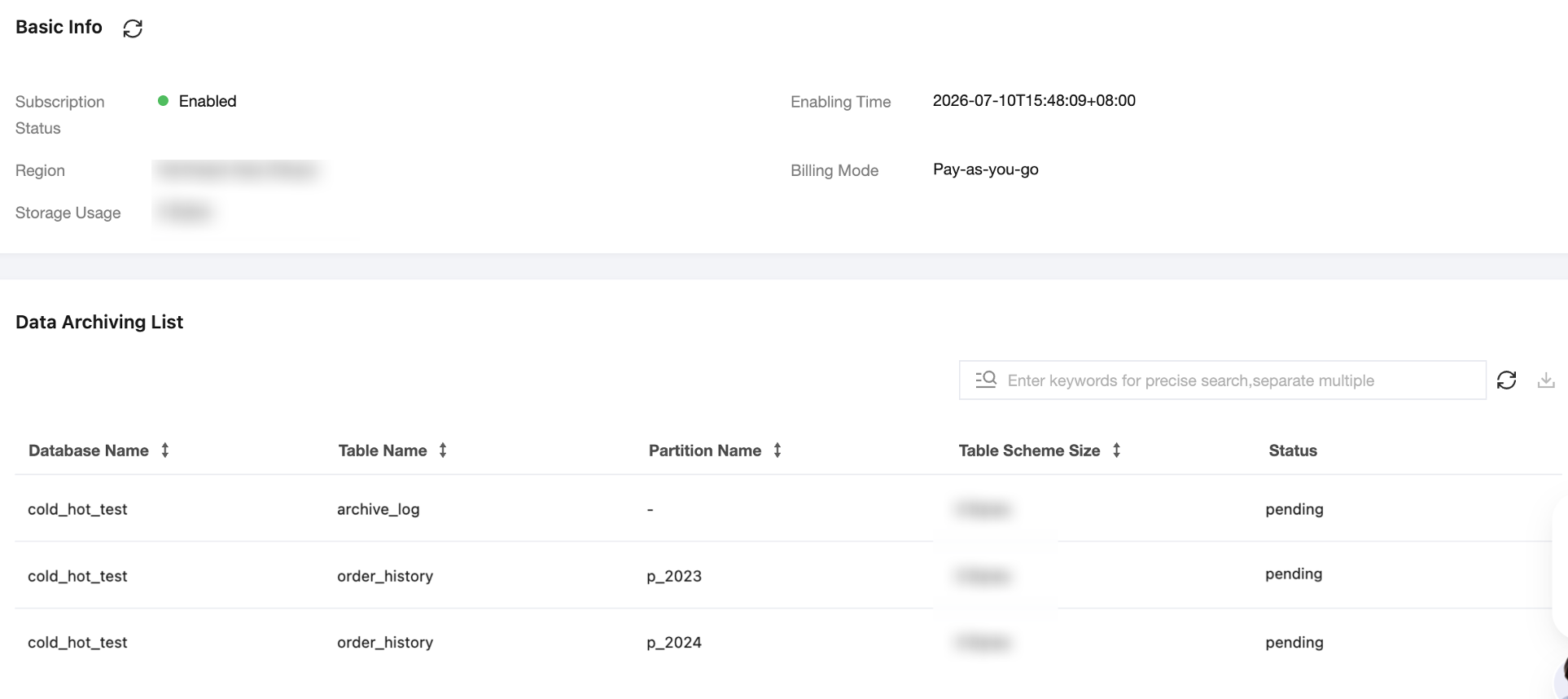
2. Select the Data Archiving tab. In the Basic Info area, you can view the subscription status, region, storage usage,enabling time, and billing mode.
3. In the Data Archiving List, you can view the details of each archived object. The columns are described as follows:
Column Name | Description |
Database name | Name of the database to which the archive object belongs. |
Table name | Name of the table to which the archive object belongs. |
Partition name | Name of the partition to which the archive object belongs. It displays as - during full-table archiving. |
Data size | Data volume of the archive object. |
Status | Archiving status. pending indicates waiting for archiving, and archived indicates that archiving is completed. |
Viewing the Progress of Cold Conversion Tasks
The system provides the
information_schema.TDSTORE_TIERING_COLD_RG_JOB_PROGRESS view for real-time monitoring of the cold migration task progress for each data shard.SELECTnode_name,rep_group_id,stage,uploaded_file_num,total_file_num,progress_pct,elapsed_time_ms,err_msgFROM information_schema.TDSTORE_TIERING_COLD_RG_JOB_PROGRESSORDER BY rep_group_id;
For a complete description of the fields, see INFORMATION_SCHEMA.TDSTORE_TIERING_COLD_RG_JOB_PROGRESS.
When
stage is Done and err_msg is empty, it indicates that the cold migration for this shard has succeeded.Viewing the Usage Distribution of Hot and Cold Data
You can observe the data volume distribution of cold tables across the local buffer layer and COS by using the
information_schema.TDSTORE_TIERED_STORAGE_USAGE view, which facilitates the evaluation of the cooling effect.-- View the approximate data volume for each cold table index/partitionSELECTTABLE_SCHEMA,TABLE_NAME,PARTITION_NAME,INDEX_NAME,CACHE_DB_SIZE,DURABLE_DB_SIZE,TOTAL_SIZEFROM information_schema.TDSTORE_TIERED_STORAGE_USAGE;-- Aggregate by tableSELECTTABLE_SCHEMA,TABLE_NAME,SUM(CACHE_DB_SIZE) AS cache_total,SUM(DURABLE_DB_SIZE) AS durable_totalFROM information_schema.TDSTORE_TIERED_STORAGE_USAGEGROUP BY TABLE_SCHEMA, TABLE_NAME;
Note:
This view is controlled by the parameter
tdstore_tiered_storage_usage_view_mode. The default value 1 uses the low-I/O aggregation mode. When set to 2, it returns real-time data with higher overhead. When set to 0, the view is disabled.Related Documentation
Bantuan dan Dukungan
Apakah halaman ini membantu?
Anda juga dapat Menghubungi Penjualan atau Mengirimkan Tiket untuk meminta bantuan.
masukan