tencent cloud

Performance Testing Service

Overview
Purchase Guide
Billing Overview
Pay-as-You-Go (postpaid)
Purchasing Channels
Payment Overdue
Refund Instructions
Quick Start
Operation Guide
Performance Testing in Simple Mode
Performance Testing in Script Mode
Performance Testing in JMeter Mode
Project Management
Scenario Management
Traffic Recording
Environment Management
Scheduled Performance Testing
Performance Testing Report
Access Control
Alarm Management
Tag Management
Error Code Manual
Practice Tutorial
Using Prometheus To Monitor Performance Testing Metrics
Using PTS to Playback Requests Recorded by GoReplay
API Documentation
History
Introduction
API Category
Making API Requests
PTS-related APIs
Data Types
Error Codes
JavaScript API List
Overview of JavaScript API List
pts/global
pts/http
pts
pts/dataset
pts/grpc
pts/jsonpath
pts/protobuf
pts/redis
pts/sql
pts/url
pts/util
pts/ws
pts/socketio
pts/socket
FAQs
Related Agreements
Service Level Agreement
Use Limits
Privacy Policy
Data Processing And Security Agreement

JMeter Mode Overview

PDF
Focus Mode
Font Size
Last updated: 2025-03-26 18:09:18
PTS supports performance testing in JMeter mode that provides you with the same user experience as native JMeter-based performance testing. PTS currently only supports viewing reports for HTTP, TCP/UDP, Tars, and WebSocket performance testing requests.

Basic Usage

Creating a JMeter-based Performance Testing Scenario

1. Log in to the TCOP console.
2. In the left sidebar, choose PTS > Test Scenarios.
3. On the page for creating a test scenario, select JMeter as the performance testing type and click Start to create a performance testing scenario.

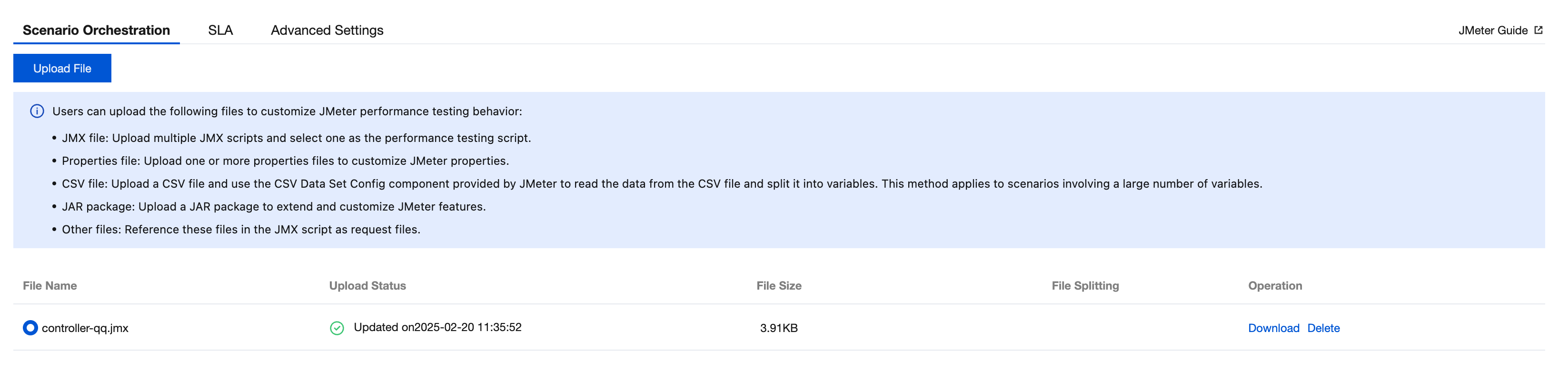
Uploading JMX Scripts and Other Files

Required: Upload the JMX-based performance testing script.
Optional: Upload the CSV, JAR, and other files to use the extended features of JMeter.


Running the Performance Testing Script

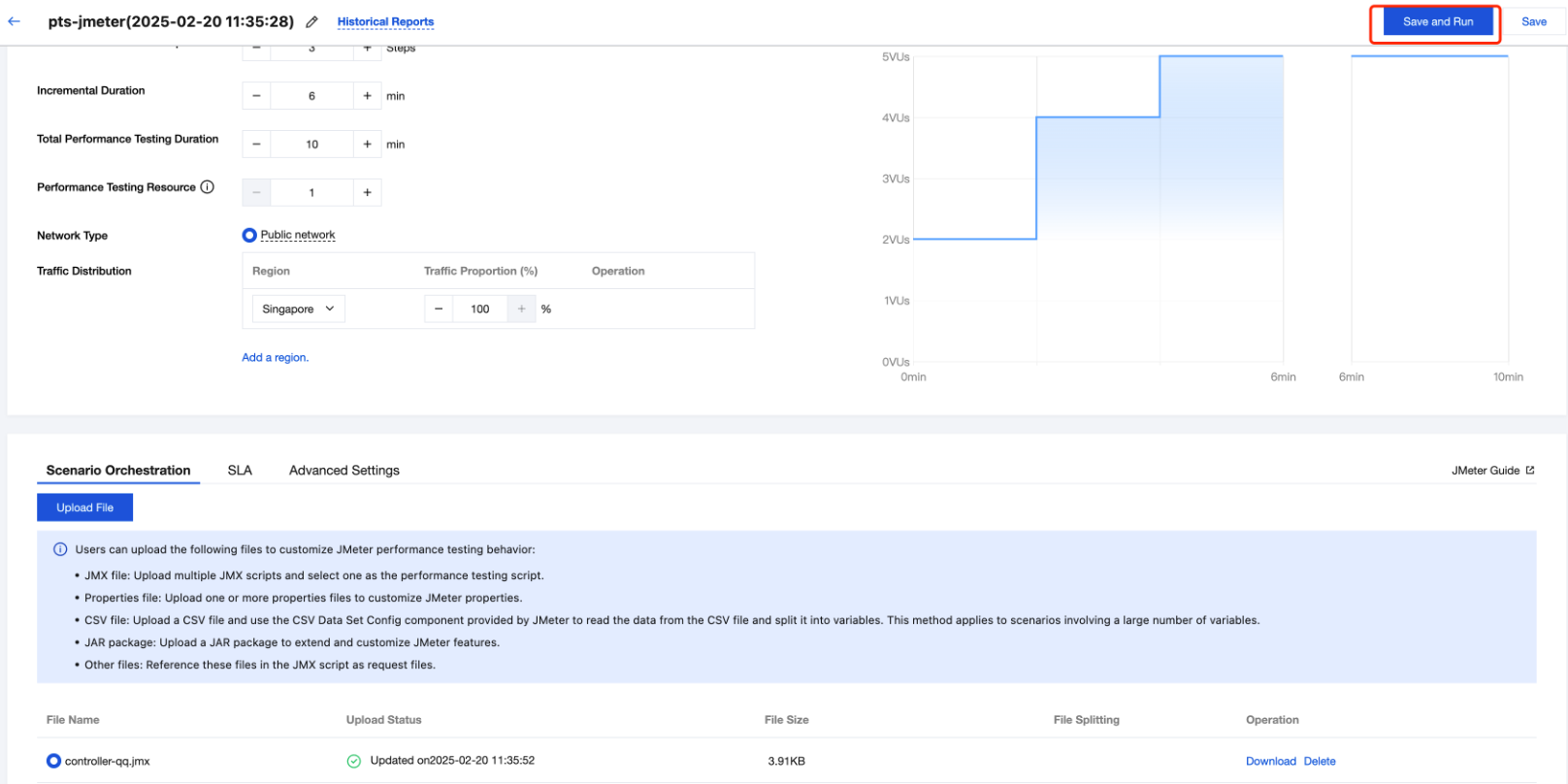
Click Save and Run in the upper right corner to start the performance testing task and generate a real-time report.


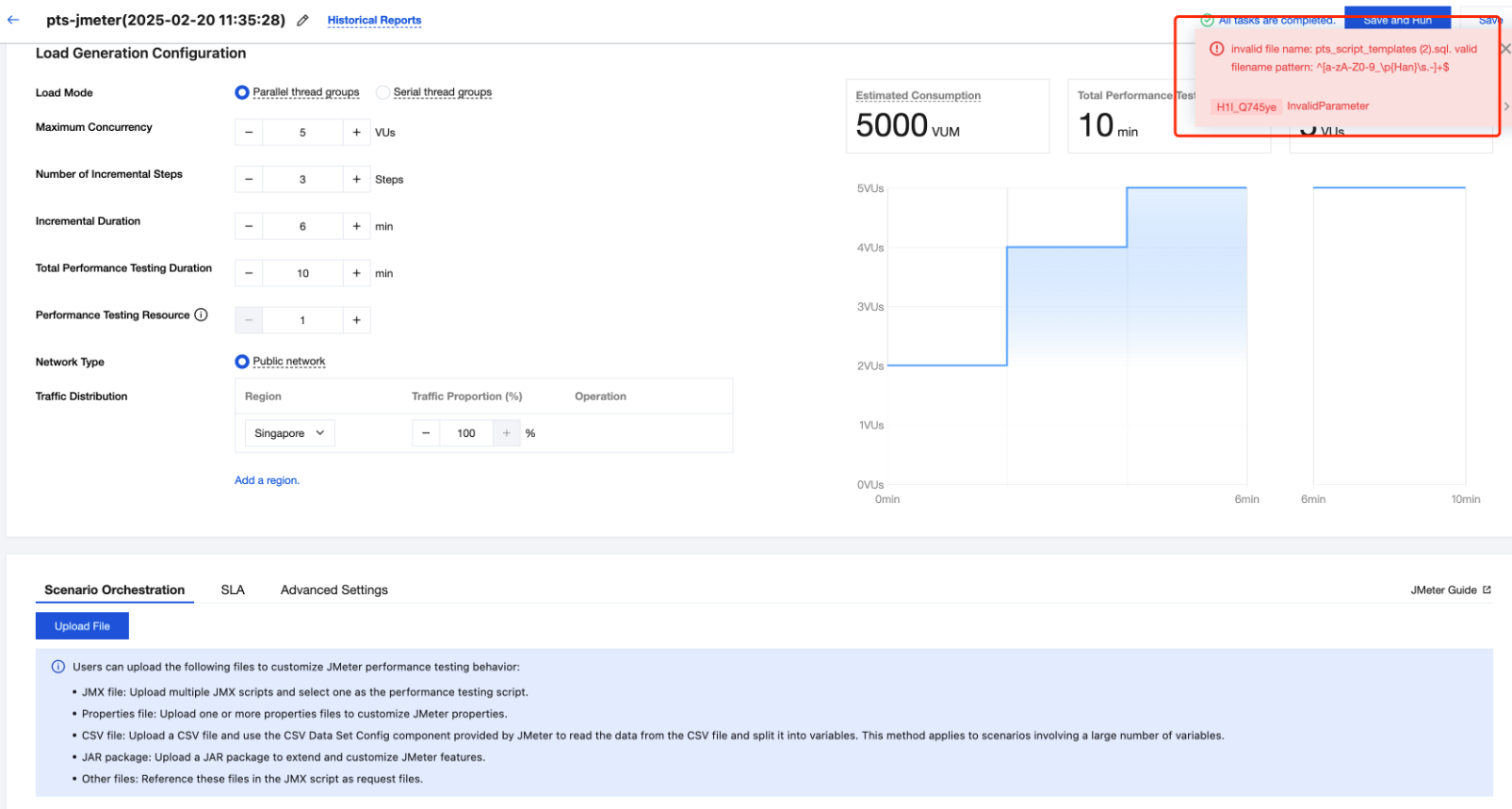
During the saving process, if the following dialog box is displayed, you need to check the name of the uploaded file and remove any illegal special characters from the file name.


Use Limits

From the security perspective, PTS restricts users from executing external commands through BeanShell exec. BeanShell exec commands will be intercepted, and an error message will be displayed in the engine.
Help and Support

Was this page helpful?

Help us improve! Rate your documentation experience in 5 mins.

Feedback