tencent cloud

Anti-DDoS

Release Notes and Announcements
Release Notes
Announcements
Product Introduction
Overview
Strengths
Use Cases
Concepts
Blocking Policies
Relevant Products
Comparison of Anti-DDoS Solutions
Purchase Guide
Billing Overview
Purchase Directions
Getting Started
Anti-DDoS Pro
Anti-DDoS Advanced
Operation Guide
Operation Overview
Protection Overview
Usage Limits
Asset Center
Business Connection
Smart Scheduling
Protection Configuration
Security Operations
Service Management
Practical Tutorial
Remote Protection Scheme with Anti-DDoS Pro
Using Anti-DDoS Pro Together with WFA
Suggestions on Stress Tests
Solutions to Real Server IP Exposure
Creating an Anti-DDoS EIP
Configuration Directions and Notes on CC Protection Policies
Syncing Forwarding Rules to New Anti-DDoS Advanced Instances
‌Smart Scheduling of CTCC/CUCC/CMCC Traffic
Troubleshooting
Business IPs Blocked Due to High-traffic Attacks
‌Business IPs Blocked When DDoS Attack Traffic Doesn't Reach the Threshold
How to Fix a 502 Bad Gateway Error
"No ICP filing" Prompted During Domain Name Connection
A public IP suffered DDoS attacks
API Documentation
History
Introduction
API Category
Making API Requests
Anti-DDoS Advanced Instance APIs
Resource List APIs
Protection Configuration APIs
Other APIs
Alarm Notification APIs
Connection Configuration APIs
Intelligent Scheduling APIs
Black hole unblocking APIs
Statistical Report APIs
Data Types
Error Codes
FAQs
Blocking
Attacks
Features
Billing
Service Level Agreement
Product Policy
Privacy Policy
Data Processing And Security Agreement
Glossary

Attack Analysis

PDF
Focus Mode
Font Size
Last updated: 2024-07-01 11:33:59

‌Viewing attack statistics

1. Log in to the new Anti-DDoS console and click Attacks on the left sidebar.
2. In the Attack statistics section, you can view the total number of attacks the current business has experienced, the total number of times of blocking, the number of ongoing attacks, the number of IPs being blocked, peak attack bandwidth, and attack request peak. On the right, you can view the 7-day and 30-day attack trends.


View recent security events

1. The event details page displays detailed information on attacks by asset ID and IP address. Such information includes attack name, attacked asset, IP address, attack time, attack duration, attack peak, instance ID, defense type, and attack status.

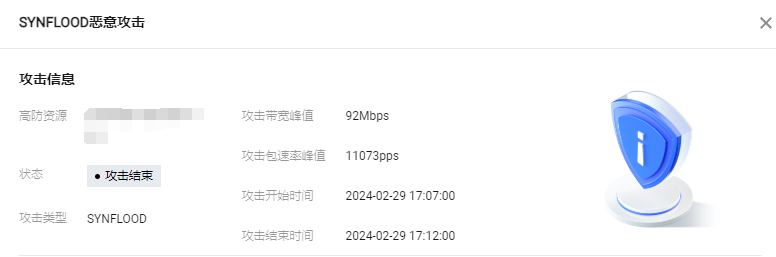
2. In the Attack information section of the event details page, you can view the detailed attack information for the selected period, including the attacked IP, status, attack type (which is sampled data), peak attack bandwidth and attack packet rate, and attack start and end time.

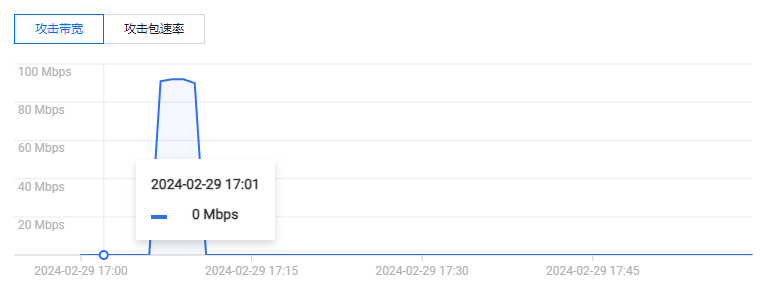
3. In the attack trend section of the event details page, you can view the trend of attack bandwidth and attack packet rate and easily find the peak traffic.
Note:
This section provides complete, real-time data in the attack period.

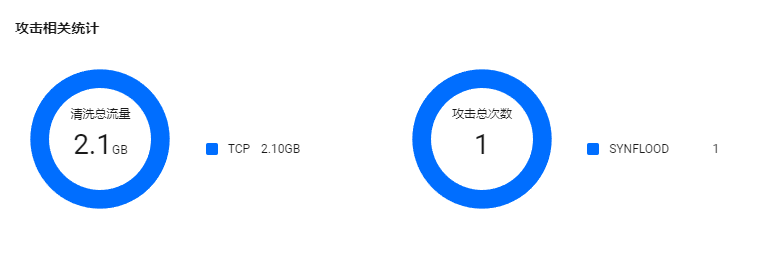
4. In the Attack statistics section of the event details page, you can view how attacks are distributed over different attack traffic protocols and attack types.
Note:
This section provides sampled data in the attack period.

Field description:
Attack traffic protocol distribution: displays how attacks on the selected Anti-DDoS instance distribute over different attack traffic protocols within the queried period.
Attack type distribution: displays how attacks on the selected Anti-DDoS instance distribute over different attack types within the queried period.
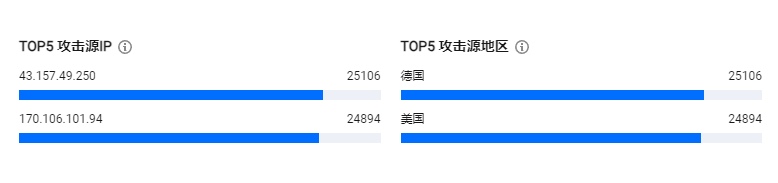
5. The Top 5 sections of the event details page display the top 5 attacker IP addresses and the top 5 attacker regions. This is helpful for precise protection configuration.
Note:
This section provides sampled data in the attack period.

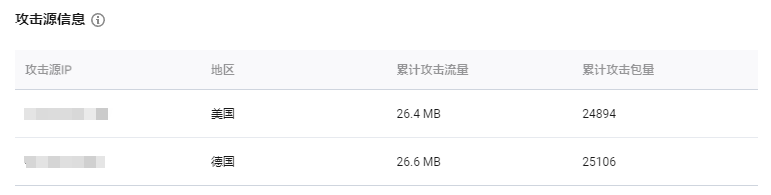
6. In the Attacker information section of the event details page, you can view the sampled data of the attack period, including the attacker IP, region, total attack traffic, and total attack packets.
Note:
This section provides sampled data in the attack period.


Help and Support

Was this page helpful?

Help us improve! Rate your documentation experience in 5 mins.

Feedback