This document describes how to create a test task.
Directions
2. On the left sidebar, click Instant test.
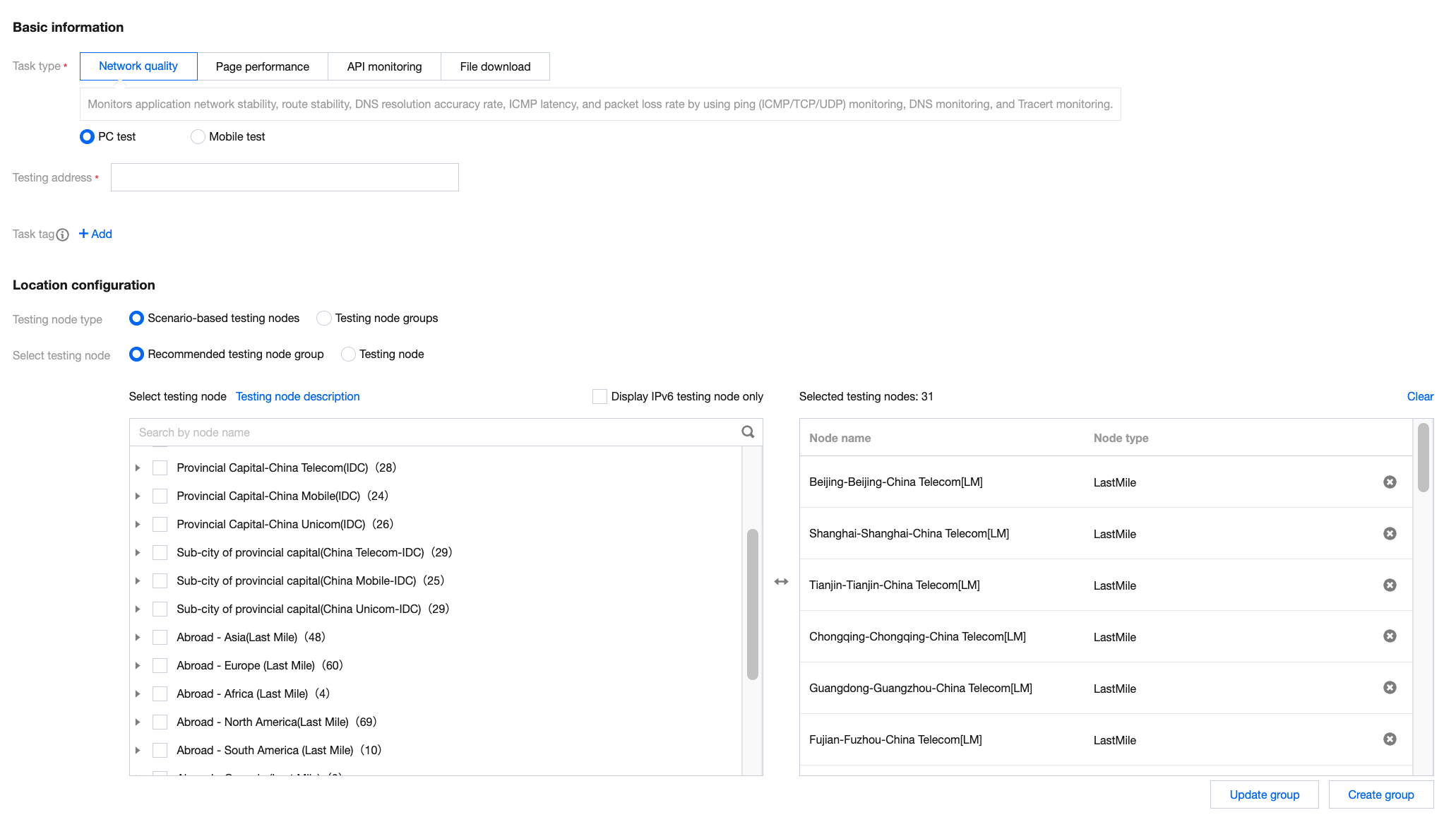
3. Click Create task at the top of the task list page and configure the basic information as follows:
Select the test task type. Only network quality, page performance, and file download are supported for instant tests.
Select the address of the created scheduled test task or enter a new test address.
4. The test parameters are optional and can be configured as described in the following documents:
5. After the configuration, click Start test. After the task is created successfully, you will be redirected to the historical diagnosis page. Wait for one to three minutes and you can view the test data.
Note:
If you perform an instant test, the system will charge fees in pay-as-you-go mode based on the selected testing node, and the fees cannot be deducted from the plan. An instant test is a single test, and its fees are calculated as the number of testing nodes x unit price. If you select 100 IDC testing nodes, and the unit price is 0.0048 USD/time, then the fees for a test will be 0.0048 x 100 = 00.48 USD.