This document describes how to view the historical data of an instant test in the last 30 days.
Directions
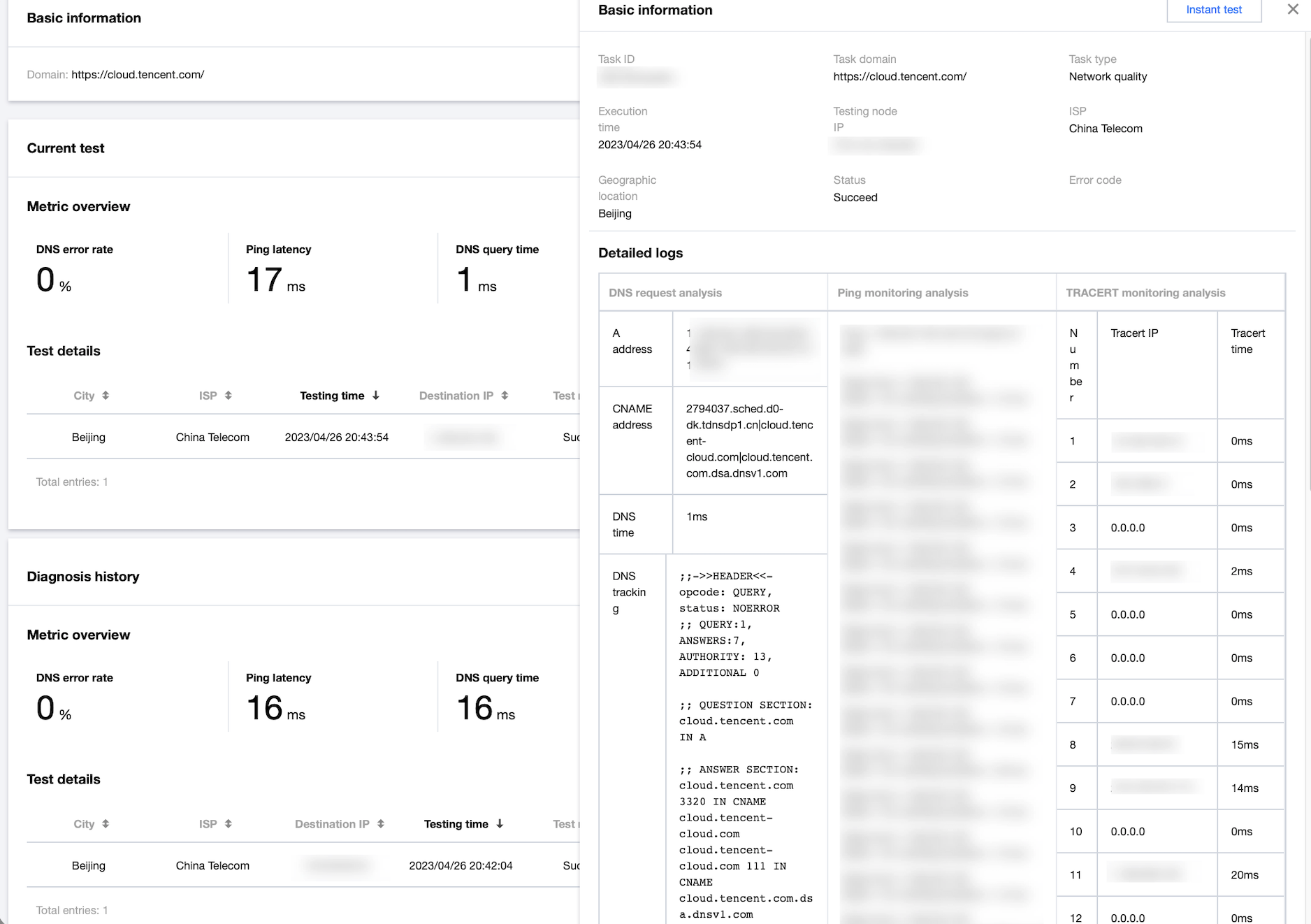
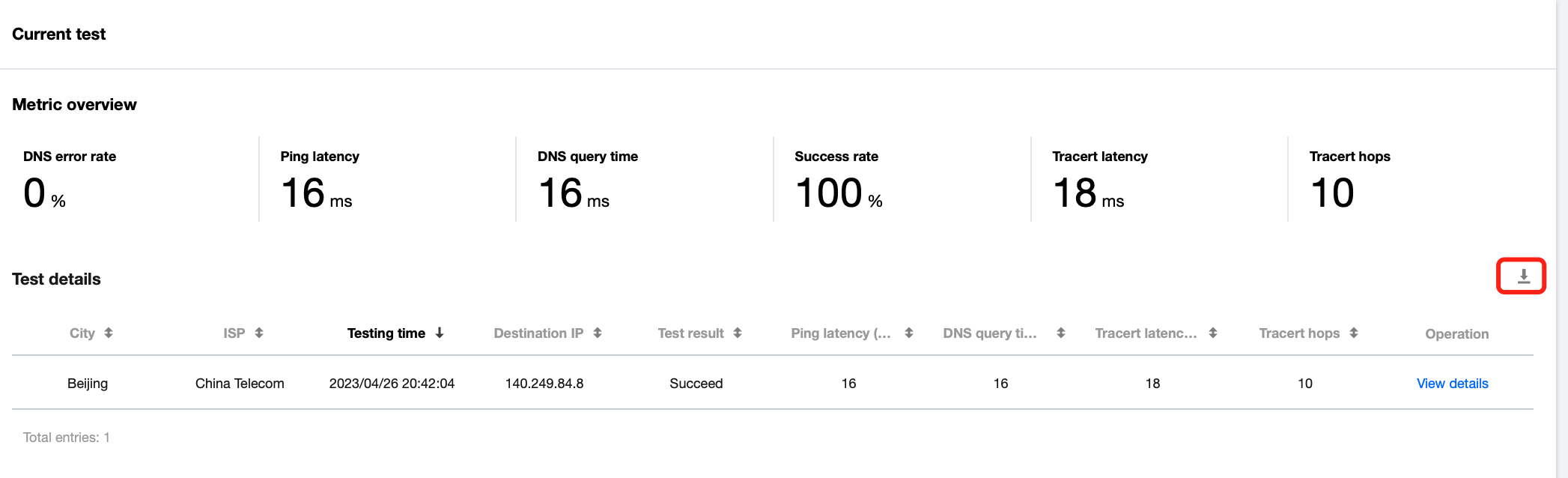
Current test data
2. On the left sidebar, click Instant Test.
3. Click History in the top-right corner of the page.
4. Find the target test task and click View details in the Operation column to view the test data in the last 30 days.
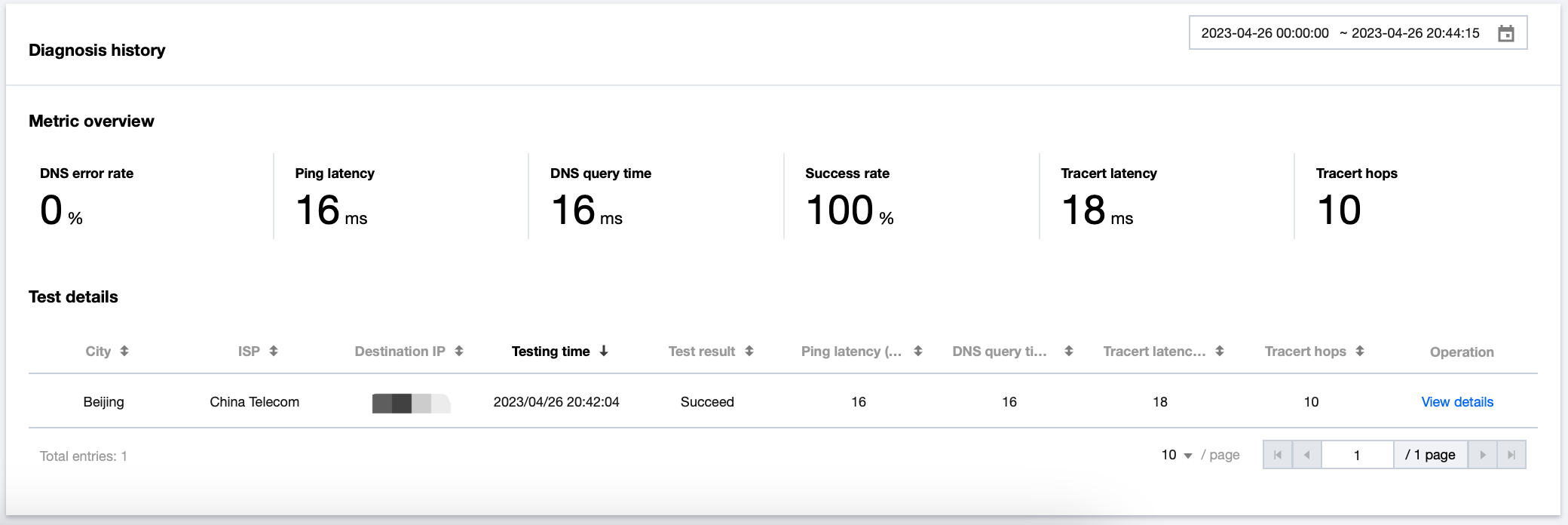
Diagnosis history
The diagnosis history records the historical data of a test task of a domain.
The Metric overview section on the Diagnosis history page displays the average values calculated based on the metric data within the specified time range of the filter.
Testing again
Click Test again in the top-right corner of the page. Then, the system will perform another test based on the current configuration.
After the test is performed again, the system will charge fees again in pay-as-you-go mode based on the selected location. The current test record is the historical record and will be updated one to three minutes after a new test is performed.
Exporting data
CAT retains instant test data for only 30 days. You can click the download button above Test details table to download the data, thereby meeting the requirements for a longer storage.