The content compression feature is an upgraded version of Intelligent Compression, supporting more match conditions except HOST. When enabled, EdgeOne will proceed with intelligent compression based on the Content-Type of the file if the client request header contains Accept-Encoding: br,gzip, Accept-Encoding: br, or Accept-Encoding: gzip. Compressed files can effectively reduce resource size and accelerate content transmission speed.
Note:
Content compression is an allowlist feature. If needed, contact us.
The content compression feature currently only supports turning on and does not support turning off.
Content compression supports match conditions such as HOST, file suffix, and HTTP response header Content-Type. When using HTTP response header Content-Type as a match condition, list the Content-Type in one IF rule. If multiple IF rules are configured, the bottom IF rule will override the ones above, meaning only the bottom IF rule takes effect.
When configuring content compression and intelligent compression concurrently, content compression has higher priority.
Operation Steps
Scenario One: Enable Content Compression Based on Specific File Suffix
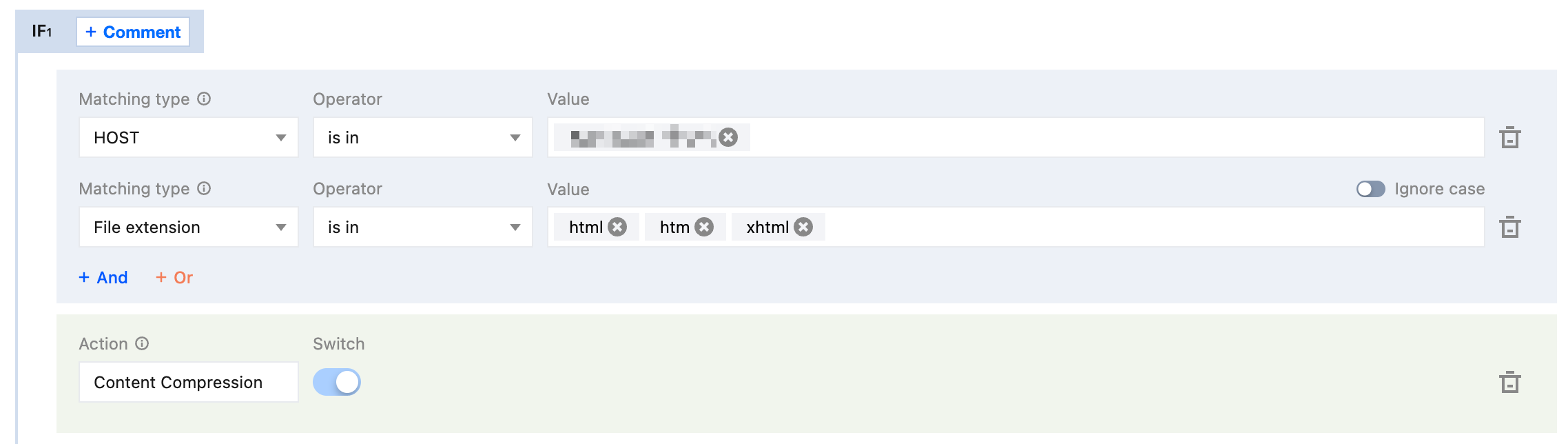
If you need to enable content compression for file suffixes html, htm, xhtml under the domain name www.example.com, see the following steps:
1. Log in to the Tencent Cloud EdgeOne console, enter Service Overview in the left menu bar, and click the Website security acceleration site that requires configuration under site.
2. On the site details page, click Site Acceleration to enter the site global configuration page, then click the Rule Engine Tab.
3. On the rule engine page, click Create Rule and select Add Blank Rule.
4. On the Rule Editing Page, set the match type selection to HOST equal www.example.com, and simultaneously set file extension is in html, htm, xhtml.
5. Click Operation > Selection Box, and select Content Compression in the pop-up actions list.
Scenario Two: Enable Content Compression Based on Specific File Content-Type
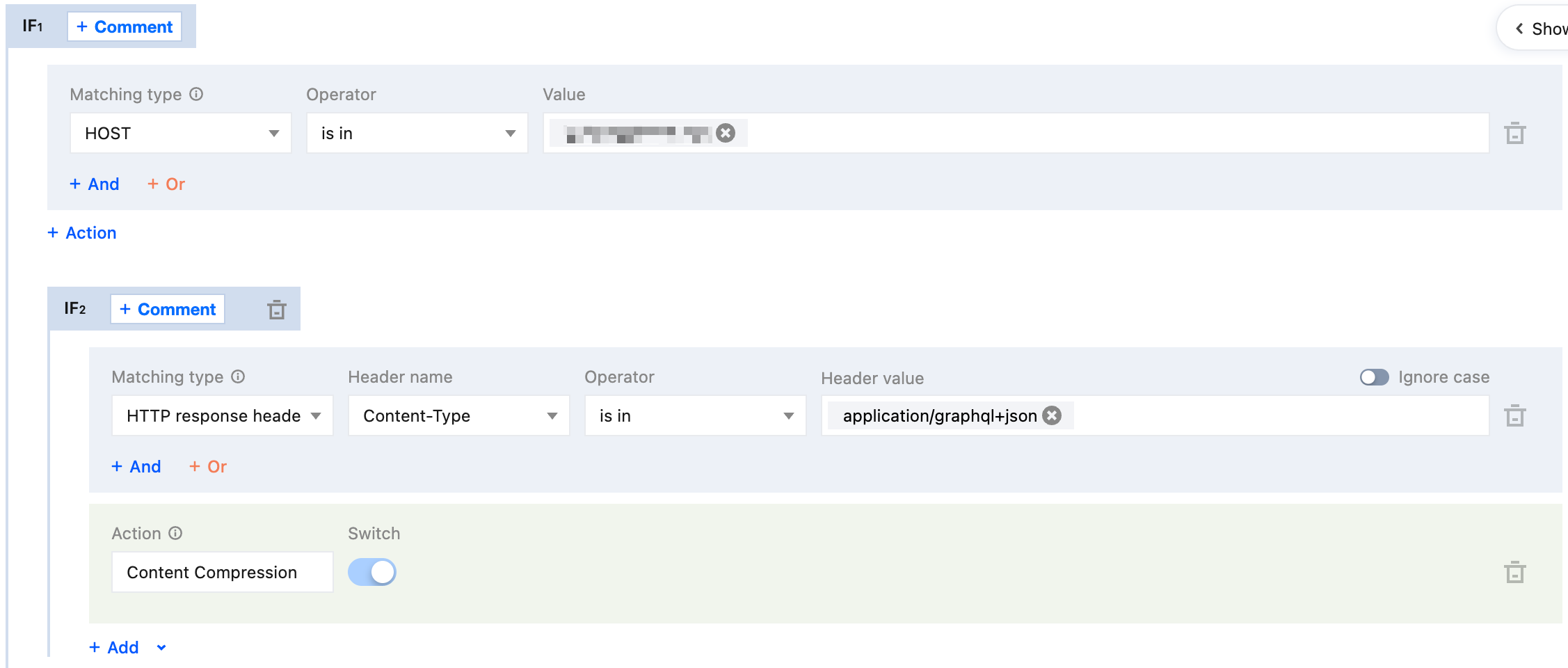
If you need to enable content compression for files with Content-Type: application/graphql+json under the domain name www.example.com, see the following steps:
1. Log in to the Tencent Cloud EdgeOne console, enter Service Overview in the left menu bar, and click the Website security acceleration site that requires configuration under site.
2. On the site details page, click Site Acceleration to enter the site global configuration page, then click the Rule Engine Tab.
3. On the rule engine page, click Create Rule and select Add Blank Rule.
4. On the Rule Editing Page, set the outer IF match type selection to HOST equal www.example.com, and simultaneously set the inner-layer IF HTTP response header named Content-Type with value is in application/graphql+json.
5. Click Operation > Selection Box, and select Content Compression in the pop-up actions list.
Related Reference
Content Compression Effective Rule
1. Smart compression supports a file size (Content-Length) range of 256B - 30MB.
2. When the origin site response is Transfer-Encoding: chunked, data is transmitted in a streaming, chunked manner. EdgeOne nodes cannot determine the total file length before receiving the complete response. Due to the "256B - 30MB" file size judgment rule and performance considerations, nodes do not perform real-time compression during synchronous transmission. Subsequent requests can be compressed based on cached resources.
3. Content compression is synchronous compression, compressing files while fetching them from the origin. When the node first requests a compressed file, it can directly respond with the compressed file.
4. Content compression enables Gzip compression and Brotli compression simultaneously. When the client request header Accept-Encoding contains both br and gzip:
If cached content exists within the same node, proceed to respond as follows:
If the node has cached content in both Brotli and gzip compression, it will respond with Brotli-compressed content first.
If the node has only Brotli-compressed cached content, it will respond with Brotli compression first.
If the node has only gzip-compressed cached content, it will respond with Gzip compression first.
If the node has no cached content, it will respond with Brotli compression first.
5. If the origin server enables the compression feature and the server carries the response header Content-Encoding, the content compression function will no longer take effect.
6. The node determines and caches the corresponding compressed version based on the Content-Encoding in the origin site's response headers. Therefore, it is recommended that the origin site strictly returns the corresponding encoding according to the Accept-Encoding request header. If a request does not carry Accept-Encoding but the origin site still returns gzip content, that content will be cached by the node as a gzip version. Subsequently, for requests that also lack Accept-Encoding, because the node does not have a cache of the uncompressed version, it can only pass the request back to the origin site for processing. For this scenario, it is recommended to standardize the origin site's compression behavior: when a request does not contain Accept-Encoding, return uncompressed content; or disable compression at the origin site and instead enable smart compression on the EdgeOne side.
Request Example
Smart compression not enabled & content compression
First request for gzip compressed file, cache miss on node cache, perform origin retrieval for source file and cache it to node, EdgeOne response with source file:
Enable content compression
First request for gzip compressed file, cache miss on node cache, perform origin retrieval for file, node synchronously compresses and caches the compressed file, EdgeOne response with compressed file:
Intelligent compression supports chunk stream compression. If the request misses node cache, it retrieves the file from origin and responds via chunk.
Request again, hit node cache for gzip compressed file, node responds directly with compressed file.