Quickly Importing and Exporting Site Configuration
ダウンロード
フォーカスモード
フォントサイズ
This document describes how to quickly export site configuration from one site and import it to another within EdgeOne.
Note:
This feature currently only supports exporting and importing the configuration of the Site Acceleration > Global Settings/Rule Engine module within the console.
Use Cases
When you have completed the configuration of one site and need to configure a large number of sites with settings in Site Acceleration > Global Settings/Rule Engine similar to those of the already configured site, you can quickly synchronize the configuration via site configuration import/export.
If your business requires changing the Tencent Cloud account due to special reasons, you can migrate the configuration of Site Acceleration > Global Settings/Rule Engine from the old account to the new one through configuration import/export.
Directions
Step -1: Exporting Site Configuration
1. Log in to the Tencent Cloud EdgeOne console, enter Service Overview in the left menu bar, and click the site to be configured under Website Security Acceleration.
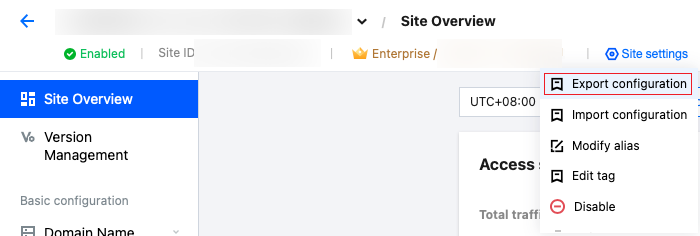
2. In the top site navigation on the site details page, click Site settings and then Export configuration.
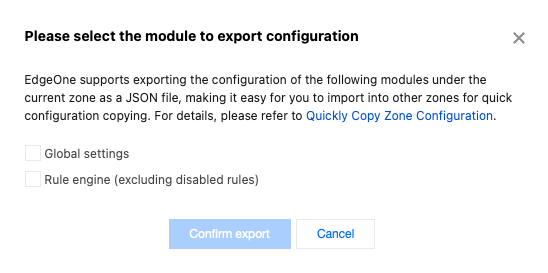
3. Select the module to be exported. You can export Site Acceleration > Global Settings/Rule Engine configuration separately, and click Confirm export. The exported file is in the JSON format. It is not recommended to modify the contents of the exported file directly. If you need any adjustment, you can contact us.
Note:
When Site Acceleration > Rule Engine is exported, only the rules that are enabled and actually effective will be exported, excluding the rules that have not been enabled.
Step 2: Importing Site Configuration
1. Log in to the Tencent Cloud EdgeOne console, enter Service Overview in the left menu bar, and click the site to be configured under Website Security Acceleration.
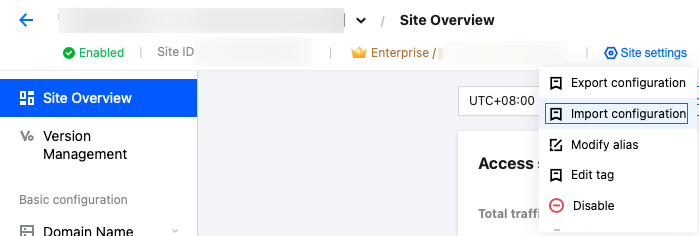
2. In the top site navigation on the site details page, click Site settings and then Import configuration.
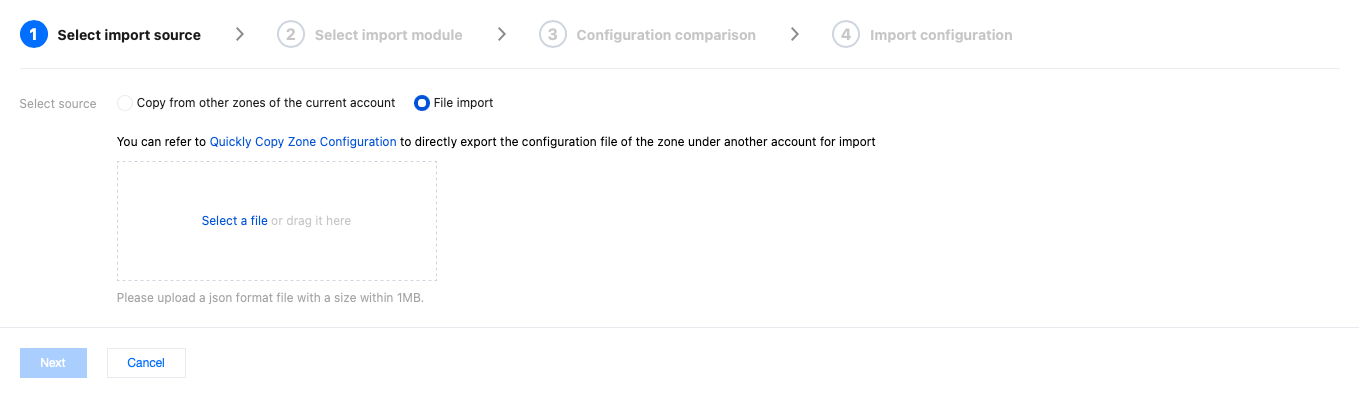
3. Select the import source. You can choose Copy from other zones of the current account or File import.
If you choose Copy from other zones of the current account, you can directly select the origin server under the current account and click Next.

If you choose File import, please select the JSON file exported from Step 1, and drag and drop it into this area to implement cross-account configuration import. The file must be in the JSON format, with its size within 1 MB. Then click Next.
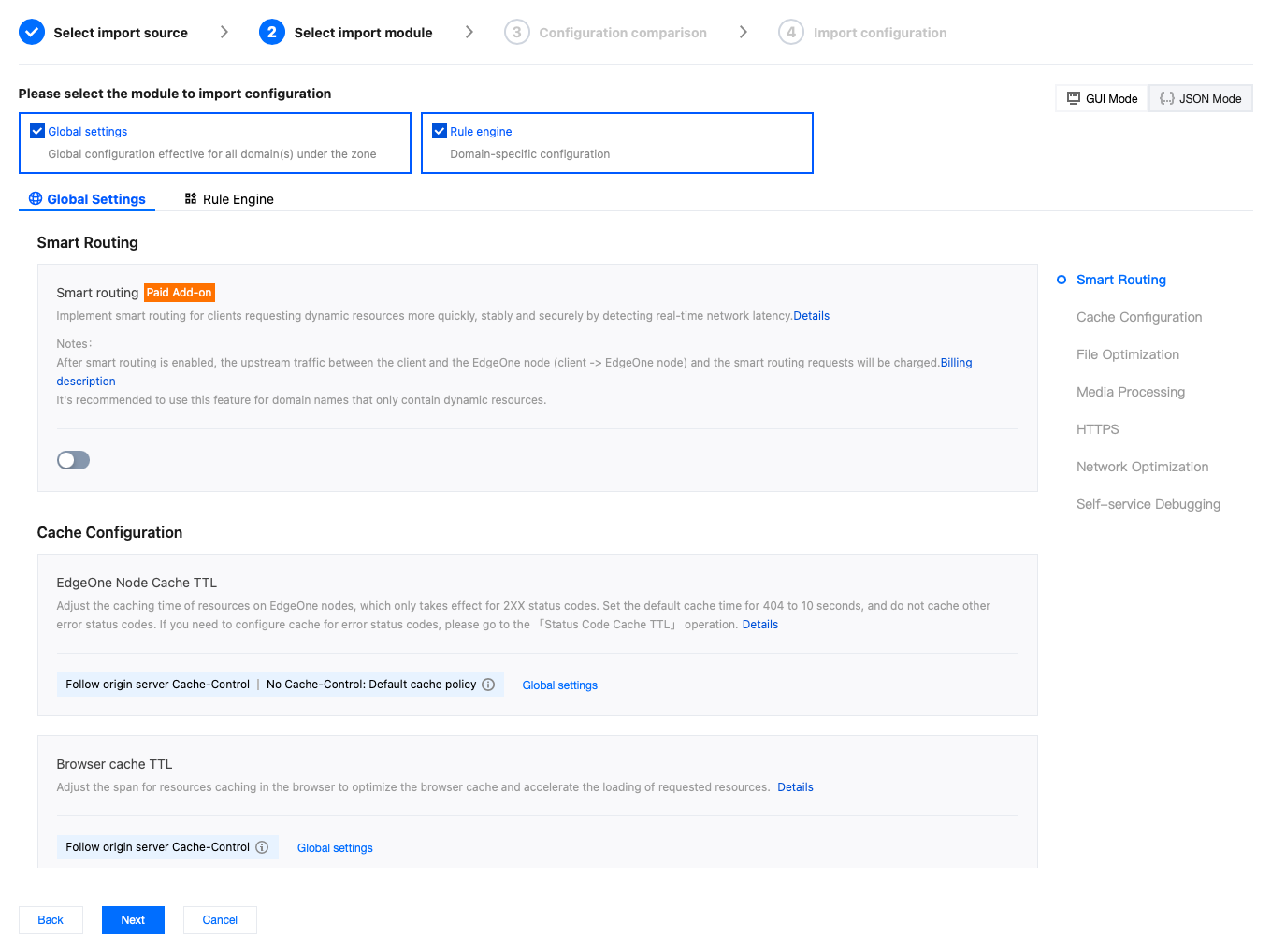
4. Select the import module. Copy from other zones of the current account allows you to choose Global Settings or Rule Engine to import configuration separately. If you need to fine-tune the imported configuration, you can modify it directly in this interface without affecting the original site configuration. When File import is used, EdgeOne will parse the modules contained in your imported file. You can select the module whose configuration needs to be imported for import and modification. After confirmation, click Next.
Note:
1. EdgeOne offers two configuration display/modification methods: GUI Mode and JSON Mode. It is recommended to perform operation directly in GUI Mode. For configuration modifications via code in JSON Mode, please contact us.
2. The contents of the exported configuration file may change as features are iterated and added or decommissioned. When using file import, it is recommended to re-export a copy of site configuration, rather than using a historically saved configuration file.
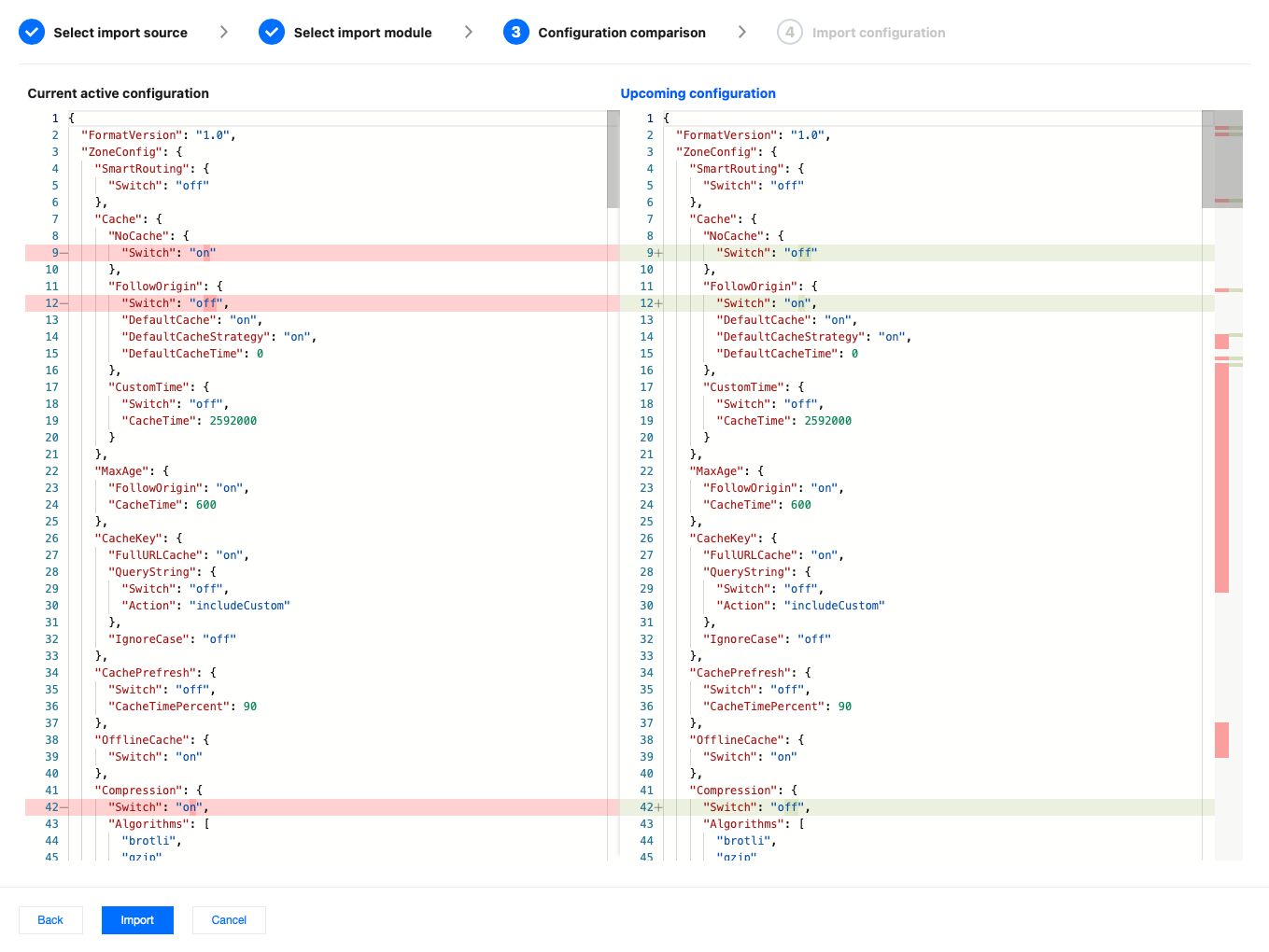
5. The configuration comparison will display differences between the imported configuration and the current effective configuration in the JSON format. You can check the imported configuration for any issue in this step. After confirming there is no issue, click Import.
Note:
The imported configuration will overwrite the existing configuration of the corresponding module of the site. Before proceeding with import, please confirm that overwriting the existing configuration will not impact your business.
6. In the secondary popup, click Confirm No Impact, Continue Import.
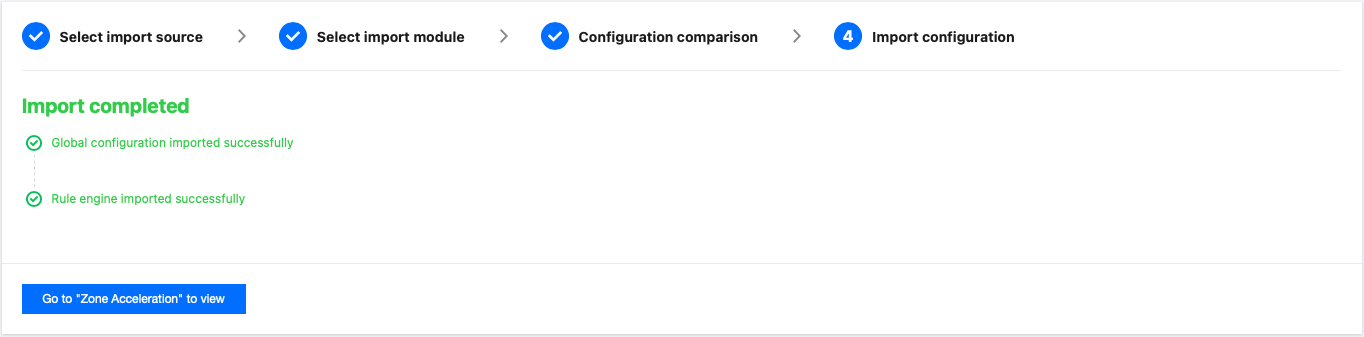
7. The backend will start importing the configuration. After the import is complete, you can go to the Site Acceleration Module to view the imported configuration.
フィードバック