tencent cloud

Tencent Cloud EdgeOne

Release Notes and Announcements
Release Notes
Security Announcement
Announcements
Product Introduction
Overview
Strengths
Use Cases
Comparison Between EdgeOne and CDN Products
Use Limits
Purchase Guide
Description of Trial Plan Experience Benefits
Free Plan Guide
Billing Overview
Billing Items
Subscriptions
Renewals
Instructions for overdue and refunds
Comparison of EdgeOne Plans
About "clean traffic" billing instructions
DDoS Protection Capacity Description
Getting Started
Choose business scenario
Quick access to website security acceleration
Quick deploying a website with Pages
Domain Service&Origin Configuration
Domain Service
HTTPS Certificate
Origin Configuration
Site Acceleration
Overview
Access Control
Smart Acceleration
Cache Configuration
File Optimization
Network Optimization
URL Rewrite
Modifying Header
Modify the response content
Rule Engine
Image&Video Processing
Speed limit for single connection download
DDoS & Web Protection
Overview
DDoS Protection
Web Protection
Bot Management
API Discovery(Beta)
Edge Functions
Overview
Getting Started
Operation Guide
Runtime APIs
Sample Functions
Best Practices
Pages
L4 Proxy
Overview
Creating an L4 Proxy Instance
Modifying an L4 Proxy Instance
Disabling or Deleting an L4 Proxy Instance
Batch Configuring Forwarding Rules
Obtaining Real Client IPs
Data Analysis&Log Service
Log Service
Data Analysis
Alarm Service
Site and Billing Management
Billing Management
Site Management
Version Management
General Policy
General Reference
Configuration Syntax
Request and Response Actions
Country/region and Corresponding Codes
Terraform
Overview
Installing and Configuring Terraform
Practical Tutorial
EdgeOne Skill User Guide
Automatic Warm-up/Cache Purge
Resource Abuse/hotlinking Protection Practical
HTTPS Related Practices
Acceleration Optimization
Scheduling Traffic
Data Analysis and Alerting
Log Platform Integration Practices
Configuring Origin Servers for Cloud Object Storage (Such As COS)
CORS Response Configuration
API Documentation
History
Introduction
API Category
Making API Requests
Site APIs
Acceleration Domain Management APIs
Site Acceleration Configuration APIs
Edge Function APIs
Alias Domain APIs
Security Configuration APIs
Layer 4 Application Proxy APIs
Content Management APIs
Data Analysis APIs
Log Service APIs
Billing APIs
Certificate APIs
Origin Protection APIs
Load Balancing APIs
Diagnostic Tool APIs
Custom Response Page APIs
API Security APIs
DNS Record APIs
Content Identifier APIs
Legacy APIs
Ownership APIs
Image and Video Processing APIs
Multi-Channel Security Gateway APIs
Version Management APIs
Data Types
Error Codes
FAQs
Product Features FAQs
DNS Record FAQs
Domain Configuration FAQs
Site Acceleration FAQs
Data and Log FAQs
Security Protection-related Queries
Origin Configuration FAQs
Troubleshooting
Reference for Abnormal Status Codes
Troubleshooting Guide for EdgeOne 4XX/5XX Status Codes
520/524 Status Code Troubleshooting Guide
521/522 Status Code Troubleshooting Guide
Tool Guide
Agreements
Service Level Agreement
Origin Protection Enablement Conditions of Use
TEO Policy
Privacy Policy
Data Processing And Security Agreement
Contact Us
Glossary

Quickly Create Load Balancers

PDF
Focus Mode
Font Size
Last updated: 2025-12-04 17:46:46
This document guides you on how to create a Cloud Load Balancer instance.
Note:
EdgeOne Load Balancer feature is in beta testing. If you want to use it, you can Contact Us.

Sample Scenario

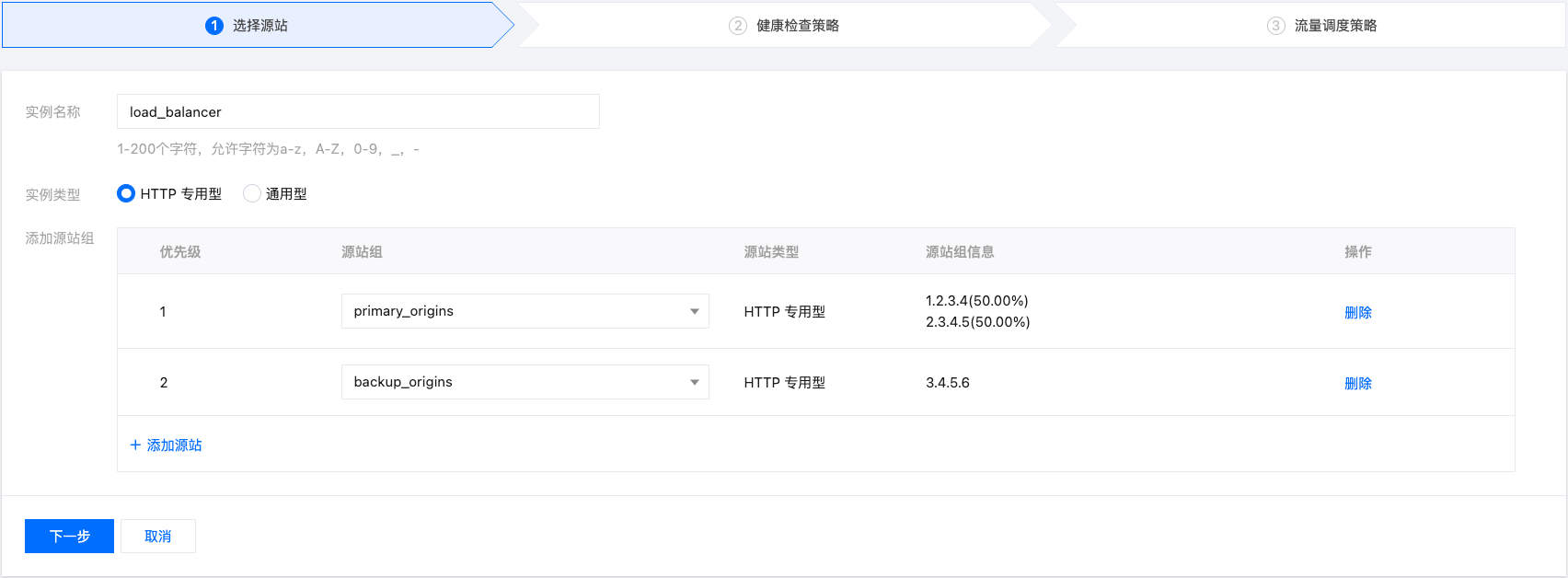
For example, you currently have an acceleration domain www.example.com, with three origins 1.2.3.4, 2.3.4.5, and 3.4.5.6. Under normal circumstances, both 1.2.3.4 and 2.3.4.5 are used as primary origins. You have already configured them as the origin group named primary_origins following the Origin Group Operation Guide. The server 3.4.5.6 is used as a standby origin in a group called backup_origins, which is only used when the primary origins fail. In cases where a real business request fails, retries are attempted with other healthy servers within the same group. Additionally, there is a requirement for proactive probing to actively identify and disable unhealthy origins.

Directions

1. Log in to the Tencent Cloud EdgeOne console, enter Service Overview in the left menu bar, and click the site to be configured under Website Security Acceleration.
2. On the site details page, click Origin Settings > Load Balancer.
3. On the Load Balancer page, click Create Instance.


4. Proceed to step 1 of choosing the origin. You need to fill in the instance name, choose the instance type, and add an origin group.
Taking this scenario as an example, add the origin group primary_origins as a priority 1 origin group, add the origin group backup_origins as a priority 2 origin group, and click Next.


Parameter
Description
Instance name
Limit to 1-200 characters in length. Allowed characters are a-z, A-Z, 0-9, _, -.
Instance type
HTTP-specific Type: supports adding both HTTP-specific and general origin groups. It is only applicable for reference by site acceleration-related services, such as domain services and rule engines.
General Type: only supports adding general origin groups. It is applicable for site acceleration services including domain services and rule engines, and reference by L4 proxy service.
Add origin group
In the CLB instance, the smallest configuration dimension for an origin is the origin group. You need to configure the origin into an origin group and add it here. For more details, see Origin Group Configuration.
You can set priorities for the added origin groups. Traffic will not be directed to origins in lower-priority origin groups if there are healthy origins in higher-priority origin groups. Up to 10 origin groups can be configured, with lower numbers indicating higher priorities.
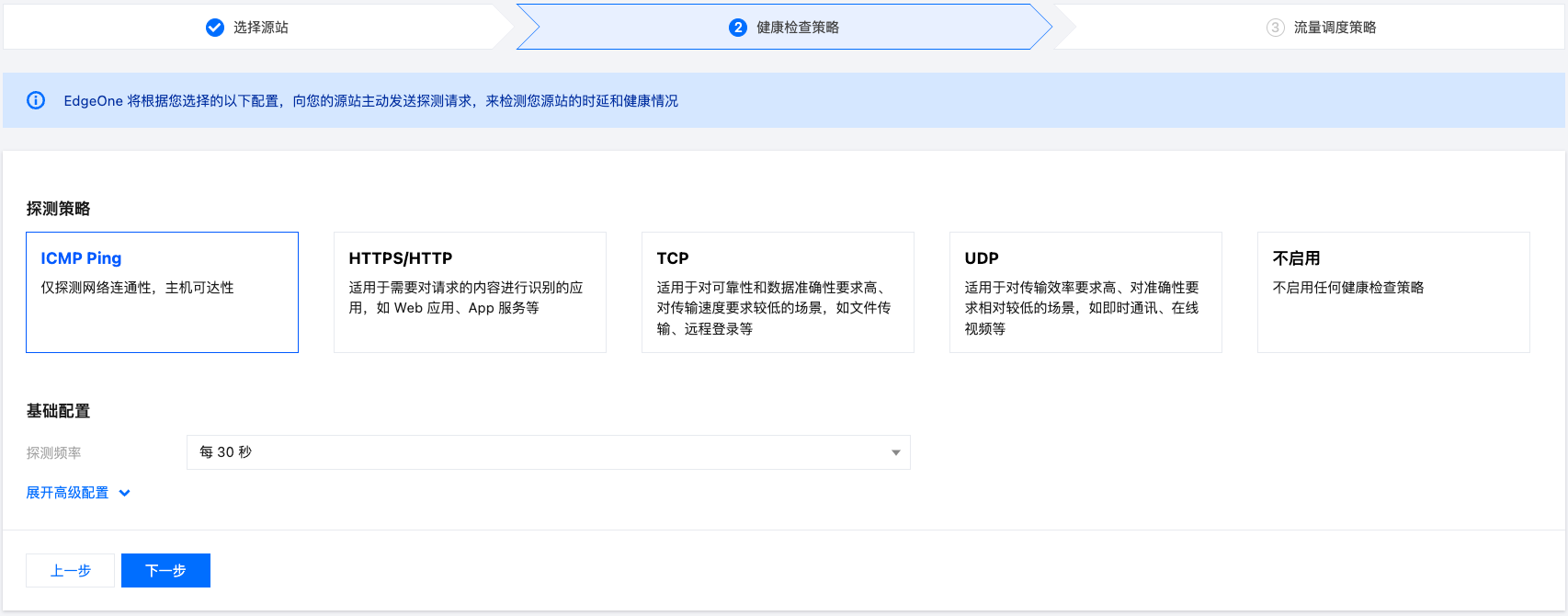
5. Proceed to step 2 of health check policy. It supports four types of probes: ICMP Ping, HTTPS/HTTP, TCP, and UDP. Tencent Cloud EdgeOne will actively send probe requests to your origin to check its latency and health status. You can choose the appropriate probe frequency based on the load condition of your origin. Here, choose ICMP Ping as the probe policy. For a detailed introduction to probe policy configuration, see Introduction to Health Check Policy. After configuration is completed, click Next.


Note:
If you do not want EdgeOne's nodes to initiate any probe requests to origins, you can choose Not Enabled. In this case, the Load Balancer instance will default to traffic scheduling based on the priority order of the origin groups from step 1. If a request to a particular origin fails 5 times within 60 seconds, the corresponding origin will be disabled for 10 minutes according to the default policy.
Using this policy will not be able to disable the origin of the failure in advance, and it will not be able to automatically and quickly recover the traffic scheduling after the origin returns to normal. Compared with enabling active probe, using this policy may cause you to encounter more failed requests during the origin failure period. Therefore, if you want your business to have higher availability, it is recommended that you enable active probe.
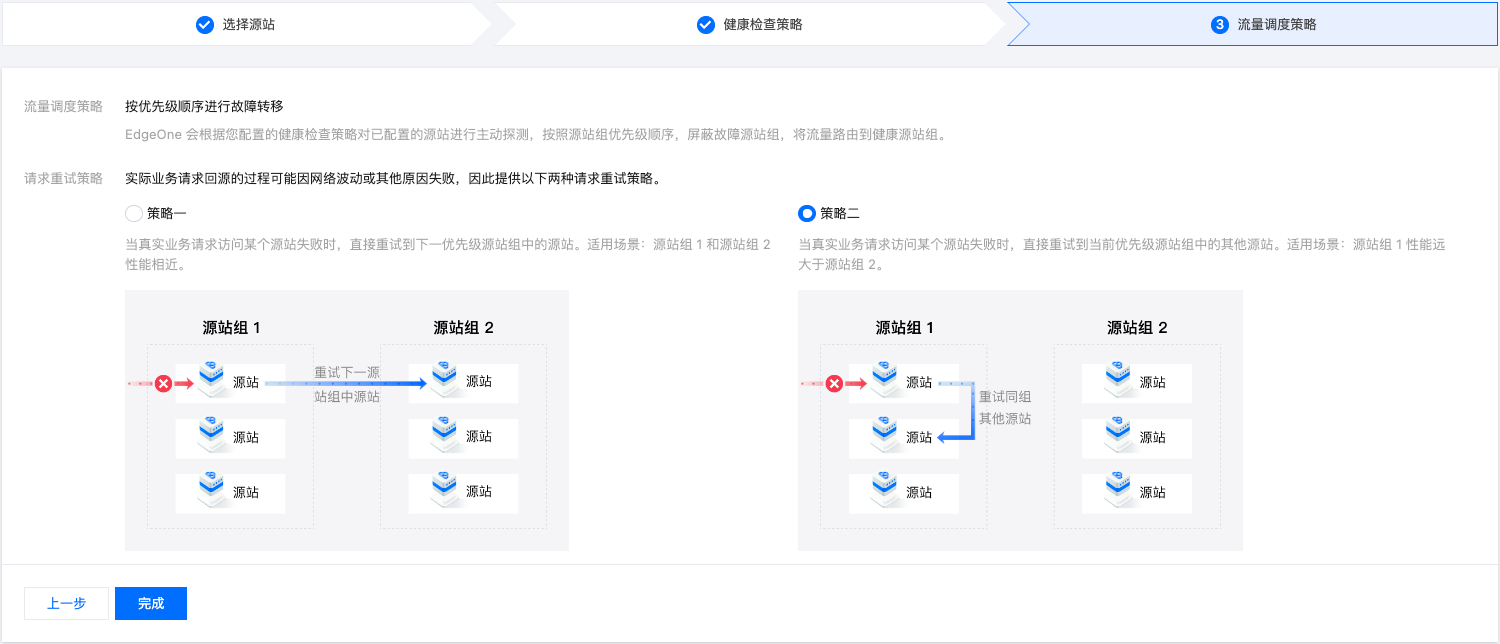
6. Proceed to step 3 of traffic scheduling policy. The current traffic scheduling policy defaults to failover based on the priority order according to the results of active probes. When real business requests fail to retrieve content from the origin during the backsource process, support for request retry is available. There are two request retry policies available. For details, see Introduction to Request Retry Policy.
Policy 1: When a real business request fails to access a certain origin, it directly retries with another origin within the next lower priority origin group. This is suitable for scenarios where the performance of both origin group 1 and origin group 2 is similar.
Policy 2: When a real business request fails to access a certain origin, it directly retries with another origin within the same priority origin group. This is suitable for scenarios where the performance of origin group 1 is significantly better than that of origin group 2.


7. Taking this sample scenario as an example, policy 2 can be chosen. Click Complete to finish creating the instance.


Help and Support

Was this page helpful?

Help us improve! Rate your documentation experience in 5 mins.

Feedback