Usage Cap Policy
ダウンロード
フォーカスモード
フォントサイズ
Feature Overview
Once you've exhausted the Plan Fees and the Extra Package Description (Prepaid), you'll transition to EdgeOne's Fees for Out-of-plan Resource Usage (Pay-as-You-Go). If you're concerned about potentially high costs due to abnormal traffic in your operations, a usage cap policy can be implemented to control the traffic and requests for your service.
EdgeOne periodically calculates business traffic, bandwidth and request numbers. You can independently configure the thresholds for business traffic, bandwidth and request numbers. When the usage consumption generated within the statistical period reaches the alarm threshold you configured, EdgeOne will push a notification to inform you and immediately disable EdgeOne secure acceleration services to avoid incurring more abnormal charges.
Note:
1. The usage cap configuration takes effect with some delay (approximately 10 minutes), and during this period, the incurred consumption will be billed normally.
2. Usage cap policies are calculated based on the subdomain dimension. When the effective scope is set to a site or all subdomains, it means that all subdomains under the site share a single usage cap policy.
3. When both traffic, bandwidth and request policies exist for the same domain, triggering the threshold for either one will result in the deactivation of the domain's service.
4. Currently, only L7 (application layer) traffic, L7 (application layer) bandwidth and HTTP/HTTPS request configuration support usage capping policies. The data comes from the real-time monitoring data of Data Analysis - Metric Analysis, rather than the billing usage data.
Directions
1. Log in to the Tencent Cloud EdgeOne console, enter Service Overview in the left menu bar, and click the site to be configured under Website Security Acceleration.
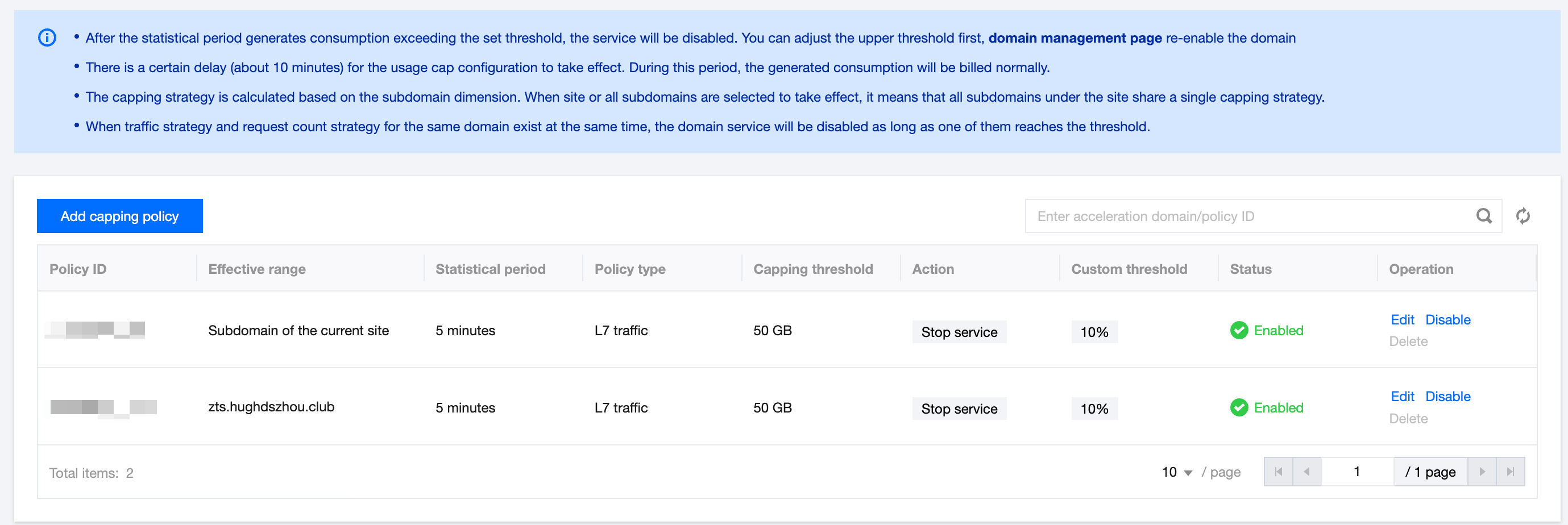
2. On the site details page, click on Usage Policy > Usage Capping Policy. This will take you to the Usage Cap Policy page. Click on Add capping policy.
3. In the Add capping policy window, configure the cap policy based on your actual requirements.
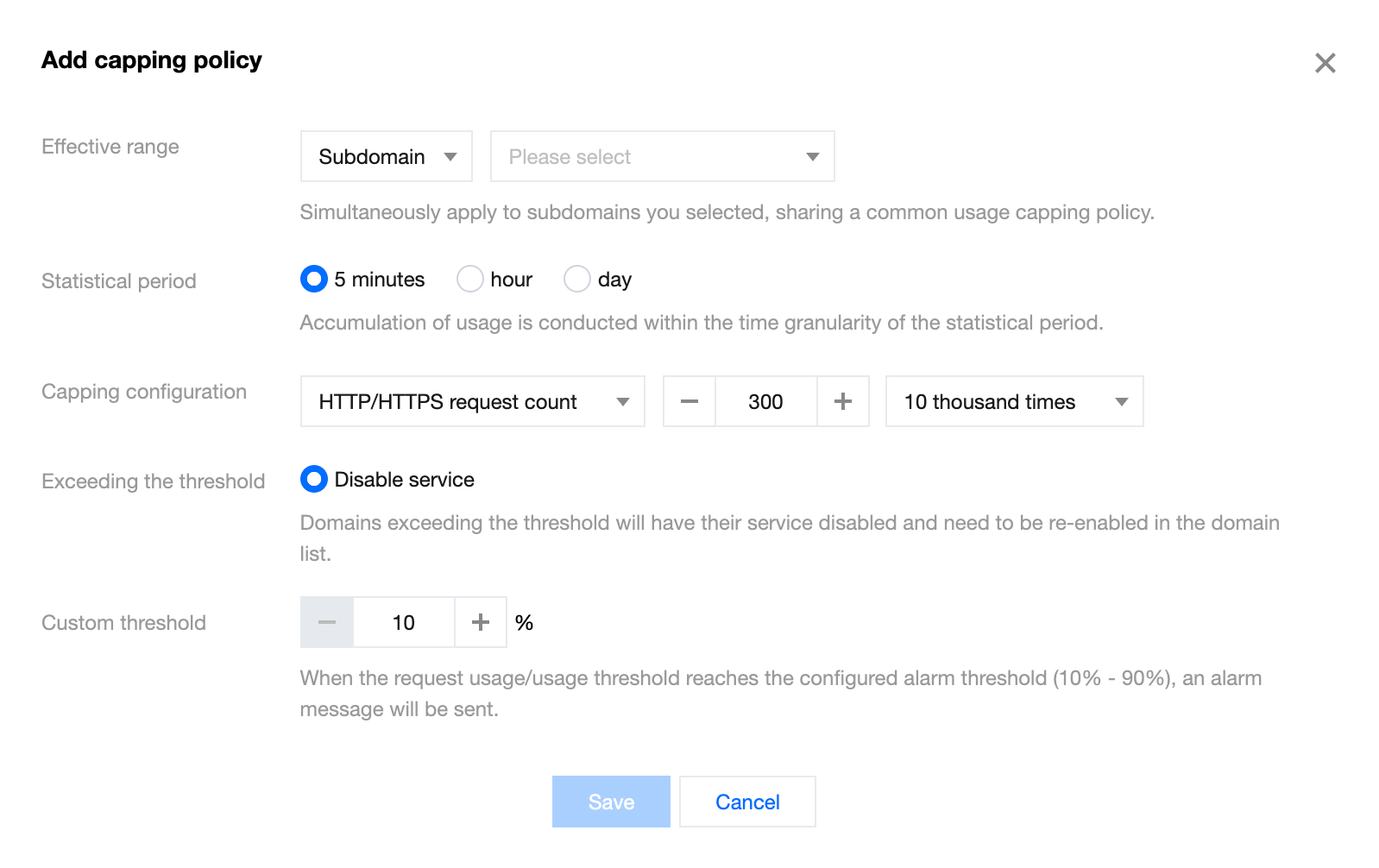
Configuration Item | Description |
Scope of Effectiveness | Choose the scope of effectiveness for the cap policy: Site: All subdomains under the site share a single cap policy. Subdomain: All selected subdomains share a single cap policy. |
Statistics Period | Choose the data statistics period for the cap policy, and periodically compare the statistical data with the capping threshold: 5 minutes: Statistics for usage generated within 5 minutes. Hour: Statistics for usage generated within 1 hour. Day: Statistics for usage generated within 24 hours. Note: When the statistics period is set to "5 minutes", it will calculate usage for each complete 5-minute interval. For example, if you configure and save an L7 traffic capping policy at 15:26:00 on October 25, 2023, the first 5-minute interval will calculate L7 traffic from 15:25:00 to 15:29:59, and the second 5-minute interval will calculate L7 traffic from 15:30:00 to 15:34:59, and so on. When the statistics period is set to "1 hour", it will calculate usage for each complete 1-hour interval. For example, if you configure and save an L7 traffic capping policy at 15:26:00 on October 25, 2023, the first 1-hour interval will calculate L7 traffic from 15:00:00 to 15:59:59, and the second 1-hour interval will calculate L7 traffic from 16:00:00 to 16:59:59, and so on. When the statistics period is set to "day", it will calculate usage for each complete 24-hour interval. For example, if you configure and save an L7 traffic capping policy at 15:26:00 on October 25, 2023, the first day interval will calculate L7 traffic from 00:00:00 to 23:59:59 on October 25. When usage exceeds the set threshold during the statistics period, the service will be disabled. It is recommended to adjust the cap threshold first, then go to the domain management page to re-enable the domain name. Otherwise, the next scan will disable the service again because the usage has exceeded the current cap threshold setting. |
Cap Configuration | Choose the policy type for cap configuration. When both the traffic, bandwidth and request policy for the same domain exist simultaneously, triggering the threshold for either will disable the domain service: L7 Traffic: represents setting the highest cap threshold for L7 traffic, with the option to choose units in MB, GB, TB. HTTP/HTTPS Request Number: represents setting the highest cap threshold for HTTP/HTTPS request numbers, with the option to choose units in ten thousand times, million times, and hundred million times. L7 Bandwidth: This option is available only when the statistics period is set to 5 minutes. It represents setting the highest cap threshold for L7 bandwidth, with the option to choose units in Mbps, Gbps, Tbps. |
Exceeding Threshold | Service Deactivation: indicates that when the cap threshold is triggered, service will be deactivated for all subdomains within the effective scope. |
Alarm Threshold | When the usage/usage threshold within the statistical period reaches the configured alarm threshold (10% - 90%), an alarm message will be issued. Note: If the alarm threshold is already enabled: due to a scanning granularity of 5 minutes, if there is a significant increase in usage within a short period and the value is large, it is possible that the previous scan has not triggered the percentage alarm threshold, and the next scan directly reaches the access threshold. In this scenario, both percentage and access threshold alarm notification messages will be sent. |
4. After completing the capping policy configuration, click Save to deploy the capping policy configuration.
フィードバック